AI image extraction (beta) is now available in the Reporter Instant App. It analyzes an uploaded photo and auto-populates selected fields in the reporting form with AI-suggested values. This helps speed up report creation, and users can review and edit AI-suggested values before submitting.
Let’s look at how it can be configured and used.
Requirements
Administrators must enable AI Assistants at the organization level. In your ArcGIS Online organization, go to the Organization tab → Settings → AI Assistants and turn on Allow use of AI assistants by members of your organization. Also ensure beta apps and capabilities are not blocked. For more information, see the Blocked Esri apps and capabilities section in the ArcGIS Online help. The AI image extraction option appears in the app configuration only when this setting is enabled.
In the beta release, the feature is available only to signed-in authenticated users.
Configure AI image extraction
App authors configure AI image extraction from the Reporter tab under the AI capabilities section in the configuration panel. This section is available in full configuration mode and is not supported in Express mode.
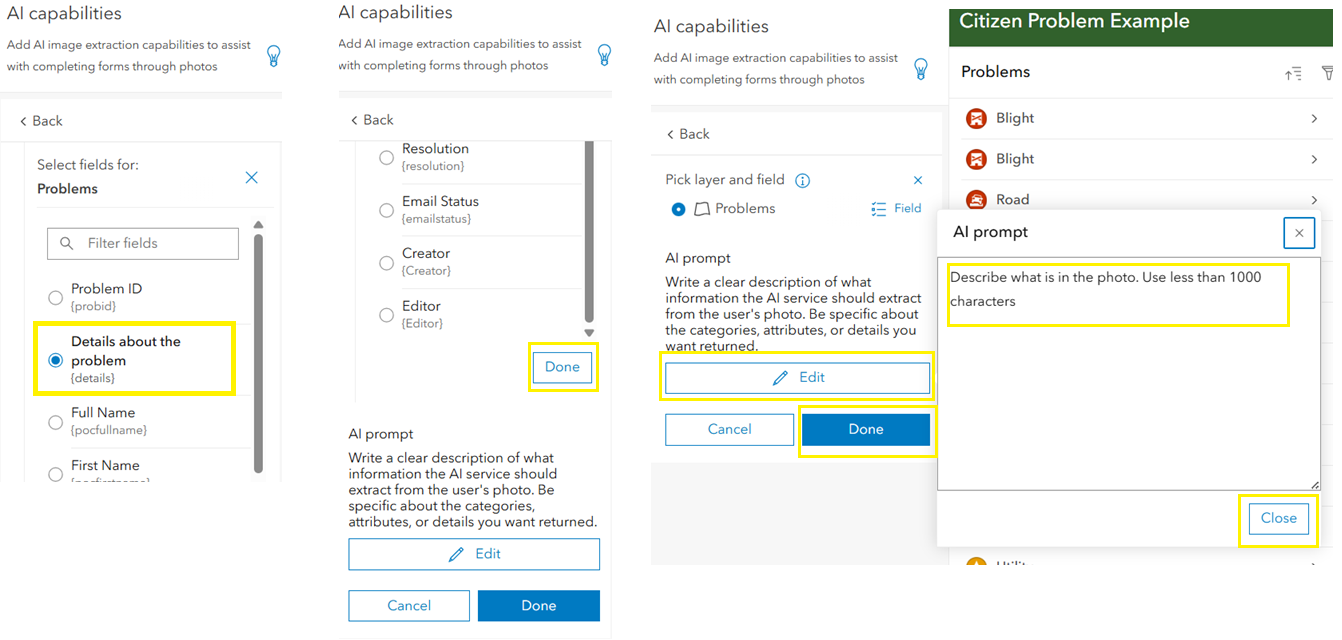
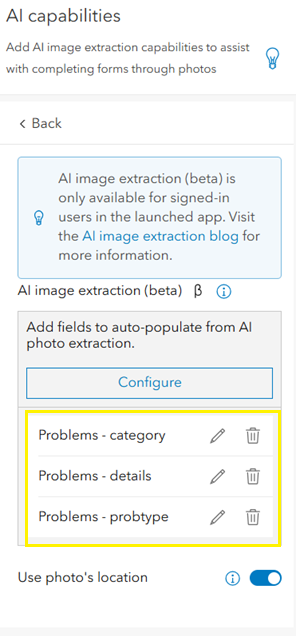
AI analysis is configured per reporting layer used in the app. Click Configure, choose a layer, select the fields where AI suggestions should be applied, and click Done. If the field list is long, scroll to the bottom of the panel to access the Done button. Each field requires its own prompt that guides how AI interprets the image. Multiple fields can be configured for a layer, and each layer–field combination appears in the configuration list where it can be edited at any time.
The example below from the Citizen Problem Reporter app shows how to write an AI prompt for a category field with predefined values. Note that the predefined values are case sensitive.
An additional option, Use photo’s location, uses location metadata embedded in the photo, such as data captured by a phone camera, to place the report location automatically on the map. If this option is turned off, or if the photo does not contain location metadata, users manually choose the report location during submission.
Only layers configured for AI will show the AI image extraction option at runtime.
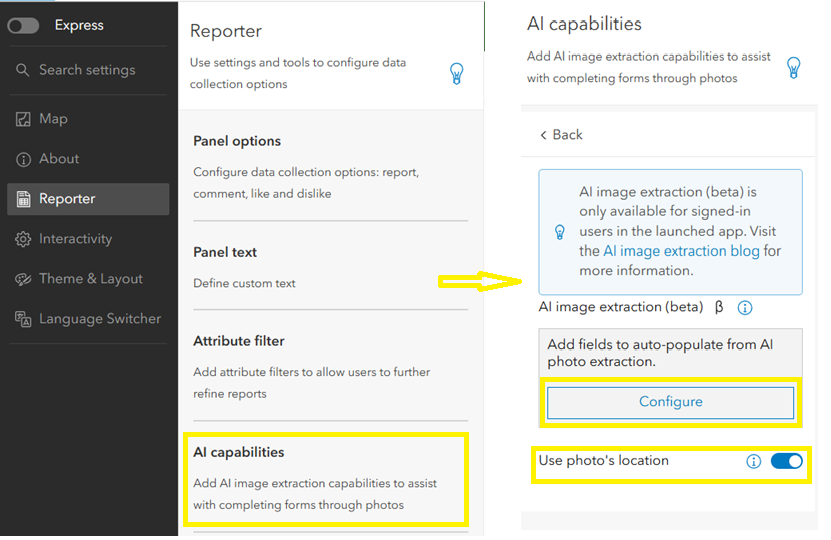
The configuration flow is shown from left to right, highlighting field selection and prompt setup for AI image extraction.
Once a field and prompt are configured, it appears in the list below and can be edited or deleted.
App user experience
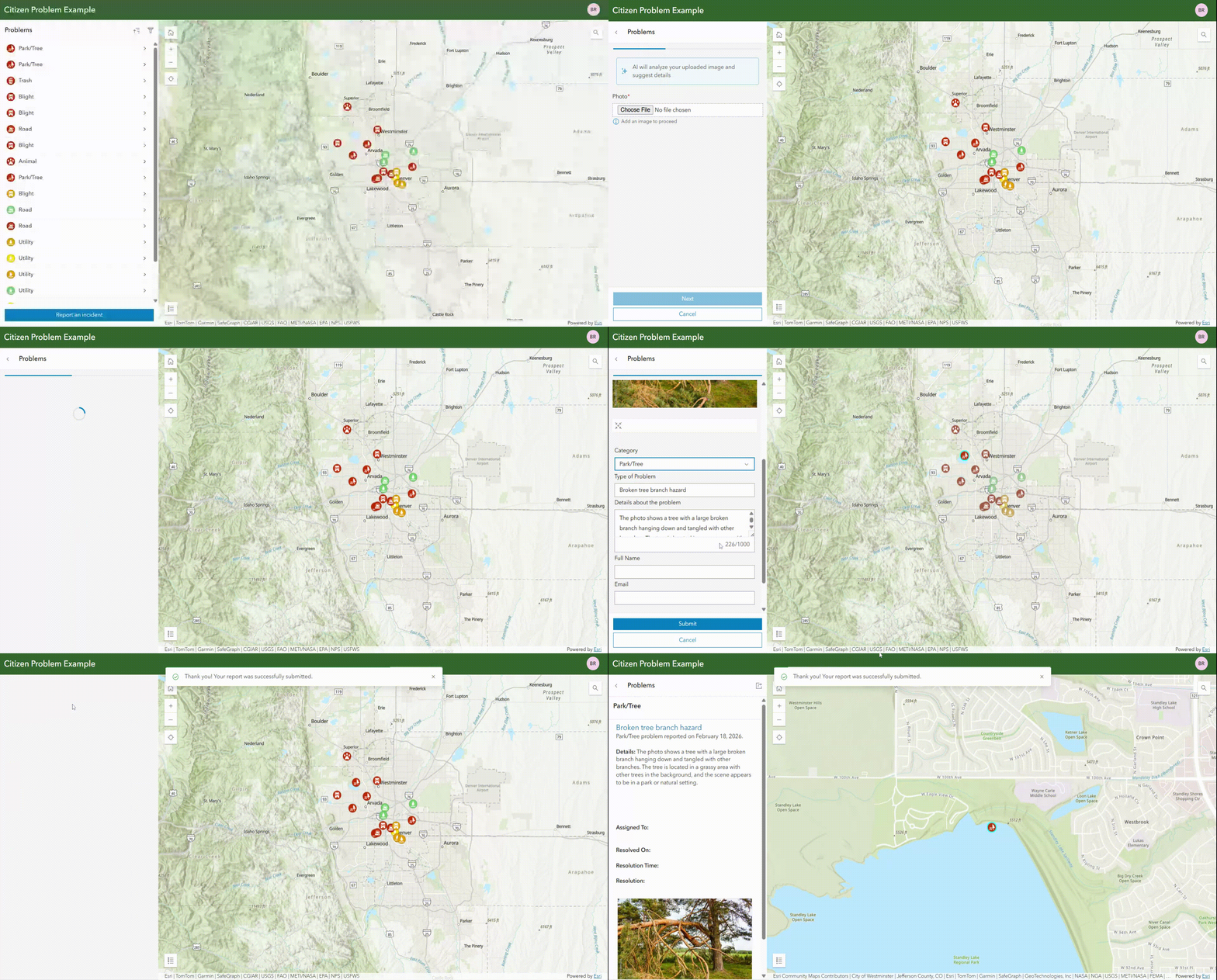
In the launched app, users start by clicking Report Incident (configurable text). If multiple reporting layers are available, users are prompted to choose a layer first.
For layers that support AI image extraction, users see two options: AI image extraction and Fill out manually. Choosing AI image extraction starts the AI workflow, while ‘Fill out manually’ opens the standard reporting form. If the selected layer is not configured for AI, these options do not appear, and the standard manual form opens instead.
When users choose AI image extraction, they are prompted to add a photo. On desktop, they can browse and upload an image. On mobile devices, they can take a new photo or attach one from their gallery.
After selecting an image, users review it and click Next to begin analysis. Reporter uses an AI utility service to extract information from the image. If the analysis fails due to an unsupported image or if the process is skipped, the workflow automatically switches to manual mode.
If feature templates are configured, users select a template before adding the report location. If the app is configured to use photo location and the image contains location metadata, Reporter adds the location automatically. Otherwise, users manually choose the report location. Users can edit the location if needed before submitting the report.
The app then opens the reporting form. The uploaded image appears at the top, and fields configured for AI are auto-populated with AI-suggested values. Users should review the suggestions and complete any remaining fields that were not configured for AI.
After submitting the report, users can select the submitted feature. Users can view the details in the feature’s popup and interact with the report as usual.
Looking ahead
AI image extraction will continue to be enhanced with new capabilities. We are also exploring additional ways to capture and submit reports, such as chat or audio.
Try it out and reach out if you have any questions or feedback.

Article Discussion: