The public-facing documentation site for the ArcGIS Maps SDK for JavaScript has been updated to include Markdown versions of many pages, making documentation content easier for machines and AI agents to process efficiently.
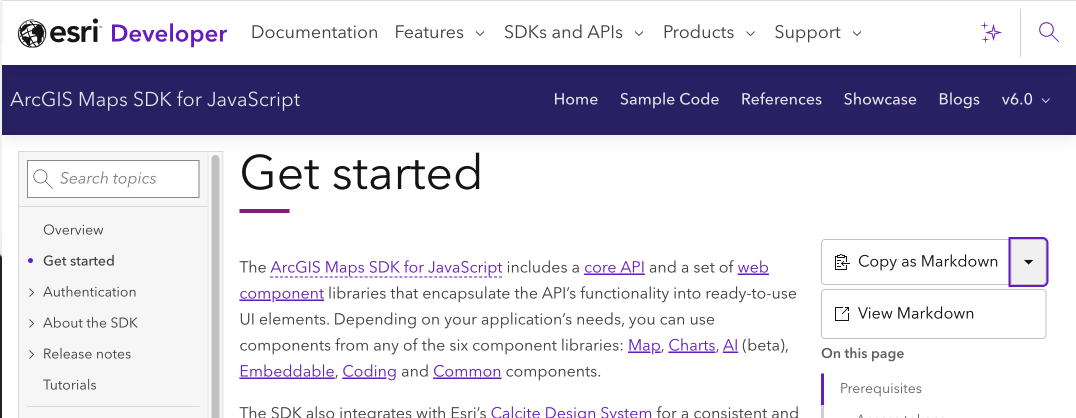
In addition to adding the routes and infrastructure to convert MDX and HTML pages to Markdown, pages with Markdown versions also now contain a Copy as Markdown button at the upper right, above the page’s table of contents (and at left in the top toolbar for code sample pages).
You can access the updated documentation at https://developers.arcgis.com/javascript/latest. Before showing some examples of Markdown additions, I’ll provide some brief context on why these changes were desirable.
Why provide documentation in Markdown?
Adding Markdown versions of pages to sites is an increasingly common practice, as it allows machines and agents to more easily process site content. This is beneficial because it can reduce the amount of presentation-oriented markup an agent has to process and keep the context focused on the documentation itself.
Why is Markdown easier for machines and agents to read?
Markdown can strip away presentation and UI elements like buttons, navigation, interactive previews, and styling while preserving the information that readers and agents need. In essence, good Markdown documentation preserves information, not presentation.
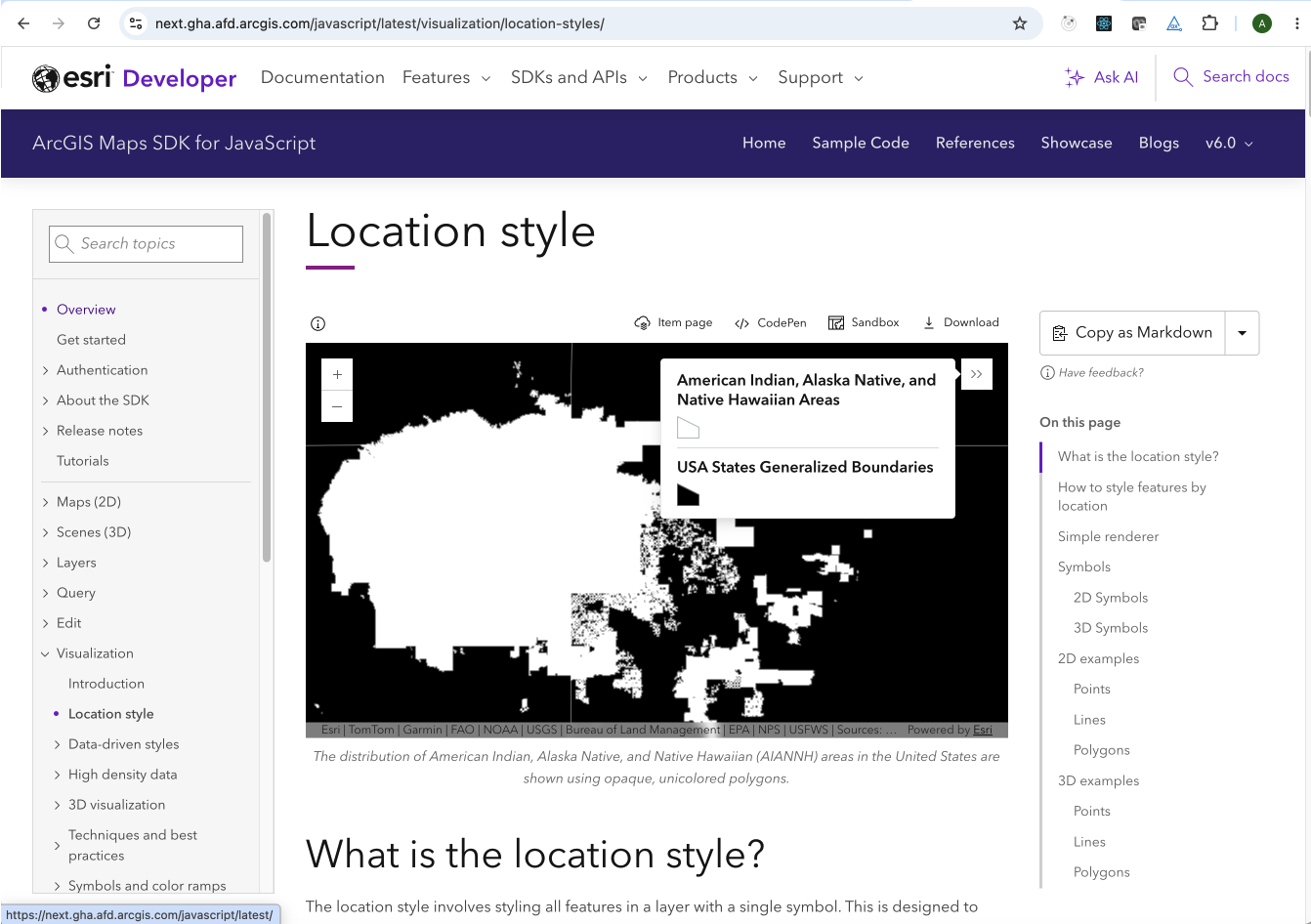
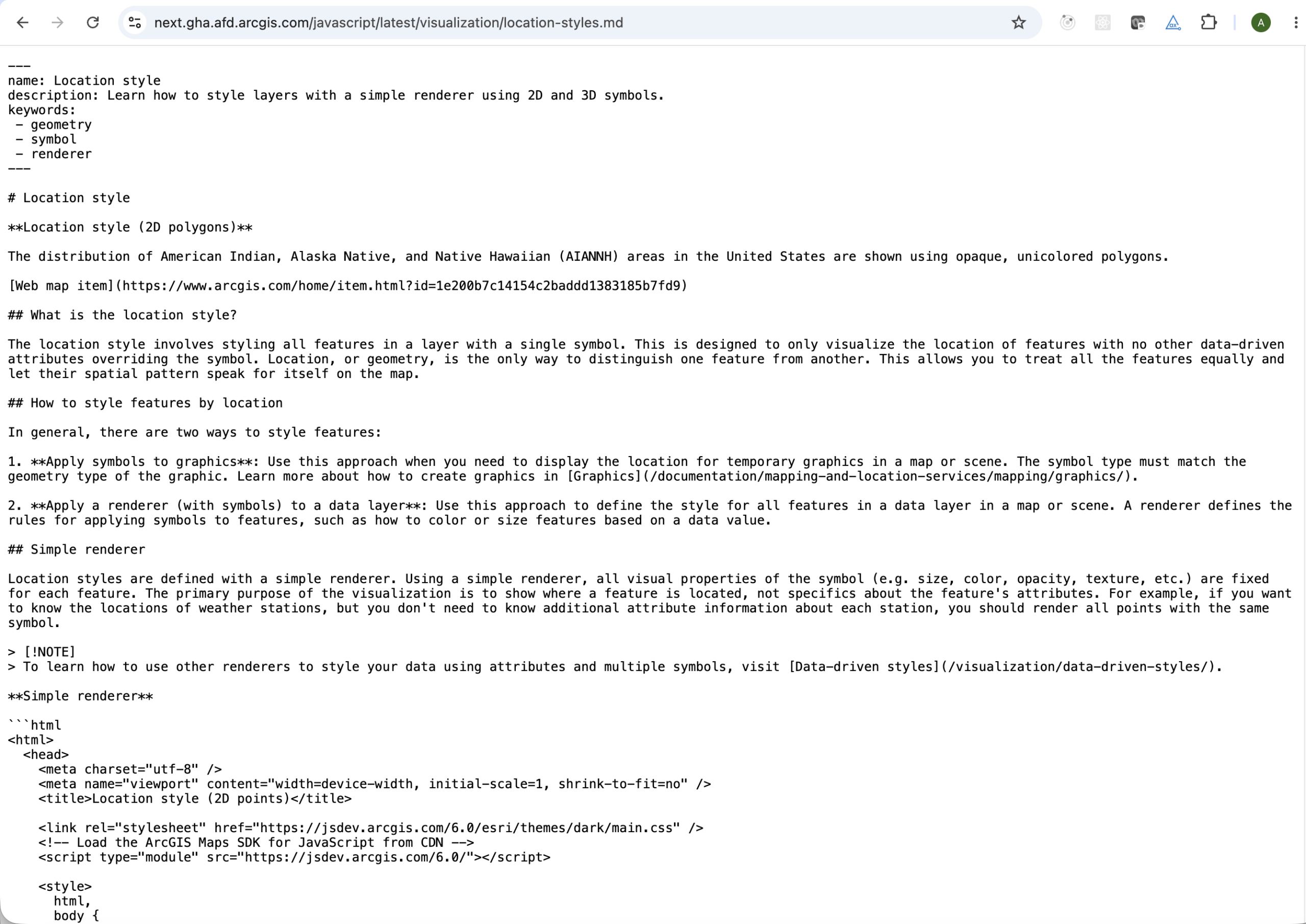
Which JavaScript SDK pages have Markdown?
Markdown is currently available across the major documentation page types, including:
- Guides/general documentation
- Tutorials
- Sample code
- API references
For example, /get-started/ has a corresponding /get-started.md, while /tutorials/display-a-map/ has /tutorials/display-a-map.md.
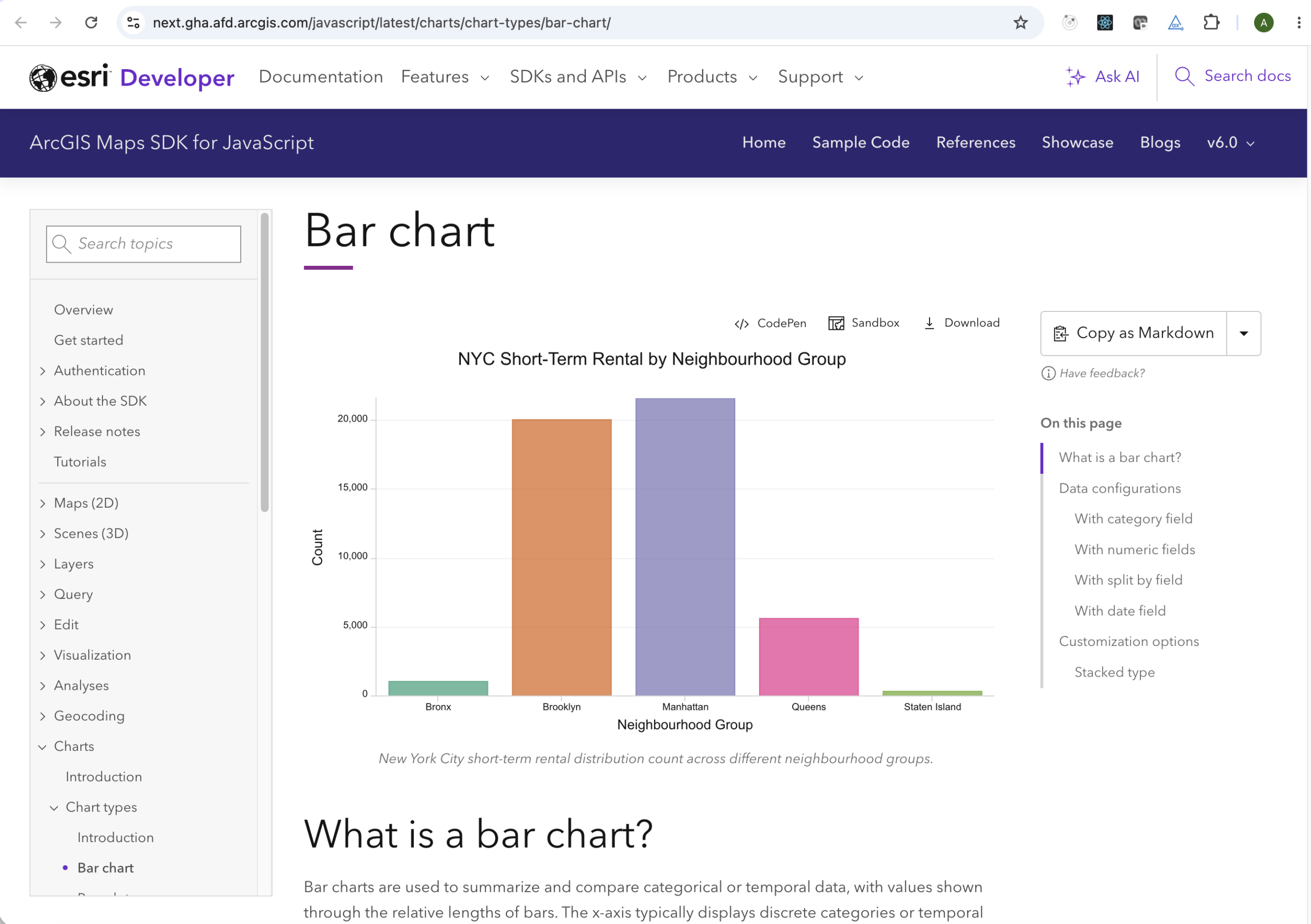
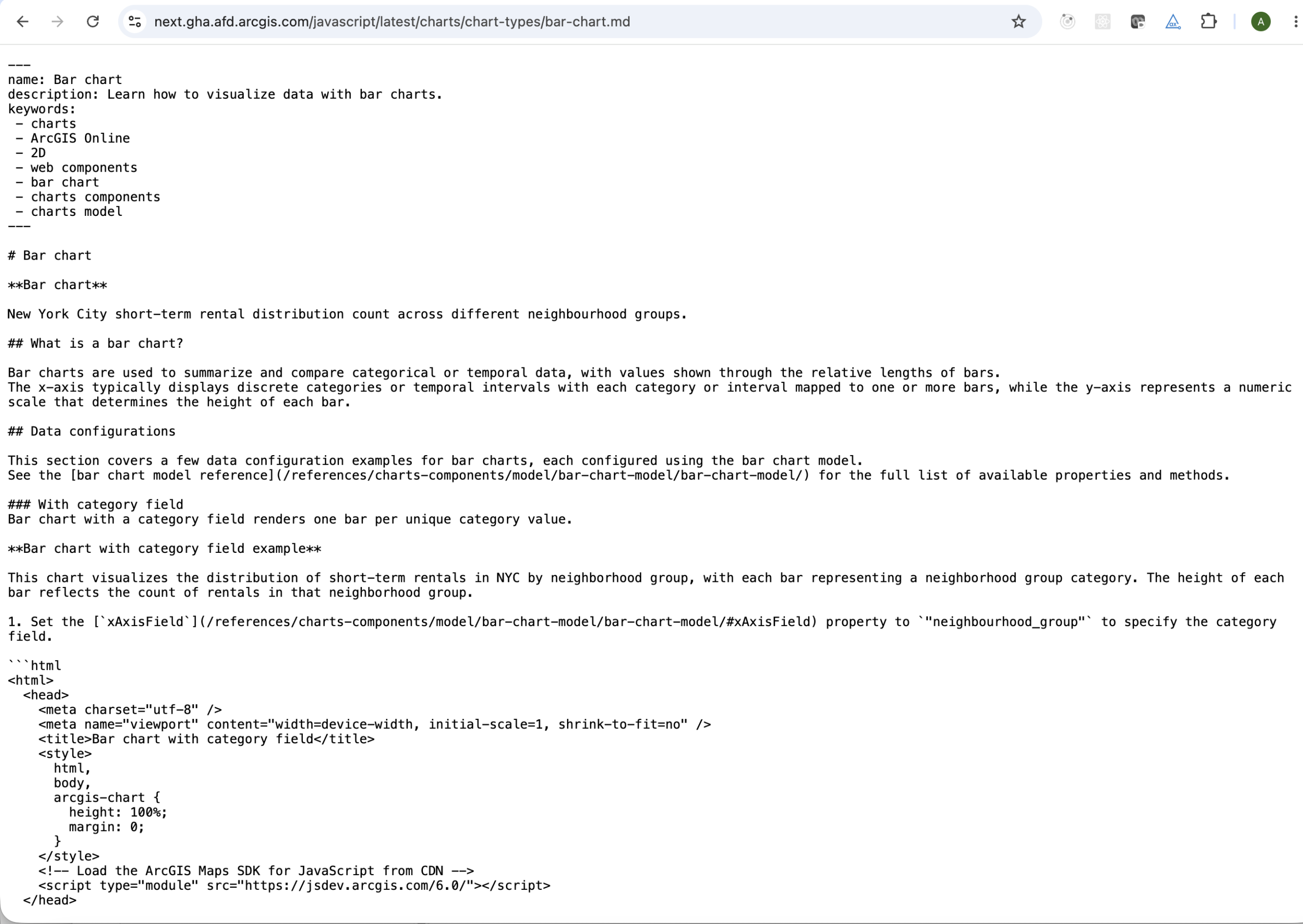
How to find JavaScript SDK Markdown documentation
For developers
A Markdown version of a page is easily findable by adding a .md to the end of the page’s route.
The most straightforward way to navigate to this route for a particular page is to click the down arrow on the Copy as Markdown button above the table of contents for that page and select View Markdown. If you’d rather just copy the Markdown without navigating to the actual route where the Markdown version is located, simply click the Copy as Markdown button and the page’s Markdown will be copied to your clipboard.
For agents and GitHub Copilot
Copy the Markdown version of a page into an AI assistant when you want to provide focused documentation context without the surrounding website interface.
For example, for coding-related tasks, the Markdown can give GitHub Copilot documentation, API links, instructions, and code examples as focused context without the surrounding website interface.
Providing feedback
We invite users to provide concrete feedback about any Markdown-related features that don’t look right and/or aren’t working properly.
Some examples include:
- Missing content
- Confusing formatting
- Incorrect or incomplete code context
- Links that don’t resolve correctly
- Content that makes sense visually in the site’s UI but not in the Markdown.
To provide feedback about Markdown for a particular page, please select “No” under “Was this page helpful?” at the bottom of the page and describe the Markdown issue in your feedback.
Note: If you need a reminder of how to provide feedback, hover over the information icon with the label, “Have feedback?” under the Copy as Markdown button to see a tooltip with the above instructions.
Conclusion
We hope Markdown makes the ArcGIS Maps SDK for JavaScript documentation easier to use, not just for developers but also for the AI tools and agents that developers increasingly use. This is an evolving feature and your feedback will be immensely helpful as we improve it for humans and machines alike.
Article Discussion: