ArcGIS for Microsoft 365 is expanding its capabilities across Excel, Teams, and SharePoint with powerful new tools that make working with spatial data easier and more connected. From the new Centroid tool and subtype layer editing in Excel to enhanced collaboration features in Teams and enhanced geotagging in SharePoint, these updates will allow you to analyze, edit, and share geographic data more efficiently—right from the tools you use every day.
ArcGIS for Excel
Simplify data maintenance by editing subtype group layers directly in Excel
A Subtype Group Layer is a layer that organizes a dataset with multiple categories into separate sublayers while maintaining a single connection to the original data. This enhancement enables users to edit data with sublayers data in Excel, sync changes back to ArcGIS Online or Enterprise, maintaining data integrity.
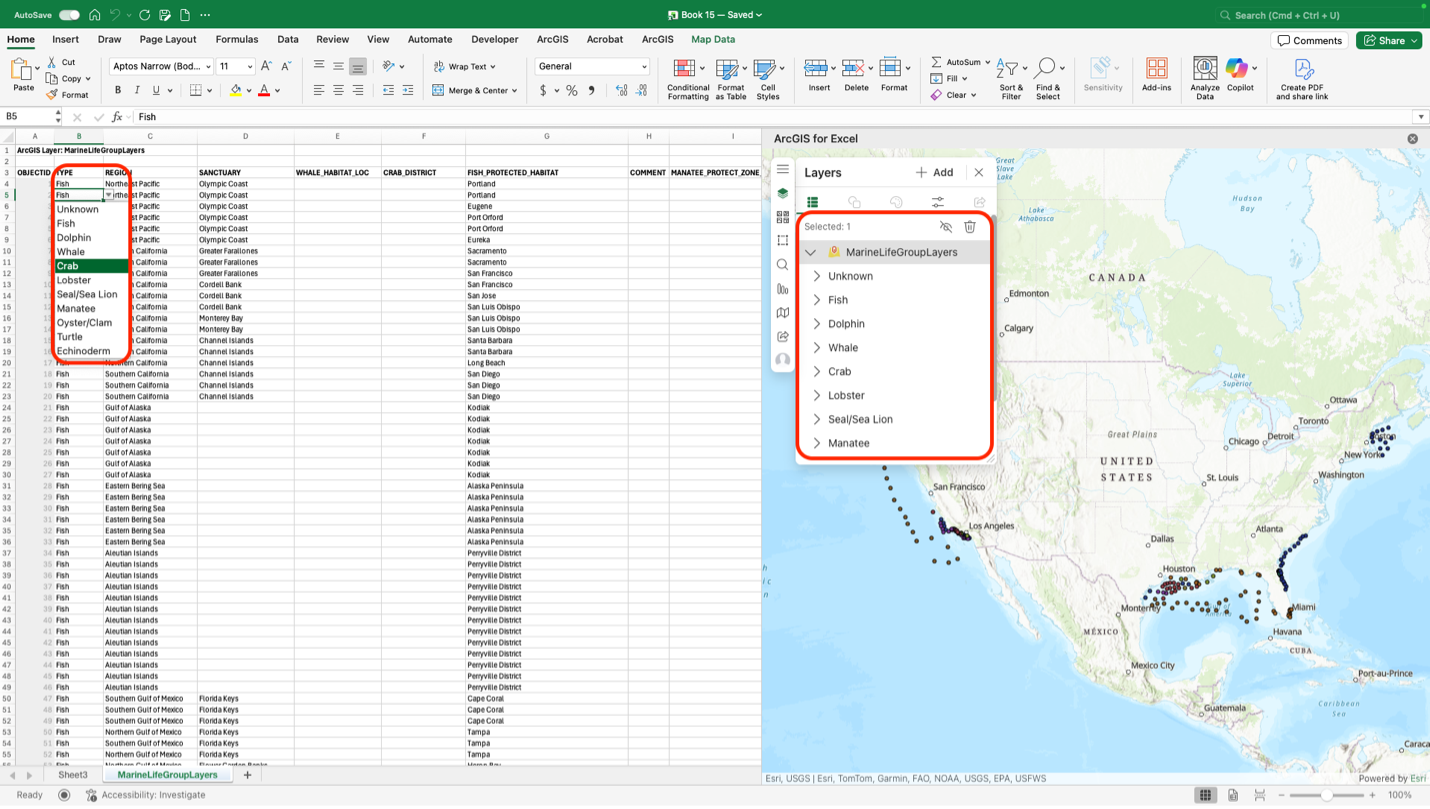
For example, a city’s public works department manages a geodatabase of underground utilities in a single feature class with subtypes for each asset type, including water mains, valves, hydrants, and meters. With ArcGIS for Excel, field staff can export the layer, view assets grouped by subtype, and update attributes. Once edits are complete, the updated data syncs back to ArcGIS, instantly updating maps and dashboards. This simplifies data maintenance, reduces errors, and empowers non-GIS users to contribute to spatial data management.
View related records to understand relationships between various datasets by in Excel
Related records refer to data entries or rows in a table that are associated with a specific record in another table through a common attribute or key. To view these related records in Excel, users can select a record in the attribute table and click the “Show Related Records” button. This capability allows users to explore connections between different feature layers in Excel, gaining a deeper understanding of the relationships between various data sets. This enhancement benefits organizations who rely on complex data relationships.
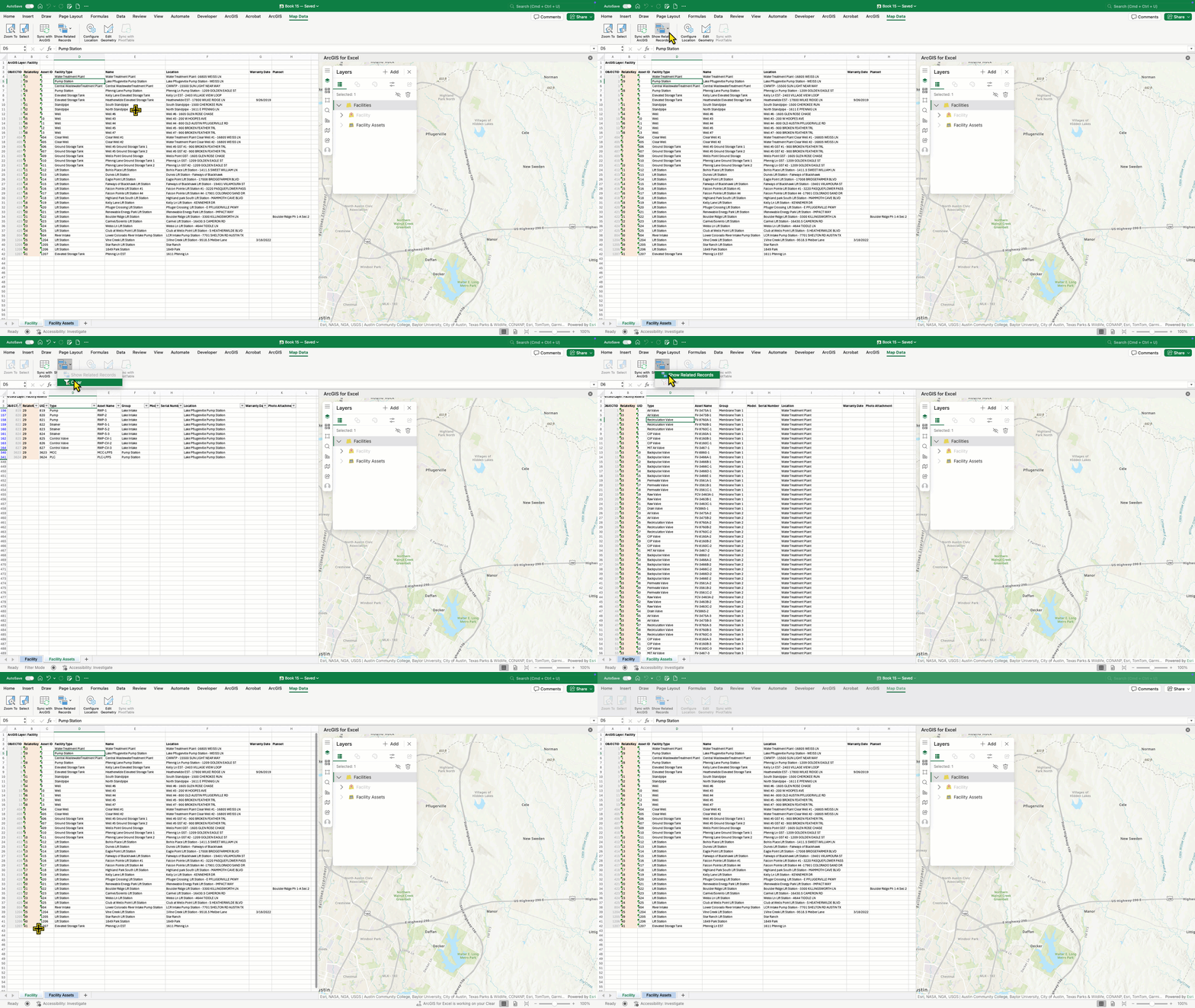
A practical illustration of this capability is in Asset Management, where utility companies can view assets, such as power lines and transformers, alongside their inspection and maintenance records , allowing for quick access to critical information, reducing downtime, and enhancing overall asset reliability.
Identify and extract coordinate information directly from the map
By hovering over the map, you can view the coordinates of specific locations or points of interest. The coordinates are also displayed in the Navigation Tool pane, allowing for quick referencing and copying. This feature eliminates the need for manual coordinate entry or searching for coordinate information elsewhere, saving time and reducing errors.
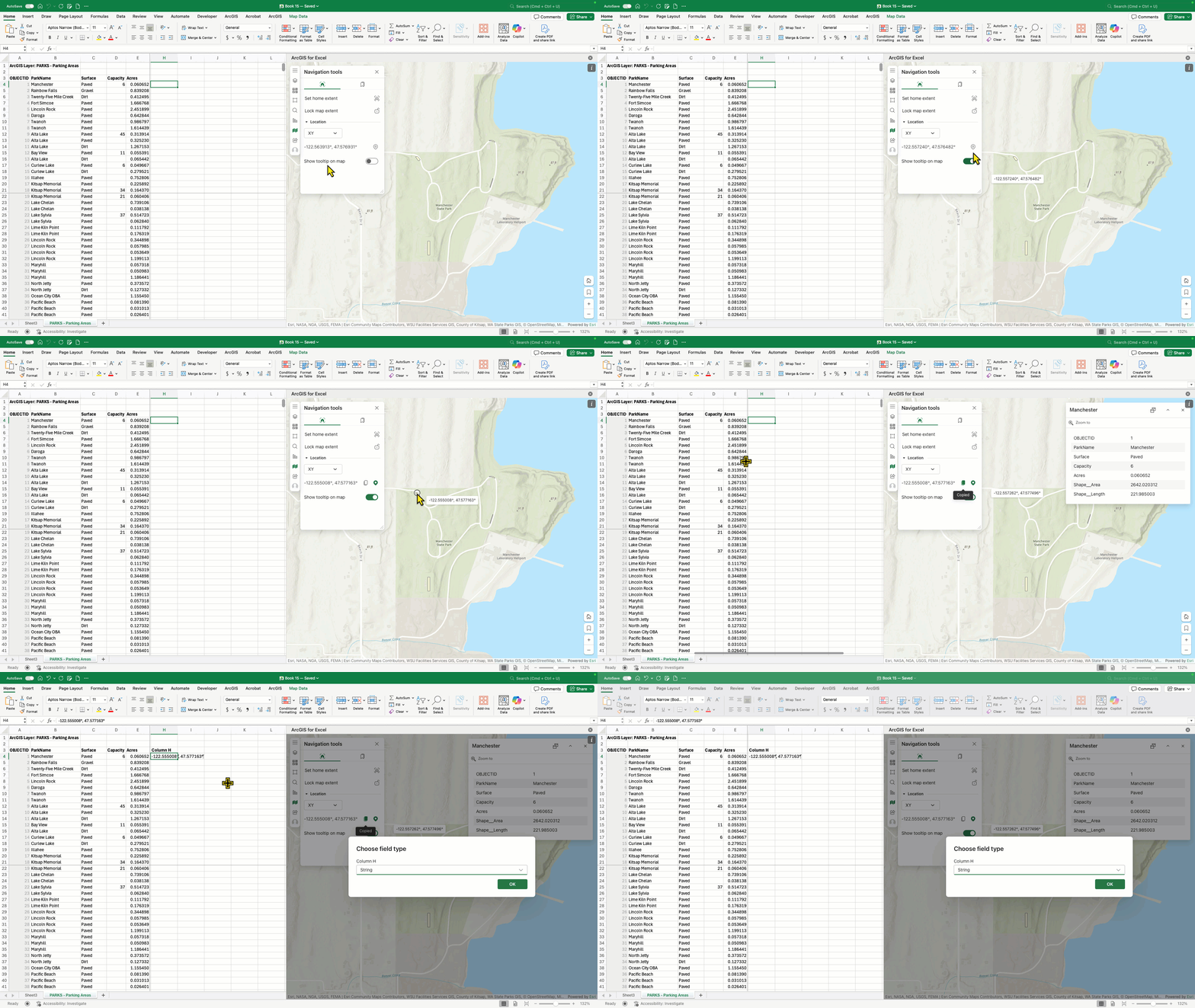
A key application of this enhancement is in streamlining data collection for field teams, who can now quickly identify and record the coordinates of assets or incidents, thereby reducing the risk of errors and improving overall efficiency.
Centroid Tool in ArcGIS for Excel
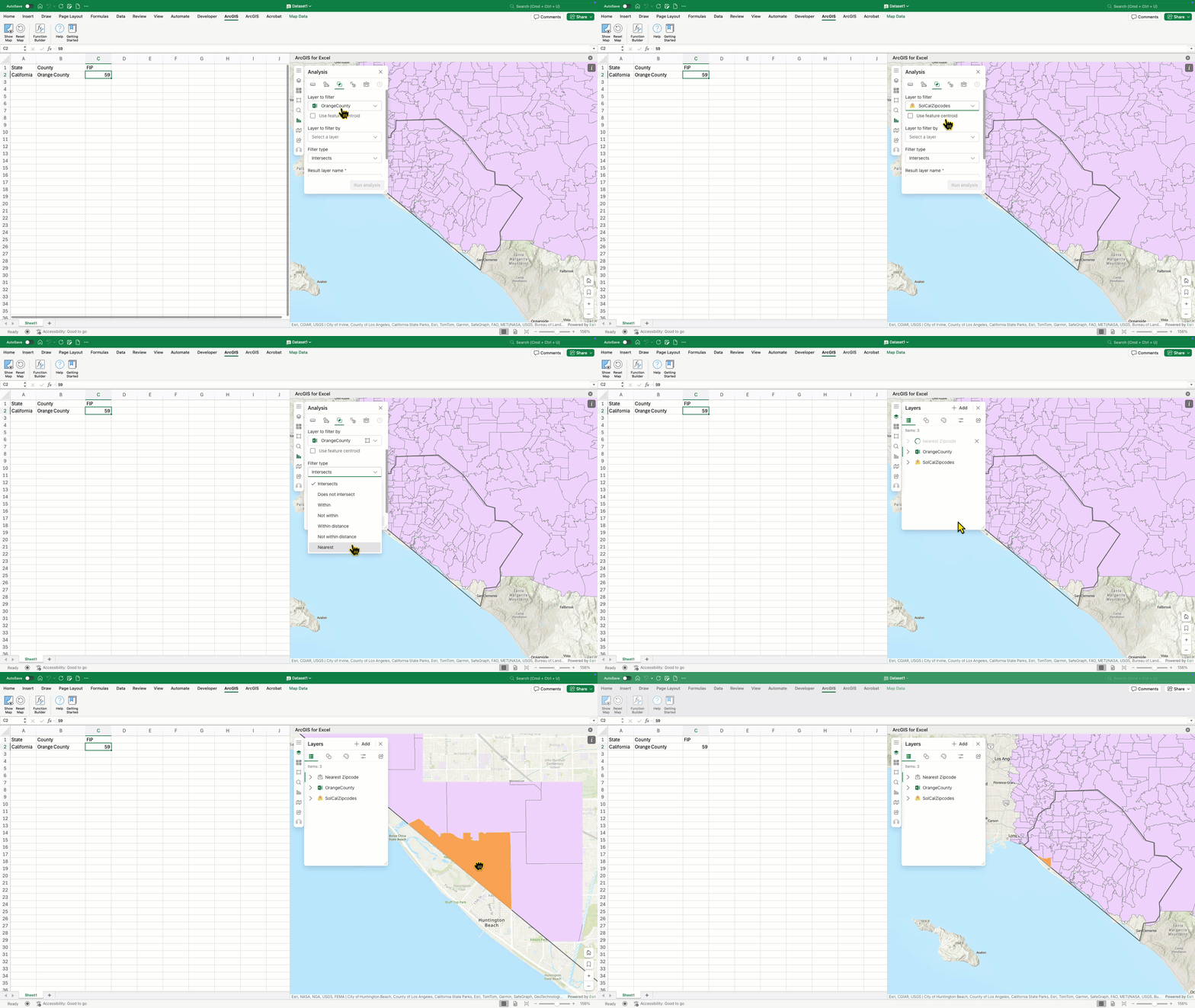
ArcGIS for Excel now includes a Centroid parameter in spatial filtering that enables you to use the centroid or a point or line as the location to be considered in spatial operations. A centroid or centroids are located within a polygon and is used to determine spatial relationships between geographic areas. For example, it helps resolve ambiguity when boundaries do not nest perfectly such as when ZIP codes partially overlap counties. In such cases, if the centroid of a ZIP code falls within a county boundary, the ZIP code is considered to be inside the county.
ArcGIS for Teams
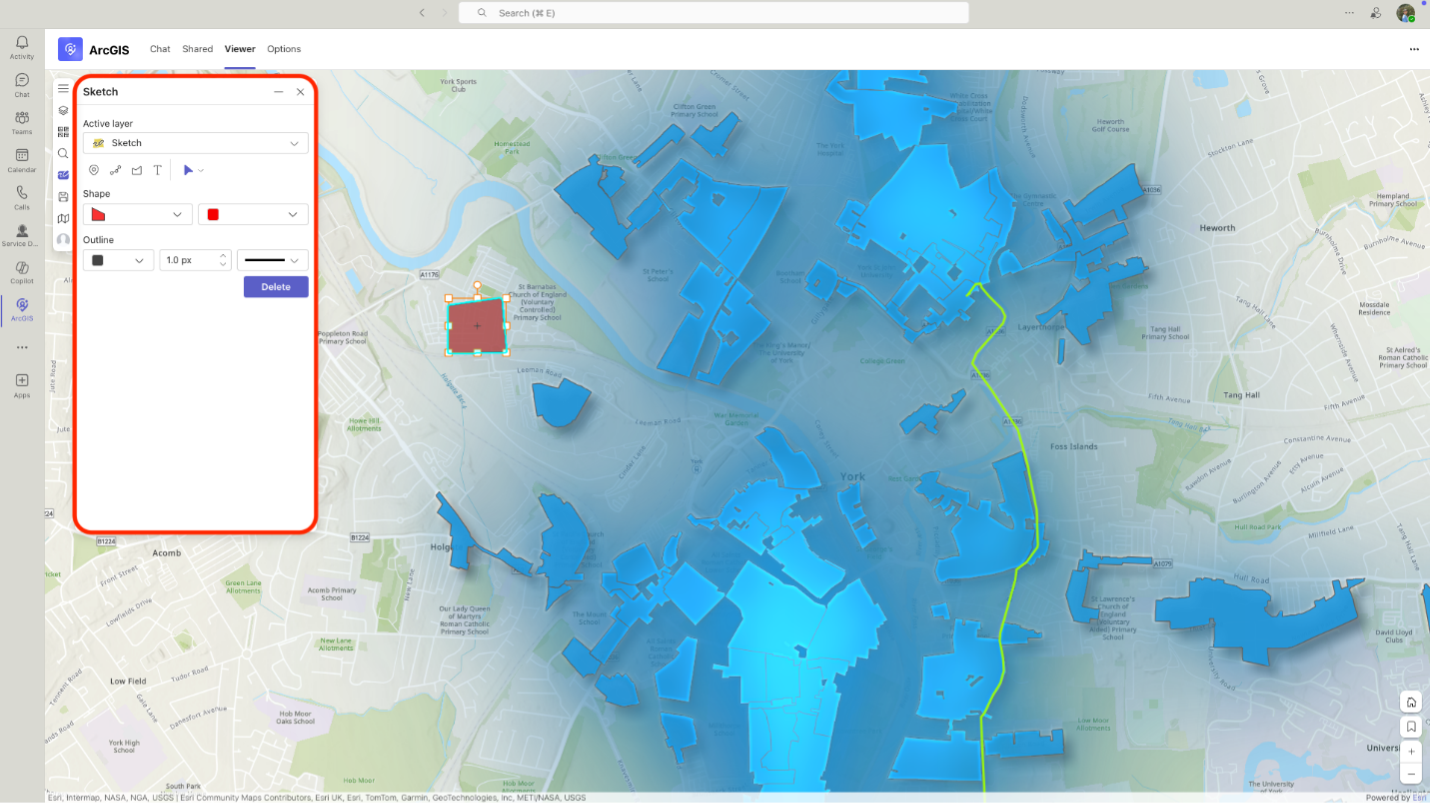
Annotate and sketch directly on maps within the Viewer tab’s personal view
Users can directly sketch and annotate on maps in their personal view, to convey complex spatial information. Additionally, users can bring in layers or maps from ArcGIS Online or Enterprise for annotation and easily share annotated content with their team, facilitating more effective communication and decision-making.
For example, an urban planning team is working on a new development project and needs to discuss the proposed infrastructure layout. Using the Sketch and Annotate tool, team members can sketch the proposed road network, annotate key features, and share the map with stakeholders without leaving Teams. This enables the team to collaborate more effectively, identify potential issues, and make informed decisions.
Enhanced visibility and control over organizational context
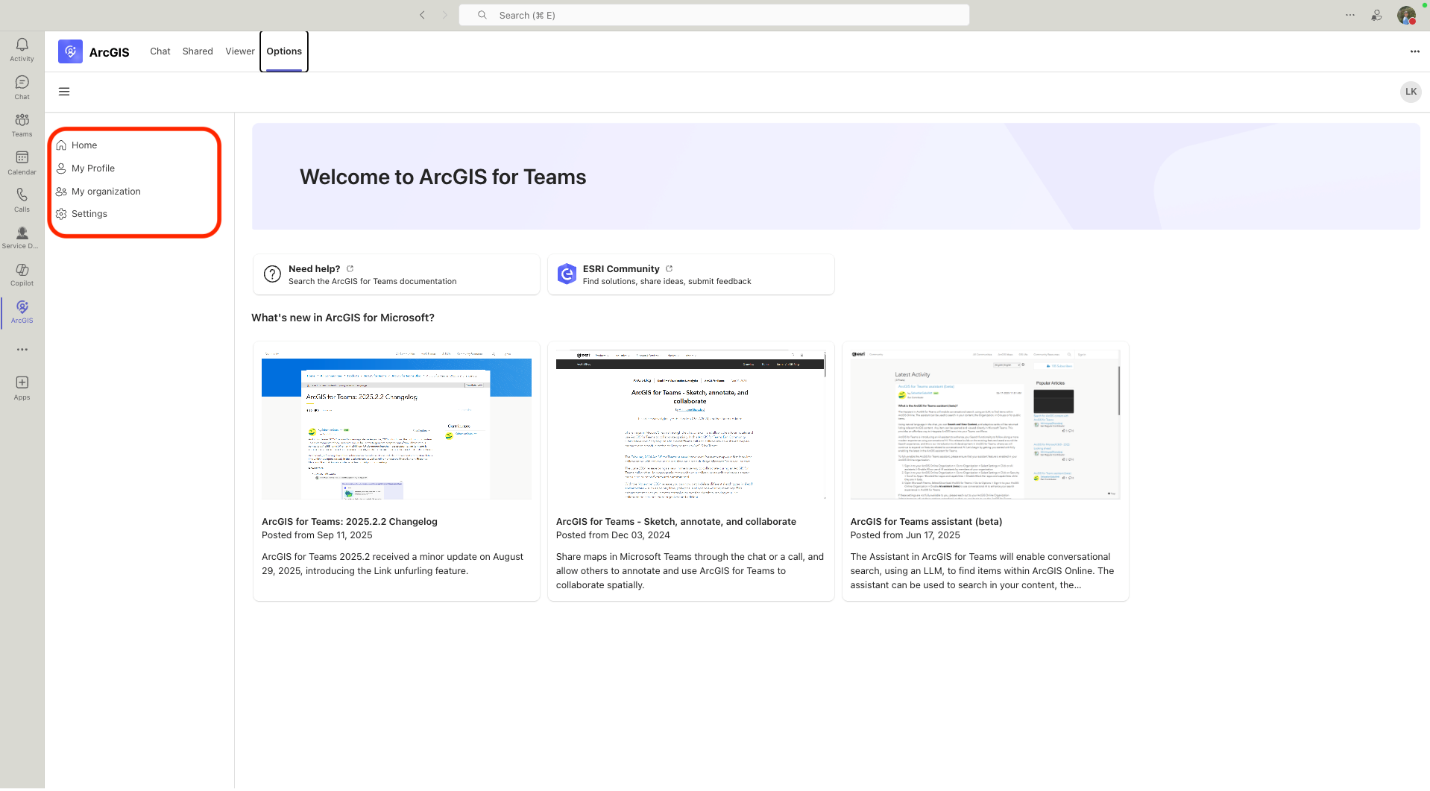
ArcGIS for Teams has been enhanced with improvements to the Options tab, providing users with greater visibility and control over their organizational context. These updates empower users to better understand their organizational environment, connect with colleagues, and personalize their experience within a single, intuitive interface.
Key Features
- Profile Section: You can view your profile and the organization you are part of, ensuring you have a clear understanding of your role and context. You can also see your recently accessed ArcGIS items.
- My Org Section: The new My Org section allows you to see members within their organization and their assigned user type and role so that you can see who has access to see or edit ArcGIS items. You can also see how many credits you can use.
- Settings Section: You can manage ArcGIS for Teams-specific preferences settings like enabling AI assistant (Beta) and choosing default map for the viewer tab.
For example, this feature allows meeting organizers to set specific permissions for collaborators such as viewing, editing, or presenting, ensuring that each participant has the appropriate level of access and control during the Teams meeting.
ArcGIS for SharePoint
Use the map to geotag and search for files
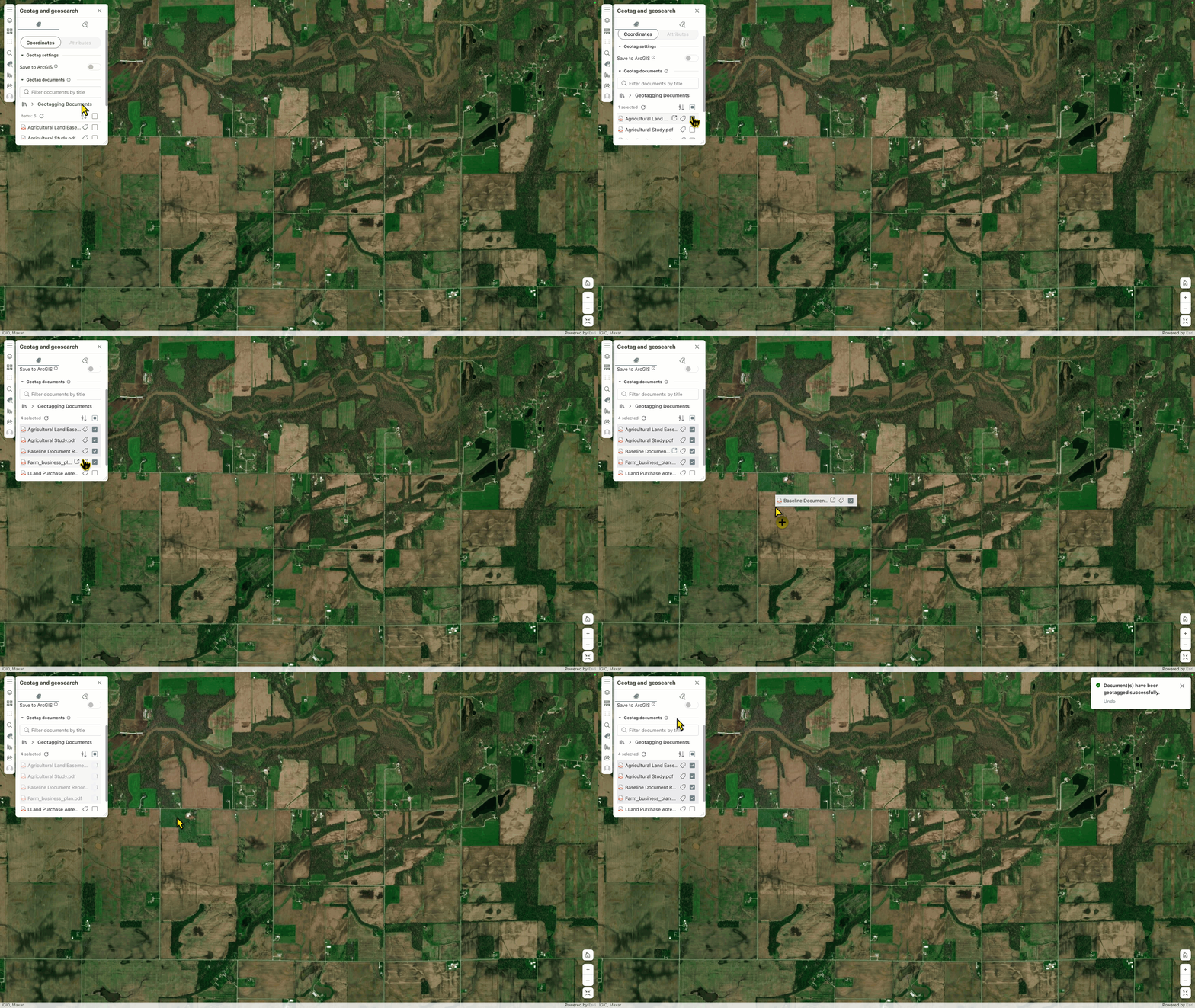
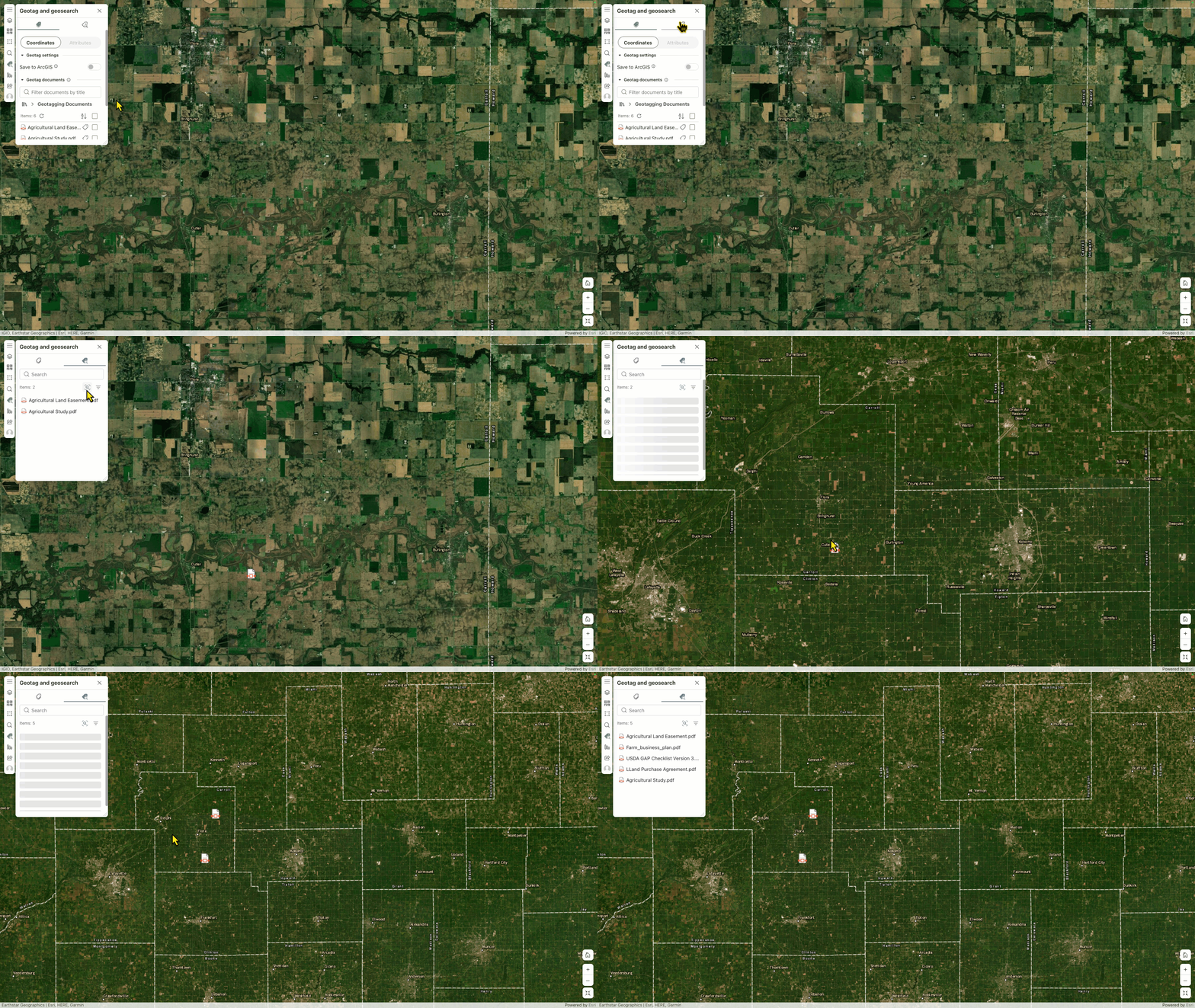
ArcGIS for SharePoint now supports the ability to geotag items by simply dragging them to a location on the map and perform geosearch within a map’s current extentUsers can now precisely geotag files in their SharePoint library to a specific geographic location without relying on a feature layer or predefined addresses. Additionally, users can now visually narrow down search results, displaying only items that fall within the area currently visible on the map. This enhancement gives users more flexibility when working with spatial data directly in SharePoint libraries.
For instance, a construction project team stores geotagged environmental impact reports and field survey documents in a SharePoint library. When reviewing the project area, they use the map extent search feature to zoom into a specific construction corridor. This instantly displays only the relevant documents associated with sites within that visible map area. This makes it easy to quickly find and organize location-specific documentation without manually clicking on the feature or filtering through the entire SharePoint library.
Automatically add location information to SharePoint list data with Power Automate
ArcGIS for SharePoint now integrates with ArcGIS Connectors for Power Automate, enabling users to automatically geoenable SharePoint list data. With this capability, any updates or new items added to a SharePoint list can be spatially enabled through an automated Power Automate flow, removing the need for manual geoenabling. This saves time and ensures that data is always location-aware and ready for visualization on a map.
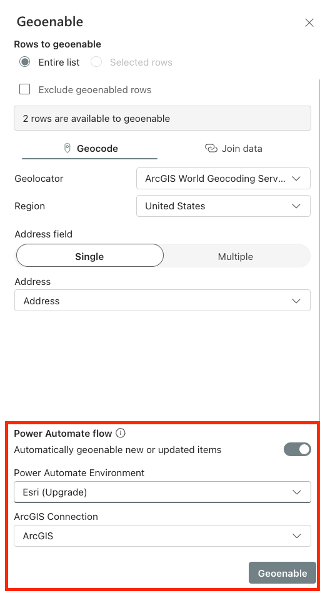
For example, an asset management team tracks new equipment installations or repairs in a SharePoint list. Using this feature, whenever a technician submits a new record with an address, the location is automatically geocoded and geoenabled. The item immediately appears on the project’s interactive map in ArcGIS for SharePoint, helping the team maintain an up-to-date spatial view of their assets without requiring extra steps.
Additional resources
These latest enhancements to ArcGIS for Excel, Teams, and SharePoint reflect Esri’s commitment to making spatial tools more accessible, collaborative, and integrated into everyday workflows. Whether you’re performing detailed spatial analysis, editing complex datasets, or improving team communication, these new features empower you to get more value from your geographic data—without leaving your familiar environments.
To get the most out of these capabilities and stay updated, explore our additional resources, including the Esri Community pages for ArcGIS for Excel, ArcGIS for Teams, and ArcGIS for SharePoint, as well as the ArcGIS for Microsoft product page.
Commenting is not enabled for this article.