ArcGIS Dashboards are used around the world to communicate information through maps, charts, indicators, lists, and other visual elements. While the data displayed in a dashboard may be the same for all users, the way information is arranged on the screen can have a significant impact on readability and usability.
Languages that use right-to-left (RTL) scripts, such as Arabic and Hebrew, often expect user interfaces and layouts to follow a right-to-left reading flow. Other languages, such as English and German, typically use a left-to-right (LTR) flow.
To support these workflows, ArcGIS Dashboards now includes a new setting under Time and region:
Layout and text direction
Authors can choose between:
- Match viewer settings
- Always left-to-right
- Always right-to-left
This setting controls the overall flow of the dashboard layout: maps, legends, panels, charts, controls, and text alignment.
What Changes When Layout and Text Direction Changes?
Layout direction affects much more than text alignment.
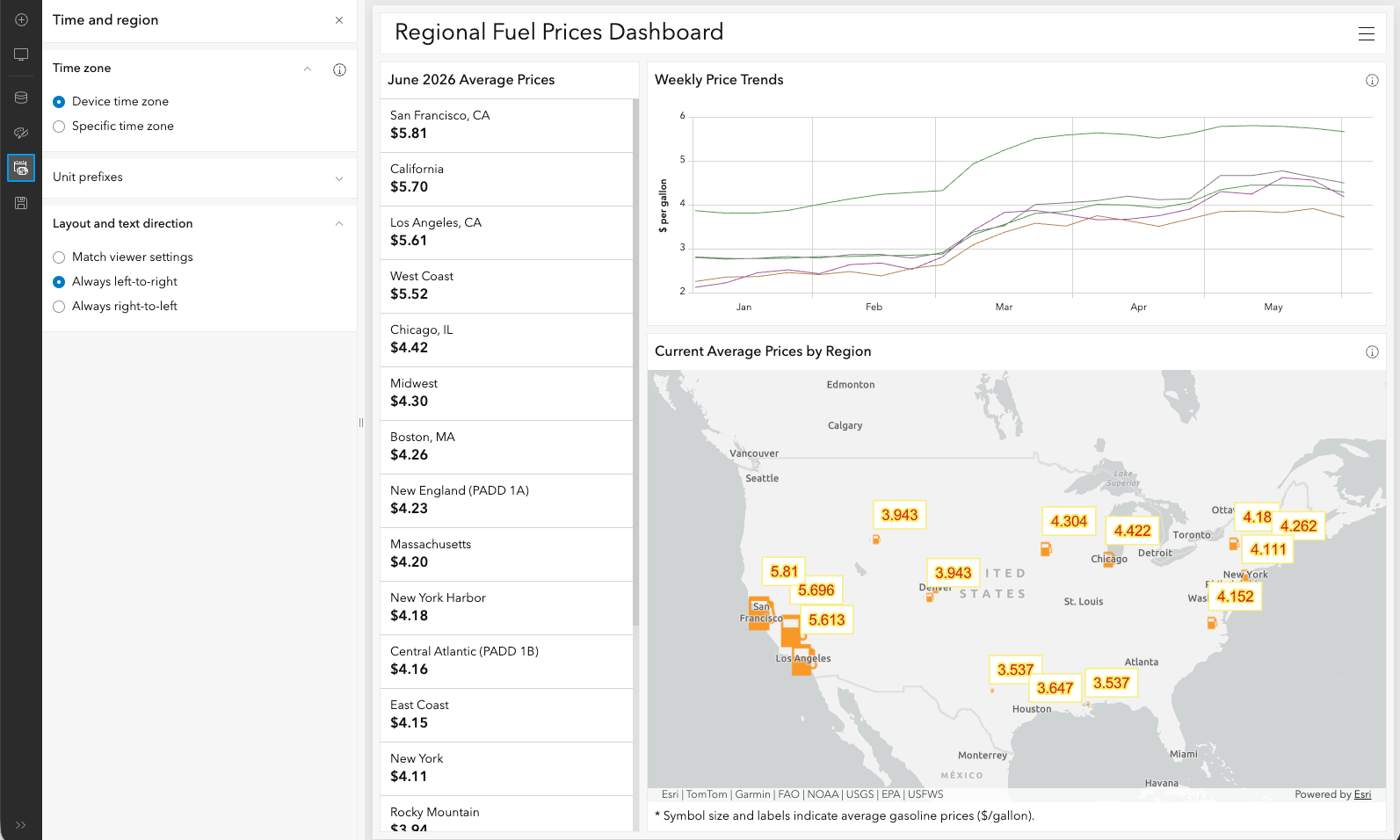
The example below uses a dashboard created from publicly available weekly gasoline price data published by the U.S. Energy Information Administration (EIA).
The dashboard contains:
- A dashboard title
- A list containing the most recent average prices
- A serial chart showing weekly price trends
- A map showing average gasoline prices in several locations
When displayed in a left-to-right layout, the list with supporting information appears on the left and the chart and map occupies the right side of the dashboard. Note small “i” buttons with popup information at the right side of map and chart titles.
When displayed in a right-to-left layout, the arrangement is mirrored. The map, list, gauge, navigation controls, and title alignment adjust to follow RTL reading flow.
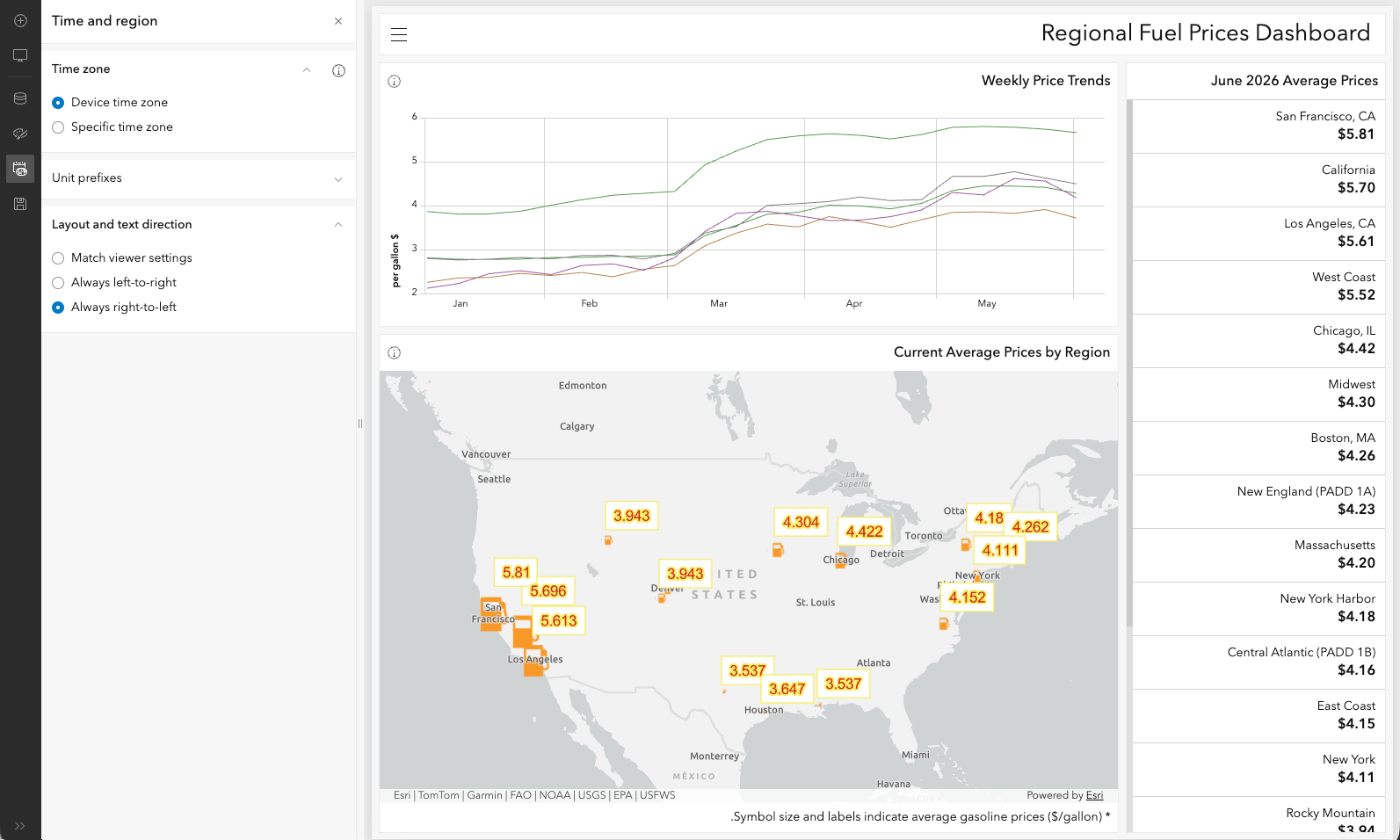
The underlying data remains exactly the same as it was while we were creating our dashboard in LTR English interface. Only the presentation changes. You can see that with the “Always right-to-left” now the list of prices at the right, i.e. at the beginning of the Dashboard, while both chart and map are at the left side, with their “i” icons also at the left. That is how the reading flow of the page has changed.
Authoring Language and Layout Direction Are Independent
One of the key design goals of this feature is to separate the author’s working environment from the viewer experience.
The language used while authoring a dashboard does not determine the layout direction used when the dashboard is viewed.
An author can:
- Create a dashboard in English and publish it as RTL.
- Create a dashboard in Arabic and publish it as LTR.
- Create a dashboard in German and publish it as RTL.
- Allow the dashboard to adapt automatically to each viewer.
This flexibility is especially valuable for organizations creating dashboards for international audiences.
Scenario 1: English Author, Fixed LTR Layout
Imagine a transportation agency creating an operations dashboard using an English ArcGIS user interface.
The dashboard has been carefully designed with specific panel placement and supporting documentation that references the layout.
The author wants every user to see exactly the same arrangement.
Choose:
Always left-to-right
Result:
- English browser → LTR
- German browser → LTR
- Arabic browser → LTR
- Hebrew browser → LTR
The dashboard always preserves its original layout.
Scenario 2: Arabic or Hebrew Author, Fixed RTL Layout
Somewhere at the Middle East a local municipality creates a public services dashboard for residents who primarily use RTL interfaces.
The dashboard includes service requests, infrastructure status, and operational maps.
The author wants every viewer to experience the dashboard exactly as designed.
Choose:
Always right-to-left
Result:
- Arabic browser → RTL
- Hebrew browser → RTL
- English browser → RTL
- German browser → RTL
The layout remains RTL regardless of viewer preferences.
Scenario 3: English or German Author Creating a Dashboard for Saudi Arabia
An international energy company creates a fuel monitoring dashboard for users in Saudi Arabia.
The author prefers working in an English or German ArcGIS environment but wants the published dashboard to follow RTL conventions expected by the audience.
Choose:
Always right-to-left
The author continues using a familiar authoring environment while delivering an RTL experience to viewers.
This demonstrates why the authoring language and layout direction should remain independent from each other.
Scenario 4: Global Audience Dashboard
A humanitarian organization publishes a dashboard tracking natural disasters worldwide.
Viewers may access the dashboard from many countries and use different browser languages.
Choose:
Match viewer settings
Result:
- English browser → LTR
- German browser → LTR
- Arabic browser → RTL
- Hebrew browser → RTL
Each viewer receives a layout that matches their preferred reading direction.
Choosing the Right Option
Use Always left-to-right when a dashboard must maintain a fixed layout for all viewers.
Use Always right-to-left when the dashboard is specifically designed for audiences that expect RTL interfaces.
Use Match viewer settings when serving multilingual audiences and you want the dashboard to adapt automatically.
By separating layout and text direction from authoring language, ArcGIS Dashboards enables authors to create experiences that feel natural to users around the world while preserving full control over dashboard design.

Article Discussion: