Why this article?
As we move forward with the evolution of ArcGIS Maps SDKs, many customers have shared their migration plans and ideas. For some, transitioning to ArcGIS Maps SDK for Qt or ArcGIS Maps SDK for .NET is a great opportunity to take advantage of modern frameworks and capabilities. However, we also recognize that some applications are deeply integrated with JavaFX, featuring complex user interfaces and system connections. For these teams, a full migration may not be practical.
To support these scenarios, we’ve explored ways to make the transition smoother. One option is embedding the map control from another ArcGIS Native Maps SDK into existing JavaFX applications. This approach allows developers to replace the ArcGIS Maps SDK for Java component without rewriting the entire app, while still benefiting from the latest enhancements and bug fixes available in ArcGIS Maps SDK for Native Apps.
This blog post explores a technique of using ArcGIS Maps SDK for Qt as a map control in a JavaFX based application and includes these sections:
- High-level architecture
- Rendering a MapView (how to draw a map)
- Calling a Qt method from Java
- Listening to events between Java and Qt
- Software requirements for Qt
The example code created for this blog post is available in the JavaFxQt GitHub repo. Please note that we intend this to showcase one proof-of-concept example of how this can work, and there may be alternative patterns to consider instead.
Note: For brevity’s sake, code snippets throughout this blog have been slightly modified from the original code to remove things like null checks, error checks, and state management.
High-level architecture
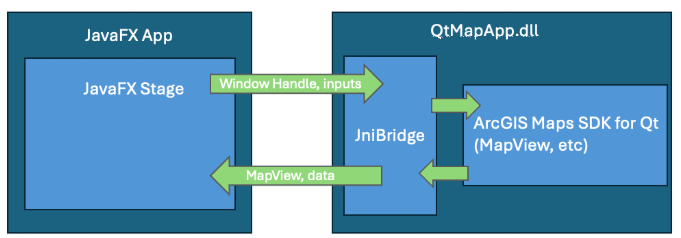
The high-level architecture of the example is based on three primary concepts:
- A JavaFX application, which represents the main application. This application contains the primary user interface that users will interact with. This app is referred to as JavaFX App in the diagram below.
- A Qt project that is built as a dynamic library instead of an executable application. This project uses ArcGIS Maps SDK for Qt to display a
MapView, and is referred to as “QtMapApp.dll” in the diagram below. - A Java Native Interface (JNI) bridge that handles the communication between Java and C++. This bridge does several things including initializing the environment, exposing methods from Qt to Java, and exposing Java methods to Qt, which will be used as callbacks. This class is referred to as “JniBridge” in the diagram below.
Rendering a MapView
The first major milestone in integrating a Qt MapView within a JavaFX application is to render the map. Upon building and running the JavaFXApp example project, you’ll see a UI like this:
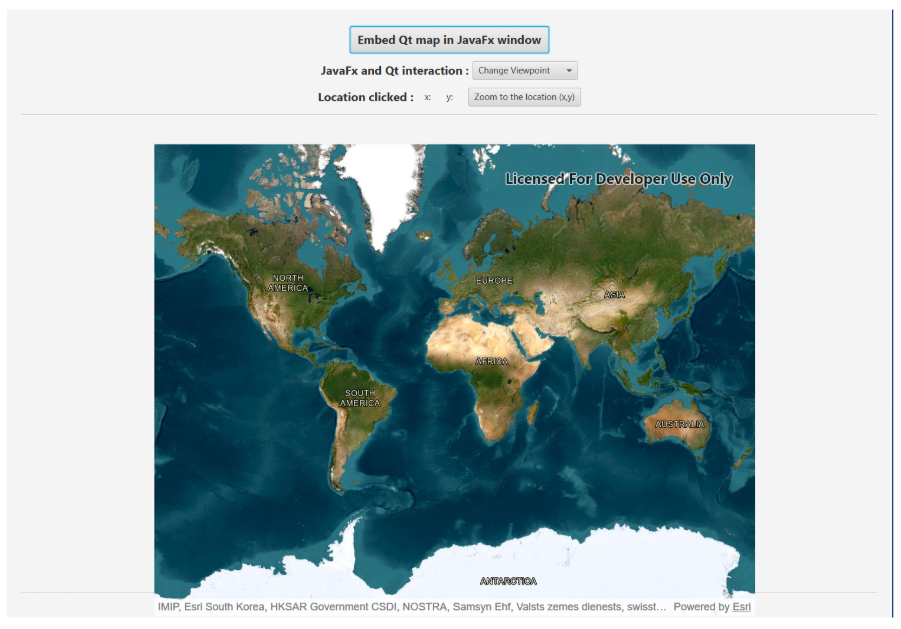
The primary pieces needed to display the map are as follows:
1. A Qt method that takes in a Java window handle and places the Qt MapView on it:
// Step 1: Qt method that takes in a JavaFX window handle and displays a MapView
void QtMapApp::runQtMapOnJavaFxWindow(quintptr parentHwnd)
{
    // Create the application
    QGuiApplication app(argc, argv);

    // Create QQmlApplicationEngine and load the QML file
    QQmlApplicationEngine engine;

    // Set the source
    engine.load(QUrl("qrc:/qml/main.qml"));

    // Set the foreign window as a parent of the QML root object
    QWindow* foreignWindow = QWindow::fromWinId(static_cast<WId>(parentHwnd));
    const auto rootObjects = engine.rootObjects();
    QObject* rootObject = rootObjects.first();
    QtMapApp::s_quickWindow = qobject_cast<QQuickWindow*>(rootObject);
    if (QtMapApp::s_quickWindow)
    {
        // Set the Map as a child of the JavaFx window.
        QtMapApp::s_quickWindow->setParent(foreignWindow);
        QtMapApp::s_quickWindow->setFlags(Qt::Window | Qt::FramelessWindowHint);
        QtMapApp::s_quickWindow->setPosition(200, 190);
        foreignWindow->show();
        QtMapApp::s_quickWindow->show();
    }

    app.exec();
}
2. A JNI bridge method between Java and Qt:
// Step 2 - Create a JNI bridge method to call from the Java side
JNIEXPORT void JNICALL Java_com_example_javafxqt_HelloController_runQtMapOnJavaFxWindow(JNIEnv *env, jobject obj, jlong parentHwnd)
{
    JniBridge::initialize(env, obj);
    QtMapApp::runQtMapOnJavaFxWindow(static_cast<quintptr>(parentHwnd));
}
3. JavaFX code that uses reflection to obtain the window handle from the JavaFX Stage, and ultimately passes this through to the Qt method in step 1 via the JNI Bridge:
// Step 3 - Get the window handle and call the JNI method
void launchQtApplication() {
    Stage stage = (Stage) container.getScene().getWindow();
    long parentHwnd = getWindowId(stage);
    runQtMapOnJavaFxWindow(parentHwnd);
}
Using this technique, you not only see the map, but you can interact with all the built-in mouse and keyboard gestures, like panning, zooming, and rotating.
Calling a Qt method from Java
Most applications take user input from the UI and pass it to the application logic. To demonstrate this, the example has a JavaFX ComboBox that contains several viewpoint options. When you select a new option, the corresponding setViewpoint method is called to programmatically navigate the MapView.
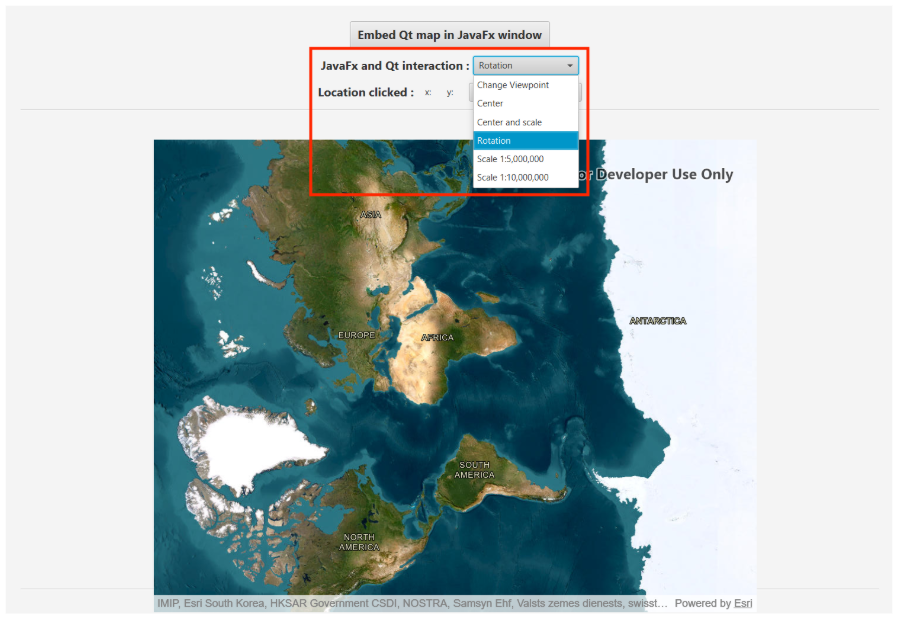
We achieved this with the following:
1. Export a JNI method that calls setViewpoint on the Qt MapView:
// Step 1 - create a JNI method that calls into Qt Maps SDK. This can be called directly from Java.
JNIEXPORT void JNICALL Java_com_example_javafxqt_HelloController_setViewPoint(JNIEnv *env, jobject obj, jdouble x, jdouble y)
{
    const Point pt(x, y, QtMapApp::s_map->spatialReference());
    QtMapApp::s_mapView->setViewpointCenterAsync(pt);
}
2. Call the JNI method from Java code:
// Step 2 - define the associated method in Java
public native void setViewPoint(double x, double y);

// Step 3 - call the method in Java when the combo box selection changes
setViewPoint(-117.195681, 34.056218); /code>
Listening to Qt signals (events) in Java with callbacks
Another important concept for most applications is connecting to events so you can appropriately update your application. For example, events (aka Qt signals) are raised on the Qt side, such as clicking on the MapView, and you will need to update the Java side with the clicked location.
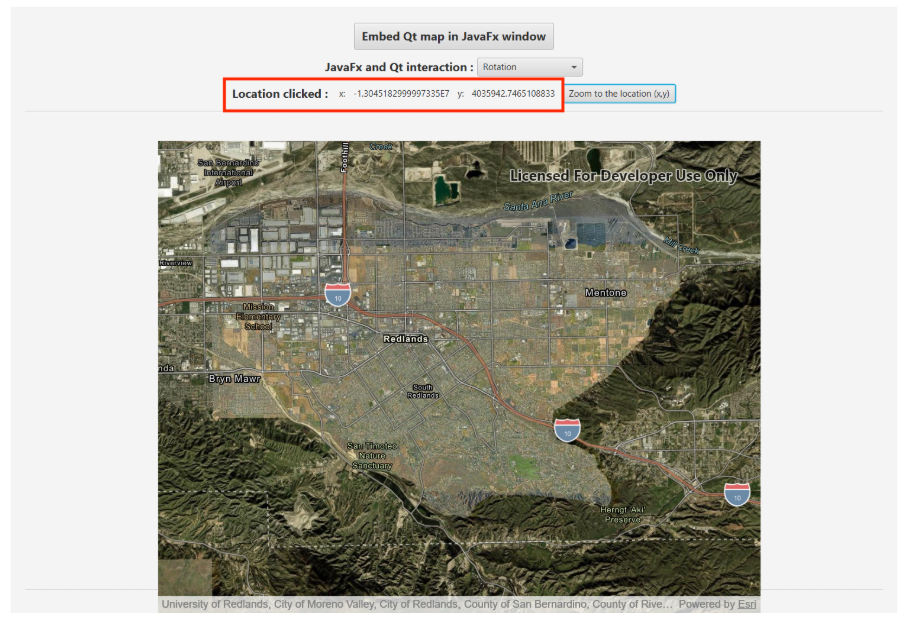
We achieved this with the following workflow:
1. Implement a Java method that updates a JavaFX label with the click location:
// Step 1: Declare a Java method that updates a JavaFX label
public void callJavaFxMethodFromQt(double x, double y) {
    xLabel.setText(String.valueOf(x));
    yLabel.setText(String.valueOf(y));
}
2. Create a thread-safe JNI bridge method:
// Step 2: Create a JNI bridge method
s_helloControllerGlobal = env->NewGlobalRef(helloController);
s_callMethod = env->GetMethodID(cls, "callJavaFxMethodFromQt", "(DD)V");

void callJavaFxMethodFromQt(double x, double y) {
    JNIEnv* env = nullptr;
    const jint getEnvResult = s_jvm->GetEnv(reinterpret_cast<void**>(&env), JNI_VERSION_1_6);
    bool attachedHere = false;
    if (getEnvResult != JNI_OK) {
        if (s_jvm->AttachCurrentThread(reinterpret_cast<void**>(&env), nullptr) != JNI_OK) {
            return;
        }
        attachedHere = true;
    }

    env->CallVoidMethod(s_helloControllerGlobal, s_callMethod, x, y);

    if (attachedHere) {
        s_jvm->DetachCurrentThread();
    }
}
3. Connect to the MapView::mouseClicked signal in Qt with a lambda function, and call back to Java via the JNI bridge method:
connect(QtMapApp::s_mapView, &MapQuickView::mouseClicked, this, [](QMouseEvent& mouseEvent)
{
    const auto globalPos = mouseEvent.globalPosition();
    const auto localPos = QtMapApp::s_quickWindow->mapFromGlobal(globalPos);
    const auto point = QtMapApp::s_mapView->screenToLocation(localPos.x(), localPos.y());
    // Use JNI bridge for thread-safe callback into Java
    JniBridge::callJavaFxMethodFromQt(point.x(), point.y());
});
What are the software requirements?
The example GitHub repo provides all the setup and build instructions. The assumptions are that you are already a JavaFX developer, and that you need to install Qt and the related dependencies, possibly for the first time. Full instructions are available on the developer site, but at a high level, you will minimally need:
- The Qt Framework. You can explore whether the open source or commercial license is right for you by reviewing Qt Group’s website.
- ArcGIS Maps SDK for Qt, version 200.8
- Microsoft Visual Studio’s C++ Compiler
Conclusion
Through the above techniques, we’ve shown that it is possible to display a Qt MapView in Java, as well as to have two-way communication between Java and Qt via JNI. While this example is by no means a silver bullet, we hope that it might be an inspiration on how you can continue to move forward with your JavaFX apps using the latest ArcGIS technology. We encourage you to clone the repo, setup your Qt environment and give it a try. If you have any questions, open an issue, or reach out on the Esri Community forums.


Article Discussion: