
Available AI assistants
To help users boost productivity, streamline workflows, and access information faster, Esri has expanded and enhanced AI-powered assistants across ArcGIS—and they are all steeped in the trusted security Esri is known for.
These assistants—available in beta or preview—now support natural language input, transforming how users interact with ArcGIS. From data collection, cartographic labeling, and translation to app creation, coding, and storytelling, AI assistants make many GIS tasks more intuitive and efficient.
Here’s a roundup of the AI assistants that are available now.
Quickly Improve Metadata for Items in ArcGIS
Use the Item Details assistant (beta) to get suggestions on titles, summaries, descriptions, tags, and field properties when filling out item details. Integrated directly into the item page, this assistant enhances searchability by both people and AI. Available in ArcGIS Online in private beta and ArcGIS Enterprise 12.0 in beta, this assistant supports the creation of meaningful, complete, and discoverable metadata, whether users are creating content from scratch or refining it.
A Helper for ArcGIS Arcade Expressions
The Arcade assistant (beta) helps users write Arcade expressions more efficiently. It supports a variety of tasks, including doing field calculations; making pop-ups; writing attribute and element expressions; creating labels; generating renderers for smart mapping; and aggregating field expressions, such as clustering or binning. The assistant uses a consistent language and toolset across experiences and is currently available in Map Viewer, ArcGIS Web Editor, and Scene Viewer. Support for the assistant will also be added in other areas where authoring Arcade expressions is possible.
Work Faster in ArcGIS Business Analyst
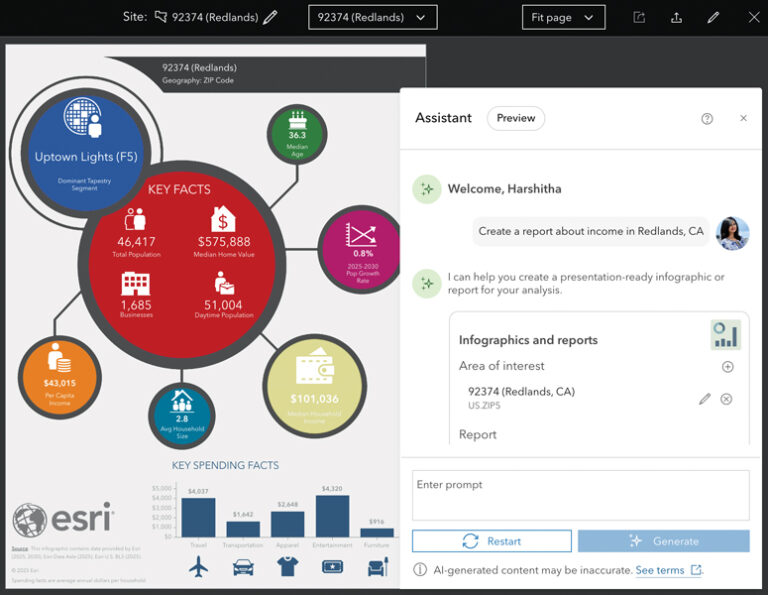
The Business Analyst assistant (preview) employs natural language prompts to help users complete common tasks more quickly, such as generating reports, building color-coded maps, and comparing sites. This in-app tool makes mapping and analysis more accessible to users with varying levels of experience. By simplifying workflows in ArcGIS Business Analyst, the assistant helps users focus on garnering insight rather than managing the interface.
Easily Find Maps, Layers, and Data in Microsoft Teams
Accelerate productivity with the ArcGIS for Teams assistant (beta). Using natural language prompts or search queries, users get step-by-step guidance; relevant search results; and recommendations for ArcGIS maps, layers, datasets, and more. The assistant makes it easier to find ArcGIS items without leaving Microsoft Teams.
Equip Communities to Use ArcGIS Hub
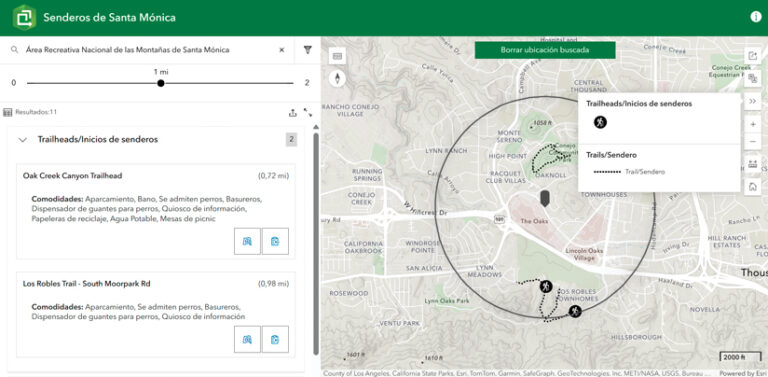
The ArcGIS Hub assistant (beta) is designed to help users interact with open data more intuitively. Embedded within an organization’s Hub site, it interprets natural language questions and produces answers using the public datasets shared on that site. Available with an ArcGIS Hub Premium license, the assistant finds relevant content and, if applicable, returns answers along with a map displaying related spatial data. This makes complex data easier to understand and empowers users to make informed decisions.
The Robust Capabilities of ArcGIS Pro Get Democratized
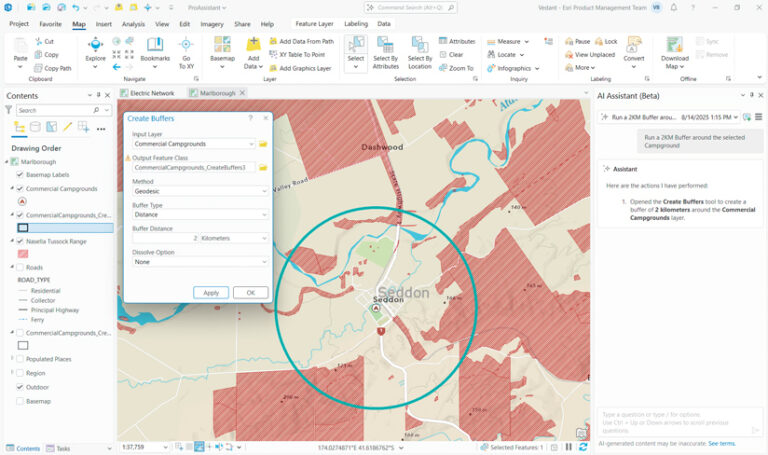
The ArcGIS Pro assistant (beta) enhances the ArcGIS Pro experience by enabling users of varying abilities to take advantage of the software’s robust capabilities. With the assistant, users can explore documentation, generate ArcPy code and SQL and openCypher queries, and trigger common actions using natural language. Available now in private beta through the Early Adopter Community, this assistant is accessible by invitation only. To request to be added to the Early Adopter Community for the ArcGIS Pro assistant, go to links.esri.com/pro-assistant.
Multiple AI Tools in ArcGIS StoryMaps
Four tools in the ArcGIS StoryMaps assistant (beta) help creators craft more engaging, accessible, and visually consistent stories through intelligent, context-aware support. The Writing assistant refines tone and structure to make text more polished and audience appropriate. The Insights assistant provides metrics related to readability, tone, and estimated reading time to help authors fine-tune their stories. The Accessibility assistant suggests descriptive alternative text for images to ensure inclusivity and compliance with accessibility best practices. Finally, the Theme assistant generates cohesive color and font combinations based on written prompts, helping users design compelling stories.
Help for Building Surveys in ArcGIS Survey123
The Survey123 assistant (preview) lets users quickly transform their ideas into structured questions and draft surveys in ArcGIS Survey123. Using natural language prompts in a conversational interface, users generate surveys and refine them in the web de-signer. The assistant’s translation capability makes it easier to localize surveys by converting questions into multiple languages in both Survey123 Connect and the web designer. Additionally, users can implement machine learning models in the Survey123 field app to analyze image responses and automatically classify conditions, detect objects, or redact sensitive information from photos.
Get Fast Answers from Esri Documentation
The documentation assistant (beta) provides a seamless, natural-language interface for interacting with Esri documentation. Users can ask direct questions and receive clear, concise answers without having to manually browse through pages. The assistant helps locate specific details, understand configuration steps, and discover best practices—making it easier to find the right information faster.
Create Multilingual Experiences in ArcGIS Instant Apps
Simplify the translation process for ArcGIS Instant Apps by using the translation assistant (preview). This powerful tool, accessed through the language switcher feature, helps quickly convert app content into multiple languages, reducing manual effort. Whether preparing apps for global audiences or complying with specific requirements, the assistant makes it easier to deliver inclusive experiences. Keep in mind, it’s always good practice to review translations for accuracy.
Why You Can Trust AI in ArcGIS
As AI assistants get integrated across ArcGIS, security teams at various organizations are asking important questions about the safety of AI. To build confidence in Esri’s commitment to security and data protection, Esri has clearly outlined its principles when it comes to developing with AI and is offering practical resources to users.
A new Trusted AI tab can be found on Esri’s ArcGIS Trust Center website. There, users can explore Esri’s guiding principles for AI, which revolve around security, privacy, transparency, fairness, reliability, and accountability.
Additional resources within the Trust AI tab include:
- AI transparency cards: These are standardized summary cards that answer common questions about an AI feature, such as what it does, how it works, what data it uses, and what safeguards are in place. Esri is rolling this out progressively, as transparency cards are finalized for each AI assistant.
- Implementation best practices: This guidance helps organizations prepare to implement Esri’s AI assistants to significantly improve decision-making and operational efficiency.
While AI assistants are powerful tools, Esri encourages users to validate the results before making decisions based on them.
How to Access the AI Assistants
Currently, Esri’s AI assistants are available, either in beta or preview, in ArcGIS Online. (The Item Details assistant is the only assistant in ArcGIS Enterprise 12.0 and ArcGIS Online.) Preview allows users to use AI assistant features in their ArcGIS environment for a limited time and provide feedback before general release. Beta is an earlier release stage.
To enable the assistants, go to the Settings tab on the ArcGIS Online organization page. In the AI assistants section, toggle Allow use of AI assistants by members of your organization. Note for beta access: Users need to disable the Block Esri apps and capabilities while they are in beta setting. This can be done in the Security section under Apps.
To learn more and explore setup guidance and best practices, visit the AI Configuration site.