Across the ArcGIS ecosystem, a style can mean anything from applying characteristics, such as shape, to completely changing a layer’s symbology. It can even mean using attributes (data fields) to drive the appearance of a multilayered symbol.
In any case, adding a style to a map, app, or dashboard is a great way to make it stand out, match organizational guidelines, add emphasis to your data, or make symbols themselves informational.
Here are a few of the different ways styles can manifest in ArcGIS:
- ArcGIS Pro styles let you apply the same symbol styles, colors, color schemes, layout items, or label placements across maps using a .stylx file. They can be created and shared among any ArcGIS Pro users. Several different style types can be used in ArcGIS Pro.
- Dictionary symbol styles in ArcGIS Maps SDKs for Native Apps are typically used for complex symbols such as military symbols, which are multilayered and attribute driven. This style includes an ArcGIS Arcade script that assembles each symbol from multiple parts based on the logic you write in the script and/or multiple fields, so often the symbols are data specific.
- Basemap styles are basemaps hosted by Esri that you can use in your native apps. They’re unrelated to the above styles and are typically used to provide context for your other map layers.
In addition to these, mobile and web styles are styles you can use in native apps with some limitations. These styles are the ones to use for apps you build using Native Maps SDKs.
The example used in this article takes the Malibu data in Native Maps SDKs tutorials and changes the symbols for its feature layers of points (trailheads), lines (trails), and polygons (parks) into glowing symbols using the Firefly style created by Esri cartographer John Nelson.
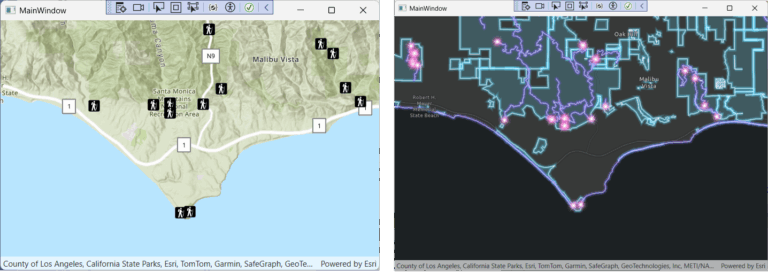
After using ArcGIS Pro to create a mobile style file, you can add styles to it from the Firefly style, then grab other styles and add them to the same file. This mobile style file can be used to style the Malibu layers. Users who go offline can bundle the style file with the app so that it’s local to the device and its styles can be used even when users aren’t connected.
While the Firefly style provides eye-catching emphasis, you may be more interested in one of the many other styles available in ArcGIS Pro, including styles specific to your industry.
Choose Your Style
First, go to the gallery to see available styles. Use the search box to filter the results or browse all style files. For example, you can type “firefly style for arcgis pro” to quickly get to the style used in this article.
You can download the Firefly style by going to Nelson’s style files and clicking the Download button for Firefly style for ArcGIS Pro. Download the style to your project folder (the folder with your .csproj file).
The Firefly style is useful because it can make your map elements appear to glow and sparkle. But a different style may suit your purposes better. A multitude of styles are available to choose from in ArcGIS Online.
Copy Symbols into the Mobile Style File
In ArcGIS Pro, on the Catalog pane’s Project tab, create a mobile style by right-clicking Styles and then clicking New > New Mobile Style. Navigate to your ArcGIS Pro project folder, then type “FireflyMobile” (or whatever name you choose) as the name of your new mobile style file. Click Save.
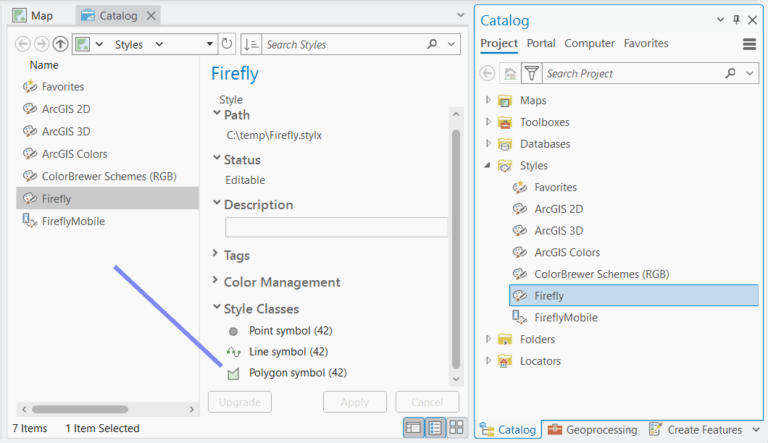
Add the Firefly style to the project. On the ArcGIS Pro ribbon, click Insert; then, in the Styles area, click Add Style. Navigate to the location you downloaded Firefly.stylx to (the folder with your .csproj file) and double-click Firefly.stylx. If you don’t see the file where you expect, remember to click the Refresh button near the top of the Add a Style File dialog box.
In the Style Classes area that displays, select the first style class that stores the styles you want to bring over. Here, start with Polygons.
Another pane will display that shows the polygon styles available. From there, select the style items to bring over. Select FireflyPoly_8 to style your polygons. Copy and paste it into FireflyMobile.stylx. Repeat this step for FireflyLine_5 in Lines and FireflyShimmer_2 in Points.
FireflyMobile.stylx is now ready to use in your native map app.
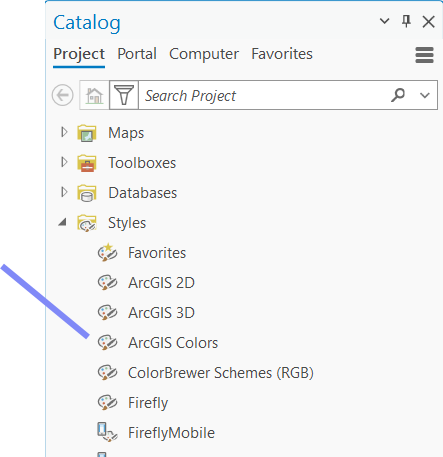
You could also select style items from other styles, such as ArcGIS Colors, and bring those over into the same FireflyMobile.stylx style file, the same way you brought over the Firefly styles.
Apply the Mobile Style File to Layers in Your App
This C# code sample is for use with ArcGIS Maps SDK for .NET, but the general approach is the same for ArcGIS Maps SDK for Kotlin, ArcGIS Maps SDK for Swift, and ArcGIS Maps SDK for Qt.
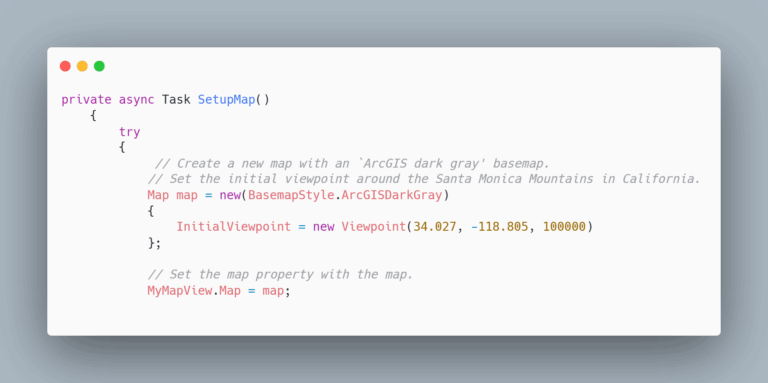
Snippet 1 creates the map with a dark basemap style.
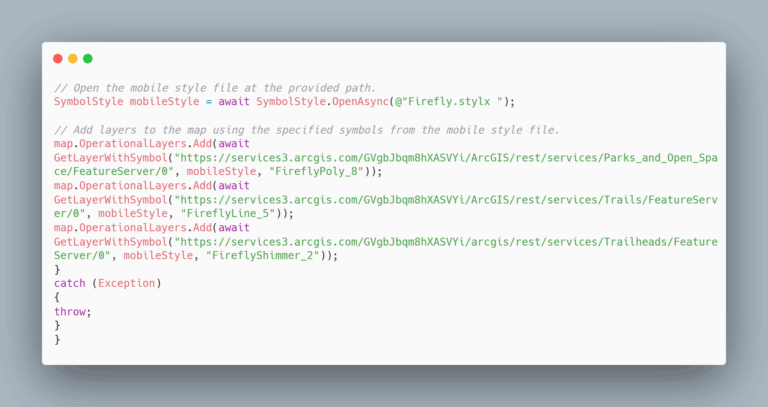
With snippet 2, open the mobile style you want to use, then add the layers, specifying the style you want for each layer. The method GetLayerWithSymbol will be created in a subsequent code block.
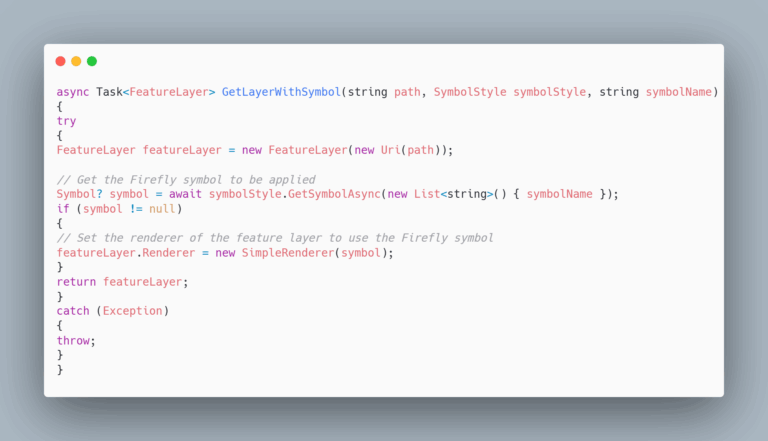
In snippet 3, the GetLayerWithSymbol method uses the GetSymbolAsync API method to get the specific symbol to be applied to the layer and creates a simple renderer with that symbol. You can then apply the renderer to the layer and return the new FeatureLayer. The GetSymbolAsync method is the cornerstone of this article’s sample code.
Bundle the Style File with Your App
When adding the mobile style file to your Visual Studio project, if you change the Build Action setting to None and set the Copy to Output Directory value to, say, Copy if Newer, the style file will be copied to your app’s output folder alongside the .exe file and then you can use the same syntax to specify the .stylx file location, as in this example:
SymbolStyle mobileStyle = awaitSymbolStyle.OpenAsync(@”Firefly.stylx”);
You can take advantage of the styles created by others by applying them to the layers in maps in your native apps. Be sure to check out the styles on ArcGIS Online, especially the more common ones, like industry-specific ArcGIS Pro styles. Make sure to test your layers after you apply new styles to them.
About the author