ArcGIS Web AppBuilder is retiring, and existing Web AppBuilder apps will no longer function as of 2027. If you haven’t already migrated your apps to ArcGIS Experience Builder, now is the time. However, some Web AppBuilder functionalities don’t have an exact analogue within Experience Builder, which can sometimes make the switch tricky.
One of the strengths of Web AppBuilder, for example, is the ability to use it to gather the sum of values that intersect an area of interest. This has many applications, including for emergency management and public health, and can be done using both the Situational Awareness and Incident Analysis widgets—two of the most widely used widgets within Web AppBuilder.
These tools allow users to specify a location and analyze information from a defined area and have the following search methods: Closest Feature, Proximity, and Summary. Closest Feature records the nearest point feature to the user-defined area, while Proximity records all the features within the user-defined area. Summary calculates the sum of a feature item by adding the total of each geographic unit that intersects with a user-defined area.
While the Incident Analysis and Situational Awareness widgets are not currently available in Experience Builder, the Near Me tool is often recommended as a replacement for the Web AppBuilder widgets, since this tool allows users to find and analyze features with a defined area. The Near Me tool also includes the same search methods: Closest Feature, Proximity, and Summary.
The current configuration of Experience Builder allows you to create new variables to calculate the sum of single or multiple items and to calculate percentages and rates based on existing values within a web layer. This workflow focuses on how to create variables in the Near Me tool with multiple items within a web layer, using an ArcGIS Living Atlas of the World dataset based on 2023 United States Census Bureau American Community Survey (ACS) five-year estimates for population by census tract.
The Workflow for Multiple Items
To create variables in the Near Me tool using multiple items within a web layer, complete the following steps:
- Add the Near Me widget to the existing Experience Builder app.
- Open the Near Me widget.
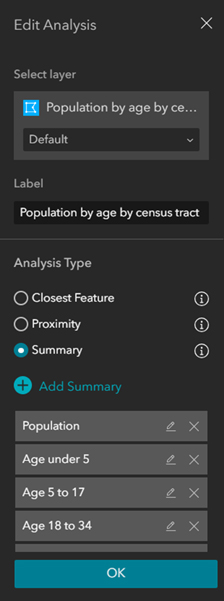
- Once the Near Me widget has opened, choose the map to be used for the analysis under Analysis Settings. In this example, the map is called Population by census tract.
- After selecting the map, make sure to select the layer within the web map to be analyzed. In this example, the layer is called Population by age by census tract.
- Enter a label for the layer name.
- From the Analysis type, choose Summary.
- Click Add Summary.
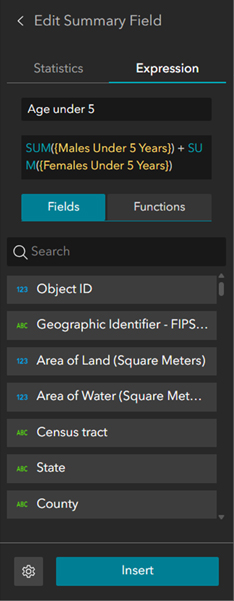
- In the Add Summary box, click the Expression tab.
- On the Expression tab, add a name for the variable in the top text box.
- Click the Functions tab to add a function in the second text box. This box is where you can assign the fields and variables to be used in the calculation.
- Once the function is added, be sure to click the Fields tab to include an attribute within an existing web layer. Insert the variable in between the parentheses of the function.
- For variables that cover multiple items, be sure to click Fields and Functions as many times as needed. In the example on page 58, SUM is the function, while the variable name is the field.
- In the second text box, use SUM(variable) + SUM(variable) for as many variables as needed.
- Click Insert and then click OK when done. The category is now included as part of the analysis.
- Repeat these steps to add more variables
- Save and publish the application.
The Workflow for Rates and Percentages
The Near Me tool also allows you to create new variables to calculate rates and/or percentages within a defined area. This workflow includes many of the same steps, but with key differences.
First, repeat steps 1–12 as listed above. Then, complete the following steps:
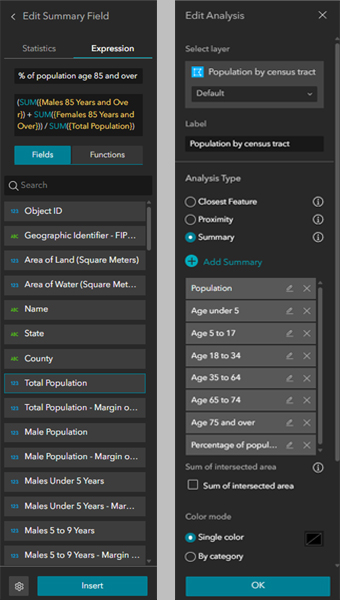
- In the second text box, use SUM(variable) + SUM(variable) for as many variables as needed for both the numerator and denominator.
- Add a divide symbol (/) between the numerator and denominator.
- If the numerator and/or denominator includes multiple items, place parentheses () around the SUM. This will ensure that the calculation is accurate. Also make sure to format the calculation like so: (numerator) / (denominator).
- Click Insert and then click OK when done. Repeat these steps to add more variables.
Once the configuration is complete, be sure to save and publish the app. After the app is published, run the Near Me tool. In this example, the Near Me tool calculates the sum of all the population variables. A list of the sum or percentage values for each item is included.
This workflow does more than replicate the summary analysis capability that currently exists in the Situational Awareness and Incident Analysis widgets within Web AppBuilder. It also includes the ability to create new variables based on the sum of existing features within a feature layer. Using these methods expedites data processing and analysis time for a variety of applications.