Every GIS professional faces repetitive tasks that consume valuable time. ModelBuilder, the visual programming language included with ArcGIS Pro, helps automate workflows to run efficiently and consistently. Models function as workflow maps with built-in directionality, using visual elements to communicate process status. When designed for reuse, they become powerful tools for conducting sophisticated analyses and completing geoprocessing tasks faster.
The good news is that if you’re interested in using ModelBuilder to streamline your workflow, a simple five- or six-step process can get you started.
1. Plan the Workflow
Before creating a model, you should know what you want the model to accomplish. The planning process involves listing the data input, identifying the required geoprocessing tools, and describing the desired output. For simple workflows, thinking through the process mentally may suffice. More complicated workflows may benefit from sketching everything on paper or a whiteboard. If you are unsure which tool to use or what inputs a tool requires, check the online ArcGIS Pro tool reference.
To start, click ModelBuilder on the Analysis tab in ArcGIS Pro.

2. Create the Model Shell
In ArcGIS, a model must be stored inside a toolbox. When you create a project in ArcGIS Pro, a toolbox with the same name as the project is automatically created.
On the Analysis tab, clicking ModelBuilder opens an empty model window. You can also open a new model by right-clicking the toolbox folder in the Catalog pane and choosing New > Model.
After the model window opens, the next step involves setting the model properties by clicking Properties on the ModelBuilder tab.
On the General tab, select the Option To Store tool with a relative path. Using relative paths helps ensure that the model continues working properly if data is moved.
Setting these properties completes the model shell:
- Name: Type the file name with no spaces.
- Label: Provide a plain name that can include spaces.
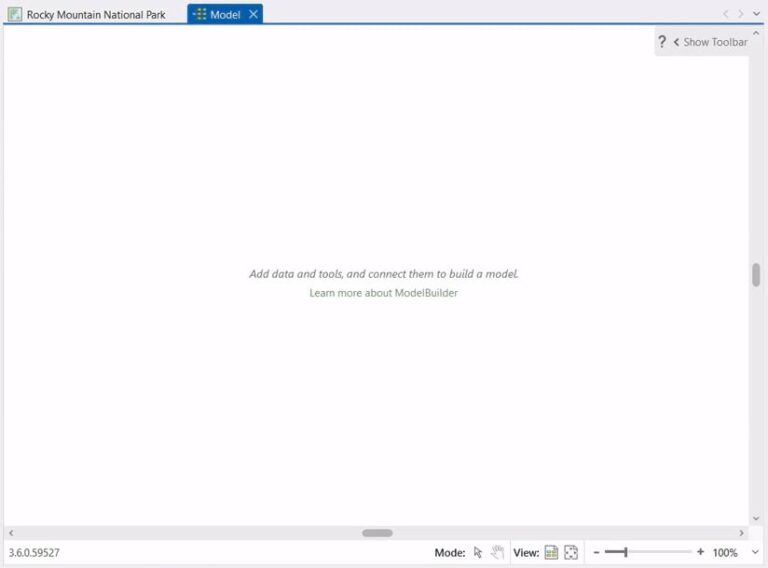
Click OK to open a blank canvas for building the model.
3. Add Tools and Set Parameters
With the basic setup complete, the model-building process begins. ModelBuilder provides easy drag-and-drop functionality for building and experimenting, but understanding some ModelBuilder vocabulary can help you get started.
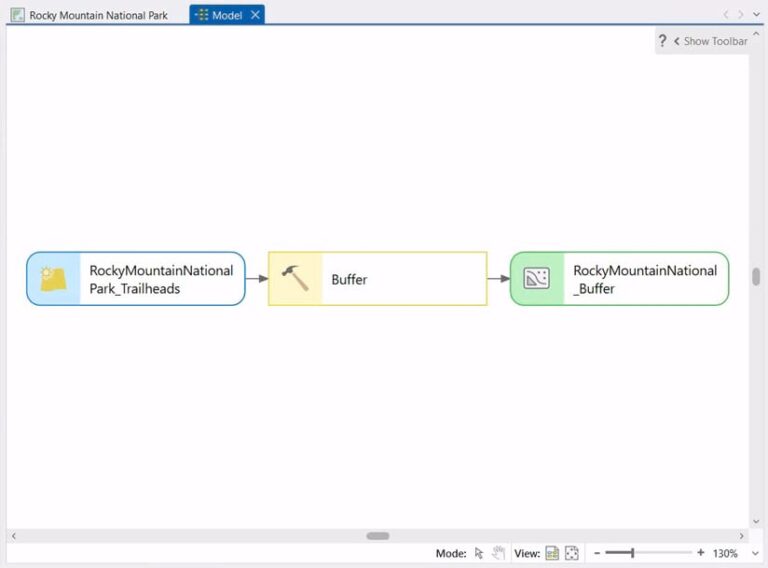
A model consists of one or more processes. Each process has three elements: input data, a tool, and the tool’s output. Each output can become an input for the next process.
When you add a tool to a model by dragging it from the Catalog or Geoprocessing pane, its output element is also added, and both elements appear in light gray. In model terminology, gray means it’s not ready to run.
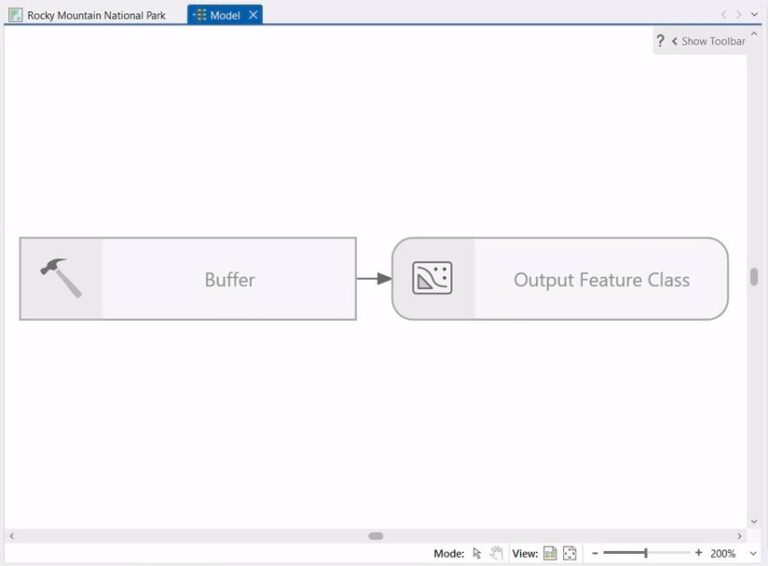
Double-clicking each tool allows you to set its parameters. A red asterisk next to an item in a tool dialog box indicates the parameter is required. Setting tool parameters requires paying attention to red asterisks.
If input data has selected features or records, models—such as individual ArcGIS geoprocessing tools—will process only the selection.
Once you click OK to set the tool parameters, the input element displays and the process changes color.
As processes are added, the model window may fill up. The Auto Layout and Fit to Window buttons help you see the big-picture view and zoom in and out as needed.
Click Save on the ModelBuilder tab to save your work periodically.
To visualize the model’s final output on a map, right-click its model element and choose Add To Display. Otherwise, you will need to manually add the output as a layer to the map.
4. Validate the Model
After adding all the tools and setting their parameters, ensure that the model will run properly by validating it. Validation is straightforward—initiate the process by clicking the Validate button with the green check mark on the ModelBuilder tab. During validation, if an error occurs, processing will stop at the process with the problem.
After determining what’s wrong and then making the fix, you should validate again. Once the model is validated, complete this step by saving it and the ArcGIS Pro project.
5. Run the Model
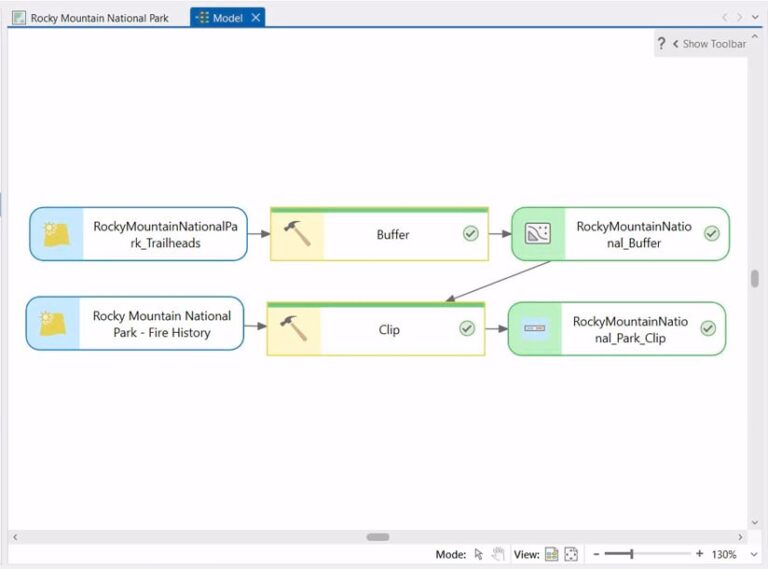
You have two options for running a model: inside or outside ModelBuilder. Running a model inside ModelBuilder involves clicking the Run button. As the model progresses, the tool shows a green progress bar. Once the model is run, each tool shows a green status bar and green checkmark. All successful outputs will also show a green checkmark. If a process turns gray, something needs correction and the model stops running. If you have validated your model, this should not happen.
Models can also run outside of ModelBuilder as a tool or service. Running a model as a tool or service provides advantages for collaboration and sharing.
6. Run It Again (optional)
A model’s final output may raise questions. For example, suppose a model process created a 50-meter buffer around a map feature. After examining the model output layer on the map, you might wonder what the impact would be if a 100-meter buffer was used instead. To find out, simply open the Buffer tool; enter the new distance value; and run the model again, starting at the buffer process, by right-clicking the Buffer tool and choosing Run. Because you are not altering preceding processes, you don’t need to rerun the entire model. This flexibility represents one of the key advantages of modeling.
Built for reuse, models provide an effective way to explore and test what-if scenarios. Similar to scripts, models are encapsulated workflows. Once created, they can be used repeatedly as a fast alternative to manually performing all the individual steps in a workflow. You can build a model to automate any geoprocessing workflow, whether complex or simple and straightforward.
With these essential steps for creating a simple model, you can begin building your own automated workflows.
About the author