ArcGIS Instant Apps offers ready-to-use web applications that are fast to set up and simple to use. Among its many templates, five are designed with data editing capabilities in mind:
- Manager
- Sidebar
- Web Editor (beta)
- Attachment Viewer
- Reporter
Each of these templates supports an editing experience tailored to specific workflows and user needs. Different editing tools are available for each template, and align well with various common use cases. It’s important that you choose the right app for your data editing tasks.
Before creating your application, ensure that the data used in your web map is properly configured for editing. Here are a few key checks to perform on your layers:
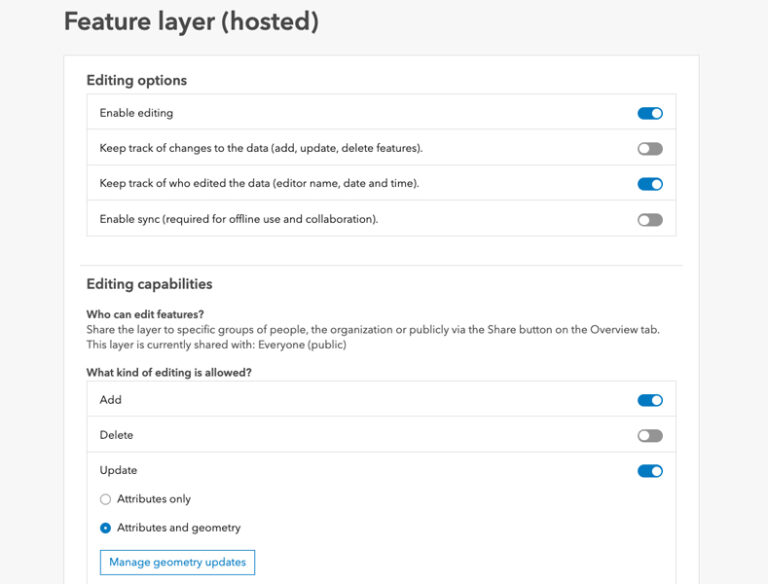
- Ensure that layers are editable. On the Settings tab of the hosted feature layer’s item page, confirm that editing is enabled for each layer.
- Configure editing level. Choose what type of editing abilities are allowed on each layer like add, update geometry, update geometry and attributes, or delete.
- Confirm layer sharing. Review that layers are shared with the intended audience or groups.
- Consider using layer views. Control who can view and edit certain features within the layer by using a view of the layer.
The next step is to add your layers to a web map. While building your map in Map Viewer, consider key configurations to simplify the editing experience, like smart forms and feature templates.
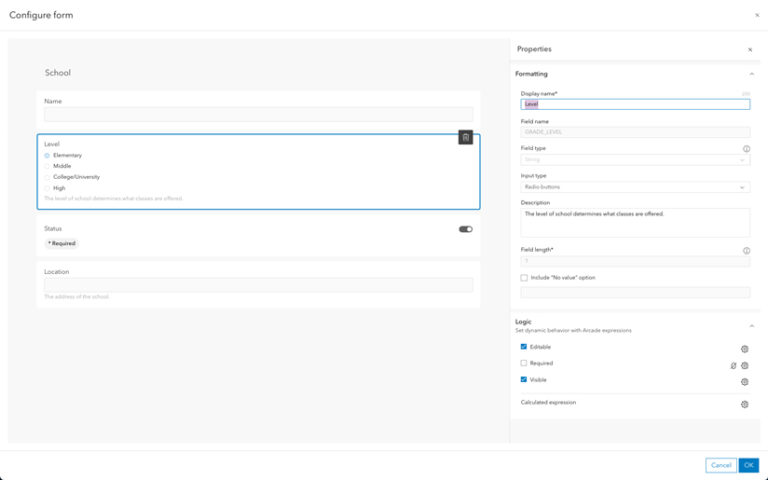
Smart forms streamline the editing process by presenting editors with a curated list of relevant fields and predefined, valid attribute values for each editable field. Forms help reduce errors and guide users through the editing process.
Feature templates are defined categories based on attributes that editors use when adding a new feature on the map. They assist with giving users a clear starting point when adding a new feature.
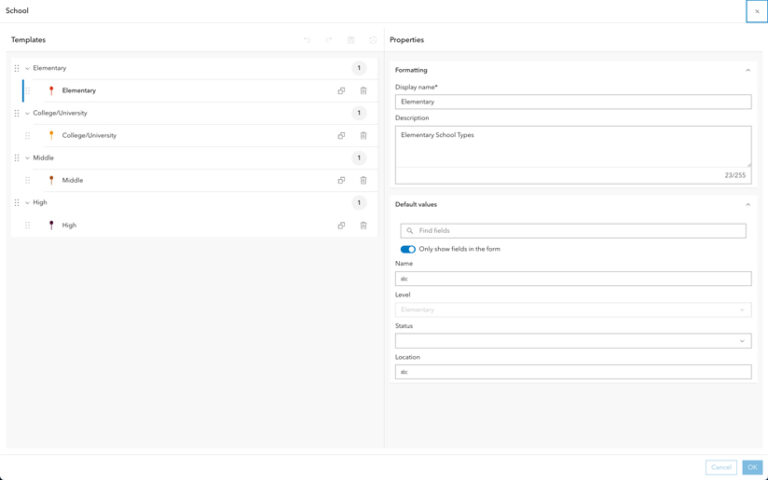
Editing features in Instant Apps can be broken into two categories: full capabilities and limited capabilities. Full capabilities allow users to add new features, update existing features, and delete features—offering a complete editing experience directly within the app. Limited capabilities are designed for more guided, workflow-specific editing tasks. These apps support only certain types of edits, focusing on streamlined interactions that align with specific use cases.
Apps with Full Editing Capabilities
Manager

The Manager template is ideal for reviewing and editing features across multiple web maps, offering a flexible interface that combines map and table views. Users can add, update, or delete features directly within the app. A key feature of Manager is its integrated table, displayed prominently in the main stage, allowing for quick and efficient attribute updates.
In addition to basic editing, users can access and update related records through either the table or the information panel, which also displays pop-ups for selected features. Manager supports updating multiple features at once.
Sidebar
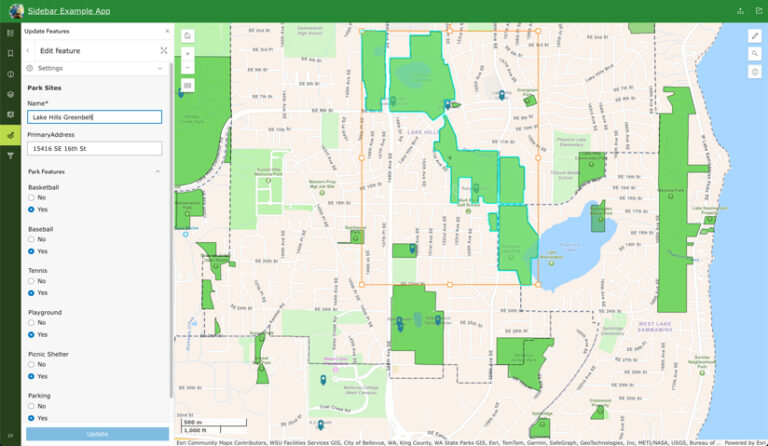
Use the Sidebar template to display a map alongside tools to edit, filter, and interact with data. With the built-in editing tool, you can add, update, and delete features directly within the app. For more efficient workflows, Sidebar also supports updating multiple features at once.
Additionally, you can enable a table view through the layer list tool, making it easy to edit attributes directly in a tabular format. This combination of map, tools, and table provides a streamlined and flexible editing experience tailored to a variety of use cases.
Web Editor (beta)
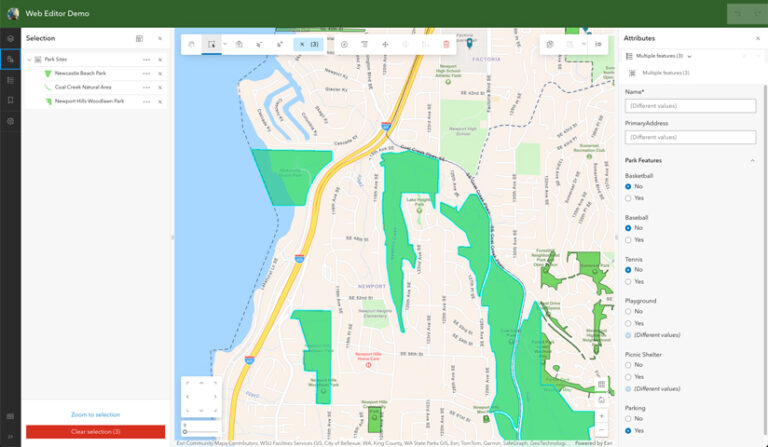
Use the Web Editor (beta) template to create a customized version of the Web Editor application that is tailored to your editing needs. It includes a full suite of editing tools—you can add, update, and delete features, as well as perform advanced geometry edits such as editing vertices as well as splitting, merging, moving, and
reshaping features.
Like the other full-capability apps, Web Editor supports updating multiple features at once. It also offers tools to copy and paste features within the same layer or across different layers, enhancing flexibility in data management.
App authors have control over which map layers are selectable or editable, allowing for a more focused and intuitive editing experience for specific use cases.
Apps with Limited Editing Capabilities
Attachment Viewer
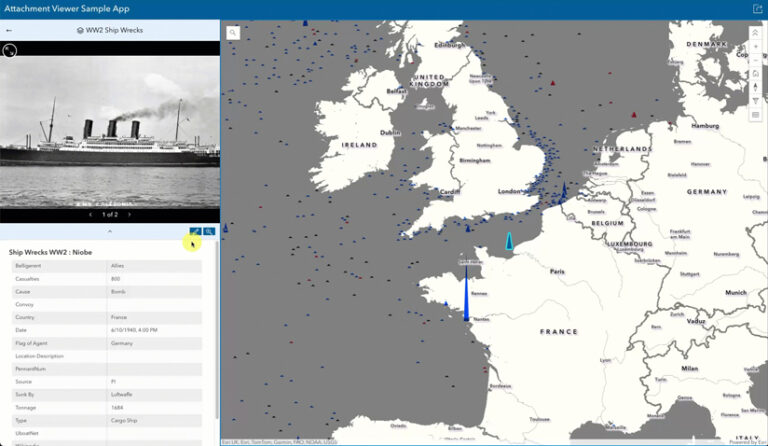
Use the Attachment Viewer template to display photos, videos, and PDF files stored as attachments alongside your map. While its editing capabilities are limited, it does allow users to update attribute information directly within the app. Attribute edits can be made through the pop-up panel that appears next to the attachment and map displays. This template is ideal for workflows that involve reviewing data and making simple attribute updates.
Reporter
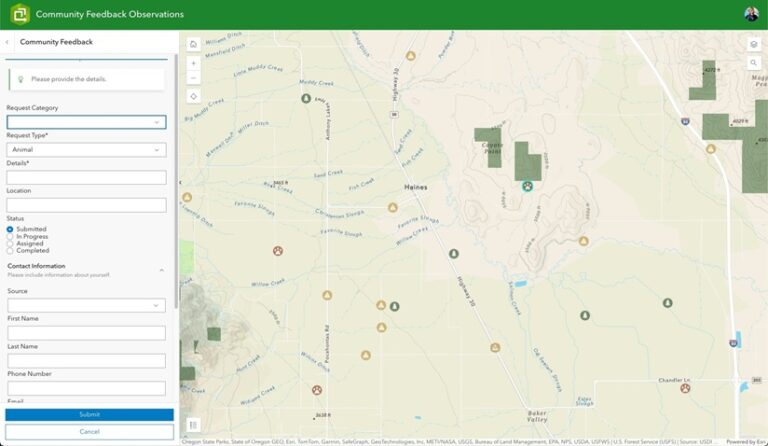
The Reporter template is designed for collecting and sharing information about new or existing issues within a specific area. Users can submit new reports, comment on existing ones, and express feedback through voting features with likes and dislikes.
The app allows users to add new features, and while editing capabilities are basic, these capabilities are designed to work with the specific needs of the Reporter template. To enable voting functionality, numeric fields must be configured to store like and dislike counts. Additionally, a related table is required on the reporting layer to capture and store user comments.
This template is ideal for community engagement and crowdsourced reporting, offering a structured yet interactive way to gather input from users.
About the author