In web GIS, the demand for managing a wide variety of 3D data is rapidly growing. The support for 3D models is especially important due to their widespread use across various industries. Thus far, scene layers have been the means to address this demand. However, this 3D object workflow requires all necessary data to be managed locally (as a multipatch feature class) and published as a web layer for visualization. While this method works well for static 3D content that doesn’t need frequent updates, it lacks flexibility; any data changes require the layer to be republished.
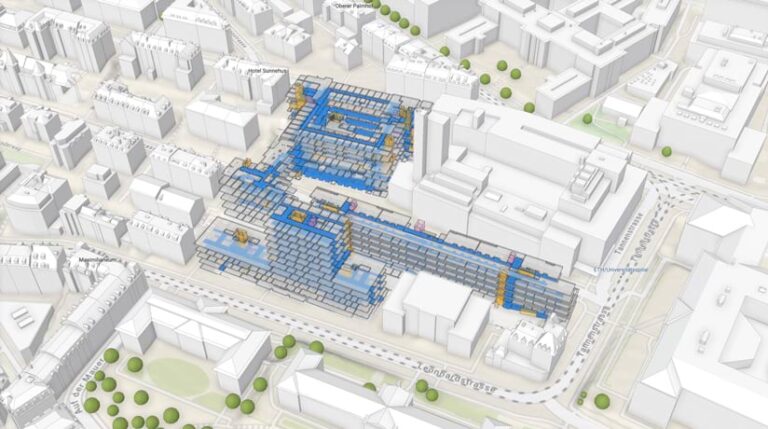
With the 3D object layer, however, not only can you host your 3D models in ArcGIS Online and ArcGIS Enterprise, but you can also add, update, or delete these 3D features directly on the web using Scene Viewer or custom web apps built with ArcGIS Maps SDK for JavaScript. As a result, ArcGIS can function as a system of record for geolocated 3D objects such as buildings, building parts, street furniture, bridges, or underground structures.
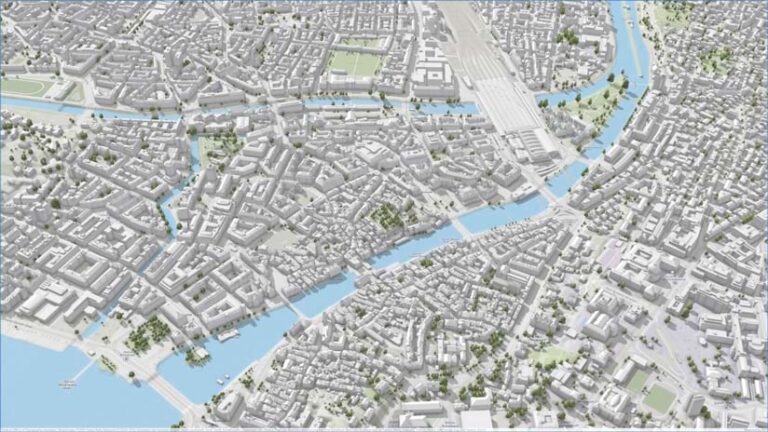
It’s easy to see how 3D object layers can be applied across industries. For instance, architects, engineers, and urban planners can georeference and evaluate their designs directly within a 3D context, leveraging 3D basemaps. Government agencies can further streamline and digitize the electronic submission process for building and planning documentation. They can also provide public access to downloadable 3D assets, enabling faster and more efficient workflows for their users. Archaeologists can create and update 3D models of excavation sites, preserving detailed records of their findings. Alternatively, historical sites can be reconstructed virtually, enhancing understanding of civilizations and enriching educational practices. Models of existing buildings or their exported parts can be seamlessly integrated within the context provided by other 3D layers.
You can also upload models in various formats. Upon upload, your models are securely stored in the 3D object layer without loss and are accurately geolocated. Once you store a 3D model, you can easily update its position, orientation, scale, and other custom attributes without altering the source files.
The capabilities of the 3D object layer are realized by integrating a 3D object scene layer with a 3D object feature layer. The scene layer enables efficient display, while the associated feature layer serves as a database, enabling ad hoc editing and querying. There may be a temporary performance impact during the editing process, as edited features are drawn from the feature layer rather than the optimized scene layer cache. The extent of this impact on your workflow will depend on the number and complexity of the edits. However, once editing is complete—or at regular intervals—you can rebuild your 3D object layer through a process known as caching, restoring it to its full efficiency.
Publishing a 3D Object Layer
To create and publish a 3D object layer, you can use either ArcGIS Online or ArcGIS Pro (3.2 or newer). ArcGIS Online provides a more streamlined workflow for publishing an empty layer. However, if you are using a projected coordinate system (PCS), it is better to set up your project and publish the layer using ArcGIS Pro.
Choosing the appropriate spatial reference for a GIS project is crucial. To ensure compatibility of the 3D object layer with your project, publish it using the same spatial reference.
To visualize your data on the globe, use a global scene and make sure your 3D object layer is published using the World Geodetic System (WGS) 1984 coordinate system. To work in a PCS suitable for your geographic area, use a local scene. Ensure that your data (including basemaps and layers) and your 3D object layer are published in that PCS. This ensures maximum accuracy in georeferencing your 3D content.
While Web Mercator is a commonly used PCS for visualizing web GIS content, it introduces significant distortions and scale variations. It is not recommended for a local scene (projected) or as a spatial reference for publishing 3D object layers.
Sharing 3D Object Layers
When sharing a 3D object layer with other people, consider two key questions:
- Who should be able to perform edits such as adding, updating, and deleting models?
- Who should be able to view the layer and its edits?
To define your sharing setup, you have two tools at your disposal: the layer’s sharing settings and the option to enable or disable editing. Different sharing scenarios require different combinations of these two settings.
Each layer has three default sharing options: Owner, Organization, and Everyone (public). When you publish a layer, you are its owner. Administrators in your organization have owner-type permissions on all items. In ArcGIS Online, clicking the item’s sharing button opens a dialog box where you can set the default sharing level and group sharing. Publishing a 3D object layer creates two items—a 3D object scene layer and a 3D object feature layer. The sharing options for these layers must match.
In the ArcGIS ecosystem, groups provide a flexible way to broaden users’ access to resources inside and outside your organization. By using group sharing, you can extend access beyond the default levels of Owner, Organization, and Everyone. For instance, if your default sharing level is Owner and you share a layer with a group of four members (excluding the owner), all five members will have access to the layer.
In ArcGIS Online, within the Share dialog box, you can point to Set group sharing; click Edit group sharing; select the groups you wish to grant access to; then click Apply.
Understanding, Enabling, and Disabling Layer Editing
Editing on the 3D object layer must be enabled once to activate its capabilities. After this initial activation, you can disable editing, restricting edits to the owners.
In ArcGIS Pro, you enable editing by checking the Enable editing option. You can verify this in Portal for ArcGIS after publishing. Open the item page for the associated feature layer, click the Settings tab, then scroll down to the Feature Layer (hosted) section. Ensure that these options are checked: Enable editing; Keep track of changes to the data (add, update, delete features); Add; Delete; Update; and Attributes and geometry. If you forgot to enable editing in ArcGIS Pro, check all of the above options and click Save to confirm the changes.
To disable editing after it has been enabled, simply uncheck Enable editing on the same page and click Save. Note that creating an empty 3D object layer in ArcGIS Online automatically activates editing capabilities.
Sharing Scenarios
Combining sharing settings and enabling/disabling editing enables many layer-sharing scenarios. To implement the following scenarios, it is assumed that you have initially enabled layer editing.
- Owner-only viewing and editing: If the sharing level is set to Owner for both layers (the default option in ArcGIS Pro), only the owners can view and edit the layer.
- Organization viewing—editing acc-ording to user roles: If you share your layers with your organization and the editing is enabled, the user roles within your organization will define layer editing permissions. For example, users with Editor or Publisher rights can make edits, while users with the Viewer role can only view the layer and its edits.
- Organization viewing—owner editing: If you shared your layers with your organization per the previous example, disabling editing on the feature layer will keep the viewing permissions intact but restrict editing permissions to the owners.
- Public viewing—owner editing: Here, anyone can see the layer and its edits, but only the owners can perform edits. If using ArcGIS Pro, you must first check Approve for Public Data Collection, on the Configuration tab. Then enable editing to allow editors to add, delete, and update attributes and geometry. After your layer is successfully published, disable editing. If you initially had a different sharing configuration for your 3D object layer and wish to transition to this one, first disable editing on the feature layer; then, for both layers, set the sharing level to Everyone (public).
- Restricted viewing—owner editing: This configuration allows granular access to view the layer, while editing access is restricted to the owners. Set the default sharing level and extend the access by choosing which groups to share the layer with. Make sure the groups you share with are not shared update groups (explained in the following scenario). Finally, disable editing.
- Restricted viewing—restricted editing: This scenario makes use of shared update groups to manage who can make edits. All group members will be able to edit the layers shared with it. When creating a shared update group, ensure that the Shared Update option is enabled within Group designations from the beginning, as this option cannot be modified once the group is created. Share both layers with the shared update group. If necessary, include other, nonshared update groups to provide more granular viewing permissions. Finally, disable editing on the feature layer to restrict editing access to the owners and Shared Update group members.
Editing 3D Models in Scene Viewer
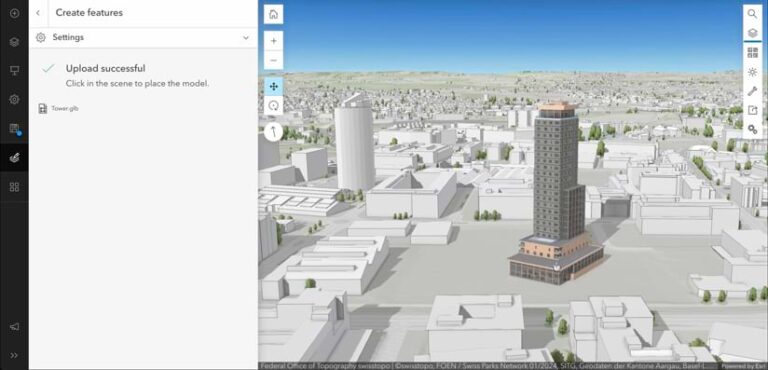
Scene Viewer allows a simple, out-of-the-box setup for editing 3D models, making it a great place to start with 3D object layer editing.
To enhance your editing experience, click Settings at the top of the editor. This will reveal tool tips and snapping options. If you wish to place or update your models using numerical coordinates, toggle on Enable tooltips. To be able to place your models precisely on corners, edges, or surfaces of other features, toggle on Enable snapping. Additionally, make sure to activate the following options: Geometry guides and Feature to feature. In the Snapping layers collapsible panel underneath, select the layers to which your features will snap.
If snapping is activated and the relevant snapping layers are enabled, your model will automatically align with the corners, edges, or surfaces of nearby features during placement. You will notice orange lines indicating the alignment.
To utilize tool tips while placing your model, press Tab. A modal will appear next to the cursor with five editable fields—X, Y, Z, Orientation, and Scale—along with three lock widgets for the axes. You can now manually input the values in these fields. To leave this mode, press the Esc key.
If you decide to change a model’s position, rotation, or scale at a later stage or remove it entirely, you can easily do this using the Editor widget. Performing any of these operations (add, update, delete) in any supported client does not require republishing the 3D object layer.
Currently, you can upload and store your 3D models in the following formats:
- COLLADA (.dae)
- Autodesk Filmbox (.fbx)
- Autodesk Drawing (.dwg)
- Industry Foundation Classes (.ifc)
- Universal Scene Description
(.usdc, .usdz) - Wavefront (.obj), GL Transmission Format (.glTF)
- Binary GL Transmission Format (.glb)
If the intrinsic unit of the 3D model is not specified when loaded into a global scene, it will be interpreted as a meter
(1 unit = 1 meter). Conversely, if the model is loaded into a local scene, the assumed unit corresponds to the unit of the projected coordinate system. Per specification, glTF models (.glb and .glTF) will always be interpreted as modeled in meters.
Uploaded models, including textures, can be up to 100 Mb in size for reasonable display and editing performance.
Caching 3D Object Layers
Editing the 3D object layer temporarily affects display and loading performance. This impact varies depending on the complexity of the models and the number of edits. The more edits you make without rebuilding the scene layer cache, the more the scene performance will be impacted, as all new or updated models will display in full detail. Uploading more objects to the 3D object layer in one session will increase the time required to optimize them for performance in the subsequent phase.
Once editing is complete, a process known as caching is used to rebuild the 3D object layer with all the changes made during the editing phase. This restores the optimal loading and display performance, even with numerous newly added 3D features. Keep in mind that caching is a computationally intensive server-side operation. Its usage incurs costs measured in credits. The more data needs to be cached, the more credits the operation will require.
Best Practices
It is difficult to provide a one-size-fits-all strategy for effectively balancing editing and caching. This challenge arises from the wide range of possible scenarios involving model sizes and complexity, the number of models, and the number of editors and edits they make. Therefore, the most effective approach is to learn through experience by adhering to the following best practices:
- Plan your edits, test, and iterate. Group your edits logically to minimize the number of cache rebuilds. If you notice significant performance degradation after adding a certain number of models, consider concluding the editing session and caching the changes made to the layer before starting again. Document your findings (including the number and average complexity of models added before impact degradation), and use this knowledge to refine your editing and caching strategy. This can help maintain performance and reduce the frequency of performance degradation during the editing phase.
- Regularly rebuild the cache. If the project requires ad hoc editing over time, schedule regular cache rebuilds to integrate changes and restore the scene layer to its full efficiency. This helps maintain optimal performance, especially after significant editing sessions.
- Educate your team. Ensure that all team members involved in editing scene layers understand these best practices. Consistently applying these guidelines will help maintain performance and efficiency across the board.
- Optimize models and textures. Three-dimensional models are created for various purposes. Some will be appropriate for your use case, while others might cause issues. The most common issues involve the complexity of the model’s geometry and the size of its textures. High geometric complexity can lead to visualization problems, especially when automatic Level of Detail (LoD) simplification reaches its optimization limits. Large textures can also be an issue as they will take up much of your valuable storage space and slow down uploads and downloads.
In scenarios where you are working with a limited number of 3D models and have powerful client-side hardware, optimization may not be necessary, even for overly complex models. In case a need for optimization arises, consider the following steps:
- Simplify geometry. Use your preferred 3D modeling software to reduce the complexity of exported geometry. For instance, in Blender, you can unsubdivide the mesh or utilize the limited dissolve feature to eliminate unnecessary vertices and edges separating flat regions. If exporting an IFC model from Revit, adjust the tessellation level on the Level of Detail tab; this will simplify some Revit elements like elbows, floors, railings, and pipe fittings. Depending on your needs, choose between extra low, low, or medium level of detail.
- Reduce texture size. Large textures are among the most common contributors to large model file sizes. Consider downscaling your textures if they contain details that do not contribute to your visualization.
- Export selectively. If you are exporting purely for visualization, consider including only the layers relevant to your visualization. This typically involves removing some interior walls, furniture and fixtures, construction details, plumbing, electrical and HVAC components, site utilities, and other elements that do not contribute to the visualization.
About the author