When you first start building custom widgets in ArcGIS Experience Builder, the goal is to make it work. However, once you add more UI capabilities, maps, and interactivity, things can start to feel sluggish. Load times increase, interactions lag, and the app’s responsiveness takes a hit. This is when optimization matters.
With the underlying framework in mind, let’s look at how to keep your ArcGIS Experience Builder widgets fast and efficient using the three main component systems in your apps:
- Jimu UI Components: A React-based library built into ArcGIS Experience Builder
- Calcite Components: Esri’s web component library for building apps with accessibility in mind
- Map components: Lightweight ArcGIS Maps SDK for JavaScript web components for maps, scenes, and tools
Each library plays a unique role in Experience Builder development. Knowing when and how to use each one helps you avoid unnecessary overhead.
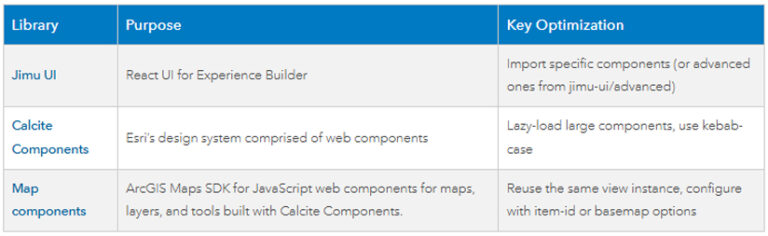
Jimu UI provides React components built for Experience Builder, such as Buttons, Switches, Sliders, and Layout helpers. Because these are the same components used by the core application, they integrate naturally with Experience Builder themes and layouts. If you need more advanced widgets, such as FeatureLayerPicker, FieldSelector, or Filter, you can import them from jimu-ui/advanced.
Calcite Components are web components built on Esri’s design system. Calcite is best served when you’re creating a UI or looking for a consistent Esri web app look and feel. Since Calcite Components are shipped as stand-alone web components, you should import components individually to avoid inflating your bundle.
Map components bring JavaScript Maps SDK functionality directly into your widgets without manually creating MapView or SceneView objects. You can add an <arcgis-map> element in your React render method and get instant map functionality with minimal setup, as shown in the Map components documentation.
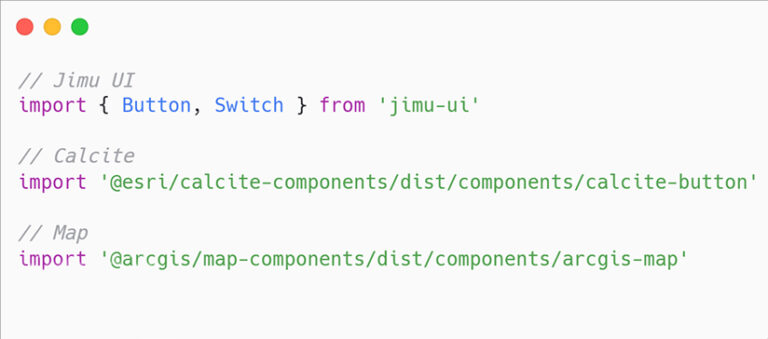
Code snippet 1 shows the imports statements for each library.
Keep Imports Lean
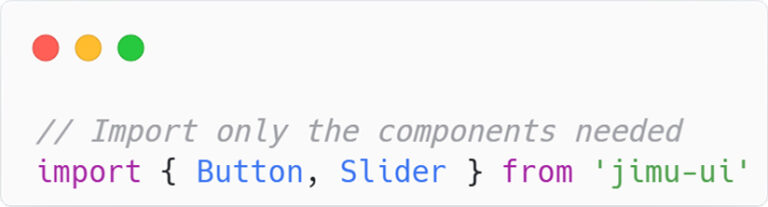
Large imports are among the most common causes of slow widget load times. If you import entire libraries, your production bundle grows unnecessarily. Import only the components needed to improve performance and your bundle, as in snippet 2.
You can also avoid importing everything from libraries, as in snippet 3.
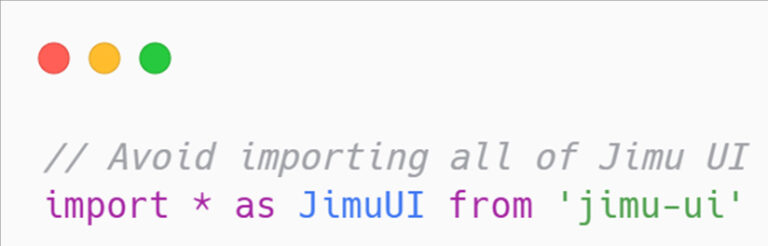
The Jimu UI storybook documentation lists every available component, making it easy to find what you need and import selectively.
For Calcite Components, ArcGIS Experience Builder includes those components as part of its architecture. Starting with version 1.8, you can import Calcite Components directly from the calcite-components entry bundled with Experience Builder. You should avoid wildcard imports, and import only the components you need, as in snippet 4.
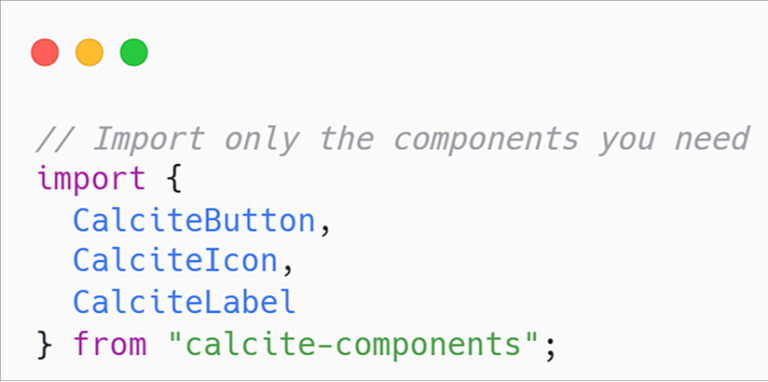
A guide, titled Calcite Components in a custom widget, details not only how components can be imported individually but also asset path management for efficient loading.
Keeping your imports modular reduces a widget’s initial load time substantially, in particular when your app contains multiple widgets.
Manage State to Avoid Rerenders
React’s state system is powerful, but it can result in redundant renders if not managed carefully. Every time a parent component updates its state, its children may rerender, even if their output hasn’t changed.
For example, see snippet 5, which is less efficient with rerendering.

The inline function in snippet 6, however, is re-created on each render, where optimization improves efficiency.

These improvements to avoid rerendering help keep large widgets responsive, in particular when combining React with web components that don’t follow React’s virtual DOM.
Work Smarter with Map Components
Map components are incredibly convenient, but they can also be complex when not managed properly. One of the most important principles is to initialize your map once and reuse it across your app. This prevents unnecessary rerendering, reduces memory usage, and improves performance.
For instance, see snippet 7 for an example of how to efficiently handle map interaction.
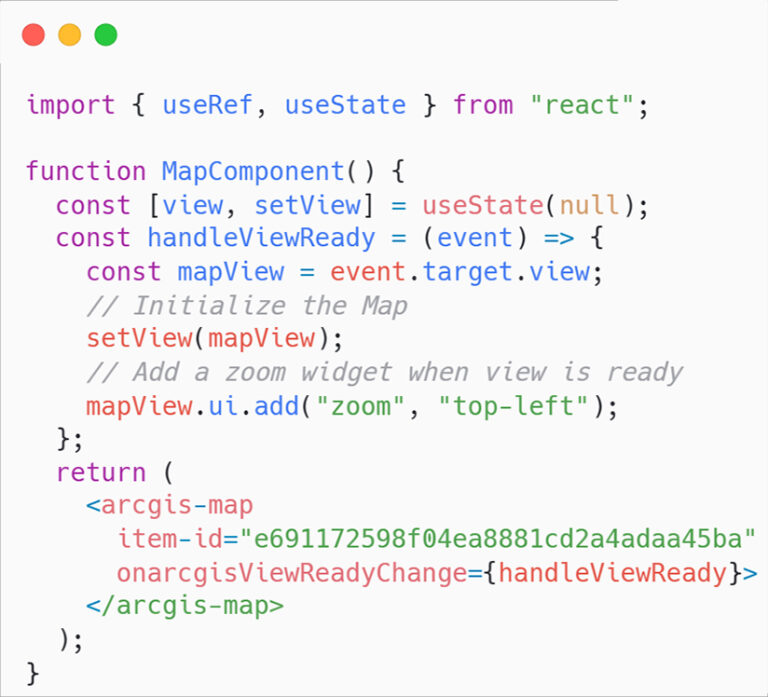
Next, as in snippet 8, reference the MapView for reusability.
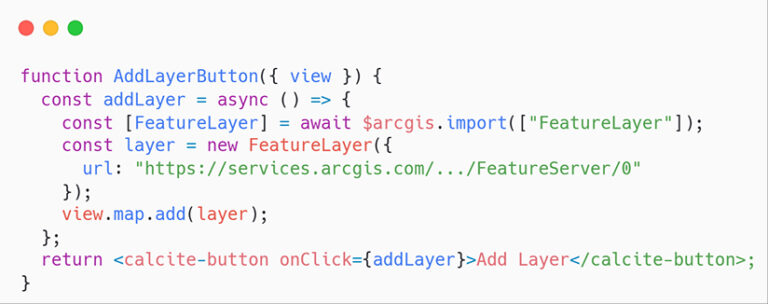
Reusing a single map instance is important for building efficient web apps. Multiple initializations can slow down performance and increase unnecessary API calls, while a single map ensures that layers, widgets, and state remain consistent across your app.
You can configure <arcgis-map> using an item-id (for a web map or web scene) or define properties directly, such as basemap, center, and zoom, depending on your workflow. Avoid re-creating the map unnecessarily, and load tools like an <arcgis-legend> or <arcgis-layer-list> only when needed. These strategies can dramatically reduce your widget’s initialization time.
Use Jimu, Calcite, and Map Component Libraries Together
To show how these component systems can work together, snippet 9 contains an example using Jimu UI, Calcite, and Map components in one widget.
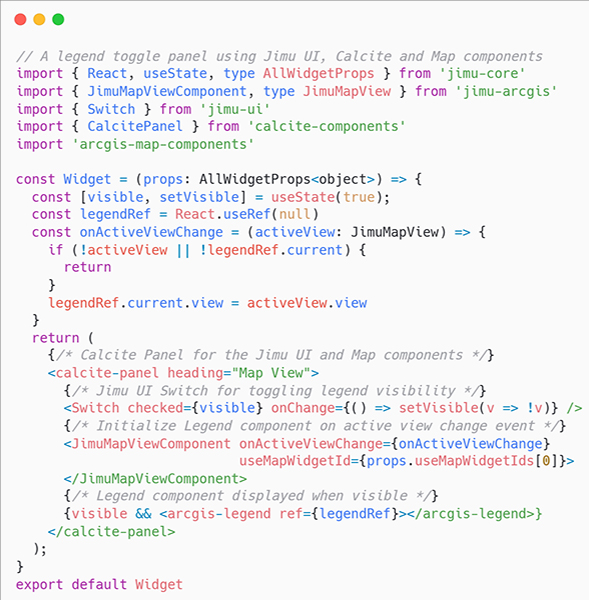
This custom widget demonstrates how you can use Jimu UI for interaction, Calcite for layout, and the Map component APIs for display—all with minimal overhead.
Keep Styling Consistent
ArcGIS Experience Builder already has a robust theming system. Instead of adding your own CSS, use Jimu UI’s emotion-based styling system so that your widget matches the app theme automatically, as in snippet 10.

When using Calcite Components, rely on CSS custom properties rather than global overrides, as in snippet 11.
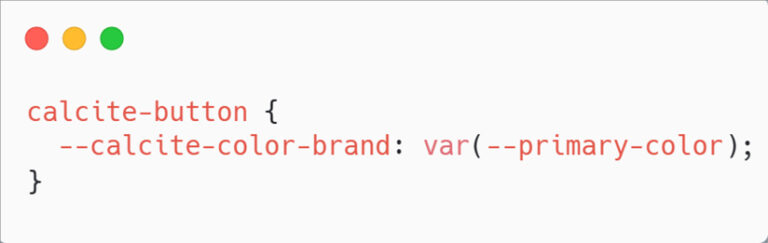
These CSS custom properties also apply to Map components, allowing you to override styles globally or on individual components. The Calcite Components design token reference provides examples for aligning your widget’s look and feel with Esri’s color, typography, and spacing standards.
When referencing Calcite web components in JSX or HTML, use the kebab-case naming convention, where words are separated by hyphens (-) and characters are lowercase—for instance: <calcite-button>, rather than CalciteButton.
Deployment Tips
ArcGIS Experience Builder ships with specific versions of Jimu UI, Calcite, and Map components. If you import newer or mismatched versions, you may see console warnings or missing icons. Before upgrading, check the supported versions in the latest Experience Builder release notes.
Before deploying, it’s recommended that you profile your widget. For example, you can open Chrome DevTools, record a performance trace, and look for long scripting or paint times when interacting with your widget. Most performance issues include nonrelevant imports, redundant map initialization, and overuse of third-party dependencies.
It’s also recommended that you test in both preview and production modes. Production builds use minified assets and optimized React behavior, which can change performance characteristics. For TypeScript-based widgets, the default in Experience Builder, the same principles apply in your .tsx files in the ArcGIS Experience Builder widgets directory.
Custom widgets are among the best parts of ArcGIS Experience Builder because they let you go beyond templates and build exactly what your app needs. The trick is to balance flexibility with performance. Good widget performance isn’t just about speed, it’s about writing clean, optimized code that scales as your ArcGIS Experience Builder apps grow. By keeping imports modular, managing React state carefully, reusing map views, and styling through the Experience Builder theme system, you can create widgets that look great and perform smoothly.
About the authors

Kevin Gonzago