The ability to take maps offline is essential for organizations that need to work with their service data when internet access is limited or unavailable, such as in remote locations or in the event of a natural disaster. Whether you’re part of a utility company that needs to assess damage and restore services, or an emergency response team working to save lives, accessing information is imperative to tackle these challenges safely and quickly.
Taking maps offline is not a new workflow in the world of GIS. It has long been supported by ArcGIS Field Maps, ArcGIS Survey123, and apps built with ArcGIS Maps SDKs for Native Apps. Additionally, ArcGIS Pro includes on-demand offline capabilities that require each user to determine a map area and perform individual queries and downloads of the data from the server.
With ArcGIS Pro 3.5 and 3.6, you can download offline map areas prepared ahead of time. This allows the use of prepackaged, predetermined map areas that can be downloaded, edited, and synced by multiple users in a faster, more system-friendly process.
There are several benefits of using offline map areas prepared ahead of time:
- Map areas are downloaded and stored locally so that users can still access and rely on maps and data in areas without internet connectivity.
- Prepackaged data allows quicker downloads and minimizes repetitive data extracts, reducing server load and improving scalability.
- Each user sees a uniform geographical area along with consistent map content, ensuring accurate data representation.
- Web map owners can set a regular update schedule for these packages, guaranteeing users access to current offline maps.
Taking advantage of the ability to prepare offline map areas ahead of time can streamline your field operations, especially in remote environments or when connectivity is limited.
Create the Web Map for Offline Use
To create a web map for offline use, you can either use ArcGIS Pro to share a web map or use Map Viewer to create and save a web map on a portal.
First, make sure that all layers, including the basemap and reference layers, are enabled for offline use. In general, Esri raster basemaps and Esri vector basemaps are automatically enabled for offline use. If using ArcGIS Enterprise, the default Esri basemaps included in your portal aren’t enabled for offline use. You can take similar basemaps offline by adding an Esri basemap from ArcGIS Online to your web map or by authoring your own basemap and enabling offline use.
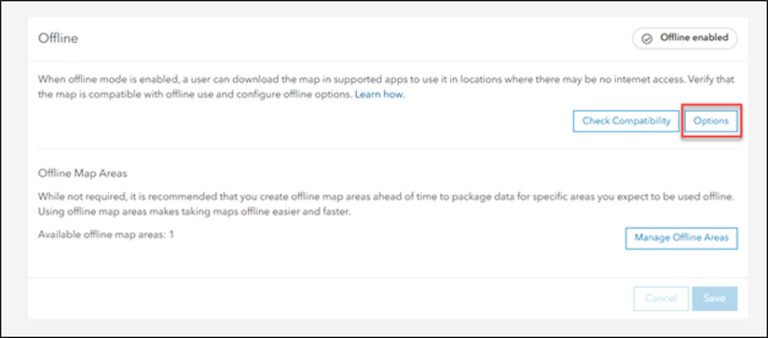
Once you set up a web map for offline use, go to the web map’s item page and click the Settings tab. In the Offline section, click Options to access additional settings for features and attachments, as well as the basemap and tile package. This is where you can control what data is delivered, both on the initial download and when synchronizing or downloading. Select the appropriate choices based on offline usage requirements, taking into account device storage constraints, cellular data usage, and the speed of downloads and synchronization.
In the Features and attachments section, you can set how attachments and features are delivered. They will be used when the offline map area is downloaded for the first time as well as each time data updates are synchronized from the map in the organization.
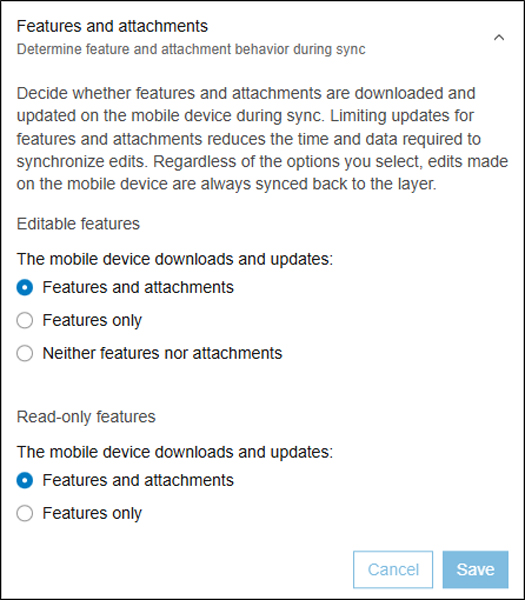
The Features and attachments option will prepackage all the data and attachments within the extent of the map area. Features only will exclude attachments from being packaged. Choose this option to provide only feature updates if offline users don’t need access to attachments. To download a blank geodatabase with all the necessary fields for data collection, select Neither features
nor attachments.
When your data is editable, all local edits are synced back to the layer, regardless of the options you select. However, for data that is only query and sync enabled, local edits are never synced back to the layer.
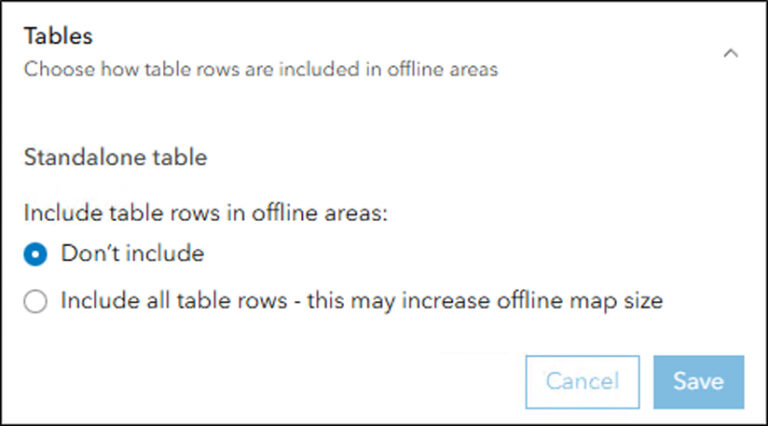
In the Tables section, you can determine how records within a stand-alone table are delivered. The Don’t include option excludes all current records and displays a blank table with necessary fields for data collection. The Include all table rows option will prepackage all records within the stand-alone table. Keep in mind that this option may increase the offline map size.
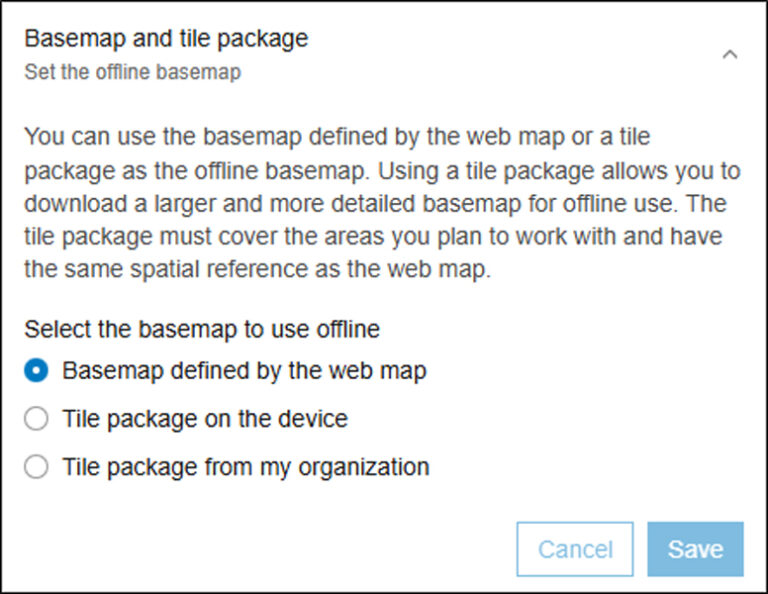
In the Basemap and tile package section, you can choose to use either the basemap defined by the web map or a tile package.
If using a tile package, there are two options to choose from. The Tile package on the device option allows the use of a tile package that has already been downloaded to the device. You’ll need to provide a file name when selecting this option. Later, when the offline map area is downloaded, select the tile package previously downloaded to the device.
The Tile package from my organization option allows the use of a previously published tile package. After choosing this option, select a previously published tile package. When taking offline a map area prepared ahead of time, the tile package appears alongside the downloaded mobile geodatabase in the project’s home folder by default.
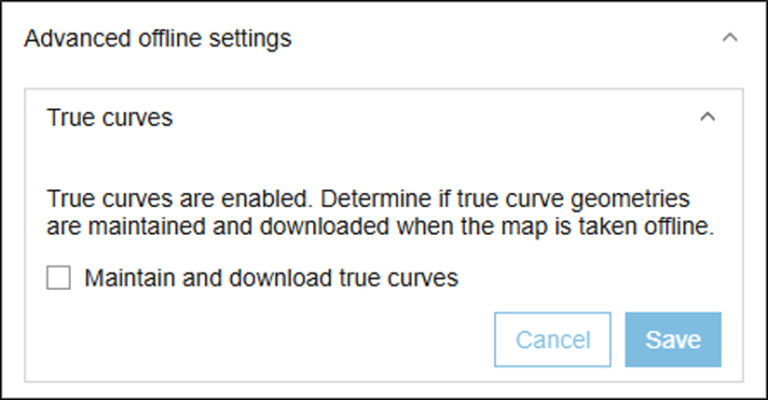
In the Advanced offline settings section, check the box to maintain and download true curves. By default, this option isn’t enabled, and when using offline map areas prepared ahead of time, true curve features are densified. These features can still be edited, but behavior during sync varies depending on the configuration of the web feature layer feature access properties.
Creation, Configuration, and Management
After creating and configuring a web map, you can create the offline map areas ahead of time for the extents where work needs to be completed. You can also set options for each map area, which affects size and data delivery.
Begin creating map areas prepared ahead of time:
- Go to the web map’s item page and click the Settings tab.
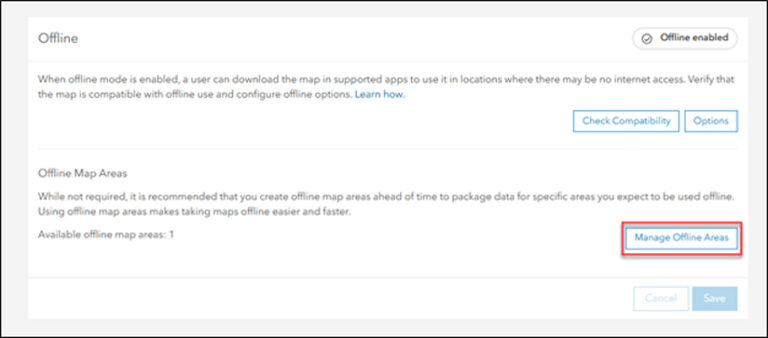
- In the Offline section, click Manage Offline Areas and click Create offline area to begin creating the new map areas.
- Navigate to a location for the new map area.
- Use the Sketch rectangular map area button or the Sketch polygon map area button to create the boundary around the map area.
- Provide a name for the new map area. The total number of offline map areas associated with the web map is limited to 16.
Once the new map area’s boundary is set, configure offline map areas using the following options:
- Level of detail: The Level of detail slider lets you control the quality and resolution of the downloaded tile layers. Select the highest and lowest levels of detail to generate tiles for. Each increase in detail increases the size of the tile package as well as the time to create it.
- Packaging schedule: After a map area is created, it’s packaged and stored on the server. The packaging schedule allows web map owners to set the interval in which the offline map area package is to be refreshed with updates to the feature layer data. For offline mobile device and ArcGIS Pro users, this schedule won’t affect the accuracy of the initially downloaded data, as map areas are set to perform an initial sync to retrieve the most up-to-date data. If the data in your maps isn’t updated often, you don’t need to repackage frequently.
- Optimization: For large deployments of offline map areas prepared ahead of time, it’s important that they scale well when multiple users pull updates to mobile devices at the same time. To alleviate additional work on the server, a read-only optimization is used when the Enabled packaged updates option is turned on. This option uses the packaging schedule to generate files that are stored on the server and can be downloaded for updates. When you click Sync, these update files are downloaded and applied to the local geodatabase.
After making the map area boundary and configurations, saving the map area begins the process of packaging the data using the OfflinePackaging service. The amount of time to complete this depends on the size of the data being packaged.
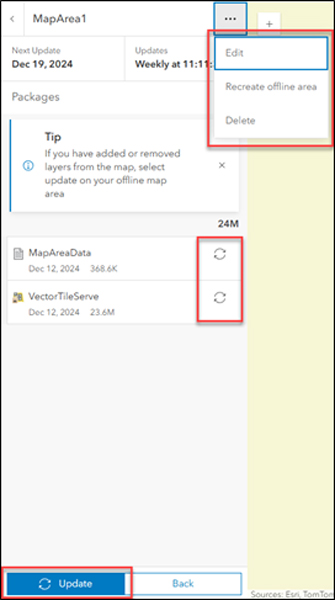
Once complete, clicking the offline map area provides update details and the downloadable packages created. Feature layers are bundled into mobile geodatabase files (.geodatabase), tile layers into tile packages (.tpk or .tpkx), and vector tile layers into vector tile packages (.vtpk). If there are multiple services within the web map, additional geodatabase files will be generated.
By default, if the total size of packages exceeds 4 gigabytes, the web layer packaging fails, and a warning displays in the map area manager. If this occurs, here are a few options to get the size down:
- Attempt to reduce the size of the sketched area by using the Sketch polygon map area button.
- Exclude attachments from the offline package if they are within the features but are not necessary for the offline user.
- If using tile layers, adjust the level of detail included in the offline package by updating the level of detail that was first set when creating the map area.
After you create the map areas, you can modify or update them:
- Click the Edit option to change any of the previous items set during initial creation. You can rename the map area or change its boundary or configuration (level of detail, packaging schedule, and optimizations). After you edit and save a web map, the map packages for this area are repackaged.
- Re-create the existing preplanned map areas with the Recreate offline area option. This option is used after adding or removing fields, creating or updating domains, or making any modifications in the underlying schema. Any existing edits should first be synced with the service before the re-creation of offline areas occurs. Users must redownload the offline map areas to pick up the new packages.
- If a preplanned map area is no longer needed, the Delete option removes the offline map area and any associated packages.
- Refresh specific packages in a map area if the data has changed but you want the updates to be available for download before the next scheduled package update.
- If layers have been added or removed, data has been updated, or the advanced offline settings have been changed, use Update to repackage these changes so that they’re available to download before the next scheduled
package update.
Download, Access, and Update Changes
Taking map areas prepared ahead of time offline doesn’t perform a query on the back end of the database, as is typical when taking other maps offline. Instead, it downloads prepackaged data. This download allows for greater scalability and efficiency of map areas.
Once downloaded, the map and data can be accessed without internet connectivity. Editing capabilities for this data depend on the configuration of the individual layers as well as whether the preplanned map area has been enabled with the packaged updates optimization.
Along with the file download, a replica is generated during this time that allows the use of synchronization to retrieve updates or upload edits.
When downloading a map area prepared ahead of time, some updates may not be within the map area if a packaging schedule has been set. ArcGIS Pro takes this into account and performs a sync after the initial download to check for additional data changes.
To take map areas prepared ahead of time offline, complete the following steps:
- In the Catalog pane, click the Portal tab.
- Browse to a web map or web scene in My Content or another
portal collection. - Right-click the web map and click View Offline Map Areas.
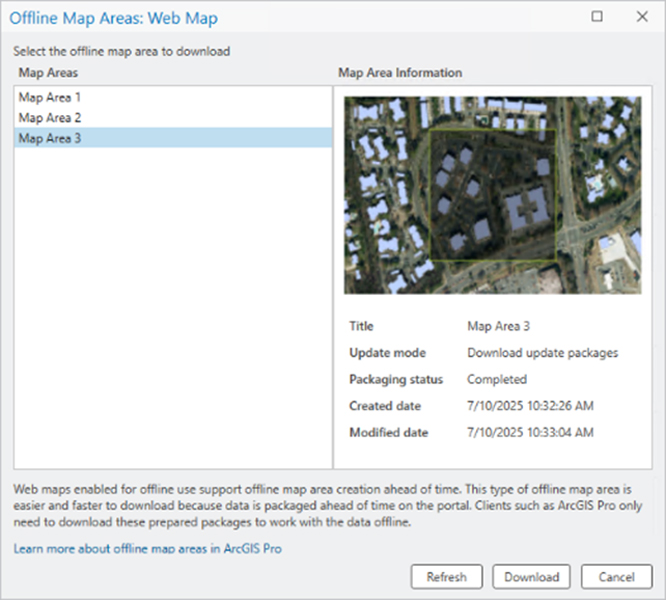
- In the Offline Map Areas window, select a map area.
- Click Download. When the process is complete, a mobile geodatabase containing the offline data appears in the project’s home folder and a new map opens with feature layers that reference feature classes in the mobile geodatabase.
- Save the project.
Once the project is downloaded and saved, you can access the data in ArcGIS Pro. No internet or network connectivity is required at this point to read or edit the data.
If the offline map area hasn’t been configured with the Enabled packaged updates optimization and the underlying data has editing capabilities, users can add, update, or delete data. If the offline map area has been configured with the Enabled packaged updates optimization, editing will be disabled.
After edits are complete, or if there are updates to retrieve, you can use the Sync button when a network connection is available.
If packaged updates haven’t been enabled, the Sync button will push and pull data changes from the data on the server or the local geodatabase. Keep in mind that the Features and attachments offline option still determines what data is pulled from the server to the local geodatabase.
If packaged updates are enabled, the Sync function first checks if there are any packaged updates generated based on the set packaging schedule. These packaged updates contain changes to the data that have occurred since the last packaged update. If there are packaged updates available, they are downloaded and the data updates are applied to the local geodatabase.
For each time that the packaging is run, an individual update package file is generated with changes that have occurred since the last scheduled run of the packaging. As these files are generated, the local geodatabase can become out of date if the packaged updates are not downloaded and applied after the scheduled packaging.
Sometimes, ArcGIS Pro redownloads the whole preplanned offline map area rather than the individual packaged updates. This can occur if there have been multiple scheduled packaged updates since the last time a sync has been performed and the local geodatabase has become too out of date with the data updates on the server. This can also occur if the size of the packaged updates exceeds either 100 MB or the total size of the packaged offline map.
If the local copy of the offline map area is no longer needed, click the Remove button. This will first perform a sync if there are any edits that need to uploaded. Then the locally created mobile geodatabase will be removed from the project and deleted from the project’s home folder. The map that was generated within ArcGIS Pro when the offline map was downloaded will also be removed.
With these offline map capabilities tailored to your needs, you can improve scalability and reliability, especially when working in environments with little or no internet connectivity.
About the author