
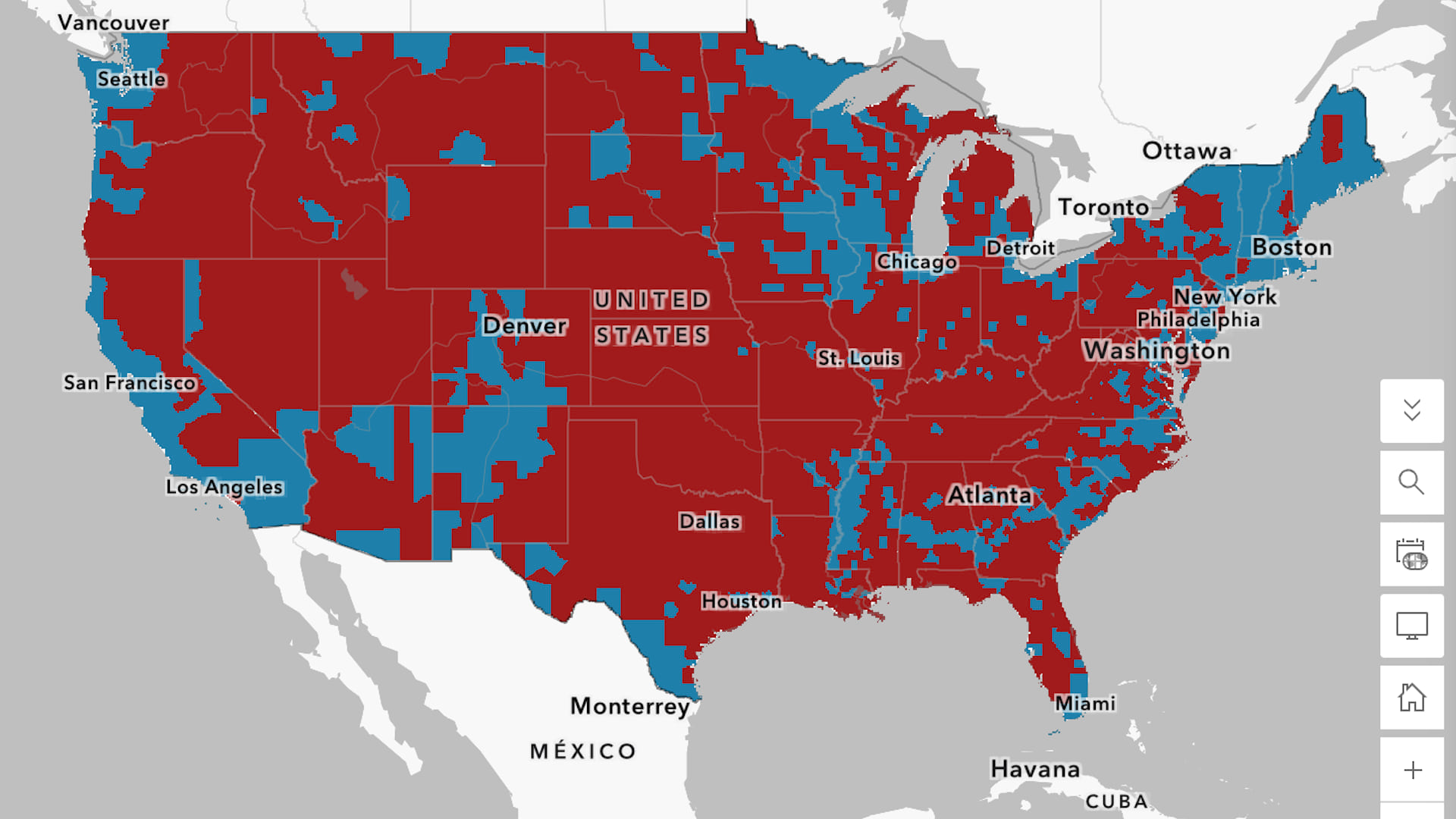
Mapping election results is one visually compelling way to share what happened and reveal patterns. In this tutorial, you’ll re-create a web map that shows United States county-level election results and explore questions about voter participation and election outcomes. You’ll look at different ways to display election data as you add layers and adjust their styles; configure pop-ups; and format labels to create a clean, understandable map.
As you work through the tutorial, use the data to consider these questions:
- Which candidate won the election, and in which counties did they receive the strongest support?
- Which states reliably voted for one party or another, and what do their electoral maps look like?
- What was the winning candidate’s margin of victory? How might this influence how the election outcome is interpreted?
- Where did people not vote? What factors may have contributed to this pattern?
Consider both choice and systemic constraints.
Requirements
You can complete this tutorial without an ArcGIS account. However, to complete the steps to save the map, you must have a free ArcGIS public account or the member role of User or higher in an ArcGIS organization (see options for software access).
Open a Map
If you’ve encountered a presidential election result map by means such as the news or social media, chances are, it showed the winning candidate by state. This is one way to map results, but it tends to hide a lot of the nuance in elections.
For example, looking at a map that shows the winning candidate by state might make it seem like each state is weighted equally in determining the president. However, electoral votes are allocated based on the population of the state, and each state contributes a specific number of electoral votes to elect a candidate.
You’ll begin this tutorial by opening a map showing election results for the 2012 presidential election and prepare the data for visualization.
1. Open the Visualize Election Results 2012 web map.
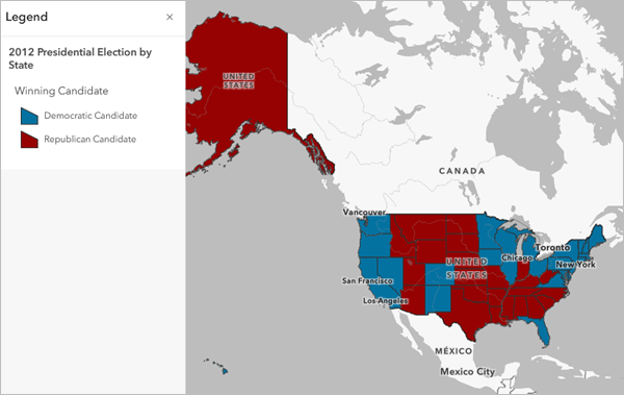
This is a choropleth map, which means that it shows quantitative data. The map contains several layers that will be used in the tutorial. The 2012 Presidential Election by State layer is currently displayed. From the legend, you can tell that blue indicates states where the Democratic candidate won the popular vote, and red shows states where the Republican candidate won the popular vote.
This choropleth map can provide a useful overview of election results by state. However, because the human brain automatically equates size with importance, the visual of larger states can influence how viewers interpret the outcome.
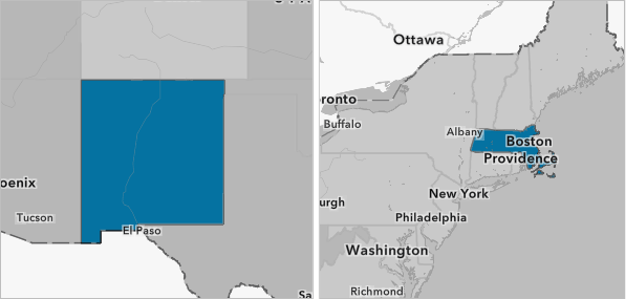
For example, this image shows New Mexico and Massachusetts at the same map scale. Subconsciously, you might interpret the state with the largest land area, New Mexico, as being the most important because it appears bigger. But Massachusetts has 4.5 million more residents than New Mexico. This is hard to discern when the two states are shown with the same styling on a map.
2. On the map, click your state.
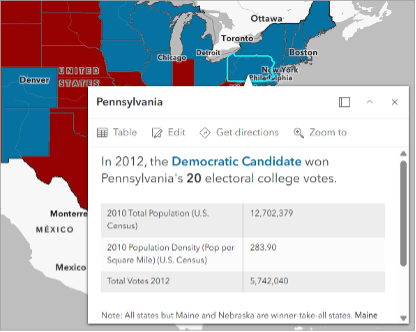
Note: The example images throughout this tutorial show the state of Pennsylvania. If you don’t live in the US, select Pennsylvania when instructions prompt you to choose your state.
An informational pop-up appears. The pop-up lists the party of the state’s winning candidate and how many electoral votes that state has.
For your state, answer the following questions:
- How many people did your state have in 2010?
- How many electoral votes did it have?
3. On the map, click another state.
If your own state has a large land area, choose a small state such as Delaware. If your state has a small land area, choose a large state such as Nevada.
Answer the following questions:
- What is the population of this state?
- How many electoral votes does it have?
- How does this compare to your state?
Next, you’ll choose whether you want to save a copy of the map. If you just want to explore this data, you can complete the tutorial without signing in to ArcGIS.
If you want to save your work, sign in to your account now before making any changes to the map. Signing in once you’ve started changing the map will change it back to its original state and you’ll lose all changes.
4. If you want to save a copy of the map, click Sign In to access your ArcGIS account.
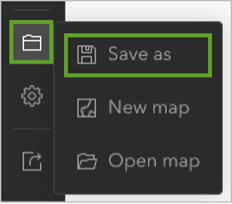
5. On the Contents (dark) toolbar, click the Save and open button and choose Save as.
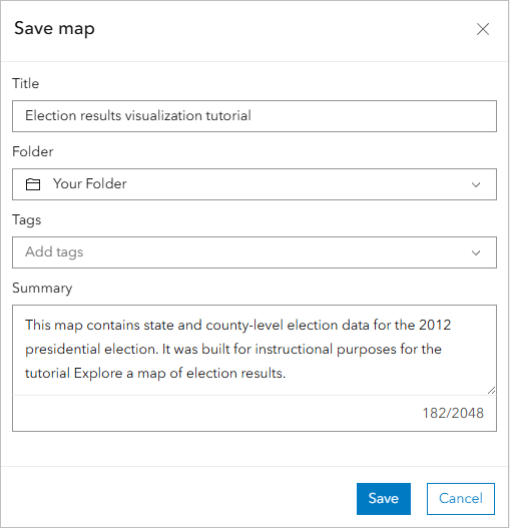
6. In the Save map window, enter the following information:
- For Title, type “Election results visualization tutorial”.
- For Summary, type “This map contains state and county-level election data for the 2012 presidential election. It was built for instructional purposes for the tutorial. Explore a map of election results.”
Tip: Adding your name or initials to the map title isn’t necessary, but it helps distinguish this map from similar content that may exist in your organization or ArcGIS Online.
7. Click Save.
Interpret Statewide Election Results
If it’s determined that a choropleth map isn’t the best way to show statewide election data, then what is? Let’s explore other ways of visualizing statewide data. Graduated symbols, for example, are shapes that appear larger or smaller depending on the quantity or value being mapped.
1. On the Contents toolbar, click the Layers button.
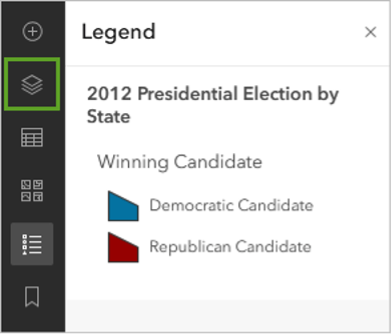
The Layers pane shows the layers contained in the map.
2. If necessary, click the 2012 Presidential Election by State layer to select it.
When a layer is selected, a blue bar appears next to it.
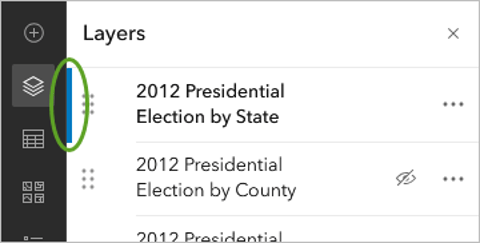
Selecting a layer allows you to use tools on the Settings toolbar to work with the layer. You’ll start by changing the map to show the state’s winning candidate by number of electoral votes.
3. On the Settings (light) toolbar, click Styles.
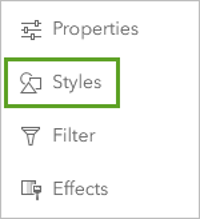
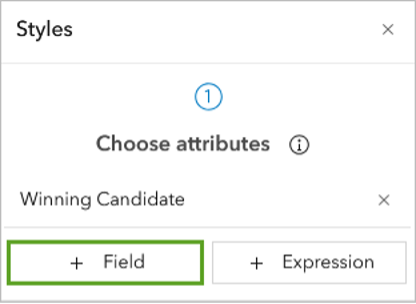
The map is currently styled to show the party of the winning candidate.
4. For Choose attribute, click + Field.
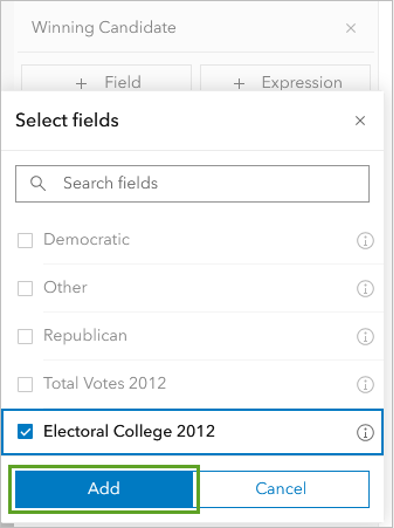
5. In the Select fields window, search for and check the box for Electoral College 2012. Click Add.
The map updates to show each state’s election results using different sized circles, or graduated symbols.
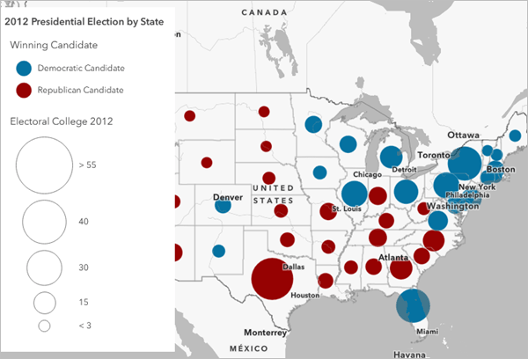
The color of the circle still corresponds to the party of the winning candidate, and the size of the circle represents how many electoral votes the candidate won per state.
6. In the Styles pane, click Done.
Because most states have a winner-takes-all approach to votes, whichever candidate wins the most votes gets all of that state’s electoral votes. While this map emphasizes electoral votes and election outcomes, it also hides information about the popular vote. Basically, it does not show the candidate’s margin of victory, or how many votes they won by.
Note: While most states award all their electoral votes to the winner of the statewide popular vote, Nebraska and Maine distribute their electoral votes differently. They allocate two electoral votes to the winner of the statewide popular vote and the rest—three in Nebraska and two in Maine—to the popular vote winner in each congressional district. Sometimes this results in a split electoral vote, but in the 2012 election, all electoral votes for both states went to a single candidate.
Next, you’ll create a chart in the layer’s pop-up to explore the number of votes each candidate received.
7. On the Settings (light) toolbar, click Pop-ups.
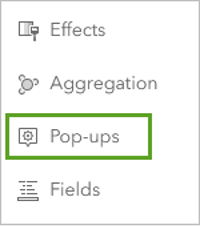
The pop-up currently has several kinds of elements, including a Title element, a Text element, and a Fields list element showing some facts about the state.
8. In the Pop-ups pane, click the Add content button at the bottom, then choose Chart.
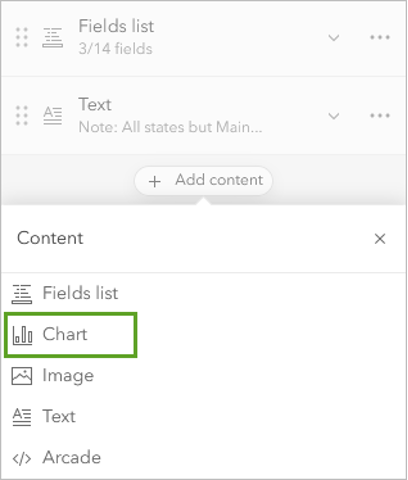
The Configure chart window appears. You can choose the kind of chart you want to add and the fields you want to populate it with.
9. Click the Select fields button.
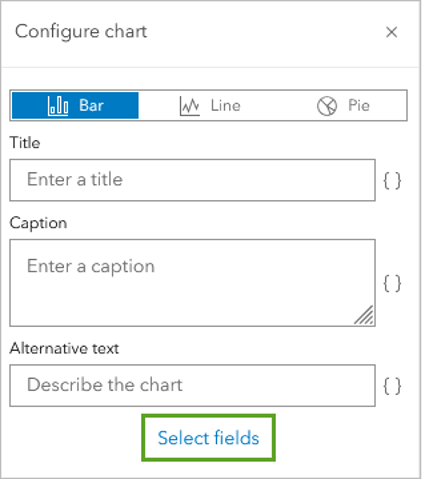
10. Check the Democratic, Republican, and Other check boxes. Click Done.
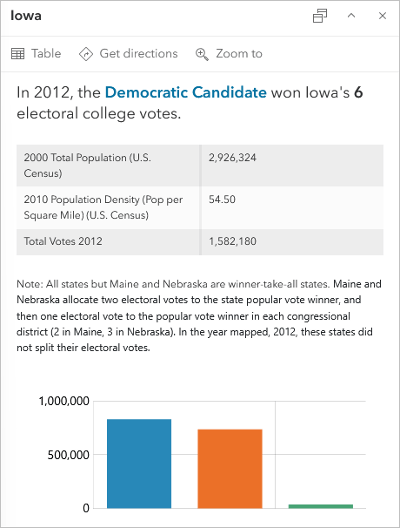
A bar chart appears in the sample pop-up. Because the chart is currently displayed with default colors, they don’t match the colors you set on the map. You may have to scroll down in the pop-up to see the bar chart.
11. In the Configure chart window, select the color swatch for the Republican candidate by clicking the orange circle.
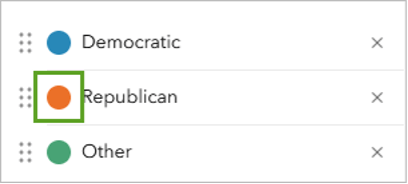
12. In the Select color window, use the color slider to choose a shade of red. Click Done.
The example pop-up updates to show the new color.
13. If necessary, change the color for the Democratic candidate to a shade of blue by repeating steps 11 and 12.
14. Point to each bar in the pop-up to show a label with the number of votes each candidate received. Close the pop-up.
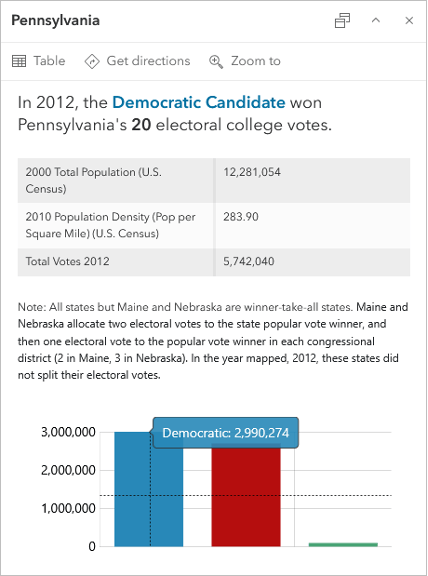
15. On the map, click your state. Answer the following questions:
- What does the chart tell you about the winning candidate’s margin of victory in 2012?
- What does a large or small margin of victory suggest about voters in a state?
Map Election Results by County
A more granular way of looking at election data is at the county level. During elections, votes are counted at the county level and then aggregated up to the state. Looking at county-level results can help you better visualize the margin of victory.
1. In the Contents (dark) pane, under Layers, look for the 2012 Presidential Election by State layer and click the Hide button. This is the visibility (eye) symbol. For the 2012 Presidential Election by County layer, click the Show button.
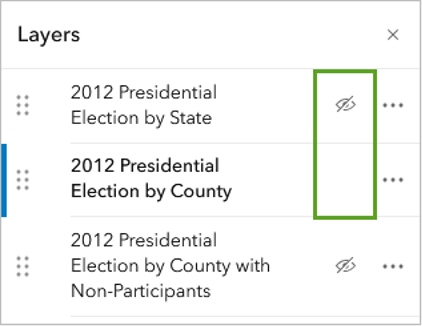
Election results now are shown by county. This layer is currently displayed in the same choropleth style that was used for the state layer and makes it easier to see patterns in how people are voting. However, it still hides important information about how many people are voting.
2. In the Contents pane, ensure that the 2012 Presidential Election by County layer is selected. On the Settings (light) toolbar, click Styles.
This layer is currently shown using the Predominant category style. This style evaluates the numeric value of two or more categories and shows a color based on the higher value.
3. For Predominant category, click Style options.
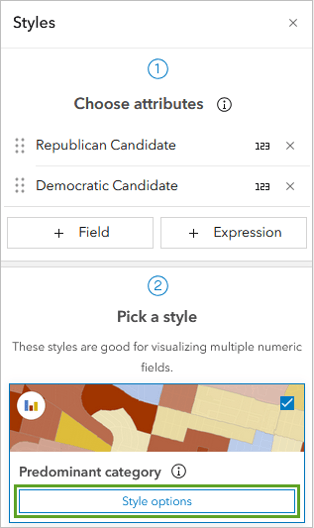
4. Expand Transparency by predominant percentage. Turn on Set transparency based on the predominant percentage.
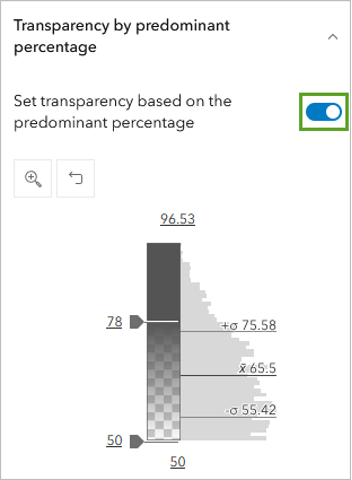
The map still shows the color of each county based on the winning candidate but now has transparency applied. The lighter a county’s color is, the lower the margin of victory is in that county. For example, in most counties in Utah, the dark red tells you that the Republican candidate won by a lot of votes. In southern Texas, the dark blue tells you that the Democratic candidate won by a lot of votes.
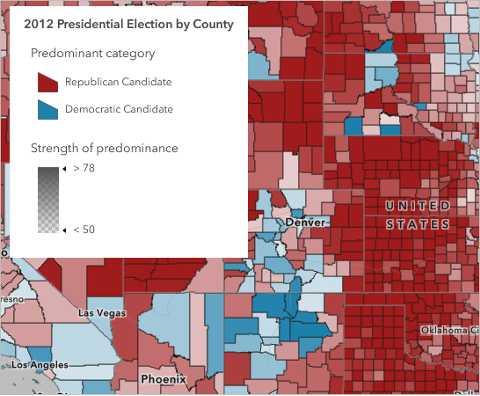
As you click these counties, you may also notice that the number of votes cast in each varies. For example, in Duchesne County, Utah, a total of 6,379 votes were cast, and 5,698 were for the Republican candidate. In Cameron County, Texas, 76,895 votes were cast, and 49,975 were for the Democratic candidate.
Next, you’ll try a map style that shows county votes relative to their population.
5. In the Styles pane, click the Back button. Click Predominant category and Size.
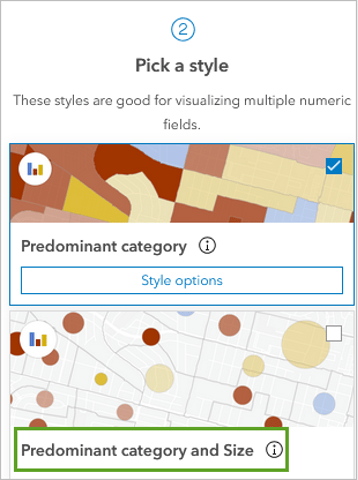
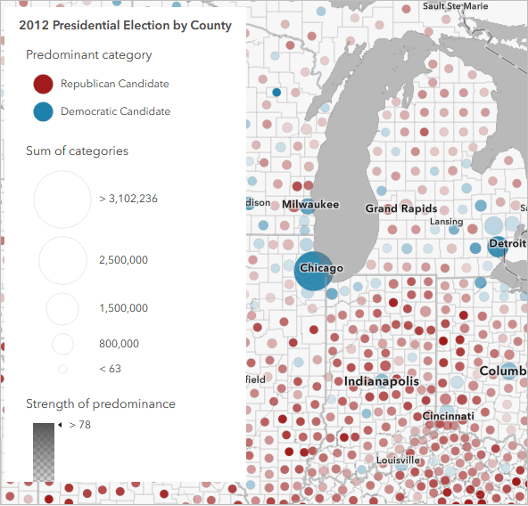
Now each county is shown by the winning candidate’s party and the county’s population. The larger circles show counties with higher numbers of voters, while smaller circles show counties with lower numbers of voters. On this map, the counties that include big cities, such as Los Angeles and Chicago, stand out because of their large, concentrated populations.
So far, you’ve focused on the voting population. Another metric to consider is voter participation, or how many eligible voters cast a vote.
6. In the Contents pane, hide 2012 Presidential Election by County by clicking the visibility symbol, putting a line through it. Show 2012 Presidential Election by County with Non-Participants by clicking the visibility symbol.
7. On the map, click a county shown in yellow.
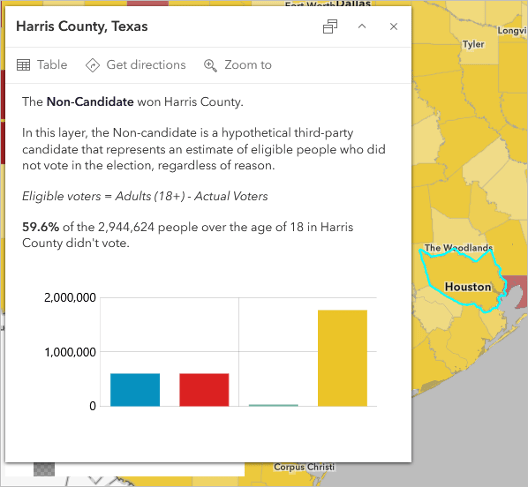
This map shows the hypothetical results of the 2012 election if people who didn’t vote had cast their vote for an imaginary noncandidate. In counties shown in yellow, more people did not vote than did, so in these places, the map shows the noncandidate as the winner.
8. On the map, click your county. Answer the following questions:
- Which candidate won your county?
- Do you see any regional patterns on this map?
- What other information would help you better understand the patterns on this map?
There are many reasons people can’t or choose not to vote. This map uses the total adult population (people over the age of 18) to show nonparticipation. This is a proxy for the voting population, but it doesn’t consider factors such as access to polling locations, voting eligibility, and voter registration.
9. In the Layers pane, hide 2012 Presidential Election by County with Non-Participants and show Election 2012 Voter Turnout by State by clicking the visibility symbol.
10. On the Contents (light) toolbar, click Legend.
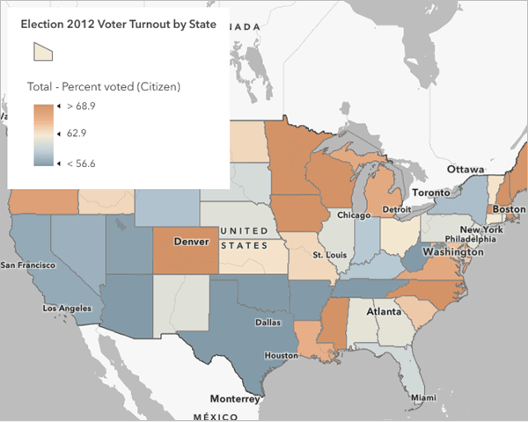
This layer shows the approximate percentage of citizens who voted in each state. These are estimated numbers provided by the US Census Bureau, not actual counts. States shown in darker shades of orange had higher percentages of people who voted in this election, while ones in darker shades of gray had lower percentages.
Can you tell which states had higher percentages of voting participation?
11. Click different states on the map to explore the data.
There is no one right way to map election data, but there are several considerations to keep in mind when you choose how to display the results. That’s why interactive web maps are useful for visualizing the data in different ways.
Each map style you used today showed a different aspect of the same election data and answered a specific question or displayed distinctive patterns in the data. Using various visualization techniques can help increase transparency in election mapping.
Acknowledgements
- Election data adapted from MIT Election Data and Science Lab, 2018, “County Presidential Election Returns 2000-2024,” Harvard Dataverse, https://doi.org/10.7910/DVN/VOQCHQ
- Voter turnout by state adapted from Election 2012 Voting and Registration in the Election of November 2012, Table 4b, United States Census Bureau
- Human Geography Map sources: Esri, TomTom, Garmin, FAO, NOAA, USGS, OpenStreetMap contributors, and the GIS user community
Visit the Esri tutorial gallery to explore additional topics and find other step-by-step workflows on a variety of products.