Users expect fast and reliable performance when interacting with ArcGIS services, and ArcSOC configuration plays a critical role in meeting those expectations.
ArcSOC optimization is both a science and an art:
✋On one hand, it requires observation, measurements, and analysis.
🤚On the other, you also need to apply your own judgement, understanding the “story” of your services – how they are used, presently and in the future.
ArcSOC optimization depends on several variables. However, in this blog we’ll share insights from our recent test study, which focuses on one key aspect: effectively balancing service instances with available compute resources.
What’s an ArcSOC?
ArcSOCs are largely thought of with respect to the ArcGIS services they run. So, let’s start from the top:
- ArcGIS services expose capabilities to users, making maps and their associated data accessible over the web.
- An ArcSOC (ArcGIS Server Object Container) is an ArcGIS Server process that runs an instance of a GIS service, where each ArcSOC handles one request at a time.
In general, you need enough ArcSOCs to handle the load your services receive. However, ArcSOCs consume resources – each busy ArcSOC needs an available vCPU, and even idle ArcSOCs consume memory. Therefore, you don’t want to over-allocate ArcSOCs, because they will consume server resources without providing performance benefits. Similarly, allocating more server resources to support idle ArcSOCs leads to unutilized capacity (and unnecessary expenses).
These tradeoffs largely boil down to the optimal ratio of the number of ArcSOCs you configure per available vCPU on your ArcGIS Server instances- the focus of the test study we’re dissecting here.
Looking at the ratio of ArcSOCs : vCPU
To make it as simple as possible, you need to do a bit of a balancing act by:
- Making enough ArcSOCs available to efficiently handle your users’ requests
- Minimizing or re-allocating idle ArcSOCs as much as possible
- Monitoring your ArcGIS Server(s) for over-utilization and under-utilization

Said more succinctly, you want to optimize the ratio of ArcSOCs : vCPU on your ArcGIS Server instance(s). In other words, how many ArcSOCs you have relative to the number of vCPU available to ArcGIS Server(s). The only way to do this well is with adequate observability and testing practices.
Keep in mind that your organization’s usage patterns typically change over time. For example, you may grow your user base, change workflows, or add new capabilities. So, this balancing act is inherently an on-going practice.
How to interpret test study results
In early December, we published a new test study to the ArcGIS Architecture Center – Optimizing Service Instance Configuration for Efficient System Resource Use.
If you’re wondering who came up with that absolute mouthful of a title, you can blame me and Ray 😉
Test studies are very dense and technical in nature. So, we’d like to break down some of the test results published there in more bite-sized pieces.
We did three tests, each with a different ratio of ArcSOCs : vCPU:
- 2:1, or two ArcSOCs per vCPU on the ArcGIS Server instances (16 ArcSOCs : 8 vCPU)
- 3:1, or three ArcSOCs per vCPU on the ArcGIS Server instances (24 ArcSOCs : 8 vCPU)
- 4:1, or four ArcSOCs per vCPU on the ArcGIS Server instances (32 ArcSOCs : 8 vCPU)
Going through the detail and nuance of the results requires the technical depth of the test study format, which takes a full system approach, and includes a lot of system telemetry.
But for this blog, let’s just walk through how we interpreted small snapshots of our test results. To help you understand the test studies a bit better, let’s consider them with respect to the three “balancing act” goals listed above:
1. Were there enough ArcSOCs available to efficiently handle the defined load?
To answer this question, we will look at our ArcSOC utilization charts. Here, you can see how many ArcSOCs were busy, or actively responding to requests, at any given point. You can also see the maximum configured as 8 ArcSOCs : 8 vCPUs on the left in the 1:1 chart, and 16 ArcSOCs : 8 vCPU in the 2:1 chart on the right.
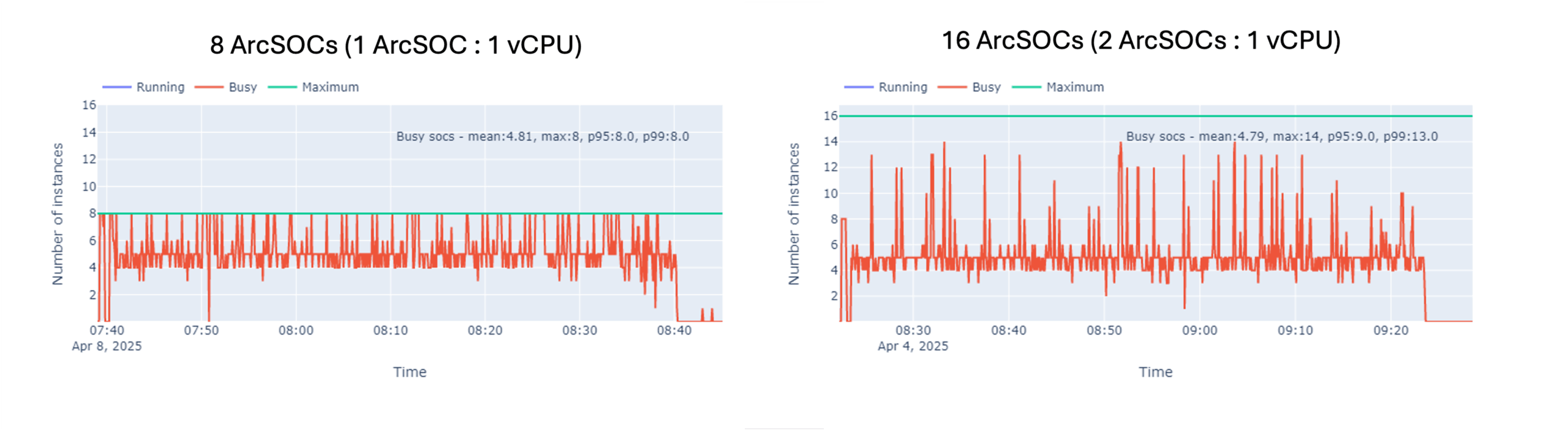
In our 1:1 configuration, all the ArcSOCs on the hosting server were busy throughout most of the test. In general, this could be a sign that users might be experiencing (or are about to experience) longer wait times. This happens when a service receives a request but no ArcSOC is available to process it.
Alternatively, on the right we can see with 16 ArcSOCs running, the maximum in use at any time throughout the test was 14, with 16 running. This results in a more balanced usage with more “wiggle room” than the alternative, assuming the Hosting Server has sufficient resources to support the additional ArcSOCs.
2. How often were ArcSOCs inactive?
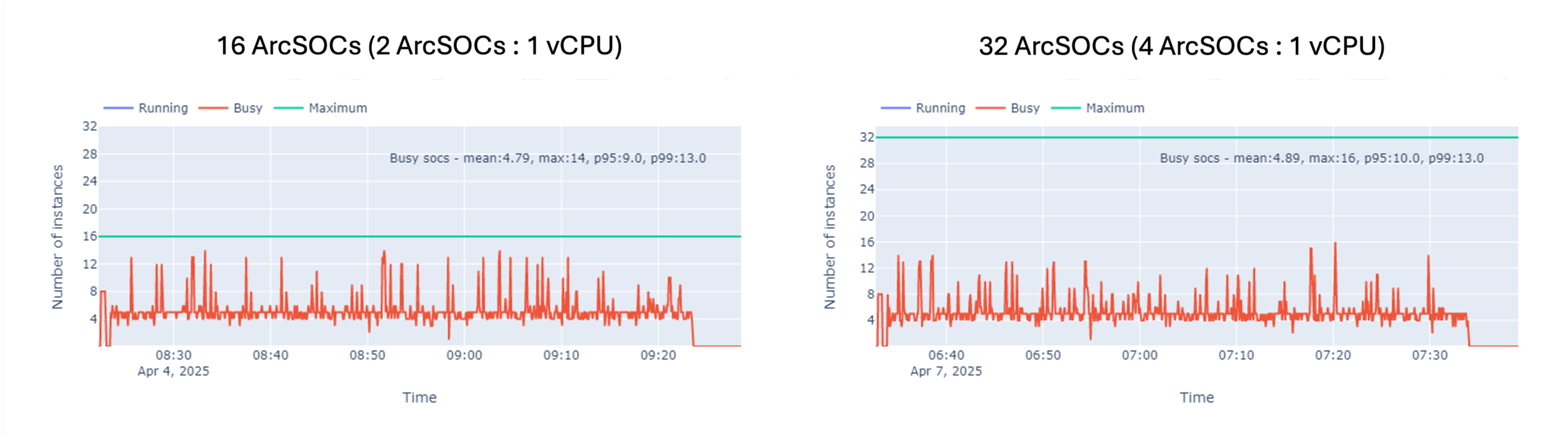
To answer this question, you can evaluate the same ArcSOC charts, but instead consider whether the additional service instances provided any benefit for the server resource consumption tradeoff. In this case, we can see there were the same number of ArcSOCs busy at any time with the 4:1 as with the 2:1 ratio. This means that these additional ArcSOCs were consuming server resources unnecessarily, without providing any benefit to performance or user experience.
3. Were there enough resources on the ArcGIS Server EC2 instances (virtual machines) to adequately handle the load and stay below acceptable thresholds?
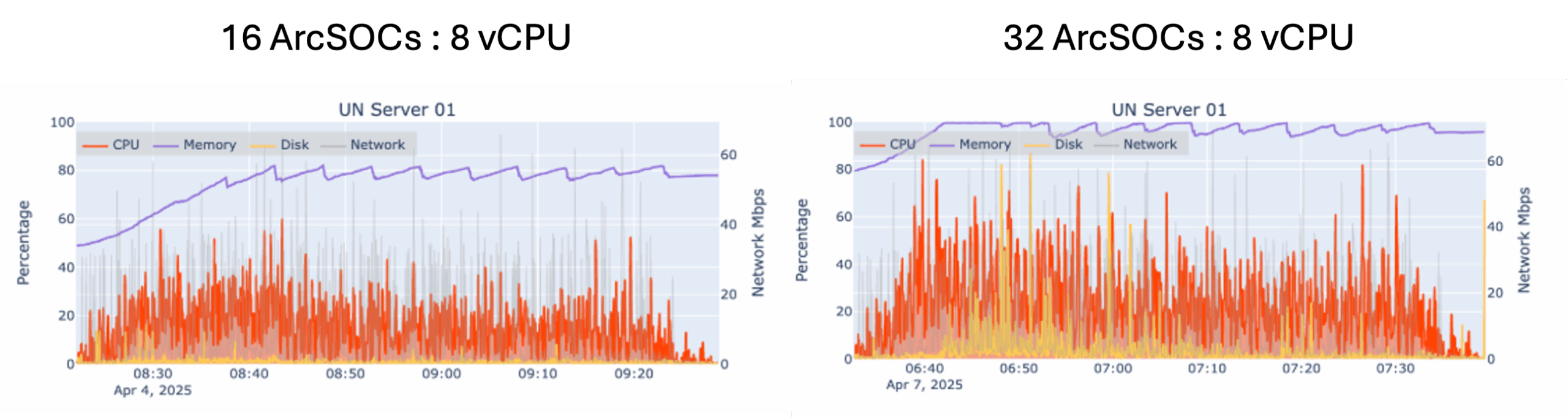
To answer this question, let’s look at the ArcGIS Server utilization charts across tests with different ArcSOC: vCPU ratios. For example, compare the GIS Server (in our case, supporting versioned database editing) charts for 2:1(left) versus 4:1 (right). You can see that memory (purple) with the 2:1 ratio (left) peaked at about 80%, whereas with the 4:1 ratio (right) was near 100% for the full test run. You can also see a significant increase in CPU utilization between the two charts. With all other aspects of the system held constant, this demonstrates the impact the additional ArcSOCs have on the ArcGIS Server utilization.
Looking at the entire system
It’s important to remember that these are small snapshots of the larger system, to help you understand certain aspects of the test results. However, there are many possible influencing factors to delivering good system performance and user experience.
For example, in the same test study we also looked at the impacts of database resources on the system’s ability to handle load, even with ample GIS Server resources. The results from these tests provide an example of how long user wait times could stem from an issue at many places across a system.
Broad system testing and observation practices are absolutely critical to make good configuration and design choices.
Next steps to take
There’s more to all these things than we can cover in one blog, but now you should understand a bit more about:
- ArcSOC optimization & considerations for balancing how many ArcSOCs you configure per vCPU
- How to interpret ArcGIS test study results
- The importance of full system testing and monitoring
We hope you use this information to help deliver more performant ArcGIS systems that provide a positive end-user experience for your organization:
- If you haven’t implemented adequate system observability practices, make that a priority this year.
- At a minimum, monitor your database CPU, ArcSOC usage, GIS Server resources, and user experience to identify the optimal configuration for your system(s)
- Revisit ArcSOC optimization regularly. Especially after making any changes, like adding new users, services, workflows, or capabilities.
Please share your feedback - help us make these resources better!
➡️ You can also find our full catalog of test studies and blogs here
➡️ If you have questions or want to keep the conversation going, consider joining our LinkedIn group





Article Discussion: