As an ArcGIS Enterprise user, you may have evolving business or organizational needs that require migration. Migration can mean many things in the world of ArcGIS Enterprise. Maybe you need to move to new infrastructure, from on-premises to the cloud or from one deployment option to another. Beyond full environment migration, you also may need to migrate individual pieces of content in promotion workflows, moving from pre-production environments, such as development or staging, to production environments. You might even want to migrate between products, from ArcGIS Online to ArcGIS Enterprise or vice versa.
As you might be thinking, migration can be an intricate process to not only define but also think through. This ArcGIS Enterprise blog will walk you through common migration workflows, available tools and approaches for migrating, and benefits and considerations for certain tools depending on your migration scenario. This blog will also help guide you through key questions to think through as you prepare for a migration and choose the right approach for your needs. We will close with some example migration scenarios to put together everything we’ve covered. Now let’s get started!
Common migration workflows
So, you know you need to do an ArcGIS Enterprise migration, but what does that actually mean for you? To start, a key differentiator you can consider for your migration is whether it will be a full environment migration or will be a migration of specific content or workflows. Beyond these ArcGIS Enterprise-specific migrations, you may even need to migrate between ArcGIS products for changing organizational needs. Let’s walk through some common migration scenarios in these two categories to figure out which workflow you will be going through.
Full environment migrations:
1. Moving ArcGIS Enterprise to new infrastructure: Your organization may need to move your existing ArcGIS Enterprise deployment to new infrastructure. This could be for a variety of reasons, such as:
- Wanting to move to updated machines with later operating system versions.
- Shifting from on-premises to cloud infrastructure or vice versa.
- Trying to minimize downtime during an upgrade by setting up a mirrored environment.
- Internal changes that require using different machines.
- Regardless of the reason, in this case, you will be moving your entire ArcGIS Enterprise deployment, including all content and users, to the new infrastructure.
2. Moving between ArcGIS Enterprise deployment options: ArcGIS Enterprise has three deployment options: Windows, Linux, and Kubernetes. There may be cases in which you originally installed your ArcGIS Enterprise using one deployment option but need to move to another because of changing business needs. In some cases, your IT team may be focused on deploying other cloud-native software and wants to use ArcGIS Enterprise on Kubernetes after historically being on Windows or Linux. In other cases, there may be more expertise for supporting software on Linux, so you want to move your deployment originally installed on Windows. Again, in this case, you are moving your entire ArcGIS Enterprise deployment.
Specific content, user, or workflow migrations:
1. Content promotion workflows: Your organization may have designated pre-production environments for testing, development, and quality assurance purposes. As a result, you may need to migrate content across pre-production and production environments. In content promotion scenarios, you are typically migrating only individual items or groups of items at a time.
2. Sharing content for projects and collaboration: Your organization may have multiple ArcGIS Enterprise environments to support your work. You may need to share content between these environments for projects or various types of work. You may also have multiple teams or groups using different ArcGIS Enterprise environments that need to share content for collaboration. In these scenarios, you need to migrate individual items or groups of items to achieve your work.
Moving between ArcGIS products:
1. Moving from ArcGIS Online to ArcGIS Enterprise, ArcGIS Enterprise to ArcGIS Online or vice versa: ArcGIS Online provides the same foundational mapping, visualization, spatial analysis, and collaboration tools as ArcGIS Enterprise. The core distinction is that ArcGIS Online is a SaaS (software-as-a-service) product and ArcGIS Enterprise is a self-hosted software. In some cases, your business needs around security, connecting to data in place, and extensibility options may change, requiring you to move from ArcGIS Online to ArcGIS Enterprise. Because this is a migration to a new product, you will choose the users, content, and workflows you want to move depending on your business needs. Because ArcGIS Enterprise and ArcGIS Online are distinct products, there will be some nuance between your previous and new environments.
Choosing your migration approach
After you’ve determined which migration workflow you are targeting, you need to determine which approach is the best fit. ArcGIS Enterprise offers a variety of tools that can be used for migration, and it is important to understand the benefits and considerations of different approaches. Let’s look at common tools used for migration and which situations they may be most useful for. We will walk through what each tool is, the potential migration use cases, the benefits of this approach, and potential limitations to be aware of.
Approaches for full environment migrations:
1. WebGISDR: The WebGISDR tool is intended to be a disaster recovery tool. The tool allows you to back up your entire ArcGIS Enterprise deployment on Windows and Linux and restore that backup to a new environment. Although it is intended as a disaster recovery tool, you may consider using it for your migration in certain situations. Because the tool allows you to backup and restore your full ArcGIS Enterprise deployment, it can be a good fit for when you are fully migrating to new infrastructure.
- Benefits: The tool is able to take a backup of everything in your deployment including content, users, and configuration. In the case of migration to new infrastructure, this ensures you can move everything from your previous environment onto the new infrastructure in a single process.
- Considerations:
- The WebGISDR approach may be too substantial in scenarios in which you just want to migrate a portion of your deployment.
- WebGISDR can only be used in certain full deployment migrations. The migration must be from one ArcGIS Enterprise deployment to another that is using the same operating system and same version. The tool is also only supported for the Windows or Linux deployment options.
- The DNS alias must match between the old and new environment which requires additional work and collaboration with your IT team in order to be successful.
2. Join Site operation: The Join Site operation in the ArcGIS Server and Portal for ArcGIS components is usually used for high availability and disaster workflows to add a standby machine to your ArcGIS Server site. This approach can also be used replace a machine in your deployment for the purposes of migration without losing content or interrupting service. This approach will be done on a machine-by-machine basis.
- Benefits: This approach allows you to perform a machine migration without introducing downtime. It will maintain all of your content, users, and services when done properly.
- Considerations:
- The Join Site operation workflow requires you to move content directories for your ArcGIS Enterprise portal and ArcGIS Server from the local drive on the old machine to a shared location on the network that the new machine can access. This requires that shared storage is possible across the machines and means the workflow should only be done between machines within the same data center.
- During the Join Site workflow your old and new machines will temporarily be in a multi-machine configuration which requires that the machine be using the same operating system. This cannot be used to migrate from one deployment method to another (i.e. Windows to Linux).
- This approach will temporarily require having the old and new machines stood up side by side. Consider the infrastructure resource requirements for this approach when preparing to migrate.
- There are a variety of manual steps to follow to ensure this is a successful migration for your full deployment, ensuring you have backups of important directories like your ArcGIS Enterprise portal content directory and the ArcGIS Server directories and configuration store is important in the case that something goes wrong in the midst of this process.
- The Join Site operation workflow can only support migrations for ArcGIS Enterprise deployments using the same deployment method and ArcGIS Enterprise version.
Approaches for specific content, user, or workflow migrations:
1. Export and import group content: This function allows administrators to export items shared with a group to an export package (.epk) and use the package to import the items into groups in the same or different organizations. In the case of migrations, this can be a valuable tool to move content in bulk from one environment to another.
- Benefits: This approach allows you to share content efficiently across environments with an intuitive user interface that is available directly in the ArcGIS Enterprise portal.
- Considerations:
- As the name implies, this content must be shared with groups in order to work effectively. In certain cases, this may add an additional step to your work.
- Similar to WebGISDR, this functionality is only available for ArcGIS Enterprise to ArcGIS Enterprise migrations and cannot be used for migration content to and from ArcGIS Online.
- Some content types are not supported using this functionality. Only hosted content is supported so if items reference a registered data store it will not be the right fit. Additionally, item types such as dashboards are not supported in ArcGIS Enterprise 12.1 and prior. Refer to product documentation for more details.
2. Distributed collaboration: Distributed collaboration allows the sharing of select content between ArcGIS Enterprise environments or an ArcGIS Enterprise and an ArcGIS Online organization. These environments could be internal to your business or organization, or this could be used to share content with externally with trusted partners. One common use case for distributed collaboration is repeated content migration workflows and migration of content between ArcGIS Enterprise and ArcGIS Online.
- Benefits: Distributed collaboration establishes trust between organizations for sharing content. Following the initially configuration of a distributed collaboration, sharing chosen items is made easy through this establish trust. This established trust allows for content to be shared regularly so this can be a useful option for repeated migration workflows. Distributed collaboration also supports the sharing of both hosted content as well as content referencing a registered data store.
- Considerations: The initial configuration of distributed collaboration is a multi-step workflow, with back-and-forth processes between environments to establish trust. This approach is best suited to repeated migration processes where content needs to be made continually available. Distributed collaboration also has limitations in the item types it supports for migration as well as a size limit for items.
3. Scripting migration using the ArcGIS API for Python: The ArcGIS API for Python is a powerful Pythonic library that can support a variety of activities for users of ArcGIS Enterprise. One common use case is scripting migration workflows using the ArcGIS API for Python this is effective for moving content across environments.
- Benefits: The limitations for what types of hosted items can be migrated using the ArcGIS API for Python and the environments content can be migrated across are minimal. You can migrate content from an ArcGIS Enterprise environment to ArcGIS Online and across deployment methods of ArcGIS Enterprise. Scripted workflows are also beneficial for repeated migration activities as they can automate regular migration of content.
- Considerations: There are limitations for the types of services that can be migrated through the ArcGIS API for Python. This approach is best suited to hosted content, especially scenarios of migrating between ArcGIS Enterprise and ArcGIS Online.
- Scripting migration also requires expertise in the ArcGIS API for Python. Expertise is required to write scripts initially but also to maintain scripts over time as your environment, content, or business needs change. It is important to understand if you will be able to create and support these scripts internally or will need to rely on external resources for this work.
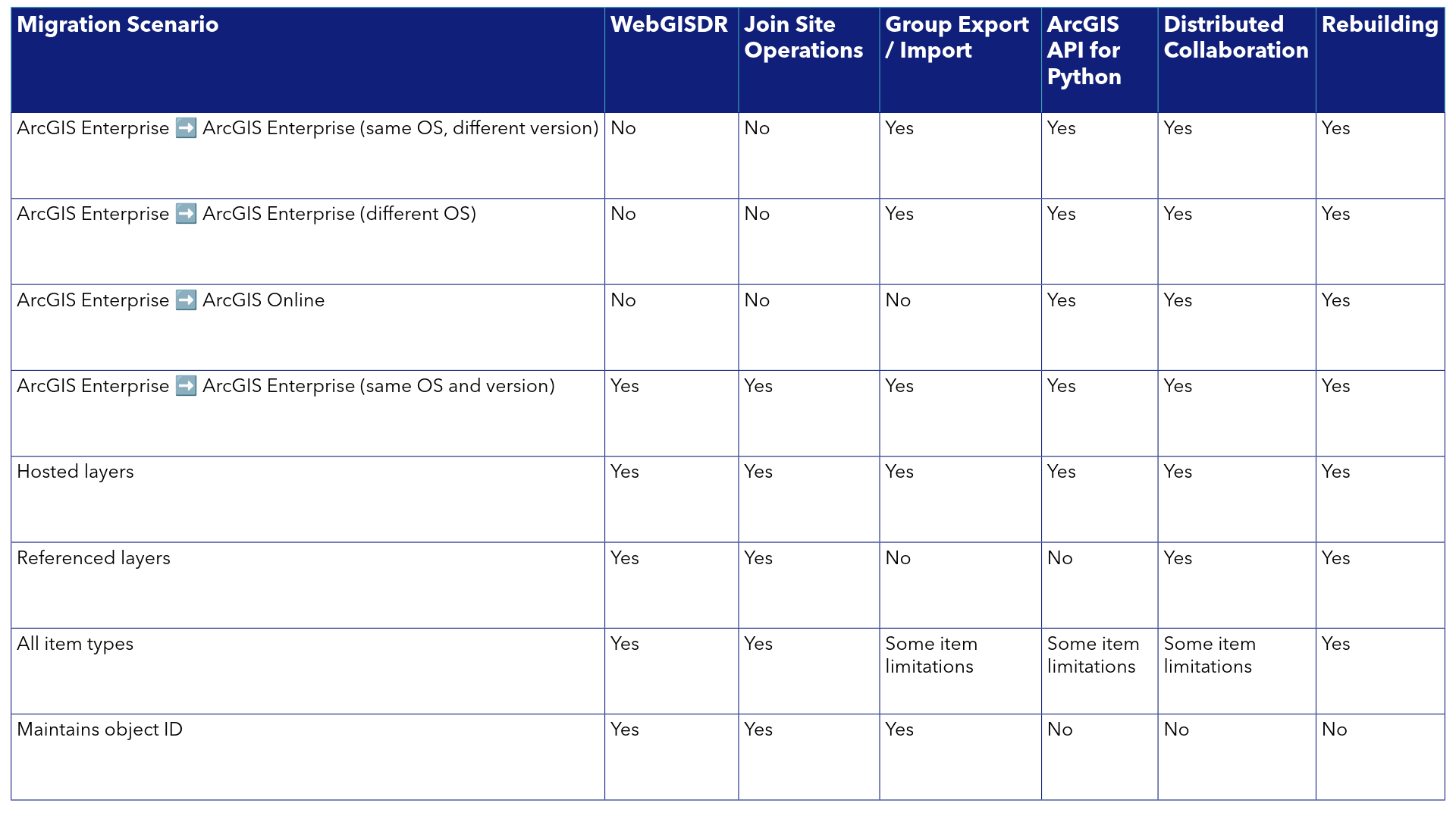
Common questions to ask to determine the right path
Now that we understand our different migration options, their common use cases, and their benefits and limitations, let’s think through some common questions to consider to determine which migration approach may be the best fit for your situation.
- Is this a full environment migration or only a content migration scenario?: This is a critical first question to determine the scope of your migration. If you are migrating a full environment, a tool like the WebGISDR tool will likely be the right approach since it will provide you with a single backup to restore to your new environment. The Join Site operation also allows you to do a full environment migration but will require additional manual steps with the machine-by-machine migration process. In the case of content migration, you have more options that may work such as group export/import, scripting workflows, and distributed collaboration).
- Will this be a repeated process or a one-time project?: One-time projects may call for different approaches than repeated migration workflows. For a one-time project, rebuilding may be something to consider in addition to migration approaches. For repeated migration processes, tools like export and import group content, distributed collaboration, and scripting using the ArcGIS API for Python work well.
- Am I moving between different products (ArcGIS Enterprise and ArcGIS Online)?: If you are moving to an entirely new product, you may need to take a multi-faceted approach depending on the scope of your migration. In the case of full environment migrations, consider using distributed collaboration for content migration. For users, permissions, licenses, and configurations, you will likely need to rebuild in the new environment. You may also consider using the ArcGIS API for Python for certain aspects of the migration if you have resources with the necessary expertise for this approach.
- Am I moving between different deployment options (Windows, Linux, Kubernetes)?: Different deployment methods have nuances in system requirements and configurations. There is not a singular approach for migrating from one deployment option to another. In this case, rebuilding may be the right approach. This work may be resource intensive so ensure you are scoping appropriately.
- What types of content do I want to migrate?: Different migration options have different limitations for item types. Approaches like WebGISDR have very few limitations in terms of supported item types while distributed collaboration and export and import group content have more considerations for item types and item size. You will also want to consider if you are migrating hosted or referenced content as there are additional limitations with certain tools for migrating referenced content, particularly if this referenced content will need to reference new registered data stores in the new environment.
- What resources do I have allocated to this project?: The level of effort and resources necessary for a migration are defined by the migration scope, goals, and available expertise. Prior to migrating, ensure you have a strong definition of your migration plan, goals, and intended outcomes to be able to properly allocate the necessary resources. Consider if a migration may result in downtime for your environment and plan this work around key projects. Migration can be an activity that is completed in an acute period of time or something that happens in stages depending on your business needs. Esri Professional Services can be great resource to support you through migration planning and work. Additionally, there are Esri Business Partner solutions that are specifically tailored to certain migration scenarios that you may consider as well.
- Should I rebuild or migrate?: After defining the scope and goals of your migration, you may determine that rebuilding may be less resource intensive or disruptive than migrating. Rebuilding may be an approach to consider if this is a one-time project, you would like to refine the configuration of your environment or your content, you are moving to a completely new deployment method or product, you want to upgrade the machines where your environment is installed or other third party tools being used with your environment, and you have the resources to support a new environment.
Example common migration scenarios and recommended approaches
To put together everything we covered in the blog, let’s go through some example migration scenarios and which migration approach is likely the best fit.
1. Example scenario: Today, I have a deployment of ArcGIS Enterprise 12.1 on Windows. I want to migrate my entire existing deployment of ArcGIS Enterprise onto new infrastructure. The new machines will be on a new operating system version, but I will stay on Windows and on ArcGIS Enterprise 12.1.
- Recommended migration approach: The WebGISDR tool will allow me to migrate my entire deployment of ArcGIS Enterprise using a single backup. Because I am staying on the same operating system (Windows) and the same version of ArcGIS Enterprise, this will be my most straightforward approach for migration. I could also consider using the Join Site operation, but that will require more manual steps to achieve my machine migration.
2. Example scenario: My organization has a variety of teams who use GIS to do their work, and each have a dedicated ArcGIS Enterprise deployment. As a result of some business changes, my team is handing over a project to another team and we need to migrate the content for the project from our ArcGIS Enterprise to the new team’s environment. The content is all hosted within ArcGIS Enterprise.
- Recommended migration approach: I am considering two main tools for this work, export and import group content or distributed collaboration. Both will allow me to migrate content from my team’s ArcGIS Enterprise to our team’s ArcGIS Enterprise. Because all the content is hosted in my ArcGIS Enterprise today and not referencing to any registered data stores, I decided to use export and import group content. We haven’t yet configured distributed collaboration between our two team’s ArcGIS Enterprise environments and so distributed collaboration would have required a bit more set up in this case. If I had been migrating content referencing a registered data store, I would need to use distributed collaboration because export and import group content does not support referenced content.
3. Example scenario: I maintain three ArcGIS Enterprise environments for my organization: development, testing, and production. I regularly want to promote or migrate content across these three tiers. Sometimes this content is hosted content and sometimes it is content referencing a registered data store. I have set up distributed collaboration between the environments.
- Recommended migration approach: Because I have distributed collaboration configured for my organizations, I choose this migration option because I know I may need to migrate both hosted content as well as content referencing a registered data store. Occasionally, there are items like dashboards that are not supported in distributed collaboration. In those cases, I manually rebuild the dashboard in the other environment. We have a new team member joining who is an expert in the ArcGIS API for Python so in the future we may consider scripting some of these recurring content promotion workflows but we want to ensure we have the right resources on the team to build and maintain the scripted workflows before we consider that approach.
4. Example scenario: My organization is using ArcGIS Online today, but business needs have changed and we are deciding to transition the majority of our workflows and content to ArcGIS Enterprise instead. I plan to install ArcGIS Enterprise 12.1 and need many of my users and most of my content in my new deployment. I don’t have anyone on my team who is an expert in using the ArcGIS API for Python.
- Recommended migration approach: Because I know my ArcGIS Enterprise will not be an exact replica of my ArcGIS Online organization since they are different products, I will take this opportunity to reflect on which users and content truly need to be moved and will see this as an opportunity to clean up stale content and consider which members are actively engaging in the system. After scoping the users and content that I want in my new ArcGIS Enterprise environment, I will get started by adding my users to ArcGIS Enterprise. I will choose to add them manually since it will be a portion of my existing ArcGIS Online users and I want to carefully ensure I am providing each person with the right licenses and privileges. For my content, I may choose to use distributed collaboration to share content between my existing ArcGIS Online organization and my new ArcGIS Enterprise. Although I can use distributed collaboration to migrate a lot of my content, it may not support all of the items I want to migrate, such as dashboards, on my version of ArcGIS Enterprise 12.1. In the case of those items, I will rebuild them in ArcGIS Enterprise. I could have considered the ArcGIS API for Python for this work, but I don’t have any experts for this technology on my team and scripting approaches are typically better for repeated workflows opposed to one-time migrations like mine.
5. Example scenario: My organization is choosing to transition from using Windows to Linux as our default operating system. My ArcGIS Enterprise deployment today is on Windows, and I have been tasked with migrating it to Linux machines.
- Recommended migration approach: There is no available migration tool that will migrate my full deployment as it exists today from Windows to Linux. I will need to install the Linux deployment on new machines and bring my users, content, and configurations into the new deployment. I will add my users manually and will consider options like distributed collaboration for migrating certain content. In some cases, I may need to republish or rebuild content manually. Because this will be a significant transition, I am planning far in advance and will be able to build my new Linux deployment while my existing deployment on Windows is available for my users to do their work. I will also take this opportunity to consider if I need to migrate all content and users or if this may be a chance to clean up some old content and inactive users.
Time to migrate!
Through this blog we have learned the different types of migration you may be considering as an ArcGIS Enterprise user, different migration approaches and their considerations, and key questions to ask yourself to prepare for a migration. Now you are ready to take on your next migration! Please let us know how we can continue to better empower you for your next migration through Esri Community.


Article Discussion: