ArcGIS organization management, whether in ArcGIS Online or ArcGIS Enterprise, means juggling many moving parts. Users, licenses, content, groups, and credits change constantly, and keeping everything aligned requires more than one-time setup or occasional cleanup. Many organizations invest time defining Web GIS governance policies, but they often struggle to put those policies into practice. Without regular visibility into how people actually use the organization, even a well‑intentioned ArcGIS environment can quickly become unstructured and difficult to manage.
To help close that gap, we created the Admin Insights Template designed to support Web GIS governance in ArcGIS Online through regular monitoring and visibility. Built using ArcGIS Notebooks and ArcGIS Dashboards, the template surfaces actionable insights about an organization’s users, content, and groups. These insights help administrators understand whether governance policies are being followed and where intervention may be needed. By providing ongoing visibility into organizational health and usage, the template supports the Observability pillar from Esri’s Architecture Center.
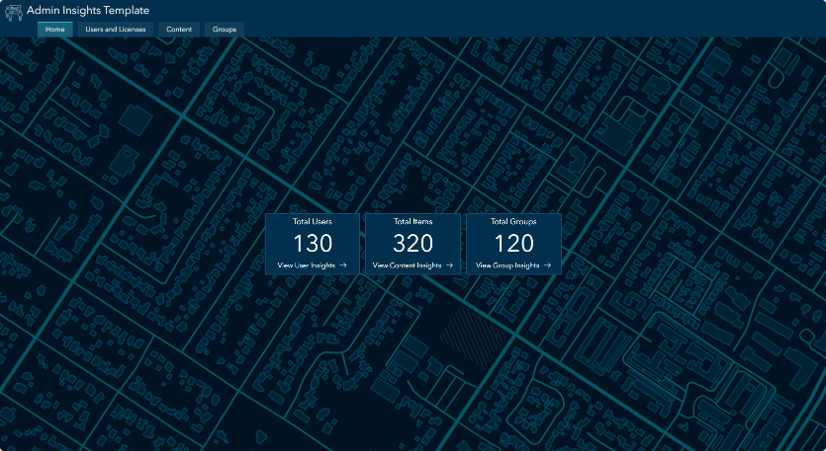
What the Template Provides
The admin insights template leverages the ArcGIS API for Python to power a set of dashboards that surface insights across three key areas of ArcGIS organization management: users and licenses, content, and groups. Together, these dashboards help administrators understand how their organization is being used day to day, not just how it was configured.
The template complements the new Organization Status Dashboard (beta) available in ArcGIS Online, giving administrators a more complete picture of organizational activity and resource usage. Some of you may also recognize this pattern from the earlier blog Managing ArcGIS Online content with ArcGIS Dashboards and ArcGIS Notebooks. The admin insights template builds on that foundation by expanding the approach beyond content to support broader organizational monitoring and ongoing observability.
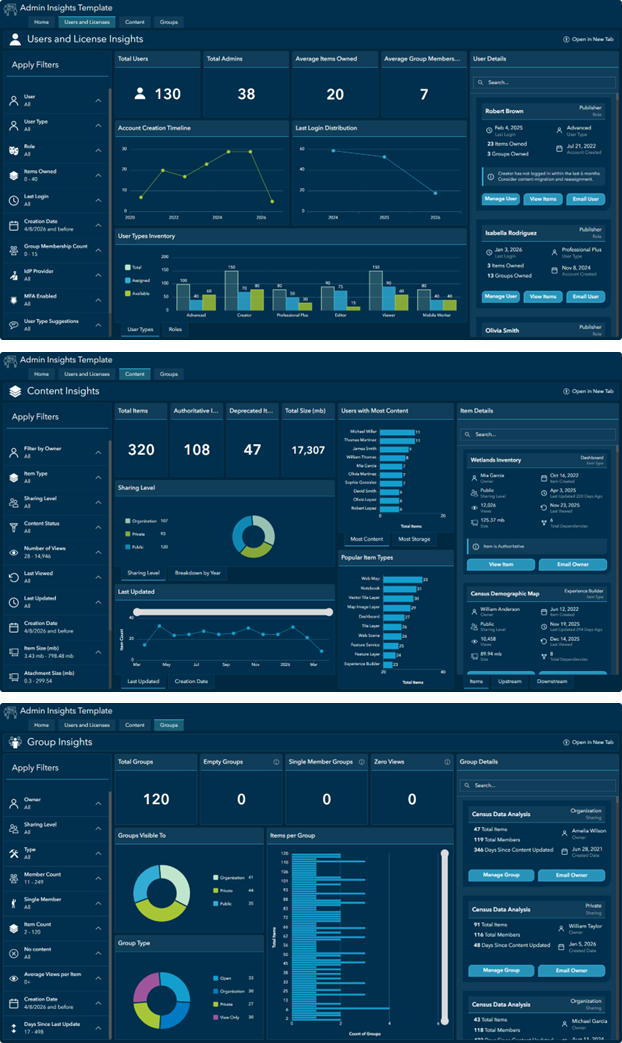
Users & Licenses: The Users and Licenses dashboard provides visibility into how an ArcGIS organization’s users are structured and how they are being used over time. You can use this dashboard to identify inactive or underutilized accounts, validate that licenses are assigned efficiently, and spot trends that may signal the need to adjust onboarding processes, licensing strategy, or user management policies.
Content: The Content dashboard helps you understand what content exists across the organization and how it is being used. It highlights stale or unused items, supports validation of sharing and metadata standards, and tracks the growth of non‑authoritative content. You can also monitor high‑impact items (publicly shared, highly viewed, or large content), and explore upstream and downstream content dependencies.
Groups: The Groups dashboard provides insight into how groups are being used to organize content and manage access across the organization. It helps identify groups that support critical sharing workflows, surface unused or low‑value groups (such as empty or single‑member groups), and validate that group sharing settings align with organizational access and collaboration policies.
How It Works
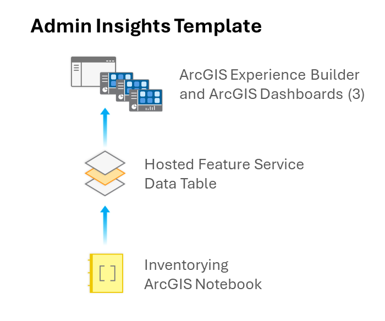
The admin insights template brings these dashboards together using an ArcGIS Experience Builder app, which serves as a single storefront for exploring users, content, and groups in one place.
Each dashboard is powered by a shared hosted feature service that maintains an inventory of users, content items, and groups. This feature service is updated by a notebook that uses the ArcGIS API for Python to collect details about each user, content item, and group in your organization. You can schedule this notebook to run regularly to keep the dashboards up to date.
The template was built using ArcGIS Online, but the same approach can be adapted for deployment in ArcGIS Enterprise.
Getting Started
Here’s the basic workflow to set up the admin insights template in your organization:
- Access the initialization notebook at Admin Insights Template – Initialization Notebook. If not already, log in to your organization in order to open the notebook.
- With the initialization notebook now open, choose the Save As option to store it as an item in your organization.
- Run all cells in your copy of the initialization notebook
- Once complete, take note of the
CLONED ITEMS SUMMARYthat is returned after the last cell. This lists the five new items created in your content. You will input the item ID of the data table in step 9 below. - You should now see five new items in your content:
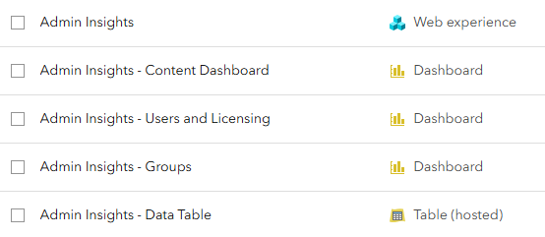
- If you access the dashboards at this point, they will be empty! This is expected behavior. You need to create a copy of the inventorying notebook to populate the underlying data table.
- Access the inventorying notebook at Admin Insights Template – Organization Inventory Notebook. If not already, login to your organization in order to open the notebook.
- With the inventorying notebook now open, choose the Save As option to store it as an item in your organization.
- Open your copy of the inventorying notebook and update the
fs_idvariable to the new data table item id generated when you ran the initialization notebook in step 4 above. - Run all cells in your copy of the inventorying notebook.
- The underlying data table should now be updated, and the admin insights app loads as expected! You can consider scheduling the inventorying notebook to run weekly to observe your organization closely.
Road Ahead
Good governance is an ongoing practice. We hope this template gives your team a practical foundation for observing and managing your ArcGIS organization with confidence. Work on the admin insights template is ongoing, so keep an eye out for updates. And feel free to drop a comment or question below. We’d love to hear your feedback!



In step 10,
upstream_enriched, downstream_enriched, final_content_df = run_dependency_pipeline(
gis=gis,
items_dicts=items_dicts,
content_df=content_df,
dependency_mapping=dependency_mapping
)
returns
—————————————————————————
ValueError Traceback (most recent call last)
Cell In[16], line 1
—-> 1 upstream_enriched, downstream_enriched, final_content_df = run_dependency_pipeline(
2 gis=gis,
3 items_dicts=items_dicts,
4 content_df=content_df,
5 dependency_mapping=dependency_mapping
6 )
ValueError: too many values to unpack (expected 3)
Hi Kevin! We’ve resolved the dependency unpacking issue and updated the ArcGIS Admin Insights – Organization Inventory Notebook. I recommend reopening the notebook from the original link and rerunning it to ensure you’re using the latest version.
Being able to track upstream and downstream content is a very valuable ability (and a long time requested feature) not just for administrators but also for content owners, as they are the ones usually doing the creating, editing, and deleting. How can non-admins see this kind of information?
Looks good now, thanks.
You would need to be an admin to run the two notebooks and populate the table. But once that is done, I think you can just share the table, experience and 3 dashboards to a group.
Thanks for the article. Can you deliver this as a standard ArcGIS solution?
Is there a minimum supported version of ArcGIS Enterprise to use this tool?
This toolkit is currently configured for ArcGIS Online usage. A few planned updates include easier deployment in ArcGIS Enterprise organizations, support for monitoring multiple organizations, and additional flagging. This is a living toolkit, so keep an eye out for updates!
Tried to run against 11.5 and no joy, moved the table using the offline content manager and then ran teh inventory notebook. That fails at the getSubscritpionIno as not valid for an Enterprise Portal.
Hi & thanks for providing all of this. I tried running it in ArcGIS Online this morning for the first time and got to:
Publishing to table: Content
Total records to publish : 11,048
Chunk size : 500
Publishing rows 1–500…
Exception Traceback (most recent call last)
Cell In[16], line 30
24 tables_to_publish.extend([
25 (upstream_enriched, tables[“upstream”][“table”]),
26 (downstream_enriched, tables[“downstream”][“table”]),
27 ])
29 for df, table in tables_to_publish:
—> 30 publish_dataframe_to_table(df, table)
32 print(“\n✓ Content snapshot complete”)
Exception:
Field description has invalid html content.
(Error Code: 400)
Super exciting. For us, the real use would be in portal, we’re still at 11.3. When implementing, thought it would be worth noting.
Hello
This is awesome—I just ran it, and like @Chris Taylor, I’m getting the same error.
*-*-*-*-*-*-*-*
Exception Traceback (most recent call last)
Cell In[24], line 30
24 tables_to_publish.extend([
25 (upstream_enriched, tables[“upstream”][“table”]),
26 (downstream_enriched, tables[“downstream”][“table”]),
27 ])
29 for df, table in tables_to_publish:
—> 30 publish_dataframe_to_table(df, table)
32 print(“\n✓ Content snapshot complete”)
Cell In[11], line 118, in publish_dataframe_to_table(df, table_layer, chunk_size)
115 print(f”\nPublishing rows {start + 1}–{end}…”)
117 features = [Feature(attributes=row.to_dict()) for _, row in chunk.iterrows()]
–> 118 result = table_layer.edit_features(adds=features)
119 add_results = result.get(“addResults”, []) or []
121 attempted = len(features)
File /opt/conda/lib/python3.13/site-packages/arcgis/features/layer.py:3510, in FeatureLayer.edit_features(self, adds, updates, deletes, gdb_version, use_global_ids, rollback_on_failure, return_edit_moment, attachments, true_curve_client, session_id, use_previous_moment, datum_transformation, future)
3508 return EditFeatureJob(future, self._con)
3509 # return future
-> 3510 return self._con.post_multipart(path=edit_url, postdata=params)
3511 except Exception as e:
3512 if str(e).lower().find(“Invalid Token”.lower()) > -1:
File /opt/conda/lib/python3.13/site-packages/arcgis/gis/_impl/_con/_connection.py:1274, in Connection.post_multipart(self, path, params, files, **kwargs)
1272 if return_raw_response:
1273 return resp
-> 1274 return self._handle_response(
1275 resp=resp,
1276 out_path=out_path,
1277 file_name=file_name,
1278 try_json=try_json,
1279 force_bytes=kwargs.pop(“force_bytes”, False),
1280 )
File /opt/conda/lib/python3.13/site-packages/arcgis/gis/_impl/_con/_connection.py:1005, in Connection._handle_response(self, resp, file_name, out_path, try_json, force_bytes, ignore_error_key)
1003 return data
1004 errorcode = data[“error”][“code”] if “code” in data[“error”] else 0
-> 1005 self._handle_json_error(data[“error”], errorcode)
1006 return data
1007 else:
File /opt/conda/lib/python3.13/site-packages/arcgis/gis/_impl/_con/_connection.py:1028, in Connection._handle_json_error(self, error, errorcode)
1025 # _log.error(errordetail)
1027 errormessage = errormessage + “\n(Error Code: ” + str(errorcode) + “)”
-> 1028 raise Exception(errormessage)
Exception:
Field description has invalid html content.
(Error Code: 400)
*-*-*-*-*-*-*-*-*-*-*-*-*-
I’ve tried running the inventory notebook 3 times, and so far, it fails at exactly the same place. My org has 12.5K users, over 160k+ items, and 1700 groups. The inventory script gets to step 3c.1 and errors out while building the Governance table for all 160K+ items, specifically at processing 40100/164275 items. Is your script limited in how many records it can process and list for the organizations items? Please feel free to email me directly.
Hi Alex! Are you running the Notebook manually, or scheduling it? If you are doing it manually, I would suggest scheduling the Notebook using the “Tasks” tab because this ensures that the kernel won’t die before the script has finished its inventory. There should be no limit to the number of items it can process. Let us know if this resolves the issue or if you are receiving a more specific error!
For those who want to try and get this up and running in your ArcGIS Enterprise…godspeed and hope this helps. Esri was a little optomistic on this: “…can be adapted for deployment in ArcGIS Enterprise with minimal changes.” Also, after all the work to populate everything, I went to open the Dashboards/Experience Builder app and since we are on 11.5, it doesn’t work! @Esri Inc. any way you can share a downgraded version or a way to downgrade it?
Initialization Notebook
1. Dual GIS connections required
The source items live on AGOL. A second anonymous (or authenticated) AGOL connection is needed to fetch them:
pythongis = GIS(“pro”) # Enterprise target
gis_agol = GIS() # AGOL source
All gis.content.get() calls for source items must use gis_agol, while all clone_items() calls use gis.
2. copy_data=False on hosted table clone
Cross-platform cloning fails with a KeyError: ‘objectid’ case mismatch when copying data. The table is empty by design anyway:
pythongis.content.clone_items(…, copy_data=False)
3. force=True on remap_data()
The original AGOL item IDs don’t exist in Enterprise, so validation fails without this:
pythoncloned_item.remap_data({hosted_table: cloned_table_id}, force=True)
4. from_dash=True on dashboard clone_items()
Cross-platform dependency resolution fails on dashboards without this:
pythongis.content.clone_items(…, from_dash=True)
5. Native Enterprise hosted table required
clone_items() creates an item in Enterprise that still points to the AGOL-hosted service (services.arcgis.com). The table must be recreated natively using create_service() + add_to_definition() with the schema extracted from the AGOL source:
pythonpublished_item = gis.content.create_service(
name=”ArcGIS_Admin_Insights_Table”,
service_type=”featureService”,
folder=target_folder
)
flc = FeatureLayerCollection.fromitem(published_item)
flc.manager.add_to_definition({“tables”: table_definitions})
Organization Inventory Notebook
1. subscriptionInfo not available on Enterprise
build_license_summary() calls gis.properties.subscriptionInfo which is AGOL-only. Add an Enterprise fallback that derives license counts from user attributes instead.
2. Pass fs_item not agk_fs to get_table_url()
The function expects an Item object, not a FeatureLayerCollection.
3. Access tables directly via agk_fs for write operations
Token/permission errors occur when using table references returned by get_table_url(). Use direct table access instead:
pythonusers_table = next(t for t in agk_fs.tables if t.properties.name == “Users”)
4. Timestamp columns must be converted to millisecond epochs
Enterprise rejects string dates with Cannot convert ‘String’ to ‘TIMESTAMP’. Convert before publishing:
pythondf[col] = pd.to_datetime(df[col], errors=’coerce’).apply(
lambda x: int(x.timestamp() * 1000) if pd.notnull(x) else None
)
Affects: creation_date, last_updated, last_viewed in Content, Upstream, and Downstream tables.
5. Float size columns must be cast to Int64
Enterprise rejects float64 in INTEGER schema fields with Cannot convert ‘BigDecimal’ to ‘INTEGER’:
pythondf[‘size_mb’] = df[‘size_mb’].astype(‘Int64’)
6. Filter external hosts before fetching item sizes
The default add_item_sizes() call attempts to fetch sizes for all 1,790 items including externally referenced services, causing multi-hour runtimes. Filter to internal items only inside run_governance_pipeline():
pythoninternal_ids = set(
i[‘id’] for i in items
if i.get(‘url’) is None
or ‘your-enterprise-host.com’ in str(i.get(‘url’, ”))
or i.get(‘url’) == ”
)
internal_df = df[df[‘item_id’].isin(internal_ids)].copy()
Hi Jon, thank you for bringing this issue to our attention. This error typically occurs when a string value in the data frame being published to a feature layer contains invalid HTML formatting. I was able to reproduce the behavior on my end and have added an update to the notebook’s publishing function that resolved the issue in my testing. Hopefully, this addresses the problem for you!
Is there a timeline already set to get this to work within ArcGIS Enterprise 11.5 and above?
This is great! Two questions:
First, I’m getting an odd thing. I’m logged in to AGOL, and I go to the Experience Builder just fine, but then when I click on a tab to load the embedded dashboard, I am prompted to sign in again. I’ve tried a few experiments, and it does it every time. Once I’ve logged in, I can jump between dashboards. But if I close the Experience Builder and re-open it, I’m prompted to log in again. I’m not sure why it doesn’t inherit my credentials.
Second, any way to get credits usage loaded in here too? I like the new credit dashboard ok, but this is way more useful as a full picture of everything for governance.
Hi Ryan, this is expected behavior; however, there’s an easy fix to prevent the repeated login prompts.
The simplest solution is to update the embedded Dashboard URLs in your Experience Builder app to use the full organization-specific URL, and then republish the app.
Make sure each embedded dashboard uses the URL copied directly from the published dashboard with your organization’s name. It should look something like:
https://{YOUR_ORGANIZATION}.maps.arcgis.com/apps/dashboards/{ITEM_ID}
To apply the fix:
– Open your Experience Builder app in edit (draft) mode
– Go to each page that contains an embedded Dashboard
– In the left panel, select the Embed widget
– Replace the existing URL with the full organization-specific Dashboard URL (copied from the published Dashboard)
– Click Save, then Publish
Once updated, the login prompts should stop occurring when navigating between Dashboards.
I’m running it manually so I can evaluate it. I was planning on running it as a task after the initial run so I could see what it turns out. I’ll see if a task helps it.
Has anyone found a solution to this error I’m encountering in the last cell while running Step 3c.3 (Publish to Content Table)?
I’ve posted the error here before, but haven’t received a response from the blog author. I’m wondering if anyone else has experienced the same issue and, if so, how they resolved it.
Thanks
Error:
Exception Traceback (most recent call last)
Cell In[16], line 30
24 tables_to_publish.extend([
25 (upstream_enriched, tables[“upstream”][“table”]),
26 (downstream_enriched, tables[“downstream”][“table”]),
27 ])
29 for df, table in tables_to_publish:
—> 30 publish_dataframe_to_table(df, table)
32 print(“\n✓ Content snapshot complete”)
Cell In[5], line 118, in publish_dataframe_to_table(df, table_layer, chunk_size)
115 print(f”\nPublishing rows {start + 1}–{end}…”)
117 features = [Feature(attributes=row.to_dict()) for _, row in chunk.iterrows()]
–> 118 result = table_layer.edit_features(adds=features)
119 add_results = result.get(“addResults”, []) or []
121 attempted = len(features)
File /opt/conda/lib/python3.13/site-packages/arcgis/features/layer.py:3510, in FeatureLayer.edit_features(self, adds, updates, deletes, gdb_version, use_global_ids, rollback_on_failure, return_edit_moment, attachments, true_curve_client, session_id, use_previous_moment, datum_transformation, future)
3508 return EditFeatureJob(future, self._con)
3509 # return future
-> 3510 return self._con.post_multipart(path=edit_url, postdata=params)
3511 except Exception as e:
3512 if str(e).lower().find(“Invalid Token”.lower()) > -1:
File /opt/conda/lib/python3.13/site-packages/arcgis/gis/_impl/_con/_connection.py:1274, in Connection.post_multipart(self, path, params, files, **kwargs)
1272 if return_raw_response:
1273 return resp
-> 1274 return self._handle_response(
1275 resp=resp,
1276 out_path=out_path,
1277 file_name=file_name,
1278 try_json=try_json,
1279 force_bytes=kwargs.pop(“force_bytes”, False),
1280 )
File /opt/conda/lib/python3.13/site-packages/arcgis/gis/_impl/_con/_connection.py:1005, in Connection._handle_response(self, resp, file_name, out_path, try_json, force_bytes, ignore_error_key)
1003 return data
1004 errorcode = data[“error”][“code”] if “code” in data[“error”] else 0
-> 1005 self._handle_json_error(data[“error”], errorcode)
1006 return data
1007 else:
File /opt/conda/lib/python3.13/site-packages/arcgis/gis/_impl/_con/_connection.py:1028, in Connection._handle_json_error(self, error, errorcode)
1025 # _log.error(errordetail)
1027 errormessage = errormessage + “\n(Error Code: ” + str(errorcode) + “)”
-> 1028 raise Exception(errormessage)
Exception:
Field description has invalid html content.
(Error Code: 400)
Hi Ahmad, thank you for bringing this issue to our attention. This error typically occurs when a string value in the data frame being published to a feature layer contains invalid HTML formatting. I was able to reproduce the behavior on my end and have added an update to the notebook’s publishing function that resolved the issue in my testing. Hopefully, this addresses the problem for you!
This is great and highly needed! Thank you so much for all the work you folks put into doing this. Unfortunately I’m running into a similar, but different, error as well on Step 3:
Cloned Hosted Table: Admin Insights Template – Data Table
Cloned Dashboard: Admin Insights Template – Content Dashboard (No Dependencies)
Cloned Dashboard: Admin Insights Template – Groups Dashboard
Cloned Dashboard: Admin Insights Template – Users and Licensing Dashboard
—————————————————————————
IndexError Traceback (most recent call last)
Cell In[15], line 10
2 cloned_dashboards_id, cloned_dashboards, cloned_table_id = clone_dashboards_with_shared_table(
3 gis,
4 original_dashboards,
5 dependency_mapping,
6 target_folder
7 )
9 # Clone Experience Builder
—> 10 cloned_exb = clone_remap_exb(
11 gis,
12 cloned_table_id,
13 cloned_dashboards_id,
14 admin_insights_exb,
15 target_folder
16 )
18 # Summarize Clones
19 summarize_cloned_items(
20 gis,
21 cloned_table_id,
22 cloned_dashboards,
23 cloned_exb
24 )
Cell In[14], line 127, in clone_remap_exb(gis, cloned_table_id, cloned_dashboards_id, admin_insights_exb, target_folder)
120 # Clone the EXB with table remapping
121 cloned_exb_list = gis.content.clone_items(
122 items=[exb_item],
123 folder=target_folder,
124 item_mapping={hosted_table: cloned_table_id},
125 preserve_item_id=False
126 )
–> 127 cloned_exb = cloned_exb_list[0]
129 data = cloned_exb.get_data()
131 updated_data = data
IndexError: list index out of range
Bonjour, C’est une solution essentielle pour les organisations ArcGIS Online dont les usages sont nombreux. Vivement une solution pour les environnements ArcGIS Enterprise! Merci beaucoup
Is there any thought on going 1 step further and adding item dependencies to this? I currently run a script that catalogs all our AGOL content, and creates a list of map services used by each item. This is very helpful for determining what items in AGOL will be affected by a map service update, or a data update. It would be nice if your notebook performed that step, so all information would be centralized.
Thank you @StellaMeserve – my ‘Field description has invalid html content.’ issue is now resolved!
Hello, thanks very much for this. I’ve followed the steps to include items with dependencies from both Notebooks. However the Downstream dependencies part of the Dashboard isn’t displaying properly. In the Hosted Feature Table I can see that there are lots of items with Downstream dependencies, but when I select them in the Dashboard nothing displays in the Downstream tab. Has anyone else found the same?
I got it working – in the settings of the Downstream Dependencies list widget, even though it already said max features displayed 25, I changed it to 100 and the dependencies started showing.
Thanks for that Deborah, I had the same issue where Downstream Dependencies were not showing. I set the ‘max features’ value to 1000 and now they are showing. Thanks for that
The user types in the Inventory script are the old user types, so Professional isn’t in the table or the User dashboard.
USERTYPE_MAP = {
“creatorUT”: “Creator”,
“GISProfessionalBasicUT”: “Professional Basic”,
“GISProfessionalAdvUT”: “Professional Plus”,
“GISProfessionalStdUT”: “Professional Standard”,
“standardUT”: “Standard”,
“advancedUT”: “Advanced”,
“basicUT”: “Basic”,
“editorUT”: “Editor”,
“fieldWorkerUT”: “Mobile Worker”,
“viewerUT”: “Viewer”,
Update: so there does seem to be a problem with Downstream Dependencies not showing. The fix mentioned above (to edit the ‘max features’ setting) works whilst you are editing the Dashboard (and even if you save the Dashboard but stay in the editing mode), but if you refresh the edit session or view the Dashboard outside of the editing mode the Downstream Dependencies stop displaying. It seems like the Downstream Dependencies data isn’t loading in the background and for some reason editing the ‘max features’ value causes the data to load hence they display in a Dashboard edit session. Outside of a Dashboard edit session the Downstream Dependencies do not display at all.
I just checked and it seems that making any edit to the Downstream Dependencies List item (e.g. adding a sort order) causes the downstream items to display whilst in Dashboard edit mode (it’s not that they only display if you edit the ‘max features’ value).
We have deployed this solution to multiple AGOL organisations (three so far) and the behaviour is consistent across all three orgs. It would be great if this could be fixed @Stella.
This is a great tool! It took me a while to set it up, due to the issues I was also having with the Downstream Dependencies not showing in the dashboard. I would like to add that I think I found the root cause. In the Downstream Dependencies table, the Field Name for the Metadata field is misspelled. It is spelled as “downstream_metadata_completenes” when it should be “downstream_metadata_completeness” (the extra ‘s’ at the end matters). The Organization Inventory notebook maps the source item’s metadata score to the Dependency Metadata Completeness field by matching the source’s metadata field name (metadata_completeness) to downstream_ + {sourcemetadatafield}, so it’s trying to look for “downstream_metadata_completeness”, which doesn’t exist, leaving the “downstream_metadata_completenes” field null. This is only a problem in the dashboard due to the Metadata Completeness filter. Since null values aren’t in range, it filters out ALL of the Downstream Dependencies. I don’t have enough python know-how to fix the script, so I fixed this issue by adding a new “downstream_metadata_completeness” field to the Downstream Dependencies table, but you could also edit the settings in the Metadata Completeness to not filter the Downstream Dependencies in the dashboard.
Now that I’ve fixed that, I’m looking forward to using these dashboards! Thanks!!
Downloaded the initialization notebook from https://www.arcgis.com/home/item.html?id=1f8d5cfc52474d20926a04d5aadad1ef
Added it as an item to ArcGIS Enterprise portal version 11.3 and on running Step 3: Clone Items, we get this error:
—————————————————————————
TypeError Traceback (most recent call last)
/tmp/ipykernel_39/353523787.py in ()
1 # Clone data table and dashboards
—-> 2 cloned_dashboards_id, cloned_dashboards, cloned_table_id = clone_dashboards_with_shared_table(
3 gis,
4 original_dashboards,
5 dependency_mapping,
/tmp/ipykernel_39/1023502579.py in clone_dashboards_with_shared_table(gis, original_dashboards, dependency_mapping, target_folder)
28 cloned_dashboard_items = []
29 # Clone the hosted table once
—> 30 cloned_table = gis.content.clone_items(
31 items=[hosted_table_item],
32 folder = target_folder,
/opt/conda/lib/python3.11/site-packages/arcgis/gis/__init__.py in clone_items(self, items, folder, item_extent, use_org_basemap, copy_data, copy_global_ids, search_existing_items, item_mapping, group_mapping, owner, preserve_item_id, **kwargs)
8741 preserve_item_id = False
8742
-> 8743 deep_cloner = clone._DeepCloner(
8744 self._gis,
8745 items,
/opt/conda/lib/python3.11/site-packages/arcgis/_impl/common/_clone.py in __init__(self, target, items, folder, item_extent, service_extent, use_org_basemap, copy_data, copy_global_ids, search_existing_items, item_mapping, group_mapping, owner, preserve_item_id, from_dash, wab_code_attach)
116 for index, item in enumerate(self._items):
117 if (
–> 118 item[“type”] == “Dashboard”
119 and “desktopView” in item.get_data()
120 and not from_dash
TypeError: ‘NoneType’ object is not subscriptable
—————————————————————————
Similarly, on another env we added it as an item to ArcGIS Enterprise portal version 11.5 and on Step 3: Clone Items we get this error:
—————————————————————————
TypeError Traceback (most recent call last)
Cell In[5], line 2
1 # Clone data table and dashboards
—-> 2 cloned_dashboards_id, cloned_dashboards, cloned_table_id = clone_dashboards_with_shared_table(
3 gis,
4 original_dashboards,
5 dependency_mapping,
6 target_folder
7 )
9 # Clone Experience Builder
10 cloned_exb = clone_remap_exb(
11 gis,
12 cloned_table_id,
(…)
15 target_folder
16 )
Cell In[4], line 30, in clone_dashboards_with_shared_table(gis, original_dashboards, dependency_mapping, target_folder)
28 cloned_dashboard_items = []
29 # Clone the hosted table once
—> 30 cloned_table = gis.content.clone_items(
31 items=[hosted_table_item],
32 folder = target_folder,
33 search_existing_items=False,
34 preserve_item_id=False
35 )[0]
36 print(f”Cloned Hosted Table: {cloned_table.title}”)
38 flc = FeatureLayerCollection.fromitem(cloned_table)
File /opt/conda/lib/python3.11/site-packages/arcgis/gis/__init__.py:9194, in ContentManager.clone_items(self, items, folder, item_extent, use_org_basemap, copy_data, copy_global_ids, search_existing_items, item_mapping, group_mapping, owner, preserve_item_id, export_service, preserve_editing_info, **kwargs)
9187 print(
9188 “Cannot preserve ItemIds on ArcGIS Enterprise ”
9189 “older than v10.9 or to ArcGIS Online organizations. \n”
9190 “`preserve_item_id` will be ignored.”
9191 )
9192 preserve_item_id = False
-> 9194 deep_cloner = clone._DeepCloner(
9195 self._gis,
9196 items,
9197 folder,
9198 wgs84_extent,
9199 service_extent,
9200 use_org_basemap,
9201 copy_data,
9202 copy_global_ids,
9203 search_existing_items,
9204 item_mapping,
9205 group_mapping,
9206 owner_name,
9207 preserve_item_id=preserve_item_id,
9208 export_service=export_service,
9209 preserve_editing_info=preserve_editing_info,
9210 from_dash=kwargs.pop(“from_dash”, False),
9211 wab_code_attach=kwargs.pop(“copy_code_attachment”, True),
9212 )
9213 return deep_cloner.clone()
File /opt/conda/lib/python3.11/site-packages/arcgis/_impl/common/_clone.py:126, in _DeepCloner.__init__(self, target, items, folder, item_extent, service_extent, use_org_basemap, copy_data, copy_global_ids, search_existing_items, item_mapping, group_mapping, owner, preserve_item_id, from_dash, wab_code_attach, export_service, preserve_editing_info)
123 self._dashboards = []
124 for item in self._items:
125 if (
–> 126 item[“type”] == “Dashboard”
127 and “desktopView” in item.get_data()
128 and not from_dash
129 ):
130 self._dashboards.append(item)
131 dash_list = self._clone_dashboard(item)
TypeError: ‘NoneType’ object is not subscriptable
—————————————————————————
@katelyn @stella
I did the same… Added a new field with the extra “s” and the filter issue cleared up for me.
My guess on the shortened field name is that AGOL prefers field names under 32 characters for interoperability reasons. “downstream_metadata_completeness” is 32 characters (the longest field name in that table) So whatever script or process set up the source data tables truncated one character from that field name.
Ideally the field names int the downstream dependency table template would be modified so that they don’t get over 31 characters, the obvious way to do this is abbreviate ‘downstream.’
So we have a few options.
1. Make a new field with the correct name in the downstream dependencies table before populating and delete the incorrect field.
You can do this, but you will get the warning about interoperability (more than 31 characters) when you make the new name. This may not actually affect anything important. Once you have a field with the full name, the script should fill it in.
2. Modify the Notebook to hit the correct fieldname.
In step 2c.3 (Dependency Functions) replace the ‘enrich deps’ function.
def enrich_deps(deps_df, content_df, dependency_mapping, prefix=’dependency’):
“””
Add content metadata to dependency DataFrame and truncate column names to 31 characters.
“””
if not dependency_mapping:
return pd.DataFrame()
df = (
deps_df
.merge(content_df, left_on=’target_itemid’, right_on=’item_id’)
.drop(columns=’item_id’)
.rename(columns={col: f'{prefix}_{col}’ for col in content_df.columns if col != ‘item_id’})
.merge(
content_df[[‘item_id’, ‘title’]],
left_on=’source_itemid’,
right_on=’item_id’,
how=’left’
)
.drop(columns=’item_id’)
.rename(columns={‘title’: ‘source_title’})
)
# Truncate column names to 31 chars
df.columns = [col[:31] for col in df.columns]
return df
Hi Travis—and anyone else who ran into issues with the “metadata_completenes” field impacting Dashboard filtering—
I wanted to share a quick update that the Admin Insights Template – Organization Inventory Notebook has been updated to address this. The notebook linked in the blog post now reflects the revised parameters, so the Dashboard should render correctly moving forward. The attachment_sizes issue has also been resolved in this update.
Really appreciate all the feedback and callouts. Thank you for helping make this template stronger for everyone!
Also note in the current notebook as implemented, the ‘include_reverse’ and ‘outside_org’ parameters set in the beginning are not being passed to the run_dependency_pipeline function in Step 3c.2
This is great for interrogating users, content and groups. For licensing, it would be great to have visibility into ArcGIS Pro name users as the current telemetry provided in AGOL/Enterprise is non-existent.
Bug:
Inventory Notebook attachment sizes always populate to 0
Location:
Cell labeled “Step 2c.3 Define Content Functions”
add_item_sizes function
fetch_size sub function, 4th line
Issue:
Incorrect attribute call. Fetch size sub function is calling ‘attachment_size’ rather than ‘attachments size’.
Try/except block causes it to fail silently and populate all attachment sizes as 0
Fix:
In the fouth line, change “attachment_size” to “attachments_size”
def fetch_size(item_id):
try:
it = gis.content.get(item_id)
size_bytes = getattr(it, “size”, 0) or 0
attachment_bytes = getattr(it, “attachments_size”, 0) or 0 #<– Changed "attachment_size" to "attachments_size"
return round(size_bytes / (1024 * 1024), 2), round(attachment_bytes / (1024 * 1024), 2)
except Exception:
return (None, None)
Remember to indent. Comment box never preserves the code formatting.
Love the tool so far, we’ve added in parelelizatiomultiple works on several of the @Stella, one thing I see that would really enhance our use of it is to populate 4th sharing type, Group. We will often have “Private” layers that are only shared to a group. Maybe we’ve missed something in the setup?
Thank you for creating this template. It took me about 10 minutes to set it up. I have been using the older version of this tool from the blog you mentioned above for a couple of clients. This is a very impressive replacement.
I know it probably looks like I’m complaining a lot. This really is a very cool setup and it’s great work by the team there at ESRI.
That said:
The “Groups Owned” stat in the Item list on the right side of the Users and Licenses Insights dashboard is actually the number of groups a user is in, not the number of groups they own.
Two choices for a fix: Change the label in the dashboard to “Groups In” (or whatever label works for you) or Modify the inventory Notebook to capture actual groups owned by each user. To have both (which may be useful) a column would have to be added to the Users data table.
If you actually want Groups Owned in the List Element on the right side of the Users and Licenses Insights Dashboard, make a fix to the build_user_snapshot function (First function in Step 2c.1.)
Find the line in that function :
| # —————- GROUP COUNT —————-
Comment out the 4 lines of the function
Below I’ve commented out the original function and given the replacement that gets the number of owned groups for each user.
(Remove the pipes on the start of the line of course, they’re just there to preserve my indentation.)
| # —————- GROUP COUNT —————-
| # try:
| # group_count = len(safe_get(u, “groups”, []) or [])
| # except Exception:
| # group_count = 0
|
| #—————– OWNED GROUP COUNT —————-
| try:
| group_count = len(
| [g for g in safe_get(u, “groups”, []) or [] if safe_get(g, “owner”) == username]
| )
| except Exception:
| group_count = 0
|
Didn’t work. I’ll try backticks.
““““# —————- GROUP COUNT —————-
““““# try:
““““# group_count = len(safe_get(u, “groups”, []) or [])
““““# except Exception:
““““# group_count = 0
““““
““““#—————– OWNED GROUP COUNT —————-
““““try:
““““““group_count = len(
““““““ [g for g in safe_get(u, “groups”, []) or [] if safe_get(g, “owner”) == username]
““““““)
““““except Exception:
““““““group_count = 0
Thank you for sharing the template. I have been using member and item reports from AGOL to create a very simple Dashboard. My main goal was to identify inactive users by categories. I tried include user categories by adding
categories = safe_get(u, “categories”)
then adding it to the rows.append using
“Categories”: categories,
I created a new field, Categories, in the Admin Table. I’m able to get a fraction of the users’ categories. Any thoughts on what I am doing wrong?
Step 2c.3 Define Content Functions: o The row append function includes “”summary”: truncate_string(safe_get(d, “summary”, “”), 256),” however no summary text is appended to the content table layer in Admin Insights Template – Data Table because “summary” is not a property. Fix, replace “summary” with “snippet”.
The content insights dashboard shows items that were never viewed (Dec 31, 1969) when 5+ Years ago is selected as last viewed choice
The content dashboard fails to load the Item Details List when there are a large # of Items in the org (< 50k) and causes the browser (edge) to crash with out of memory errors when activating any of the apply filters. Adding indexes to content layer in data table does not resolve.
Step 3c.1 Build Content Table: When running TEST_MODE = True and ITEM_CAP = 1000 with an org with more than 10000 Items, the time slicer defaults to the oldest Items created. For test mode, the time slicer should default to the most recent ITEM_CAP = number of Items, or give the administrator a user defined variable to choose from which end of the time slicer from which to query test Items.
Step 3b.1 Build Groups Table: all_groups = gis.groups.search(query=”*”, max_groups=10000) or [] ignores the user defined variable in Step 1a: Define Variables when setting TEST_MODE = True, USER_LIMIT = 1000, and GROUP_LIMIT = 1000. It outputs Groups found : 2,189 Groups analyzing : 1,000 however it took 10 minutes to do so. The max_groups=10000 parameter should equal to GROUP_LIMIT so that test mode runs faster.
Content Item Type Filter does not update other filters. When selecting a single Item Type from the Item Type Filter, other filters are not updated such as Item Size, Attachment Size, Item Dependencies. For example selecting “Tile Package” should zero the Attachment Size filter as Tiles have no attachments. Adjusting the
Step 2c.1: Define Users & Licensing Functions and Step 3a.1: Build Users & Licensing Tables required substantial modification to actually report correct user types as defined by https://www.esri.com/en-us/arcgis/products/user-types/overview. Much to much to post in this tiny chat window.
Step 2c.2: Define Group Functions does not detect Partnered Collaboration groups when they are present because partnered collaboration groups are not defined in the typekeywords property. The code needs to be updated to read the access property where for partnered collaboration groups is “membershipAccess”: “collaboration”
The fix is:
try:
type_keywords = safe_get(group, “typeKeywords”, []) or []
capabilities = safe_get(group, “capabilities”, []) or []
membership = safe_get(group, “membershipAccess”, []) or []
is_shared_update = (
“Shared Update” in type_keywords
or “updateitemcontrol” in str(capabilities).lower()
)
is_partnered = bool(safe_get(group, “isPartnerCollab”)) or (“Partner Collaboration” in type_keywords) or (“collaboration” in membership)
is_distributed = bool(safe_get(group, “isDistributedCollab”)) or (“Distributed Collaboration” in type_keywords)
parts = []
if is_partnered:
parts.append(“Partnered Collaboration”)
if is_distributed:
parts.append(“Distributed Collaboration”)
if is_shared_update:
parts.append(“Shared Update”)
return “, “.join(parts) if parts else “Standard”
except Exception:
return “Standard”
If a new group exists in the org with no content shared with it, and the Days Since Content Update value is null in the groups table, the groups dashboard does not list/detect the group. This is because the Days Since Last Update category selector requires an integer value and will default not show the groups with no value in Days Since Content Update. This requires adding a “is not null” filter condition to the Days Since Content Update number selector, and then all groups are shown including those with null Days Since Content Update.
We do not have a Notebook Server deployed to our ArcGIS Enterprise environment. Is it possible to deploy this from AGO to an Enterprise Portal?
Is the dependencies functionality only for Enterprise or also AGOL?
Has anybody had and luck with the dependencies? I ran it, but it looks like the data may be backwards. Upstream should be downstream and the other way around.
I gave this a try, and was almost there when I realized that our current Portal was too old to run against.
If you put in your portal connection information, and AGOL has access to your portal, it should run. If you’re like us and have your portal behind a firewall, I exported the script as python and ran it from a server. Again, our portal is out of date, so I was getting error messages.
I’ve successfully replicated this for our org and customized some widget functionality to our needs. However, how would we get CREDIT usage integrated into this? Similar to the basic analytics already provided on the org page, but integrated into this solution.
@Jon Atwood / @Stella Meserve,
Would it be possible to share the two notebooks compatible with ArcGIS Enterprise with the community?
Since we do not currently have a Notebook Server installed in our ArcGIS Enterprise environment, I am trying to run the notebooks from ArcGIS Pro using an administrator account to create and update the required tables.
I was able to run the process successfully using my ArcGIS Online account, so I am assuming it should also work with Enterprise. Our deployment is running ArcGIS Enterprise 12.1, in case that helps determine compatibility.
Thanks!
I ran this and got this error. Any thoughts?
Cloned Hosted Table: Admin Insights Template – Data Table
—————————————————————————
ValueError Traceback (most recent call last)
/tmp/ipykernel_192/353523787.py in ?()
1 # Clone data table and dashboards
—-> 2 cloned_dashboards_id, cloned_dashboards, cloned_table_id = clone_dashboards_with_shared_table(
3 gis,
4 original_dashboards,
5 dependency_mapping,
/tmp/ipykernel_192/1023502579.py in ?(gis, original_dashboards, dependency_mapping, target_folder)
60 remap_dash_id = content_dependencies
61 else:
62 remap_dash_id = dash_id
63
—> 64 cloned_item.remap_data({hosted_table: cloned_table_id})
65 cloned_dashboards_ids[remap_dash_id] = cloned_item.id
66 cloned_dashboard_items.append(cloned_item)
67 print(f”Cloned Dashboard: {cloned_item.title}”)
/opt/conda/lib/python3.13/site-packages/arcgis/gis/__init__.py in ?(self, item_mapping, force, **kwargs)
20360 new_data = json.loads(new_string)
20361 return self.update(item_properties={}, data=new_data)
20362
20363 else:
> 20364 raise ValueError(
20365 f”Item type {self.type} is not supported for remapping data”
20366 )
ValueError: Item type Feature Service is not supported for remapping data
I ran this and got this error. Any thoughts?
Cloned Hosted Table: Admin Insights Template – Data Table
—————————————————————————
ValueError Traceback (most recent call last)
/tmp/ipykernel_192/353523787.py in ?()
1 # Clone data table and dashboards
—-> 2 cloned_dashboards_id, cloned_dashboards, cloned_table_id = clone_dashboards_with_shared_table(
3 gis,
4 original_dashboards,
5 dependency_mapping,
/tmp/ipykernel_192/1023502579.py in ?(gis, original_dashboards, dependency_mapping, target_folder)
60 remap_dash_id = content_dependencies
61 else:
62 remap_dash_id = dash_id
63
—> 64 cloned_item.remap_data({hosted_table: cloned_table_id})
65 cloned_dashboards_ids[remap_dash_id] = cloned_item.id
66 cloned_dashboard_items.append(cloned_item)
67 print(f”Cloned Dashboard: {cloned_item.title}”)
/opt/conda/lib/python3.13/site-packages/arcgis/gis/__init__.py in ?(self, item_mapping, force, **kwargs)
20360 new_data = json.loads(new_string)
20361 return self.update(item_properties={}, data=new_data)
20362
20363 else:
> 20364 raise ValueError(
20365 f”Item type {self.type} is not supported for remapping data”
20366 )
ValueError: Item type Feature Service is not supported for remapping data
@Thomas adding “is not null” in the number selector fixed it for you in the Groups dashboard? I am facing the same issue as you in having some null values in ‘Days Since Last Update’.