In our previous blog, we explored how domains can be used to enforce data integrity by limiting values to a defined list or range. When standardizing data collection, domains are a foundational tool. But how do we define rules for data collection across multiple fields?
Contingent values allow you to define dependencies between fields, so that the valid values in one field depend on the selection made in another. This dynamic filtering reduces errors, simplifies the editing experience, and ensures your data adheres to logical constraints. In this article, we’ll define contingent values concepts that are new to ArcGIS Online and highlight management methods and future work.
Elements of Contingent Values
Let’s take a look at a real world example. In vegetation management, certain herbicide types may only apply to specific treatment methods. Application techniques may vary depending on vegetation type, and follow-up actions may depend on the initial treatment used. This is where contingent values come in.
Field groups
Field groups are essential to contingent values; before you can author contingent values, you must create a field group. Think of it as a named collection of fields that share a common theme or purpose. In a vegetation management layer, a field group may include the following fields:
- Treatment Type
- Treatment Method
- Herbicide Name
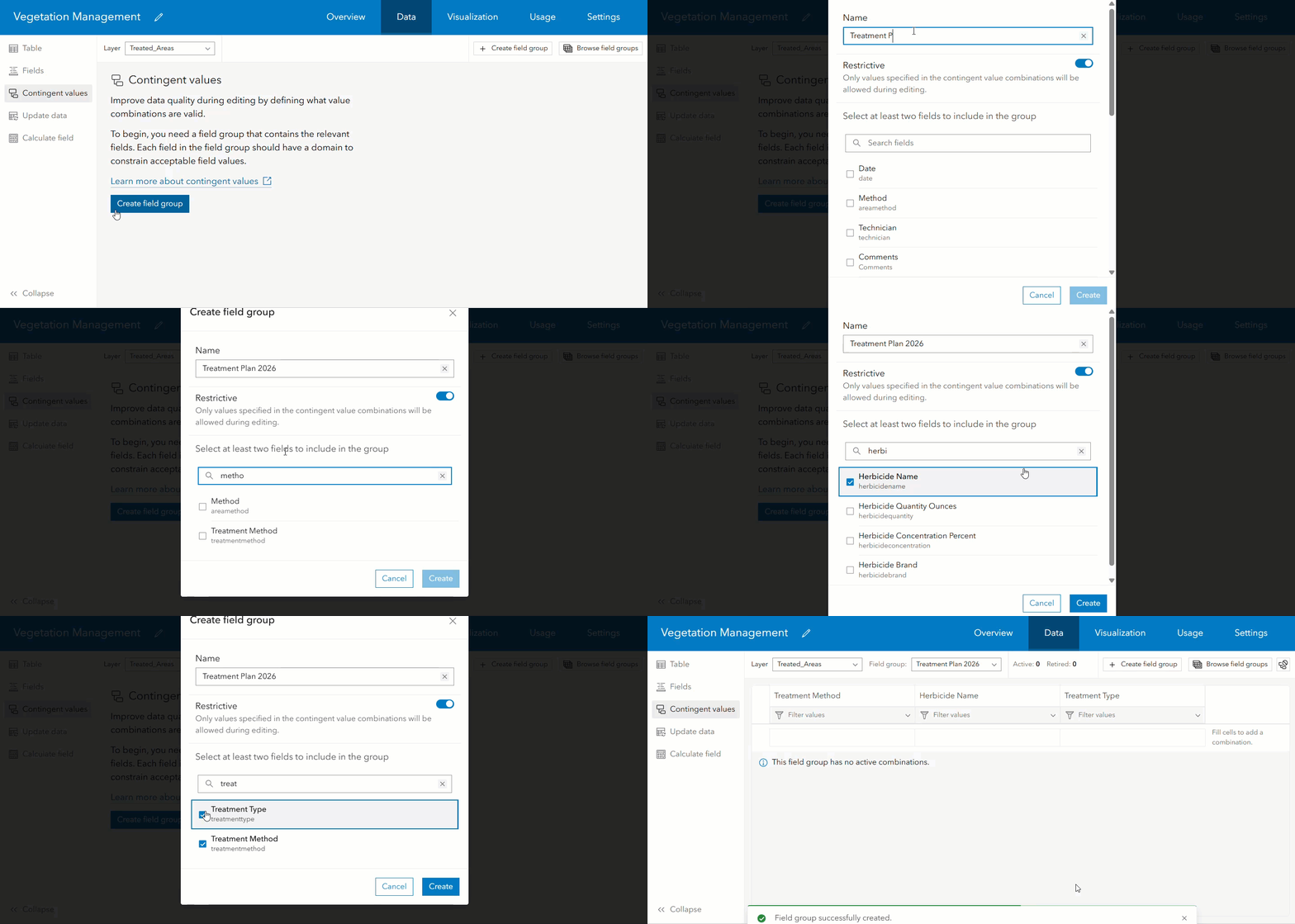
Oftentimes, acceptable values are only valid when restricted to the contingent value combinations, but not all datasets need this same level of restrictiveness. For this reason, field groups can be configured to support restrictive or non-restrictive editing. This setting can be modified at any time by the data owner or administrator. In restrictive field groups, acceptable values are restricted to only the contingent value combinations. Alternatively, in non-restrictive field groups, editors are guided toward valid combinations, but can still input values outside of the defined contingent values.
Note: Non-restrictive editing is not supported in the web. Take full advantage of non-restrictive editing in Field maps and mobile editing workflows.
Browse field groups
To see all field groups defined on a layer, access the Browse field groups button. On this page you can change a field group’s restrictive status, see which fields participate in the field group, and delete existing or create additional field groups.
Important to consider:
When creating and managing your field groups, keep in mind that field groups cannot be renamed after they’ve been created. Additionally, fields cannot be added or removed from field groups. If a modification to a field group is needed, you will need to recreate the field group. Lastly, fields that participate in a field group cannot be deleted from the layer while the field group exists. This ensures that contingent value rules aren’t accidentally broken by schema changes.
Domains
If you read our previous blog focusing on domains, chances are you’re already utilizing them. That’s great, because contingent values build directly on top of them. Remember, domains define the valid values of a field, while contingent values define the valid combinations of those values across fields.
While it’s possible to use contingent values without domains, you’ll benefit more when they are used together. Fields without domains will only have the potential values of ANY and NULL (if the field allows nulls) in the contingent value authoring experience.
Subtypes
Some datasets authored in ArcGIS Pro may contain subtypes, which will be honored and persisted when creating and editing contingent values. Field groups are not subtype-specific, so when you create a field group, it will include all subtypes by default. Once the field group is created, you can toggle between the different existing subtypes to define subtype specific combinations. If you authored your dataset to have different domains per subtype, those domain values will also be honored in the authoring experience when creating valid combinations.
Managing Contingent Values
Managing combinations
Once you’ve defined the field group, you’re ready to create contingent values. When you add a new combination, it’ll be staged as NEW; This means that after you add the combination, but before you save it, you’ll see a status of NEW on the far right of the row, with the row highlighted in green.

When a combination is staged, you have the option to undo to discard or save to commit it to the table. If there are multiple staged changes, you can optionally reset or save them in bulk. In addition to NEW, the other statuses are UPDATE, DELETE, DUPLICATE, RETIRE, and RESTORE. The footer will contain a summary of all staged changes currently in the table, including new rows, and updates to existing rows (update, deletion, retirement). Always make sure you save your changes before navigating away from the table, as pending changes will be forgotten. Otherwise, when creating contingent values, there is really only one rule; no duplicates. Duplicates will be flagged for review and prevent you from saving your work until they are fixed.
Retired values
Retired is a status that might be new to you. If a contingent value row is retired, it will no longer be active during editing sessions, and the row will be moved to the retired view. This is especially useful in vegetation management, where treatment methods may change seasonally or over time.
Retired values can be restored so that they are active again at any time via the retired table. Retired values will still be visible when you view your records via the attribute table or select them on a map. The restriction around duplicate combinations still applies here, so if you don’t initially spot the duplicate row, check out the retired view.
Exporting and bulk deletion
You may notice a new contingent values section has been added to the settings tab for your hosted services. This section will appear if at least one layer in your service has a field group. Here, you will be able to export or delete all contingent value combinations from one or more selected field groups. Deleting via the settings tab does not delete the field group itself, but it will delete all contingent value combinations in the field group, both active and retired.
Next to the delete option, you’ll also see the ability to export the contingent value definition for your layer. When selected, this will download a .zip file to your device which contains two .csv files: one that represents the layer’s field groups, and the other that contains the contingent value combinations for each field group. Not only is this an easy way to create backups of your data schema, but the resulting files are also compatible with ArcGIS Pro’s Import Contingent Values geoprocessing tool.
What’s next?
Keep an eye out for future work in this space in the upcoming Online updates. We have plans to allow importing contingent values (similar to the ArcGIS Pro experience) from a CSV file to streamline the creation of combinations. We’re also looking to allow the creation of contingent value combinations from existing data values and domain labels.


Article Discussion: