Introduction
Collaborative data collection can mean large volumes of attribute information collected by different users over time. Inconsistencies in data entry like typos, or incorrect values, can complicate data management and compromise data quality. To standardize attribute values and enforce data integrity, ArcGIS Online hosted feature layer owners, default administrators, or shared update group members can create a list or range of acceptable values, called domains. In this blog, we’ll explore how domains function in ArcGIS Online through the lens of vegetation management.
Vegetation management
Herbicide treatments are commonly used by land managers to control unwanted or invasive vegetation. A vegetation management layer is designed to track key details related to herbicide use and treatment planning. Before field workers collect data, you can set up some preliminary data management steps to save time during post-processing. For example, while many treatment types exist, this project focuses on five key ones. These treatment types may change at the end of the season. You can limit the available values to those five using a list of values, and further apply range domains to restrict temporal and numeric data.
Creating domains
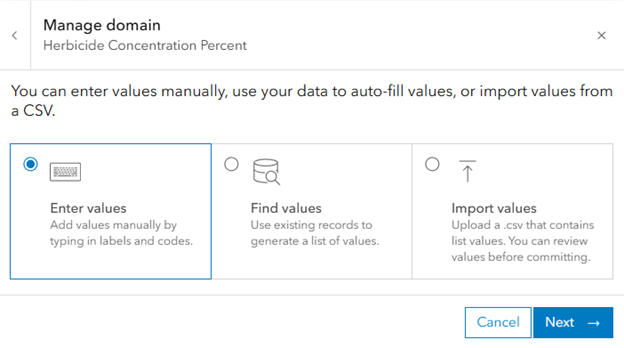
For this project, the standard herbicide treatments are three types of surfactant, two types of oil, and organic material. When working with string attributes, you’ll need to create a list of domains. There are several ways to create a list of domains:
- Generate values from existing data
- Import a CSV containing a list of codes and labels
- Enter values manually
- Author domains in Pro and publish to AGOL
List of values domain:
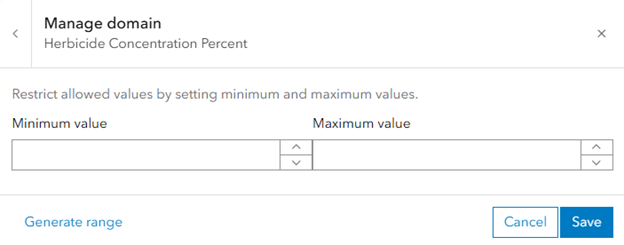
Field types like date only, date, time only, integer, big integer, and double have an option to create range domains, which restrict numeric or temporal values within a specified range. You cannot create a range domain from an uploaded CSV, but you can generate them from existing attribute data, manually enter the range, or author them in ArcGIS Pro before publishing to ArcGIS Online.
Range domain:
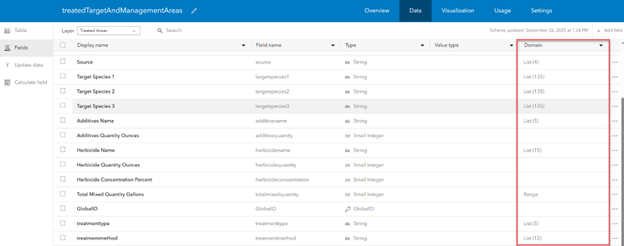
Once you create a domain on a field, you’ll see either List(n) or Range under the domain column in the Fields view of the layer’s data tab:
Using Domains
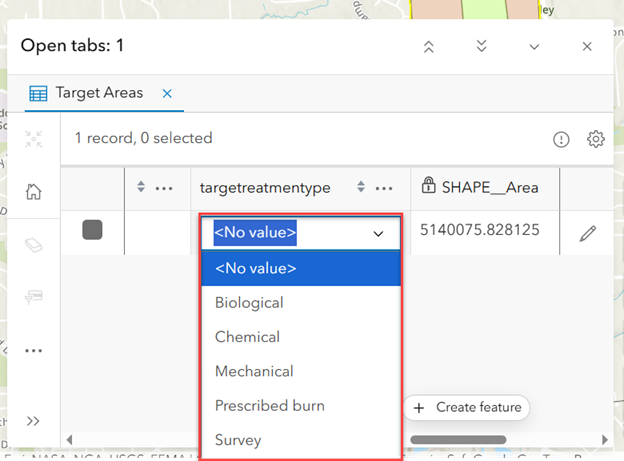
For editors or field workers, using domains is incredibly simple. For a list of coded value domains, a dropdown will appear with available values to select from, displayed by the “label” of the domain value. Range domains will not offer a list of acceptable values when editing. Instead, you will be prevented from saving values outside of the specified range.
Editing domains
As time goes on, our methods of herbicide treatment may change; the scope of the vegetation management project might expand or shrink, resulting in different treatment types and locations.
If another project’s dataset is appended to this one at the time of the project expansion, you can efficiently find and add new values to an existing domain list based on existing records in the dataset. To populate these values into the existing domain, open the domain manager and select “Find values.” This will only add attributes that aren’t already present. Alternatively, manual edits like adding new code and label pairs, updating an existing range, or deleting an entire domain can be made at any time. When you modify a domain, existing records in the attribute table will not be changed, but future data collection will be restricted per the domain modifications.
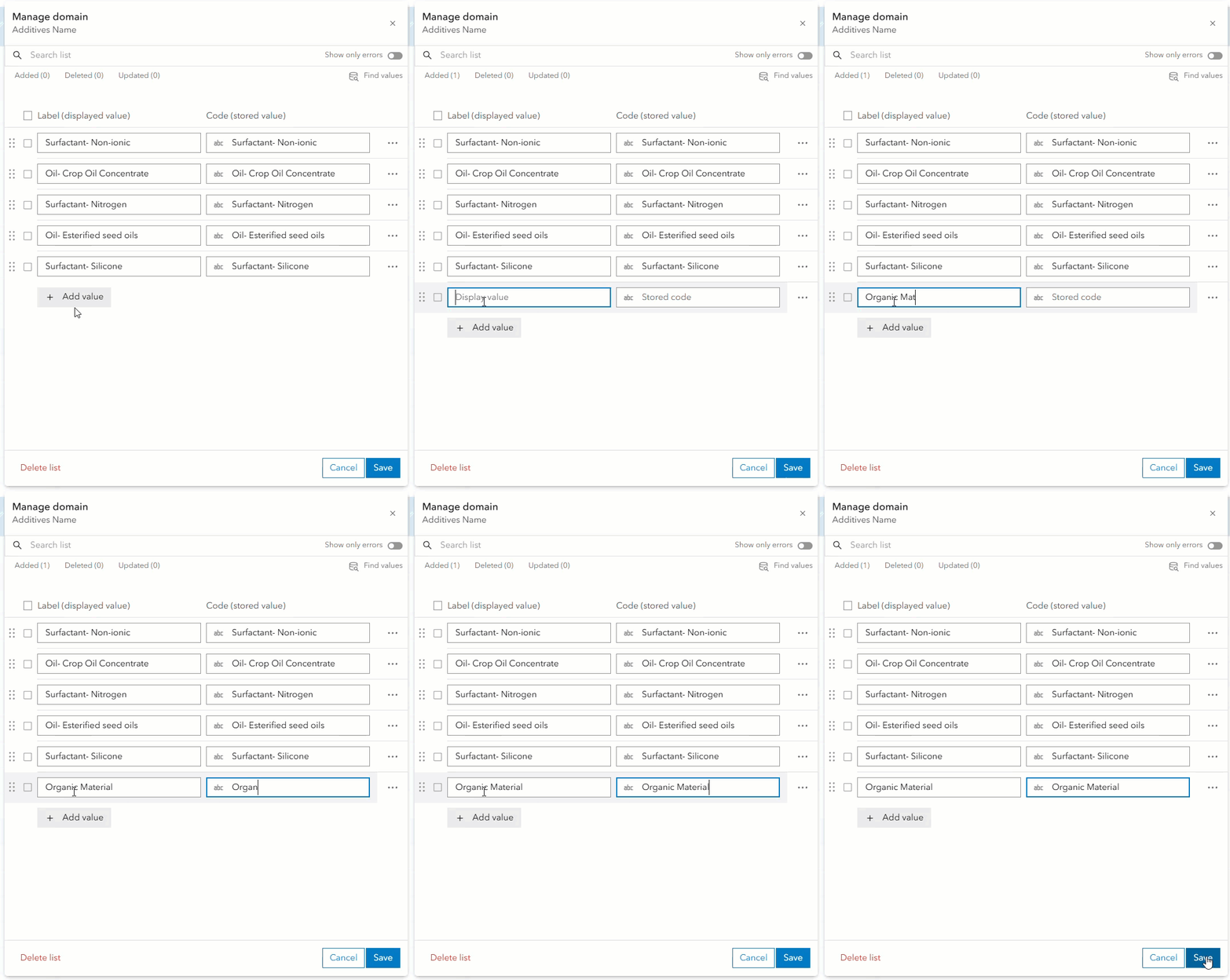
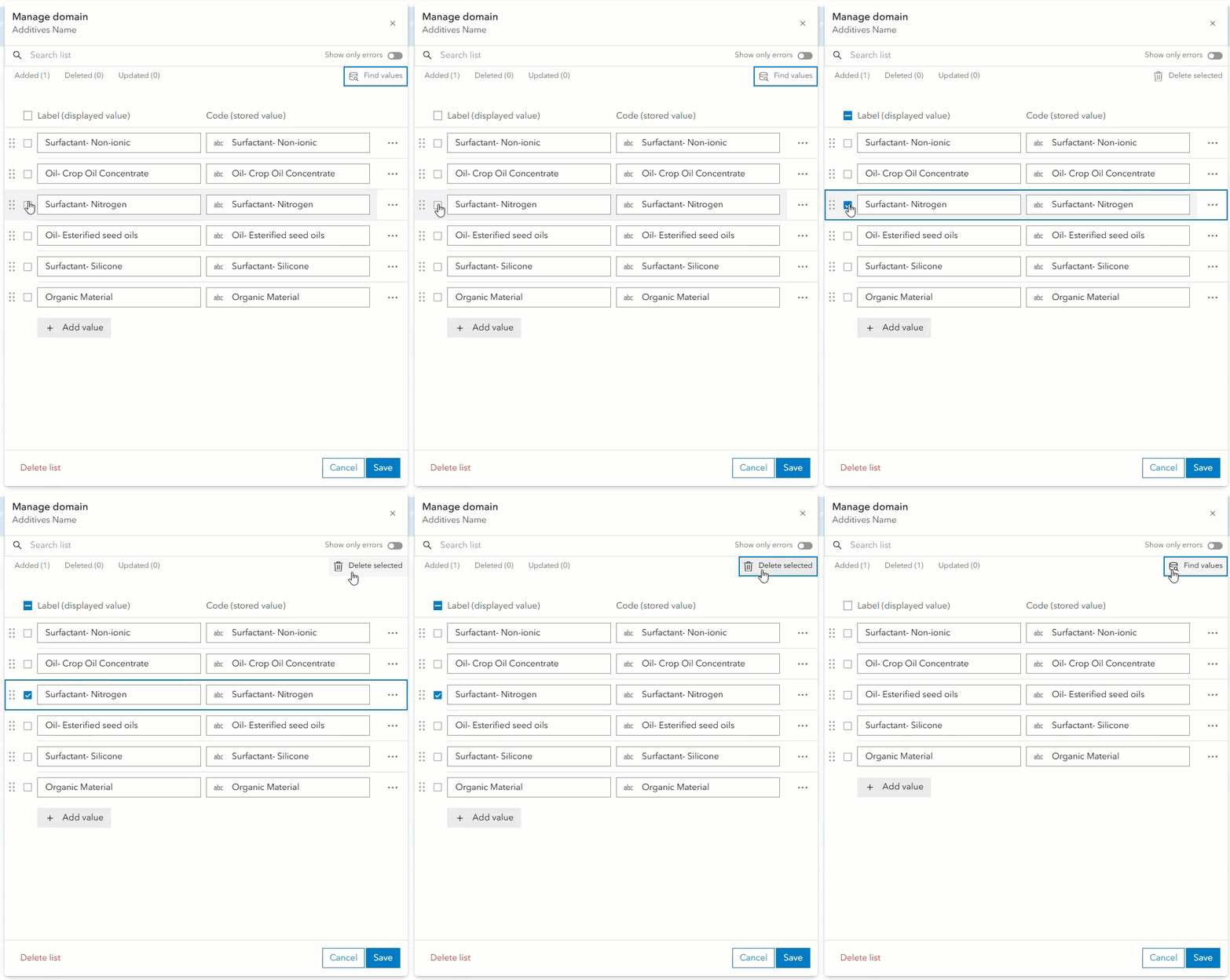
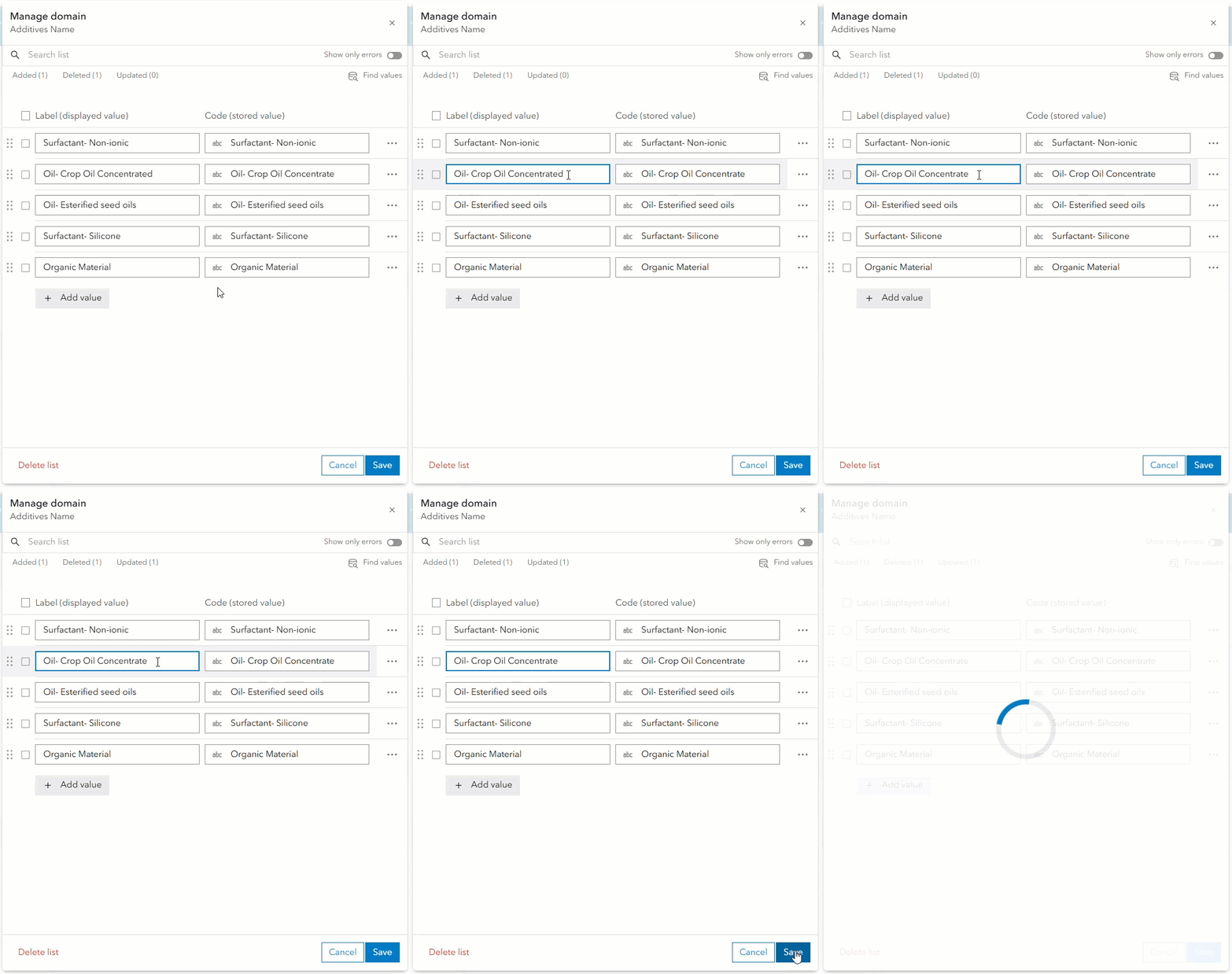
In each editing session, changes to the domain are tracked in updates, deletes and additions. These accumulating counts are specific to the editing session, meaning they are reset after changes are committed and the experience is closed. In the examples below, pay attention to the edit counts displayed beneath the search bar for each action.
- More treatment methods have been added
2. One treatment method will no longer be used by the organization, and is deleted to prevent it from being chosen accidently
3. The description of a treatment method is updated
If you’re unable to save your domain changes, try toggling on “Show only errors” to quickly see which pairs need to be fixed before they can be saved. A domain is flagged as invalid when it is missing a code or label, the code exceeds the field length, or if it is a duplicate of an existing domain already present on the field.
What’s next?
In future updates of ArcGIS Online, we plan to provide an option to quickly sort existing domain values.
We are also working toward adding support for authoring and editing contingent values in ArcGIS Online. With contingent values, you can leverage existing field domains to further restrict appropriate attribute combinations in your data.
Is there anything you’d like to see in upcoming updates of ArcGIS Online? Let us know on Esri Community.



Article Discussion: