At the 2025 Esri Developer and Technology Summit, Babak Bolour, the lead of Esri’s Internationalization team, and Jonathan Turpin, the lead of Esri’s Translation team, delivered an informative demo theater session focused on best practices for developing internationalized applications. This blog article distills the key concepts from their presentation, with up-to-date information from the most recent product releases, providing you with actionable insights to enhance your global application development process.
The importance of this topic at Esri cannot be overstated. As the demand for global applications continues to surge, a solid understanding of internationalization (i18n), localization (l10n), and translation (t9n) is essential for software teams, including Esri customers. Building on this understanding and ensuring these concepts are baked into every step of your development process will be instrumental in creating software that resonates with a global audience.
This blog article will first introduce you to the key characteristics of a well-designed i18n application. Following that, it will explore i18n, l10n, and t9n requirements in app architecture and development. It will also highlight the i18n and l10n capabilities of Esri app builders, which allow you to create internationalized applications. Finally, it will discuss translation requirements and the availability of multilanguage features in Esri applications. You’ll learn these i18n, t9n, and l10n best practices and learn which Esri products you can use to build your internationalized applications.
Internationalization (i18n) characteristics of a well-designed app
Internationalization (i18n) refers to the design and development process that allows an application to be adapted to various languages and regions without requiring engineering changes. Localization (l10n) is the process of adapting the application for a specific region or language, while translation (t9n) focuses on converting text from one language to another. In software design and development, the i18n process should precede the l10n and t9n processes. Thus, before learning l10n or t9n concepts, you will learn key i18n characteristics that are necessary for a well-designed global application.
Support various writing systems
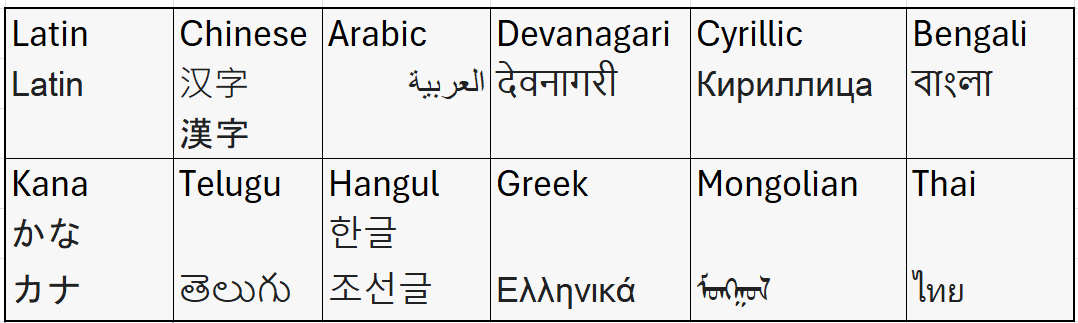
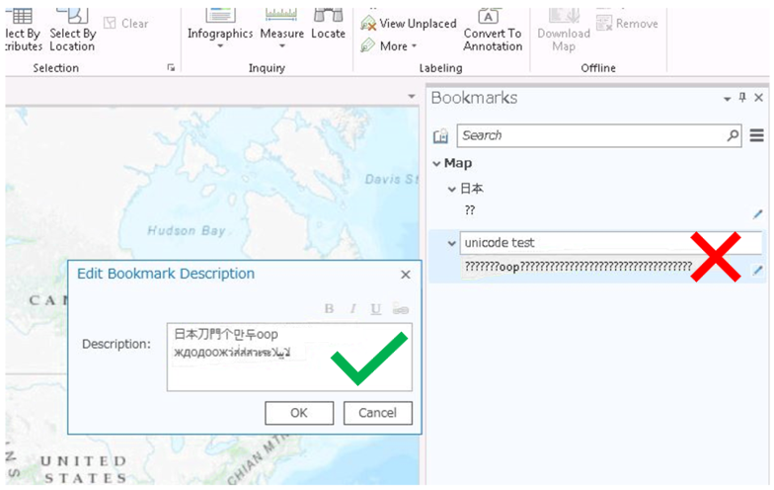
Users expect to interact with applications in their native writing systems, whether they are entering project names or uploading data. Therefore, ensuring that your app can handle various scripts is vital for a positive user experience. This includes accommodating different language scripts and fonts. The Latin script is the most widely used, followed by Cyrillic and Arabic scripts, among others. The top image above has a table that includes a sample of scripts that should be supported by software that is built for a global audience. To effectively support these writing systems, applications must use Unicode character encoding, which allows for the representation of characters from multiple languages. Using appropriate fonts is also crucial. For example, the main typeface used by Esri’s Calcite Design System is Avenir Next, which works well for languages using Latin, Cyrillic, or Greek alphabets. However, certain languages may require different fonts to ensure proper rendering. Not handling these items, including Unicode character encoding, properly can result in severe bugs, including unreadable text. For instance, the bottom image above shows an example in Esri Software where non-Ascii characters display correctly on the left-hand side of the UI, but then display incorrectly on the right-hand side of the UI.
Address cultural preferences
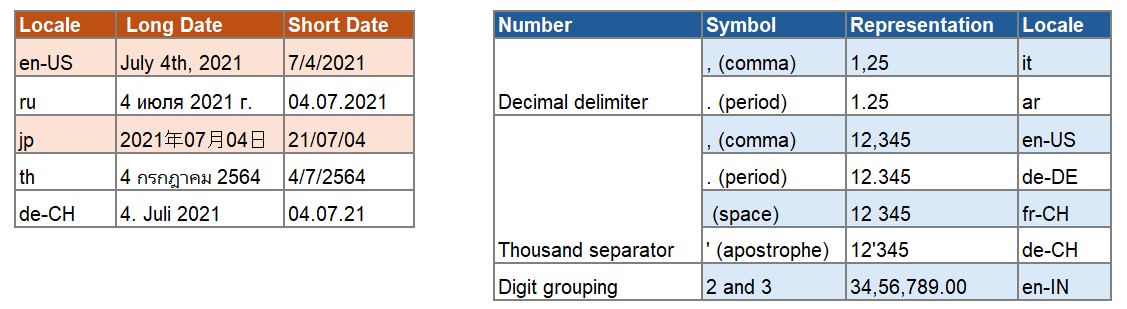
Cultural preferences play a significant role in the usability of internationalized applications. Users from different regions have distinct expectations regarding UI design and formats for dates, numbers, and other data types. For instance, the order of day, month, and year can vary significantly across cultures, and the characters used as separators may differ as well. For example, German-Germany uses a dot as the thousands separator, while German-Switzerland uses an apostrophe. It is essential to recognize that these cultural preferences are dependent on the user’s country or region, not merely the language of the user interface. Failing to address these variations can lead to functional errors or even application crashes, underscoring the importance of thorough internationalization.
Create a localized user interface
A well-designed internationalized application must also feature a localized user interface (UI), where labels, tooltips, messages, and help content are translated into the user’s preferred language. Users expect to see the UI and help resources in their native language, which enhances their overall experience. This includes accommodating UI resizing to prevent truncation, overlap, or cut-offs of text and controls. Additionally, the design should consider right-to-left (RTL) and bidirectional (bi-di) text flow for languages such as Arabic and Hebrew.
I18n, L10n, T9n in app architecture and development
This section explores how to implement i18n, l10n, and t9n in your app architecture and development processes, which is essential for creating applications that resonate with a global audience. By thoughtfully designing how the app language and locale are set, using third-party libraries, and externalizing UI strings, developers can streamline the localization process and enhance user experience.
App display language and locale formats
Understanding how to effectively manage display languages and locale formats is crucial for providing a seamless user experience. Esri applications are designed to adapt to various languages and cultural formats based on the environment settings. This adaptability ensures that users can interact with the application in a way that feels natural and intuitive to them. As an Esri customer, you can use the configurable language settings provided in the applications, and you can learn from these examples while building your plan for handling language and locale settings in your applications.
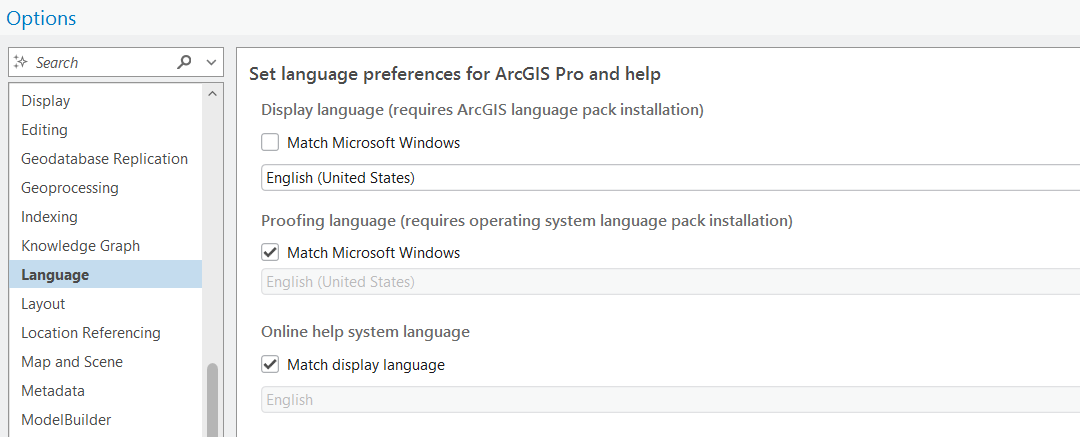
Esri applications provide several mechanisms for users to select their preferred language. In ArcGIS Pro, users can change their UI display language to one of 18 non-English languages by going to Settings, opening the Options menu, and then installing the appropriate language pack. Users can also update number and date formatting or character encoding by changing their Windows region settings.
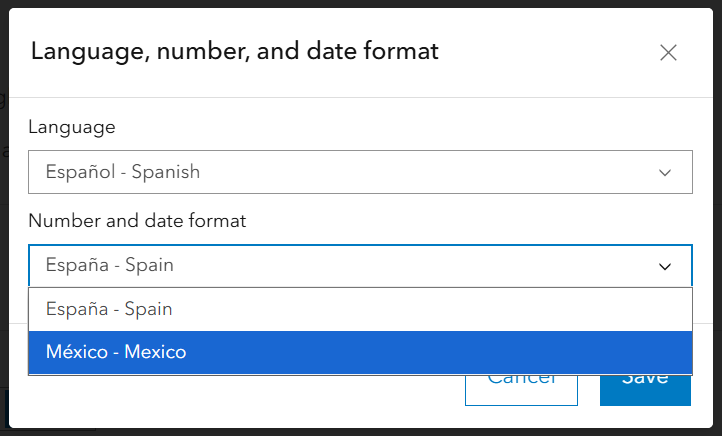
For ArcGIS Online and Portal for ArcGIS, users can change the UI language in the Settings menu, where they can also specify date and number formats for various English, French, German, Italian, and Spanish locales. If an application does not have its own language selector, the default language can be determined by the environment settings of the operating system, browser, or device. For instance, anonymous ArcGIS Online users will have their language set based on the browser’s language settings, while mobile applications like ArcGIS Field Maps will use the device’s language setting. This flexibility in language selection and locale formatting is essential for creating applications that align with the expectations of a global audience.
Use third-party libraries and APIs
By using i18n libraries and APIs that provide built-in functions for formatting dates, numbers, currencies, and other data according to the user’s locale, developers can ensure that the application dynamically adjusts to regional variations.
It is recommended that developers use third-party libraries and APIs that are built on i18n data and libraries provided by the Unicode Consortium, including Unicode Common Locale Data Repository (CLDR) and International Components for Unicode (ICU). In JavaScript, you have the ECMAScript Internationalization API, also known as Intl, which provides language-sensitive string comparison, number formatting, date and time formatting, and more. An example of a commonly used Intl object at Esri is the DateTimeFormat object, which allows for locale-aware date and time formatting. The code example below shows how you can use the Intl.DateTimeFormat object to format a date so it appears as expected for the German-Germany locale.

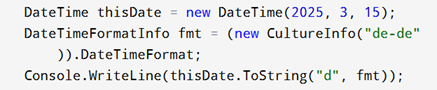
Similar to Intl, the .NET globalization API provides C#/.NET developers with culture-aware classes with the System.Globalization namespace. In this example, the DateTimeFormatInfo class is used to format a date for the German-Germany locale.
Externalize UI strings
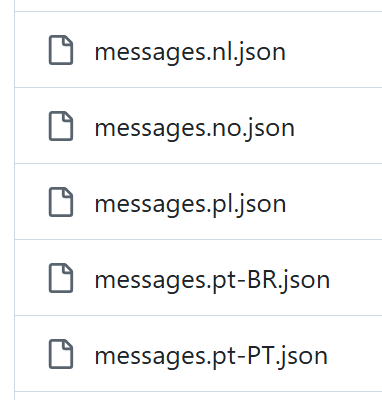
One of the most important coding practices for enhancing the localizability of an application is to externalize UI strings into separate language files. These files store translated strings and other localized content, allowing developers to maintain a single culturally neutral codebase while supporting multiple languages.
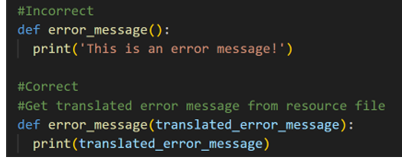
The screenshot below shows an example of incorrectly handled strings in the code and how to correctly handle strings. In the incorrect example, the string is placed directly in the code file. Meanwhile, in the correct example, the string is placed in an external resource file and instead is passed to the code as a variable. By following the correct approach, developers can ensure that their applications are not only adaptable to various languages but also maintainable and scalable.
I18n in Esri app builders
Esri’s application builders—including ArcGIS Dashboards, ArcGIS StoryMaps, and ArcGIS Experience Builder—provide a comprehensive framework for implementing i18n, including support for various languages and regional formats. This section will explore how you can use the i18n features available in Esri’s application builders to build global applications.
ArcGIS Dashboards
In ArcGIS Dashboards, users have several locale-aware capabilities and configurable options that allow them to create localized dashboards. For example, when you navigate to the Period format on the Category Axis tab of the Serial chart configuration, you will see the default date and time formats will be based on the locale of the dashboard. These fields include drop-down menus where you can choose other formatting options.
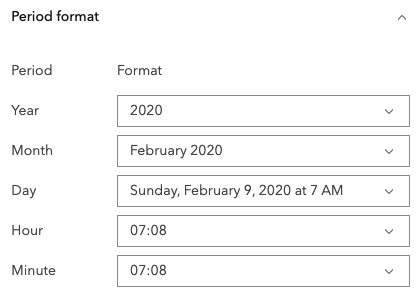
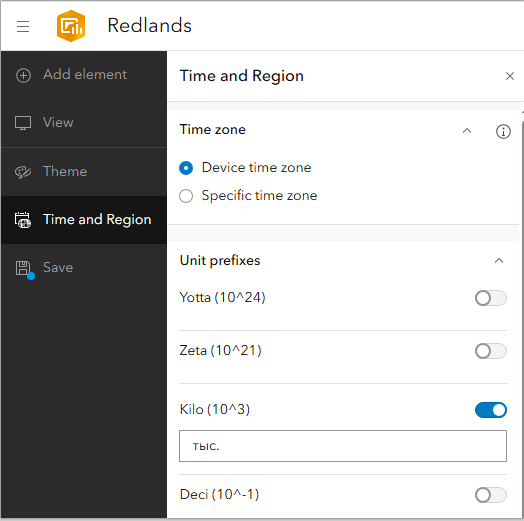
The default locale of a dashboard is based on either the language setting in your user profile or organization’s settings if you are signed-in or the language setting in your web browser if you are accessing dashboards anonymously. You can also update the locale with the dashboard URL, as described in the ArcGIS Dashboards help. As another example, you can add custom translations for unit prefixes in the Time and Region panel. For instance, a user who wants to display their application units in English may prefer to keep the letter k as the unit prefix for Kilo whereas a user who wants their units to appear in Russian can input тыс. as the unit prefix for Kilo, as seen in the image.
ArcGIS StoryMaps
The ArcGIS StoryMaps platform supports 40 languages across the story builder, viewer, and website. The language displayed is tailored to the user’s preferences: for signed-in users, it aligns with their ArcGIS profile language setting, while for users who are not signed in, it is determined by their browser’s language setting. ArcGIS StoryMaps continues to add features that improve the experience for global users. For example, you can write multilingual stories, in which two languages can exist simultaneously within a single story—this can be helpful when the story subject spans more than one country, culture, or community.
ArcGIS Experience Builder
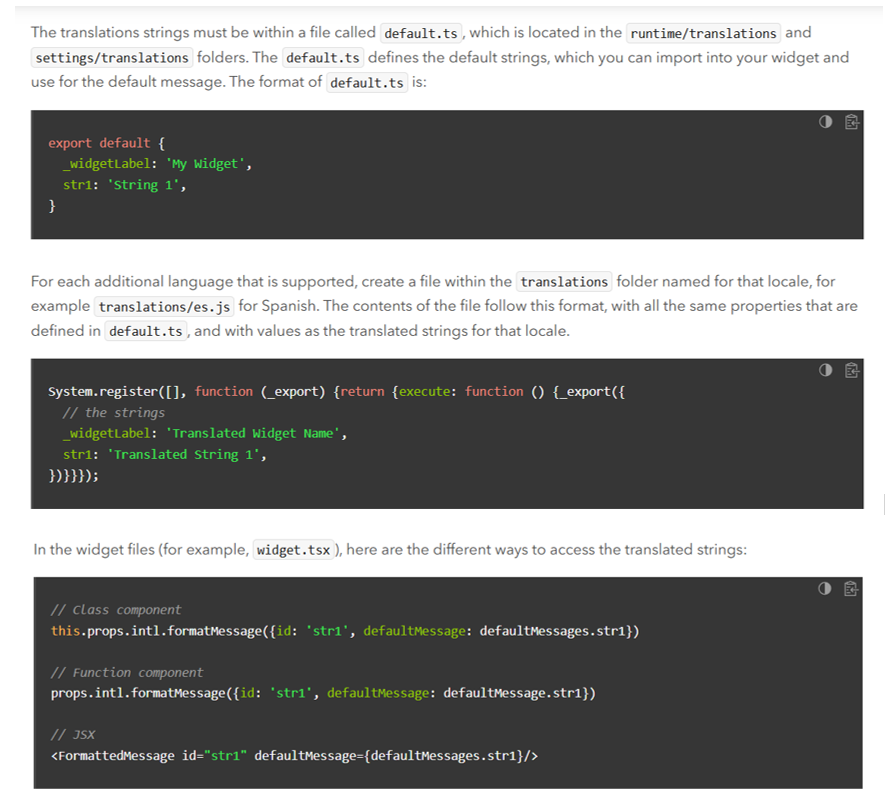
ArcGIS Experience Builder offers extensive i18n support. It includes an AppContext API with properties such as IsRTL, locale, and translatedLocale, which help developers manage localization effectively. Additionally, Experience Builder uses the react-intl library, which provides the Intl.FormatMessage() method for accessing translated strings. This integration simplifies the process of managing translations and ensures that applications can dynamically adapt to user preferences.
Calcite Design System
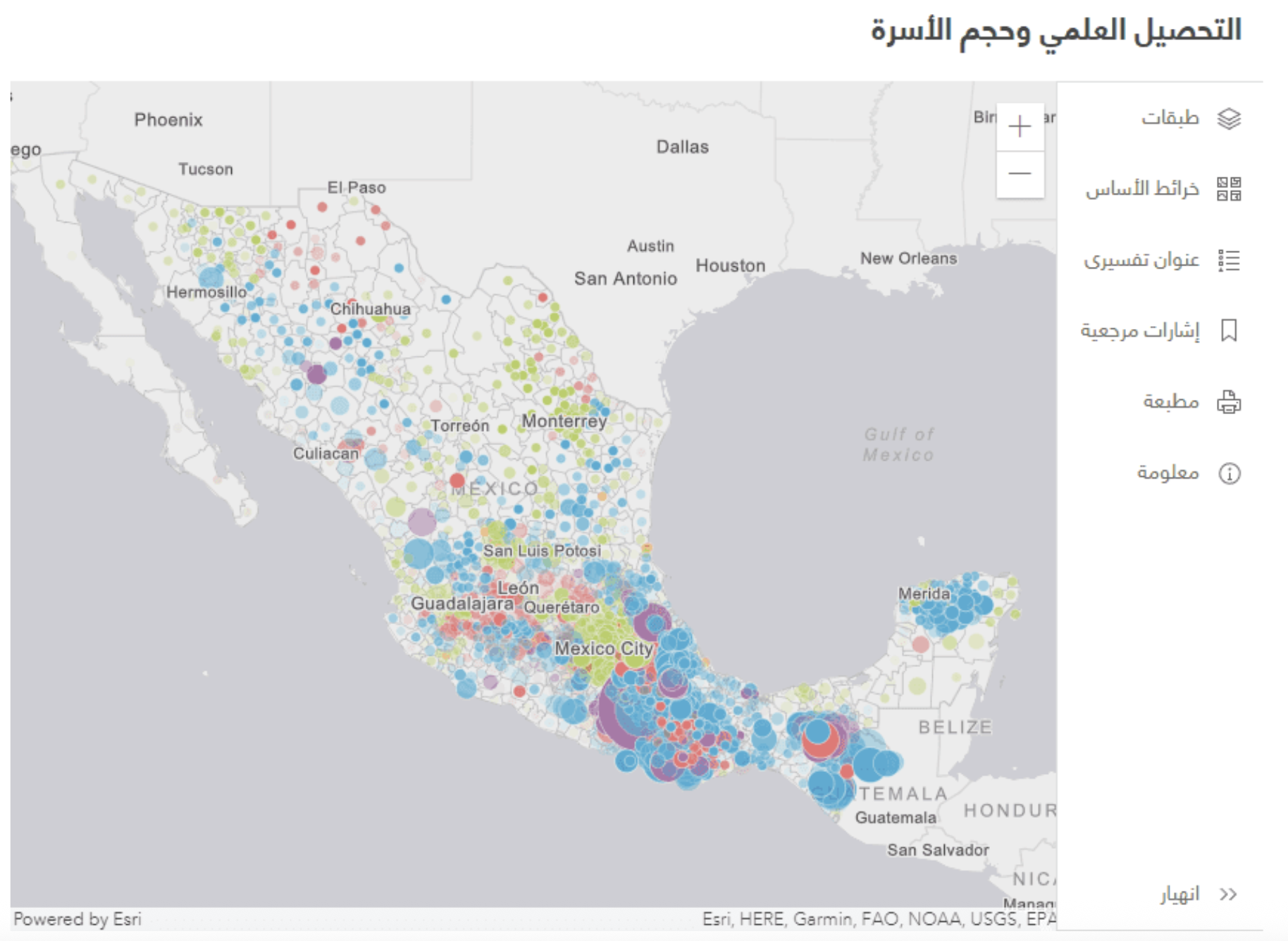
Calcite Design System, a web component library of UI elements, also plays a significant role in supporting i18n within Esri’s applications. You can modify content including strings and localized data—like date, time, and number formats—with the lang attribute. Calcite also supports three different numbering systems with the numberingSystem property, which allows consumers to ensure the numbering system is consistent across components and browsers. Additionally, Calcite has properties that enable right-to-left (RTL) bidirectional support, such as setting the direction of UI components and mirroring icons, and includes guidance in their documentation on which icons should and should not be mirrored. This support ensures a consistent user experience for RTL bi-directional languages, such as Arabic and Hebrew.
ArcGIS Maps SDK for JavaScript
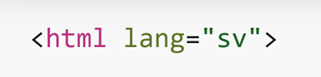
The ArcGIS Maps SDK for JavaScript is designed with i18n in mind. All SDK widgets and components, including the new Charts components, are localized into 39 non-English languages and support more than 49 languages for date, time, and number formatting. You can localize your applications by setting the lang attribute on the root html element to your desired language. You can also enable RTL bidirectional support by setting the dir attribute in the html or body tag to “rtl”. These features of the SDK allow developers to create visually appealing and functional applications that cater to a global audience.
Translation (t9n) requirements and support
As applications expand their reach to global audiences, the importance of effective translation (t9n) becomes paramount. Translation is not merely about converting text from one language to another; it involves understanding the nuances of different languages and cultures. This section explores the requirements and support for translation in the context of internationalized applications, focusing on various content types and translatability best practices.
Content types and their challenges
When developing applications for a global audience, it is essential to recognize the different content types that require translation. These can include user interface (UI) elements, help content, and website content. Each type presents unique challenges and considerations for translation.
UI content
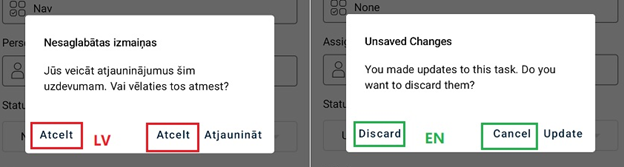
Translating UI content can be particularly challenging due to the context of the strings. For example, a term like Present may need to be translated differently depending on its usage. In a UI context, it might refer to a button action, while in help content, it could describe a mode of operation. As another example, the English words Discard and Cancel, which appear together in the UI in the image below, may both be translated to the same word, Atcelt, in Latvian. These ambiguities can lead to incorrect translations and a confusing user experience if not carefully managed.
Help content
Help content is generally easier to translate because it often provides context within sentences or paragraphs. This context helps translators understand the intended meaning, making it a more straightforward path for using machine translation (MT) tools.
Website content
Website content can be a mix of various elements, including sentences, paragraphs, videos, images, and UI components. This diversity requires a comprehensive approach to translation, ensuring that all elements are appropriately localized.
Translatability considerations
Translatability is a critical factor in the translation process. It encompasses aspects such as pluralization, concatenation, and ambiguity. For instance, different languages handle plural forms differently, which can complicate the translation of strings that include numerical values.
Pluralization support
Different languages have different plural forms. For example, the Arabic language has several plural forms, including zero, one, two, few, and many. To address pluralization, developers can implement alternative string formats. One alternative option is to relace using a single string like “You have {number} remaining days” with “Remaining days: {number}.” This approach allows for more flexibility in translation and ensures that the correct plural forms are used in different languages.
Concatenation of strings
Concatenation can also pose challenges in translation. Incorrectly concatenated strings can lead to grammatical errors and confusion. It is essential to ensure that strings are structured in a way that maintains clarity and correctness in translation.
Ambiguity in translation
Ambiguity is a common issue in both human and machine translation. For example, the phrase “What kind of field?” could have multiple interpretations depending on the context. Ambiguity is difficult for humans but causes even more issues in machine translations. It is recommended that you avoid only using machine translation for UI elements, as this can result in incorrect or misleading translations. Instead, human translators should be employed to ensure accuracy and contextually appropriate translations.
Multilanguage support in applications
In an increasingly globalized world, providing multilanguage support in applications is essential for reaching diverse audiences. As users from different linguistic backgrounds engage with your application, it is crucial to ensure that they can interact with the content in their preferred language. This section will explore the importance of multilanguage support, the features available in Esri products, and how to effectively implement these capabilities in your applications.
Translation assistants using machine translation
One of the most significant advances in multilanguage support is the introduction of translation assistants. In 2024, Esri’s ArcGIS Survey123 incorporated machine translation capabilities, allowing users to translate user-created content both manually and automatically. This feature allows for seamless integration of translations, allowing users to create and manage content in multiple languages.
Language switcher for multilanguage apps
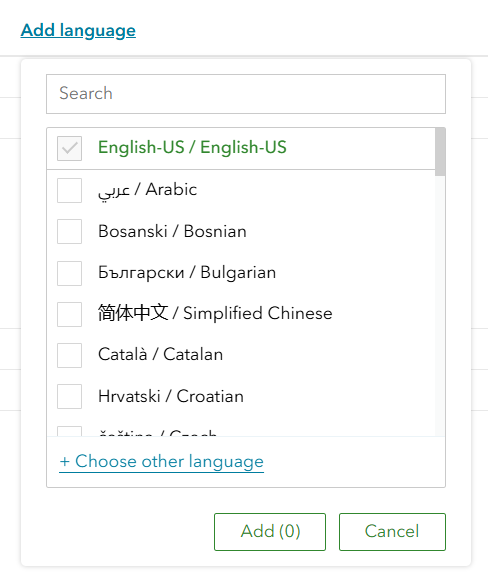
The Instant Apps language switcher facilitates the creation of multilanguage applications. Within most Instant Apps templates, as an author, you can turn on the Add language switcher tool from the configuration panel and start configuring the language switcher feature for your specific use case. For example, you can translate app-authored text into languages with full support and partial support. If a language with full support is selected, both the app-authored text and Esri-defined text will appear in that language. If a language with partial support is selected, only the app-authored text will appear in that language. Additionally, authors can use the new translation assistant (preview) feature to translate app-authored text using machine translation. As the image shows, in apps with the language switcher configured, users can click a drop-down menu in the UI to switch between languages.
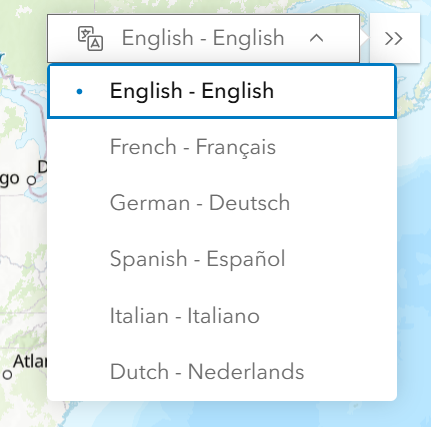
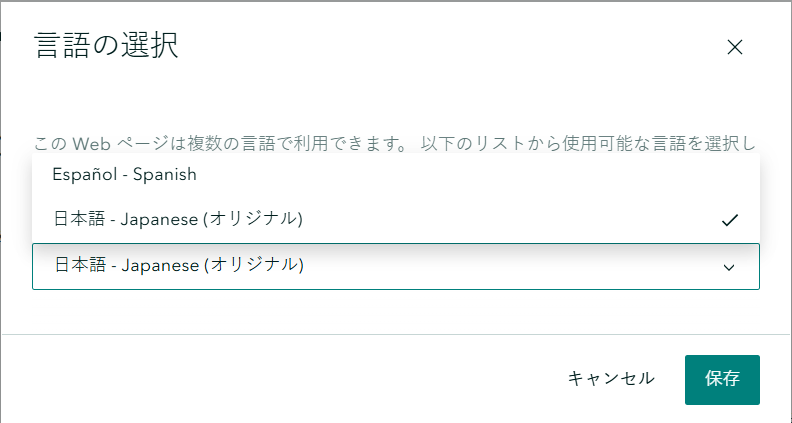
A new multilanguage feature has been added to the ArcGIS StoryMaps July 2025 release. As an author, you can link together up to six translated versions of a story from your published content. For example, if you have a story in English and the same story in Spanish, you can now link these stories together. You can do this by going to the new Translations tab in your story settings, clicking Add translations, selecting the published content to link together, and lastly, clicking Publish to save these changes. You must be the owner of all the translated stories to use this feature and the stories must be published publicly.
The reader will see a language button in the story header, which they can click to access a menu containing the translated versions of the story. As the image shows, the drop-down menu allows the readers to switch between the translated versions of the story.
Conclusion
In conclusion, developing internationalized applications requires a comprehensive approach that goes beyond just translating the user interface. By coding with internationalization (i18n) in mind, developers can create applications that meet the expectations of a global audience. This involves adapting to cultural conventions, date formats, and other regional preferences, ensuring that users from diverse backgrounds can engage with the application seamlessly. You can follow these i18n best practices and use the locale-aware products presented in this blog article to build your internationalized applications.
If you have ideas to share, challenges you have faced, or particular topics related to internationalization, localization, or translation to suggest for future presentations or blog articles, you can email Babak Bolour at bbolourforoushan@esri.com or Jonathan Turpin at jturpin@esri.com.



Article Discussion: