Whether you are managing physical infrastructure, tracking construction progress, monitoring environmental impacts, or assessing natural disaster damage, imagery plays a vital role in every aspect of our work, from planning, design, analysis to decision making.
As GIS analysts, image analysts, or project managers that support the imagery needs of a project, obtaining the desired imagery dataset is a critical step to ensure the success of a project, no matter if it’s to provide context or comparison through visualization, conduct imagery analyses, or use pretrained geospatial AI models to process your own data and gain insights.
Acquire high-resolution imagery on demand over time
One of the common requirements of local government planning departments, commercial construction companies, and other organizations is to be able to monitor and report the progress of a development project over time. One of the most effective ways to do this is with access to frequently updated, high-resolution imagery that can capture and communicate the status at important intervals. This requires the organizations to acquire imagery over time and on demand, which can be challenging and costly.
Below is a simple web application that shows such high-resolution imagery for a residential and commercial development: Nexus Tennessee (builder’s website). This easily configured web application (URL) demonstrates one way in which this type of imagery can be presented to see change and progress over time.
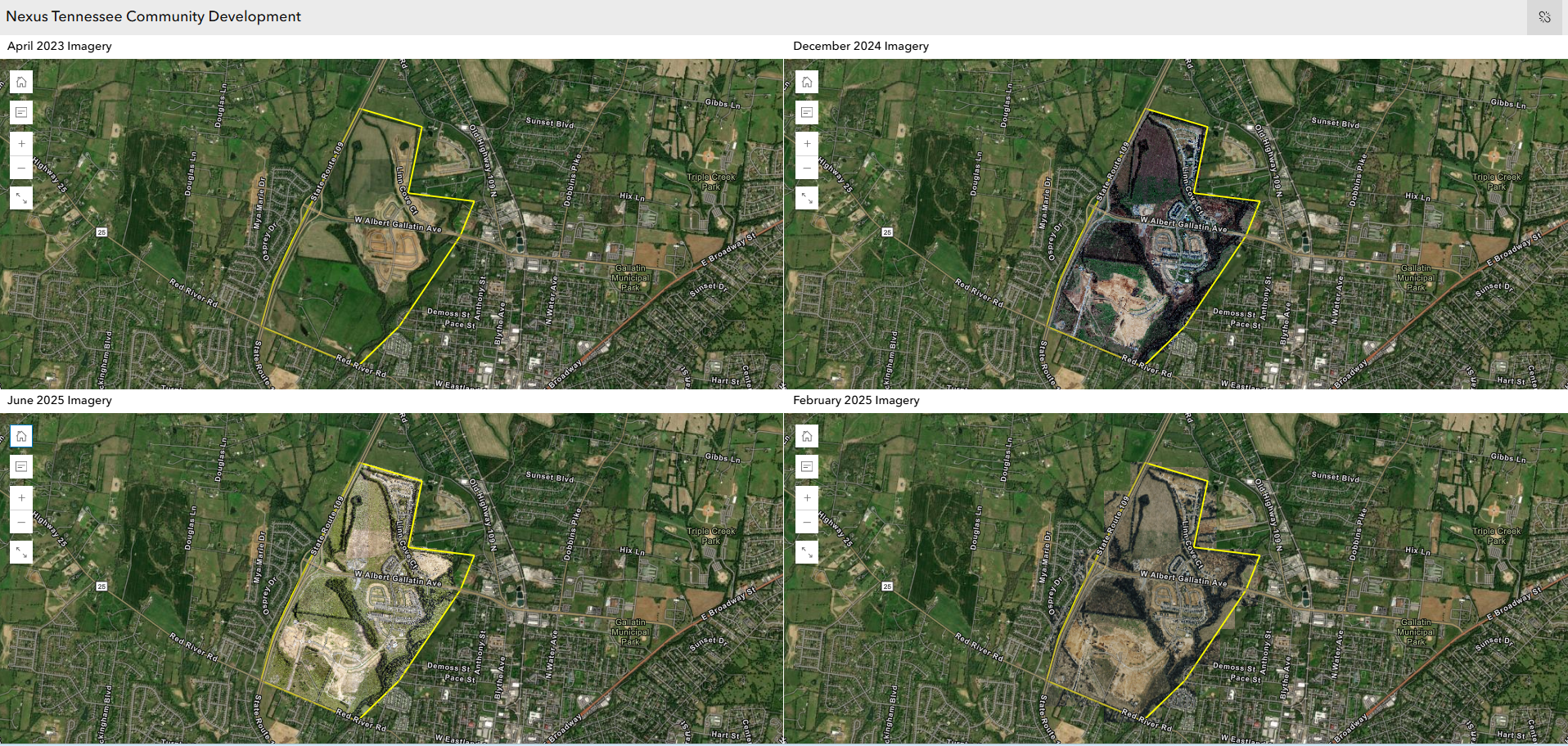
The application presents multiple satellite and aerial images acquired for the same project area in a side-by-side format. The images were acquired at different milestones in the early construction phase of the project, starting with pre-construction grading and continuing through full construction of specific phases.
These images were all acquired through a powerful web application, launched early this year by Esri partner SkyWatch Space Applications, called Content Store for ArcGIS.
Acquiring high-resolution imagery using Content Store for ArcGIS
Acquiring high-resolution imagery for a specific area of interest within the defined time frame is not always easy, especially when you have a limited budget and need the imagery to be delivered in a timely manner. You may need to work with multiple data providers that are capturing imagery at different times to assembly what you need when you need it, which is challenging.
Imagine a service such as Amazon Prime where you can pick and choose merchandise from multiple providers through a simple web application, and have those products delivered promptly to you. Similar to Amazon Prime, Content Store for ArcGIS allows you to browse and order high-resolution imagery from multiple imagery providers through a simple web application and have that imagery promptly delivered for use in ArcGIS.
Once you define an area of interest (as small as 1.0 km²) for a specific data range, Content Store searches an enormous archive of satellite and aerial images, often returning results from multiple imagery providers and data collection platforms so you have multiple options from which to choose.
Content Store Scenario: Acquire imagery for the same AOI over time and share as a web app
As a GIS analyst in a City Planning Department, or a Project Coordinator in a Construction Company, when we monitor a project over time, we often need to repeatedly acquire imagery (and other content) from the same AOI.
Step 1: Create a hosted feature layer view to define the AOI on your map.
First, let’s create a new hosted feature layer that can be used for multiple project areas (e.g.’Project_AOI’ layer). Specify it as a polygon layer and add fields such as below.
| Field name | Display name | Field type |
| Title | Project | Text / String |
| Name | Name | Text / String |
| Description | Description | Text / String |
Next, let’s create a new polygon feature in the feature layer as the area of interest and define its pop-ups (optionally you can follow this learn lesson). You can create multiple features to define multiple project areas.
To finish it up, let’s create a view layer from the newly created feature layer with a filter defined on the Project field (e.g. Project =”Nexus”), select which fields should be visible, and save as a new layer (e.g. Nexus Tennessee Project, URL).
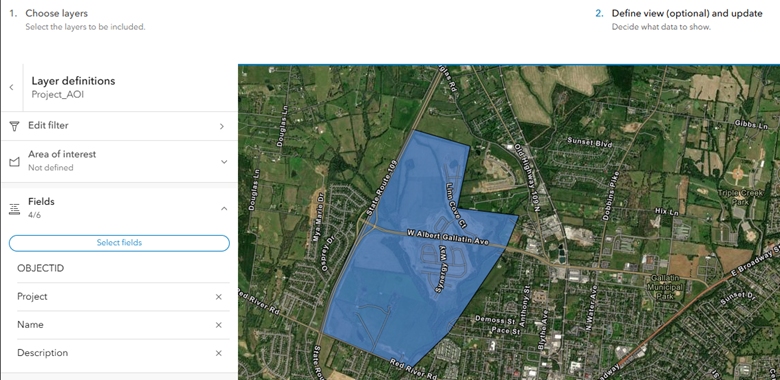
Step 2: Search the AOI in Content Store app and order the imagery you desire
Open the Content Store app, included in Living Atlas, or directly access from this link. Under Search tab > Add Layer, locate the view layer created in Step 1, and select the AOI on the layer. Let’s search the archived imagery database once you define your desired data range.
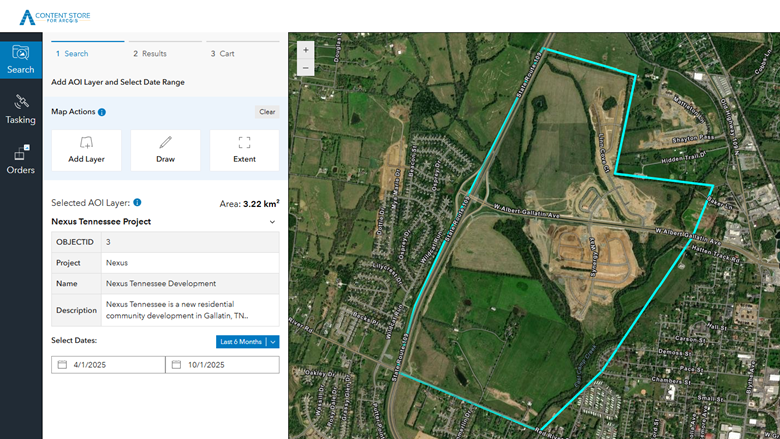
If there are multiple results returned, click the Filter and Sort tool to filter results by type (i.e. aerial and satellite), and other properties such as resolution, cloud coverage, or a specific imagery source. You can click the thumbnail for the imagery result to see a down-sampled preview of it on the map. Once you make a selection, add the desired imagery to the cart.

To place an order, you can use a credit card or you can use Content Store data credits purchased through Esri Store. It usually takes just a few minutes to hours for an order to be processed before you receive delivery confirmation via email.
Step 3: Publish the acquired imagery as imagery layers in ArcGIS Online or ArcGIS Enterprise
One popular way to use the imagery that you just purchased is through imagery layers that can be utilized in either visualization or analysis workflows. Those imagery layers can be easily published to ArcGIS Online or ArcGIS Enterprise. We will cover this part of the story in our next blog series.
Step 4: Order and publish imagery with same AOI but at different time frame
In order to monitor and report the progress of a development project (e.g., Nexus Tennessee Project) over time, repeat step 2 and order another high-resolution imagery with the same AOI but at a different time frame, using the same hosted feature layer view created in step 1 (Nexus Tennessee Project, URL). Repeat step 3 and publish the acquired imagery as a hosted imagery layer in ArcGIS Online.
Step 5: Create a web application to share multiple imagery acquired for the same AOI over time
To better communicate the progress of a project at important intervals with stakeholders, one effective way is to create a web application with imagery layers that are published from the acquired imagery.
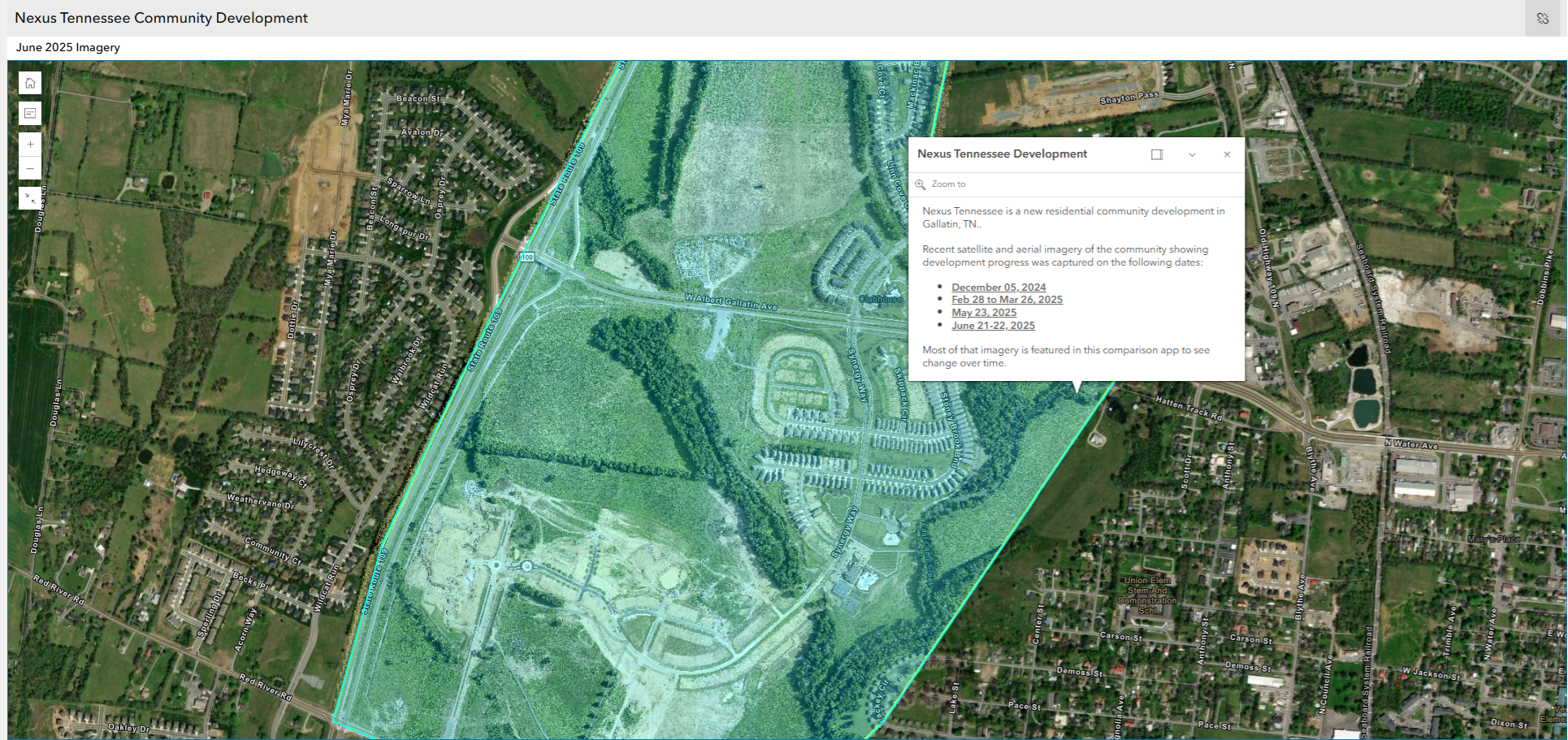
This Nexus South Tennessee Development application (URL), as we shared in the beginning of the article, is a great example where multiple satellite and aerial images acquired for the same project area can be viewed and compared side-by-side. You can also enlarge one of the images and check the detailed view. It demonstrates the unique value of multiple high-resolution images acquired for a project.
Stay Tuned
We are excited to start a series of blog articles about how Content Store for ArcGIS can help with your imagery needs. Please share your questions or feedback in the Comments.
Related articles

Pretty neat, thank you creating the content App 🙂