This blog article was originally published on January 28, 2018, and has been updated. The last previous update was January 6, 2025.
ArcGIS Arcade is an expression language that can be used across ArcGIS, supporting web, desktop and mobile. Whether writing simple code to control how features are rendered, or expressions to control text, Arcade provides a simple scripting syntax to deliver these capabilities. In the web map, Arcade can be used to control rendering and symbology, including the visualization and rotation of symbols, as well as labeling and pop-ups.
Use Arcade for symbol rotation
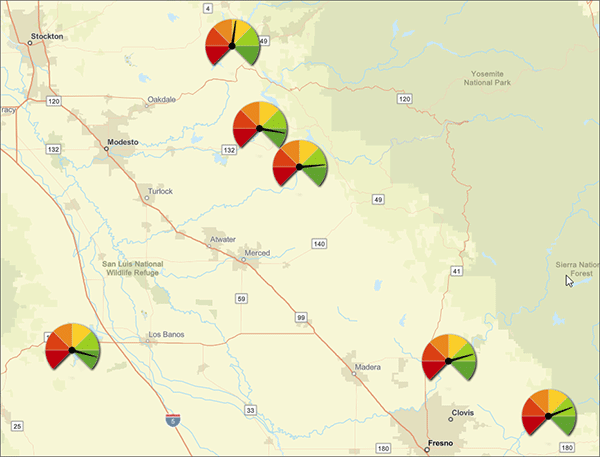
In the example web map below, paired and rotated symbols were used to create a gauge showing the current capacity of reservoirs. You can sign in to your account to save the map, or follow along without signing in.
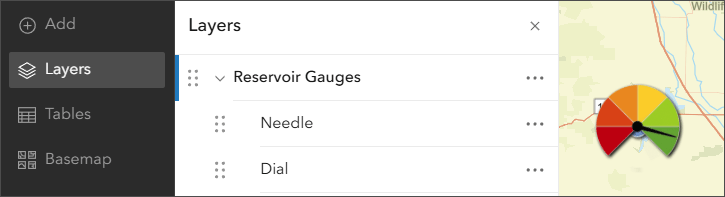
To create the gauge, the Reservoir Locations layer was duplicated, renamed to Needle and Dial, and both layers were added to a group named Reservoir Gauges.
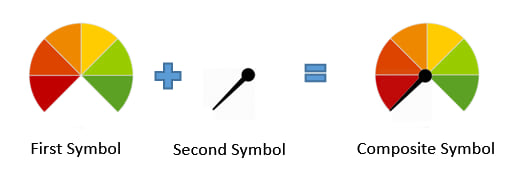
Each layer representing the gauge uses two overlapping and centered symbols; one symbol is the dial background and the other symbol is the needle that is rotated to show the current level of the reservoir.
To learn how to create the gauges, see Create gauges using stacked symbols and rotation. The gauge symbol components can be found and saved in the More information section at the end of this blog article.
The Arcade expression
An Arcade expression is used to calculate the needle symbol rotation that shows the reservoir level as a percentage of its total capacity. The crux of the expression is to determine the rotation in compass degrees needed to rotate the needle to represent the appropriate percentage full value on the dial.
The needle points to 225 degrees, which is %0 full on our scale. At 135 degrees the dial shows %100 full. So the rotation of the needle going from %0 to %100 is 270 degrees. Divide 270 by 100 to determine degrees to move the needle to show the corresponding percentage. See the comments in the expression below.
Add the Arcade expression
To add the Arcade expression for symbol rotation, select the needle layer and in the Rotation by attribute section do the following:
a – Toggle Rotate symbols based on attribute values on.
b – Click the Use expression button.
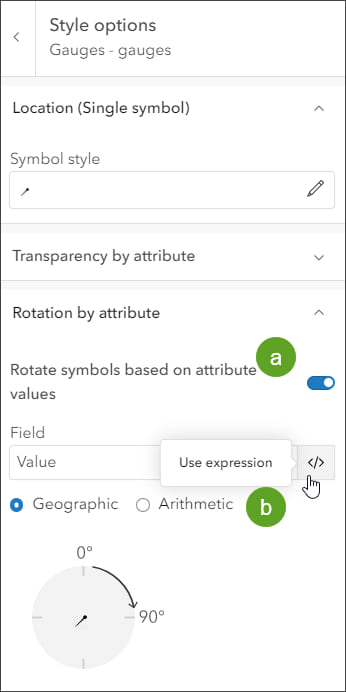
This opens the Arcade Editor where you can begin creating your expression. Choose from profile variables and functions to create your expression, with code completion guiding the way. You can also use the Arcade assistant (beta) which uses artificial intelligence (AI) to generate expressions from natural language prompts.
View the Arcade function reference for additional information on functions, constants, returning values, and evaluating expressions. As you enter your expression, you can use the Run button to validate the expression.
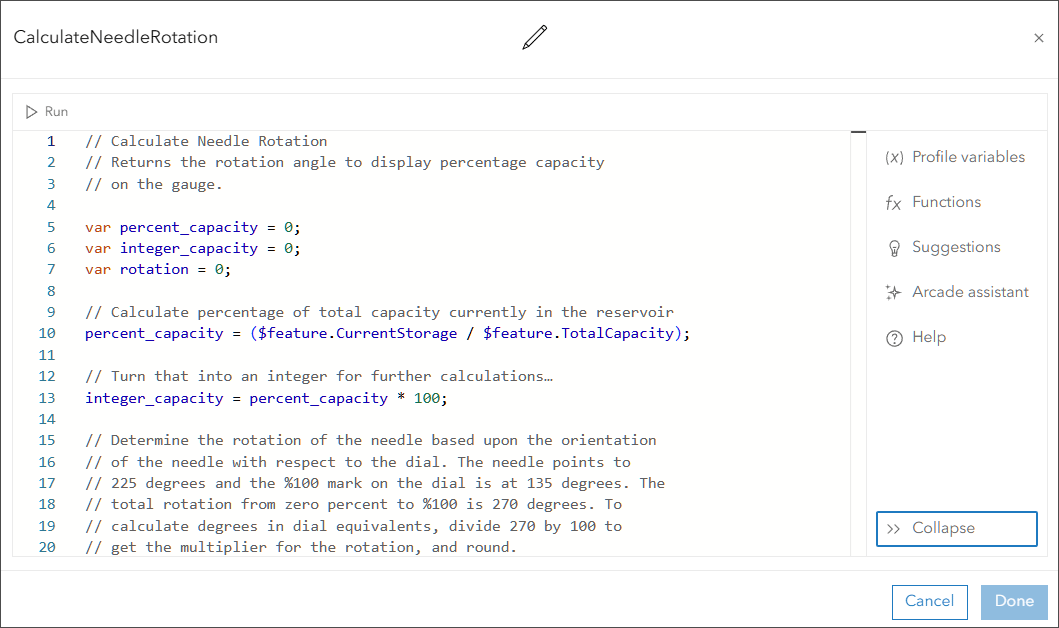
As with any scripting or programming language, your programming style will be unique. You can make your Arcade expressions terse and compact, but often for readability it pays to add comments and expand your code logic. Below is the completed expression used to rotate the symbols in this example.
// Calculate Needle Rotation
// Returns the rotation angle to display percentage capacity on the gauge.
var percent_capacity = 0;
var integer_capacity = 0;
var rotation = 0;
// Calculate percentage of total capacity currently in the reservoir
percent_capacity = ($feature.CurrentStorage / $feature.TotalCapacity);
// Turn that into an integer for further calculations…
integer_capacity = percent_capacity * 100;
// Determine the rotation of the needle based upon the orientation
// of the needle with respect to the dial. The needle points to
// 225 degrees and the %100 mark on the dial is at 135 degrees. The
// total rotation from zero percent to %100 is 270 degrees. To
// calculate degrees in dial equivalents, divide 270 by 100 to
// get the multiplier for the rotation, and round.
rotation = round (integer_capacity * 2.70, 0);
// A reservoir can be over capacity, if so just show %100 full
if (rotation > 270) {
return 270;
}
else {
return rotation;
}
More information
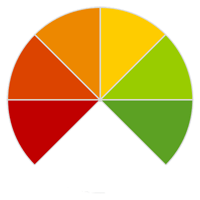
The custom symbols used to construct the gauge are shown below. If you are following along using the sample map, right click the images to save them, then use them as custom symbols in your web map.

For more information, see the following:
- ArcGIS Arcade (Help)
- Arcade Function Reference (Help)
- Rotate point symbols in web maps (Blog)
- Create gauges using stacked symbols and rotation (Blog)
- Use custom point symbols in Map Viewer (Blog)

Commenting is not enabled for this article.