
Feature attachments can play a key role in data validation, exploration, and presentation. These workflows are often aided by the pop-up. In these scenarios, viewers are shown all the attachments associated with a feature. One of the main pillars of creating great maps is only giving viewers the information they need. With all that in mind, we are excited to announce that with the October 2025 update of ArcGIS Online you will have control over which attachments are displayed in your pop-ups.
This latest feature allows you to filter attachments by type and keyword. Before exploring this exciting new functionality, let’s lay some groundwork on how attachments are modeled in the web.
Attachments in the web
The concept of feature attachments is well understood. Create a feature, add an associated attachment, and access that attachment when interacting with that feature. What you might be less familiar with are the accompanying attachment properties. In the web, we model attachments and their properties as attachmentInfos. Attachment properties can be used as parameters to sort and now filter a feature’s attachments in the pop-up.
Most properties, like contentType, are computed based on the provided file while the keywords property is set based on collection configurations. Keywords are a data collection concept that allows you to tag attachments with a string. They can be used to categorize or differentiate attachments in downstream workflows. There are several ways to set keywords on your attachments. These include:
- Collecting data with a survey created with Survey123 (more here)
- Using the ArcGIS API for Python (example here)
- Using the Add Attachment or Update Attachment operations from the ArcGIS REST API (more here)
Filtering experience
Now that we have a better understanding of attachment properties, we can dig into our new pop-up filtering functionality. Let’s do this by looking at some practical examples.
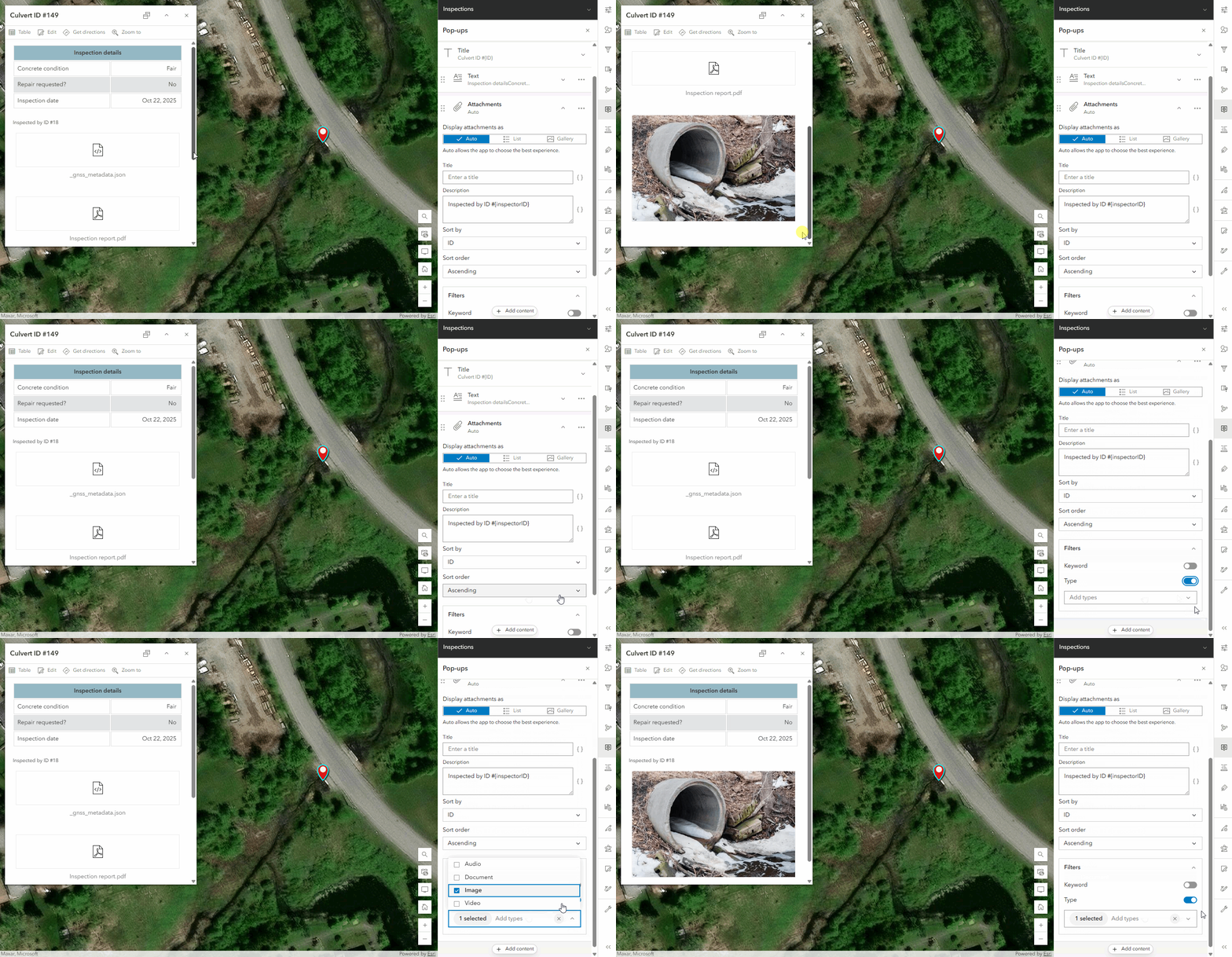
1. Show relevant attachments
Here we have a mix of attachment types, some of which are not relevant to the viewer. This strategy uses the type filter to reduce extra noise in the pop-up.
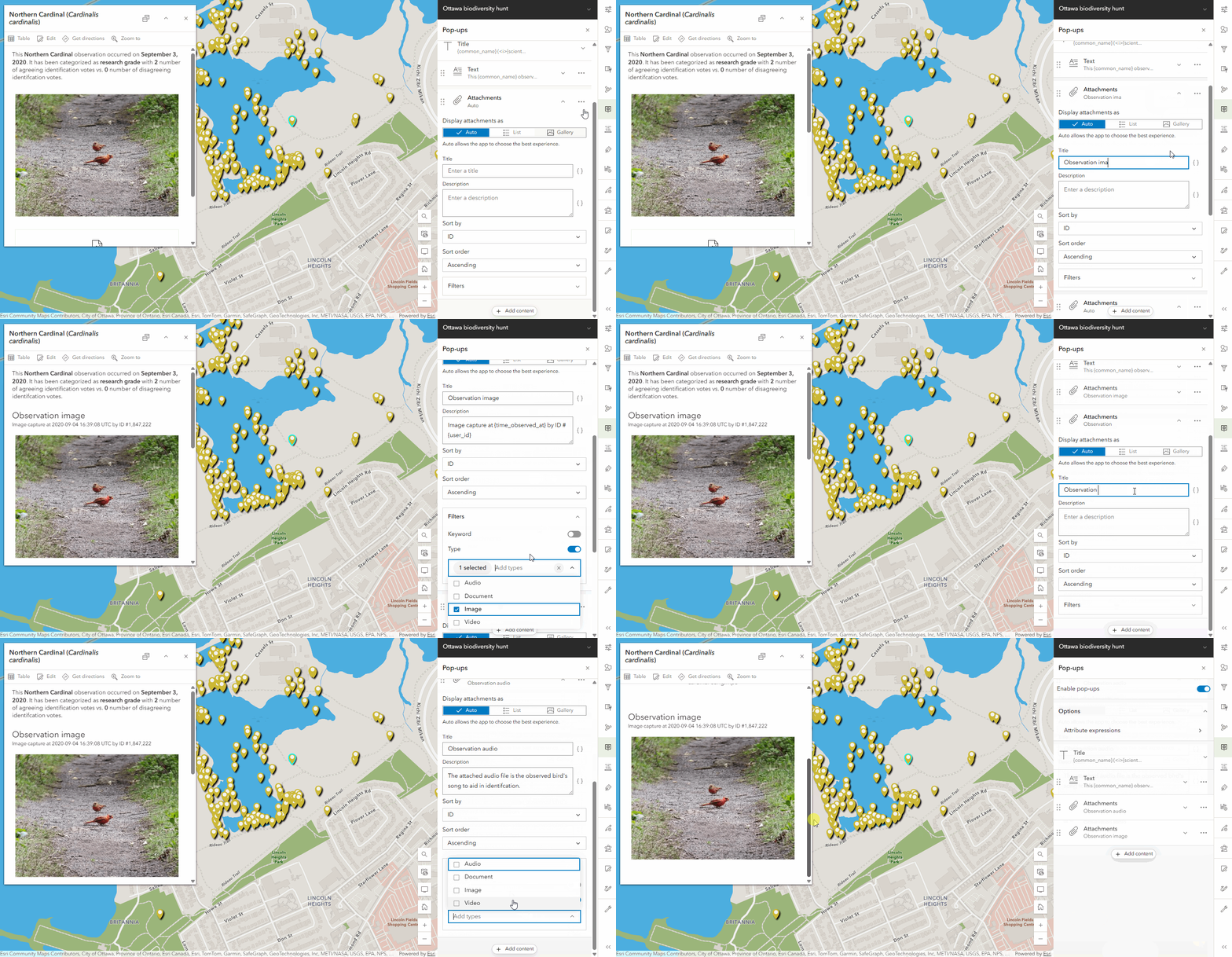
2. Create separate attachment elements per type
Here we have two attachment elements. One for images and one for documents. This strategy uses multiple attachment elements and the type filter to break up the wall of attachments and offer specific contextual text per grouping.
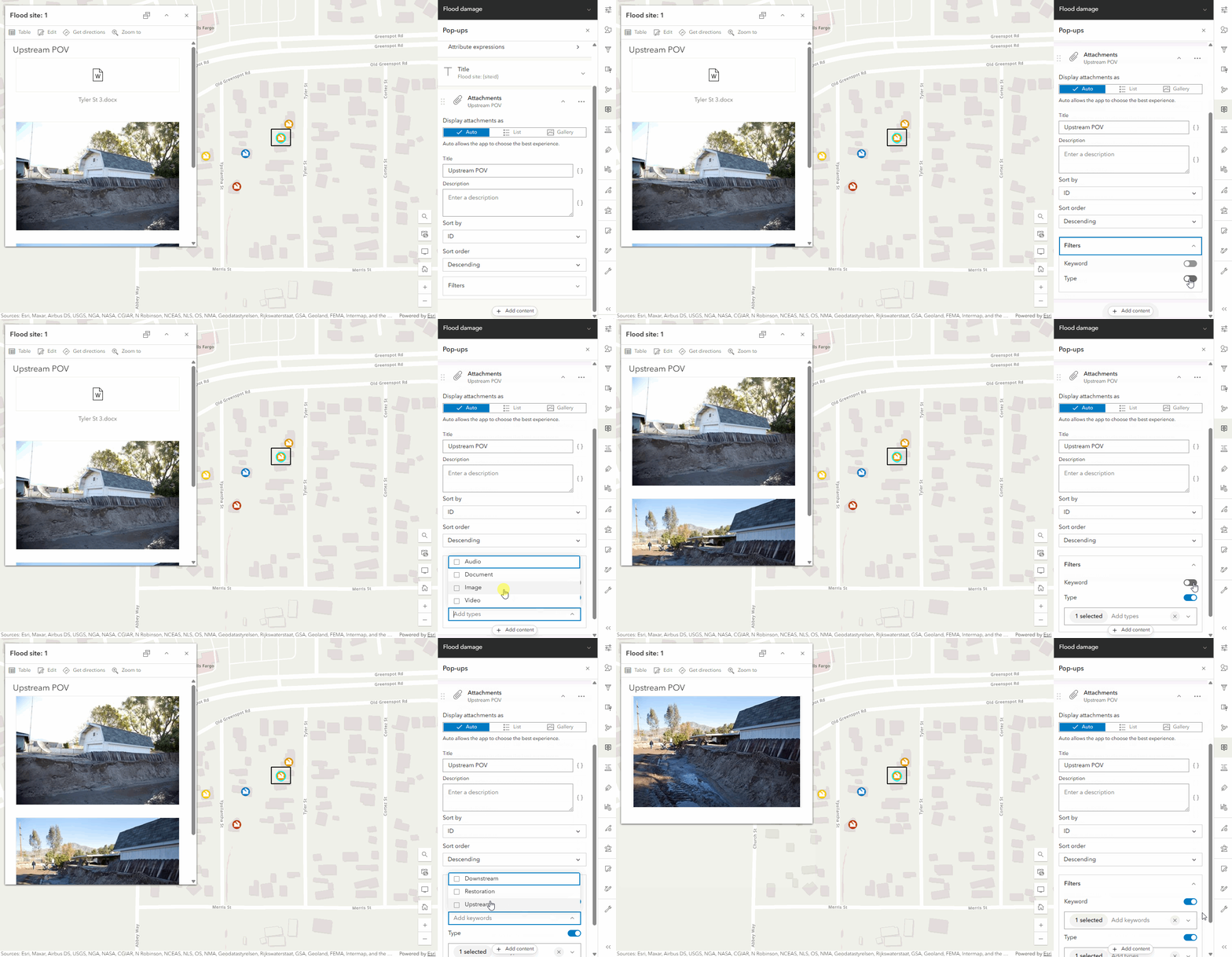
3. View specific attachments
Here the viewer is only concerned with images of the upstream flood damage images. This strategy uses both the type and keyword filter to create a focused experience.
What’s next
We are very excited to now offer attachment filtering in pop-ups. This is a great tool for creating refined views of your data. However, this is just a small piece of the upcoming attachment work coming to ArcGIS Online. Keyword support is coming to forms and offline in 2026, making it easier to set keywords on data collection workflows. Other future enhancements include adding attachment filtering to the attribute table, preserving keywords when exporting to a file geodatabase, and providing a carousel display option in the pop-up.

Commenting is not enabled for this article.