ModelBuilder is a visual programming environment where data and tools are connected in a diagram to build repeatable analytical workflows. In ArcGIS Pro 3.6, the ModelBuilder interface has been thoughtfully redesigned to enhance usability, responsiveness, and visual clarity, making it easier to understand and navigate models as you build or run them.
This redesign also aligns the experience across ArcGIS Pro and web-based products like ModelBuilder in ArcGIS Online, Raster Function Editor and Data-Pipelines.
Key Design Enhancements
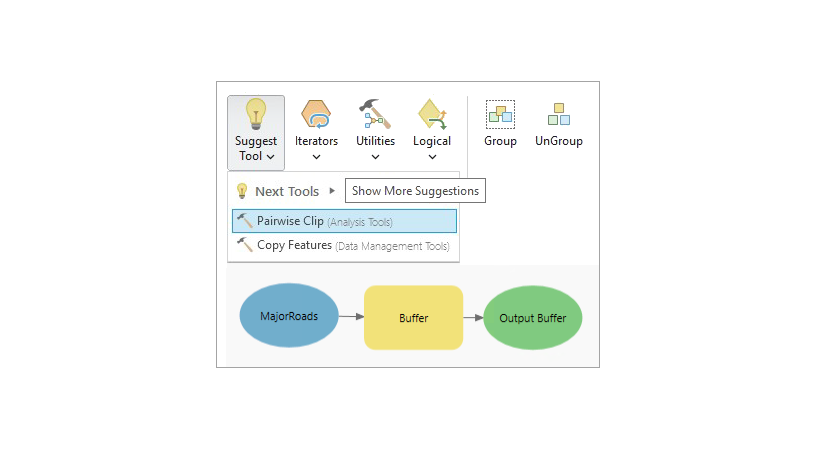
- Modern Shapes: All elements, tools and variables, whether inputs or outputs, are now displayed as rounded rectangles for a cleaner, more cohesive look.
- Intuitive Icons: Variable nodes now include icons that reflect their data types, while tool nodes display icons based on their toolbox category. When connecting data to tools, a popup appears showing all tool parameters, each with an icon that matches the variable’s data type, making it easier to understand how data flows through the model.
Visual Cues for Workflow States
- Invalid (Not Ready to Run): Elements missing required parameters appear in a distinct gray color, clearly indicating they need attention before the model can run.
- Valid (Ready to Run): Once all necessary inputs are provided, elements shift to a soft pastel color, signaling they’re ready to execute.
- Groups: Grouped elements now adopt a new color scheme that aligns with the overall design.
- Running: During execution, tools display a progress bar and spinner, offering real-time feedback.
- Completed: After execution, tools show a green checkmark for success or a red X for failure. If any tool within a group fails, the tool and the parent group are highlighted in red.
Compatibility with Existing Models
- Models built in earlier versions will automatically adopt the new visual style when opened and will continue to run with no changes needed to their functionality.
- Custom layouts are preserved, with slight spacing adjustments to accommodate the updated shapes.
Best Practices for Organizing Models
- Use Auto Layout: Quickly tidy up your diagram using the AutoLayout option on the ribbon.
- Manage Groups Efficiently: Use “Expand All Groups” and “Collapse All Groups” to streamline your workspace using groups.
- Modularize Large Models: Break complex workflows into smaller, manageable models and integrate them into a main model for easier maintenance and scalability. Each model is like any other tool that can be dragged into another model and connected to other elements.
- Use Connected Labels: Avoid clutter by attaching labels directly to elements using the “Create Label” option, keeping your notes organized and in context.
In Summary
The redesigned ModelBuilder in ArcGIS Pro 3.6 is more than a visual refresh; it’s a major step forward in clarity and usability. With updated shapes, smarter icons, and responsive feedback, building workflows is now more intuitive and less stressful. And with full compatibility for existing models, you can take advantage of these improvements right away. Combine these updates with best practices to create clean, powerful analytical workflows.



The new look is nice and I like the improvements in the auto-positioning. My favourite new improvement is without doubt the ability to create a label attached to the tool. So now it moves with the tool when the tool is moved, nice!
Thank you!
Can I somehow get the old layout back or the font enlarged? The new layout is unreadable small.
Thanks for sharing your concern! We are working on the magnification part with new design that will remove the need for the old style and make it easier to read. Please stay tuned.