Say goodbye to endless scrolling through tool list! Semantic search, powered by artificial intelligence, signifies a revolutionary advancement. Moving beyond simple keyword matching, this capability understands the intent behind your queries, delivering far more relevant results. Keeping that in mind, we’re thrilled to announce two powerful new features in ModelBuilder to help your workflow creation in ArcGIS Pro 3.5: Semantic Search and Tool Suggestions.
Semantic Search in ModelBuilder
ModelBuilder’s semantic search, is a smart search engine technology that supports conversational language and can make connections between related words recognizing the intent or meaning behind a query in comparison to standard search engines that simply find partial or complete matches between a search query and a body of text being searched.
For example, simply typing “How do I loop through rows?” or ” How do I combine tables for two inputs?” will surface the most appropriate tools, saving you valuable time and effort.
How does Semantic Search Work
Semantic search is a foundation of AI technology and works by transforming text into a meaning vector (or embedding). A meaning vector is a numeric representation that describes the text using the many dimensions or aspects of semantic meaning in language. The semantic search engine compares your search query to a database of meaning vectors to find the tools that most closely match your search.
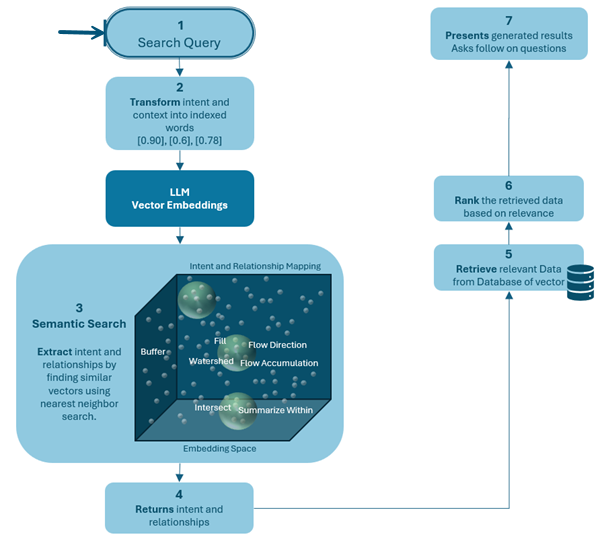
The first time you start ArcGIS Pro from version 3.3 and up, it will take a few minutes to build the embeddings database for all geoprocessing tools. But don’t worry, this happens in a background thread so you can still perform other tasks, including searching for geoprocessing tools using the standard search engine.
When the semantic search engine is ready to use, the icon in the search bar will enable.
Note: Semantic search is not an AI Chat bot or assistant. It cannot provide workflow steps or answer general questions; rather it will return search results with the tools most closely related to your query.
How to access Semantic Search in ModelBuilder
You can leverage this functionality using the Tools dropdown in the ModelBuilder ribbon and toolbar, or from the Add tools to model window.
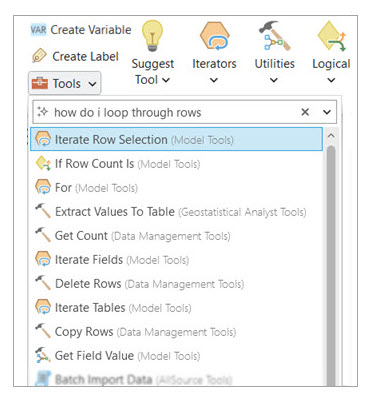
Installing the AI Models
AI technology has the potential to make GIS analysts and others more efficient when using ArcGIS Pro. But we understand that some users and organizations may feel hesitant about this technology. So, from ArcGIS Pro 3.3, these new features are only available to those who opt in during installation.
You can choose to install these features on the Select Features page of the ArcGIS Pro Setup dialog by clicking on the drop-down next to each AI Model.
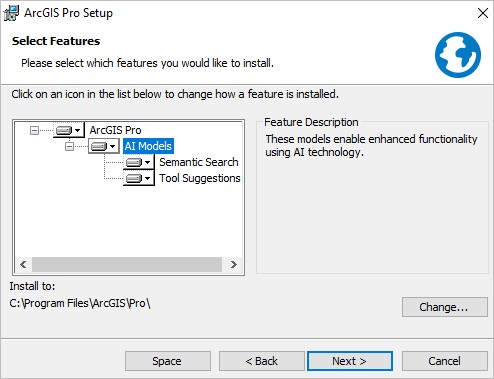
Select the AI features you would like to enable during installation.
The models are installed locally on your system with ArcGIS Pro, so there is no communication with an external service or transformation of data related to tool search or suggestions through a network. The functionality requires no internet connection, only installation.
Note: If you’ve already installed Pro 3.3 or up, and missed the AI features, don’t worry, you can still install them! In the Windows Control Panel, select Uninstall a program, then select ArcGIS Pro from the list of applications, and click Change. You’ll get the ArcGIS Pro installation dialog with the option to Modify the install and enable the desired AI models.
Tool Suggestions: Smart Picks for Your Next Move
ModelBuilder now features Tool Suggestions. This smart functionality analyzes the tools you’ve already added to your model and, based on the existing workflow and its connected upstream tools, proactively suggests relevant next steps.
Unlike keyword-based suggestions, Tool Suggestions assesses the context of your current workflow, for example, imagine you’ve already added Buffer tool, the Suggest tool option can now assess and suggest “Pairwise Clip” or “Copy Features” tools as a potential next tool. If the initial suggestions aren’t quite what you’re looking for, don’t worry! Simply click Show more suggestions to generate an alternative set of recommendations. This intuitive assistance anticipates your needs, accelerating your spatial analysis process and uncovering potential analytical pathways you might not have considered.
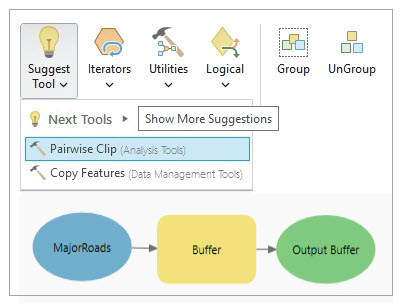
You can seamlessly access this enhanced tool suggestion functionality in ModelBuilder through the Suggest Tool dropdown in both the ModelBuilder ribbon and the tool’s output context menu.
Watershed Delineation: Leveraging Tool Suggestions in ModelBuilder
Imagine building a complex hydrological model and having ArcGIS Pro intelligently guide you through each step. With the power of Tool Suggestions in ModelBuilder, this becomes a reality. Let’s explore how this feature streamlines the process of delineating a watershed from a Digital Elevation Model (DEM) using tools from the Hydrology toolset.
A watershed, the fundamental unit for understanding water flow, can be efficiently derived from a DEM through a sequence of geoprocessing operations within a model. The beauty of Tool Suggestions is that after you’ve laid the groundwork by adding your initial tool, the Suggest Tool button anticipates your next logical step, presenting it as a readily available suggestion.
- Use the Fill tool to remove any sinks in the DEM.
- Use the Flow Direction tool to calculate the direction water flows across land.
- Use the Flow Accumulation tool to calculate the number cells that drain into another cell.
- Use the Snap Pour Point tool and snap it to the nearest cell with a high flow accumulation value.
- Use the Watershed tool to delineate the watershed.
Conclusion
With Semantic Search and Tool Suggestions, ModelBuilder in ArcGIS Pro just got a whole lot smarter, and it simplifies the process of building complex workflows. By intelligently suggesting your next steps based on established analytical sequences, it reduces the time spent searching for the right tool and allows you to focus on the critical aspects of your analysis. Embrace this intuitive feature to experience a more efficient and streamlined model building experience for your hydrological and other spatial analysis!
Get ready to build more efficient and insightful workflows than ever before!



Article Discussion: