Contour lines connect cells of equal value in a raster, often created to analyze terrain topography. Use the Interactive Contour tool to generate contour lines for each location you click on a raster surface. Draw conclusions about steepness or identify ridges and valleys in your data, whether with a digital elevation model (DEM), bathymetry, temperature, salinity, or any other continuous raster. We’ve brought this ArcMap functionality to ArcGIS Pro for the 3.7 release.
In an active map, select your raster of interest in the Contents pane. This opens the raster’s contextual tabs. Navigate to the contextual Data tab. There you’ll find the Interactive Contour tool in the Analyze group.
Once Interactive Contour is activated, each click on the map creates a contour using the coordinates of where you clicked. Contours are drawn using the screen resolution at the display extent. This allows for rapid response time even on very large input rasters. Internally, the tool leverages the Contour and Contour List geoprocessing tools.
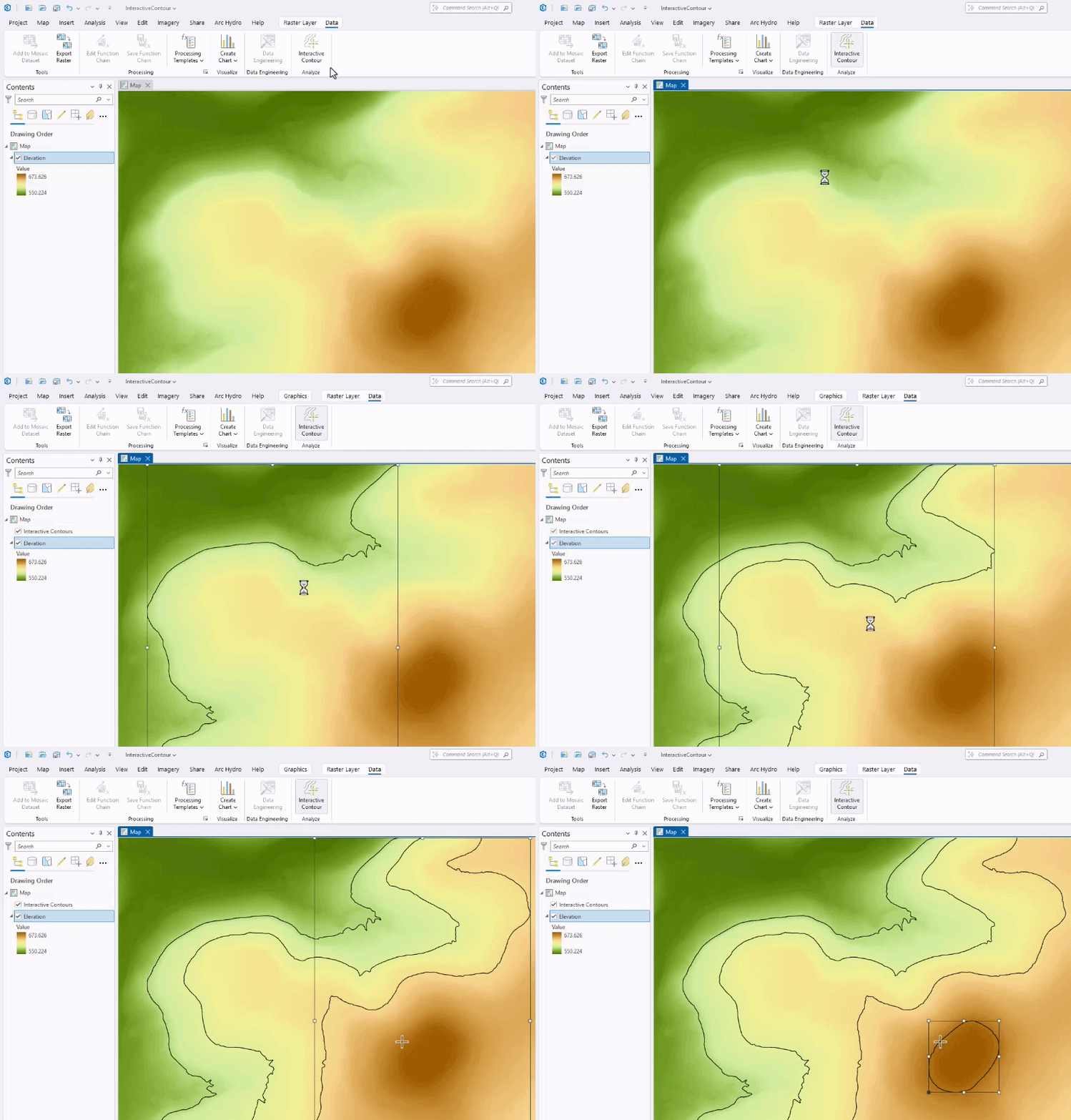
Each contour line created is a graphic element stored within a graphics layer called Interactive Contours. The value of a contour line is stored as the name of the element.
Additional functionality in the Graphics tab on the ribbon can be utilized to symbolize, remove, and otherwise edit individual contours.
To use your contours in further analysis, convert them to a feature class using the Graphics to Features geoprocessing tool. After conversion, you can visualize the contours in scenes, assign attribute values, and use other advanced symbology techniques.

Article Discussion: