Setting project and application options allows you to preset options without having to always revert to your preferences. I’ll show you where to access Attribute Rules settings, why you may choose to set them, and how to easily reset them to the default settings.
Watch this video created in ArcGIS Pro 3.5 below for a quick demo, or read on for more details.
Access ArcGIS Pro options
Access the Options dialog box from one of the following locations:
- When you first launch ArcGIS Pro, you can select Settings, Options, Attribute Rules.
- In an open project, go to the Projects tab, Options, Attribute Rules.
- In ArcGIS Pro 3.6, the Attribute Rules ribbon, Add Rules group has an Options dialog box launcher icon to access Attribute Rules options.

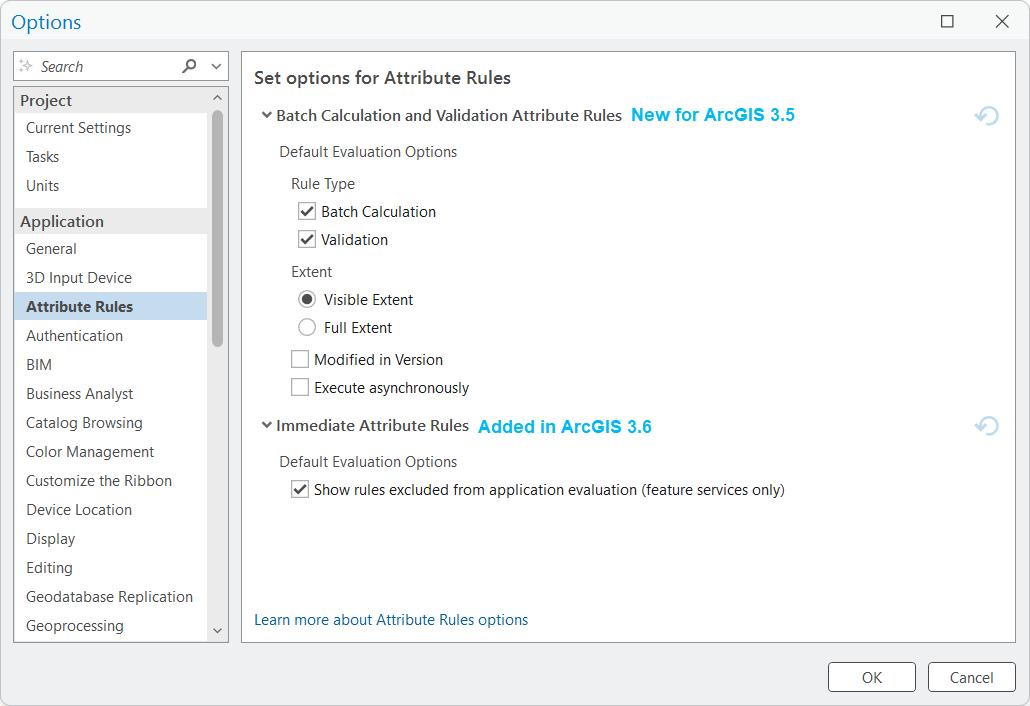
The default settings are shown on the Options dialog box above for ArcGIS Pro 3.6. User profiles store these settings and any changes, which apply to all ArcGIS projects. Settings for Batch Calculation and Validation rules appear in Error Inspector. Settings for Immediate Attribute Rules for feature services appear in the Attribute Rules View for applicable rules.
Reasons to set options

Setting options at the project level allows users to streamline workflows and may provide performance benefits.
For example, a user may choose to uncheck Validation rule types in an ongoing project, as they only need to evaluate deferred batch calculations. Changing this option at the project level unchecks it in the Error Inspector. Thus, only batch calculations evaluate errors when clicking the Evaluate Rules button in Error Inspector. Prior to these settings, a user would have to open the dropdown menu repeatedly and unselect Validation. Eliminating unnecessary clicks speed up the editing and evaluation process.
Batch calculation and validation attribute rules
Project settings were first available in ArcGIS Pro 3.5 for deferred evaluation options of batch calculations and validation rules, with visible or full extent. Modified in Version and Execute asynchronously options are available for branch versioned feature services. Attribute Rules options reflect project settings in the Error Inspector, Evaluate Rules drop-down menu when applicable. For example, the Modify in Version option will not display if the feature service in a map is connected to the default branch version. Change to a named version to see the Modify in Version option to evaluate rules.
- Evaluate Rules options reflect settings in the Project options for Attribute Rules. This provides the flexibility of setting preferences in the project with the ability to change them as needed in Error Inspector.
- Changes to the Evaluate Rules options in Error Inspector will not change the project settings and persist until closed.
- Closing and reopening Error Inspector resets the Evaluate Rules options to the current Attribute Rules project settings.
- Modify in Version, if checked, will only display in Error Inspector if the data connection is set to a named branch version.
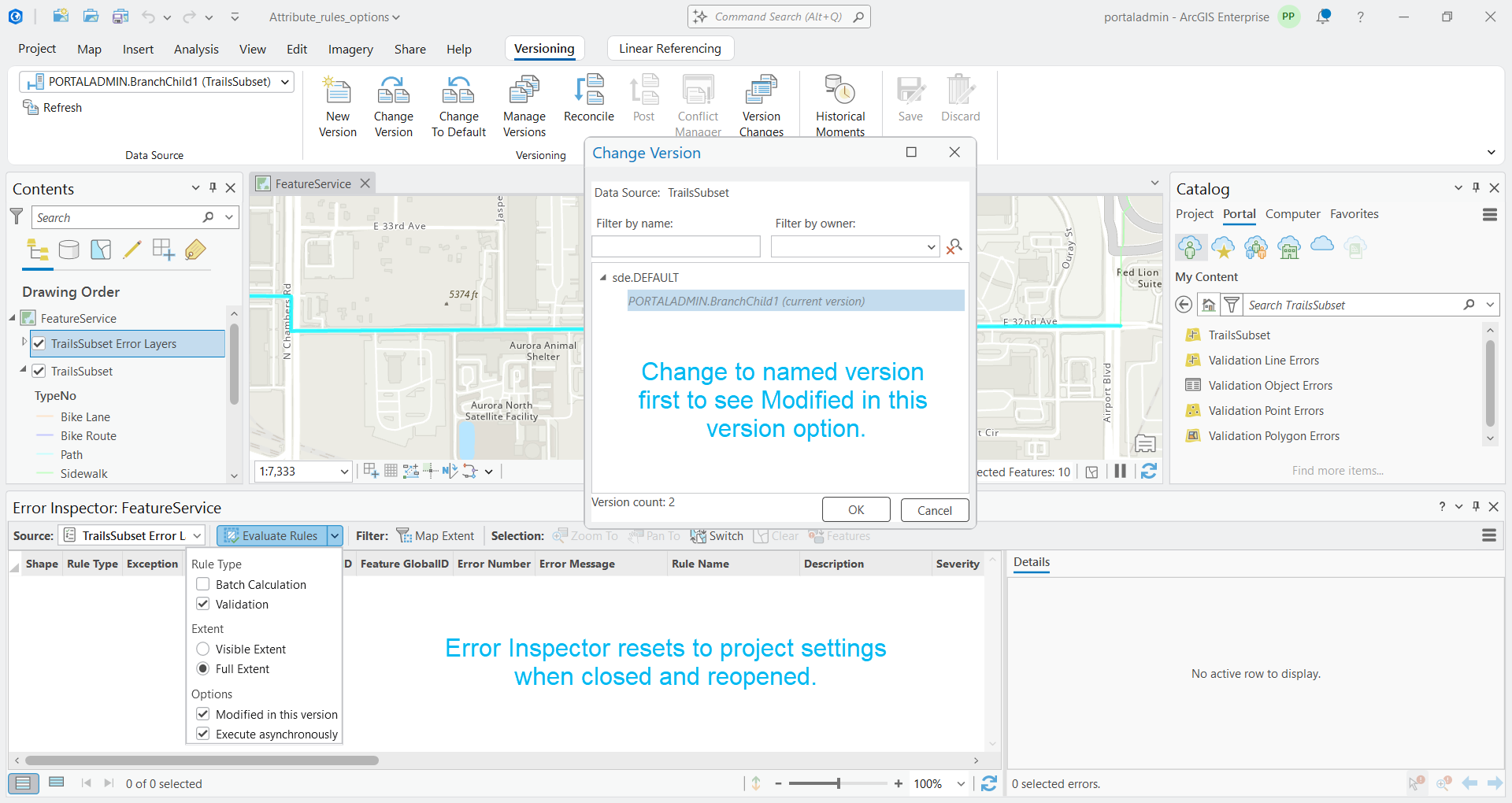
These behaviors provide a more streamlined experience for editing workflows and processes when working in the Error Inspector window.
Learn more about evaluating attribute rules and managing attribute rule errors.
Immediate Attribute Rules options
For ArcGIS Pro 3.6, we introduced an additional option to show rules excluded from application evaluation for feature services.

This option displays rules in the Attribute Rules view for immediate calculation or validation rules for feature services that meet the option setting.
- Checked—All immediate calculation or validation rules that have Exclude from application evaluation checked for a feature service show in the Attribute Rules view. This is the default setting.
- Unchecked—Only displays immediate calculation or validation rules that have Exclude from application evaluation unchecked for a feature service in the Attribute Rules view. An information banner at the top of the Attribute Rules view is displayed.

Changes to this setting require an ArcGIS Pro restart. With the option unchecked, performance may improve when adding layers to a map or opening a project with services.
Learn more about the Exclude from application evaluation rule property
Reset to default
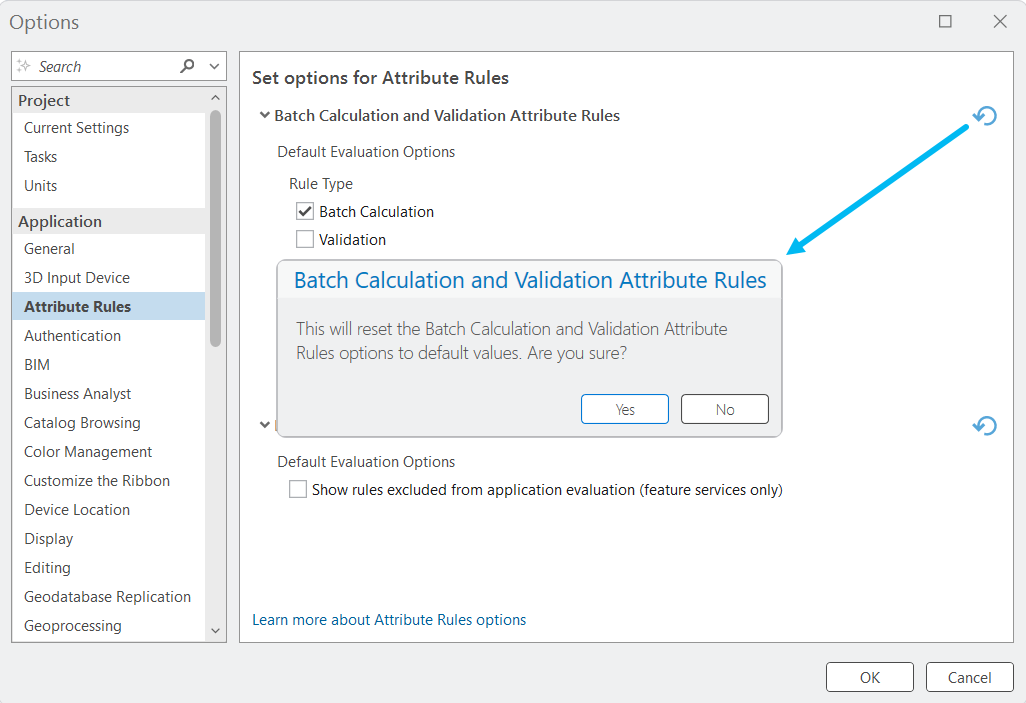
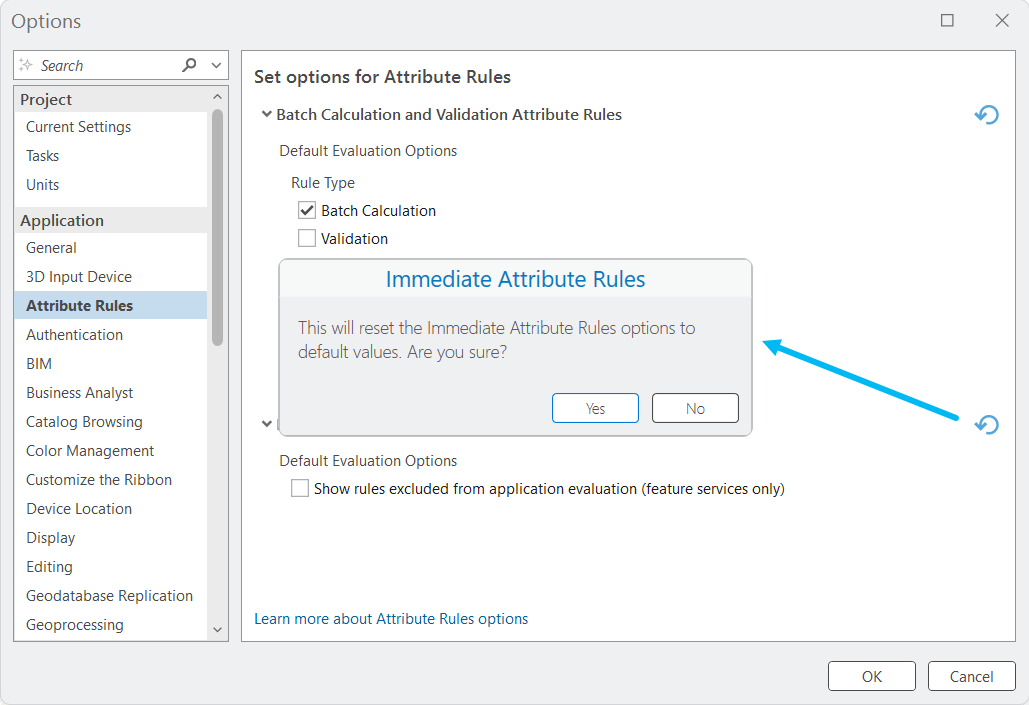
If at any time the project settings need to be reset, both sections have a reset button to reflect default settings. As noted, changes to the Immediate Attribute Rules setting will require an application restart.
Learn more about Attribute Rules options
We hope these recent updates are beneficial to improving your editing, evaluation workflows and data management needs. You can share your feedback and ideas on our Esri Community site and visit more data management resources on our Geodatabase Resources Hub.





Commenting is not enabled for this article.