
Customers can author their data quality business logic as Attribute Rules to prevent users from making incorrect edits to the system. This improves data quality, avoids accidental editing mistakes, and simplifies subsequent downstream QA/QC workflows. This is commonly done using Constraint Attribute Rules which rollbacks edits that violate the user logic.
However, there are cases where certain types of users, such as Admins and Supervisors, need to temporarily bypass rules so they can later apply more holistic checks. Moreover, there are always exceptions that either were not considered when the rules were authored or were discovered later, that requires the rules to be bypassed. That is why the ability to disable attribute rules has been a recurring question we frequently get.
In this blog, I will go through four different ways to either disable or skip Attribute Rules execution in the geodatabase:
-
Using Python to disable all Attribute Rules in a Workspace
-
Using a config table to bypass Attribute Rules execution
-
Allowing Admins to bypass Attribute Rules
-
Allowing users in a specific group to bypass Attribute Rules
Let’s get started.
Using Python to disable all Attribute Rules in a Workspace
This is the obvious first choice when needing the skip Attribute Rule execution. The geodatabase provides a way to disable one or more attribute rules for a given class via the Disable Attribute Rules geoprocessing tool. Users can script this in Python to loop through all desired classes, read all the rules for each class, filter the rules by type and call Disable Attribute rules with the list of rules they wish to disable. Once the edits are finished, users can re-enable the rules by running the same script but calling Enable Attribute Rules instead.
Here is a sample python script that disables and enables all rules. Note this is written so it only disables constraint attribute rules, but you can remove that condition to disable all rules.
The downside for running this script is it requires an exclusive lock to execute. That means if the table where the attribute rules live is opened by a session, whether this is in Pro or a process on the service, the python call fail. Which means all services and ArcGIS Pro sessions must be closed to run this script, which might not be ideal. Another drawback to this is the script doesn’t know what rules were initially disabled and what were disabled by the script. So re-enabling all rules may accidentally enable rules that were disabled on purpose causing other issues.
I would not recommend Let us explore another more approach to perform this.
Using a config table to bypass Attribute Rules execution
The other approach is to allow users to disable Attribute Rules by adding an Arcade condition to every rule to check if the rule should be executed. The Arcade logic queries a configuration table, reads a specific settings and determines if the rule should run. While the rules remain physically enabled in the geodatabase and do execute, the new condition causes an early exit from the rule, effectively simulating the rule being disabled. Let’s implement that.
Create a new table in your geodatabase with two columns: config_name of type text and config_value of type text. You can name the table anything you like; I called it ARConfig.
Create a new row in the table where config_name is "disable_rules" and config_value is "true".
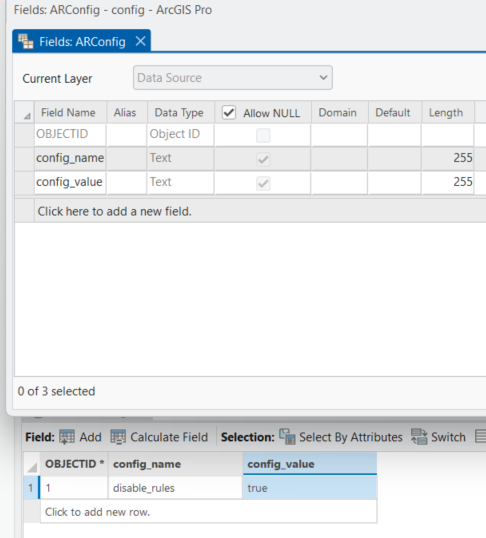
Now, for every rule we wish to dynamically disable or skip, we can add a single line of Arcade that checks the config table and determines whether the rule should continue executing or not.
The sky is the limit with this approach. You can make this configuration global for all users, or control it per user role or group. You can also lock this table so that only admins can edit it. This way no one by admins can globally disable Attribute rules.
This is applicable to Attribute Rules on all workspace types. One thing to note for services on ArcGIS Enterprise, it is recommended to publish the config table to the service, especially if there are rules that are executed client-side. That said, you don’t have to publish the config table as long as you ensure that all rules where the config check is applied are excluded from client evaluation.
The drawbacks of this approach are the need for an additional table, updating all rules, and republishing services.
Let us explore another approach where we don’t need an extra table.
Allowing Admins to bypass Attribute Rules
It is useful to allow administrators to bypass attribute rules, especially when a given rule cannot be met. This approach doesn’t require a config table; instead, it simply involves adding a single line of Arcade code to every Attribute Rule you want admins to bypass. This method uses the GetUser Arcade function, which returns the current user along with their groups, roles, and privileges, and checks whether they are an admin.
Note this approach is only applicable to ArcGIS Enterprise, this is because we are using the getUser function available on portal.
Allowing users in a specific group to bypass Attribute Rules
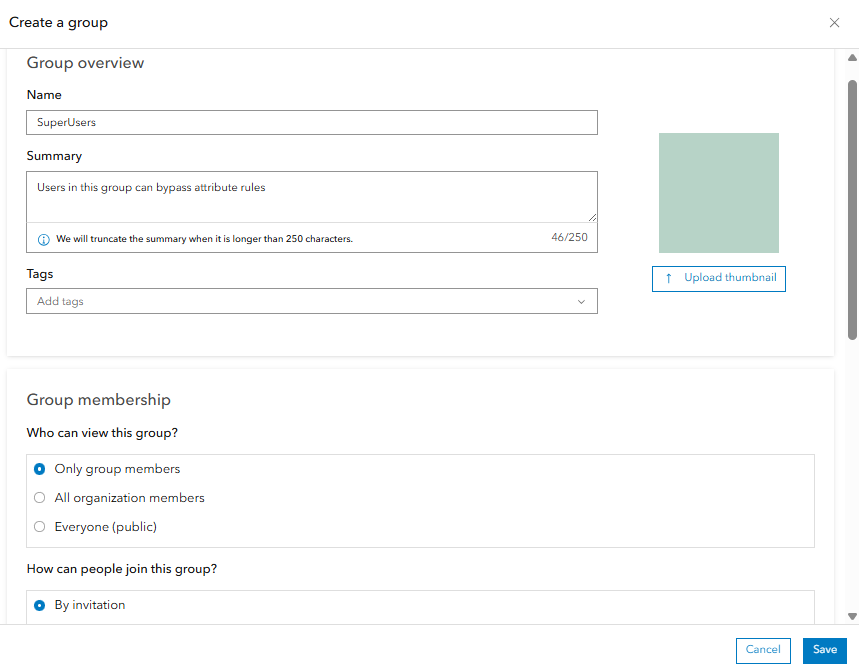
This approach is similar to the previous one but is more flexible. The administrator creates a special group in ArcGIS Enterprise, and users assigned to this group can bypass attribute rules. Then, we add an Arcade condition to check for that group in all attribute rules that need to be bypassed. Let us create the group.
Log in to the Enterprise portal as an admin, navigate to Groups, create a new group, give it a name, and make sure it is invitation-only. You don’t want any users joining this group on their own.
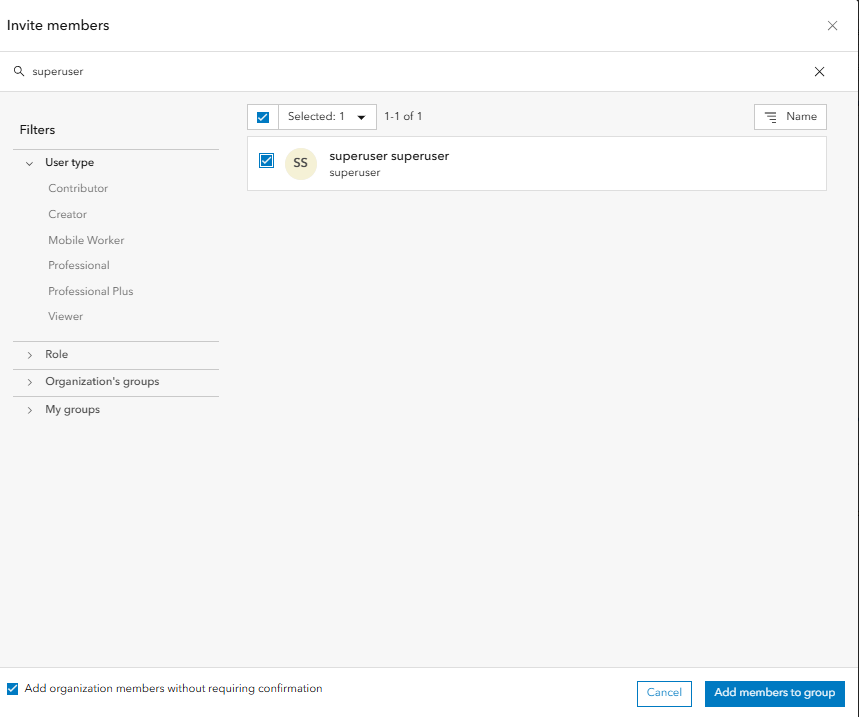
Then, as the admin, assign the users who need to bypass Attribute Rules to this group. You can assign the group when the rule needs to be disabled and revoke it when the task is completed.
Add this Arcade expression at the beginning of every rule that we want to bypass.
These were four different ways to either bypass or disable attribute rules, each of which can be extended and tweaked to support various workflows and use cases. Indeed, choosing the right approach depends on factors like user roles, workspace type, and whether you want a temporary or more controlled solution.


Thank you for! Really appreciate! G R E A T !