
You can explore utility networks through sample asset packages that you have restored or a copy of a utility network dataset provided by a colleague. To understand how the custom diagram templates associated with this dataset are set up, you can use the tool Create Geoprocessing Model From Diagram Template.
To use the tool, complete the following steps:
- In ArcGIS Pro, load the Create Geoprocessing Model From Diagram Template tool in the Geoprocessing pane.
- Browse to and select the relevant utility network, specify the name of the diagram template you want to learn more about, and click Run.
- Once the tool completes, refresh the toolbox set as the default toolbox in your ArcGIS Pro project, and look for a geoprocessing model whose name matches the name of the diagram template name followed by the current time.
- Right-click this model and click Edit.
The newly created geoprocessing template model loads in ModelBuilder.
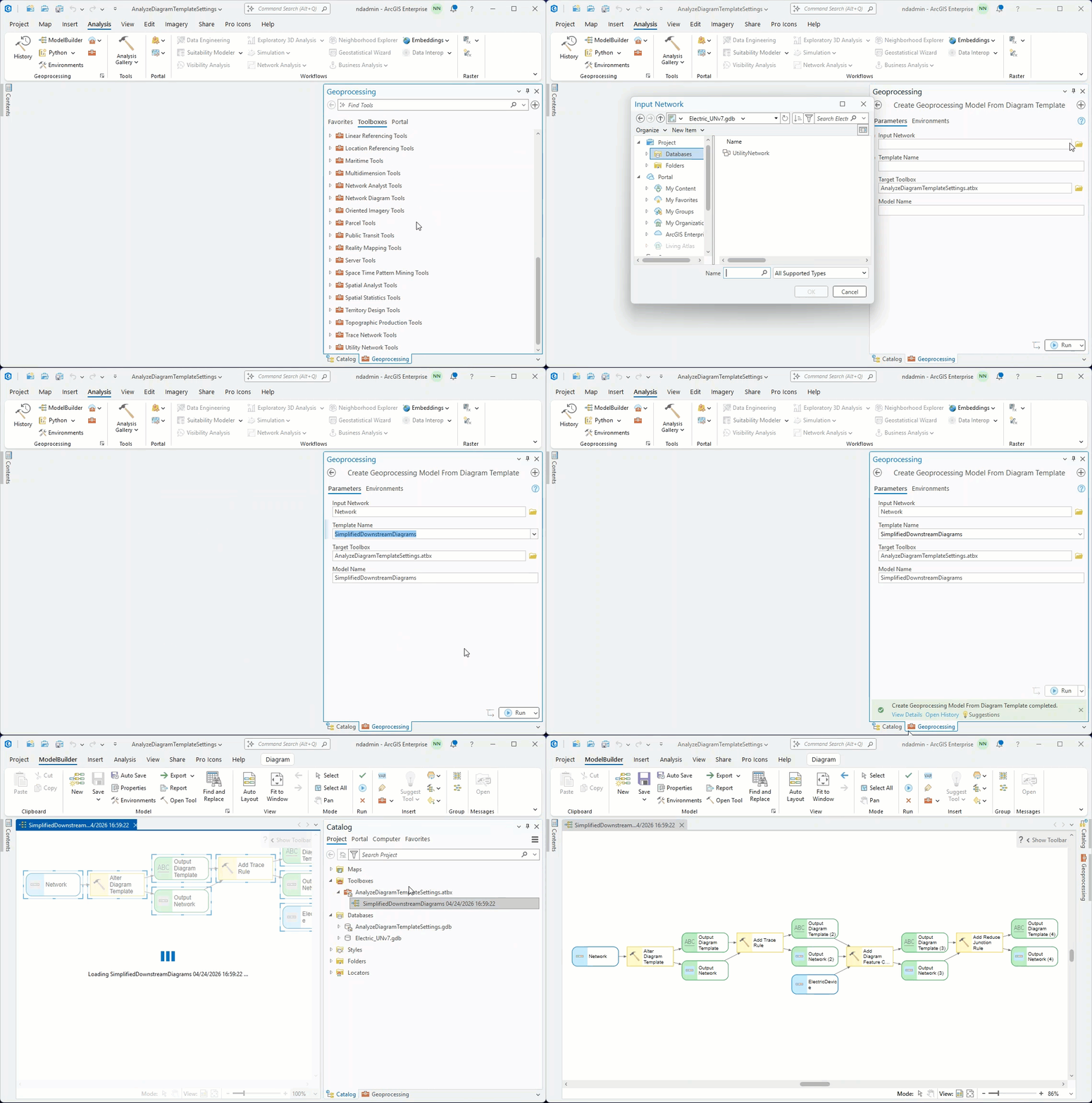
The model details the sequence of diagram rules and diagram layouts that are configured on the template.
You can open, analyze, and check settings for each rule or layout tool.
You can change the tool settings and test their impacts when building test diagrams. It is recommended that you save a backup copy of the geoprocessing model restored by the Create Geoprocessing Model From Diagram Template tool, and modify that copy. To understand how the diagram build process works, you can split the sequence of geoprocessing tools currently specified in the model at any location you want, validate and run the model to include these changes into your diagram template rule and layout definitions, and then generate a test diagram. Next, you can reconnect the cut sequence and cut it at a different location later to advance one step further in your understanding of the diagram creation process.
The Create Geoprocessing Model From Diagram Template tool was introduced in ArcGIS Pro 3.6. It proves useful in various other situations:
- You lost the geoprocessing model you initially created to configure your diagram template.
- You want to make sure that the last saved geoprocessing model you have for your custom template reflects its current settings
- You want to share diagram template models with others
You can now analyze and understand network diagram templates with geoprocessing models that can be edited and shared.


Article Discussion: