Vector tiles package map features in a way that enables fast, scalable maps that remain sharp at any zoom level. Because they store vector data rather than rendered images, the same tiles can support multiple map styles.
Although the Vector Tile Style Editor (VTSE) has been available since 2018, I still regularly meet users who are either new to vector tiles or haven’t yet explored the styling options available after publication. While often associated with basemaps, the same techniques can be applied to almost any vector tile layer.
The easiest place to get started is the VTSE app, available in ArcGIS Online and ArcGIS Enterprise (your own or third-party content must first be added to the Portal).
Edit layer styles lets me restyle layers just like in a GIS. Easy when working with a few layers, less so when dealing with hundreds of layers in an Esri vector basemap.
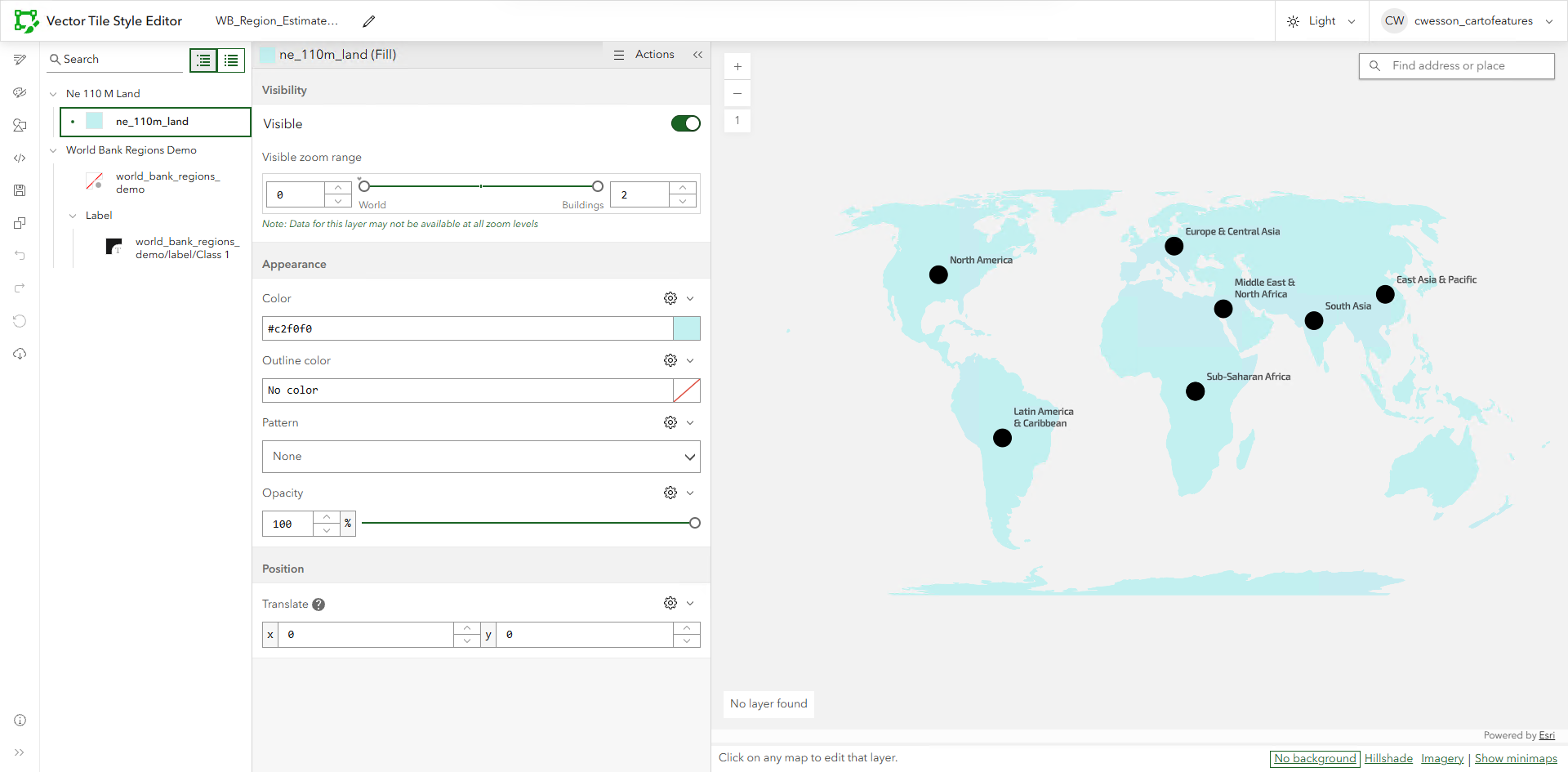
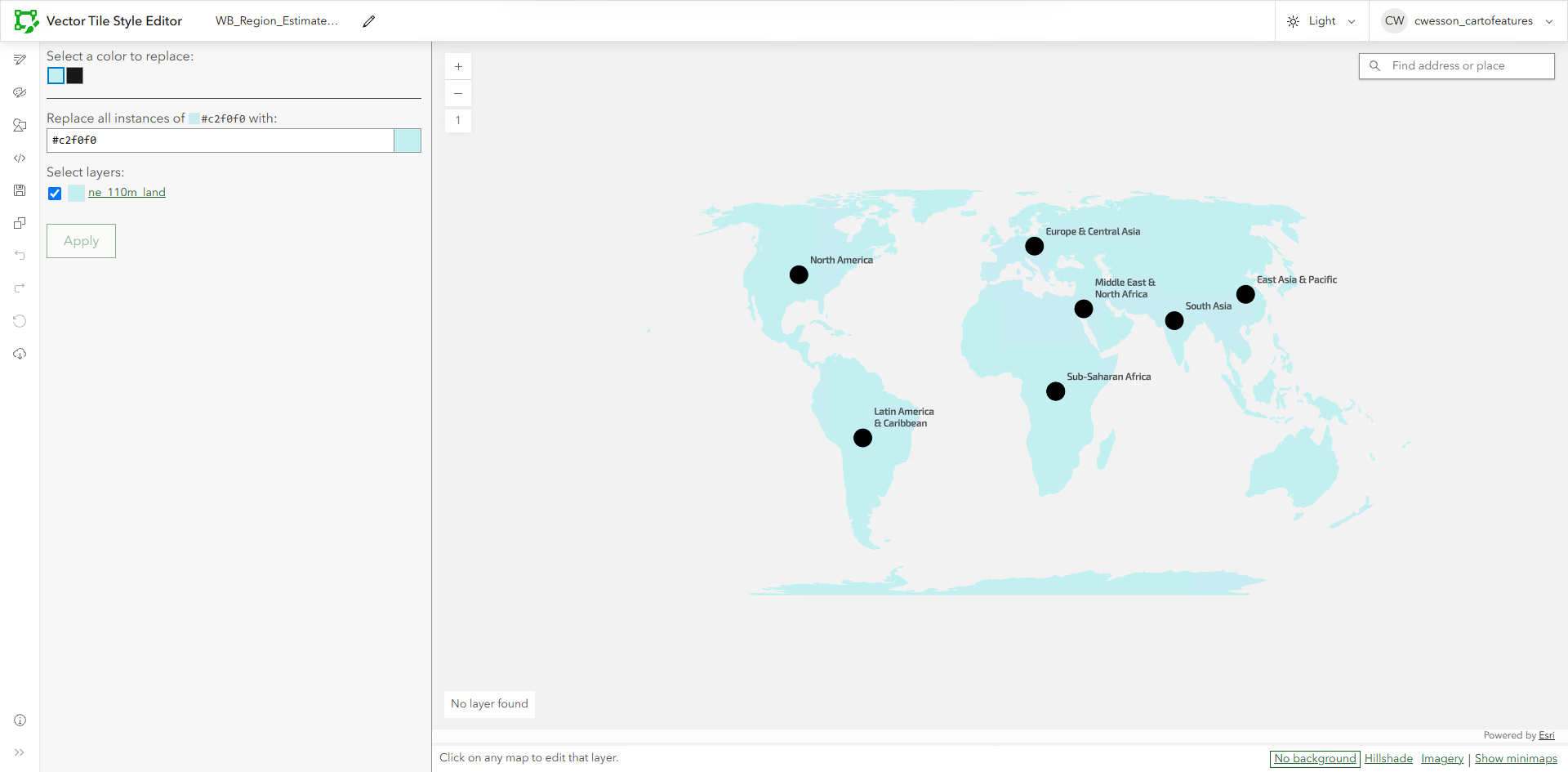
Edit by color provides an even simpler way to swap colors and works particularly well when a map uses a limited palette.
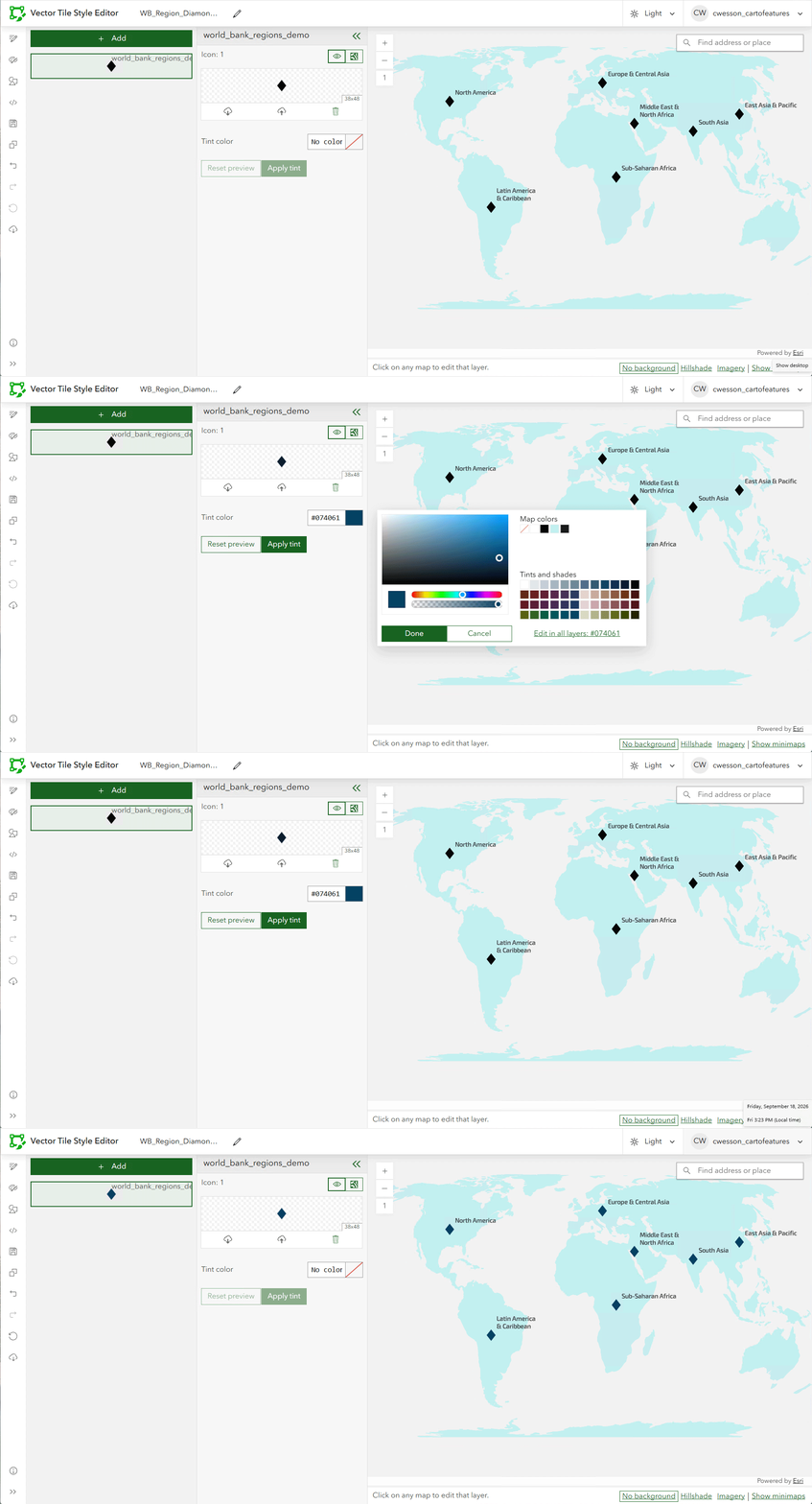
Edit icons and patterns is similarly self-explanatory. Swap out icons for new ones, adjust their colors through sprite replacement, or edit polygon fill or line patterns. As my circles are neither icons nor patterns, I used diamonds for this particular example.
Edit JSON opens the vector tiles’ style JSON file, the master file of code that controls all the styling we see above. Seeing it alongside the map makes it easy to test changes to colors and sizes and preview the results before committing to them. If editing an Esri basemap, you’ll find the reference sheets useful.
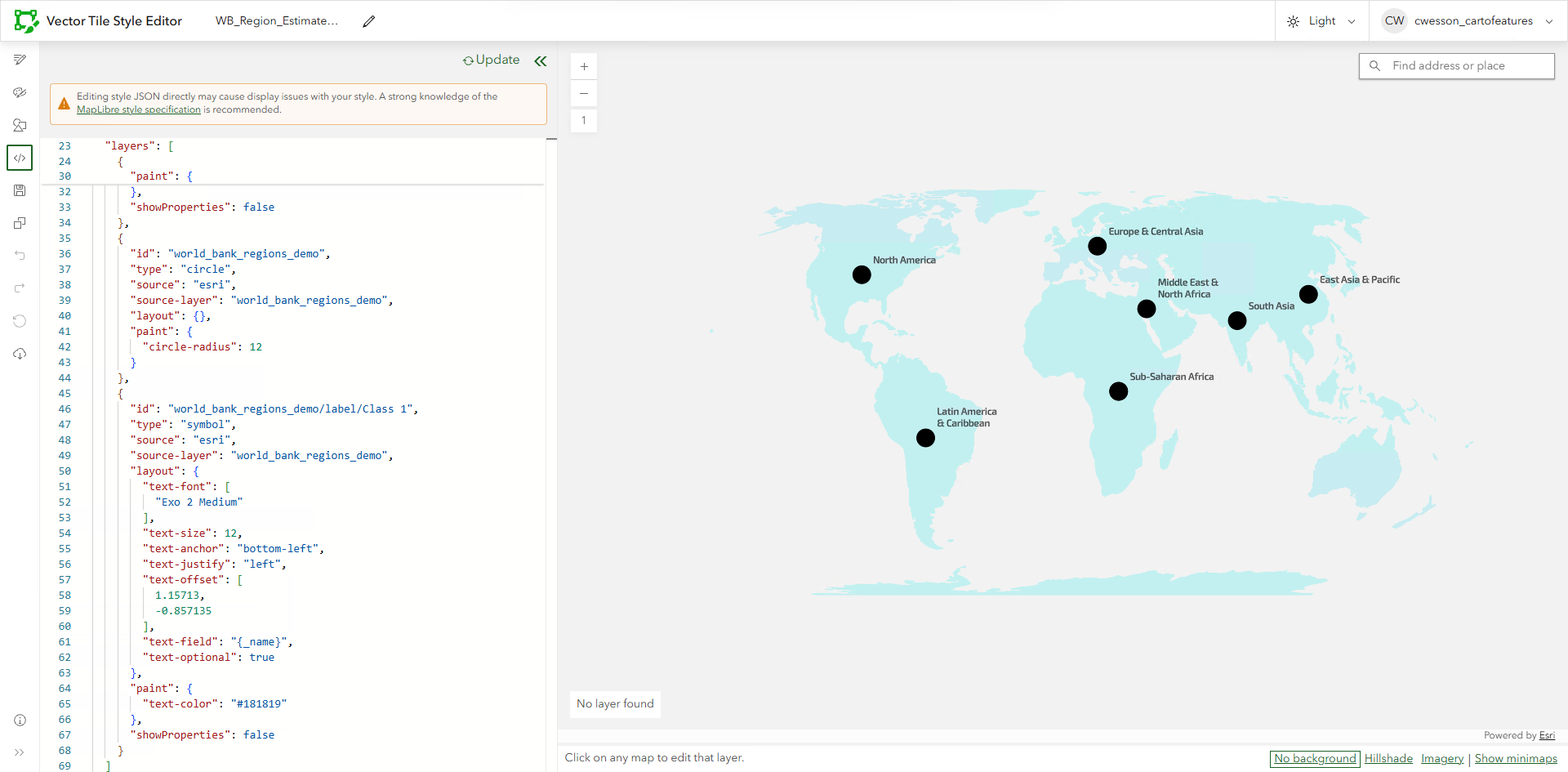
So here (below), I’m going to use the JSON editor and enter a new hexadecimal color value for the land to gray and the circle symbols and their labels to navy, and I will reposition the labels to the right of the circle points (which in vector tile speak is equivalent to text anchor = left and you may also need to update any offset).
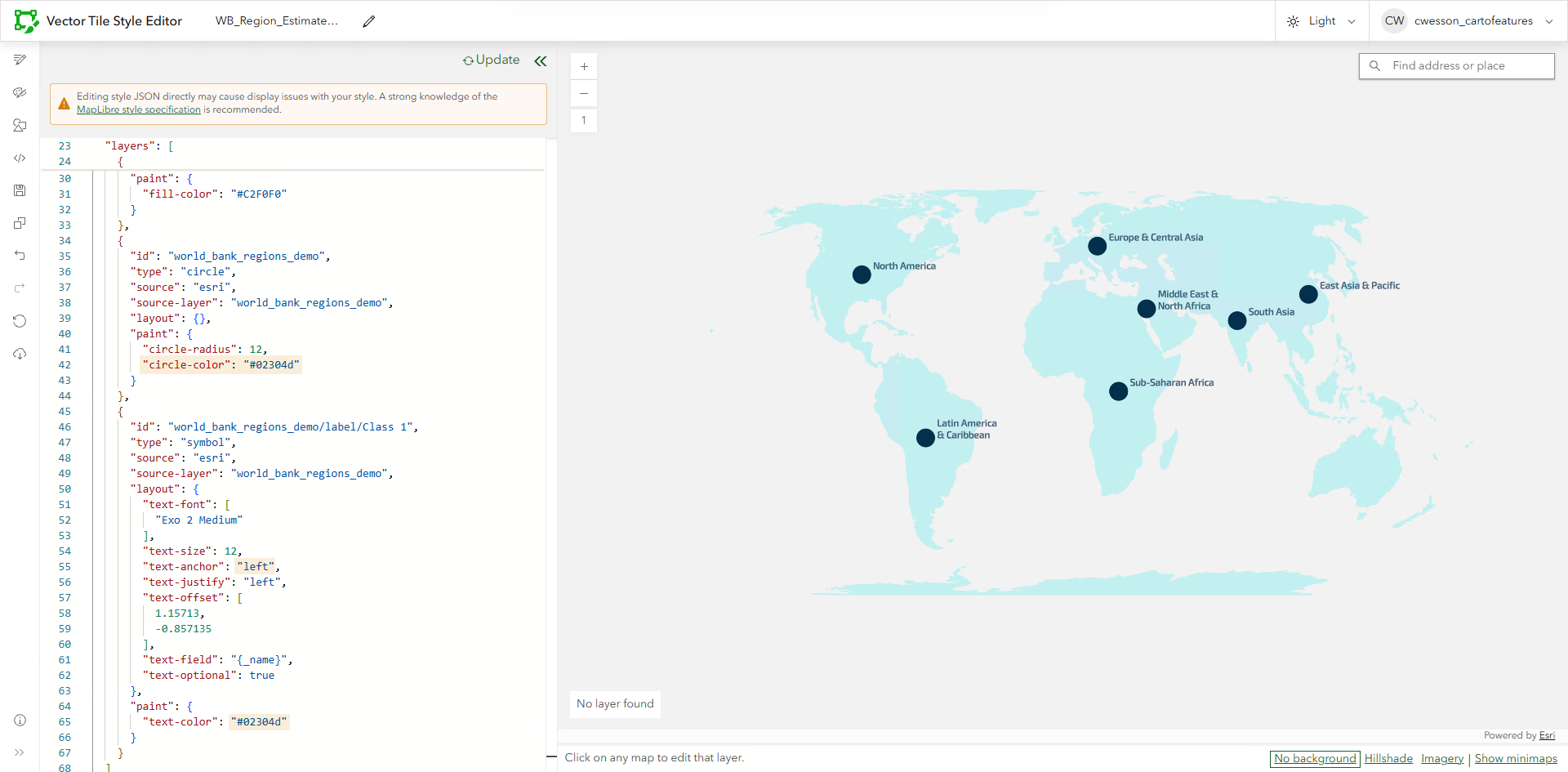
What else can I change? Potentially a great deal. Vector tile styles can expose colors, symbol sizes, labels, fonts, layer visibility, and many other properties through the style JSON. The main consideration is that vector tiles are designed to be highly efficient, so only the information included during publication is available for styling later.
Think ahead when publishing
Fields, fonts, and symbols included during publication can influence what can be changed later.
When preparing vector tiles in ArcGIS Pro, it is worth thinking ahead about the styles you may want to create. Attributes included in the tiles can be referenced later in the style, opening up additional styling possibilities. If you’re creating a vector tile package, highlighting fields in the attribute table before packaging helps ensure they’re retained for later use. Sharing directly to the web generally takes care of this automatically.
Fonts included during publication are also available for later styling. If I know I may want alternative typography, I will sometimes include additional fonts on a layer of blank labels before publication so that they are available to swap in later. Right now, as only Exo 2 Medium was used on the map, I cannot change it for anything else.
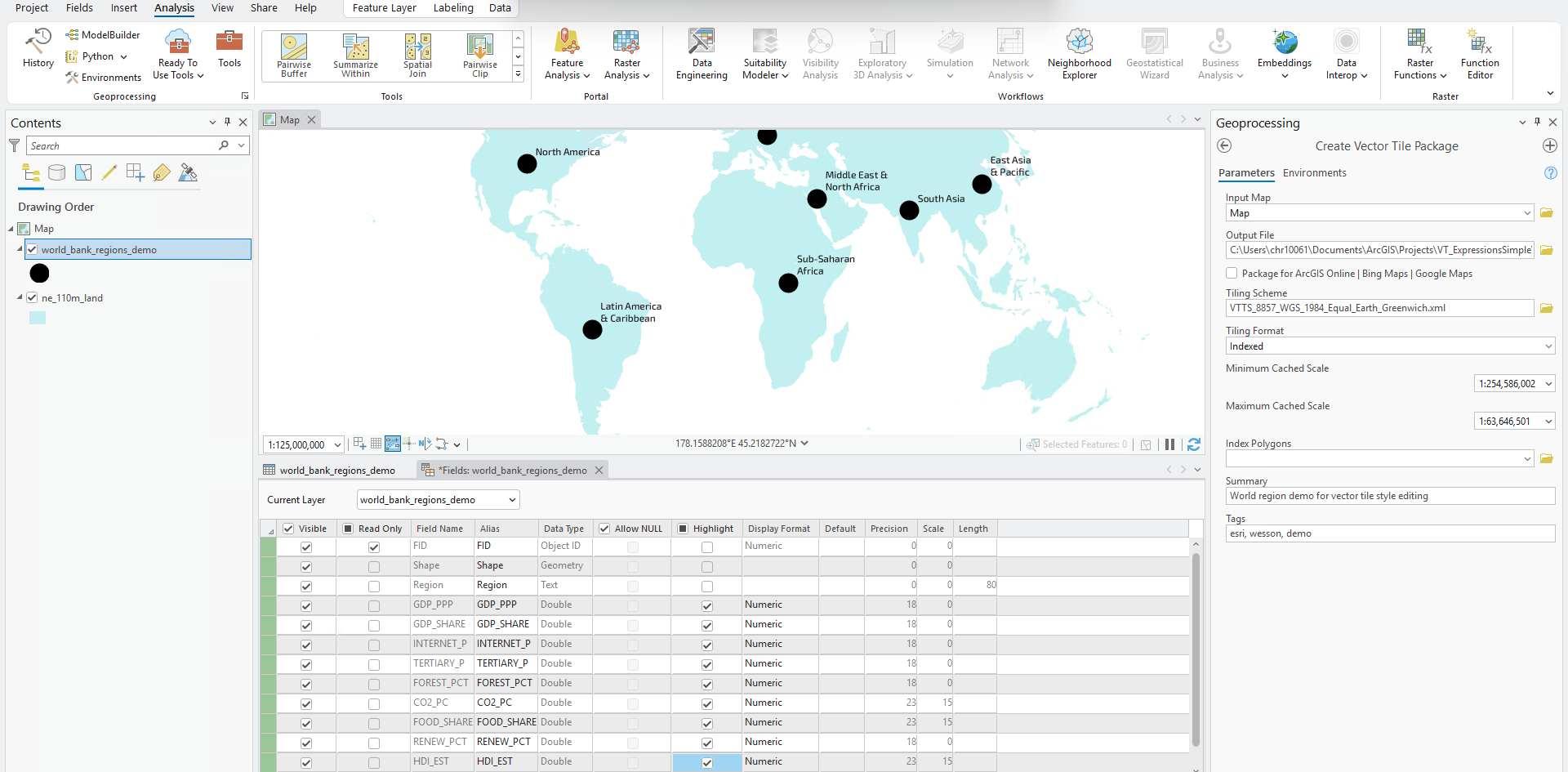
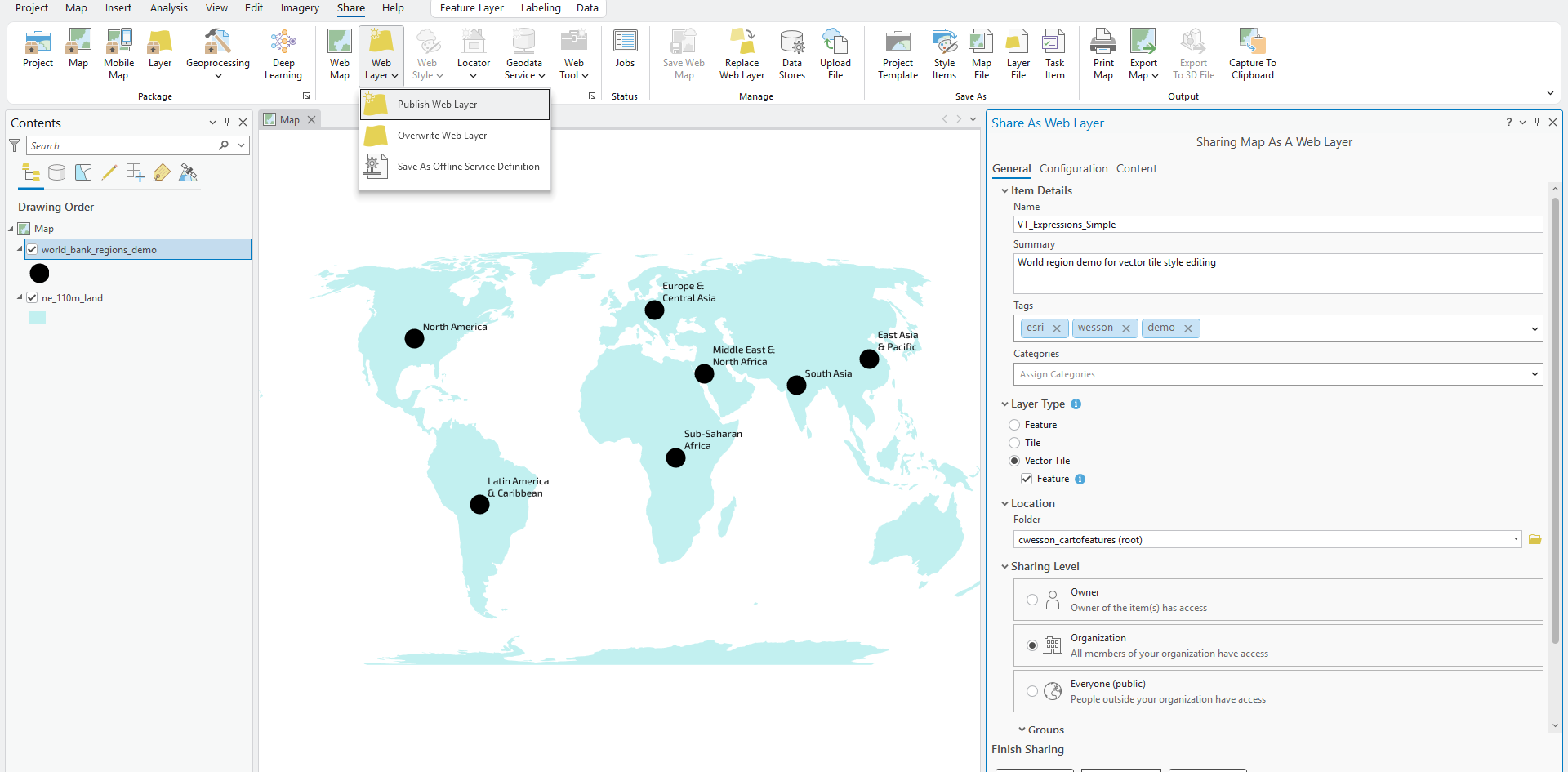
A quick note on the symbols used in these examples. Not all symbol types offer the same degree of post-publication flexibility in vector tiles. Choosing the right symbol type upfront can make a significant difference. Most markers from a style or file, whether from the Esri library or imported as PNG or SVG, retain their published appearance and expose fewer styling properties through the style JSON.
Polygons (for example through the fill-color property), text characters (text-color), and primitive circles (circle-color) allow a wider range of styling changes. Another technique is sprite swapping, which I’ll cover in my next post.
Originally, I wanted to use diamonds, most likely as a diamond-shaped text character. However, to keep the example simple and avoid introducing additional fonts, I decided to use circles instead.
Further Reading
John Nelson’s posts: Short, visual, and inspiration-focused examples of what’s possible with the Vector Tile Style Editor (VTSE)
Andy Skinner’s series: A deep, workflow-oriented guide covering the full vector tile lifecycle, from creation and publishing through styling and management
Advanced vector tile expressions: An introduction to expression-based styling for users ready to move beyond traditional color, font, and symbol edits.

Article Discussion: