We are excited to share that ArcGIS Pro 3.7 has expanded support for creating accessible PDFs by adding PDF Reading Order!
Existing Accessibility Features in ArcGIS Pro
As a quick reminder, earlier versions of ArcGIS Pro already support:
- Accessibility tagging for PDFs so that they can be read by screen readers
- Alternative text for map frames, chart frames, and pictures
- PDF metadata to make documents discoverable
- Colorblind-friendly color schemes
New Reading Order for Accessible PDFs
Accessibility tags allow screen readers to read through a PDF once it is exported. The challenge is what order things should be read in. Previously, elements were read by a screen reader in the order they were listed in the Contents Pane. However, how elements are layered visually is not always the most logical sequence for presenting information with a screen reader. In ArcGIS Pro 3.7 you can now set the reading order independently. Here’s how it works:
- Click the Export Layout button. Use a PDF export preset, or set the file type to PDF.
- Go to the Accessibility tab.
- Check on Include accessibility tags, which enables the new Reading Order list.
- Select elements and move them up or down in the list to create a logical reading sequence.
- Export your PDF.
- Use a screen reader to enjoy your logical reading order!
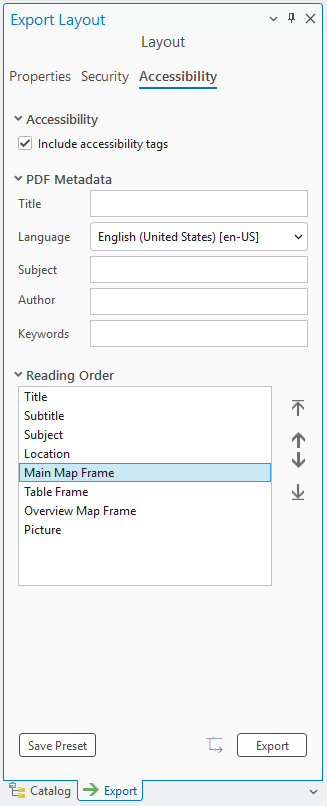
Notes on the new Reading Order feature:
- Changes in your Contents pane (renaming, adding, deleting, or changing the visibility of elements) are automatically reflected in the Reading Order list.
- Changing the reading order does not affect the drawing order of elements in the Contents pane; your layout appearance will stay the same.
- Decorative elements are excluded from the Reading Order list because they aren’t tagged for screen readers.
- If you hover over a text element in the list you can preview the first 100 characters – especially handy if you have lots of text elements with indistinguishable names.
Accessibility is always evolving and there’s more to come. We are excited to keep making it easier for you to create layouts that work for everyone!

Article Discussion: