In a world that’s rapidly shifting to cloud storage solutions, it’s important to protect against data corruption issues that can arise from syncing concurrent edits in complex file types. For example, if a file is modified from multiple computers and those changes are synced to OneDrive simultaneously, conflicting changes can put data integrity at risk. That’s why ArcGIS Pro 3.8 introduces protected access for Microsoft OneDrive files, which protects write access for popular ArcGIS file types stored in OneDrive and SharePoint shortcuts.
Protected access implements a mechanism for checking in and checking out files in ArcGIS Pro based on the idea that the first user to open a file obtains exclusive write access. While the file is checked out on a computer, other computers that subsequently open the file can view it in a read-only state and are unable to modify it. You can visualize this behavior with the new Protected Access Status pane, which displays OneDrive actions taken on a file. This helps you see which files you’ve checked out for exclusive write access, checked back in after closing, and opened in a read-only state for viewing. Additional banners and toast notifications alert you if you’re not signed in to your OneDrive connection, if your project is checked out by another user, and more.
With protected access functionality, ArcGIS Pro also understands relative paths for OneDrive folders. This means that when multiple users store a shared OneDrive folder in different locations on their machines, ArcGIS Pro recognizes that it’s the same folder across the multiple devices and applies protected access accordingly. Simply open your data from your local OneDrive folder and you’re good to go!
Get started in 3 steps
1. Enable protected access via your administrator
In order to use protected access in ArcGIS Pro, your administrator must enable the functionality for your organization. Learn more about enabling this functionality here: Enable protected access for Microsoft OneDrive files | ArcGIS Pro documentation
2. Connect to your OneDrive account in ArcGIS Pro
In the Authentication page, sign in to your OneDrive connection. ArcGIS Pro supports adding multiple OneDrive accounts, and you can sign in to any OneDrive work or school account that’s linked on your machine.
3. Open a file from OneDrive
Open a supported OneDrive file in ArcGIS Pro and protected access will be applied. At the ArcGIS Pro 3.8 release, the following file types are protected:
- Project files (.aprx)
- File geodatabases (.gdb)
- Mobile geodatabases (.geodatabase)
- Toolboxes (.atbx and .tbx)
- Shapefiles (.shp)
- Raster datasets—all supported types except cloud raster format (.crf)
- Style files (.stylx)
Refer to the ArcGIS Pro documentation for the latest list of supported file types.
Use the Protected Access Status pane to monitor your OneDrive activity on protected files.
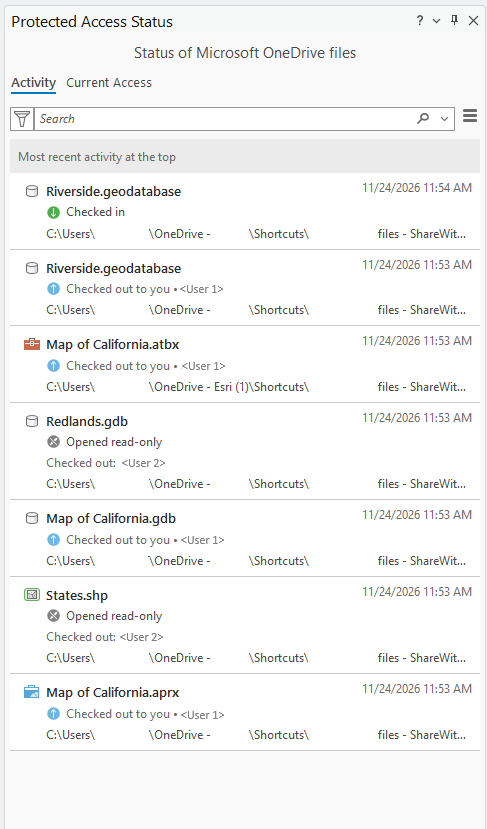
Learn more about the Protected Access Status pane here: Use ArcGIS Pro with Microsoft OneDrive and Microsoft SharePoint | ArcGIS Pro documentation
After you’re finished working on a file that you’ve checked out, close it and ArcGIS Pro will check it in to make write access available to others. Learn which actions check in and check out files.
What protected access isn’t (important caveats)
As you and your administrator prepare to roll out protected access for OneDrive, there are a few important considerations to keep in mind.
Everyone sharing content should use ArcGIS Pro 3.8 or later
Protected access is available starting with ArcGIS Pro 3.8. Before enabling it, the administrator should ensure that the same version of ArcGIS Pro is installed and protected access is enabled on each computer. If some users work with the same content in earlier versions, files will not be protected from simultaneous edits, which can lead to editing conflicts or data corruption.
Protected access isn’t a multi-user collaboration solution
Protected access helps teams safely store and access supported ArcGIS Pro files in OneDrive by preventing simultaneous edits. It does not, however, turn a project into a multi-user collaborative workspace. If your team needs multiple people to collaborate on a single ArcGIS Pro project, consider using Portal projects.
A safer way to work
As more teams rely on OneDrive for their everyday workflows, protecting shared files from conflicting edits becomes increasingly important. Protected access in ArcGIS Pro 3.8 gives you greater visibility into who has write access while safeguarding supported files stored in OneDrive. It’s a simple addition to your workflow, but one that can make sharing ArcGIS Pro content through OneDrive safer and more predictable. Work with your administrator to get protected access enabled, connect your OneDrive account, and give it a try!

Article Discussion: