ArcGIS Solutions helps you make the most of your GIS by providing purpose-driven, industry-specific configurations of ArcGIS.
This article is the second in a multipart series designed to help you get the most out of the Gas Leak Survey solution. In the previous article, we introduced the solution and showed how ArcGIS helps modernize leak survey workflows by connecting field and office staff with mapcentric tools and automated data capture.
In this article, we’ll focus on using location sharing with the solution. Location sharing is a key capability used to capture where leak surveys are performed and provide auditable evidence of survey coverage.
Configuring location sharing
Many natural gas organizations are required to document not only what was inspected during a leak survey, but also exactly where surveyors traveled while performing that work. This location history, often called breadcrumbs or tracks, is critical for demonstrating coverage, validating compliance, and supporting audit inquiries.
With the Gas Leak Survey solution, you have the option to use location sharing in ArcGIS Field Maps to automatically collect and store surveyor location data during leak surveys. When properly configured, this capability provides a reliable, low-friction way to capture survey paths without requiring additional effort from field crews.
Why location sharing matters
Location sharing allows surveyors to share their position from ArcGIS Field Maps to a hosted layer in ArcGIS. This capability captures the following information:
- Last-known location: Location where a surveyor most recently worked
- Location history: A breadcrumb trail that documents survey coverage over time
For gas leak surveys, this information supports several critical needs:
- Survey coverage verification: Confirms that assigned areas were traversed
- Audit readiness: Provides defensible records that demonstrate compliance
- Operational visibility: Helps supervisors to understand survey progress and field activity
- Reduced manual documentation: Eliminates the need for paper maps or manual route marking
By integrating location sharing directly into the Field Maps workflow, surveyors can focus on performing inspections while location data is captured automatically in the background.
Enabling location sharing
Before location data can be collected, someone with Administrator privileges must enable location sharing for your organization. Enabling location sharing allows location data to be stored securely and accessed by authorized users and applications.
After location sharing is enabled, ArcGIS automatically manages the required layers, allowing them to be used across multiple maps and apps, including the Gas Leak Survey Field Map. To get started, follow the steps for enabling location sharing in your organization.
Configuring location sharing for the Leak Survey Field Map
After location sharing is enabled for the organization, it must be configured at the map level to align with leak survey requirements. ArcGIS Field Maps offers flexible location-sharing configurations, which allow organizations to balance operational oversight with adaptability in the field. The configuration that you choose ensures that location data is captured consistently and in a way that supports compliance, auditing, and operational review, all without adding unnecessary complexity for field staff.
Before choosing a configuration option, ask yourself the following questions:
- Who should control location sharing?
- Is location sharing required to use the map?
- Is a geofence used to limit where location data is collected?
The Gas Leak Survey solution can use any of the following configurations:
Manual location sharing
With this configuration, field staff control when location sharing starts and stops.
Common use cases
- Organizations that want surveyors to be in control of location sharing.
- Location sharing is only captured for high-risk operations, or hazardous areas where the last known location of a surveyor has safety benefits.
Key consideration
- Relies on user action, which may introduce gaps if location sharing is not enabled consistently.
Key benefit
- Ensures the surveyor is in control of when their location is shared.
Configuration steps
Manual location sharing does not require any configuration in Field Maps, but the surveyor does require a license for ArcGIS Location Sharing (included with Mobile Worker or as an add-on for all other user types).
Automatic (enforced) location sharing
With automatic or enforced location sharing, an administrator requires location sharing to be enabled before surveyors can access the Leak Survey Field Map. When a surveyor opens the map in Field Maps, they are prompted to start location sharing before proceeding.
Common use cases
- Regulatory environments that require consistent, uninterrupted location sharing.
- Programs that prioritize complete and defensible coverage records.
Key consideration
- Because locations are captured continuously while the map is open, consider scoping collection to active survey areas when appropriate (for example, using geofences) to keep the dataset focused.
Key benefit
- Helps ensure location data is captured consistently and in a way that supports compliance, auditing, and operational review.
Configuration steps
- Open the Leak Survey Field Map in Field Maps Designer and click App settings.
- Turn on Required.
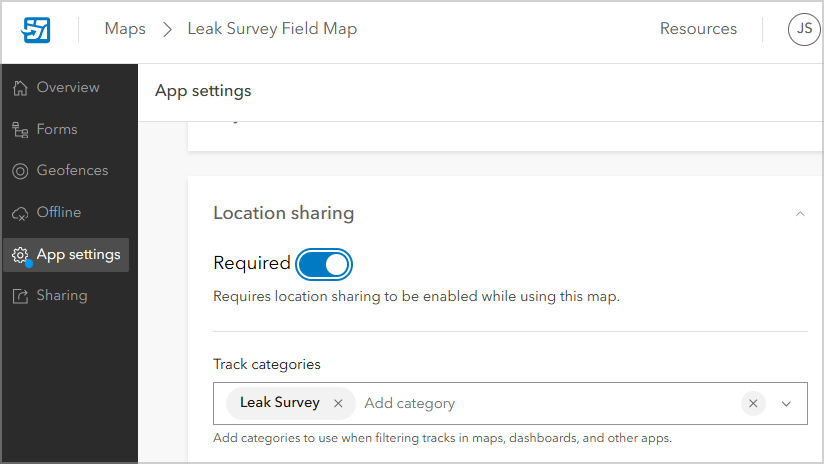
- Click Save.
Automatic location sharing with a geofence
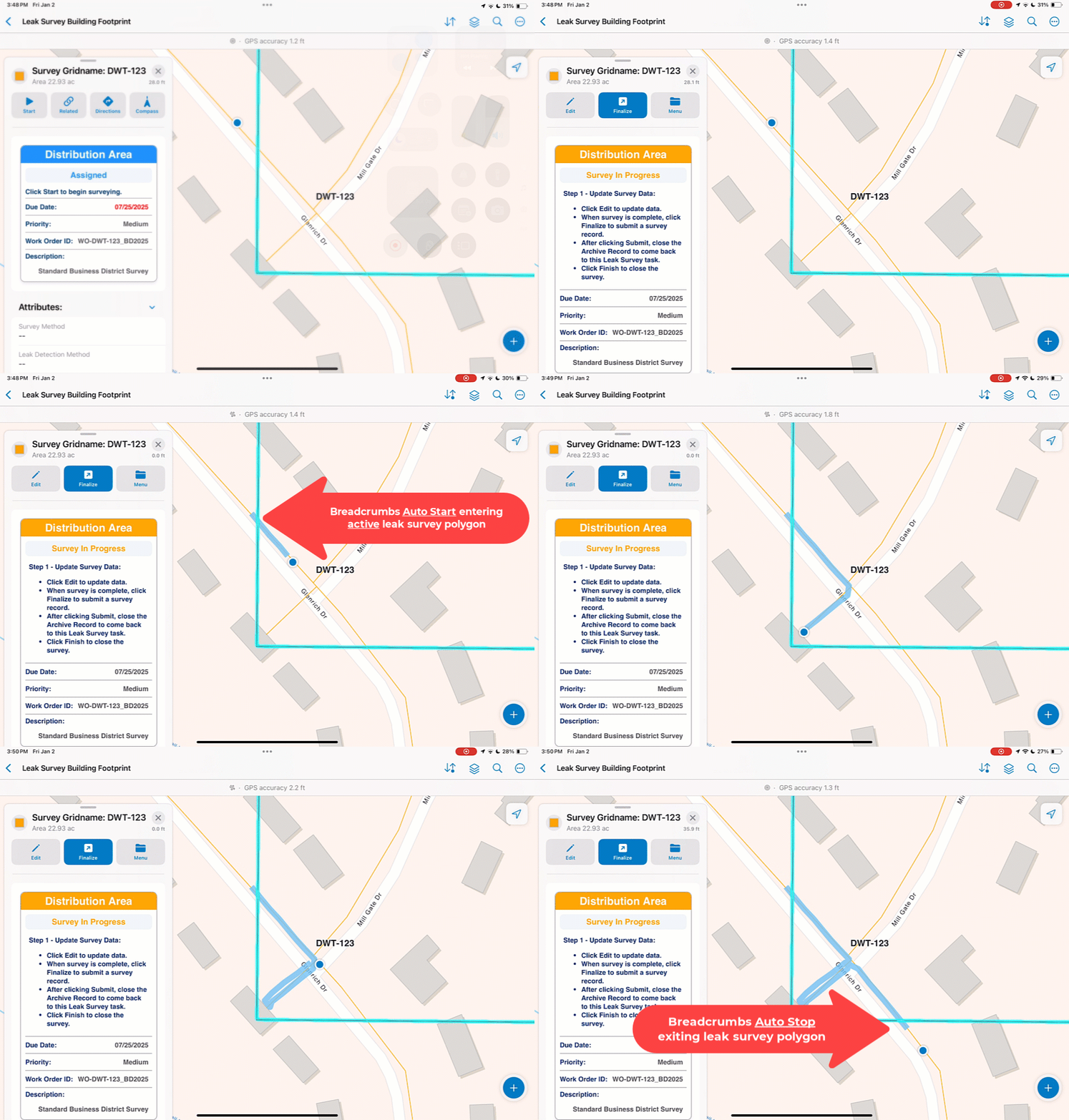
Automatic location sharing with a geofence restricts location collection to a defined area, such as an active (Survey In Progress) leak survey polygon. Surveyors receive a notification when location sharing starts and stops as they enter or exit the geofenced area.
Common use cases
- Organizations that want precise control over where location data is captured, such as within active leak surveys (Survey In Progress).
- Programs that want to minimize unnecessary location collection by limiting tracking to work-specific areas.
Key benefit
- Location history is captured only during work performed in active survey areas, supporting audit readiness with focused documentation.
Configuration steps
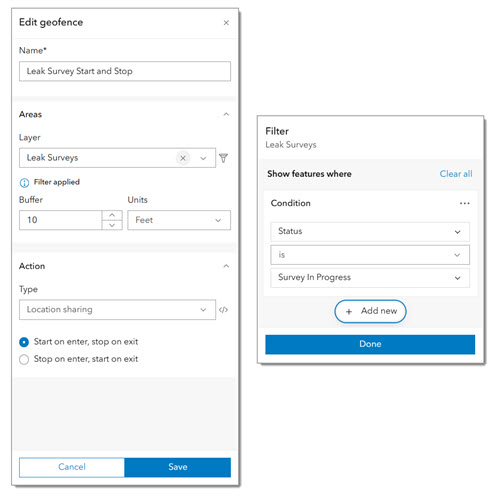
- Open the Leak Survey Field Map in Field Maps Designer and click Geofences.
- Click Add geofence.
- Type a name, choose the Leak Surveys layer, and specify a buffer if necessary.
- Click the Filter button and specify a filter of Status is Survey In Progress
This filter will be used to start location sharing only when a survey is active. For example, walking or driving across the survey area prior to starting work will not capture location data.
- For Type, choose Location sharing, and then select Start on enter, stop on exit.
Putting it all together
When combined with the task-based workflow of the Gas Leak Survey solution, location sharing provides a powerful record of both inspection activity and survey coverage. Supervisors gain visibility into progress, compliance teams gain defensible audit records, and field crews benefit from an automated process that removes the burden of manual documentation.
Location sharing is more than just a breadcrumb trail, and can serve as a foundational component of a modern, auditable leak survey program. By taking the time to configure location sharing correctly, you set up a foundation for more reliable, transparent, and compliant leak survey operations.
Location sharing FAQ
- What licensing do I need to enable location sharing?
To enable location sharing, your organization must first purchase ArcGIS Location Sharing licenses. This license is included in the Mobile Worker user type and is available as an add-on for all other user types. See user types for more information.
- Can I turn on location sharing to automatically track field staff?
No. Field staff are in complete control of when they share their location with others. A map author can make location sharing required to access a specific map, but the field staff still must enable location sharing.
- How does location sharing affect the battery life on a mobile device?
The impact of location sharing in ArcGIS Field Maps is minimal. To help conserve battery life, the app monitors device motion and adjusts GPS usage accordingly. When the device is moving, high-accuracy locations are requested and shared with the app. When the device is stationary, lower-accuracy locations are requested on iOS (generally not requiring the GPS), and location requests are paused on Android.
Note: If you want high-accuracy locations captured regardless of whether the device is moving, you can turn off battery optimization.
- Can I see the locations of other field staff?
Yes. Location sharing views are optional and can be configured by an administrator. When enabled, authorized users can view the locations of other field staff to support coordination and visibility across teams.
- How does ArcGIS Field Maps capture location data?
By default, Field Maps uses the device’s integrated location provider. With an integrated location provider, position is determined from various sources, such as GPS, cellular, or Wi-Fi networks. For higher accuracy, Field Maps can also be connected to an external high accuracy GNSS receiver.
- Does location sharing work when I’m offline?
Yes. After you sign in to ArcGIS Field Maps and start location sharing, locations are collected even when your device has no data connection. Locations are stored locally on the device and uploaded to the location-sharing layer after connectivity is restored.
Looking ahead
In the next article in this series, we’ll look at modifying the Gas Leak Survey schema to better align with your organization’s data model and regulatory requirements. This includes extending fields, adjusting domains, and supporting additional compliance attributes.


Article Discussion: