ArcGIS StoryMaps, the dynamic storytelling tool you know and love, includes briefings as a way to present apps, maps, media, and text through interactive slides. As we continue to add new features to briefings, we’ve found that even small details, like footers in briefing slides, can have a practical impact. First introduced in the January 2026 release, a briefing footer adds meaningful details that, when used with intention, provide audiences and internal teams with valuable context.
To get the most out of this subtle feature, we’re highlighting five practical ways to use a footer in your next ArcGIS StoryMaps briefing.
1. Provide contact information and a resource link to your webpage
If you’re presenting to an audience who may need to contact you later, provide a way for them to do so. Adding contact details to your footer, such as an email address or phone number, provides audiences with a direct line of contact. Rather than waiting until your last slide, providing contact details in a footer can reach people who might leave the presentation early. And if you plan on sharing your briefing digitally, consider adding a link in the footer to your web resources, such as your website or social media accounts.
- Organization name / Contact us: info@emailaddress.com
- Organization name / Follow us: @SocialMediaHandle

2. Include status and date for version control
Adding a date or version number to your footer can help internal teams quickly identify the most current briefing. For example, including the date the briefing was last updated would let others know if it is still relevant. Similarly, including a version number, such as Version 1.0, or Version 1.2, can quickly provide collaborators with the correct briefing.
If versioning isn’t your team’s preferred status designation, consider alternatives, such as In Progress, In Review, or Approved.
- Version 1.2 | Last updated on 06/01/2026
- Under Review | Last Updated: 06/01/2026

3. Specify handling language
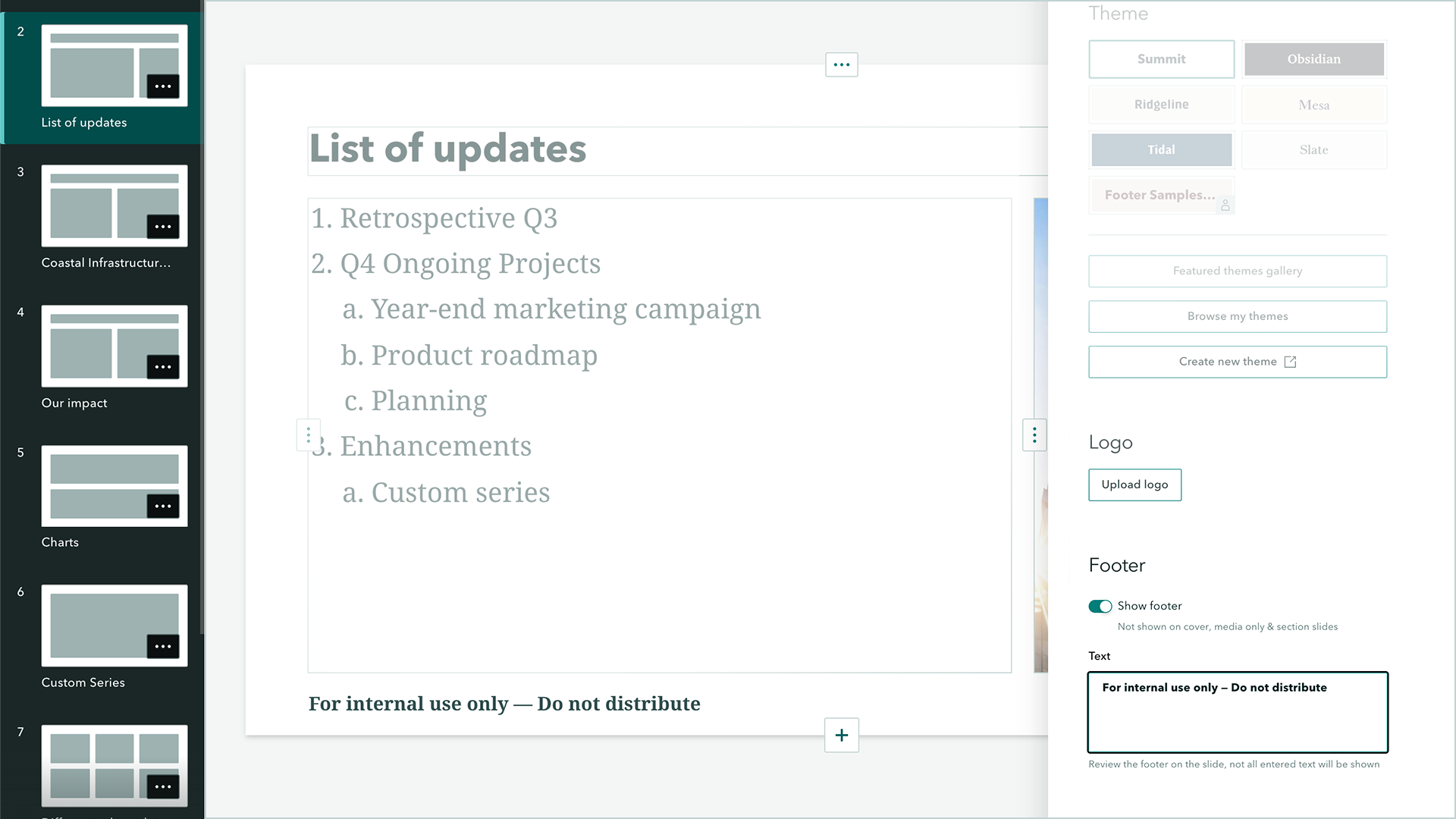
It’s not always clear how a briefing is to be used, whether that’s with internal teams or external distribution. Specifying how a briefing should be handled in a footer can be an easy way for presenters to know the appropriate level of sharing. For example, using language such as For internal use only or Not for external distribution lets presenters know this briefing is designated for internal audiences only. If a briefing is intended only as a conversational aid within your team, using terms such as For discussion purposes only can help set expectations.
It’s important to note that a footer is not intended for sensitive or classified designations. To officially classify content, such as marking it Confidential, refer to this article on how to setup item classification in ArcGIS Enterprise.
- For internal use only / Do not share with external audiences
- For discussion purposes only

4. Instill brand recognition
A quick and surefire way to reinforce your brand in a briefing is to add your organization’s name and tagline in a footer. It not only provides brand recognition but also helps reiterate the brand’s identity and mission across almost every slide. Additionally, your organization’s logo can be uploaded and displayed within the footer for further visual recognition.
- Organization name | Mission-driven tagline
- [Logo] | Visit our website

5. Include copyright information or legal disclaimers
Legal information, like copyright and trademark notices, can establish the proper owners of online content. Briefings are no exception; while a copyright notice alone does not legally protect your briefing from infringement, it can notify audiences that your content is not public domain. Additionally, consider adding disclaimers that inform audiences of proprietary ownership or information accuracy within your briefing.
- 2026 Organization name. All Rights Reserved.
- This briefing contains proprietary information. Do not modify.

Mix it up
If you’re struggling with the best way to use your briefing footer, try mixing it up! For example, you might combine handling language with the last updated date in a footer. Or include the briefing version number with the person responsible for managing it.
Below are just a few examples to mix up your briefing footer, but the pairings are endless, so be sure to try out your own!
- For internal use only | Under-Review | Last modified on 06/01/2026
- Version 1.2 | This briefing is managed by Dept. Manager
- 2026 Organization name. [Tagline]. Contact Us: info@email.com
How to enable a footer in your briefing
First things first, to enable the footer in your briefing you’ll need to expand the Design panel, scroll to the Footer section, and toggle on ‘Show footer’. This will reveal a text area where a footer can be added. You’ll find familiar text styling options such as Bold, Underline, and Italics, along with the ability to add URL links. Additionally, you can choose to upload and show a logo within the footer area.
Adding a footer is a great way to provide audiences with meaningful metadata. When used intentionally in your ArcGIS StoryMaps briefings, you can ensure audiences have all the meaningful details they need. We hope you try some of these practical examples in your own briefings, as well as experiment with new combinations!



Article Discussion: