Sometimes seeing a place from a different perspective changes what you notice.
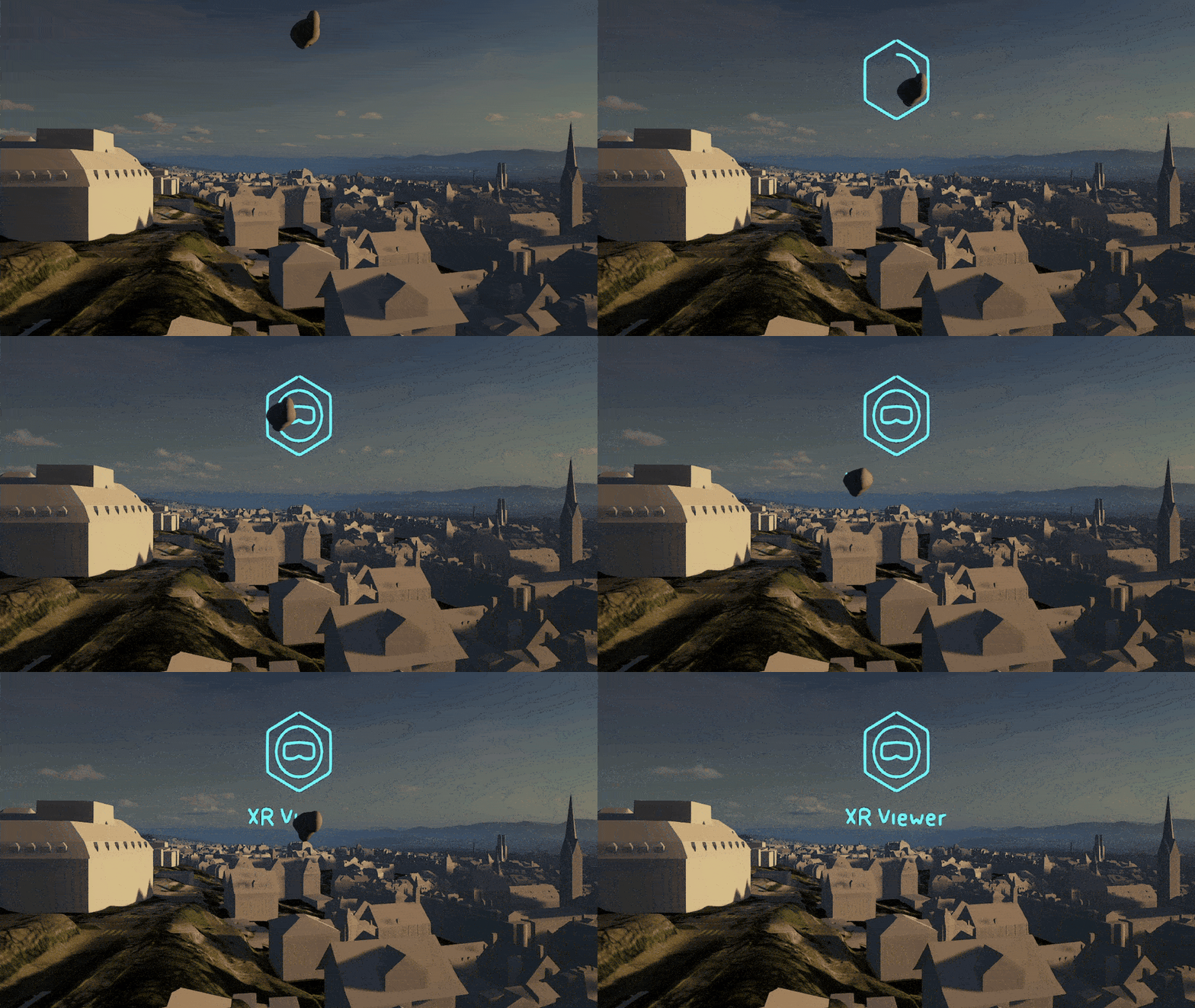
With XR Viewer, your 3D web scenes become immersive experiences, instantly explorable with a VR headset or on desktop. Your data becomes not only something you can visualize, but a place you can explore, giving you a sense of what it’s like to actually be there.
The latest updates bring even more ways to interact with those experiences. Use an AI assistant designed to listen and respond as you explore, break down building layers to understand BIM in the context of its surroundings, and sketch ideas in 3D when inspiration strikes.
And, with initial support for Gaussian splats, you can get an even richer sense of what a real-world location looks and feels like.
There’s a lot to explore. Let’s take a closer look!
XR Viewer assistant (beta)
The new XR Viewer assistant (beta) lets you interact with XR Viewer using voice commands. You can ask it to change the daylight and weather, show or hide layers, or manage presentation slides. The assistant uses information about the current item to understand the context of your requests. It responds through speech and provides visual feedback while processing your request.
For details on how to set up and use the XR Viewer assistant (beta), sign in to the Early Adopter Community and refer to the support article.
Building explorer
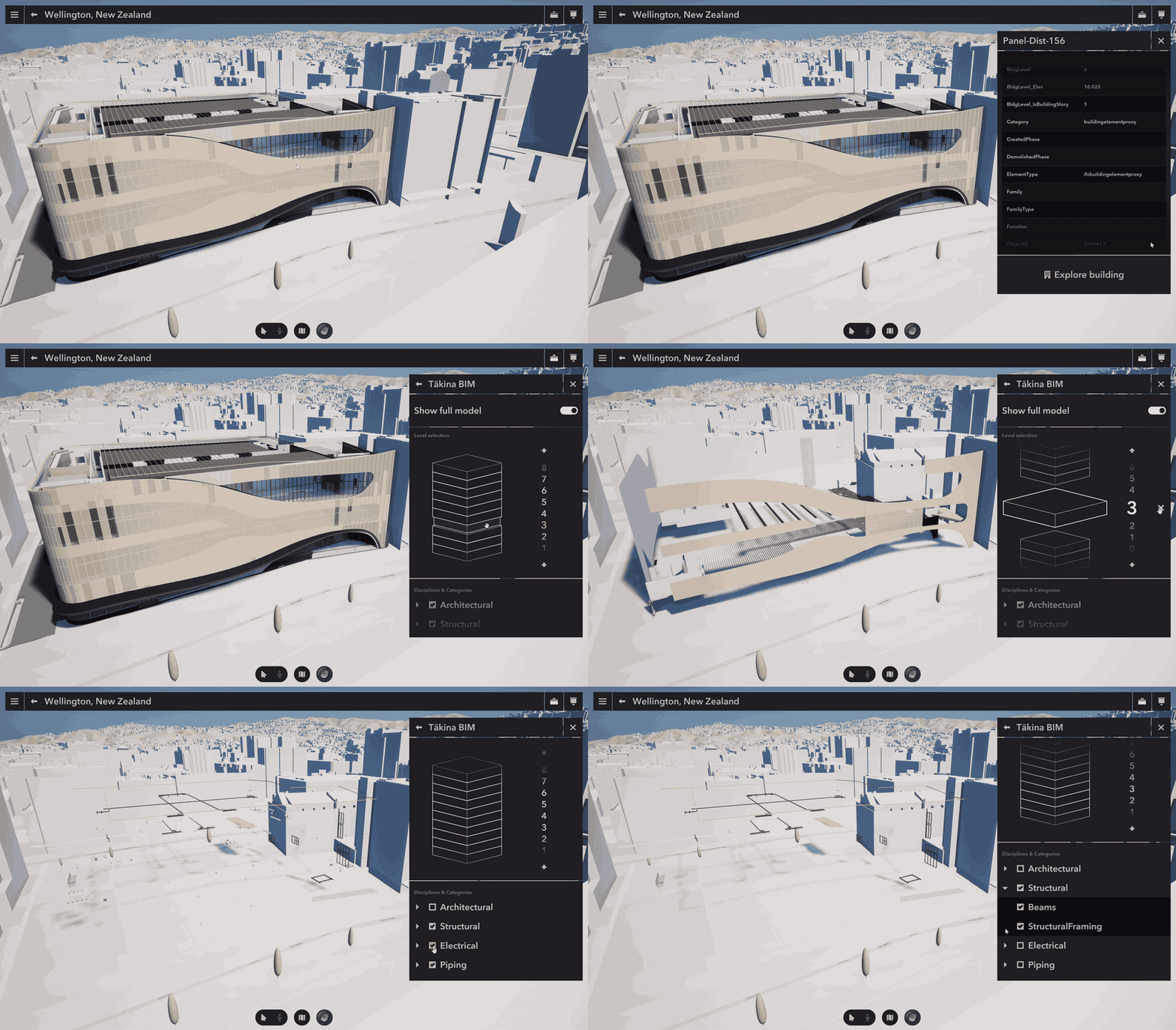
The building explorer provides new ways to explore 3D building layers directly in XR Viewer. You can select individual levels, switch construction phases, apply predefined filters, and control the visibility of disciplines and categories.
The tool is accessible from the toolbox. Selecting a building element displays its attributes and highlights the selected object, making it easier to inspect individual components within a complex model. Building sublayer visibility can also be stored in presentation slides.
Sketch tool
The new sketch tool lets you draw directly in 3D using your VR controllers. You can use the tool in virtual tabletop or on-site view to communicate ideas or draw attention to areas of interest while collaborating with other participants.
Drawings are organized into sketches that you can edit, hide, or delete. Trigger pressure controls stroke thickness, and the eraser removes individual strokes. Finished sketches are synchronized with other participants in a group meetup, including users who join later.
Note: A VR setup is required to create and edit sketches. Desktop users in a group meetup can view sketches, change their visibility, and delete them. In this release, sketches are temporary and cannot be saved to the XR experience item.
Layer support and enhancements
This release introduces support for Gaussian splat layers and 3D point layers. It also improves the existing support for point feature layers.
Gaussian splat layers
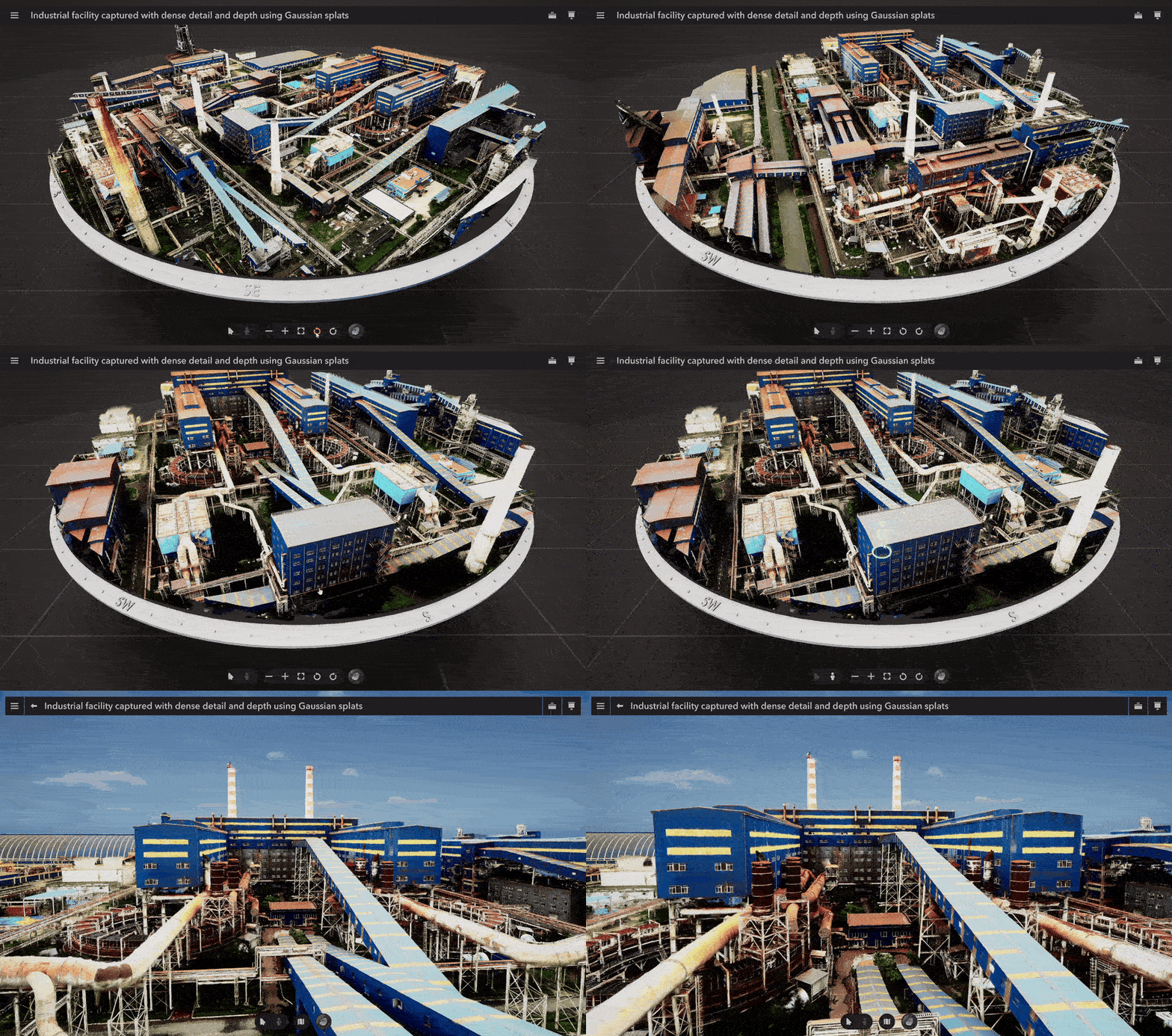
You can now explore Gaussian splat layers in XR Viewer, bringing a frequently requested type of captured 3D content into your experiences.
Note: This release provides initial support, with limited functionality and known visual and performance limitations. Further improvements are planned for future releases.
3D point layers
XR Viewer now supports 3D point layers, including 3D models, primitive markers, and 2D marker symbols configured on the service. This enables additional content, such as tree layers, to be displayed in your experiences.
Web scene renderer overrides, labels, and pop-ups for these layers are not yet supported.
Point feature layer improvements
Existing point feature layer support has been extended with additional label placements, international characters, callout colors, and visibility settings for markers and labels behind objects. Unsupported symbology now uses fallback markers rather than leaving the data invisible.
We also corrected elevation handling and several issues affecting labels and markers when content is reloaded or viewed in VR.
Additional updates
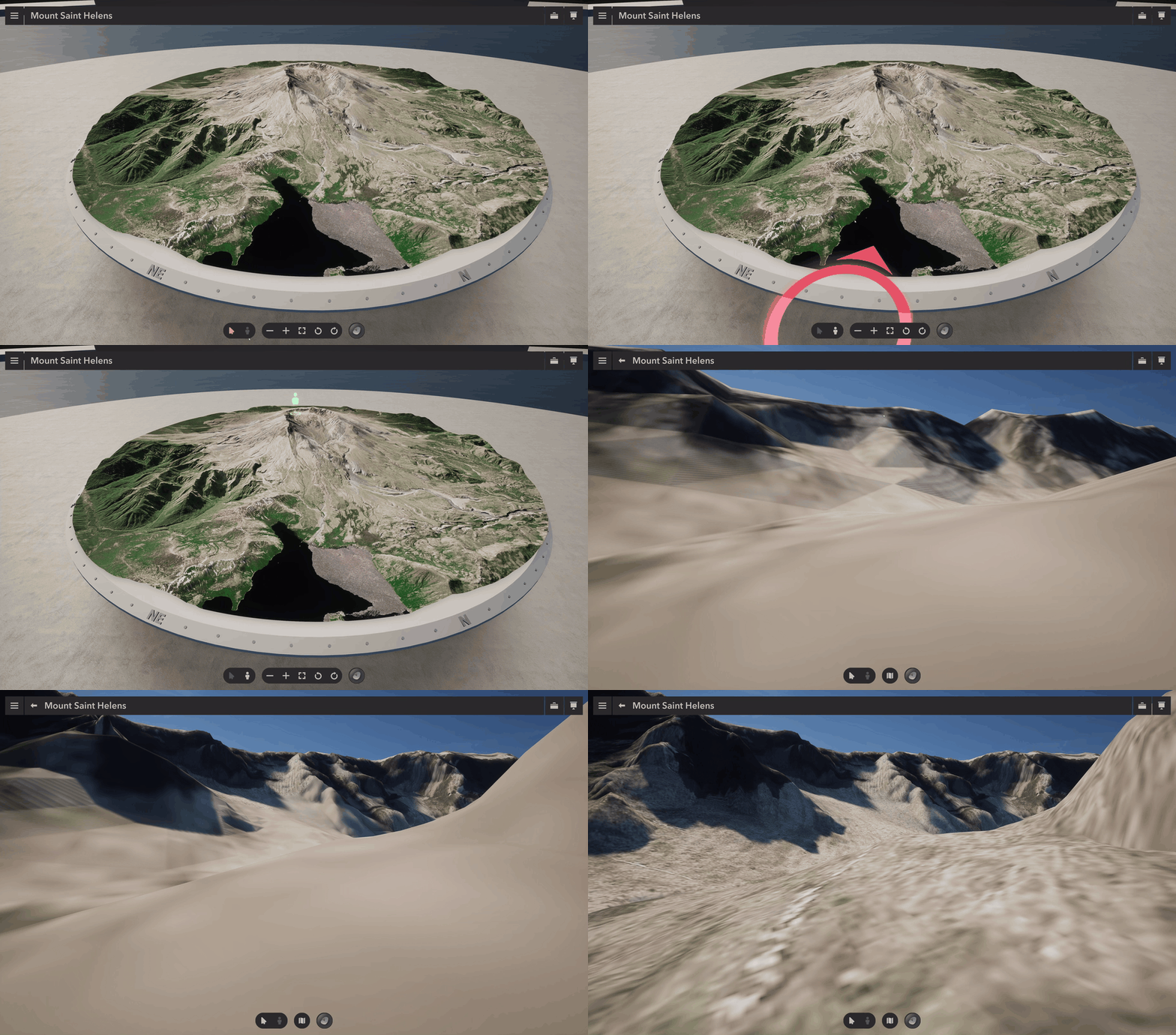
Terrain-aware teleportation
On-site teleportation now accounts for terrain updates as more detailed elevation data loads, reducing cases where users end up below the ground.
Weather and daylight tools
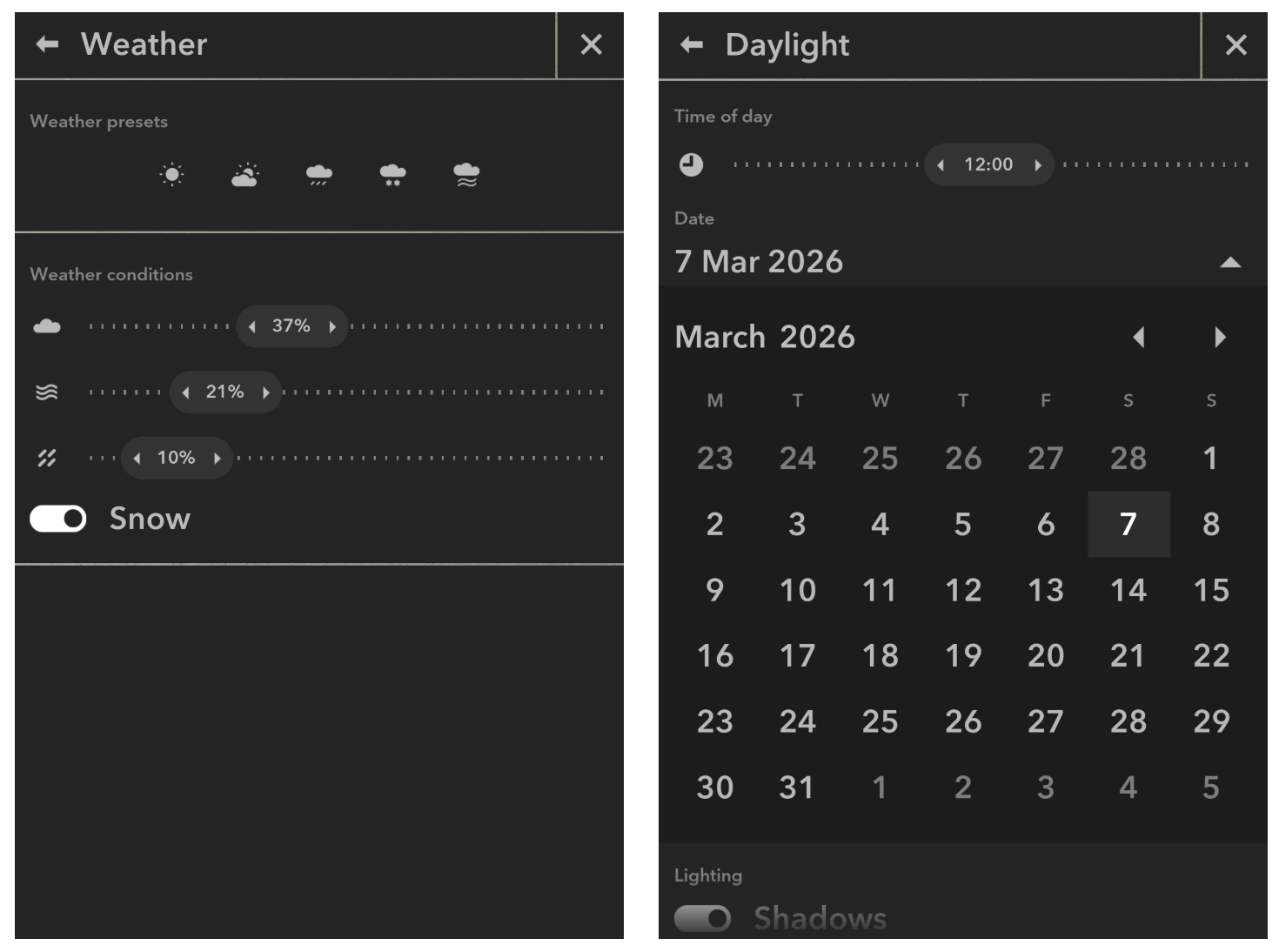
Weather and daylight now have separate tools with updated interfaces. The daylight tool includes a date picker and shadow controls, while snow can be enabled independently of the selected date.
XR Viewer also reads weather settings from web scenes and their slides for a more consistent starting point. Mesh layers now respond to changes in lighting, including daylight, rather than remaining uniformly bright in dark environments.
Audio controls
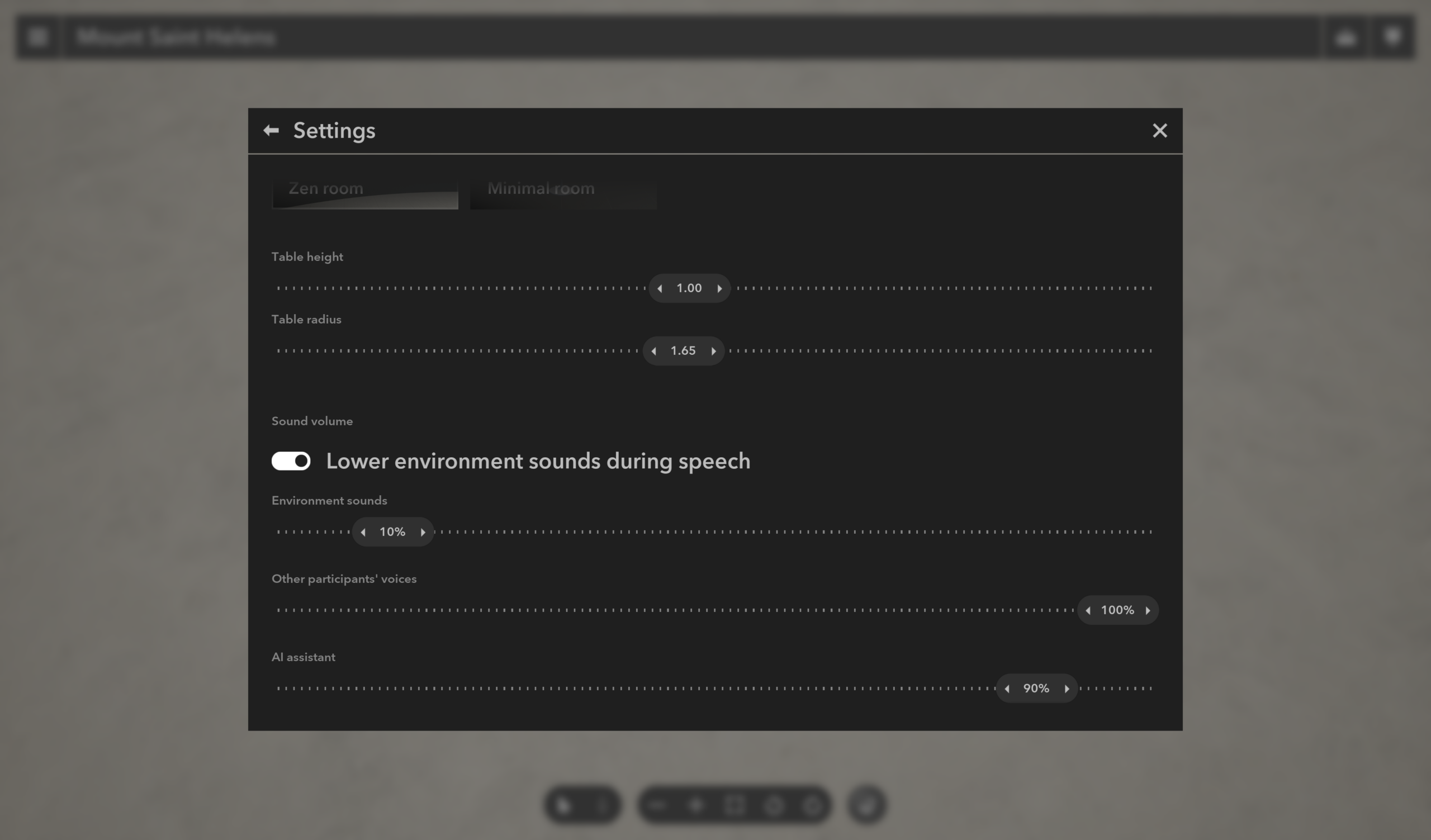
Separate volume controls are now available for weather, the assistant, and participant voices. Weather audio can automatically become quieter during assistant interaction.
Presentation editing
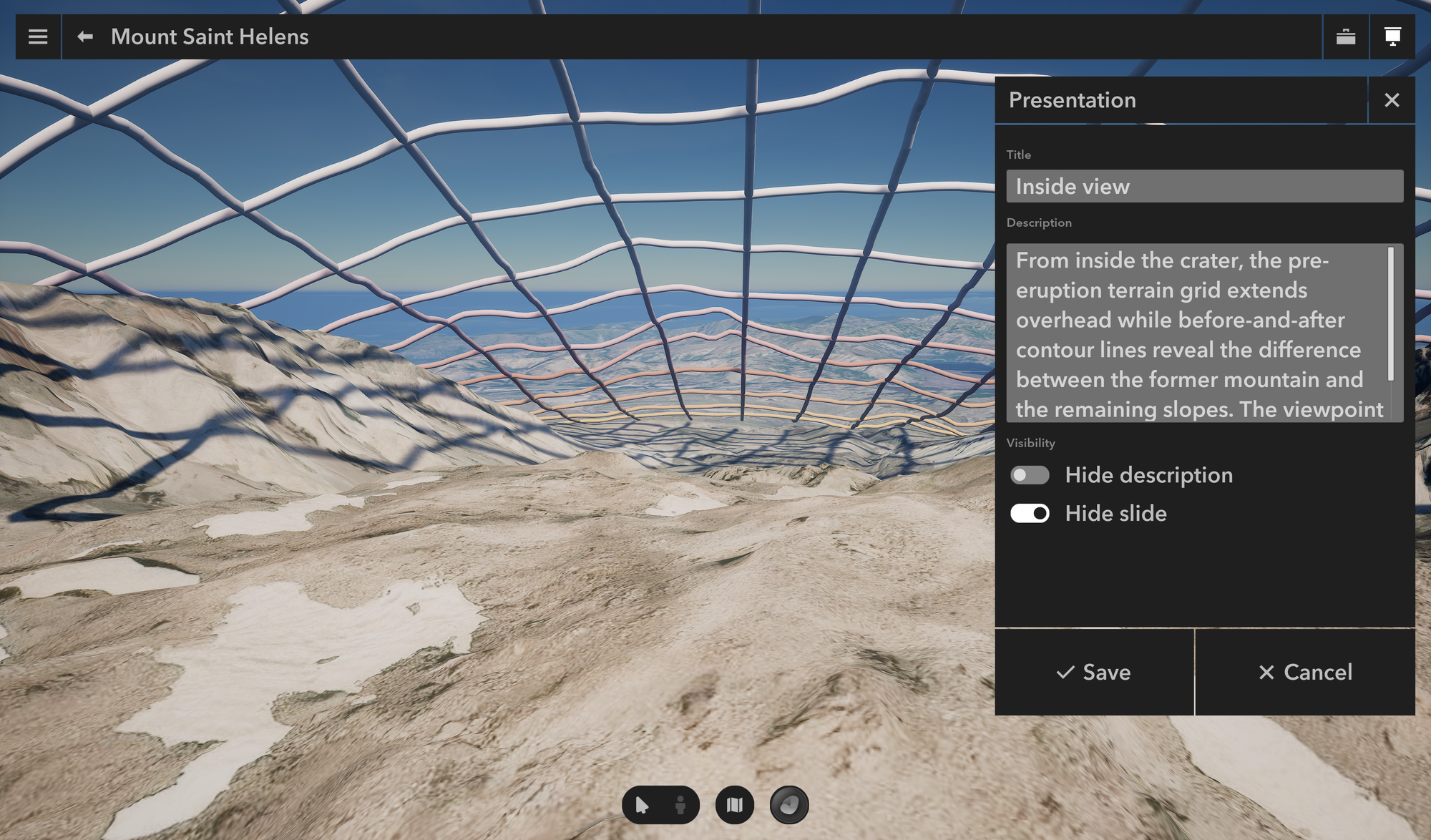
Slide titles and descriptions can now be edited directly in XR Viewer. Hidden slides are clearly identified in the presentation panel and excluded from playback, with their visibility settings preserved when saving an XR experience.




Article Discussion: