AI, or artificial intelligence, is a hot topic right now. But what exactly is it, and why should you care? AI is a big field with several subsets including machine learning and natural language processing (NLP). Machine learning involves advanced math, statistics, data processing, model training, and model optimization. NLP utilizes machine learning algorithms to perform tasks that pertain to human language. One such task is semantic search (more on that later). AI is revolutionizing the way users interact with their data, allowing for more efficient exploration and deeper analysis.
The ability to use AI-enhanced tools was added in ArcGIS Pro 3.3. This experience is entirely optional, and the user must opt-in during installation. This article provides an overview of semantic search and illustrates its application within Business Analyst Pro.
What is semantic search?
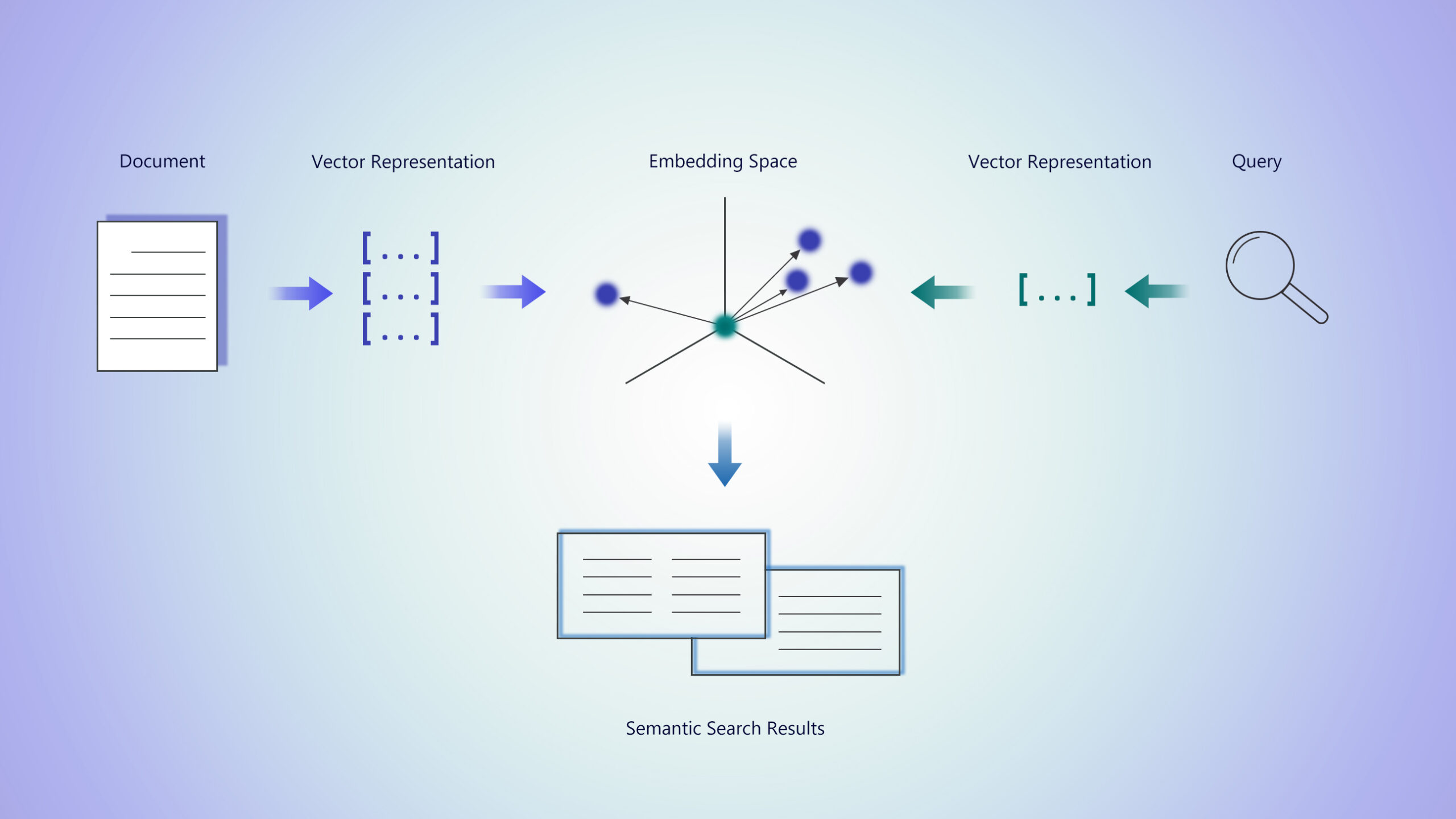
Traditionally, search engines utilize keyword search. A keyword search matches exact or partial words that the user queries. Semantic search uses natural language processing to return results based on context and meaning.
Without diving too much into the technical aspects of semantic search and visiting the Ghost of Linear Algebra Class Past™, the main idea with semantic search is that words and phrases are encoded as n-dimensional vectors. Context and meaning can be derived based on where those vectors exist in n-dimensional space. Using cosine similarity, we can see how closely related these vectors are, which helps us understand how similar, or dissimilar, the meanings of the words and phrases are. Mind-bending stuff—if you like math. And if you don’t, well, mind-numbing then?
ANYWAY. The end result is cool and that’s what matters! This fancy math allows us to generate meaningful and context-driven search results that are closer to human language. We’ve implemented this optional functionality in Business Analyst Pro so that searches for variables and points of interest aren’t limited to keywords. Semantic search provides a larger scope of results. With keyword search only, a variable query for climate change yields only results that have the keyword climate change in the variable name. Searching for climate changes yields zero results. Adding an s limited results drastically. With semantic search enabled, not only are the keyword search results returned, but so are variables that are related to climate change. Now we see results that include psychographics pertaining to the environment. Searching for climate chang or climate changes also yields relevant results. This is where semantic search outshines keyword search.
Using semantic search with Business Analyst Pro workflows and tools
With the introduction of AI-enhanced tools in ArcGIS Pro, semantic search functionality has been added to Business Analyst Pro. It enhances variable search in the data browser and helps users find related points of interest in both the points of interest search workflow and the Generate Points From Business Listings tool.
Getting started with semantic search in Business Analyst Pro
After installing ArcGIS Pro 3.3 or later with the optional semantic search feature, the local datasets need to be configured with the resources necessary for semantic search functionality. Currently, this functionality works with the 2024 and 2025 U.S. datasets and the 2024 Canada dataset.
Here’s a quick rundown:
- Install ArcGIS Pro 3.3 (or later) with the Semantic Search feature selected.
- Download the dataset and the associated semantic search resources from My Esri.
- Unzip the files.
The less-quick rundown is in the setup instructions for the specific dataset:
The important piece of this is that the folder called Resources needs to be in the root of the dataset folder.
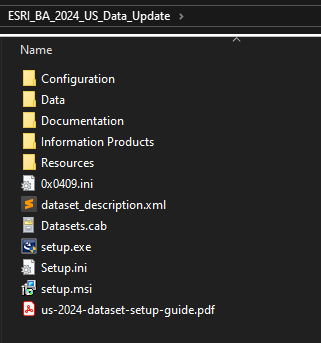
Tip: If you already have ArcGIS Pro 3.3 (or later) installed but didn’t select the Semantic Search feature at installation, you can modify the installation. In Windows 11, navigate to Apps and Features. Find ArcGIS Pro in the listed applications. From the app’s menu, select ‘Modify’ to open ArcGIS Pro Setup. On this screen, select the radio button for ‘Modify’ and click ‘Next’. The following setup screen will allow you to select the Semantic Search feature. Click ‘Next’ to proceed with installation.
After installing ArcGISPro 3.3 or later and setting up your data with the Resources folder, open ArcGIS Pro. Navigate to Settings > Options > Business Analyst. Click the Delete Cache box. Click OK. Semantic search is now ready to use with local data.
Semantic search works with online data sources, too. All that is required is selecting the optional Semantic Search feature during installation of ArcGIS Pro.
Now you’re ready to rock n’ roll.
Using semantic search in the data browser
Once enabled, semantic search will enhance your ability to discover variables that are contextually related to your queries, making your data exploration more efficient.
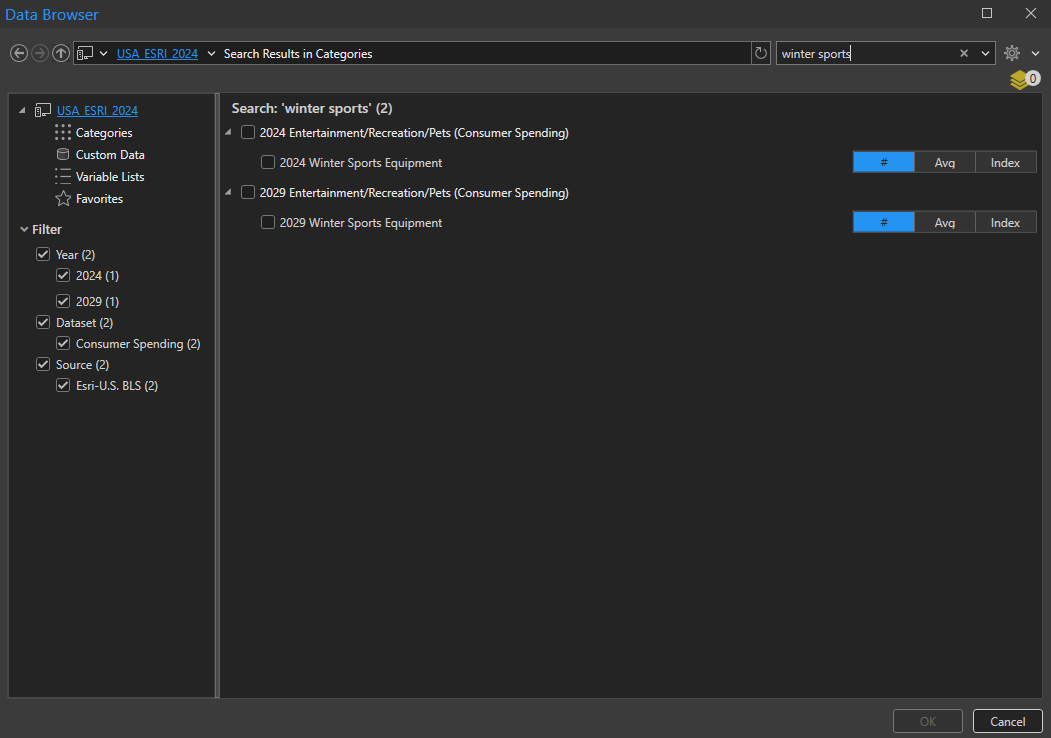
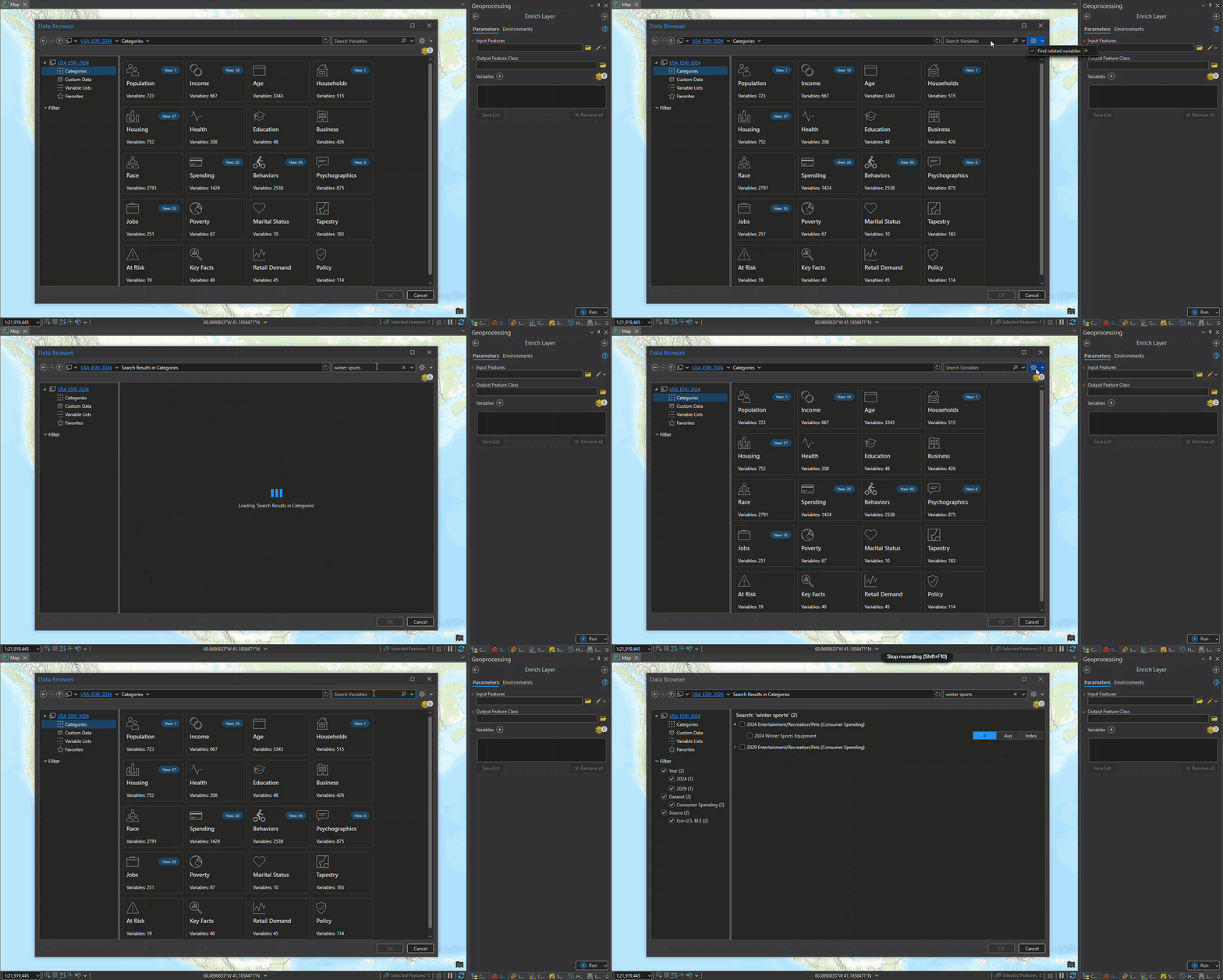
In the example below, “winter sports” is the search query and semantic search is disabled.
When semantic search is enabled, results related to “winter sports” are returned.
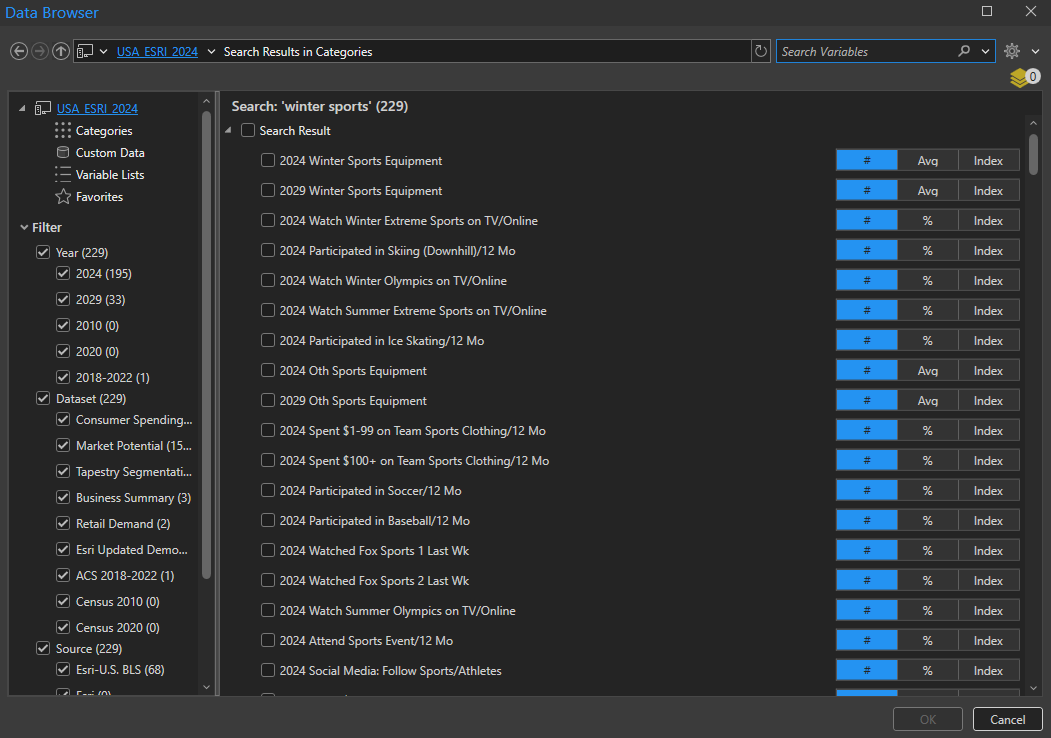
To enable and use semantic search in the data browser, follow these steps:
1. Open the data browser: Launch the data browser from any Business Analyst tool that includes data variable parameters. For a full list of workflows that use the data browser, see Use the data browser.
2. Enter a search term: In the Search Variables field, input your query.
3. Access search settings: Click on Settings (the gear icon) next to the search bar.
4. Enable semantic search: In the drop-down menu, check the option labeled “Find related variables.”
5. Press Enter: To complete the semantic search of your query, press enter.
Using semantic search in the points of interest search workflow
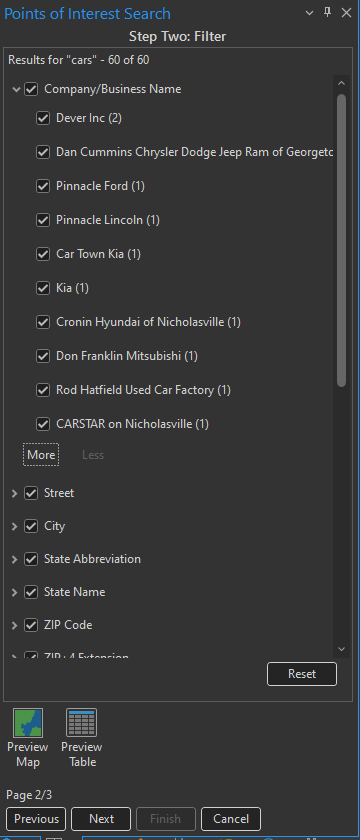
When enabled, semantic search returns points of interest results that are semantically related to the search term.
In this example, we’re searching for “cars” in Lexington, KY. When “Find related POI” is unchecked, there are only 60 results. These results are for points of interest that have “car” in the name or code.
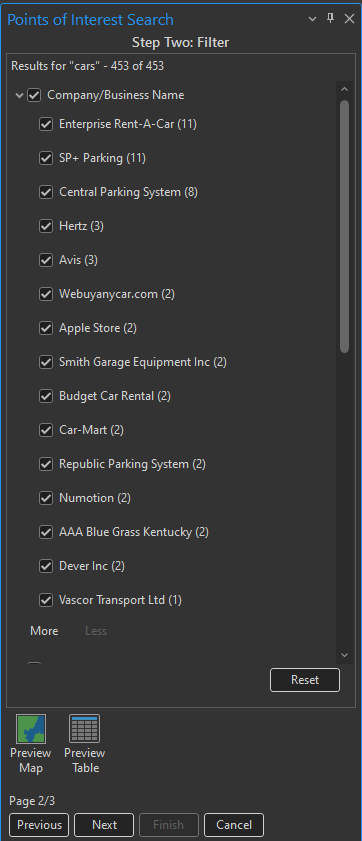
When the Find Related POI option is selected, 453 results are returned. These results are related to “cars”.
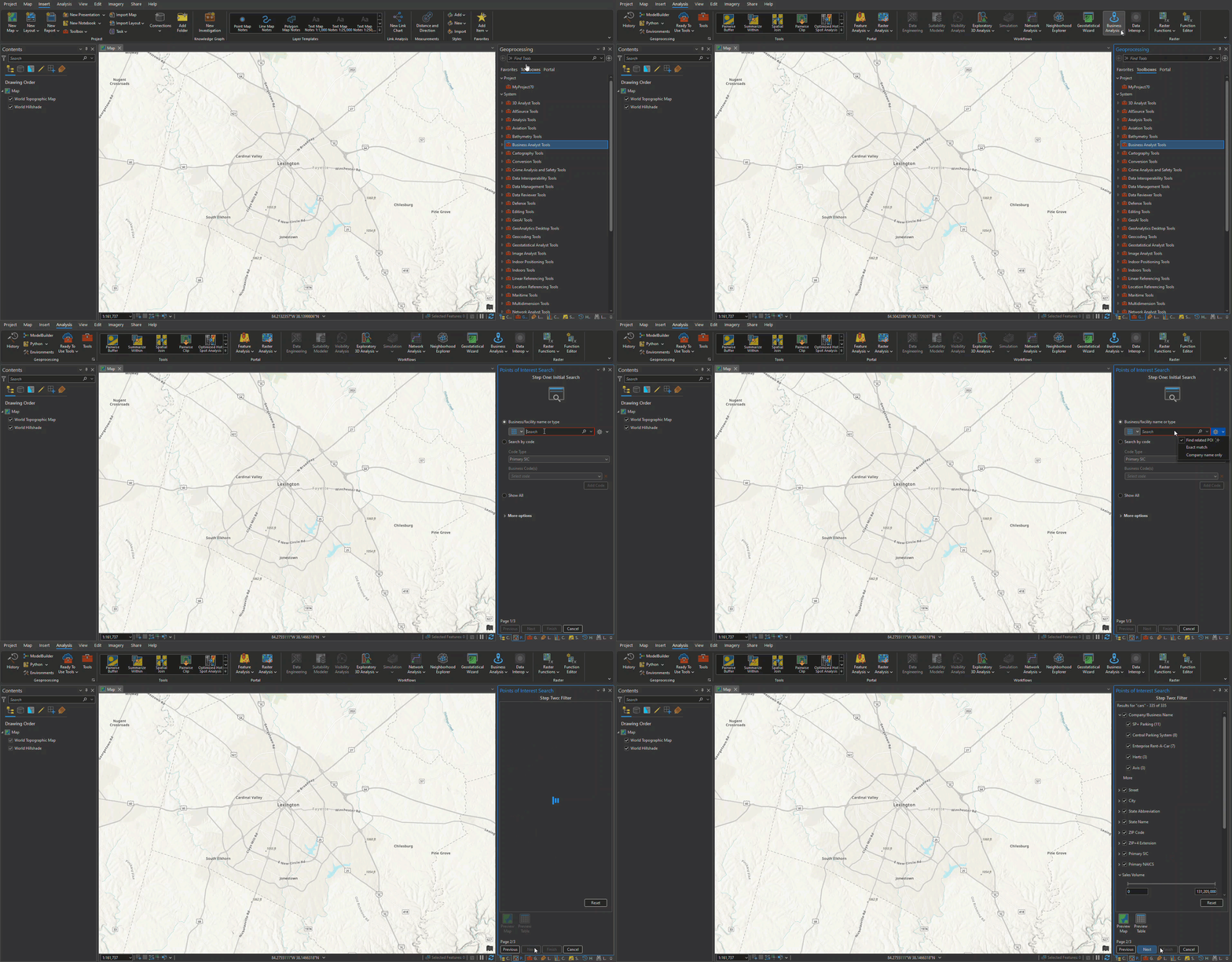
To enable and use semantic search in the points of interest search workflow, follow these steps:
1. Open the workflow: Navigate to the Business Analysis gallery in the Analysis tab and select the Points of Interest Search workflow.
2. Enter a search term: In the Business/Facility Name or Type search bar, input your query.
3. Access options: Click Settings (the gear icon) next to the search bar.
4. Enable semantic search: Select Find related POI to enable semantic search, which will return a broader range of results related to your search term.
5. Complete the search: Click Next to complete the semantic search of your query.
Using semantic search in the Generate Points From Business Listings tool
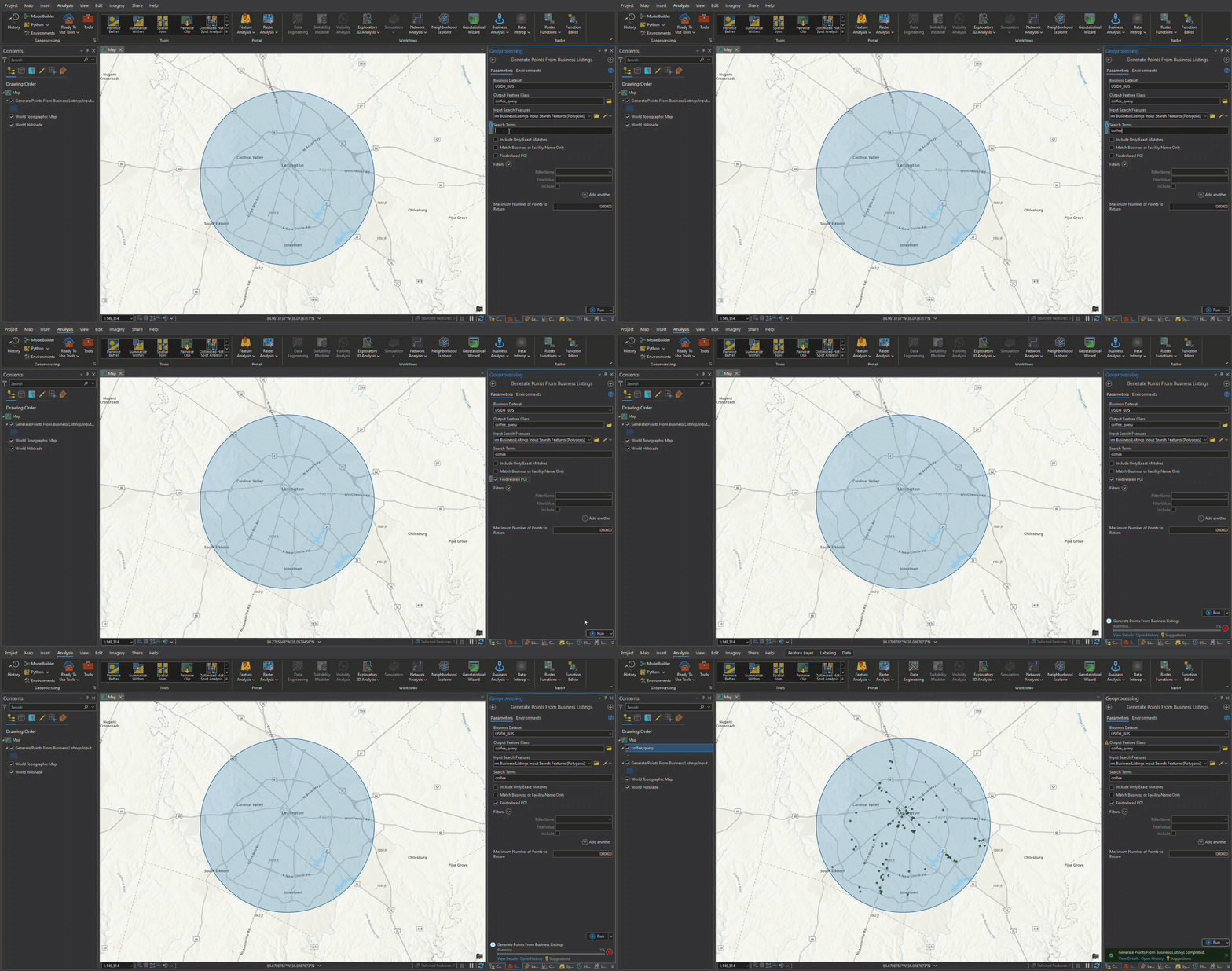
When enabled, the output feature class will contain points for businesses semantically related to your search query. This works in a similar way to the points of interest search workflow. When the Find related POI option is unchecked, only businesses with the search query in the name or code will be returned. Enabling semantic search yields more results.
To enable and use semantic search in the Generate Points From Business Listings tool, follow these steps:
1. Open the tool: Open the Generate Points From Business Listings tool in the Business Analyst toolbox.
2. Input required parameters: Specify the Business Dataset, Output Feature Class, and Input Search Features parameters.
3. Enter a search term: Input the search term and check the Find related POI option.
4. Run the tool: Click the Run button to execute the tool.
The integration of semantic search capabilities in Business Analyst Pro marks a significant advancement in how users can search for data. By leveraging AI, semantic search transforms traditional keyword-based queries into a more intuitive and context-aware experience. This not only enhances the efficiency of data exploration, but also empowers users to uncover insights that may have been overlooked with conventional search methods. As you embark on your journey with these new tools in Business Analyst Pro, you’ll find that the ability to discover related variables and points of interest will greatly enrich your analytical capabilities. Embrace the power of semantic search and unlock the full potential of your data!


Article Discussion: