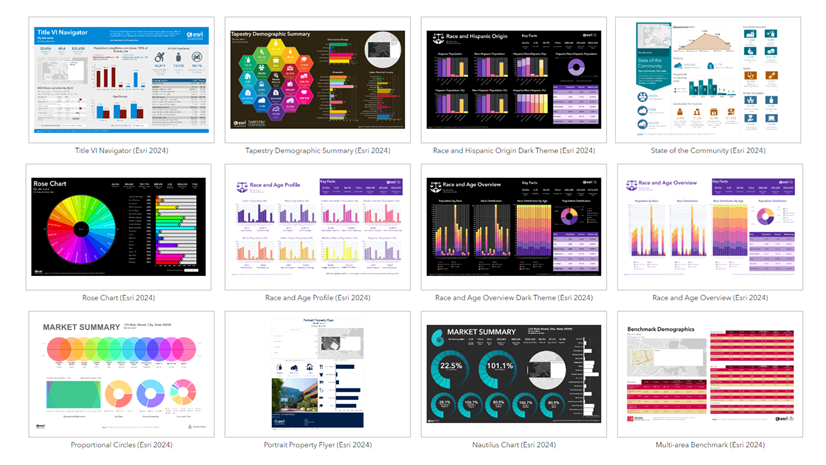
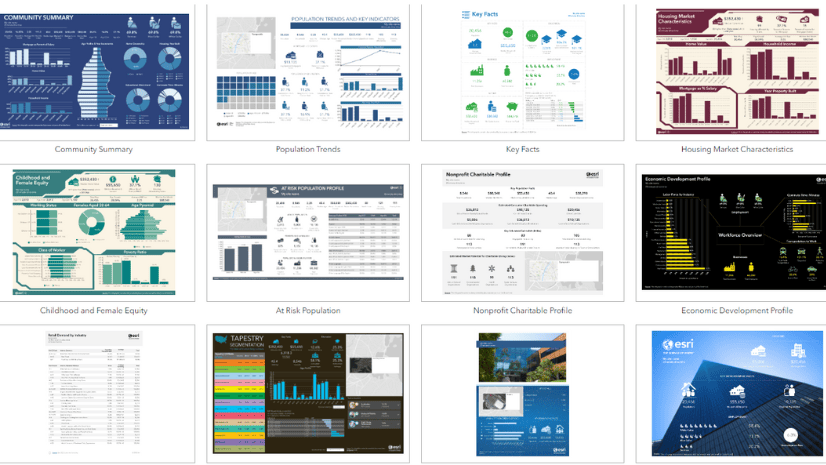
Business Analyst infographics visualize key indicators and information using charts, tables, images, and text. Infographics can be created from a set of ready-to-use templates, or you can build your own templates to create custom data visualizations.
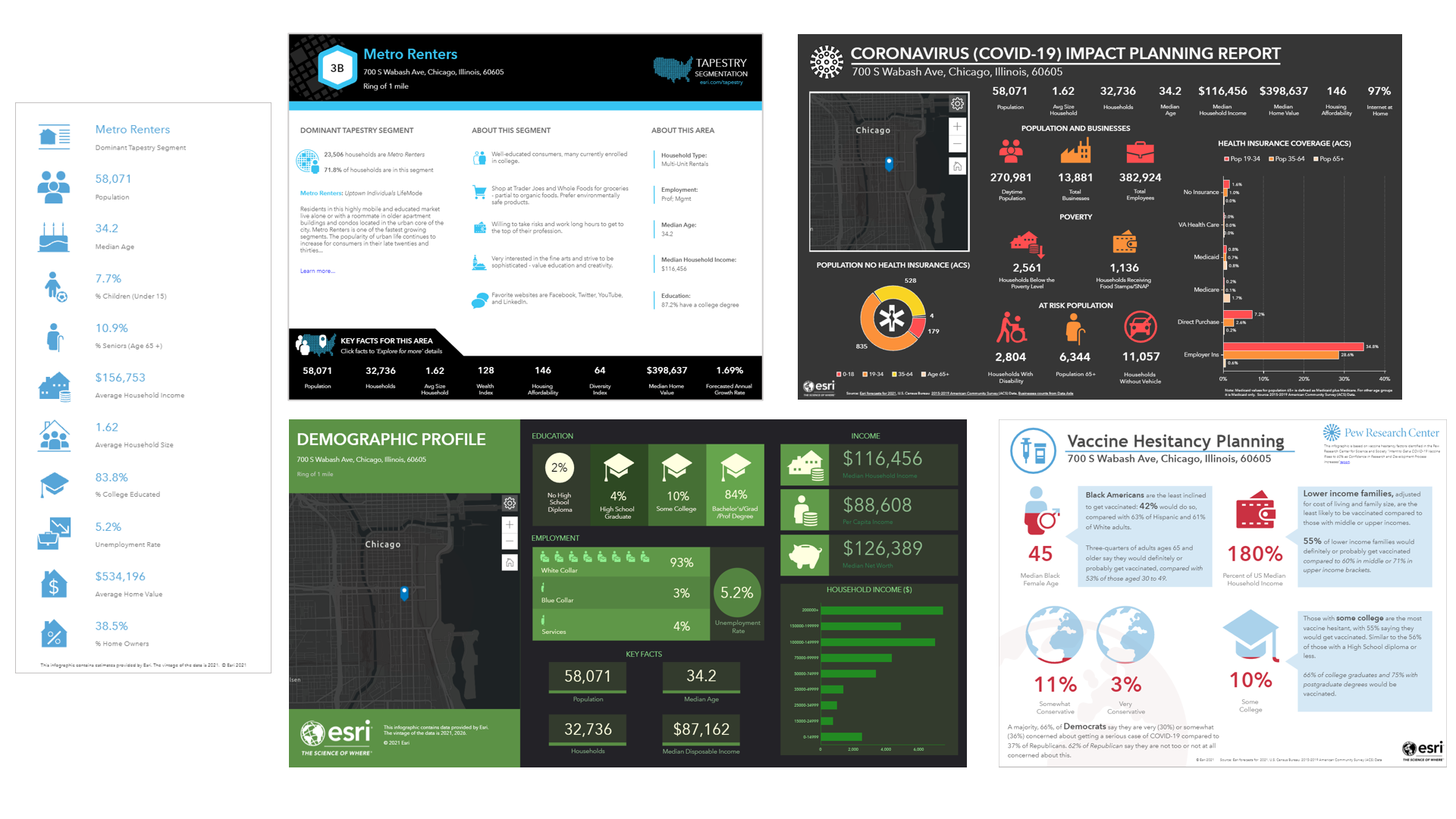
The infographic builder in Business Analyst allows you to style all infographic components to make them more engaging and dynamic. In this blog article, you’ll walk through an example of infographic design with Joe, a real estate agent.
Meet Joe
Joe regularly uses the ArcGIS Business Analyst Web App for locating his listings and analyzing the demographics around the properties, along with business, lifestyle, spending, and Census data. Using the map-based analytics in Business Analyst Web App, he determines the proper audience for each of his listings. One of Joe’s main workflows is running reports or infographics to get a basic overview of the location.
He feels that if the infographic report is designed his way, he’ll have a better understanding of the data. He was thinking of modifying an existing template, but was hesitant to do so, since he’s quite comfortable running the pre-made reports that come with the web app. But then, after giving it more thought, he decided to explore the options for editing his favorite infographic, Quick Facts.
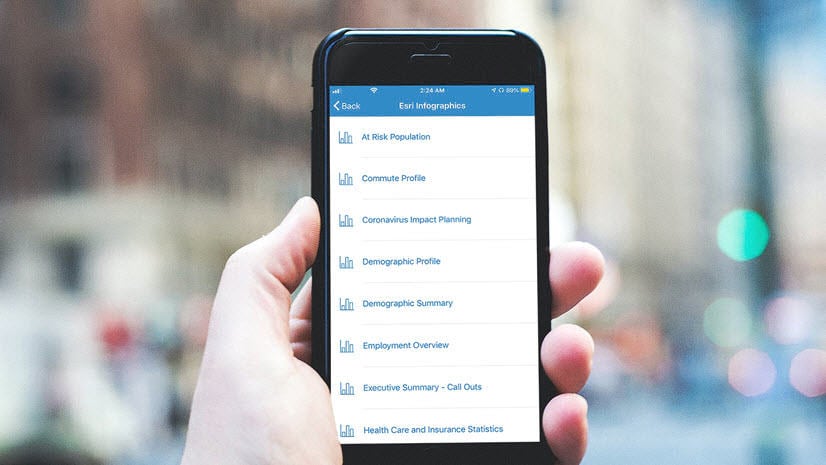
Joe found the Quick Facts infographic template in the Gallery. He’s decided that he is going to modify it according to his preferences. An added bonus? He’ll be able to access his custom infographic on-the-go when he’s showing his listings by using Business Analyst Mobile App.
Customize an infographic template
Joe hovers over the Quick Facts infographic and clicks Open.
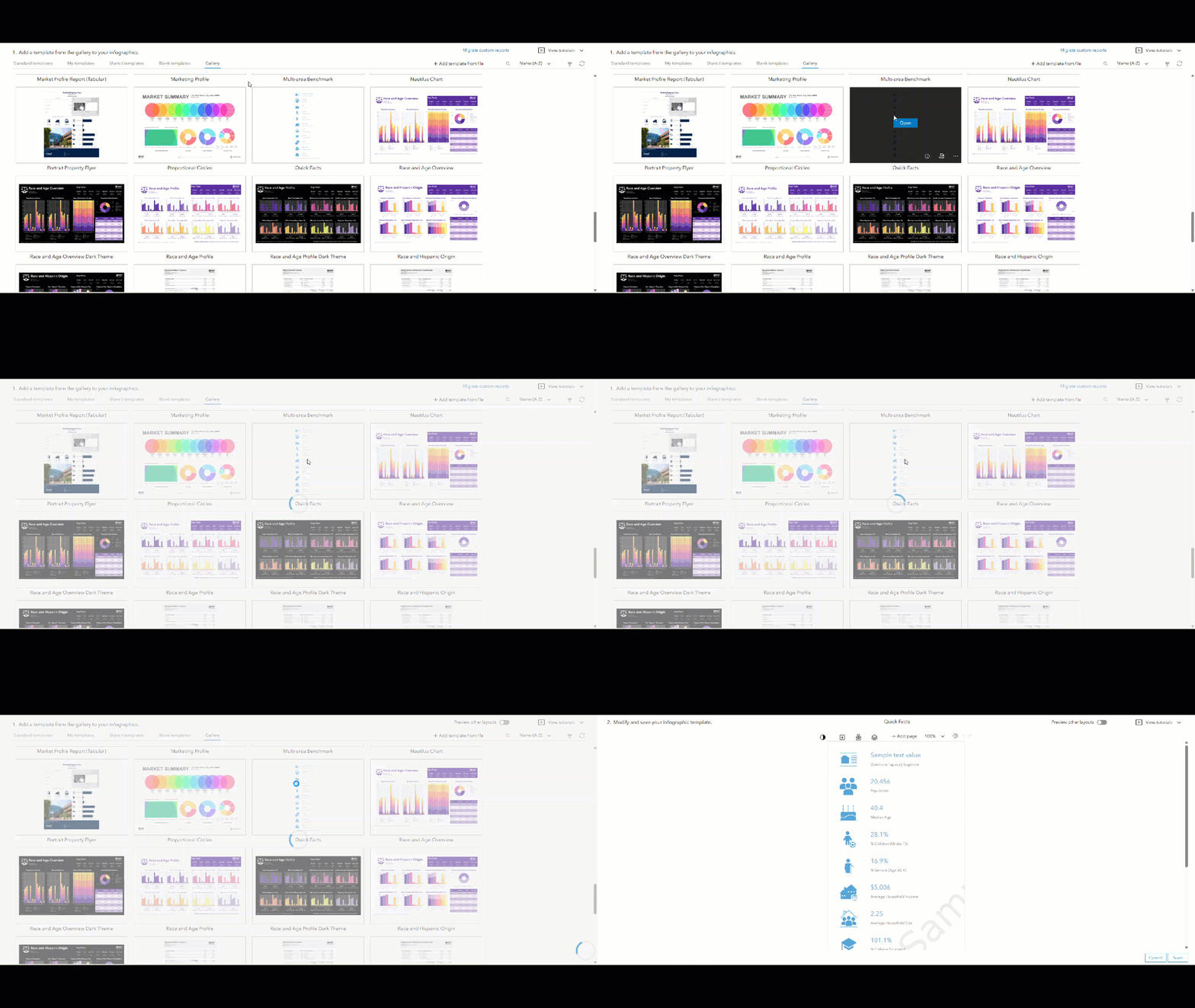
When he opens the report, he sees the Quick Facts template he is familiar with.
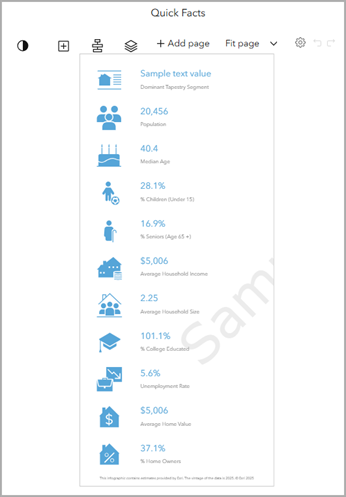
The template contains panels that display images and variable counts. But now, when he hovers over one of the panels, he sees the following options:
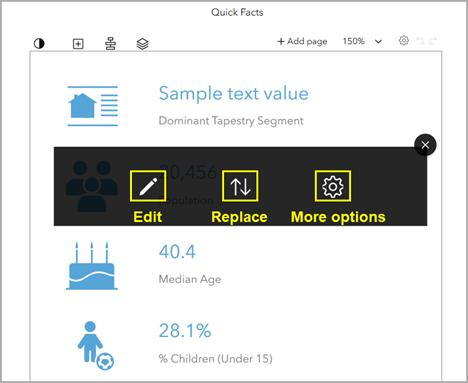
- Edit—Modify elements within the panel, such as choosing a different variable in the data browser or selecting a different icon.
- Replace—Choose a different panel to replace the contents of the current panel.
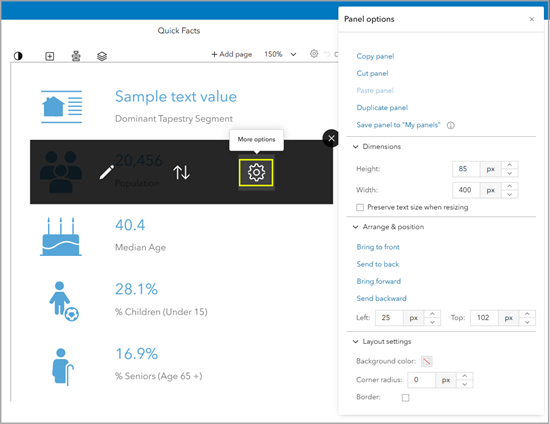
- More options—Modify the entire panel, such as changing the dimensions or adding a border and corner radius.
Joe also notices that while in edit mode, his infographic template uses sample data. He will only see data for his sites when he runs the infographic.
Edit panel
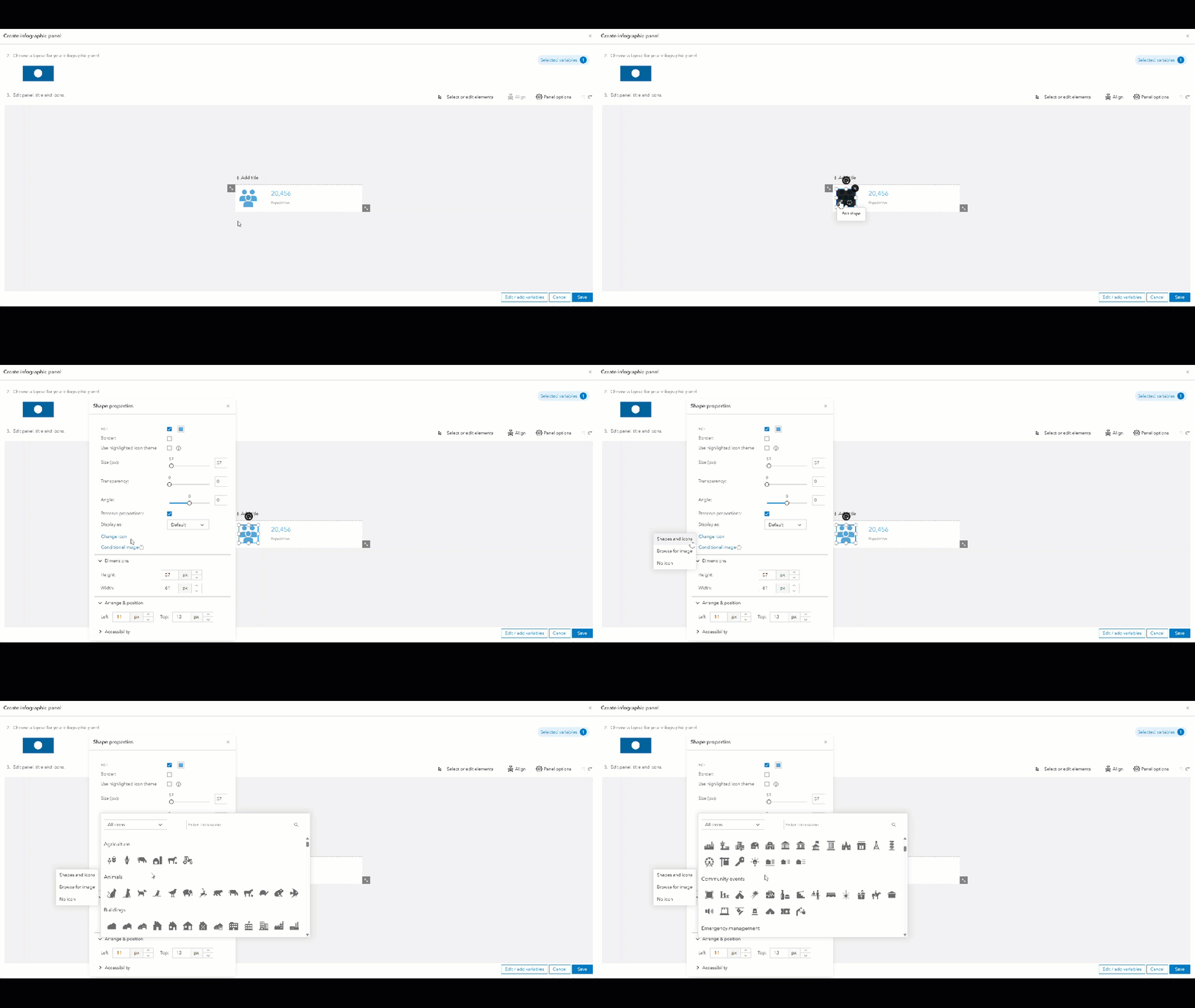
When Joe clicks the Edit button, he can edit the panel and its alignment. This panel contains an icon, a variable, and a description. He can modify any of these elements, including the text and number styling, the size of the element, and its position in the panel. To meet accessibility recommendations, he can also mark the icon as decorative.
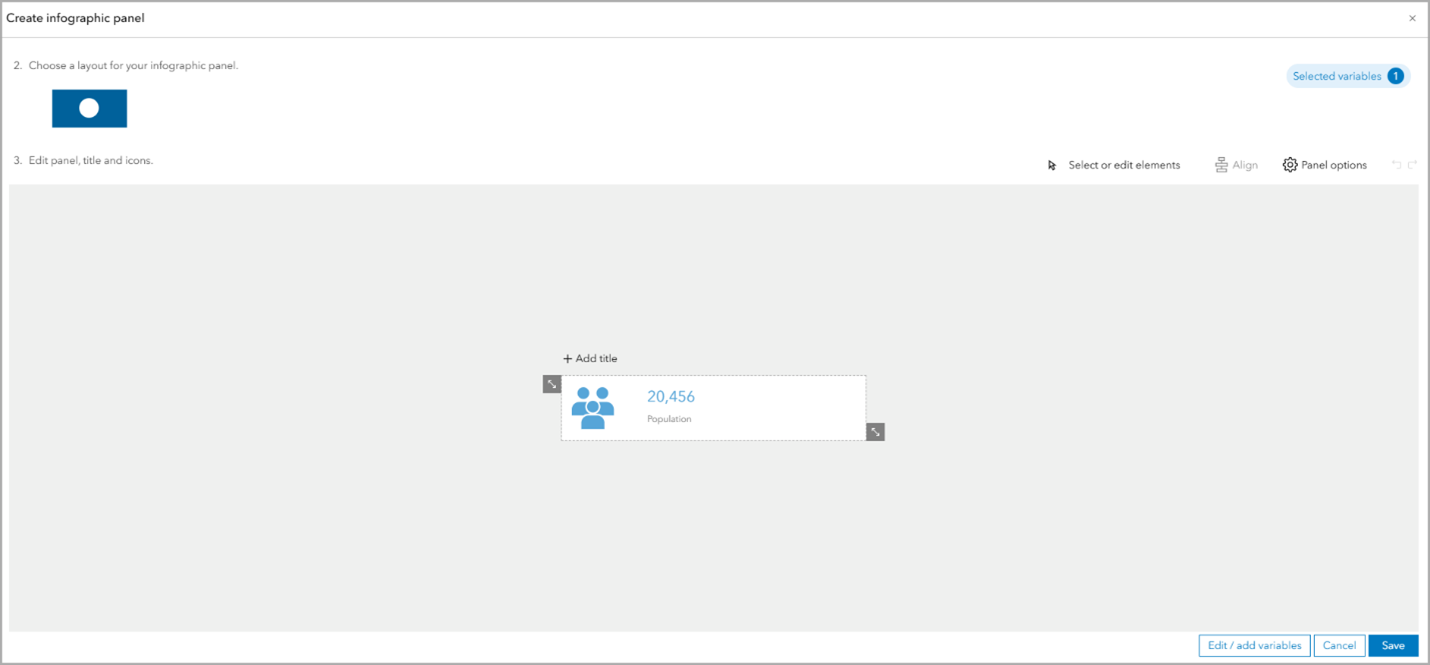
He also has an option to change the icon displayed from the icon gallery and change the text font and size as needed.
Replace panel
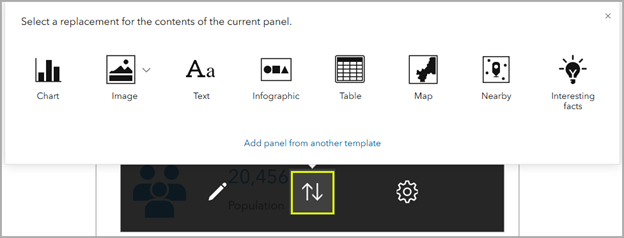
With the help of the Replace button, Joe can replace the whole panel with another. He can either replace the panel with one from the replacement menu—such as a chart, image, or text box—or with a panel from another infographic template.
More options to edit a panel
If Joe clicks the More options button, he can modify the entire panel. He can copy, cut, or duplicate the panel, or change its size and position in the template.
Joe decides to change the background color for alternating panels to make it easier to read. After he makes his changes, here is his final version:
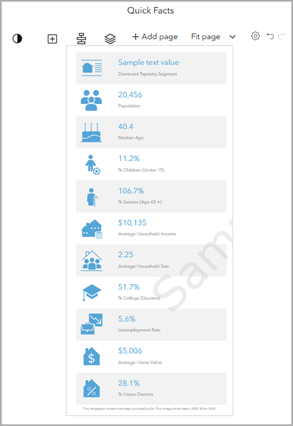
Joe clicks Save to save all his changes. He renames the infographic. Now he’ll be able to find his customized Quick Facts infographic under the My templates tab.
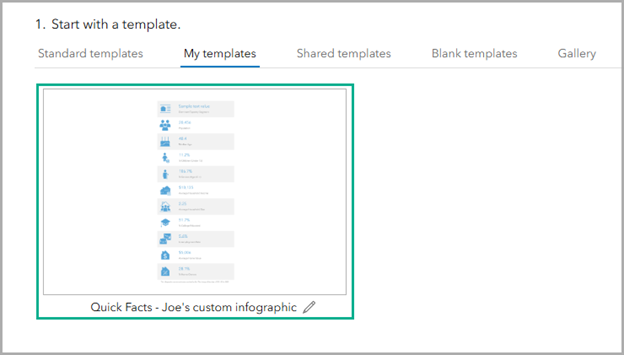
Joe now feels accomplished that the infographic report he just designed gives him a clearer picture (and a better understanding) of the data. He’ll be sure to use these edit functionalities on other infographic templates as needed.
This article uses ArcGIS Business Analyst Web App Advanced to customize infographics.
This article was originally published on October 11, 2021, by Geetha Narayanan. It has been updated.

Article Discussion: