With the February 2026 release, ArcGIS GeoEnrichment Service, ArcGIS for Power BI, ArcGIS for Excel, and ArcGIS Business Analyst added Nomenclature of Territorial Units for Statistics (NUTS) boundaries. You can use these geographic boundaries with demographic and socioeconomic data.
What is NUTS?
NUTS is a system of regional divisions used across European Union (EU) member states, EU candidate countries, and the European Free Trade Association (EFTA). Eurostat created NUTS regions to align regional statistics and support comparative analysis.
NUTS includes three hierarchical levels that range in size from major socio-economic regions (NUTS 1) to smaller diagnostic areas (NUTS 3). Although these levels often resemble regional boundaries, they form a distinct, separate geographic hierarchy.
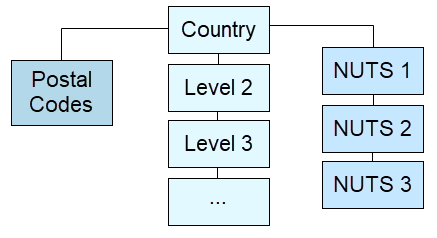
The following 46 European countries use NUTS boundaries:
| Eastern European countries | Western European countries | ||
| Albania Belarus Bosnia and Herzegovina Bulgaria Croatia Czech Republic Estonia Hungary Kosovo |
Latvia Lithuania Moldova Montenegro North Macedonia Poland Romania Russia Serbia Slovakia Slovenia |
Andorra Austria Belgium Cyprus Denmark Faroe Islands Finland France Germany Greece Iceland Ireland Italy |
Luxembourg Malta Monaco Netherlands Norway Portugal Spain Sweden Switzerland Türkiye United Kingdom |
Why do I want to use NUTS?
Analysts and organizations consider NUTS boundaries essential for standardized data analysis across the European Union, the United Kingdom, and associated countries. The boundaries provide a consistent framework for comparing socioeconomic, demographic, and environmental data across regions, countries, and small administrative areas.
- NUTS is a uniform, legally defined and recognized classification system for the European region, ensuring consistency.
- Eurostat designed the boundaries specifically for statistical use. This makes them well suited for thematic maps, population data, and socioeconomic indicators.
- Policymakers use NUTS 2 regions to define areas that are eligible for structural funding and regional policy support and to visualize where EU investments are focused.
Where can I use NUTS?
You may already be familiar with using NUTS boundaries and demographic data. For example, ArcGIS Living Atlas of the World includes four authoritative feature service layers representing NUTS boundaries 0-3. (Level 0 – Local Administrative Units—or LAU—is currently available only in ArcGIS Living Atlas.)
To view these layers, browse the ArcGIS Living Atlas of the World collection and search NUTS Demographics and Boundaries or use the ArcGIS Living Atlas integration in your preferred ArcGIS Online application.
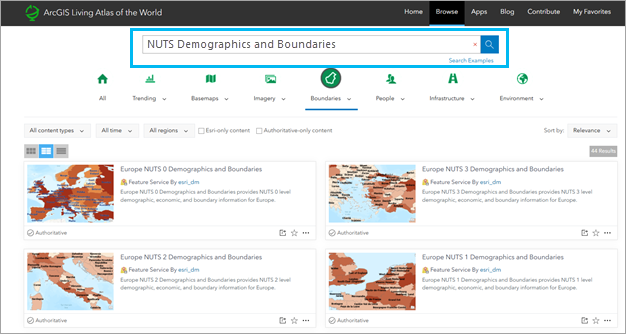
In addition to ArcGIS Living Atlas layers, several ArcGIS products now include NUTS boundaries and demographic data. These products include ArcGIS GeoEnrichment Service, ArcGIS for Power BI, ArcGIS for Excel, and ArcGIS Business Analyst.
How can I use NUTS in ArcGIS for Power BI?
ArcGIS for Power BI has added NUTS geographic boundaries to the Location type tab. This addition improves location accuracy and adds NUTS regions to your map or project for Europe.
To use NUTS in ArcGIS for Power BI, add a data layer that contains location data to your Power BI project.
On the Layers pane, select your data layer.
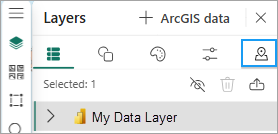
Click the Location type tab. This tab is only visible when an active data layer is selected.
Choose the European country from the Region drop-down list and Boundaries as the location type.
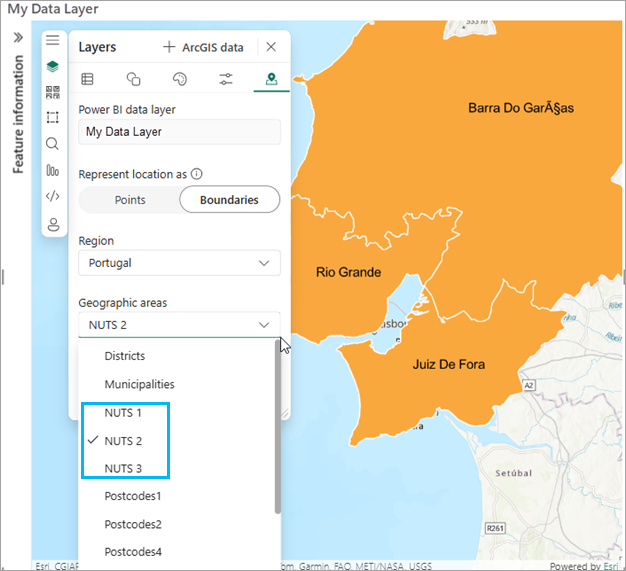
Choose a Geographic area from the drop-down menu. When the region you select is in Europe, the geographic areas available will include NUTS 1, NUTS 2, and NUTS 3.
How can I use NUTS in ArcGIS for Excel?
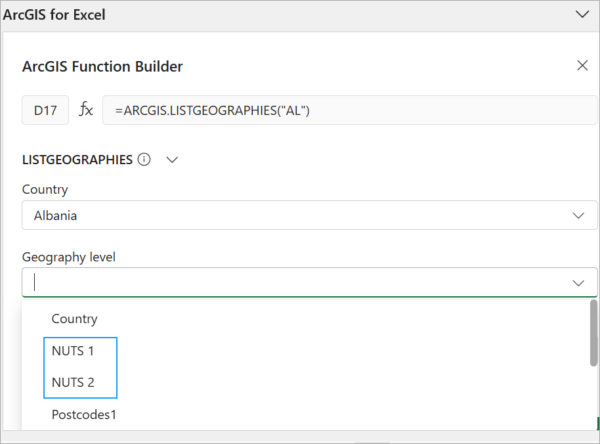
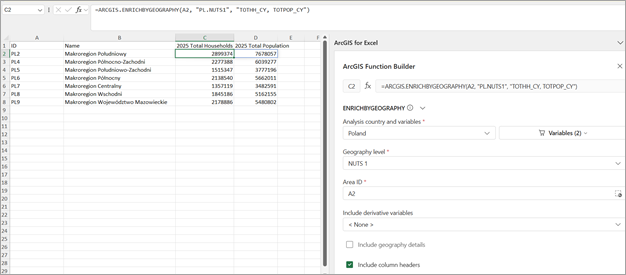
ArcGIS for Excel has added NUTS geographic boundaries to the ENRICHBYGEOGRAPHY and LISTGEOGRAPHIES functions in the Function Builder. This addition improves location accuracy for your data points and adds NUTS boundaries to your map for Europe.
NUTS regions are available in the Geography level field after you select a European country from the Country or Available country and variables drop-down menu.
See Use the Function Builder tool for more information about how to use the Function Builder.
How can I use NUTS in ArcGIS Business Analyst?
ArcGIS Business Analyst supports NUTS boundaries in mapping and analysis workflows.
If you are using ArcGIS Business Analyst Pro, select a portal or ArcGIS Online data source to connect to one of the Eastern or Western European contries listed above.
If you are using ArcGIS Business Analyst Web App, use the Data source drop-down menu to select from one of the Eastern or Western European countries listed above.
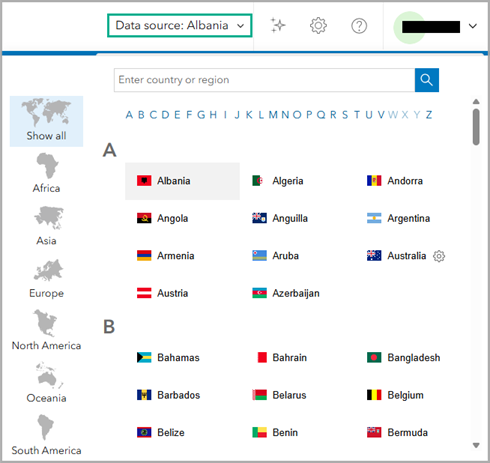
Once you’ve set the data source, you can add NUTS boundaries to your map. For example, in Business Analyst Web App use the Select geography workflow to select from the full list of standard geographies, including the new three NUTS boundaries.
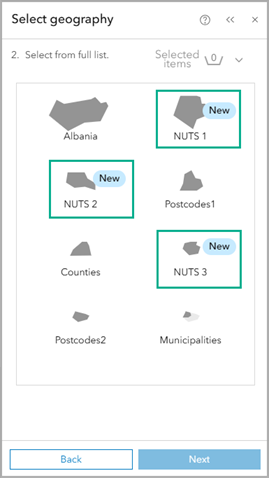
When you select a NUTS boundary level, it is added to the map. You can use the boundary to create a site (or multiple sites!) Use these sites to run infographics, generate reports, create maps, or perform analysis.
Another way to utilize NUTS boundaries in Business Analyst Web App is to use standard geographies in mapping and analysis workflows, including:
- Color-coded maps
- Points of interest (POI) search with aggregation enabled
- Smart map search
- Benchmark comparisons
- Suitability analysis
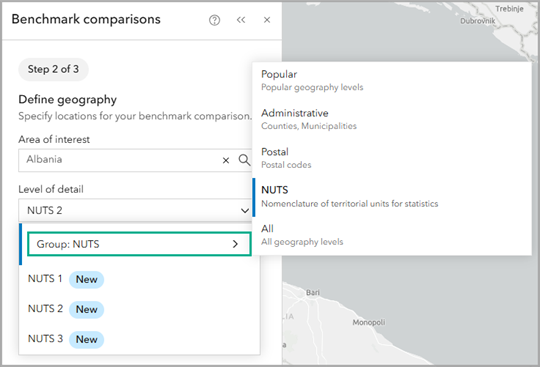
In these workflows, select the NUTS group from the Level of detail menu to browse a list of NUTS geography levels for your analysis.
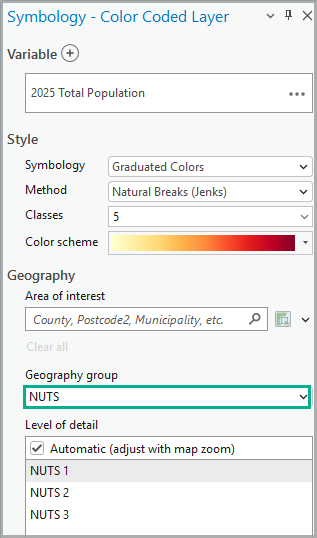
Similarly, you can use the NUTS geography group in some Business Analyst Pro workflows, like creating a color-coded layer.
Applied example
Let’s walk through an example to understand how to use NUTS boundaries and data in ArcGIS Business Analyst Web App.
For example, imagine you are a housing developer coordinating home renovations in Romania to support the European Affordable Housing Plan. You focus on areas with low purchasing power, which often indicates communities most affected by housing unaffordability.
Use ArcGIS Business Analyst Web App (Standard or Advanced) to create a color-coded map of purchasing power in Romania using NUTS 3 boundaries.
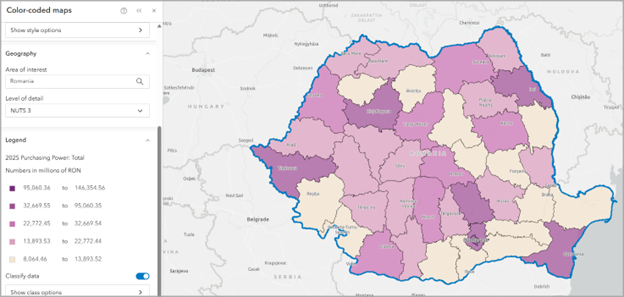
With the map, you can determine which areas have the lowest purchasing power and therefore are a higher priority for construction or renovation. Since you’re using NUTS boundaries to determine the area of interest, you can use the Plan’s flexible state aid rules to leverage your development proposal. You can then potentially access the E.U.’s NUTS-based funding allocations for this initiative.
Once you select which NUTS 3 area to focus on, you can perform additional analyses to rank communities at a more local level based on population size or vulnerability, like unemployment or areas with younger or older residents.
Wrapping it up
This is just the beginning of our work using and innovating with NUTS boundaries. Now that you’ve learned about them, we hope you’ll explore these and other ArcGIS mapping capabilities. To continue your journey with demographic and socioeconomic data, visit the following resources:
Contact the ArcGIS Data team at: demographics@esri.com



Commenting is not enabled for this article.