ArcGIS Field Maps includes geospatial PDFs as a new type of read-only offline map and a new basemap format supporting field data capture workflows. Incorporating geospatial PDFs into your field workflows provide many advantages, particularly in remote or challenging environments.
Here are 6 key benefits:
- Enhanced Situational Awareness – mobile workers can view their current location directly on the PDF map, allowing them to understand exactly where they are using the same daily operations map shared with everyone.
- Streamlined Data Collection – referencing geospatial PDFs as offline basemaps within web maps, crews can capture locations and perform inspections using PDFs created by your organization or provided by others.
- Ease of Distribution – provide quick access to offline maps using a simple QR code. Scanning the code with a device camera will download and open the PDF map directly in Field Maps.
- Manage Access – geospatial PDFs are supported in your ArcGIS organization. Configure and distribute PDFs just like any other web map, layer, or mobile map package.
- Simple “Open-In” Experience – mobile users can download a PDF document from an email attachment, by text message, or by AirDrop and use the system “Open In” or “Share” experience to use in Field Maps.
- Public Use – users without an ArcGIS account can access and use geospatial PDFs. This is ideal for distributing maps to temporary contractors, volunteers, responders, or the general public who need reliable offline maps.
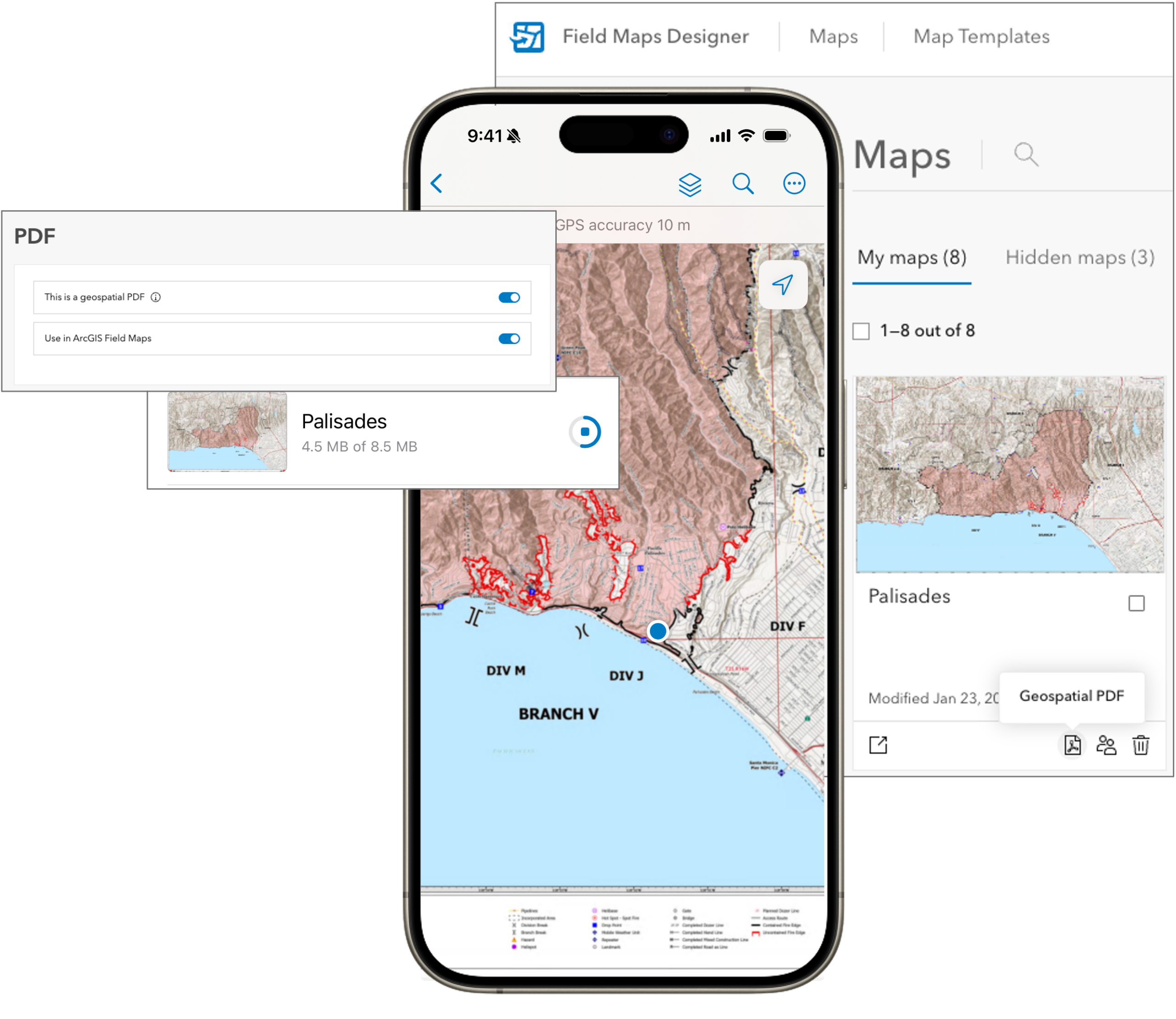
What is a geospatial PDF?
A geospatial PDF is a standard PDF document that contains geospatial information. Unlike a flat digital image, a geospatial PDF contains coordinate system information embedded within the file so it can be displayed in location-aware apps like ArcGIS Field Maps, Avenza Maps, Global Mapper Mobile, CalTopo, and others. TerraGo Technologies builds upon the foundational concept of a geospatial PDF by embedding proprietary metadata and advanced features—such as attribute data, hyperlinked layers, and specialized markup capabilities into a GeoPDF® file. These proprietary capabilities within a GeoPDF® are not supported in ArcGIS Field Maps, however the foundational display of geospatial data is.
There are several ways to create geospatial PDFs. Export to PDF in ArcGIS Pro or the GeoPDF® Publisher for ArcGIS Pro by TerraGo Technologies are common desktop approaches. Using the Print widget configured with the PrintingTools service in web applications like Experience Builder provide a simple, interactive experience. The BLM National Data Viewer is a great example. You can create your own maps using BLM content in the Layers tool and add your own layers with the Add Data tool. Printing your map includes the option to export to a geospatial PDF for use in Field Maps.
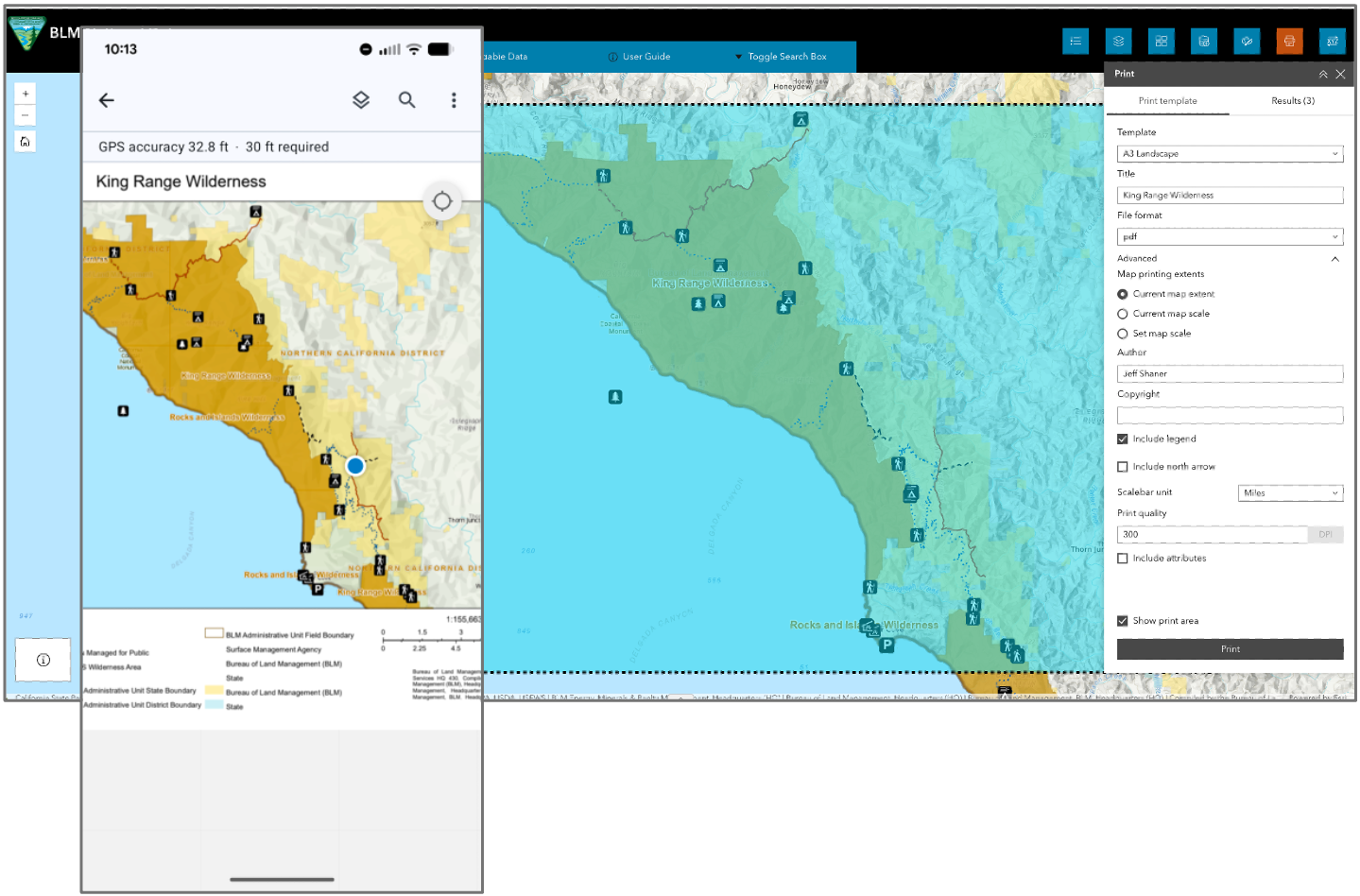
Working with PDF items
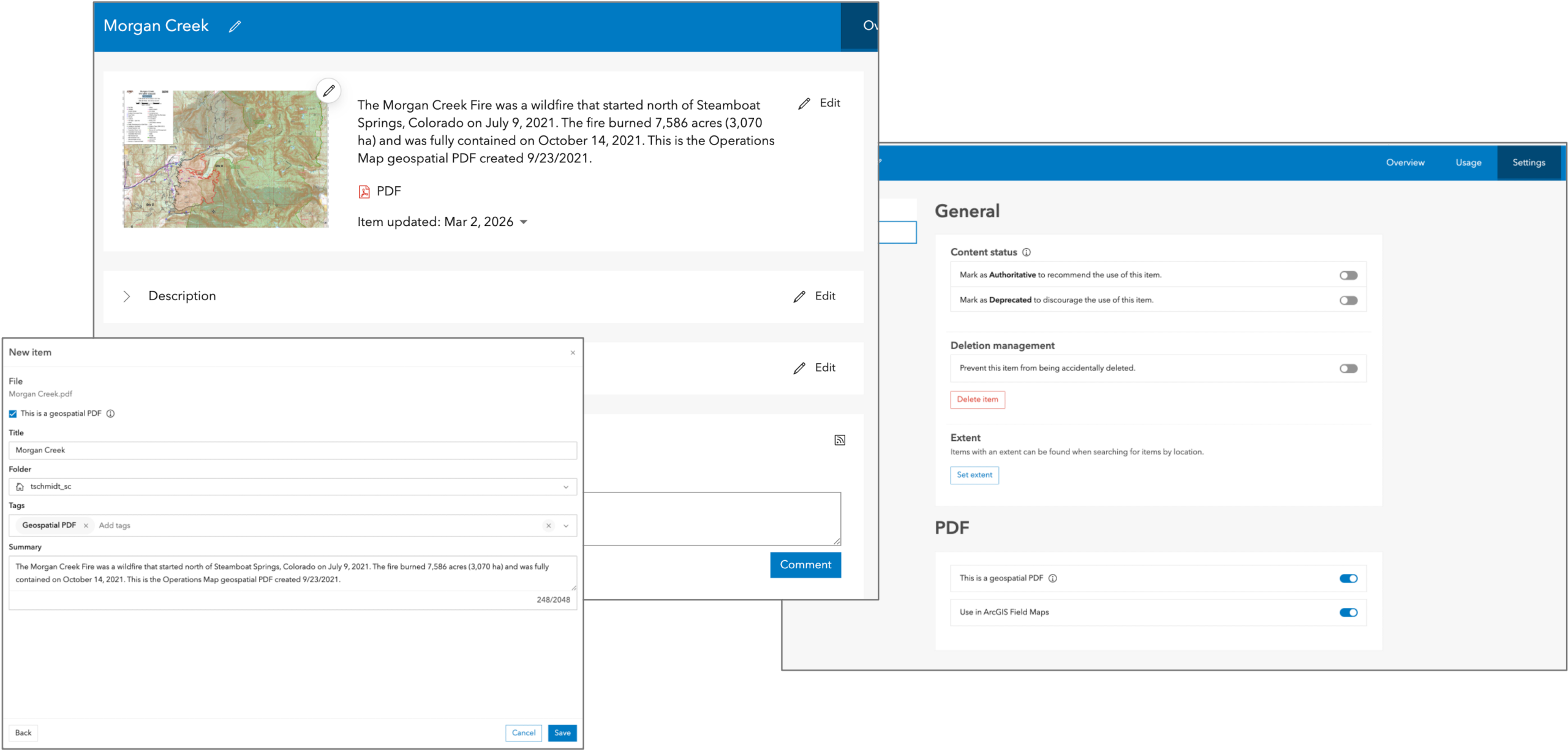
Managing PDF documents as portal items in your ArcGIS organization is the preferred method of working with geospatial PDFs. As an item, you can control distribution using the same, familiar sharing process applied to web maps or mobile map packages.
Creating a new PDF item from a geospatial PDF document, you can indicate the item includes a geospatial PDF by checking “This is a geospatial PDF” and then choose when you want the PDF to appear in the Field Maps mobile app by setting the “Use in ArcGIS Field Maps” switch.
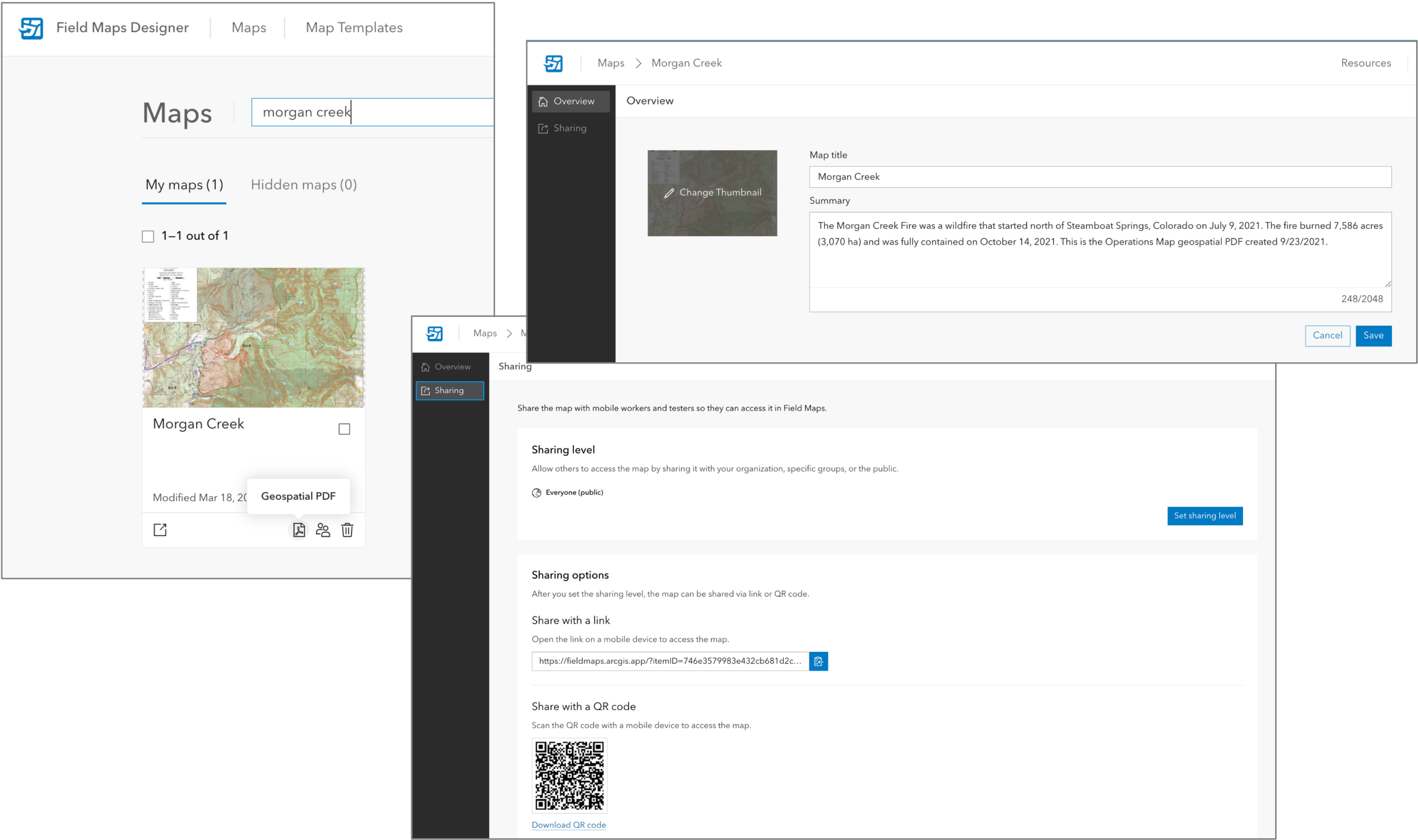
PDF items with the “Geospatial PDF” setting appear as a PDF map in Field Maps Designer and can be configured and shared similar to a mobile map package. From the Overview tab you can modify the map title, summary information, and choose a thumbnail for the card. From the Sharing tab you can set the sharing level, choose to hide access in the Field Maps mobile app, and copy the link and/or QR code that mobile users use to download and open PDFs to their device.
Here’s a sample PDF map you can scan with your phone’s camera, download, and experience using Field Maps.

Working with PDF documents
Managing PDF items in your ArcGIS organization is the preferred method of working with geospatial PDFs, but you may need to download PDF documents that are stored somewhere else. Field Maps supports opening PDF documents that are stored on your device.
There are several ways to download a PDF to your device:
- From a QR code that directly points to a document stored on an FTP server.
- Saving a PDF from shared cloud storage (Google Play, OneDrive, etc).
- From an email attachment, message, or peer-to-peer sharing (AirDrop on iOS or Quick Share on Android)
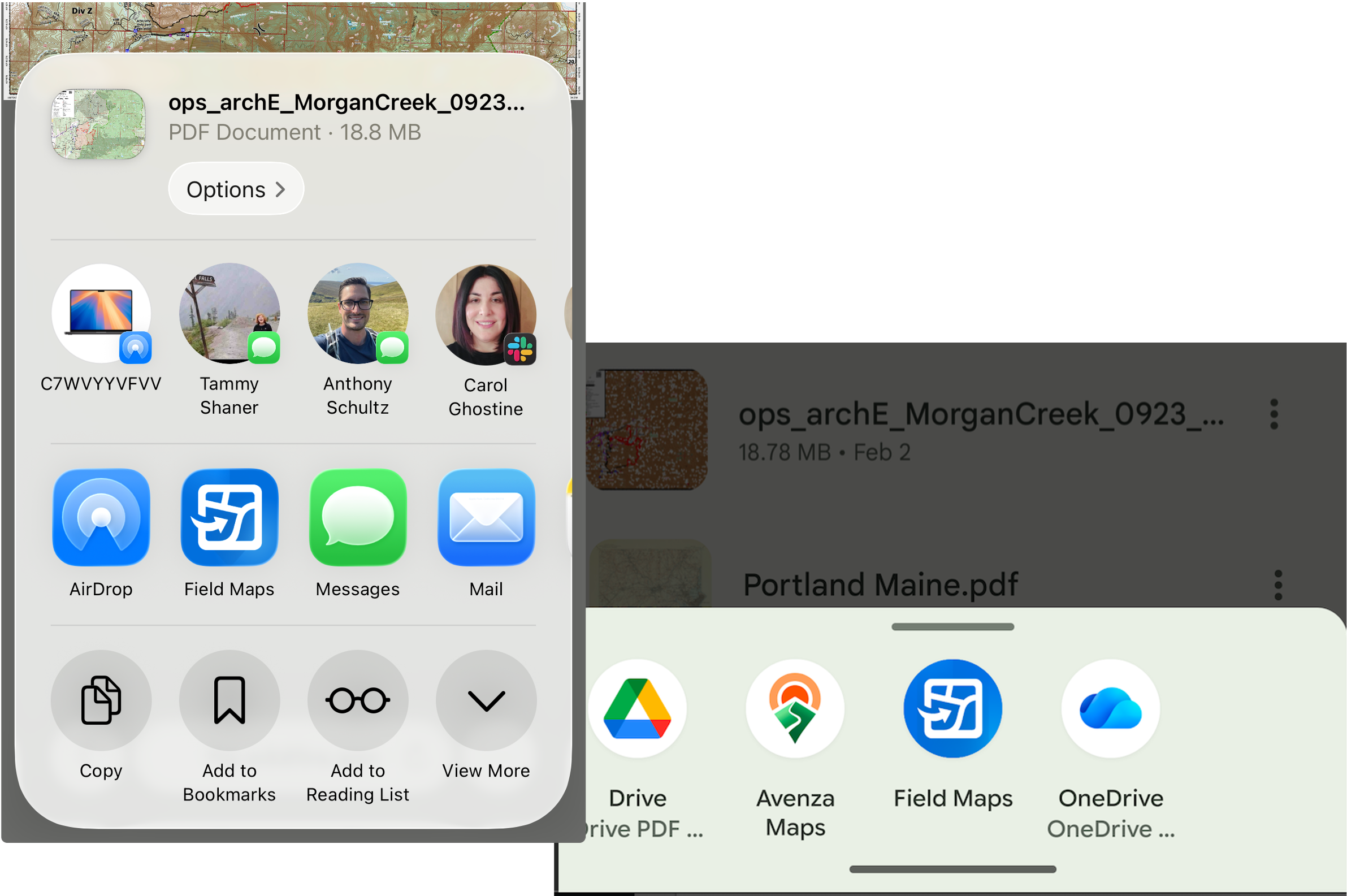
Scanning a QR code managed outside of your ArcGIS organization will open PDFs in the device browser and require an additional step of downloading to a local folder. On the iOS platform, downloaded PDFs can be directly opened from the Share action in the Safari browser. On Android devices, tapping the Download button will save the PDF and depending on the browser used may prompt to open with Field Maps.
Selecting a local PDF document stored on your file system, you can long press and choose Open with Field Maps from Apple’s share sheet or from the Open with menu on your Android device. Field Maps will copy the PDF document to the application storage and it will appear as a new On Device map that you can then open and use. If you open a document that has already been copied, Field Maps will append (1) to the file name during copy.
Using geospatial PDFs as an offline map
A geospatial PDF can be used as a read-only offline map in ArcGIS Field Maps:
- PDF items – items marked as a “geospatial PDF” and enabled for “Use in ArcGIS Field Maps” will appear when browsing maps in the Field Maps mobile app. Tapping on a PDF map will download to your device, just like a mobile map package. Field Maps Designer will generate a link and QR code for you in the sharing tab or using the Open referenceContext, you can construct your own app link that downloads and opens a PDF map in Field Maps. .
- PDF documents – documents must be downloaded to your device and stored in an accessible folder before you can open them. Long pressing on the PDF document and tapping Open with Field Maps will copy the PDF to the applications folder and prompt you to open it in Field Maps.
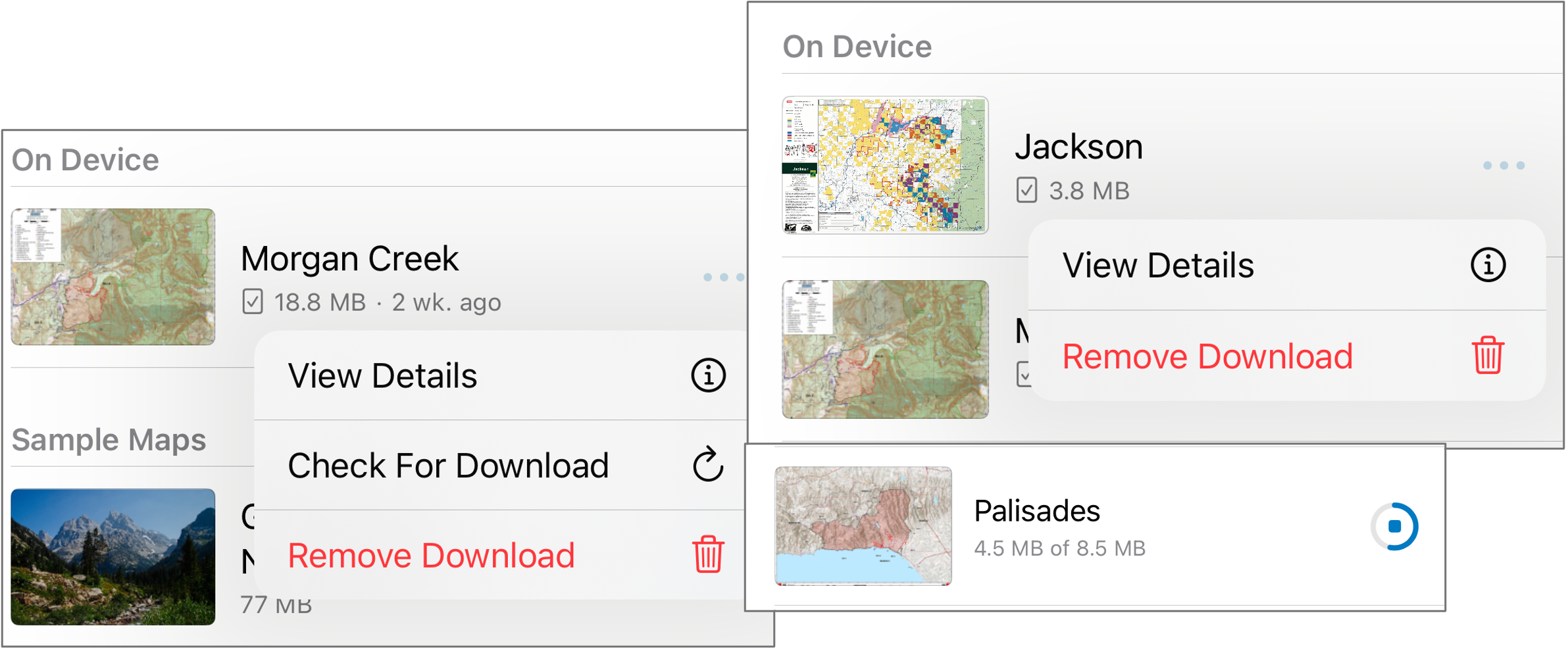
Inside the Field Maps mobile app, the browse maps screen lists web maps, mobile map packages, and PDF maps available for use with Field Maps. PDF items will include their size and display a thumbnail image. Tapping the download button will download the PDF to your device and it will appear in the On Device section of your map list. In the overflow menu (…), you can view summary details, remove the downloaded PDF, and check for updates to the item. PDF documents will appear in the On Device section but can not be updated. A thumbnail image will be generated for PDF documents once added to the browse screen.
A PDF map is a location-aware, read-only, offline map. You can pinch to zoom in or tap the Location tool to zoom to your current location (if visible within the extent of the pdf). PDFs display as a local raster layer in Field Maps. When zooming in, Field Maps will cache the current map extent and depending on the size and complexity of the PDF caching may take some time.
Mapping capabilities available when using a PDF map include:
- Layers tool – you’ll find up to 2 layers in your PDF map
- Personal markup layer – set the visibility of markup that you create using the Personal markup tool.
- My tracks layer – if you are signed in and using location sharing, you can view tracks you’ve created and tap them to see more information.
- Search tool – search for coordinates and favorites you’ve created, regardless of connectivity. When connected, you can also search for an addresses.
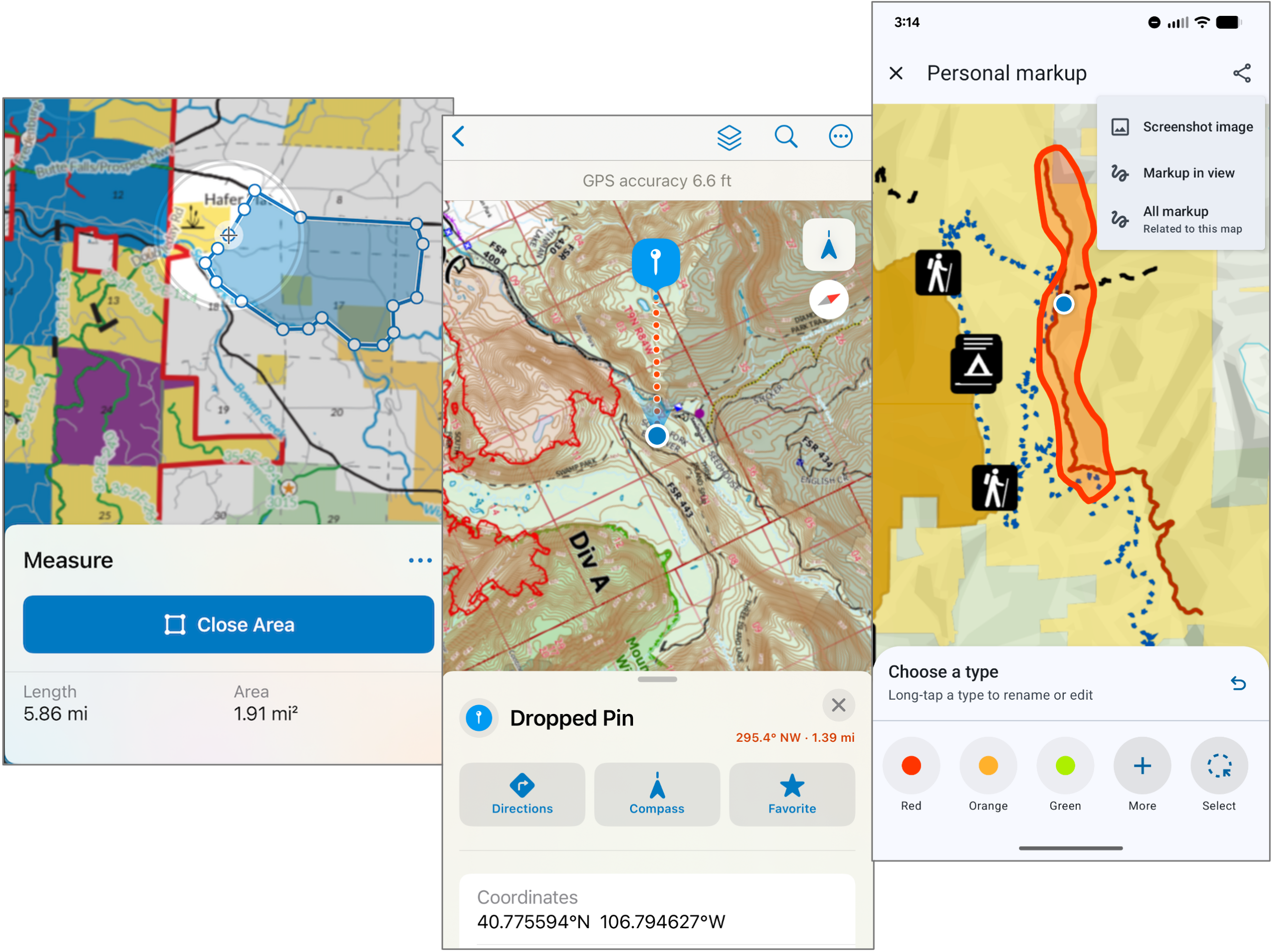
- Dropped pin – long press on the map and drop a pin. The pin location will display coordinate details, address information (if available). You can store pin location on your device as a favorite, use the Directions tool or the Compass tool.
- Overflow menu:
- Default map extent – tapping this tool will zoom to the default extent of the pdf.
- Measure tool – supports the measurement of lines and areas. Field Maps will use the default units given the spatial reference information stored in the PDF document.
- Personal Markup tool – use personal markup in PDF maps. Markup can be shared via email, text, messaging apps, cloud storage, or other sharing tools like AirDrop to other devices for use within Field Maps.
The coordinate system in the PDF document sets the spatial reference of the PDF map and default units. From the Profile, consider changing the Unit settings from “Automatic” to your desired coordinate and/or distance and area unit of choice.
Using geospatial PDFs as an offline basemap
Setting an offline basemap can dramatically improve offline workflows. Once the basemap is stored on your device, it can be reused across multiple web maps.
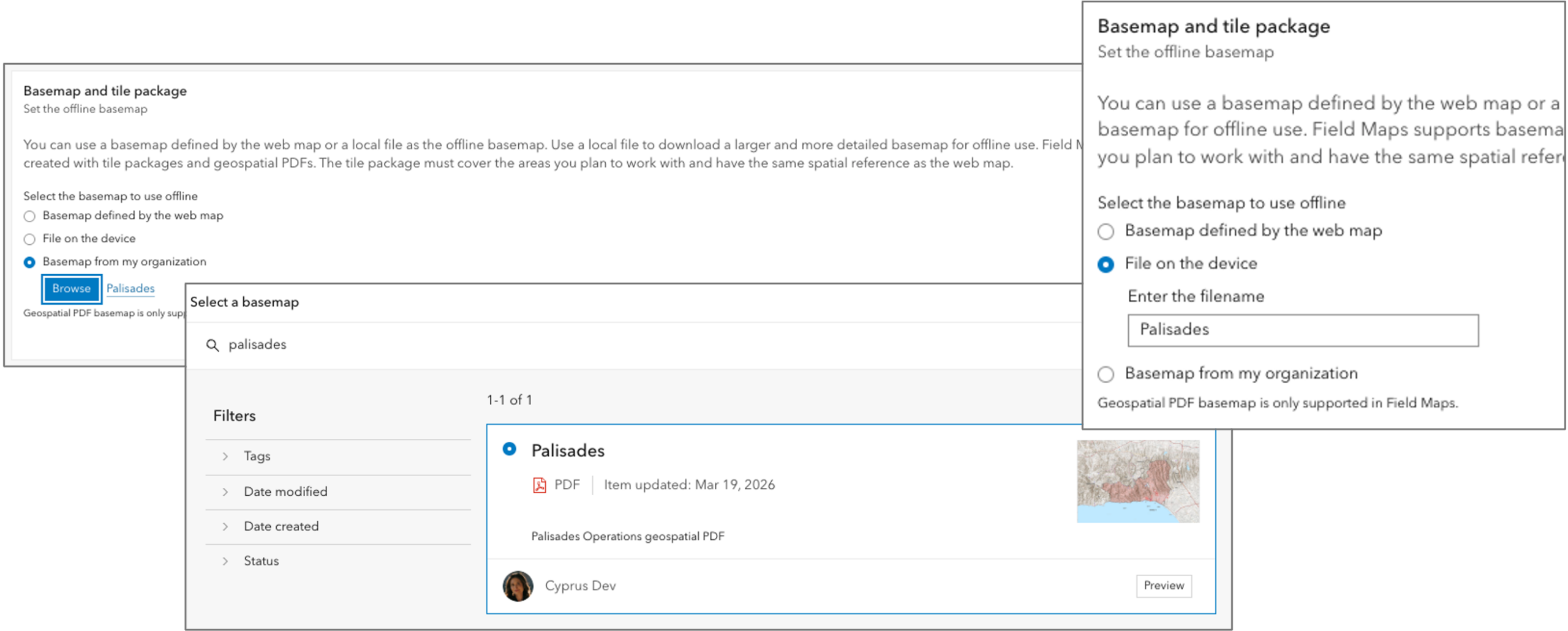
When configuring a web maps’ offline experience using Field Maps Designer, you can set the basemap used in the Basemap and tile package section.
There are 2 choices with PDFs:
- Specify a PDF document that is sideloaded to a device.
- Browse for a PDF item in your organization that can be referenced to the map.
Each approach can have its own distinct advantages and disadvantages:
- PDF documents that are sideloaded into the basemaps folder on your device can be used with the Basemap tool, both with offline map areas and the online map. Getting PDF documents to the basemaps folder can be challenging, especially on Android 14 and higher devices.
- Referenced PDF items will download when taking map areas offline. Once downloaded, it can be used across multiple offline map areas and across multiple maps. Referenced PDF items cannot be used in the Basemap tool with the online map.
Please read our documentation topics titled Set the offline basemap and Reference an offline basemap to learn more about basemaps.
Considerations and current limitations
There are some things to consider and some current limitations when using geospatial PDFs with ArcGIS Field Maps:
- Coordinate systems are important – the spatial reference of the PDF will set the spatial reference of the map. This applies to read-only PDF maps and PDF basemaps used for data capture. If planning to use a PDF sourced from someone else, import the PDF document into ArcGIS Pro to discover what coordinate system is being used and if datum transformations are a concern.
- Password protected PDFs are not supported – consider using PDF items and leverage the portal sharing model to secure access to PDF documents.
- Multi-page PDFs are not supported at this time.
- Update of PDF items – this is a known limitation with the 26.1 release.
If you have questions about ArcGIS Field Maps or feel passionate about needed improvements, please reach out to us from the Esri Community page. If you would like to connect with and learn from your fellow users, please join our LinkedIn group.

Really? So I don’t have a way of using my thousands of geoPDF unless I upload them to Agol and pay for hosting credits? Way to go Esri!
No, you don’t need to upload them to AGOL Joabel. As described in the article, you can use the PDF as a document that is downloaded to your device. PDF as an offline map is supported without signing in as well. If you do choose to upload and manage as an item then you can leverage the portal sharing model to control access so it does have advantages, however it is not required.
oh OK, that is not what I got from the article at first glance but I’m happy to know we can use my 100+ pdf maps on my forester’s tablets without the need to upload them to AGOL. Thanks
Hi, do you know if/when the offline workflow will be supported in ArcGIS Enterprise/Portal and at what version? Looks like it is only available in ArcGIS Online currently?
Hi Bethann – you can use a PDF document with the mobile app now. If you’d like to add the document as an item inside of your ArcGIS Enterprise portal and configure the item using Field Maps Designer, that will be coming into ArcGIS Enterprise 12.1.
Thanks for clarifying that for folks, Jeff! That functionality outside of AGOL is huge for those of us watching credits.
Would be great if you could switch to any on device geoPDF basemap from any map in Field maps.
Agree with USFS_STF_TRT
I’ve had a support ticket open for the last couple days plus a parallel Community discussion about the issue of not being able to switch between on device GeoPDF’s as basemaps when offline. This is further complicated by the problem that GeoPDF’s exported from Pro or the AGOL print widget have the wrong EPSG code embedded (EPSG:3785) when trying to export to EPSG:3857 – Web Mercator (Auxiliary Sphere). BUG-000183698
As a long-time publisher of geoPDF trail maps, this is a game changer for my organization (Midpeninsula Regional Open Space District) and our preserve visitors! This AGO update is well-timed given Avenza Maps’ recent news about the pending closure of the Map Store and overall business model overhaul. Thank you, Esri and the ArcGIS Field Maps team for filling an important gap. We are actively publishing and sharing our preserve map series and look forward to future enhancements.
I just wanted to add my support for being able to swap georef maps on device on the fly. We have been using avenza for forestry surveys, surveyors go out and get maps airdropped on the day, that they can use with the premade schema. We are hoping to replace that with field maps.
thanks.