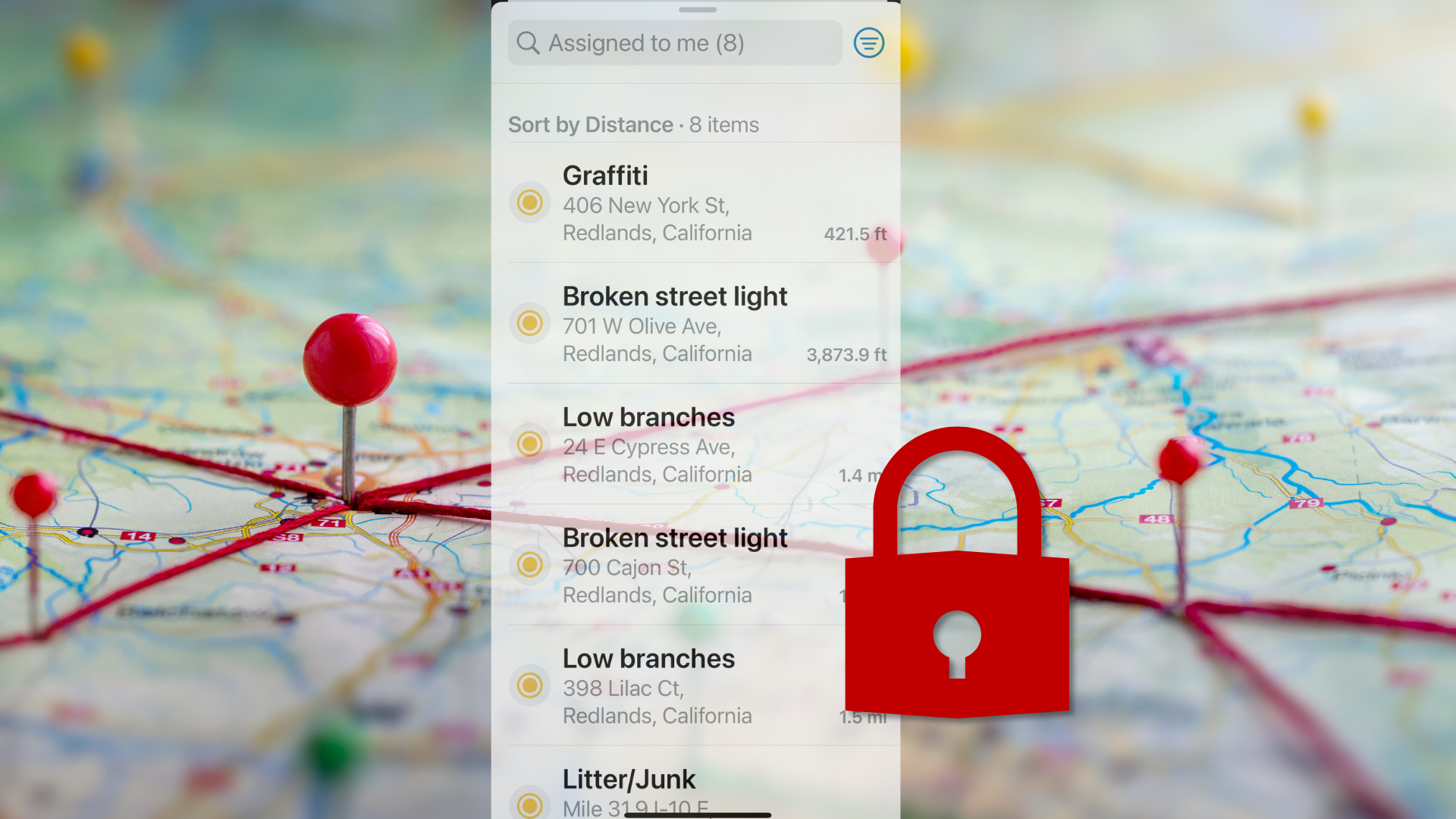
ArcGIS Field Maps empowers organizations to manage fieldwork efficiently by enabling mobile workers to manage their work with interactive to-do lists directly from their mobile devices. With the Tasks functionality, by default, mobile workers can view their assigned tasks, pick up unassigned tasks, complete tasks, and create new tasks as they encounter issues or opportunities in the field.
Providing the ability to create tasks in the field can help field teams quickly capture work that needs to be done and respond quickly to changing conditions.
However, not every organization wants field staff to create new tasks on the fly. Needs can vary not only between organizations, but also from project to project within the same company. Some organizations need to centralize task creation and assignment, ensuring that only authorized personnel can add new work items.
In this article, you’ll learn how to prevent mobile workers from creating new tasks in the field, while still allowing them to view and update their assignments.
Why Restrict Task Creation?
Organizations may want to restrict mobile workers from creating new jobs (tasks) in the field to achieve the following:
- Centralize Task Management: Ensure only authorized personnel can initiate and assign work, so dispatchers or supervisors can match tasks to the right people based on skill, location, and urgency – instead of relying on mobile workers to decide or assign tasks themselves.
- Prevent Unauthorized or Unnecessary Work: Restricting who can create tasks may help to avoid duplicate, unprioritized, or out-of-process jobs, maintaining operational consistency.
- Require Proper Documentation or Approvals: Some jobs require safety checks, permits, or regulatory documentation. Restricting task creation helps ensure these requirements are met before work begins.
- Control Access: Limit sensitive or high-risk tasks to qualified personnel, reducing liability and ensuring compliance with industry standards.
- Automate Workflows: Some organizations may want to leverage automation tools (e.g., ArcGIS Workflow Manager, Microsoft Power Automate) to generate tasks based on business rules, customer requests, or integration with work order management systems.
Hosted Feature View Layers: The Key to Controlling Task Creation
If your workflow requires restricting who can create tasks, hosted feature view layers are the tool you’ll use to achieve this in ArcGIS.
A hosted feature view layer is derived from an existing feature layer. Think of it as a custom “window” into your main layer that lets you control exactly what users can see and do. With view layers, you can configure settings for each view you create, such as the ability to edit or create features, or which groups have access to the view.
By creating a view layer for your tasks, you can manage permissions to ensure mobile workers can update or complete tasks but not create new ones. This approach ensures only authorized users can add new tasks.
You can create and manage view layers from the item details page of any hosted feature layer in ArcGIS Online or ArcGIS Enterprise. However, in Field Maps Designer, you’ll find a dedicated interface for creating and configuring view layers for tasks, streamlining your task workflow setup in a centralized experience.
In the next section, you’ll learn exactly how to set up a view layer to prevent workers from creating tasks in the field.
Note: View layers only apply to hosted feature layers, not non-hosted ones. For non-hosted layers, you’ll need to publish a separate service and configure edit settings there.
How to Restrict Task Creation in Field Maps Designer
Here are step-by-step instructions for creating a view layer in Field Maps Designer to restrict mobile workers from creating tasks in the field. You will create a new view layer from your existing tasks layer and then add it into a duplicate map that you can share with your field team.
Before you begin: You’ll need to have already created a web map with a task-enabled layer in Field Maps Designer.
- Open your web map with tasks layer in Field Maps Designer.
- Go to the Tasks tab and click on Tasks settings
- Scroll down in the Task settings pane to view the Task access panel where you will see a button for Create view layer.
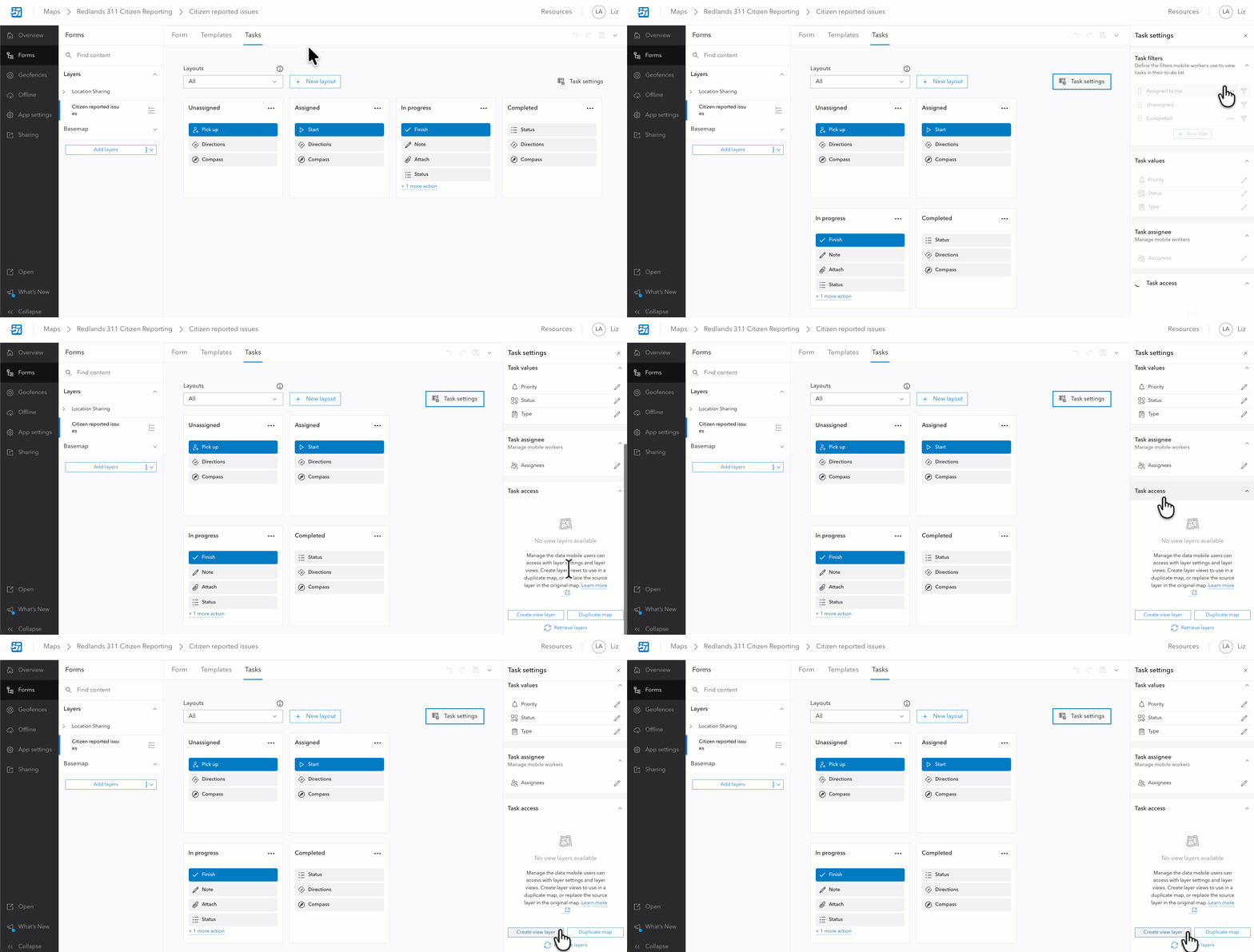
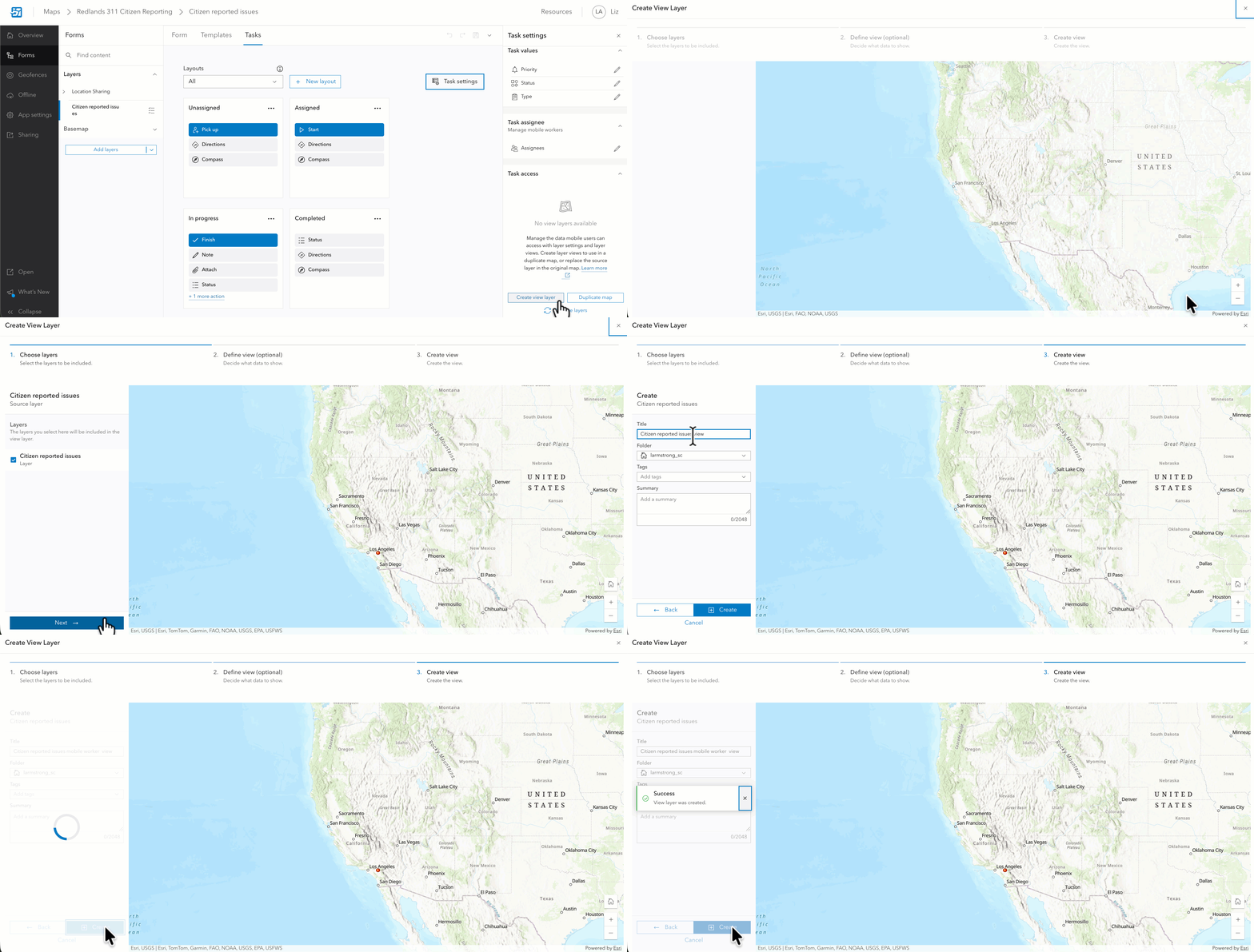
- Under Task access, click on Create view layer.
- Click Next twice (unless you want to further configure your scenario). Note: In this workflow, you can also set filters and choose which fields are included in the view.
- Enter a name and details for your view layer, then click Create.
- The interface will return you to the Tasks settings pane and refresh the page where you will see your new view layer.
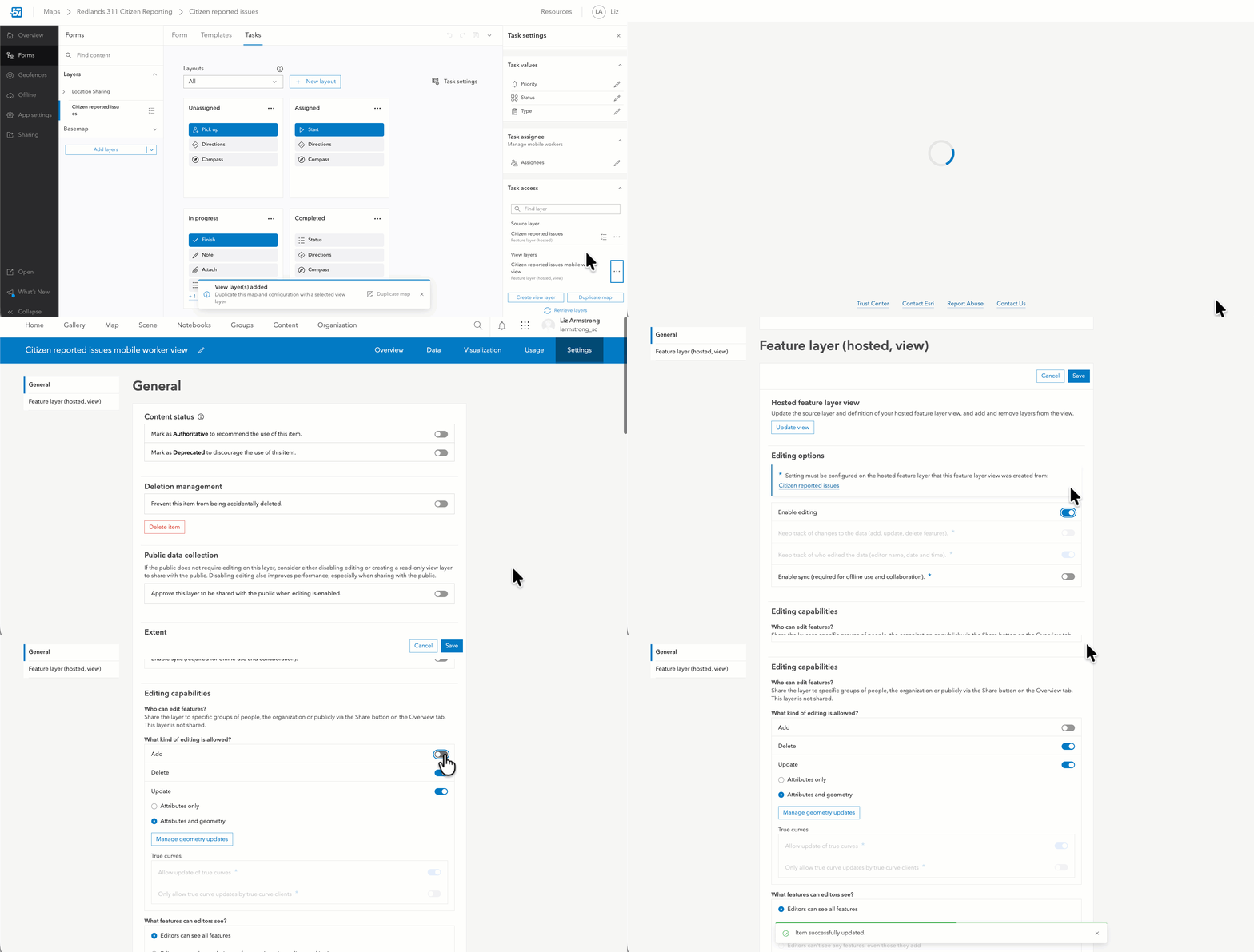
- Use the overflow menu next to your new view layer to select View item details. This will launch a new tab and open the view layer’s item details page.
- Click on the Settings tab and scroll down to the Feature layer section
- Enable Editing under Editing options
- Uncheck Add under Editing capabilities
- Return to Field Maps Designer and the Task Access panel.
- Open the overflow menu next to your new view layer and select Use in duplicated map. You are creating a new map that is for your mobile workers. You can keep the original map for those who need to create and manage tasks.
- In the pop-up window, give your new duplicate map a name.
- Click on “Open Map” from the notification (at the bottom of the screen) to confirm that your new map has been created and contains your new tasks view layer.
- Share this map (and its layers) with your mobile worker group.
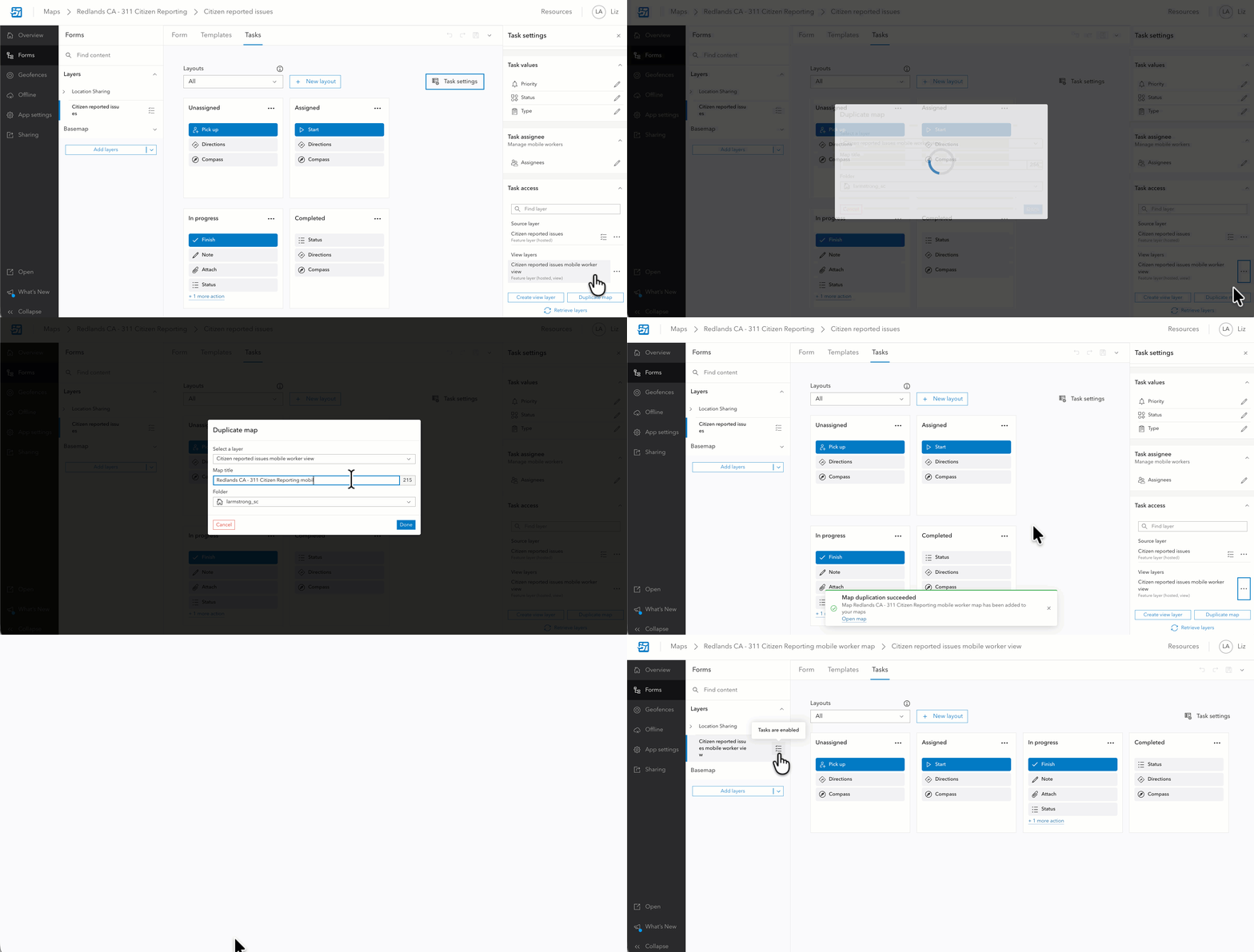
And, voila! Now, you have a dedicated map for your mobile workers that enables them to see and update tasks but not create them.
For a deeper dive on view layers, see our Create a view layer documentation.
Additional Resources
- Manage access to tasks resource topic
- Prepare tasks and Configure tasks resource pages
- Create hosted feature view layers in ArcGIS Online
Share Your Feedback On Tasks!
Once you’ve tried out the new Tasks functionality, we’d love to get your feedback on it! Your feedback helps shape what’s next.
Take the survey.

Article Discussion: