The latest ArcGIS for Microsoft 365 updates deliver meaningful improvements across Excel, Teams, and SharePoint to help users work with spatial data more confidently and efficiently. These enhancements focus on clearer control over data sharing, more powerful analysis and visualization, improved collaboration and administration, and greater accuracy when editing and geotagging content. Together, they make it easier to analyze, manage, and share geographic information directly within Microsoft 365.
Don’t have time to read the blog? Watch this video for a quick overview:
Quick Links
ArcGIS for Excel
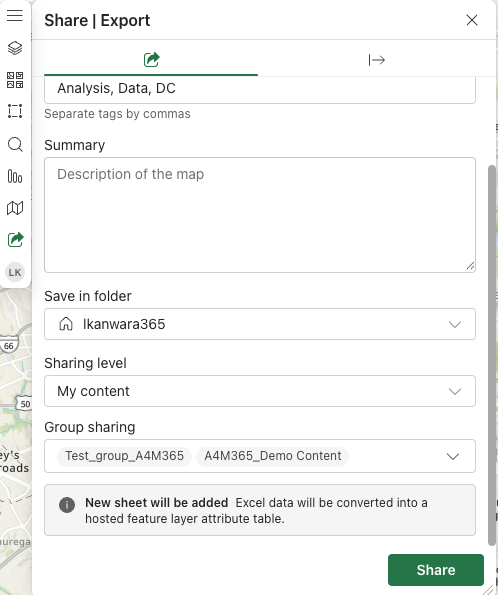
Flexible feature layer sharing between Excel and ArcGIS
This new enhancement gives users clearer control over how their data is published and maintained when publishing the spreadsheet from Excel to ArcGIS. Users can create a new sheet for the feature layer, making sharing clearer and more intuitive. When a new sheet is published, ArcGIS for Excel generates an attribute table that behaves like a hosted feature layer and supports ongoing updates. This streamlined workflow gives users clearer control over how their data is shared and maintained.
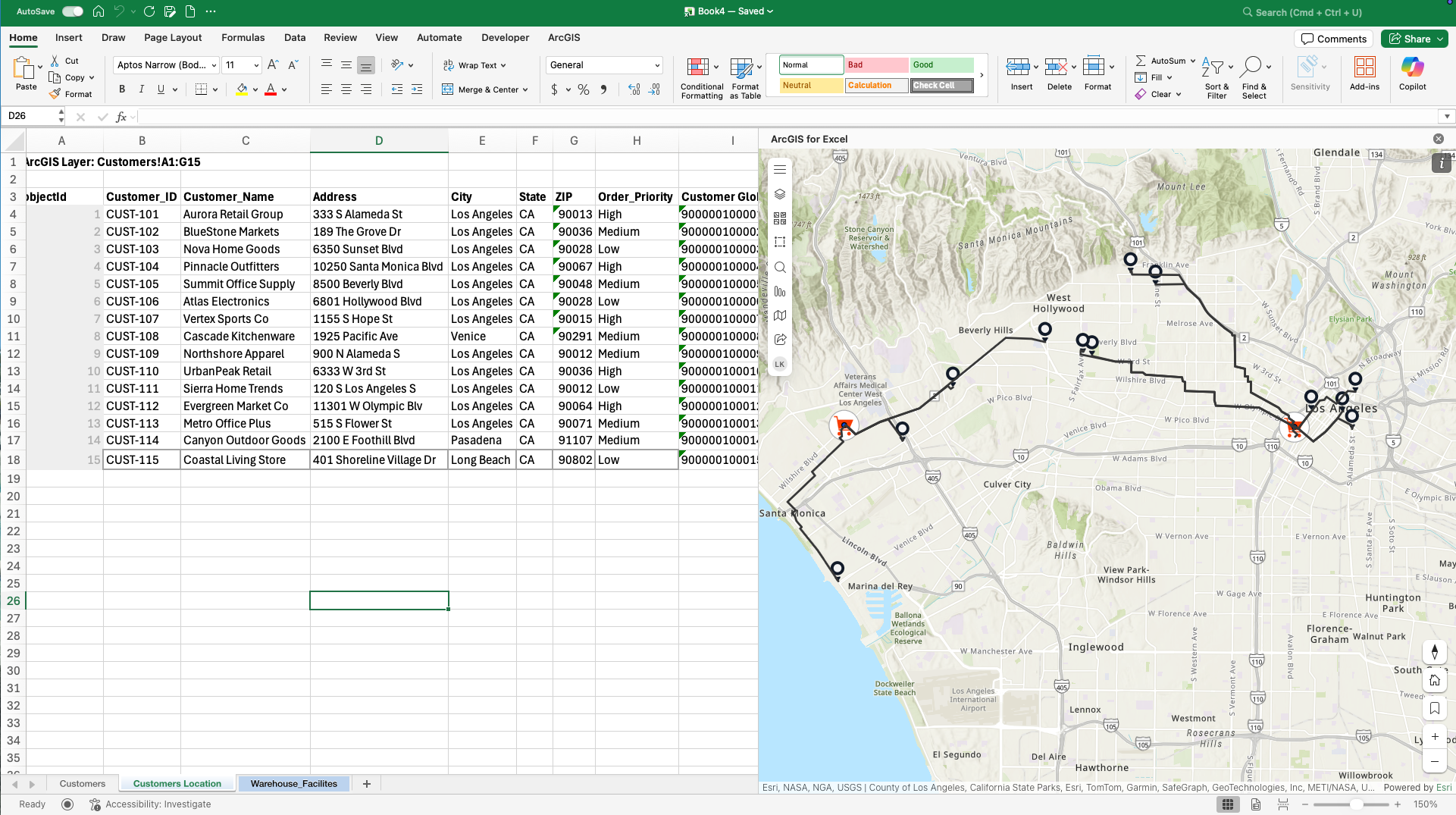
Closest locations and fastest routes with Find Closest
The new Find Closest feature in ArcGIS for Excel lets users identify the nearest locations from one dataset or feature layer to another without leaving Excel. The tool evaluates real-world distance or travel time using modes such as driving or walking and displays both the closest features and the routes to them.
For example, a safety services director can determine which fire station has the shortest driving time to each school in a city. Using Find Closest, the director can assign primary and secondary emergency responder stations based on driving time, supporting faster and more informed emergency planning.
Accurately work with datasets that contain very large numbers
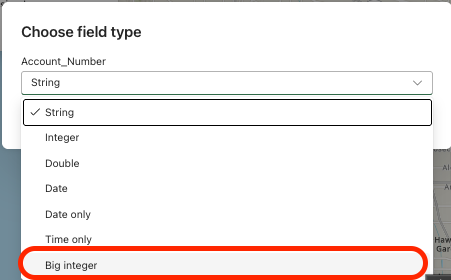
ArcGIS for Excel now supports the Big Integer field type, allowing users to work with very large numeric values without losing precision. Previously, large identifiers could be truncated or converted to text, creating issues with joins, lookups, and analysis.
With Big Integer support, values remain intact so analysts can confidently link tables, run calculations, and visualize data on maps. This enhancement makes ArcGIS for Excel more reliable for enterprise-scale workflows where data integrity is critical.
Improved error messages for geocoding
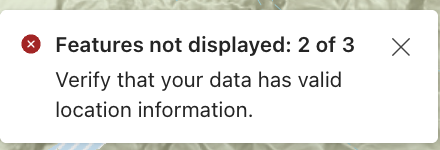
The geocoding experience now includes a clearer, more informative error message. The message highlights the number of addresses or coordinates that were not successfully that were not successfully geocoded out of the total number of addresses or coordinates. This improvement helps users understand issues faster and clean location data, especially when working with large dataset. For example, if coordinates are entered incorrectly or if an address is missing a key piece of information, the messages point to the number of rows that need attention so users can fix the inputs and continue geocoding with confidence.
ArcGIS for SharePoint
Edit SharePoint lists and document libraries from the map
The ArcGIS for SharePoint Editor now allows users to create and edit SharePoint lists and document libraries directly from a map. Edits follow SharePoint validation rules and remove the need to switch between applications.
For example, a facilities inspector can select an asset on the map, create an inspection record, attach photos, choose issue categories, and complete required fields in one workflow. This helps ensure accurate, complete data is captured at the asset location.
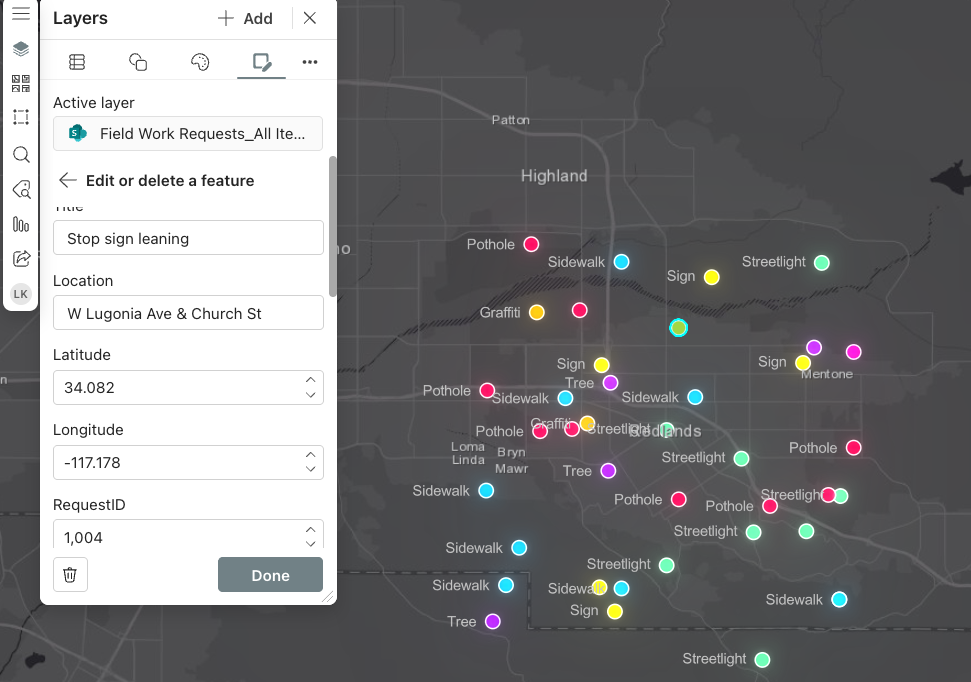
Highlight features on the map based on data values using Select by Attribute
Instead of manually scanning layers, you can build simple queries, like “Status = Active” or “Population > 10,000,” and instantly see only the features that match. This makes it easier to focus on relevant information, perform targeted analysis, and share clear maps without leaving Excel or SharePoint. For example, a transportation planner can filter a road layer to show only segments where “Condition = Poor” and “Traffic Volume > 50,000.” The map immediately highlights the most critical areas, helping prioritize maintenance and communicate needs clearly.
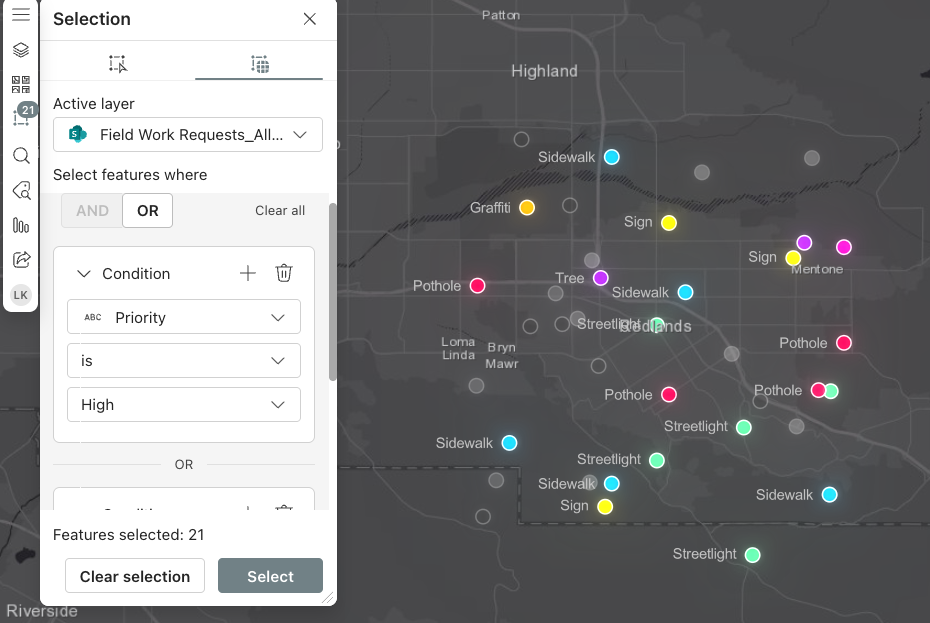
Keep geotagged document links in sync
ArcGIS for SharePoint now maintains connections between geotagged documents and their map features—even when files are moved or reorganized in SharePoint. If a document changes location, the linked map feature automatically updates to reference the new path.
This prevents broken links and helps teams continue accessing the right documents from the map without extra work.
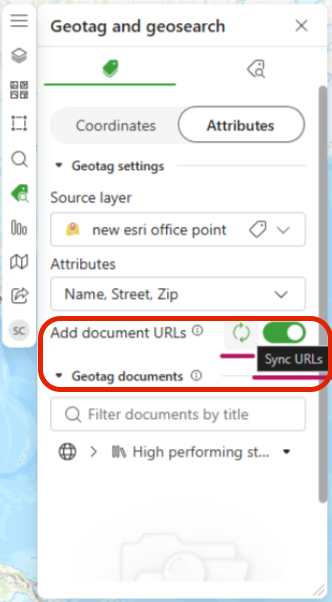
Reduce errors with coordinate-based geotagging
ArcGIS for SharePoint now supports geotagging documents on Projected Coordinate System (PCS) basemaps. This allows documents to be placed using the same coordinate system as other project data, removing the need for coordinate conversion and reducing placement errors.
Construction teams working in State Plane coordinates, for example, can geotag permits, inspection reports, and drawings at exact project coordinates that align with engineering and survey data.
New mapping experience in ArcGIS for Excel and ArcGIS for SharePoint
Use more meaningful visuals with advanced symbology
Advanced symbology options make it easier to create clear, expressive maps without specialized mapping expertise. Users can go beyond simple point maps to better compare categories, identify patterns, and understand relationships in their data.
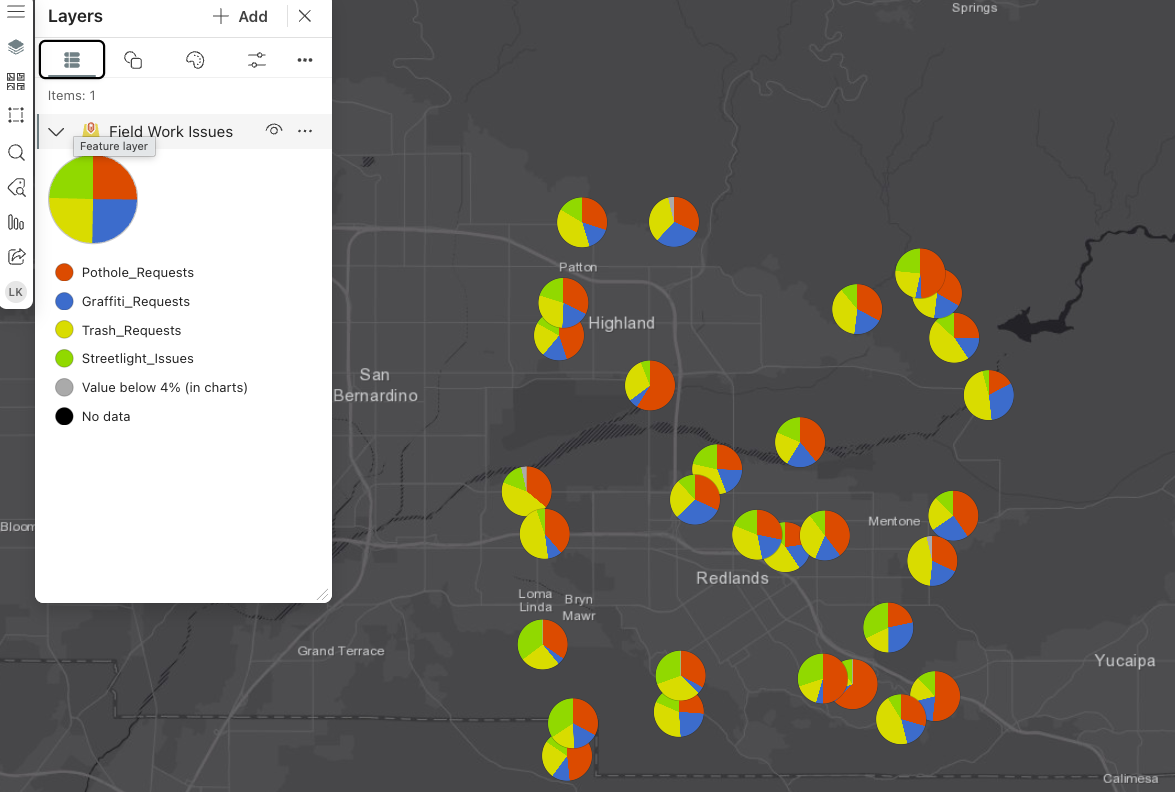
Show multiple values with pie chart symbology
Pie chart symbology displays multiple values at a single location using familiar pie charts, with each slice representing a category. This is useful for comparing composition across locations at a glance.
For example, a city planner can view neighborhoods as pie charts showing land-use mixes such as residential, commercial, industrial, and green space.
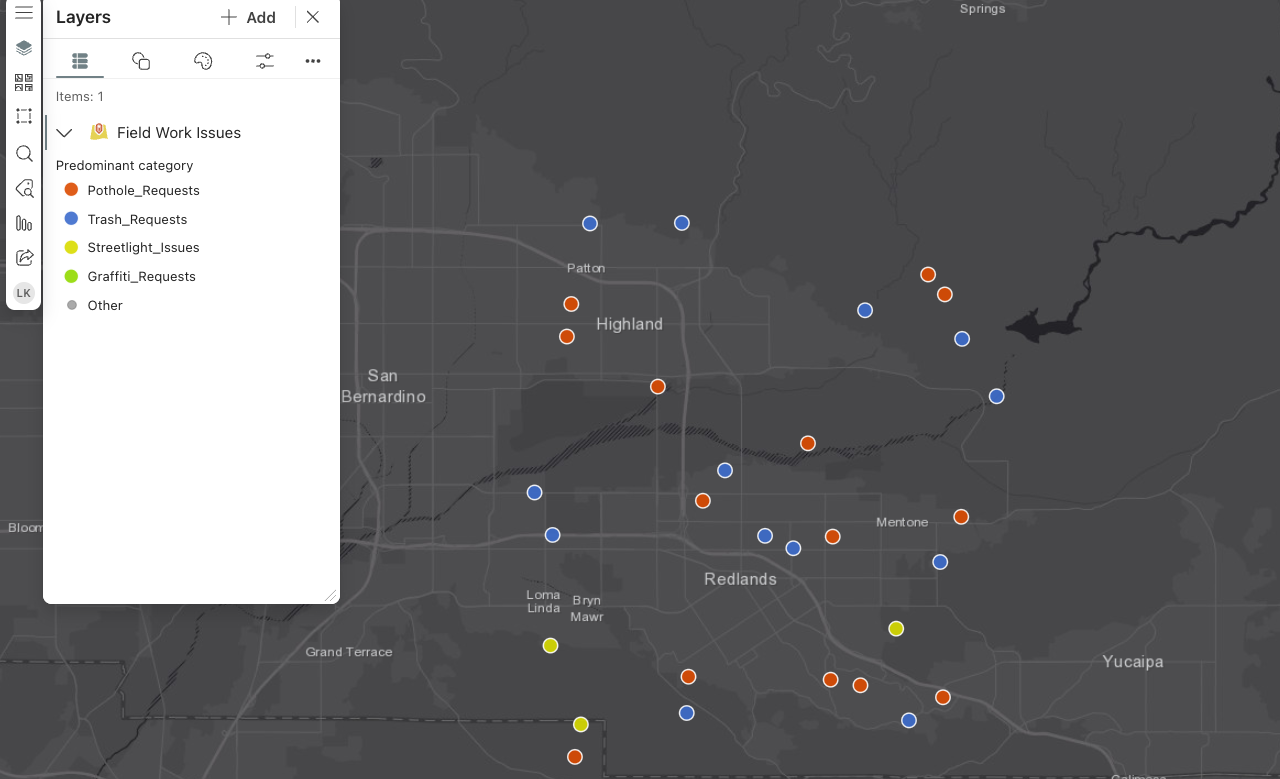
Highlight what matters most with predominance symbology
Predominance symbology displays only the category that dominates at each location using a single color or symbol. This helps users quickly see which value leads in each area.
For example, a retail analyst can instantly see which product category performs best in each region without examining detailed tables.
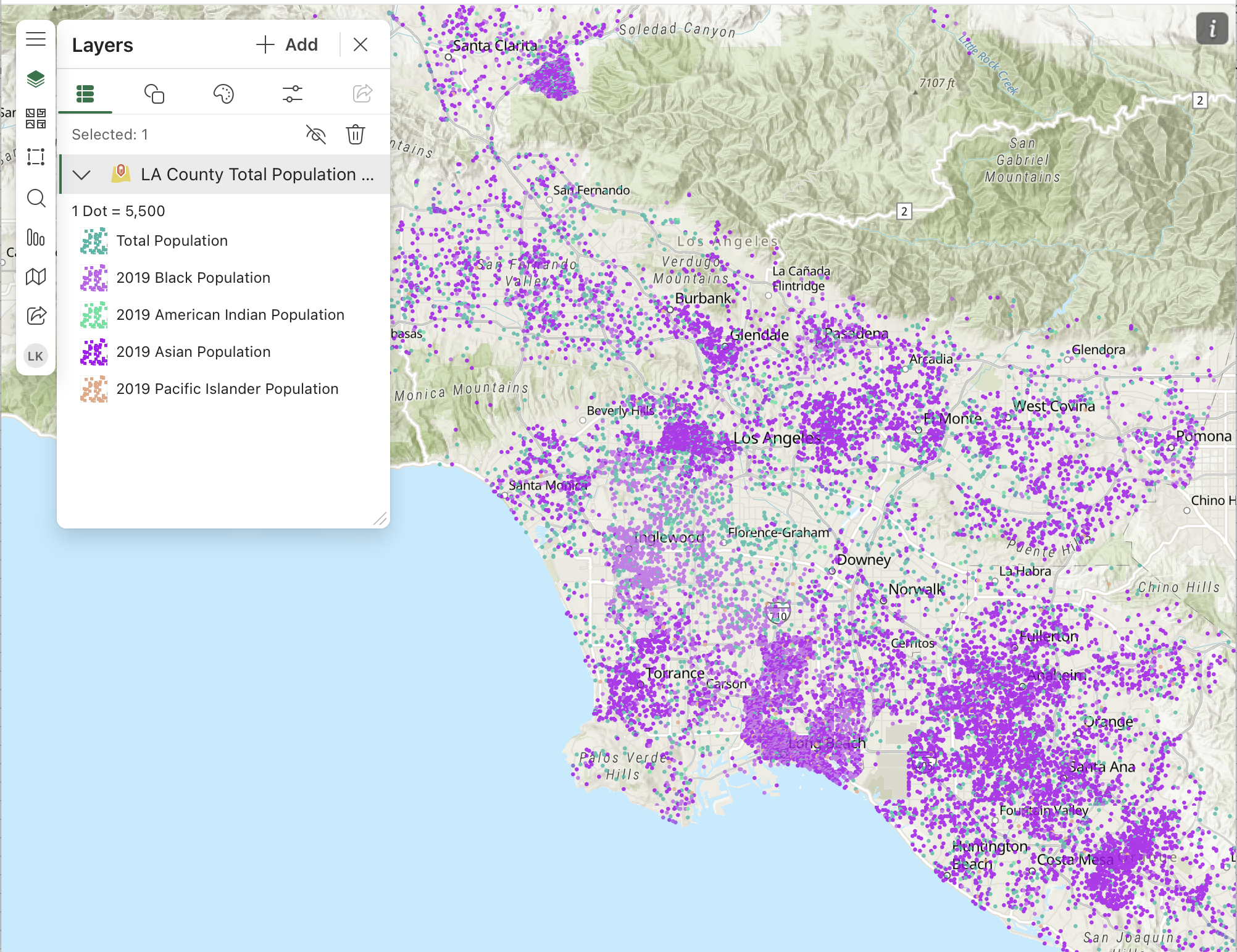
Easily visualize quantities with dot density
Dot density symbology represents quantities using dots distributed across an area, making it easy to see where values are concentrated. This is ideal for understanding distribution rather than exact totals.
A public health team, for example, can map population distribution using one dot per 1,000 people to clearly highlight population centers.
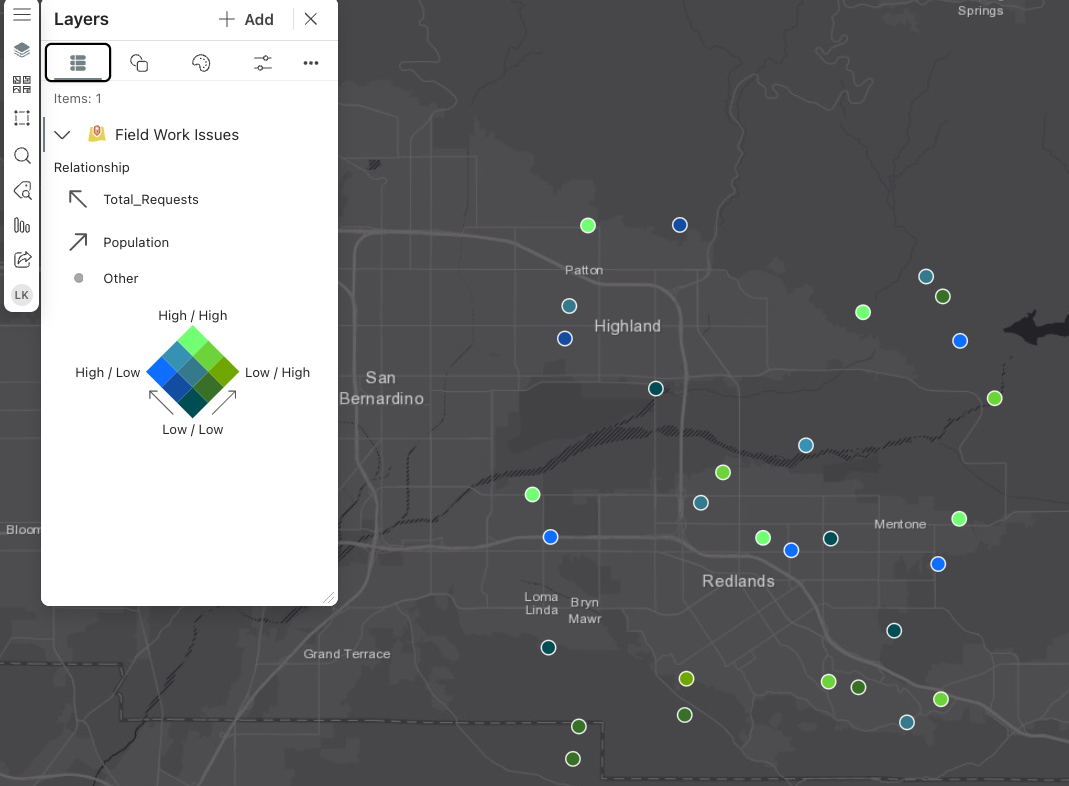
Understand relationships with relationship matrix symbology
Relationship matrix symbology shows how two variables interact at each location using combined colors or patterns. This helps users see how factors vary together without advanced analysis.
An environmental analyst can map air quality alongside population density to quickly identify areas where high population overlaps with poor air quality.
ArcGIS for Teams
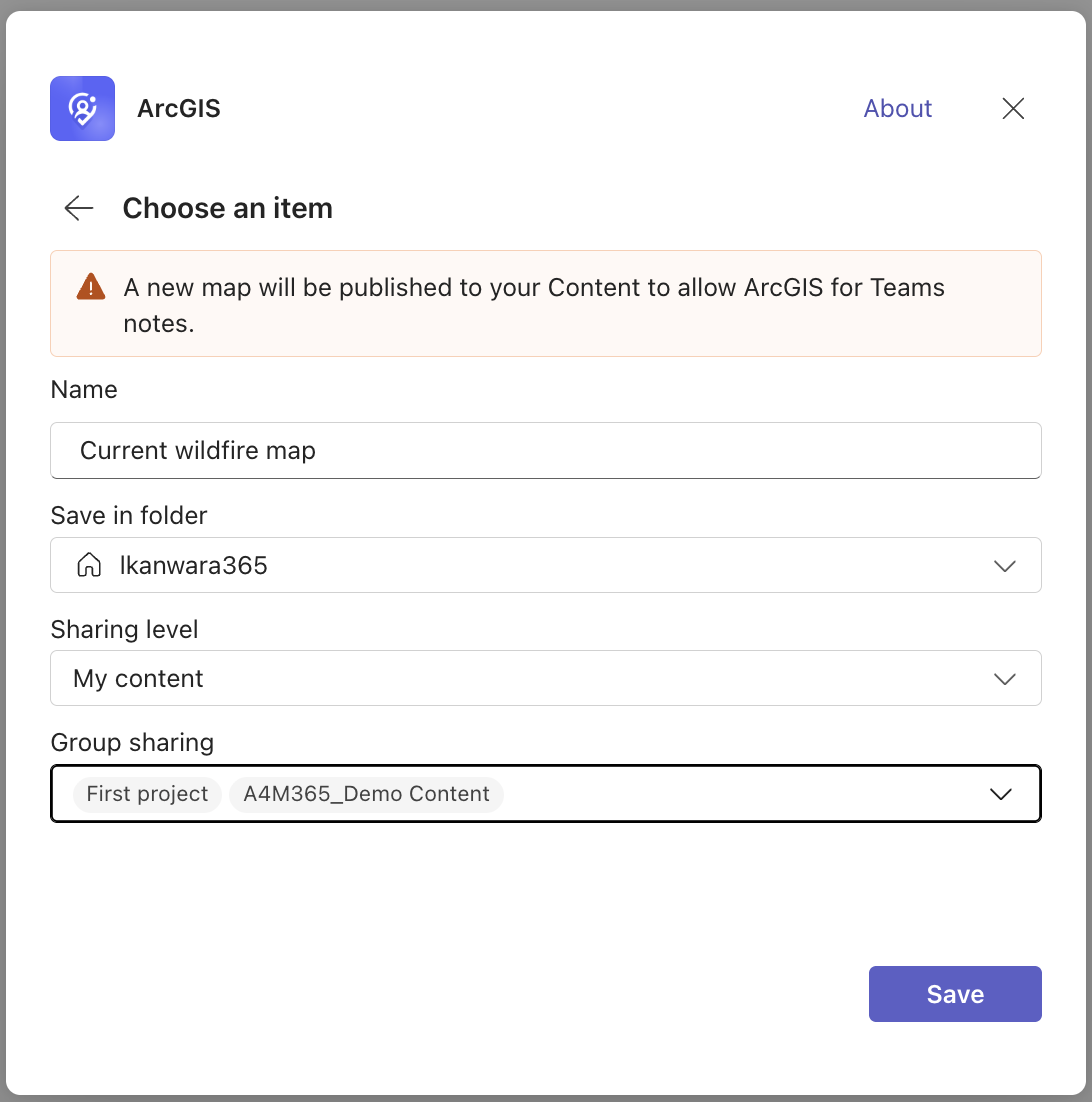
Store map notes and drawings in the right place
The updated Sketch & Annotate experience in ArcGIS for Teams gives users control over where map notes and drawings are stored. Instead of saving sketches to a default location, users can choose a specific folder or group in ArcGIS Online or ArcGIS Enterprise.
For example, a public works team marking road closure ideas can save sketches directly to a “Transportation Projects” group so collaborators can access them instantly without extra steps.
Discover and use Experience Builder apps in Microsoft Teams
ArcGIS for Teams now supports ArcGIS Experience Builder apps in ArcGIS Enterprise 12.0. Users can discover, open, and interact with Experience Builder apps directly within Microsoft Teams, eliminating the need to switch between applications.
For example, a city public works department can pin an Experience Builder app that tracks service requests, work orders, and crew locations directly in a Teams channel. Staff and supervisors can monitor progress and coordinate responses in the same space where conversations already happen, improving the speed and quality of decisions.
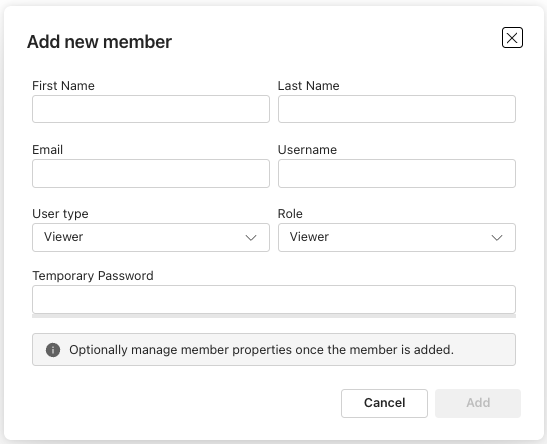
Manage users directly in Microsoft Teams
New administrative controls in ArcGIS for Teams allow administrators to add members, assign user types, and set roles directly within Microsoft Teams. Keeping user management alongside everyday collaboration reduces context switching and speeds up onboarding for new users.
Additional Resources
These updates across ArcGIS for Excel, Teams, and SharePoint focus on giving users clearer control, stronger data integrity, and smoother spatial workflows, so teams can analyze, manage, and share geographic data more confidently within Microsoft 365.
To get the most out of these capabilities and stay updated, explore our additional resources, including the Esri Community pages for ArcGIS for Excel, ArcGIS for SharePoint, and ArcGIS for Teams, as well as the ArcGIS for Microsoft product page.

Article Discussion: