Discover how ArcGIS for Microsoft 365 can transform the way you work. In our recent webinar, Boost Your Productivity with ArcGIS for Microsoft 365, we explored practical tips, powerful integrations, and real-world use cases to help you get more done with less effort. In this blog, we’re answering the questions from the session and sharing the recording so you can revisit the insights or catch up if you couldn’t join us live.
General Questions
Does ArcGIS for Microsoft 365 work with both ArcGIS Online and ArcGIS Enterprise?
Yes, ArcGIS for Microsoft 365 integrates with both ArcGIS Online and ArcGIS Enterprise. This allows organizations to leverage their existing GIS infrastructure, whether cloud-based or on-premises, directly within Microsoft applications.
Are there resources available to help new users get started with ArcGIS for Microsoft 365?
Yes, we provide documentation for all of our applications to help new users get started. For example, the ‘Get Started for ArcGIS for Excel’ page offers step-by-step guidance for ArcGIS for Excel.
Can coworkers without an ArcGIS login view maps within Microsoft applications, or is access restricted to team members with ArcGIS accounts?
Viewing and interacting with ArcGIS maps within Microsoft 365 applications requires an ArcGIS user type. However, some content can be made public or shared with broader audiences, depending on organizational sharing setting and policy.
Are these applications suitable for non-technical users?
Yes, ArcGIS for Microsoft 365 is designed to be accessible to users of varying technical backgrounds. Intuitive interfaces and guided workflows make it possible for non-technical staff to create, view, and interact with maps and spatial data.
ArcGIS for Excel
Can I create a map in ArcGIS for Excel that is public facing?
Maps created in ArcGIS for Excel can be shared publicly if the underlying data and map settings allow for public access. This is subject to your organization’s sharing policies and the permissions set within ArcGIS Online or Enterprise.
What location types can be entered besides latitude/longitude? Is there a dropdown menu for other options?
ArcGIS for Excel supports various location types, including addresses, EsriJSON, GeoJSON geometry, postal codes, city names, and custom regions. The application provides a dropdown menu to select the preferred location type for geocoding.
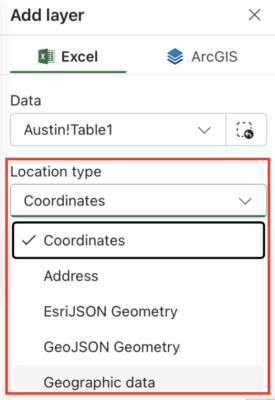
What if my Excel sheet does not contain coordinates?
If your data lacks coordinates, you can use other geographic data fields (such as or postal codes, city, county, and state) to map your data. ArcGIS for Excel helps you to select the appropriate location type for mapping.
How do I get the ArcGIS tab in Excel? Is it something I need to install?
The ArcGIS tab in Excel is available as an add-in or app, which can be installed from the Microsoft Appsource. Once installed, it appears as a tab in your Excel ribbon, providing access to mapping and analysis tools.
Do I need to be logged into ArcGIS Online through ArcGIS for Excel to use analysis tools?
Yes, logging into ArcGIS Online or Enterprise is required to access advanced analysis tools and publish content. Some basic mapping features are available without login, but full functionality requires you authenticate.
ArcGIS for SharePoint
Are special licenses required to access ArcGIS for SharePoint?
To access the capabilities of ArcGIS for SharePoint, you will need both a Microsoft account and an ArcGIS user type. These credentials ensure you can sign in, use the mapping features, and access the integration between SharePoint and ArcGIS. Some features can be used without signing into ArcGIS, but full functionality requires authentication with both accounts.
Is there a way to circumvent user login when accessing ArcGIS data published to SharePoint without making the data public?
No, there isn’t a way to bypass user login without making the data public. If the ArcGIS data published to SharePoint is private, users will need to sign in to access it. This ensures that sensitive or restricted information remains secure and only authorized users can view it.
Will there be pop-ups in ArcGIS for SharePoint when a user clicks on a map point?
Yes, interactive pop-ups are supported in ArcGIS for SharePoint, allowing users to view additional information about map features.
Once a document has been geotagged in SharePoint, can it be accessed outside of SharePoint?
Yes, geotagged documents in SharePoint can be accessed outside of SharePoint. When you geotag a document using ArcGIS for SharePoint, the document’s URL becomes available in both ArcGIS for SharePoint and Map Viewer. By clicking on these URLs, you can open the documents directly in your browser, making it easy to view and share them without navigating back to SharePoint.
ArcGIS for Teams
Is there a way to share a dashboard that uses data hosted on ArcGIS Online within Microsoft tools, without requiring the client to have an Esri account?
Yes, you can share dashboards without requiring an Esri account, as long as the dashboard and its underlying data layers are set to public. If the content includes private or sensitive information, then users will need to sign in with their Esri credentials to access the specific map or app.
When searching for maps in Teams, does ArcGIS search your ArcGIS Online account?
Yes, when you use ArcGIS in Teams to search for maps, it queries your ArcGIS Online account, returning maps and content you have access to.
Does everyone in a Teams meeting need ArcGIS for Teams to view a map, or just the person sharing?
- Presenter Requirements: The presenter must have ArcGIS for Teams installed and signed in if sharing private content.
- Participants: They do not need ArcGIS for Teams installed to view the map. They can interact with the shared map through the meeting interface.
- Permissions: If the map is public, guests can view it without an ArcGIS account. For private content, participants need appropriate ArcGIS credentials.
Additional Information and Resources
We hope this blog has provided clear answers to the questions raised during our webinar and offered valuable insights into integrating ArcGIS with Microsoft applications. By leveraging the powerful capabilities of ArcGIS for Microsoft 365 you can enhance your workflows, improve collaboration, and unlock new opportunities for spatial analysis. If you’re ready to take the next step, explore the resources below to deepen your understanding and start implementing these solutions today.
- ArcGIS for Microsoft: Learn how to integrate geospatial data into Microsoft
- ArcGIS for Microsoft 365: Learn how to integrate mapping and spatial analysis into Microsoft tools like Excel, SharePoint, and Team.
- ArcGIS Blog: Stay updated with articles on the latest innovations in ArcGIS technology.
- ArcGIS for Microsoft Video: Watch an overview of how ArcGIS integrates across Microsoft platforms to enhance business operation
- Getting Started with ArcGIS for Microsoft: Learn more about how you can leverage these integrations in your workflow.
- Deploy add-ins in the Microsoft 365 admin center
Article Discussion: