When creating a suitability model, there is often a desire to produce a single definitive solution. However, by exploring a series of what-if scenarios, you can gain deeper insights into various alternatives that can inform your final decision. This is precisely the purpose of the new Model Comparison interface in the Suitability Modeler in ArcGIS Pro version 3.6— experiment with different scenarios and analyze their effects.
Can you relate to this? After developing a suitability model, do you find yourself questioning what might have happened if you had prioritized the environmental objective over the cost objective? Or perhaps you wonder if including distance from streams as a criterion would have made a difference. Within the model, do you contemplate whether to use the MSSmall versus the Small transformation function, or whether adjusting the weight from 1.2 to 1.5 would yield better results? We all wonder these things.
To understand the impact of different decision strategies, vary the objectives and focus of the model. To address the inherent subjectivity of the modeling process, consider altering the transformation functions and weight parameters. To examine the uncertainty of how a subject responds to its environment, modify the criteria within the model. By running different scenarios and comparing the results, you can gain valuable insights into your modeling decisions.
Since a suitability model relies on individual perspectives and interpretations, there is no objective measure to determine the best model or scenario. Instead, we can identify the similarities and differences among them.
Let’s explore how the Model Comparison interface can be utilized to examine various what-if scenarios. We will specifically investigate its application in the preliminary siting of five early warning emergency sirens in a flood-prone area.
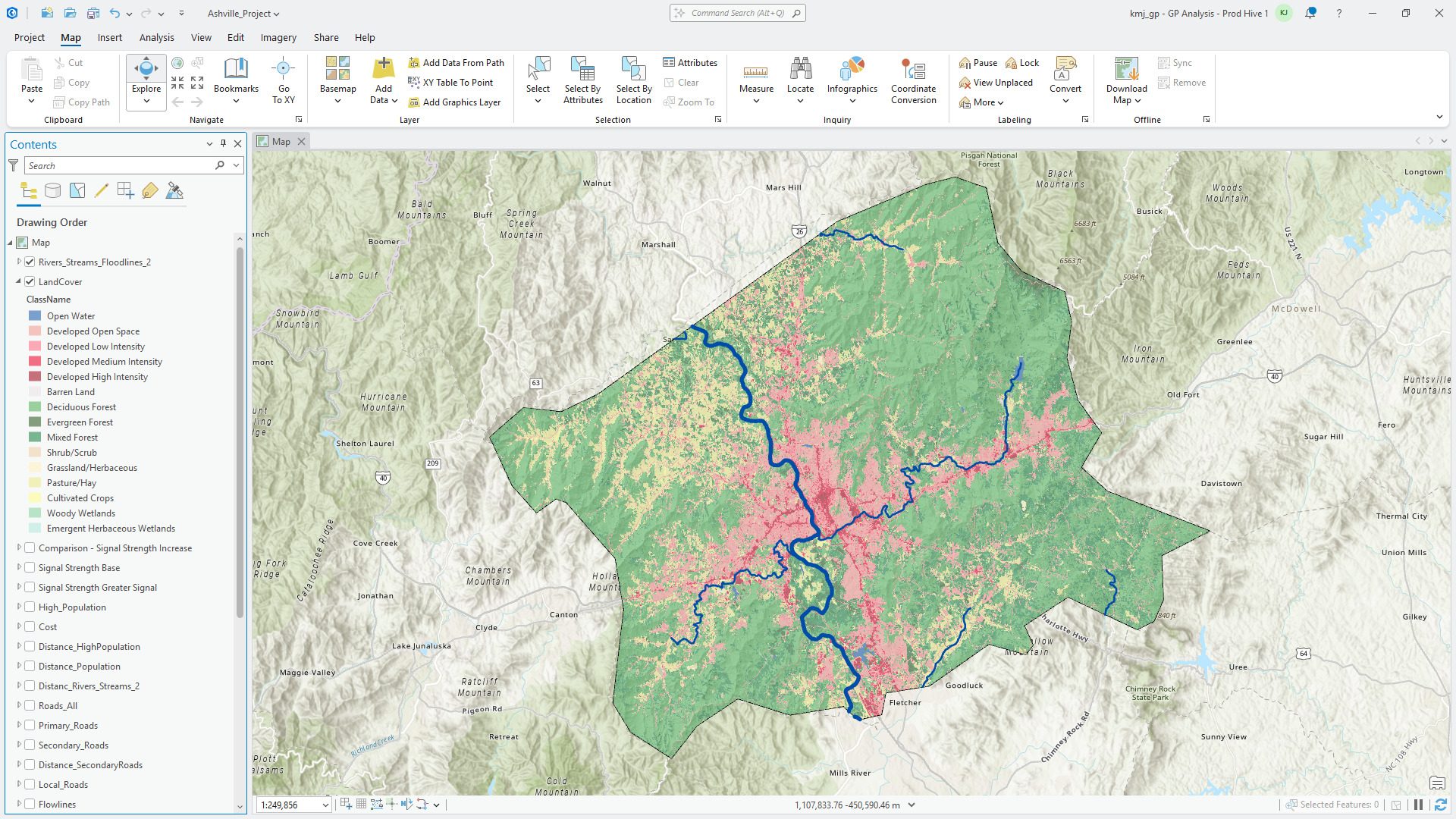
We will utilize the interface to assess the impact of installing more powerful sirens compared to standard ones.
For the comparison, we have developed two suitability models using the Suitability Modeler in ArcGIS Pro, both based on the same criteria. The signal strength criteria were modified in the second model to reflect the capabilities of a more powerful siren, as opposed to the standard siren used in the first model.
To analyze the effects of the more powerful sirens, we will employ the Model Comparison interface. This will allow us to apply predefined statistics to identify similarities and differences between the models. Each statistic offers unique insights into the relationships between the models. By applying a series of statistics, we can gain a deeper understanding of how the changes between the models affect the final results.
The Model Comparison interface is accessed from the Suitability Modeler split-button.
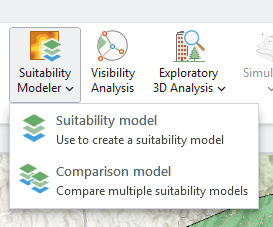
Click Comparison model to open the Comparison pane.
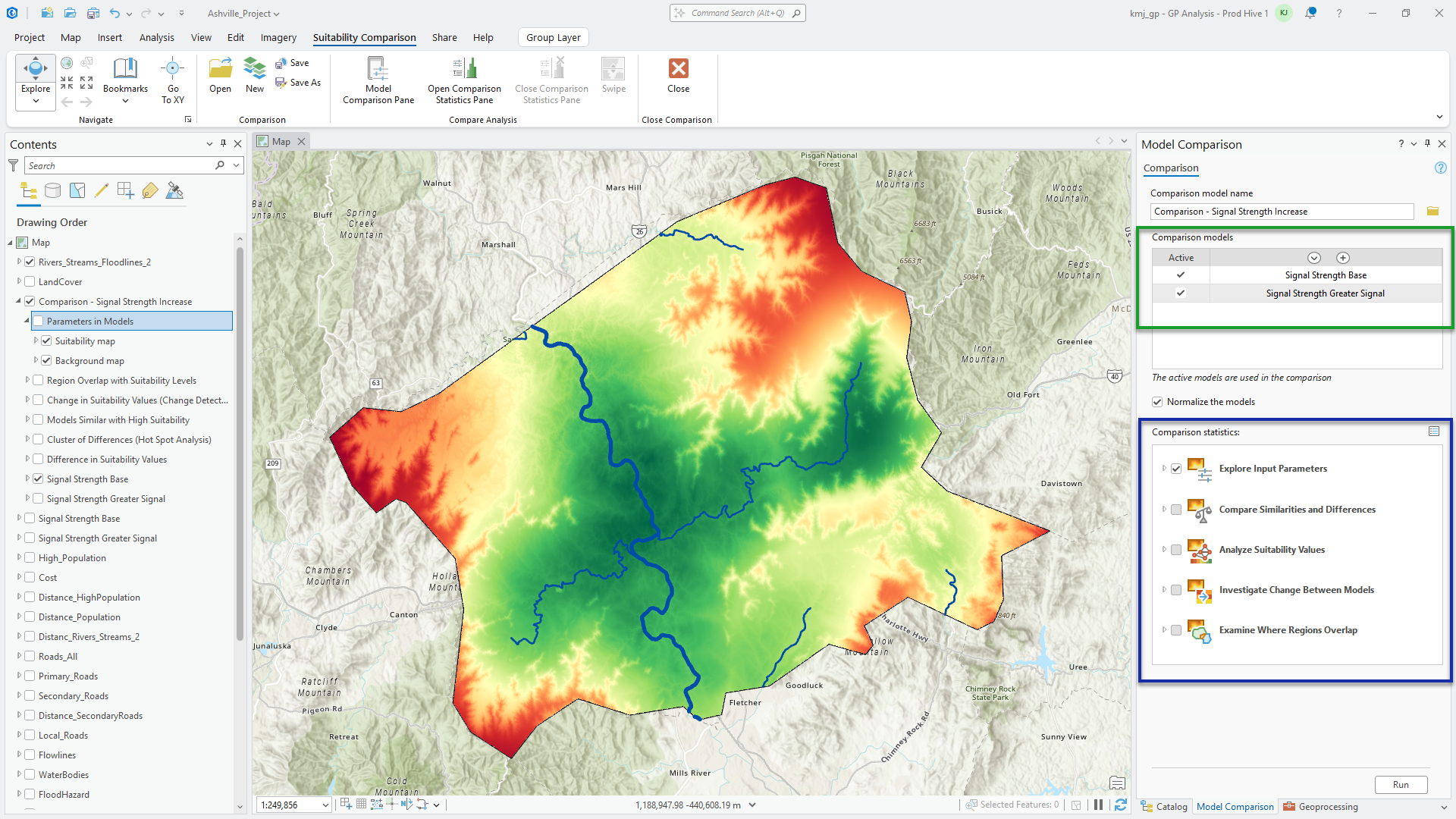
In the pane, the two models we want to compare are identified by the dark green box in the image above.
There are 13 predefined statistics to perform the comparison organized in 5 functional groups in the Comparison statistics section of the pane as identified by the blue box in the image above.
The statistics in the Explore Input Parameters group provide an overview of the model parameters and the output.
The Compare Similarities and Differences group has a series of statistics allowing you to see where the suitability values between the models are similar and where they differ.
The statistics in the Analyze Suitability Values group allow you to analyze the spatial distribution of the high suitability values between the models since they are the most relevant to the analysis.
The Investigate Change Between Models group has a variety of statistics to help you identify how the suitability values change between the models.
The statistics in the Examine Where Regions Overlap group permit you to analyze where the models’ final locations are in agreement and where they differ.
To calculate the desired statistics, click the Run button. The Explore pane then appears. The pane displays the statistics that were selected to run.
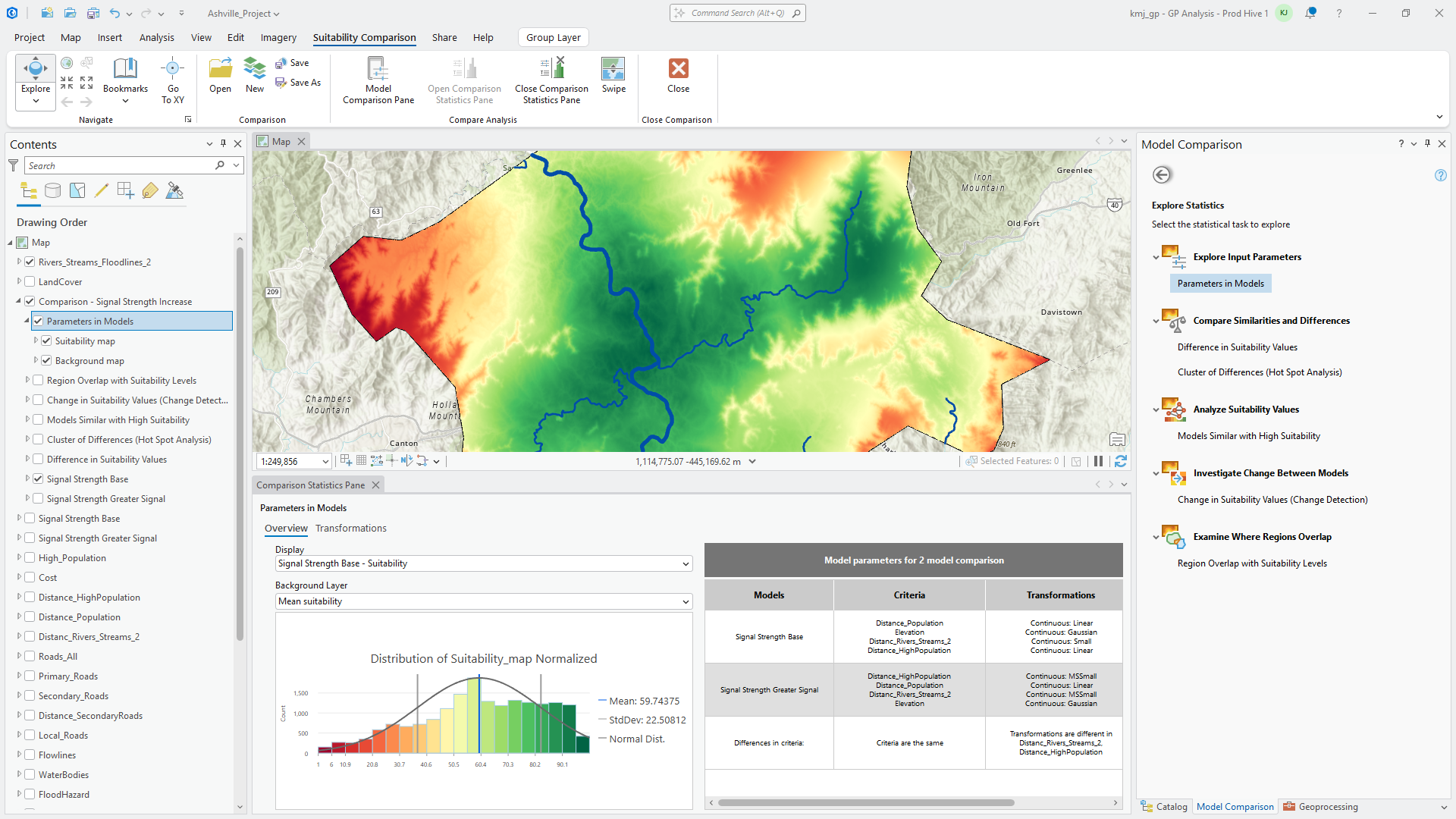
The first statistic, Parameters in Models (if selected), is displayed automatically. The Comparison Statistics Pane appears showing the parameters and a plot from the statistic. By default, the suitability map for the first model is also displayed.
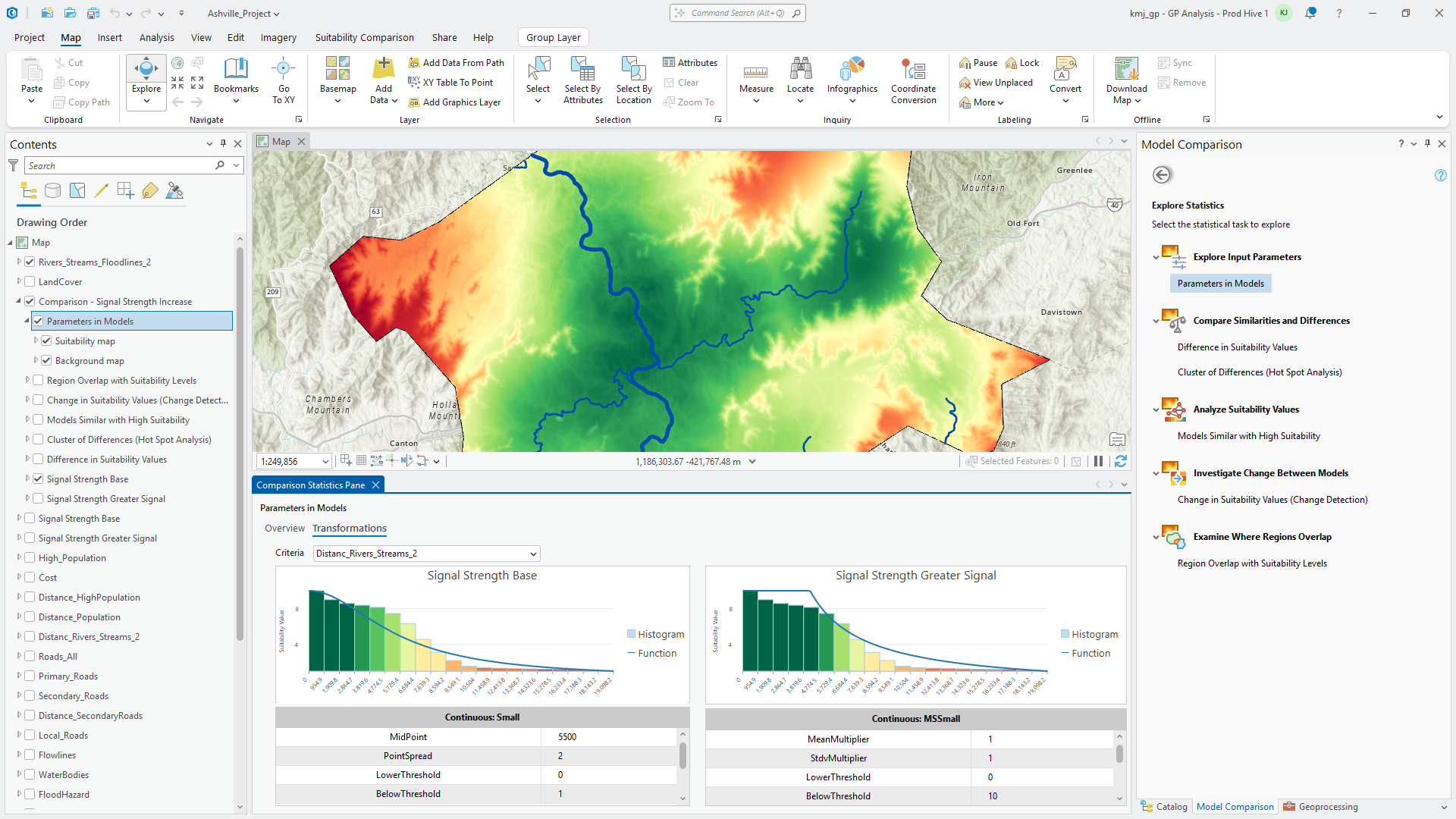
Clicking the Transformation tab reveals the various transformations applied to the siren signal strength criteria. The left plot displays the standard siren transformation function (represented by the blue line), while the right plot shows the transformation function for the stronger signal. Notably, the standard siren signal transformation function tapers off more quickly, and the audible range is not as far.
Let’s see where the models are similar and different.
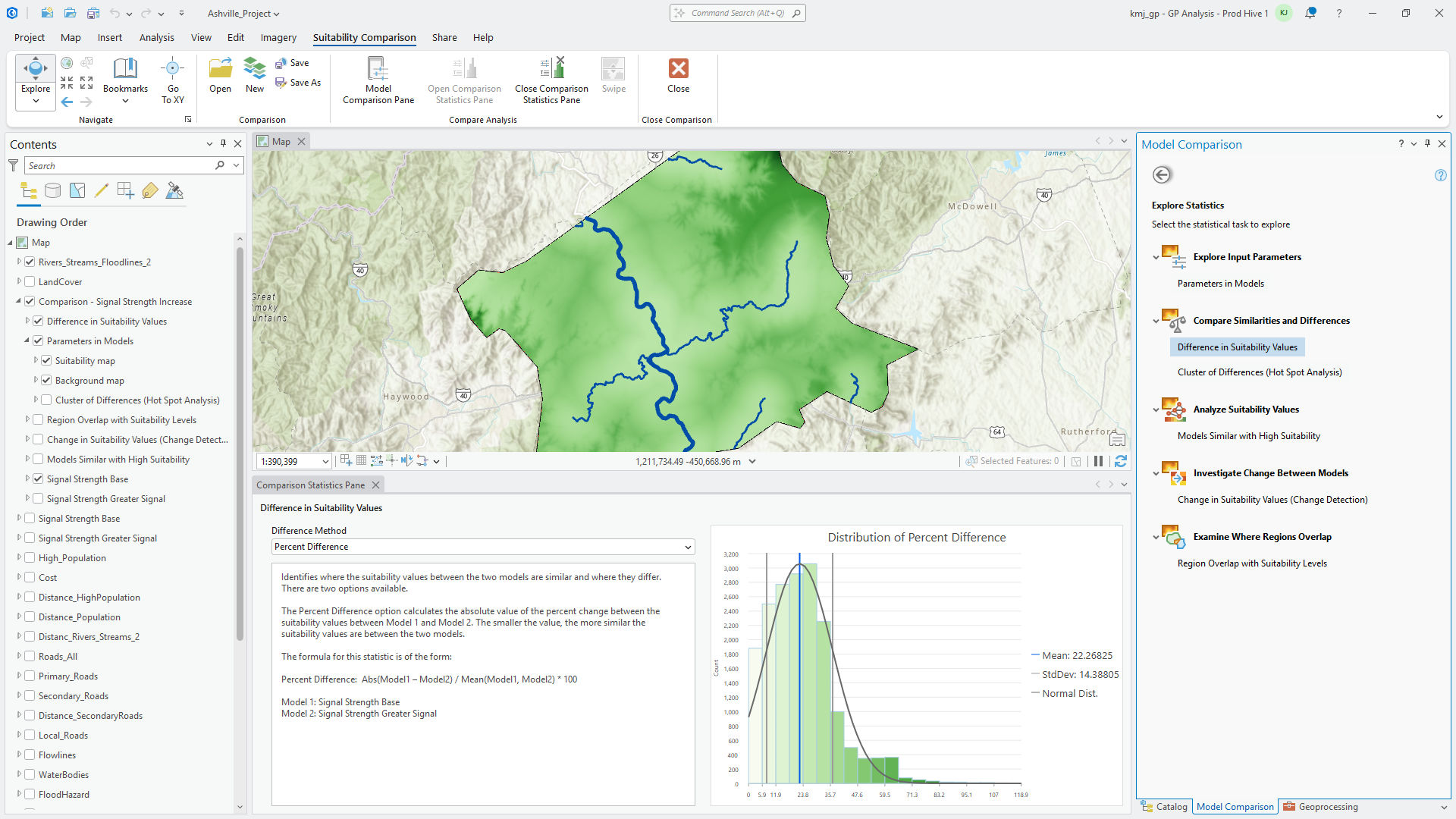
Around the rivers and populated areas, the two models agree which is represented by the lighter green.
Let’s further examine the similarities and differences between the models.
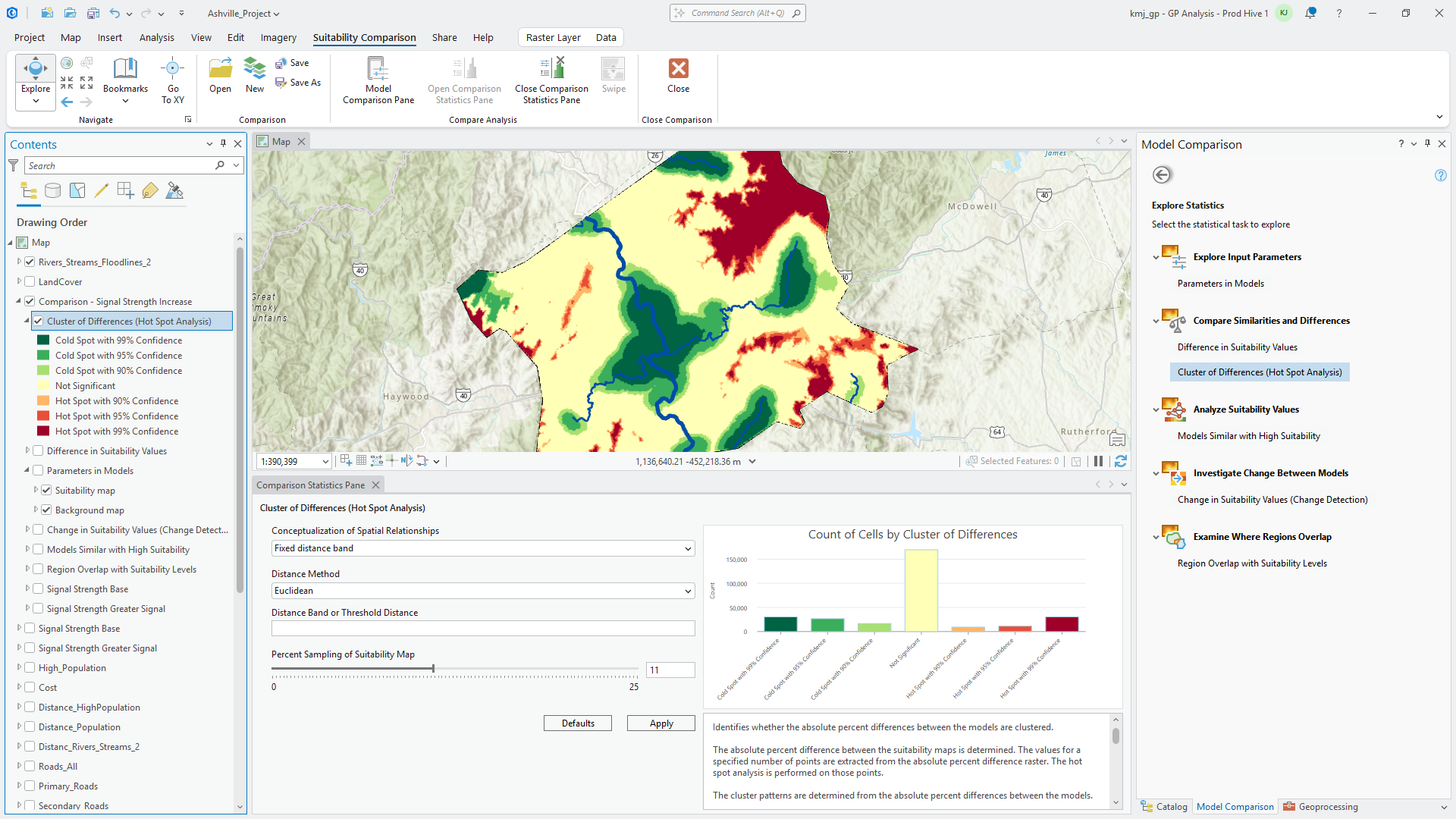
The hot spot analysis highlights areas where the absolute percent difference between suitability values cluster. The green areas are where the models agree and the red areas where they differ. Notably, the models agree in regions with higher population density, particularly around the intersection of the two rivers.
What are the suitability values in the areas of agreement?
The following image illustrates where the models are similar that have high suitability values (symbolized in green). These areas, located at the river intersection and near populated zones, represent locations favored by the sirens in both scenarios.
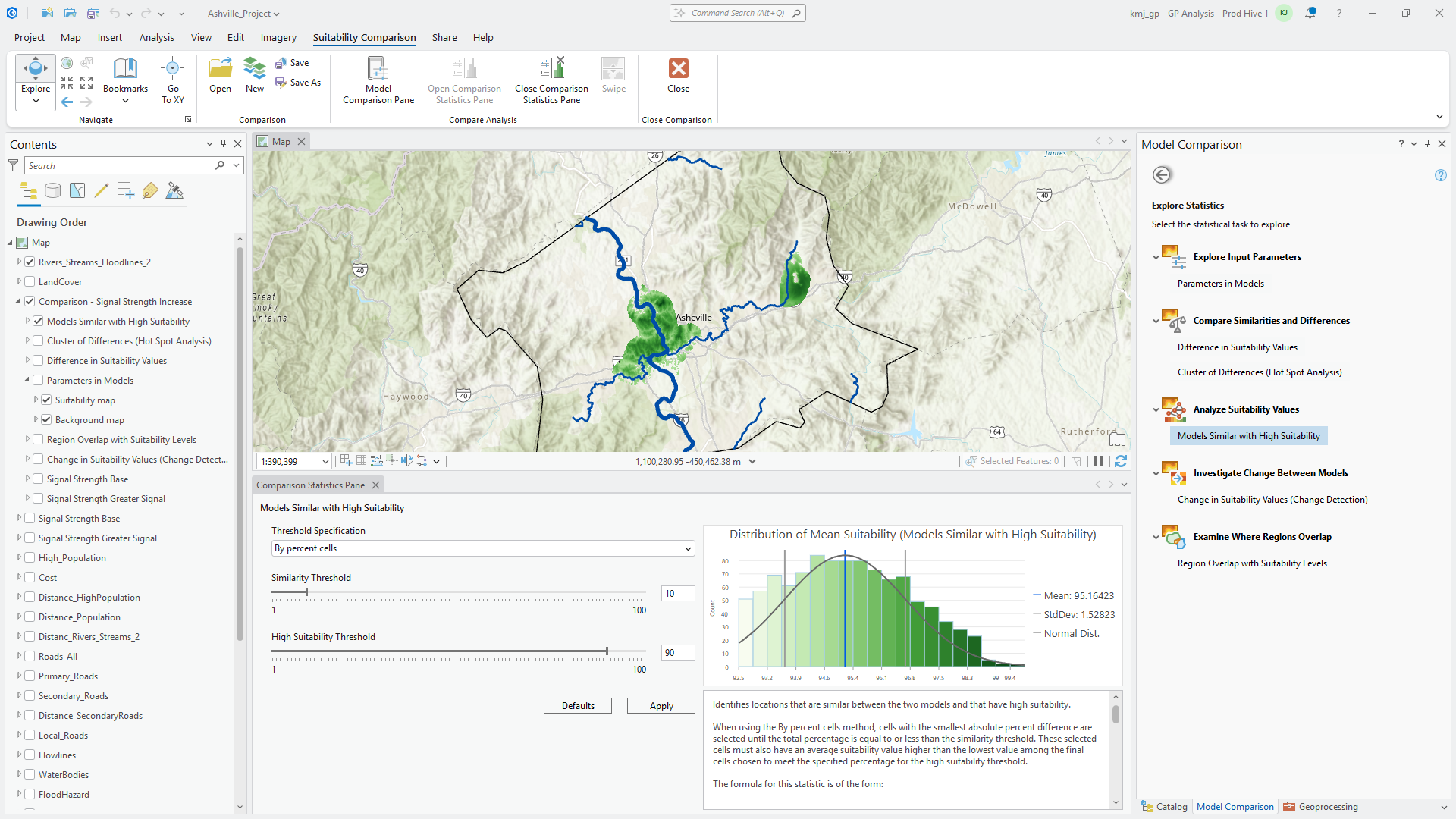
We can also look a little deeper by moving the Similarity slider to see where additional locations will be added as we increase the similarity threshold.
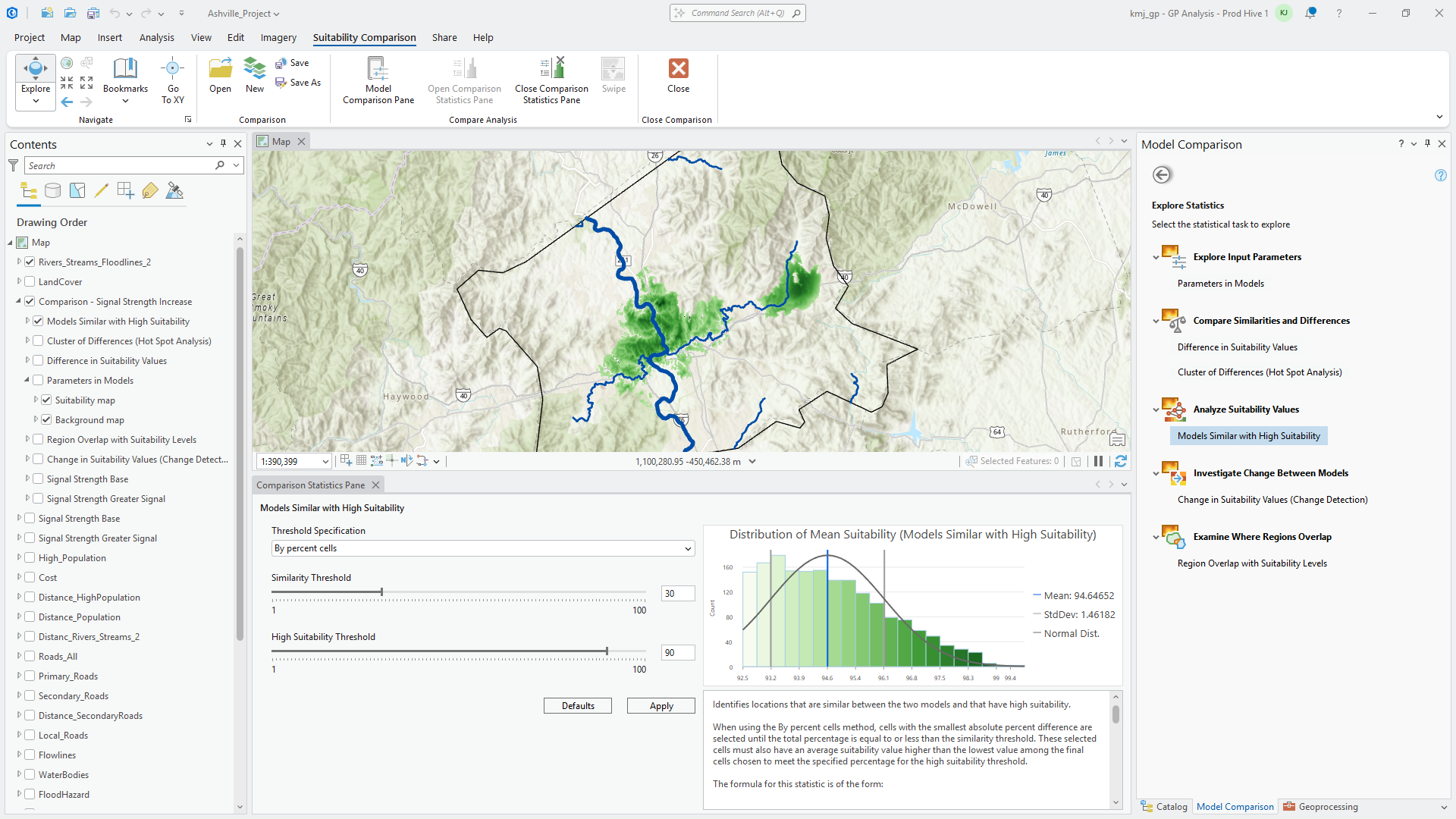
Notice additional locations are added away from the intersection of the two rivers uncovering other similar and highly suitable locations.
But how do the values change from one model to the other?
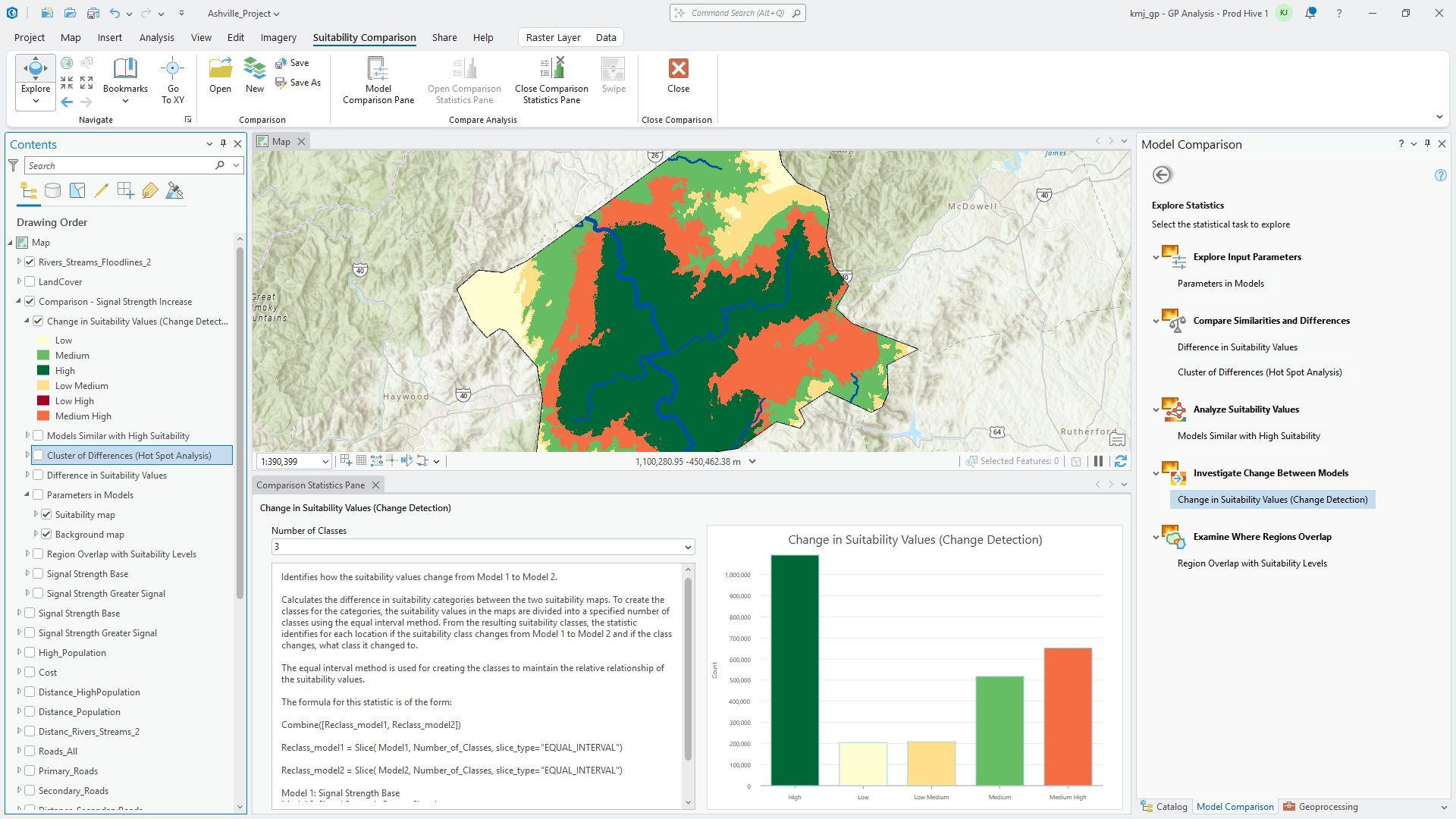
The dark green areas indicate regions where both models have high suitability. Notice that at the edges of these dark green areas, the orange regions represent a transition from medium to high suitability. This shift is attributed to the extended range of the more powerful sirens.
Finally, let’s examine the overlapping regions between the two models. The top five locations have been identified from the suitability maps.
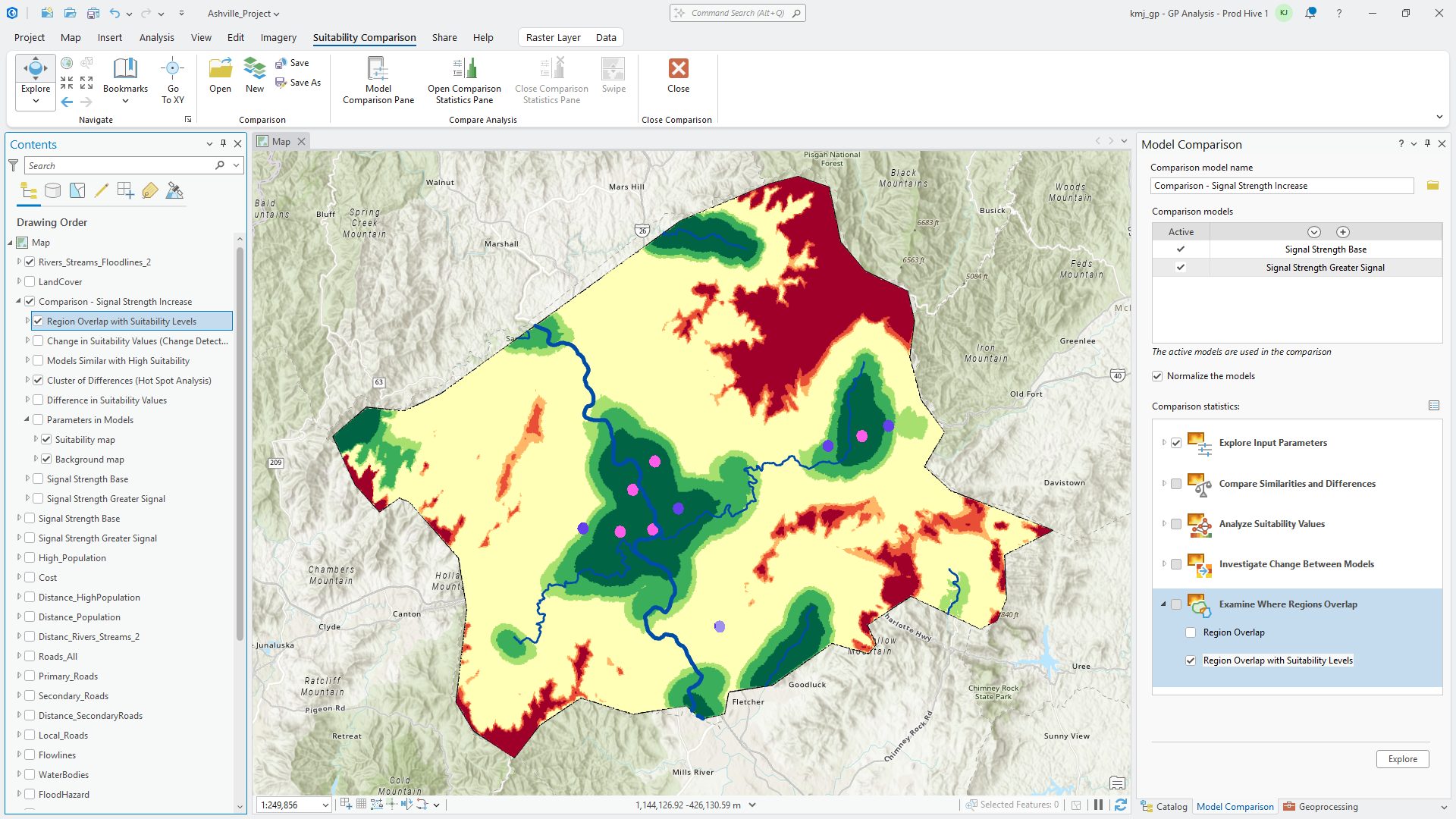
There is no overlap between the regions. The pinkish areas indicate the locations of standard signal sirens, which are concentrated around the populated areas at the river’s intersection due to their limited range. In contrast, the blue areas represent the locations of stronger signal sirens, which are distributed more widely along the flood zone, closer to other populated regions.
From this comparative analysis, we conclude that signal strength significantly impacts the models.
In conclusion, due to the subjective nature of setting parameters in a suitability model, we suggest that relying on a single solution does not provide a comprehensive view. We encourage the exploration of multiple scenarios. Based on your analysis of the various what-if scenarios, you can either select one of the models or adjust other parameters to test additional scenarios.
Acknowledgements
Data used:
The National Hydrography Dataset Plus High Resolution (NHDplus High Resolution) maps the lakes, ponds, streams, rivers and other surface waters of the United States. Created by the US Geological Survey, https://www.arcgis.com/home/item.html?id=f1f45a3ba37a4f03a5f48d7454e4b654
USA Structures – utilizing Federal Emergency Management Agency (FEMA) data, displays footprints for all structures (buildings) in the United States (in collaboration with U.S. Geological Survey).
https://www.arcgis.com/home/item.html?id=0ec8512ad21e4bb987d7e848d14e7e24
Elevation – data from USGS 3D Elevation Program (3DEP).
https://www.arcgis.com/home/item.html?id=0383ba18906149e3bd2a0975a0afdb8e
Land cover layer produced by the Multi-Resolution Land Characteristics Consortium (MRLC).
https://www.arcgis.com/home/item.html?id=3ccf118ed80748909eb85c6d262b426f

Is there any self-guided training material offered by ESRI that steps you through the model comparison interface so one can learn how to use this tool and best practise?