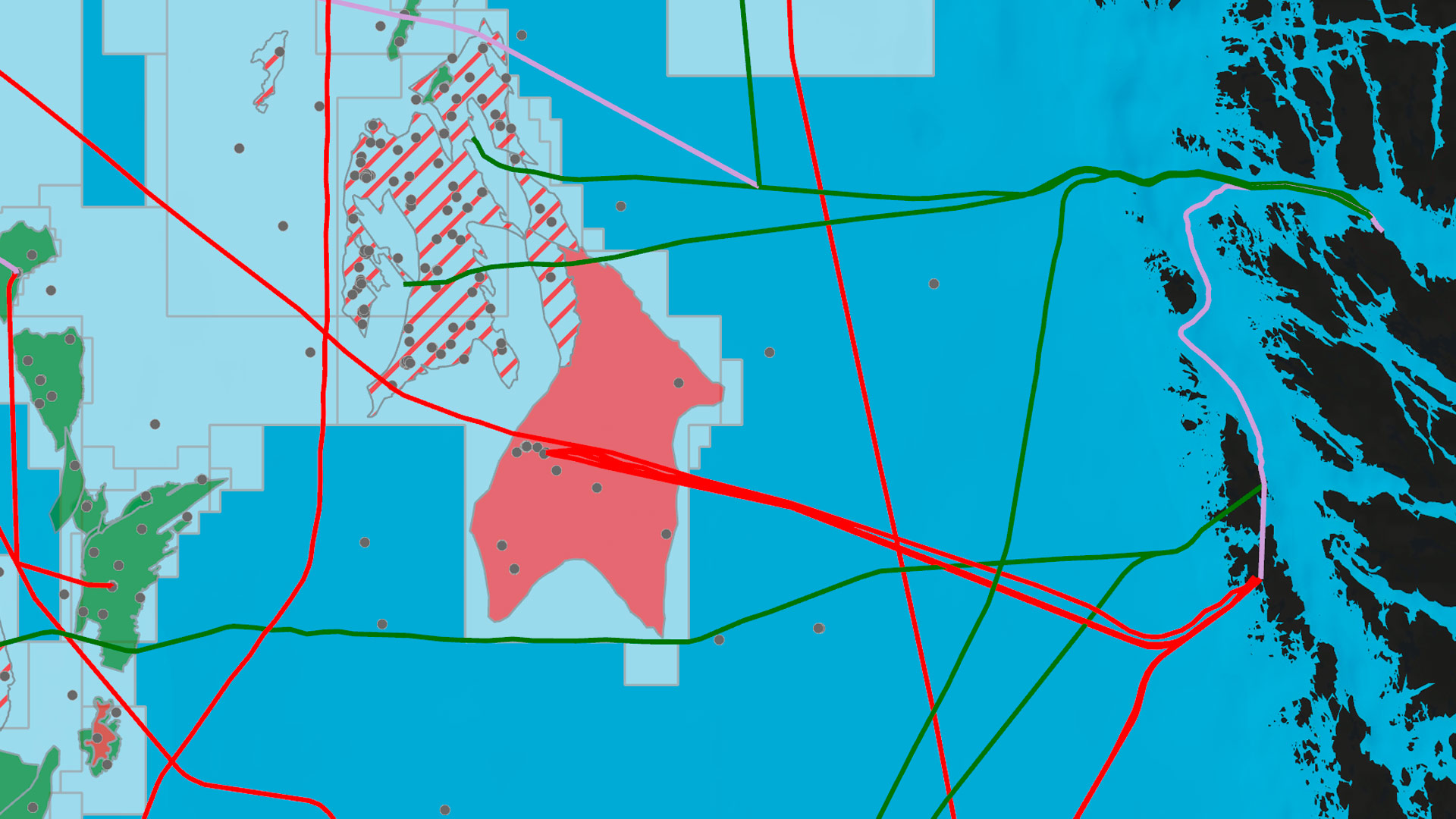
ArcGIS is a comprehensive geospatial platform that offers a wide range of solutions for integrating and managing data.
ArcGIS Online and ArcGIS Enterprise are two Web GIS systems that are foundational to managing GIS data. They power the apps, maps, and web layers that unite and share data across—and even outside of—an organization. Both offer flexibility and comprehensive solutions for integrating data into an organization’s most critical mapping and analysis workflows.
So which data management strategy is best? That depends on factors such as how often the data is updated, where it originates, and the steps involved with getting data into a presentable state. Let’s explore six common methods for integrating data in ArcGIS and highlight some key benefits of each.
Scenario 1: You need an easy and efficient way to integrate data and use it in your ArcGIS organization.
Your data is in a ready-to-use state for mapping, analysis, or reporting, and it doesn’t require cleaning or formatting. You want to ingest a static copy of the data because it won’t be updated or edited.
Solution: Add your content directly to ArcGIS Online or ArcGIS Enterprise.
Users can add data from a variety of sources, such as a local drive or network, in many data formats, including CSV, Microsoft Excel, GeoJSON, shapefiles, tile packages, scene layers, imagery, and open source. Once added to ArcGIS Online or ArcGIS Enterprise, this data can be transformed into web layers that are ready for use in web maps, web apps, and analysis tools.
Some file types can be published as a hosted feature layer during the upload process, making the data immediately usable in web maps and apps. With ArcGIS Online, users can even upload data from common cloud storage solutions such as Microsoft OneDrive, Google Drive, and Dropbox.
Scenario 2: Your maps always need to reflect the most current information. As you create, edit, and analyze data, updates must appear instantly.
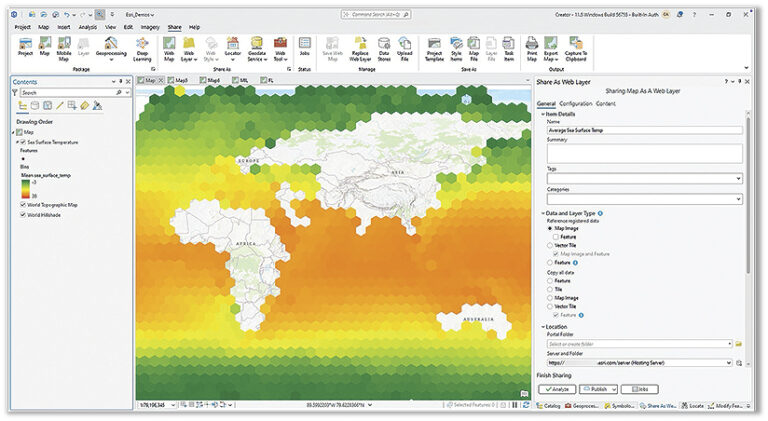
Solution: Use ArcGIS Pro to share web layers with ArcGIS Enterprise.
ArcGIS Pro seamlessly integrates with the web-based components of ArcGIS. It can connect to various types of data, including files stored on a computer or network drive, data in enterprise geodatabases or cloud data warehouses, and other locations.
This option gives users continual access to the original data source, ensuring that maps and apps always contain the most up-to-date information. Additionally, since users connect directly to their data rather than copy it, this option avoids data duplication.
Once data is shared with ArcGIS Enterprise, it becomes available for editing, querying, visualization, spatial analysis, and collaboration.
Scenario 3: You need to integrate messy data from your sources, and it must be up-to-date on your map.
Your data requires some cleanup before it can be integrated and used in ArcGIS. You need a fast and easy solution to transform and ingest the data so you can immediately leverage it in your map layers and keep them current.
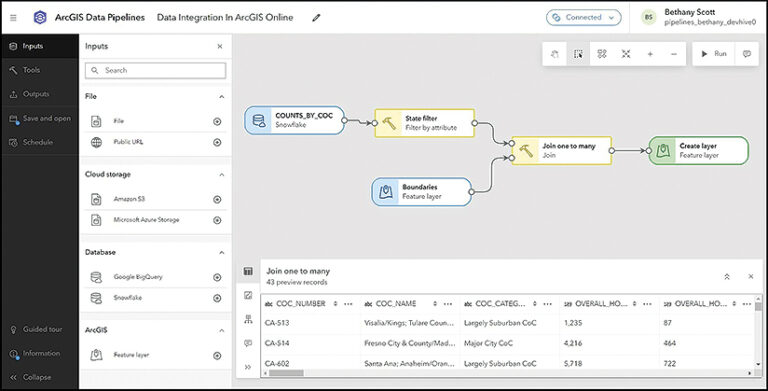
Solution: Try the ArcGIS Data Pipelines app with ArcGIS Online.
ArcGIS Data Pipelines is a no-code tool that transforms and integrates data with ArcGIS. It provides a fast, efficient way to establish secure connections to cloud-based data stores, such as Snowflake, Google BigQuery, Amazon S3, and Microsoft’s Azure Blob Storage—as well as URLs and REST APIs.
Users can schedule automatic data pipelines to run on a recurring basis to keep layers in ArcGIS Online up-to-date as the source datasets change. For data that requires cleaning, formatting, and transformation prior to use, Data Pipelines can be used to speed up and streamline preparation workflows.
Data Pipelines is included with ArcGIS Online for Creator user type licenses and above.
Scenario 4: Your projects require real-time data processing, and you want to integrate data from Internet of Things (IoT) sensors and other live feeds.
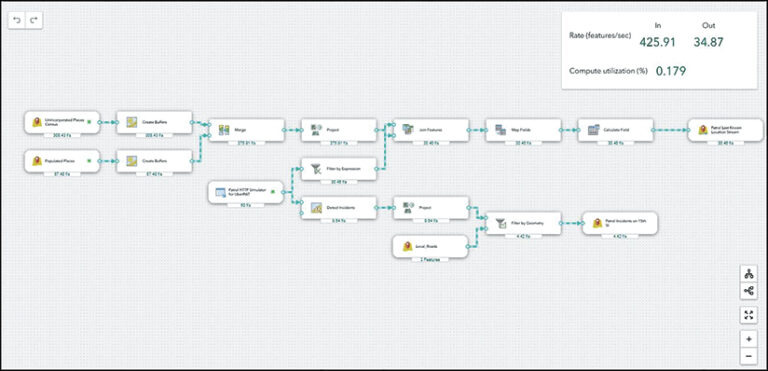
Solution: Use ArcGIS Velocity with ArcGIS Online, or ArcGIS GeoEvent Server with ArcGIS Enterprise.
ArcGIS Velocity is the real-time and big data processing and analysis capability of ArcGIS Online. It allows users to import real-time spatial data and store, visualize, analyze, and act on it in their GIS. ArcGIS GeoEvent Server is part of ArcGIS Enterprise, and allows users to consume, visualize, and analyze on-premises streaming data in real time.
This data integration approach is ideal for when organizations need to remotely monitor assets or send automated notifications. Both Velocity and GeoEvent Server natively support HTTP streaming; IoT cloud providers including Microsoft’s Azure IoT and Cisco; and messaging technologies such as Apache Kafka, MQTT, and RabbitMQ. There is also support for many major data providers, including FlightAware for flight tracking and Samsara for fleet management.
Scenario 5: You need to securely share or sync data across ArcGIS organizations.
When working with different departments, agencies, or partner organizations, you need to share data without manually transferring files or sending email attachments.
Solution: Share data using partnered or distributed collaboration.
Partnered collaboration, where two ArcGIS Online organizations work together, and distributed collaboration—which is between either two ArcGIS Enterprise organizations or an ArcGIS Online organization and an ArcGIS Enterprise organization—enable seamless sharing of maps, apps, web layers, and other content across systems. Once content is shared, updates can be sent automatically, to keep information in sync between systems. This approach requires no scripting expertise, and data can be synced in both directions.
Scenario 6: Your data must remain in its original system, your maps must be updated regularly, and you need additional customization beyond what other extract, transform, and load (ETL) tools offer.
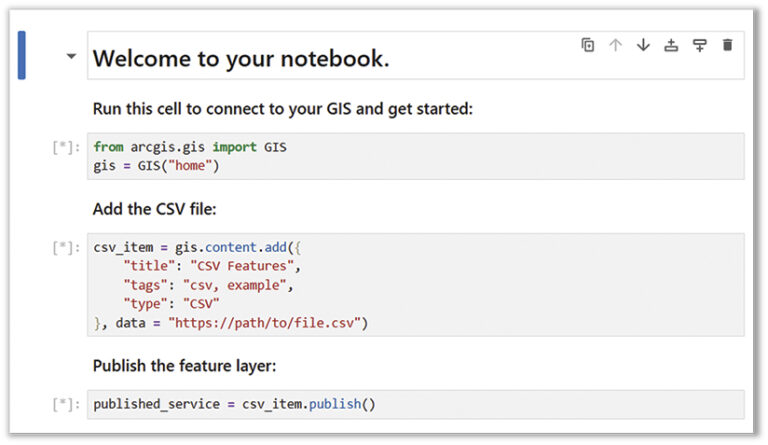
Solution: Try using ArcGIS Data Interoperability to connect to any data source. If you have Python expertise, consider using ArcGIS Notebooks.
The ArcGIS Data Interoperability extension for ArcGIS Pro offers even more integration options for nonnative data sources. It allows users to design data movement among hundreds of systems and apps using a visual programming interface. Data Interoperability works with both ArcGIS Online and ArcGIS Enterprise and can be added to Creator, Professional, and Professional Plus user type licenses.
ArcGIS Notebooks is another option for those who have experience with Python. Users can employ ArcGIS Python libraries—Python packages that include ArcPy and ArcGIS API for Python—to simplify automation and streamline tasks, including GIS administration, content management, and analysis. Notebooks can be used to write, run, and schedule Python code to integrate data with ArcGIS Enterprise and ArcGIS Online. Scripts that leverage the ArcGIS Python libraries can be written to run in external Python development environments. Python runtimes in Notebooks also integrate seamlessly with libraries from the open-source Python ecosystem that are required for data workflows.
Another option for ArcGIS Enterprise users comfortable with programming and wanting to integrate data without performing ETLs is to develop custom data feeds. These enable users to access and employ data from sources not natively supported in ArcGIS. The data remains in its source, and ArcGIS Enterprise reads and writes it to a feature service, enabling organizations to create feature layers that reference data from virtually any source—including proprietary REST APIs, public URLs, and databases such as MongoDB.
Whether your organization uses ArcGIS Online, ArcGIS Enterprise, ArcGIS Pro, or all three, many options are available to integrate data in a way that meets your organization’s needs.
To take a deeper dive into this topic, check out two posts on the ArcGIS Blog: “Seven Ways to Integrate Data with ArcGIS Online” and “Ten Ways to Integrate Data with ArcGIS Enterprise.”