Distributed collaborations allow ArcGIS Online and ArcGIS Enterprise users to share, edit and synchronize content across ArcGIS organizations. Administrators create and manage collaborations, workspaces, groups, participants, and synchronization.
The updated distributed collaboration experience brings these administrative tasks together into a more intuitive interface, with additional configuration options and better visibility into sync activity. This blog highlights what’s new in this updated experience.
For details about what group members can see, see Understanding distributed collaboration groups.
Creating distributed collaborations
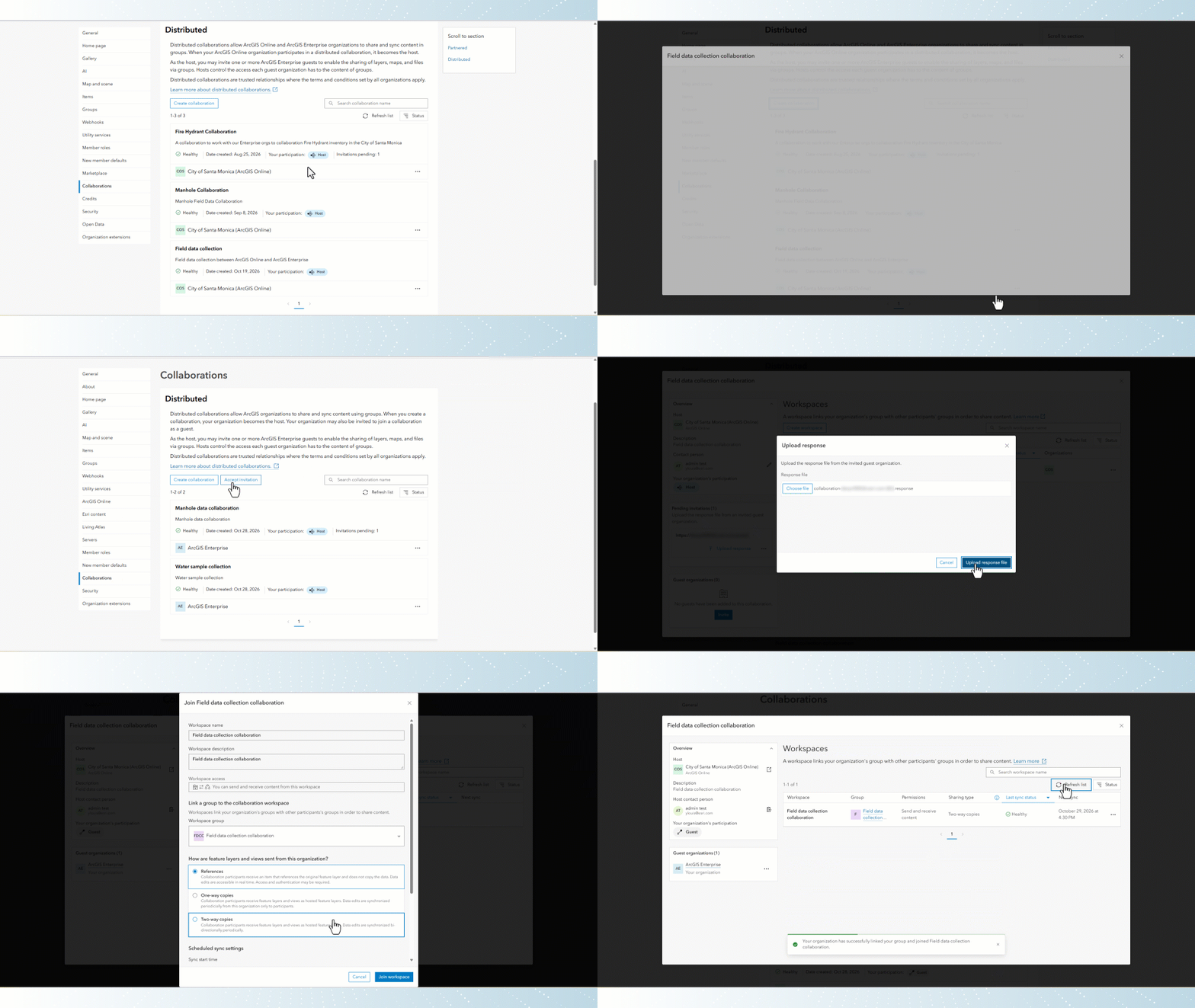
The updated distributed collaborations experience streamlines how hosts create collaborations and how guests join them.
When creating a distributed collaboration, host and guest organization administrators can now configure their item retention policies. Hosts configure their item retention policy when creating a collaboration, and guests configure their policy when accepting the invitation.
When configuring a workspace, administrators can now configure a new group directly within the collaboration experience. They can also choose how to share feature layers and views: as references, one-way copies, or two-way copies. For collaborations between ArcGIS Enterprise environments, administrators can add viewer credentials while configuring workspaces.
When joining a workspace, guests can configure scheduled and immediate sync settings separately. Scheduled sync can be set to run at a specific start time and frequency. With immediate sync enabled, content is synchronized when it is shared, unshared, or updated. Edits to data—such as adding, deleting, or updating features are only synchronized during scheduled syncs.
Tracking invitations
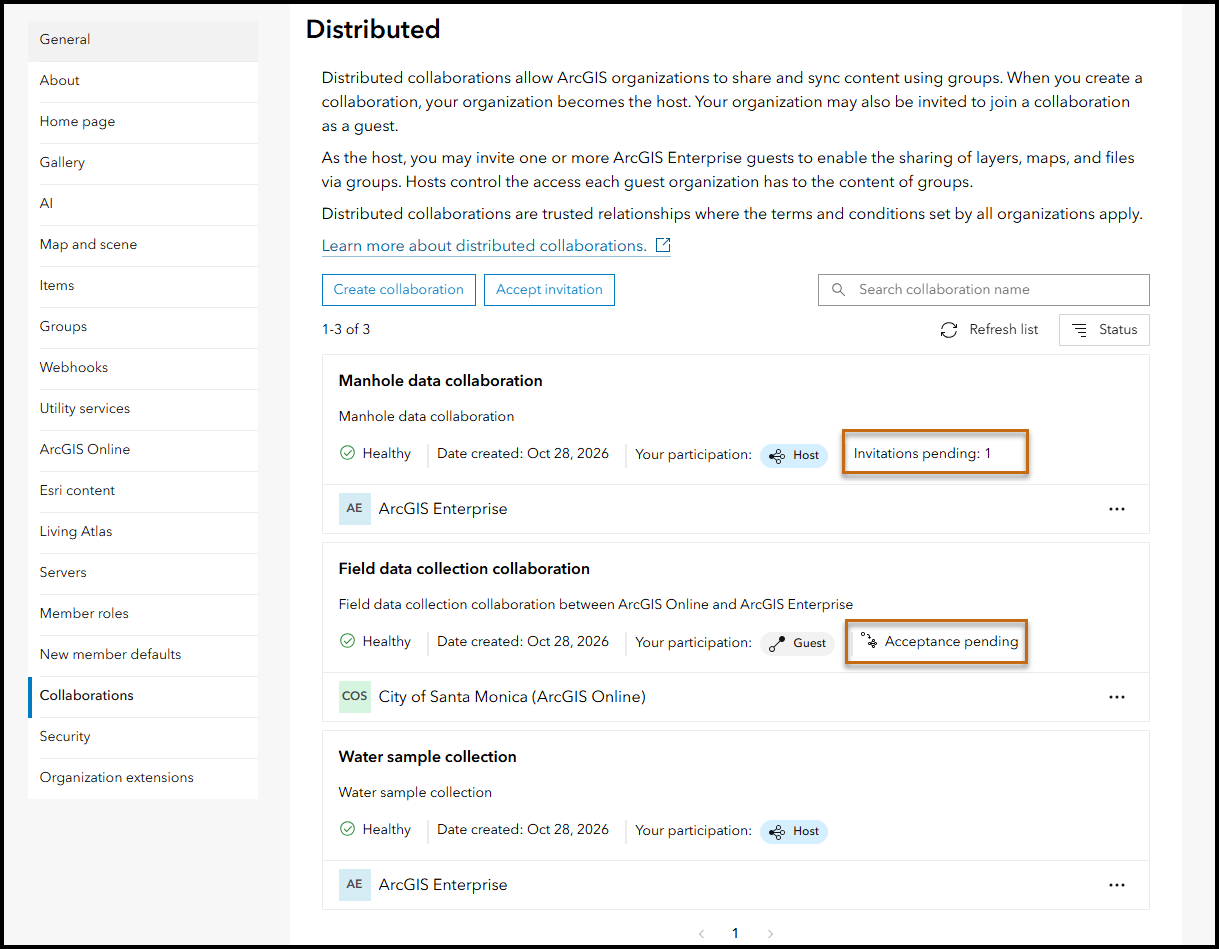
Status indicators help administrators track the invitation process.
- Hosts see Invitations pending while the invitation process with a guest organization is incomplete.
- Guests see Acceptance pending while the host has not accepted their response. They cannot open the collaboration until the host accepts it.
Managing distributed collaborations
The redesigned distributed collaborations list shows additional key information including the collaboration description, latest sync status, and whether your organization is the host or a guest.
Search, sort, and refresh tools help administrators find and manage collaborations. Collaborations and workspaces are sorted by sync status by default, bringing sync failures forward for review.
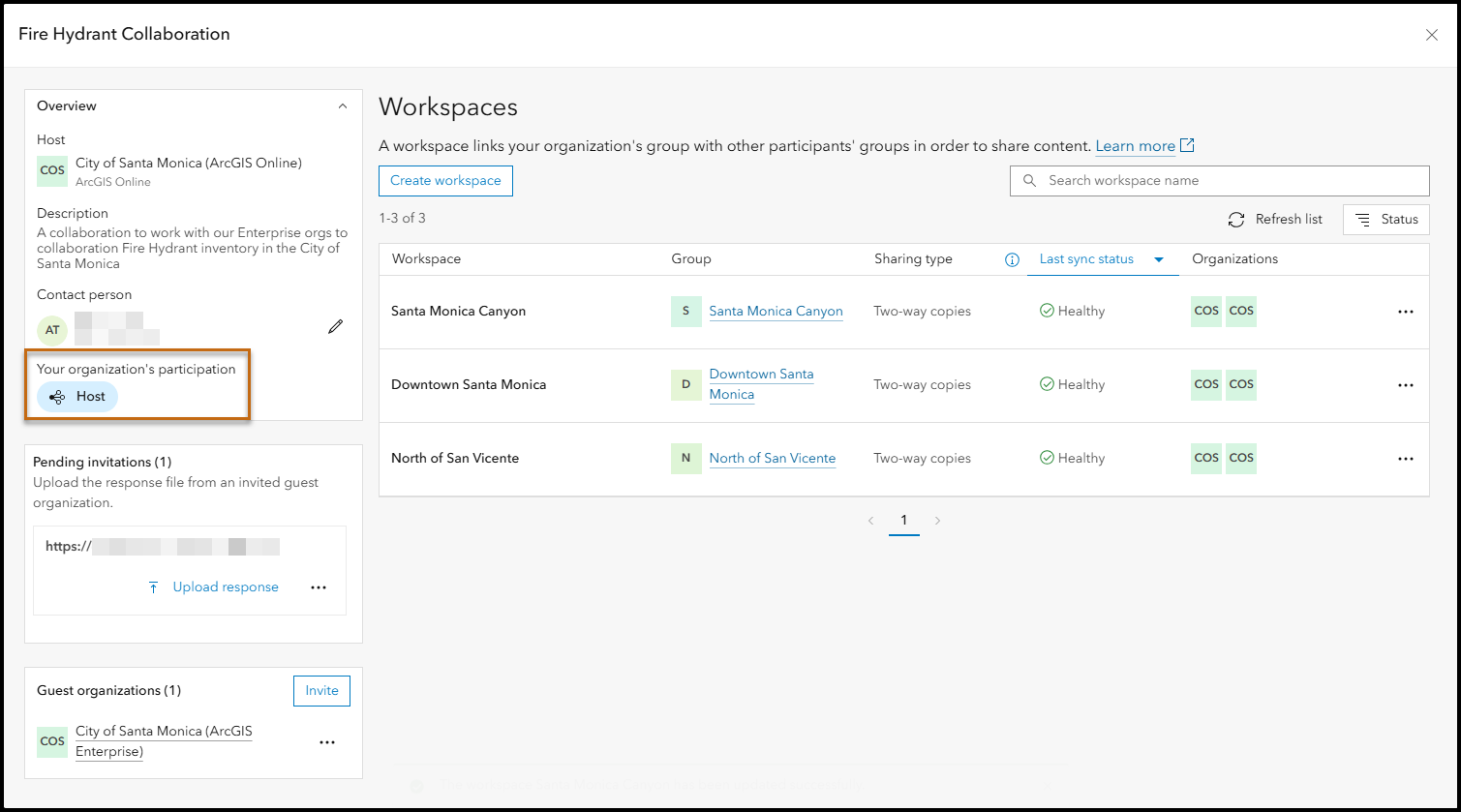
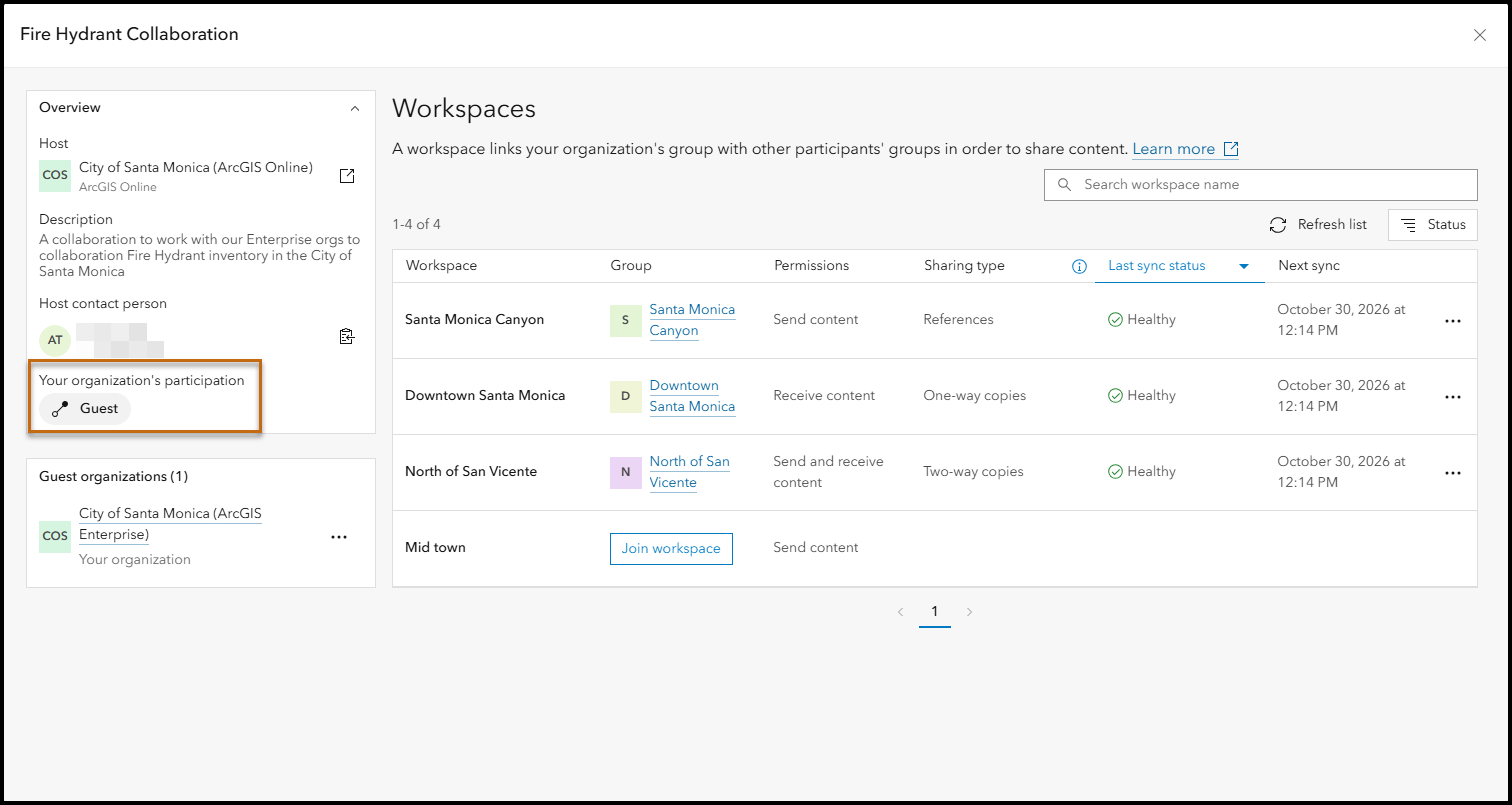
Opening a collaboration shows its details, guest organizations, and workspaces. These views make it easier to see who is participating, which groups and workspaces are connected, and how they are configured.
Administrators can see the following information for each workspace:
- Hosts see their group linked, how their feature layers and views are sent, the last sync status and the list of organizations joined.
- Guests see their group linked, their permissions, how their feature layers and views are sent, the last sync status and next scheduled sync.
Understanding synchronizations
Sync status
The latest sync status is visible at the following levels:
- The collaboration level shows the latest sync status for each workspace.
- The workspace level shows the latest sync status for each participant and sync type.
These summaries help administrators identify which collaborations and workspaces are healthy and which needs attention. If the workspace has sync failures, click the status to view the sync details directly.
Sync history
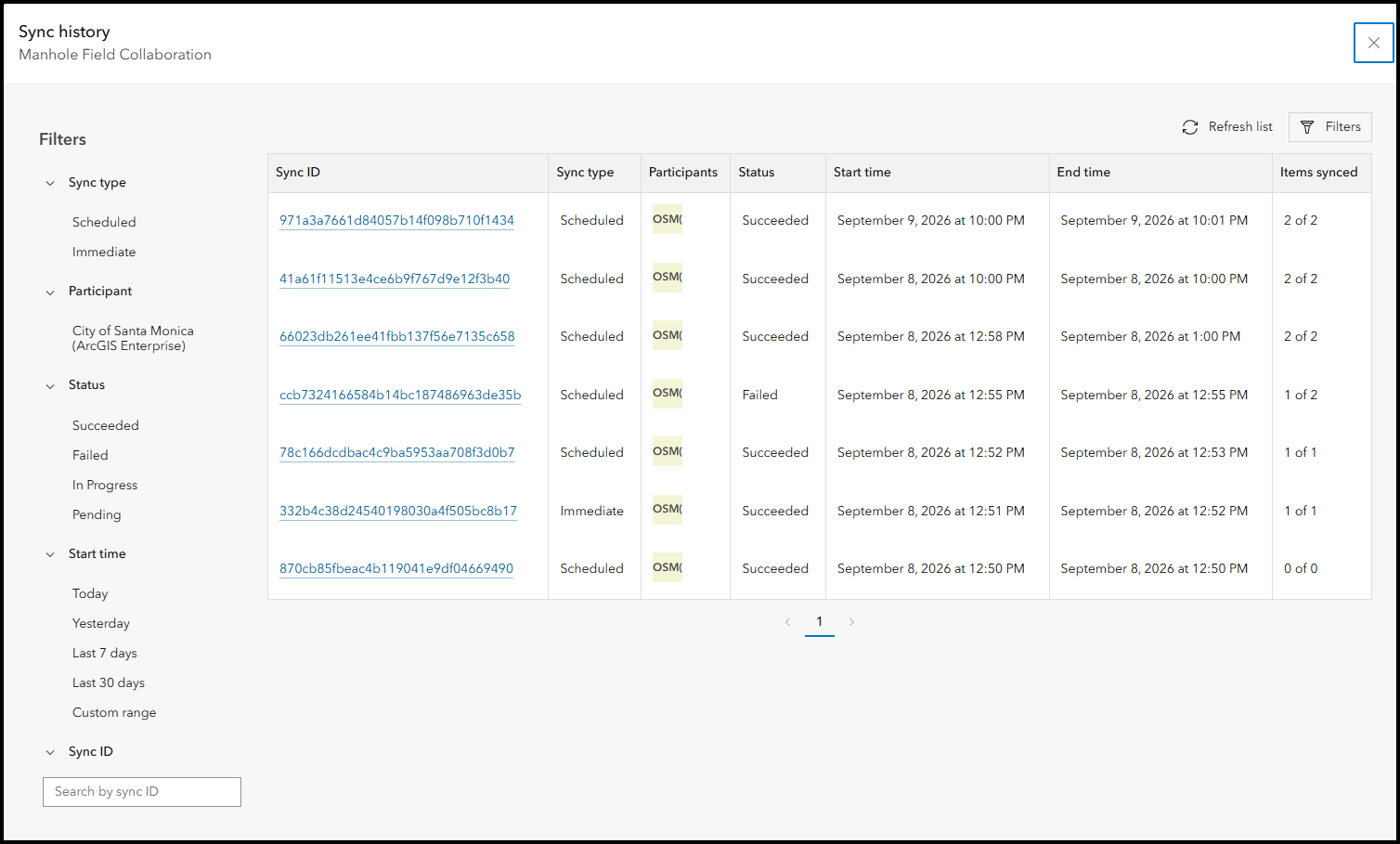
Each workspace includes a sync history that can be filtered to find a particular sync record. The sync history can help identify when the sync occurred and if it succeeded or failed. Open a sync record to see additional sync details about a synchronization event.
Sync details
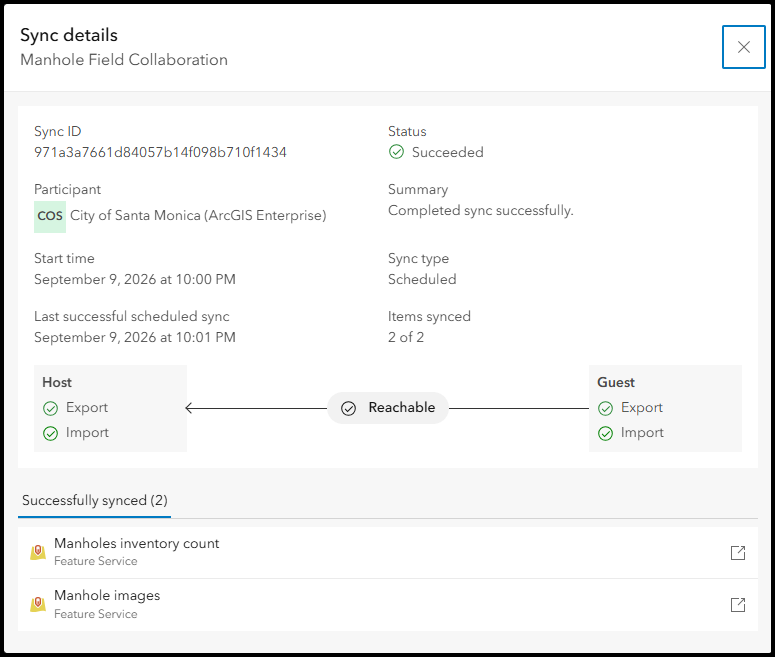
The sync details displays additional information about a sync record.
A task diagram shows sync tasks and whether the host or guest performed each task successfully. The diagram includes the following information:
- Reachability: Indicates whether the organization initiating the synchronization can access the other participating organization. The arrow points from the organization initiating the synchronization to the other organization.
- Export: Indicates whether and how the host or guest sent content.
- Import: Indicates whether and how the host or guest received the content.
Item lists identify content that synchronized successfully and content that failed, with results attributed to the host or guest. Administrators can open item details from the list to investigate further.
A simpler experience with more collaboration detail
The updated distributed collaborations experience makes distributed collaborations easier to create and manage. It brings collaboration and workspace settings into the relevant workflows, clarifies host and guest participation, and provides more detail about sync status and history. Together, these changes help administrators understand what is happening across their collaborations and identify where attention is needed.
For best practices see Getting the most out of distributed collaboration in ArcGIS Enterprise.


Article Discussion: