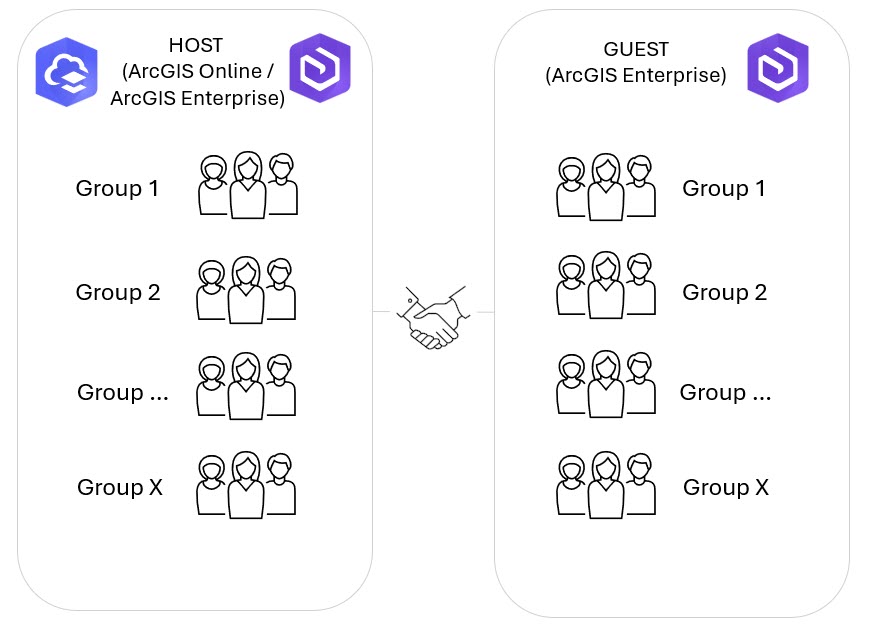
Distributed collaborations allow ArcGIS Online and ArcGIS Enterprise users to share content, synchronize data, and work together seamlessly across ArcGIS organizations. Groups are a critical piece of this process, as any content shared to designated groups can be distributed to other organizations through collaboration.
If you belong to a group that is linked to a distributed collaboration, you can view the distributed collaboration details section on the Overview tab of the group page to understand how your organization participates in the collaboration and how data flows between organizations. In this blog you will learn about which key collaboration details you can view on the Overview tab and why they matter.
Accessing Distributed collaboration details
Before diving in, it’s important to know how to access the distributed collaboration details.
Pre-requisites:
- You must have access to ArcGIS Online or ArcGIS Enterprise 12.1 and later
- You must be a member of a group.
- The group you are a member of must be linked to a distributed collaboration. To verify this, look for the collaboration badge.
Steps:
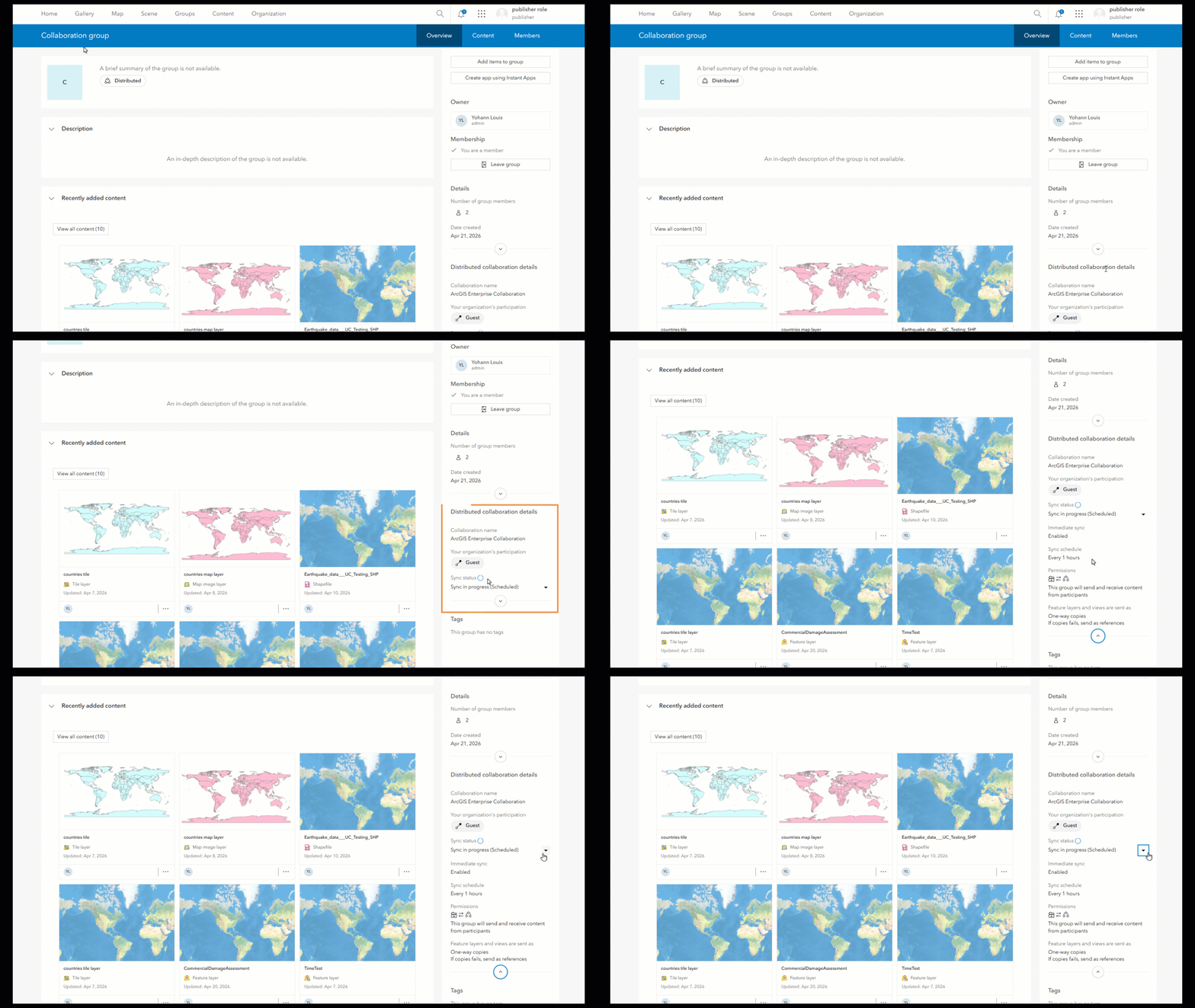
- Open the group page of a distributed collaboration group you belong to in ArcGIS Online or ArcGIS Enterprise.
- Click on the Overview tab.
- Expand the distributed collaboration details section to view the collaboration details.
Distributed collaboration details
The Overview tab of a distributed collaboration group provides several key properties that describe your group’s participation in a distributed collaboration. These details help you understand your role and monitor synchronization effectively.
1. Collaboration name
The first detail you’ll see is the name of the collaboration. This helps you quickly identify which collaboration your group is connected to, especially if your organization participates in multiple collaborations.
2. Your organization’s participation
In a distributed collaboration, your organization can act as a host or guest. You can view your collaboration’s role to understand your permissions and responsibilities
- Host – If your organization created the collaboration, it acts as the host, managing the overall setup and guest permissions. Remember, if distributed collaboration is set up between ArcGIS Online and ArcGIS Enterprise – ArcGIS Online is always the host.
- Guest – If your organization joins an existing collaboration, it participates as a guest, manages the synchronizations following the permissions assigned by the host.
3. Sync status
The sync status section provides the following details about content synchronization:
- Date and time of the most recent sync
- Success or failure of the sync
- Synchronization method used
If your organization is a guest, you’ll also have access to a drop-down menu with additional synchronization details. This helps you monitor data flow and troubleshoot any issues.
4. Immediate sync
This setting indicates whether or not your group’s content is synchronized immediately with collaboration participants.
When enabled, content shared or unshared are synchronized to participants right away. Updates made to previously shared items —such as changes to item details or saving a web map or app—are also sent as soon as they are saved. However, data edits (for example, adding, deleting, or updating features in a layer) are not synced immediately.
Immediate sync is disabled for content shared from ArcGIS Online collaboration groups. The content is synchronized during the scheduled sync set by ArcGIS Enterprise guest organization.
5. Sync schedule
If your organization is a guest, you’ll see the sync schedule—the planned intervals for synchronization.
This is helpful for understanding when updates will occur so you can plan your workflows accordingly.
6. Permissions
The permissions section shows the access mode your group has within the collaboration. The access mode controls how content is shared across the collaboration. The collaboration group you belong to can have one of the following access modes:
- Send only – The group can send content to participants.
- Receive only – The group can receive content from participants.
- Send and receive – The group can send and receive content from participants.
7. Feature Layers and Views are sent as
This setting explains how your feature layers and views are shared with other collaboration participants. Your feature layers and views can be shared in the following ways:
- References – Collaboration participants receive an item that references the original feature layer and does not copy the data. Data edits are accessible in real time. Access and authentication may be required.
- One-way copies – Collaboration participants receive feature layers and views as hosted feature layers. Data edits are synchronized periodically from the sending organizations to participants.
- Two-way copies – Collaboration participants receive feature layers and views as hosted feature layers. Data edits are synchronized bi-directionally periodically.
- If copies fails, send as references – This option is applicable if One-way or Two-way copies is selected. If errors occur while sharing features as copies, affected items will be shared as references instead. Knowing the format and method of sharing ensures that your data is compatible and usable across different organizations.
When sharing feature layers as copies, sync must be enabled on each feature layer in the collaboration before sharing. When feature layers are shared, they are initially extracted and published as hosted feature layers in each participant’s organization. Each subsequent sync will be updated with added, deleted, or edited features.
Why These Details Matter
The distributed collaboration details isn’t just a static display, it’s for collaboration awareness. By regularly reviewing these details, you can:
- Understand how your collaboration group is configured to share content
- Confirm your permissions align with project needs
- Ensure synchronization is working as expected
Reach out to your organization administrator if you notice any issues.
Best Practices
- Verify permissions before starting collaborative projects.
- Configure your feature layers and views to be shared as intended successfully.
- Check sync status regularly to avoid data delays.
- Identify sync issues and contact your administrator.
- Coordinate schedules with other participants for smooth workflows.
Conclusion
The distributed collaboration details on the Overview tab of the group page in ArcGIS Online and ArcGIS Enterprise provides a transparent view of your collaboration’s health and structure. By understanding each detail— from the collaboration name to how feature layers are shared—you can make the most of distributed collaborations and ensure your projects run smoothly. See Getting the most out of distributed collaboration in ArcGIS Enterprise for learning more about best practices.

Article Discussion: