With each release of ArcGIS Enterprise, there are new features and functionality, security enhancements, bug fixes, and more to take advantage of but upgrading your ArcGIS Enterprise deployment to take advantage takes some planning. In this blog, we will walk through key concepts, considerations prior to upgrading, the upgrade process, steps to confirm your upgrade was successful, and some recommendations for troubleshooting. Let’s get started to feel more confident for your next upgrade!
Key Concepts
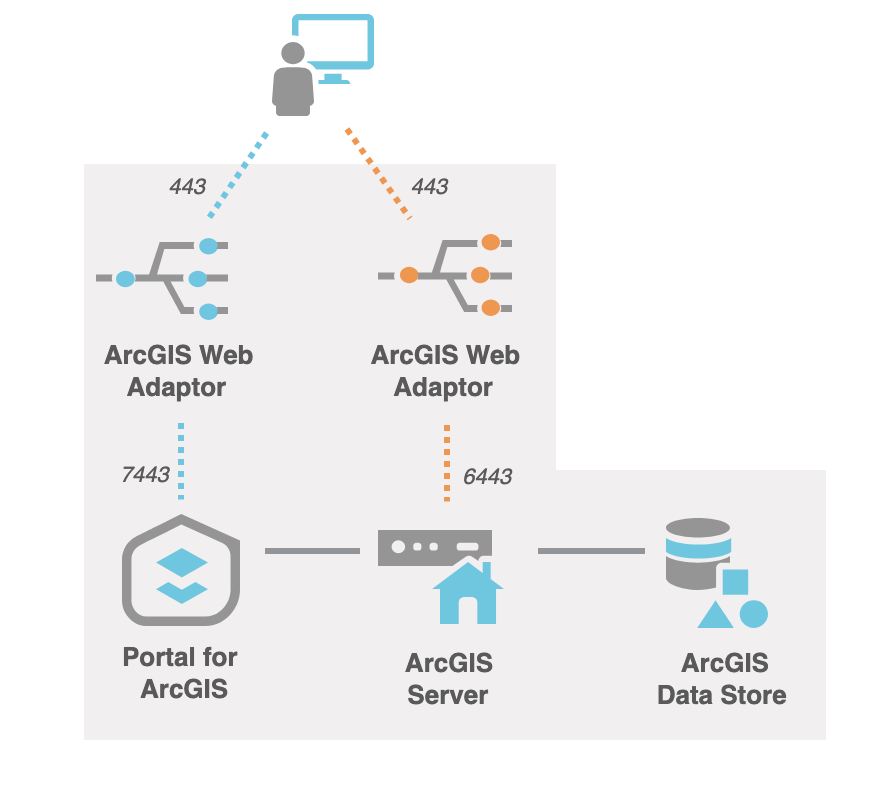
Before we dive in, it is important to understand some key concepts and terms for ArcGIS Enterprise and its upgrade process. First, is the ArcGIS Enterprise base deployment. The ArcGIS Enterprise base deployment on Windows and Linux is the minimum setup of four software components: Portal for ArcGIS, ArcGIS Server, ArcGIS Data Store, and ArcGIS Web Adaptor. This blog will walk through the upgrading process for a base deployment, but you may have a more advanced deployment with components like additional ArcGIS Server roles or are deployed for high availability.
Next, it is important to understand what an upgrade actually means in the context of ArcGIS Enterprise. An upgrade means that you are changing your deployment from one version of software, i.e. ArcGIS Enterprise 11.5, to a newer version, i.e. ArcGIS Enterprise 12.0. Upgrading your deployment will introduce foundational changes to your software, with new features, enhancements, and bug fixes. Because changes from one version to the next are so significant, you must upgrade your entire base deployment of ArcGIS Enterprise instead of just individual components. Upgrades differ from patches for ArcGIS Enterprise, which are used to resolve issues in existing versions of software and are only applied to individual components. Upgrades also differ from migrations where you are moving your deployment to new infrastructure or operating system but are staying at the same version of software.
For ArcGIS Enterprise, there are two upgrade approaches: uninstall/install upgrades and in-place upgrades. For uninstall/install upgrades, you are manually uninstalling the old version of software and then installing the new version. By contrast, for in-place upgrades, you will install the new version of software on top of the existing version and the software itself will uninstall the old version for you. For all components besides the ArcGIS Web Adaptor, it is recommended to use the in-place upgrade approach as other approaches could result in inadvertent content loss.
Finally, it is important to understand the concept of direct upgrades. For each version of ArcGIS Enterprise, there are certain versions for which you can upgrade to directly. For example, you could upgrade directly from ArcGIS Enterprise 11.3 to ArcGIS Enterprise 12.0. In some cases, you may be using a much older version of ArcGIS Enterprise and you are not able to upgrade directly to the latest version. For example, if your deployment is currently at 10.9.1 and you wanted to upgrade to 12.0, you would need to upgrade to an interim version from 10.9.1 (such as 11.5) and then upgrade from 11.5 to 12.0. You can always find the versions that are supported for direct upgrades in product documentation. Please note, in some cases direct upgrades may be technically supported from one version to another but you may want to consider an interim upgrade to prepare for significant changes from one release to the next. We will cover this more later on.
Why should you upgrade?
Before we start planning your ArcGIS Enterprise deployment upgrade, let’s understand why it is so important to do so. Your organization has made a substantial investment in ArcGIS Enterprise and you want to get the most out of this investment by taking advantage of the latest and greatest features, enhancements, and functionality available to you. Additionally, each release of ArcGIS Enterprise introduces security updates and bug fixes so by upgrading regularly you are able to ensure you are on the most secure and performant version of software. Finally, each version of ArcGIS Enterprise has a dedicated product lifecycle, moving from general availability to retirement. It is important to be in a phase of the product lifecycle when your ArcGIS Enterprise is eligible for patching and technical support to ensure you can get critical security and functional fixes and support as needed.
Considerations before upgrading
When you are ready for your next ArcGIS Enterprise upgrade, you will want to think through some key considerations to start the process. Upgrading should not feel intimidating, but it is something you want to approach thoughtfully with careful planning before you install the new version. Let’s go through some critical steps to make sure you’re prepared:
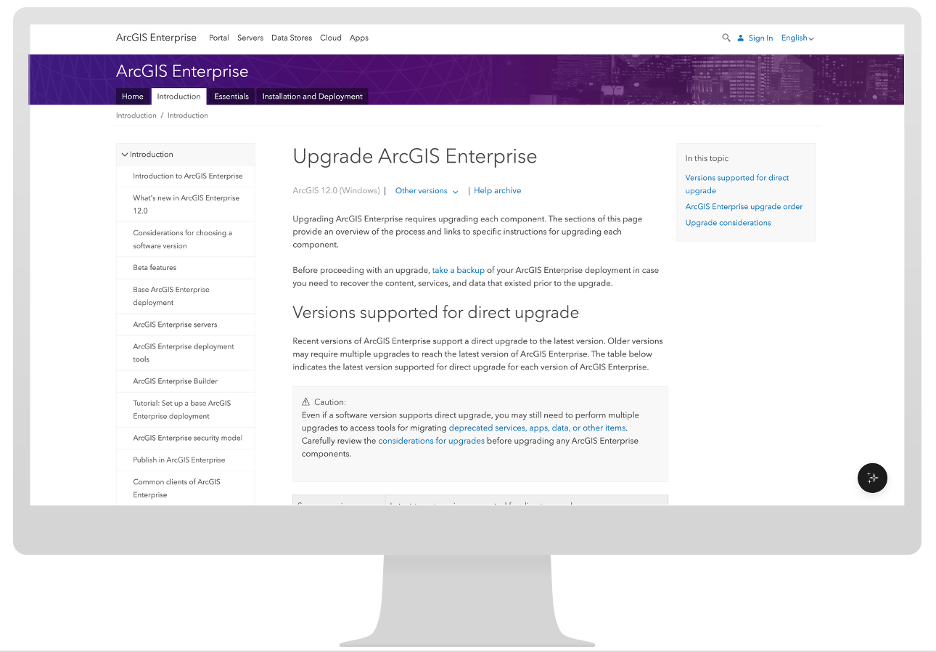
1. Read the product documentation to get started. Product documentation details the upgrade process in depth, with an overarching section about the full process that links out to pages about upgrading each component. Reading this through before you start an upgrade, whether you’re upgrading for the first time or you’re a seasoned upgrade professional, ensures you fully understand the process and order before getting started. There is updated product documentation for each version of ArcGIS Enterprise, so it is important to read the upgrade documentation for the version of Enterprise you want to upgrade to as it will cover information like which versions you can directly upgrade from.
2. Decide which version of ArcGIS Enterprise you want to upgrade to. Depending on which version of ArcGIS Enterprise you are currently using, you might have multiple choices for later versions to upgrade to. In deciding which version to upgrade to next, you first want to ensure you are upgrading to a version in the general availability phase of the product lifecycle to ensure you will receive patches, technical support, and new environment certification. At any given time, there may be multiple versions in general availability, so it is generally recommended to choose the latest long-term support release in general availability. Long-term support releases have a longer window of support than short-term support releases, providing you with the most flexibility between upgrades. If your organization is able to upgrade more than once a year, you may consider the latest short-term support release as well to always have access to the latest features. Finally, there may be significant changes between your current version and the latest versions of ArcGIS Enterprise. If there may be additional work required to prepare for these changes, you may consider using a version prior to these breaking changes to prepare. A recent example is considering ArcGIS Enterprise 11.5 before upgrading to a 12.x version.
-
-
- Note: You may be using other ArcGIS products that have a different release cycle than ArcGIS Enterprise or 3rd party integrations. Ensure the versions of those technologies you are using are compatible with the version of ArcGIS Enterprise you will be upgrading to.
-
3. Understand what has changed since your current version of ArcGIS Enterprise. In addition to reading the product documentation about upgrading, you will also want to understand what will be different between the version you are currently using and the version of Enterprise you are upgrading to. To understand key updates, you will want to read the What’s New product documentation page as well as review the system requirements. This page is specific to each version and not cumulative of previous updates, so if you are upgrading across multiple versions you will want to read this section for each version since your current version.
4. Determine if you will need to migrate any content or applications before upgrading. As noted, some versions of ArcGIS Enterprise introduce more substantial changes that may include the retirement of features, functionality, applications and support for 3rd party technology. When reviewing the What’s New documentation, you will want to understand if there are any of these breaking changes between the version of Enterprise you are currently using and the one you are upgrading to. If there are breaking changes, you may need to migrate content or applications from older technology to their modern successors or upgrade 3rd party technology. Recent examples include changes between the 10.x and 11.x and the 11.x and 12.x generations of ArcGIS Enterprise.
5. Communicate with team members about the upgrade. You may be upgrading ArcGIS Enterprise on your own, but in many cases it may be a team effort between you and others. Make sure to connect with your team members that will be involved in the upgrade process to establish your goals, timeline, and responsibilities for the upgrade. Work together to determine the right time to do your upgrade, maybe outside of normal business hours or working around project deadlines that rely on ArcGIS Enterprise. Ensure that each team member has the necessary permissions and access to support their responsibilities in the upgrade process.
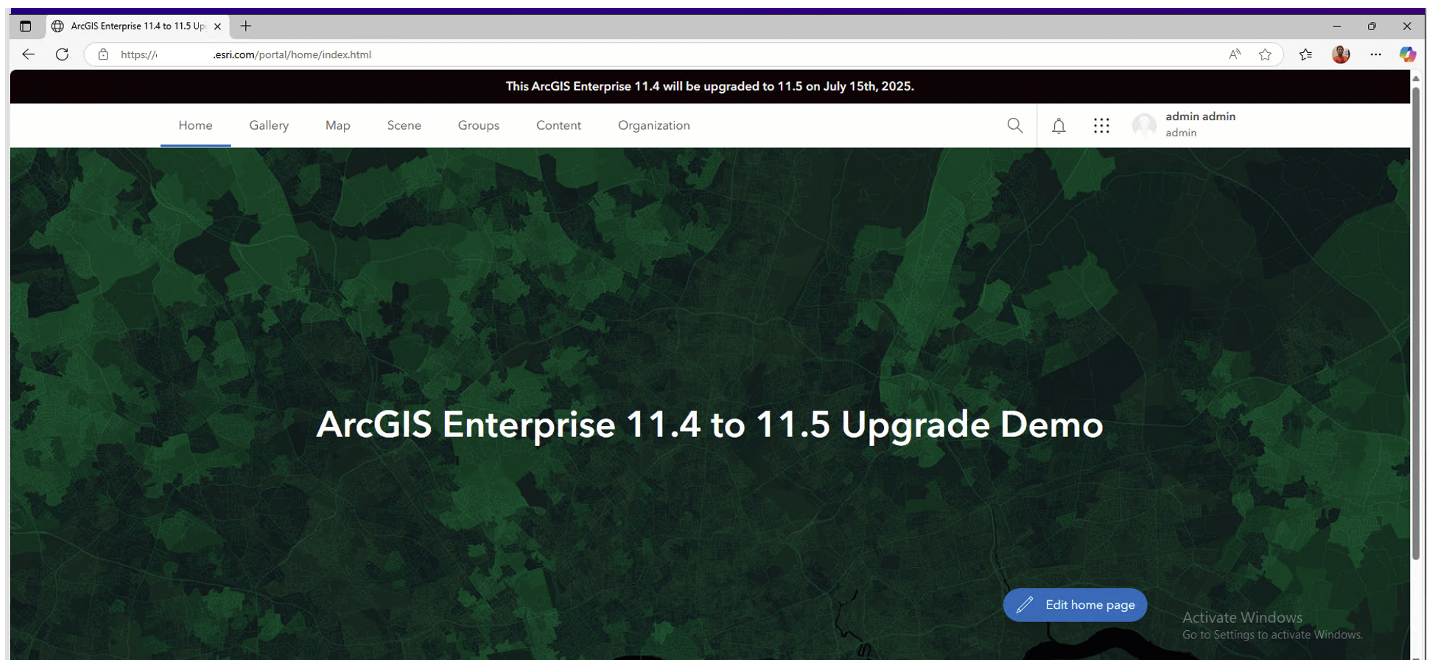
6. Communicate with your users about the upgrade. Once you have established a plan and timeline with the teammates helping you with the upgrade, you will want to communicate with your ArcGIS Enterprise users about what to expect. Upgrades typically require downtime, so it is important to communicate this maintenance window with your users as it may impact their work. One helpful tool to consider is information banners that can be configured to appear in your ArcGIS Enterprise portal to communicate your planned upgrade. Additionally, when the new version of ArcGIS Enterprise is available there will be new features, experiences, and changes for your users to acclimate to. Ensure that they understand changes that may impact their role by sharing product documentation or release blogs. Release blogs for recent versions of ArcGIS Enterprise are structured around different personas using ArcGIS Enterprise to help your users identify which changes are most likely to impact them and their roles.
7. Review the architecture of your ArcGIS Enterprise deployment and ensure your team has the necessary access to complete the upgrade. ArcGIS Enterprise can be installed on a single machine or may be installed across multiple machines. Before upgrading, you will need to understand where each component of ArcGIS Enterprise is installed. Your organization may have an architecture diagram with this information or you may need to work with team members to understand this. If you are using ArcGIS Enterprise 11.5 or later, you can use the “About” tab in the organization settings of your Enterprise portal to get this information. Once you have this architecture information, also ensure the right permissions are configured to allow for upgrading.
- Note: You will also want to confirm that the operating systems you are using for these machines are compatible with the version of Enterprise you are upgrading to. You may need to consider an OS upgrade, or even other 3rd party upgrades like database updates, as part for your process.
8. Confirm how ArcGIS Enterprise was originally installed. ArcGIS Enterprise on Windows and Linux can be installed in a variety of ways. Each component of software can be installed manually or be automated. For single-machine deployments you can use the ArcGIS Enterprise Builder to install the full deployment for you, or for cloud deployments you can use cloud deployment tools for specific cloud providers like Amazon Web Services and Microsoft Azure. You may also have used other deployment automation tools like Chef Cookbooks or PowerShell DSC. When upgrading, you will need to follow the same approach that was used for the original installation, meaning if you used the ArcGIS Enterprise Builder to install you will need to use it to upgrade.
9. Ensure you have a recent backup available. Taking backups regularly is an important part of using ArcGIS Enterprise generally, but especially in the case of upgrades you will want a recent backup ready prior to upgrading to ensure you can easily rollback in the case that issues arise. Use the Web GIS Disaster and Recovery (WebGISDR) tool to take a full backup of your ArcGIS Enterprise deployment and consider taking a snapshot of all machines and file storage locations as well.
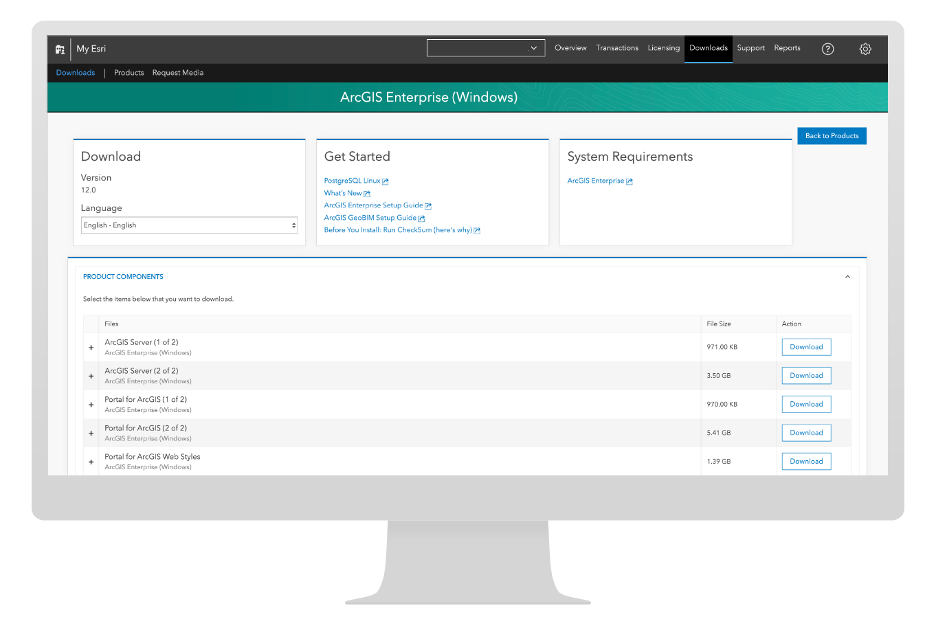
10. Get your new software download and licenses ready. For each version of ArcGIS Enterprise, you will need new software installers and authorization files to license them. Go to your organization’s My Esri account to download both the new version of software and license files. If you personally don’t have access to the My Esri account for your organization, work with a team member who does to download these items.
Order of upgrades
Once you have thoughtfully prepared for your upgrade and have your new software downloads and license files ready, it is time to actually get started installing the new version! As we know, there are different software components that make up ArcGIS Enterprise on Windows and Linux. There is a specific order in which software components should be upgraded. Let’s walk through what this process is:
1. Portal for ArcGIS: The first component to upgrade is your Portal for ArcGIS. For manual upgrades, you will choose between three approaches: upgrading via the software setup UI, upgrading using the Portal Admin API, or upgrading using CommandLine. Typically using the software setup UI will provide you with a more intuitive user experience, but you may consider upgrading via the Portal Admin API or CommandLine if that is what you have most experience with. No matter which approach you choose, have your Portal for ArcGIS license file ready to authorize the new version of software as this will be part of the process.
-
-
- If you use the Portal for ArcGIS software setup experience, you will double click the setup to get started and will be prompted to accept the master agreement for the software and provide administrator credentials before clicking “Install”. From there, the setup will work to uninstall the older version for you and install the new version. Once that process is finished and you click on the “Finish” button, you will see an Enterprise portal web page open up where you are required to provide the Portal for ArcGIS license file for your new version to Continue Portal Upgrade. Once you provide the license file and click on Continue Portal Upgrade, you will be taken to a screen where you will see the stages of the upgrade process, allowing administrators to track the upgrade’s progress. Once this is complete, click “OK,” and you will be taken to your ArcGIS Enterprise portal for next steps. To complete the upgrade of the Portal for ArcGIS component, finish the post-upgrade operations which will appear via a pop-up in your ArcGIS Enterprise portal.
-
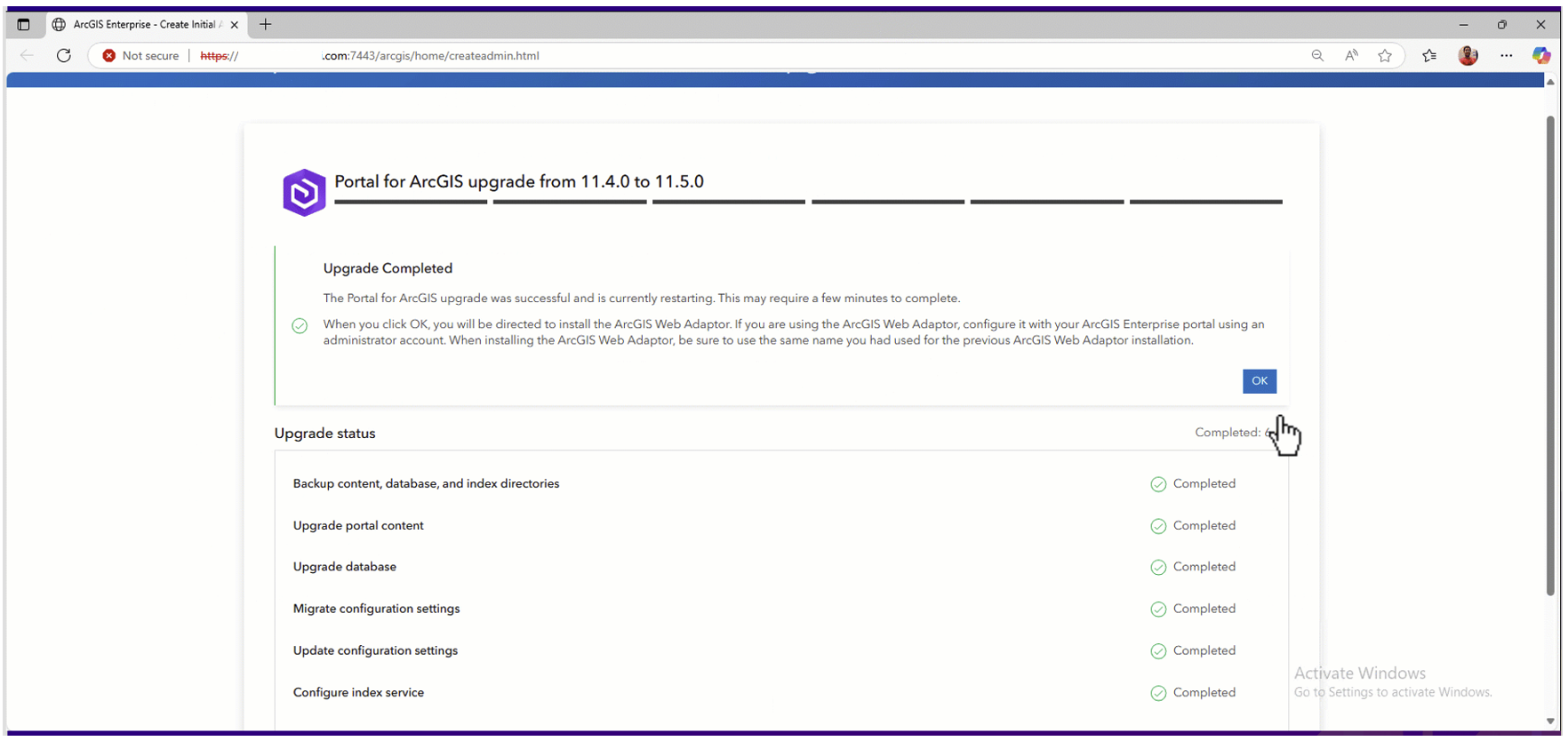
2. ArcGIS Web Adaptor configured for Portal for ArcGIS for IIS or Java: Your base deployment of ArcGIS Enterprise will have two Web Adaptors, one of which is configured with your Portal for ArcGIS. To upgrade this Web Adaptor, uninstall the old version and install the new version. Ensure you have the portal name (URL) and administrator credentials ready to provide as part of this process to register it with your upgraded Portal for ArcGIS.
3. ArcGIS Server: Next up, you will upgrade your ArcGIS Server component. If you are using multiple ArcGIS Server sites, ensure you are first upgrading your hosting server site. For ArcGIS Server, you will have three upgrade options as you do for Portal for ArcGIS: setup UI, API (in this case, the ArcGIS Server Admin API), or CommandLine. You will also need your ArcGIS Server license file ready to authorize this component as part of the upgrade.
-
-
- If you choose to upgrade your ArcGIS Server site via the ArcGIS Server Admin API, you will need to first install the new version of the software and provide an ArcGIS server license for that version using the software setup. Once this is complete, you will navigate the to Server Admin API upgrade page (https://<site-url>:6443/arcgis/admin). From here, you can choose to run the upgrade asynchronously which is recommended to have more visibility into the stages of the upgrade process. If you would like more detailed logging for the upgrade process, you can also check “Enable debug” here. Click “Upgrade” to kick off the upgrade process. Once this is completed successfully, you will see “Succeeded” for each upgrade step.
-
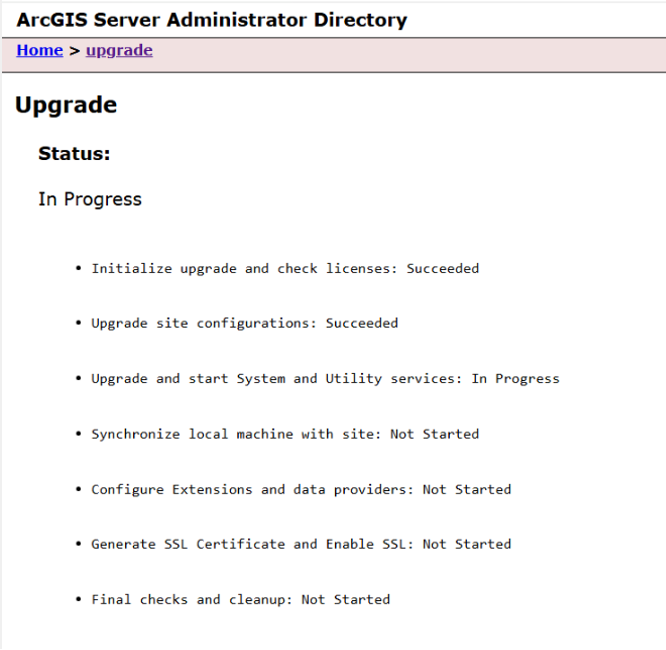
4. ArcGIS Web Adaptor configured for ArcGIS Server for IIS or Java (Windows): The second ArcGIS Web Adaptor configured for your base deployment will be for your ArcGIS Server component. To upgrade this Web Adaptor, uninstall the old version and install the new version. Ensure you have the ArcGIS Server site name (URL) and administrator credentials ready to provide as part of this process to register it with your upgraded ArcGIS Server.
5. ArcGIS Data Store: Your final base deployment component to upgrade is your ArcGIS Data Store. You will start by kicking off the ArcGIS Data Store software setup to install the new version. You will choose between using the ArcGIS Data Store Configuration Wizard or the configuratedatastore CommandLine utility to upgrade. As part of this process, the prerequisite check will determine which data stores can be upgraded including relational and object data stores. If you have multiple data stores configured with the hosting server, you will need to install the new version of ArcGIS Data Store on every data store machine in the cluster.
-
- Note: If you are upgrading from a version prior to ArcGIS Enterprise 11.4, you will need to ensure that ArcGIS Data Store object store is installed upon upgrading to 11.4 and beyond. The ArcGIS Data Store object store replaces the ArcGIS Data Store tile cache data store. Upon upgrading to ArcGIS Enterprise 11.4, you will follow the steps to install the ArcGIS Data Store object store. If you were previously storing hosted scene layers in the tile cache data store, you can migrate this content to the object store using the MigrateSceneServices utility. Please be aware that starting with ArcGIS Enterprise 11.4, the ArcGIS Data Store object store is a required part of the base deployment. Even if you are not using hosted scene layers, the ArcGIS Data Store object store also supports required system functions.
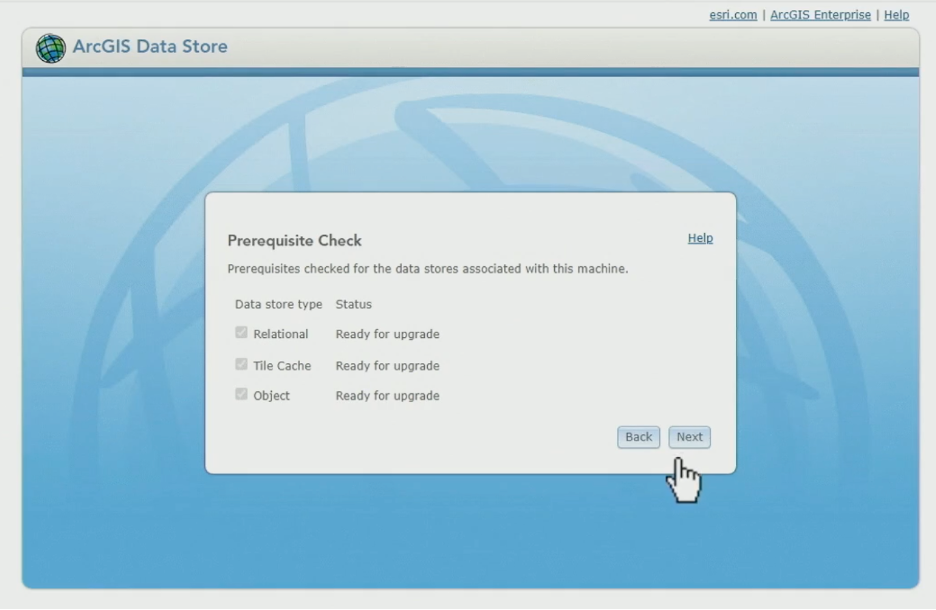
6. Beyond the base deployment: If you have expanded beyond the ArcGIS Enterprise base deployment using other types of federated servers, you will upgrade them last. To learn more about this option, read more in product documentation. If you are using a highly available deployment of ArcGIS Enterprise, learn more about specific upgrade considerations here.
Validations after an upgrade
Your work isn’t finished after you’ve upgraded all the components of ArcGIS Enterprise; you need to make sure everything is working well! There are some common checks to go through to ensure everything upgraded successfully. Let’s take a look at a few:
- Login into your ArcGIS Enterprise portal and confirm that all of your servers validate successfully. To do so, you will log into your Enterprise portal and navigate to the Organization tab > Settings tab > Server tab.
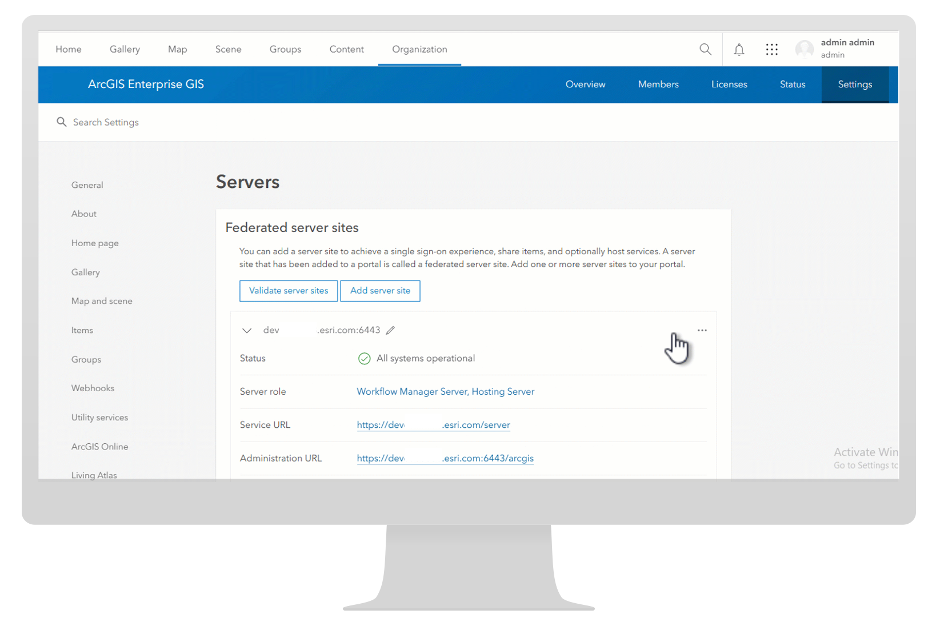
- Check on your portal index status using the Portal Administrator Directory. You want to check that your index numbers match to ensure everything upgraded properly. Navigate to your portaladmin endpoint > System > Indexer > Index Status.
- If your content is hosted in cloud storage, you will have an extra step here of reindexing by navigating to the portaladmin endpoint > System > Indexer > Index Status > Reindex.
- Log into your ArcGIS Server Manager and confirm all services are successfully started.
- Check some common publishing workflows to ArcGIS Server. Consider publishing a service definition file from ArcGIS Server Manager or a new layer from ArcGIS Pro to ArcGIS Enterprise to ensure things are working as expected.
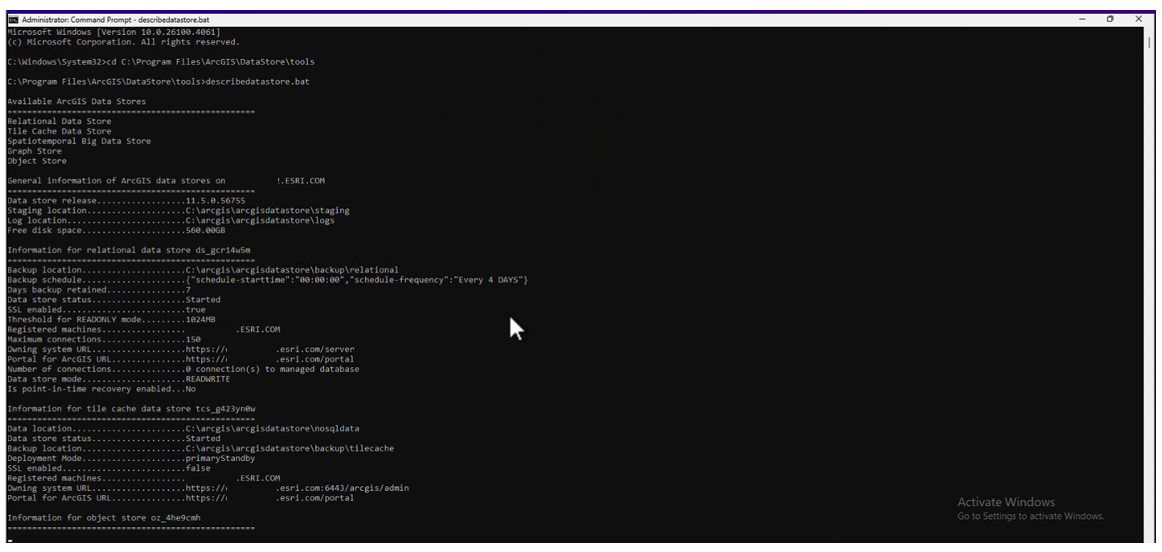
- Confirm that the ArcGIS Data Store upgrade went properly by running the describedatastore utility. You are looking for no errors in the information it reports.
What if something went wrong?
Hopefully everything goes smoothly with your upgrade with your careful planning, but sometimes things might go wrong. Let’s look at some common troubleshooting scenarios to dig into an issue:
- Check your logs: Logs are a go-to resource for troubleshooting challenges across ArcGIS Enterprise and they are a valuable resource for upgrades as well. You will access your logs for each component in different places.
- Portal ArcGIS logs are available at <location of content directory>\arcgisportal\logs\<machine name>\portal for Windows deployments and at install directory/usr/arcgisportal/logs/<machine name>/portal for Linux deployments.
- ArcGIS Server logs are at install directory\Server\framework\etc\service\logs for Windows and /install directory/Server/framework/etc/service/logs for Linux deployments.
- ArcGIS Data Store logs are available at <data directory>\logs for Windows and /install directory/datastore/logs for Linux.
- If the standard logs are not providing enough detail, try running the upgrade process along with DEBUG level logs enabled for Portal for ArcGIS and ArcGIS Server. You will do this using the Portal Admin and ArcGIS Server Admin endpoints.
- If you aren’t having success resolving an issue on your own, reach out to Esri Technical Support. Keep in mind, the more information you can provide to Technical Support, the more efficiently they can assist you with your issue. Try to have your logs, details about your architecture, the steps of your upgrade process, and a clear explanation of the issue you’re experiencing ready to go.
More advanced upgrading topics
In this blog, we have covered the core concepts and steps for upgrading but there may be other topics you’d like to learn more about. Let’s look at some common areas of interest that are more advanced:
- Minimizing downtime: For some organizations, minimizing the downtime and risk associated with their upgrade is imperative. A pattern to consider is standing up a mirrored, standby environment to upgrade in the background while your production environment is set in read-only mode. This approach can help you reduce the downtime of your upgrade but does demand additional resources for the mirrored environment.
- Automating your upgrade: There are a variety of options to automate your upgrade of ArcGIS Enterprise. For Windows deployments, you can use PowerShell DSC for ArcGIS to automate the upgrade process. For cloud deployments, there are automation options for select cloud providers, AWS and Microsoft Azure. You can use AWS CloudFormation Templates and ArcGIS Enterprise Cloud Builder for AWS or ArcGIS Cloud Builder for Microsoft Azure. Finally, you can also use Chef cookbooks for ArcGIS for upgrade automation as well. As noted previously, you should only use these upgrade automation tools if these were tools used to install the initial deployment of ArcGIS Enterprise.
- Highly available deployments: You may have a highly available deployment of ArcGIS Enterprise to meet your organization’s business needs. Highly available deployments require more complex architecture that leads to additional considerations for upgrading. Learn more in product documentation.
Time to upgrade!
We hope you feel more confident going into your next upgrade with the information covered in this blog! For a video covering these topics, including a demo of the upgrade process, check out this previous presentation about upgrading. If there are other upgrading topics you would like us to cover in more depth in future blogs, please let us know on Esri Community. Happy upgrading!

Commenting is not enabled for this article.