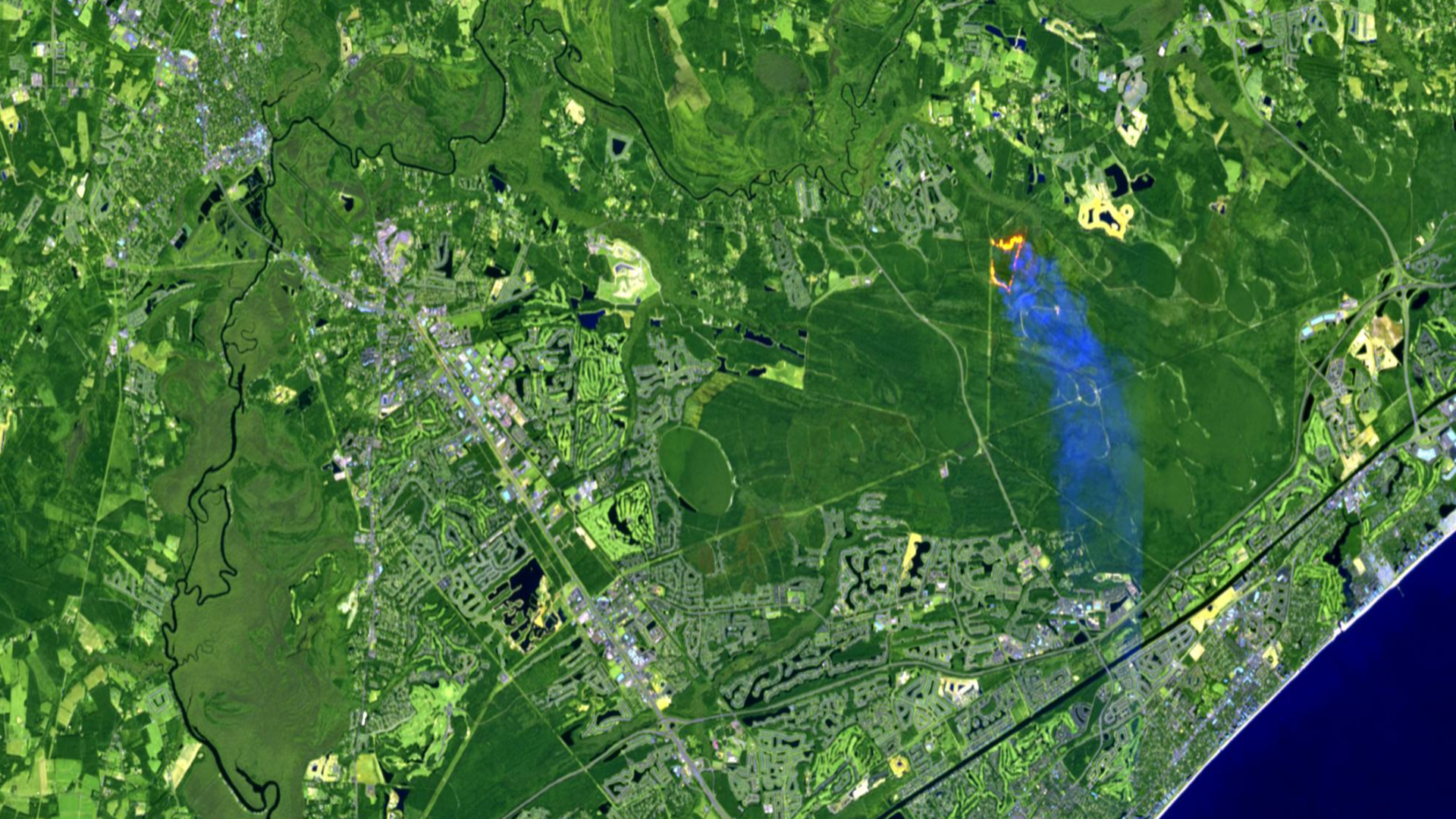
Image collection explorer is a powerful tool that allows you to identify and select specific images within an imagery layer and create a new imagery layer based on that selection to use in your GIS workflows. The Living Atlas of the World provides curated imagery layers from multiple sensors and programs that are continuously updated, giving you access to current visualizations for your maps.
This current view is a major advantage for many projects and studies—but what if you need to capture a particular phenomenon or event visible in one of these Living Atlas layers? How can you preserve that visualization for further analysis?
Why Use Image collection explorer?
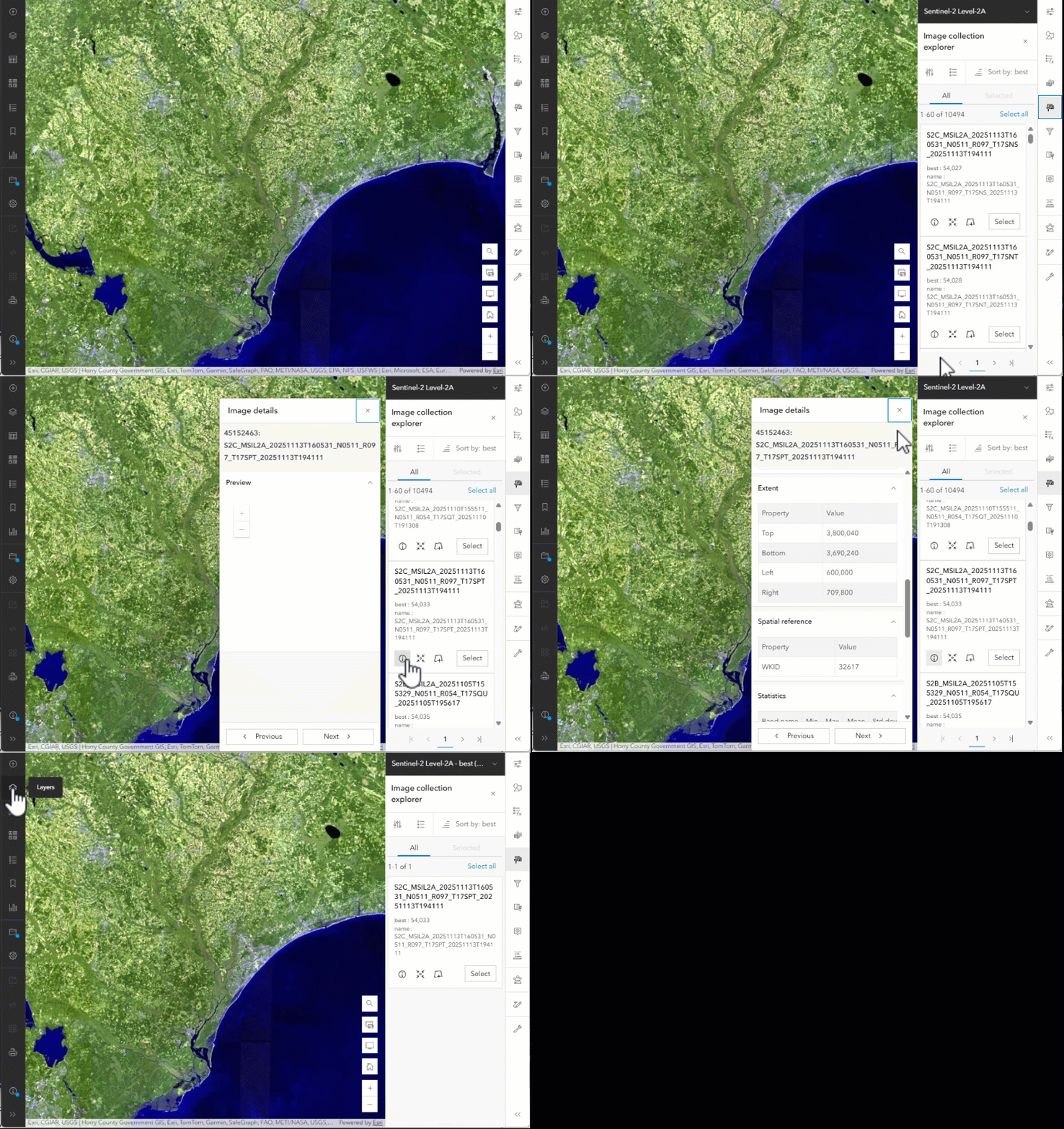
Image collection explorer helps you locate the exact imagery that captures what you need and preserve it for future research. Once identified, the selected image or set of images can be saved as a new imagery layer focused on those specific inputs. These saved layers behave like other Living Atlas imagery layers and can be shared within your ArcGIS Online organization or with others—without downloading source data.
Accessing Image collection explorer
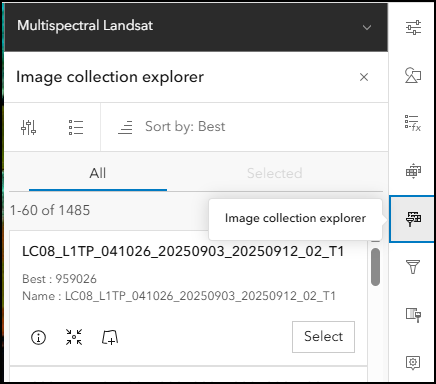
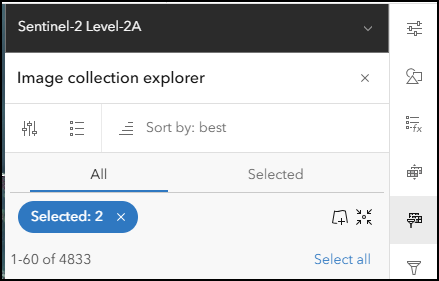
You can access Image collection explorer in Map Viewer once you’ve added an imagery layer that supports it. These layers are typically created by Image Server or as dynamic imagery layers configured as image collections. When available, the Image collection explorer appears on the Settings (light) toolbar on the right side of Map Viewer.
What Can You Explore?
Image collection explorer provides the ability to locate specific images within the collection of input imagery used to create the imagery layer. By default, the map’s display extent determines which input images are available. To change this default, you can:
- Filter by extent or attributes to limit or expand the images available for selection
- Sort and customize visible fields to organize how you find images in the pane
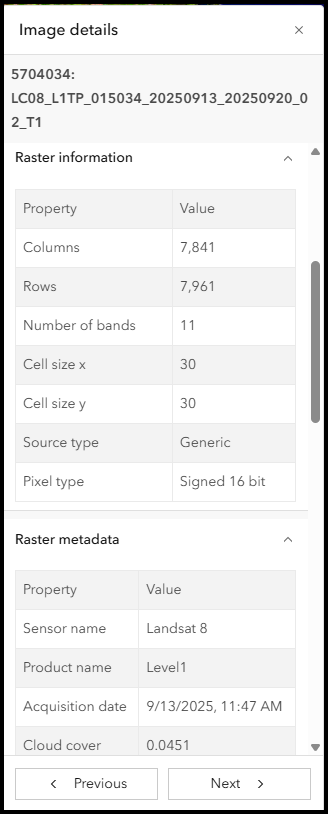
- View detailed information for each image, including:
- Preview image
- Raster information and metadata
- Extent and spatial reference
- Statistics
The available details vary by imagery source, but Image collection explorer displays all accessible information.
Selecting and saving Images
After exploring the imagery, you can select individual or multiple images. Selected images appear in the Selected tab within the pane. Once you add the selected image to the map, you can:
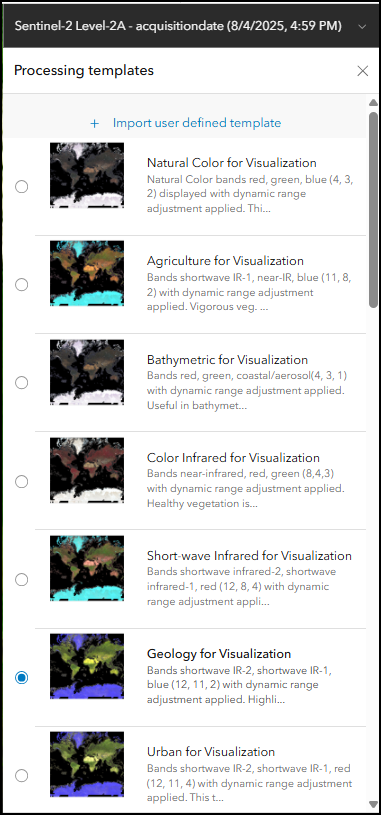
- Apply processing templates from the original imagery layer
- Modify symbology with custom band combinations
- Use the selection as input for raster analysis tools
Selections can be saved as items in your ArcGIS Online organization for use in other maps and to preserve them for future analysis. By saving the image, you create a “snapshot” of a phenomenon or time period it captures, and this snapshot will remain available as long as the original imagery layer exists.
Benefits for GIS projects
Previously, maintaining access to specific images required downloading and hosting them yourself. Now, Image collection explorer lets you achieve similar functionality without downloading, which enables streaming imagery across your organization. This approach:
- Reduces storage and hosting requirements
- Enhances sharing and accessibility
- Leverages Living Atlas imagery to augment your existing assets
Putting it all together
Image collection explorer is your gateway to finding and preserving the exact imagery you need from Living Atlas layers. Whether you’re capturing a unique event or creating a time-specific dataset, this tool simplifies workflows and keeps your GIS projects efficient and collaborative.


Article Discussion: