
ArcGIS Mission empowers organizations to respond swiftly and effectively to any situation by delivering real-time situational awareness and streamlining resource deployment. Built on the ArcGIS platform, it integrates organizational data into a unified command and control experience. Connecting all mission members through chat, location sharing, and customizable tasking and reporting is at it’s core. Whether managing daily operations, ad-hoc critical incidents, or long term events; ArcGIS Mission transforms chaos into operational symmetry.
Let’s dive in and see what is new and enhanced in ArcGIS Mission 12.0
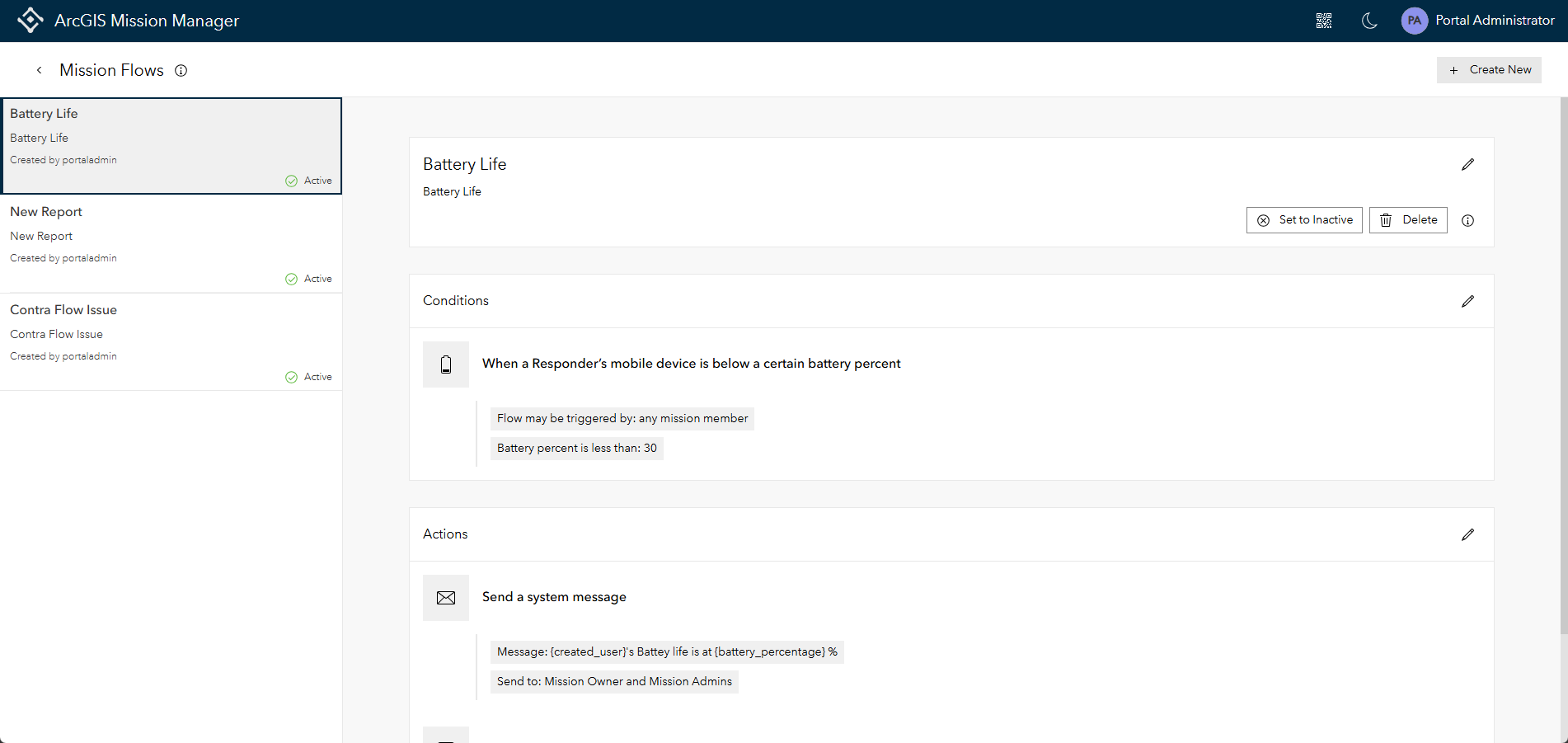
Introducing Mission Flows
ArcGIS Mission 12.0 releases it’s newest feature, Mission Flows. Flows are a tool configured in the Mission Manager application keeping all mission participants aware of condition changes in an active mission. This tool extends communication to both the manager and responder clients. Flows are configurable to accomplish messaging at the web app, responder, and server levels. Initially these flows are templatized and limited in scope but will expand in future versions. A follow up blog will be released explaining more about Mission Flows and all that can be accomplished with them.
Making Mission Analyst View Yours
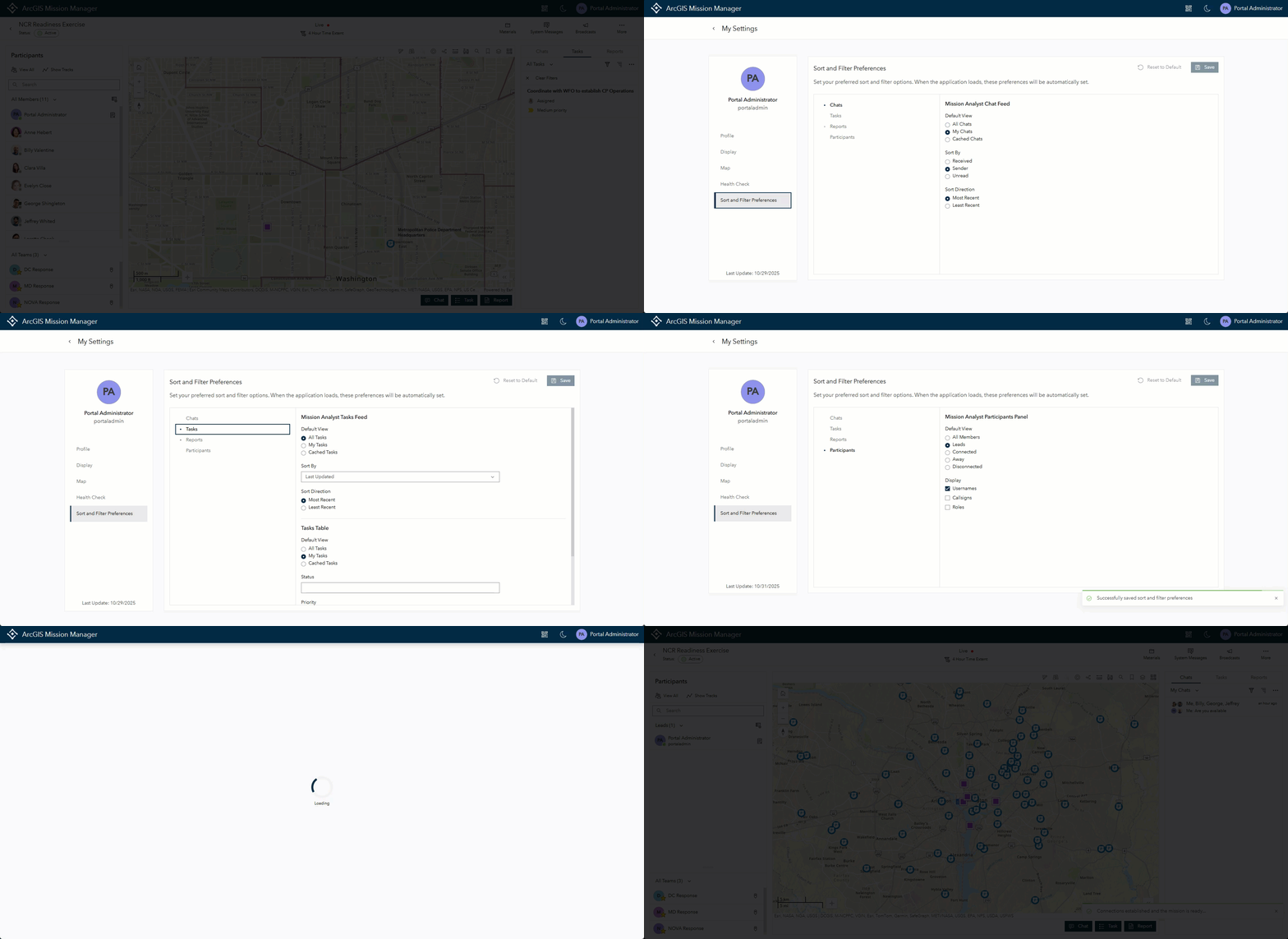
Users want to customize their Mission Analyst view when launching an active Mission. Building on “My Settings,” users access the Sort and Filter Preferences menu for a fully customizable experience. They configure filter and sorting preferences for chats, tasks, reports, and the participants panel according to their needs. When users open Mission Analyst, the application displays information in the way that best suits them. Users can reconfigure and override their preferences within the application at any time.
Easier Report and Tasking with Address Support
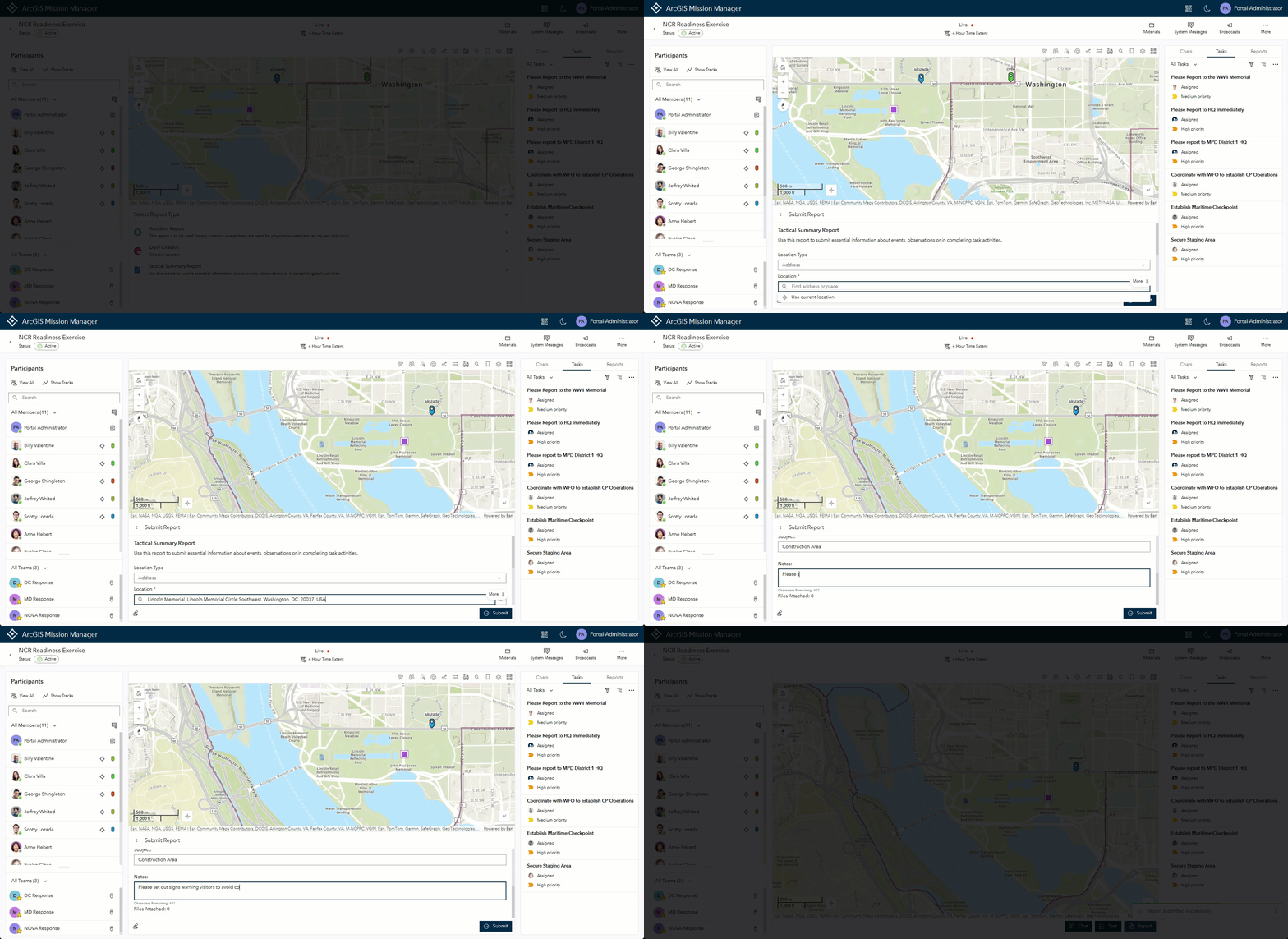
Placing tasks and reports in Mission Manager just got a whole lot easier! When a task is assigned with a location or a report is submitted in ArcGIS Mission Manager, users can select the “Location Type” option and select either none, point, or address. If a point is selected, the user will still have the option for using the point placement tool. If address is selected, simply type out the address or place name and when complete, a task or report icon will display on the specified location.
Assign Tasks to Closest Responders
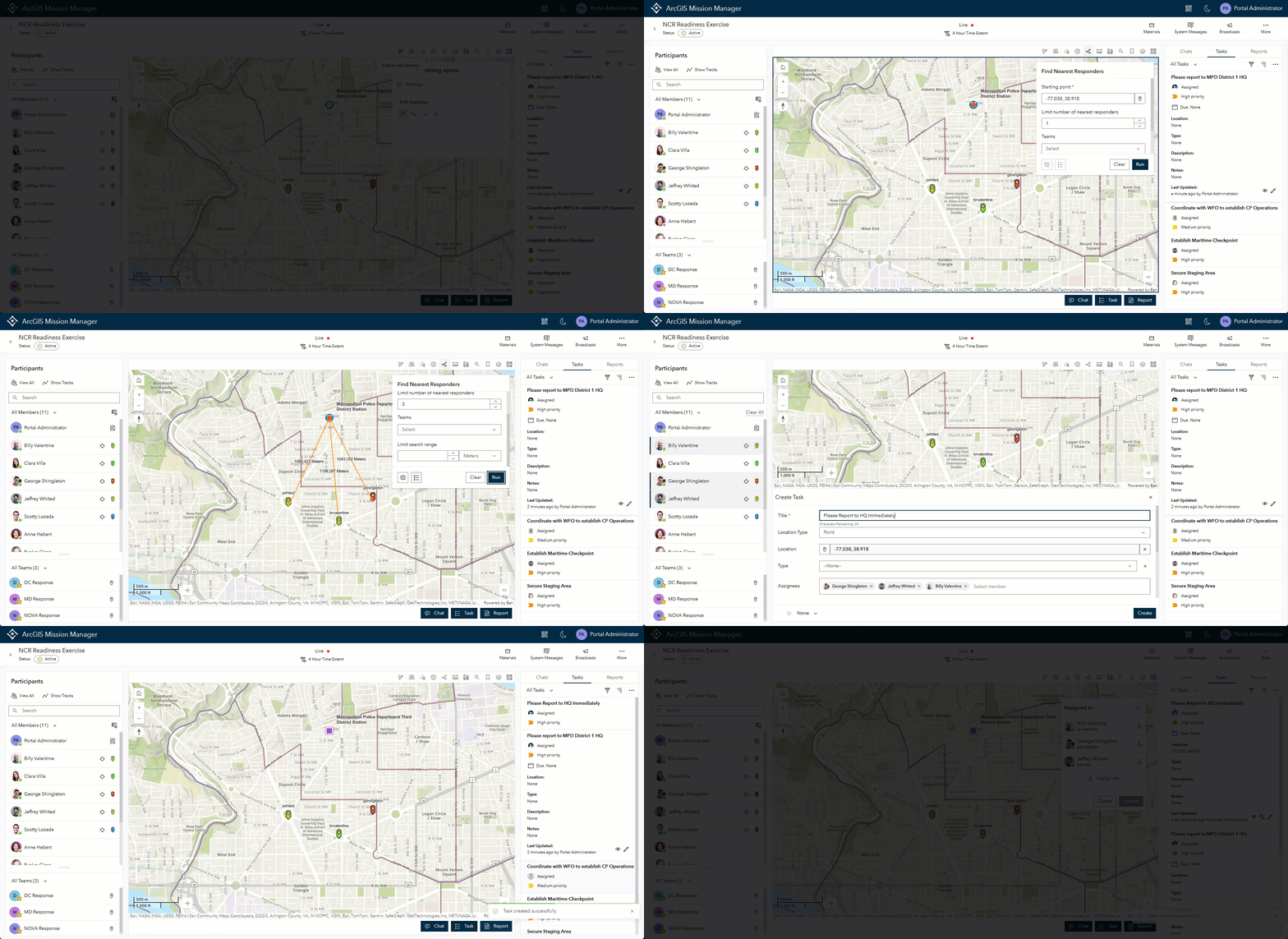
The Find Nearest Responder tool has been a long time useful tenant of the Mission Analyst screen. Previously, the only option available was to start a chat when the responders were located in the mission map. Expanding upon this tool, a task button displays and if selected, the tasking panel will open and the responders will appear in the assignee list. This addition speeds up task assignment to those that can respond the fastest.
Round Up Responders with the Lasso Tool
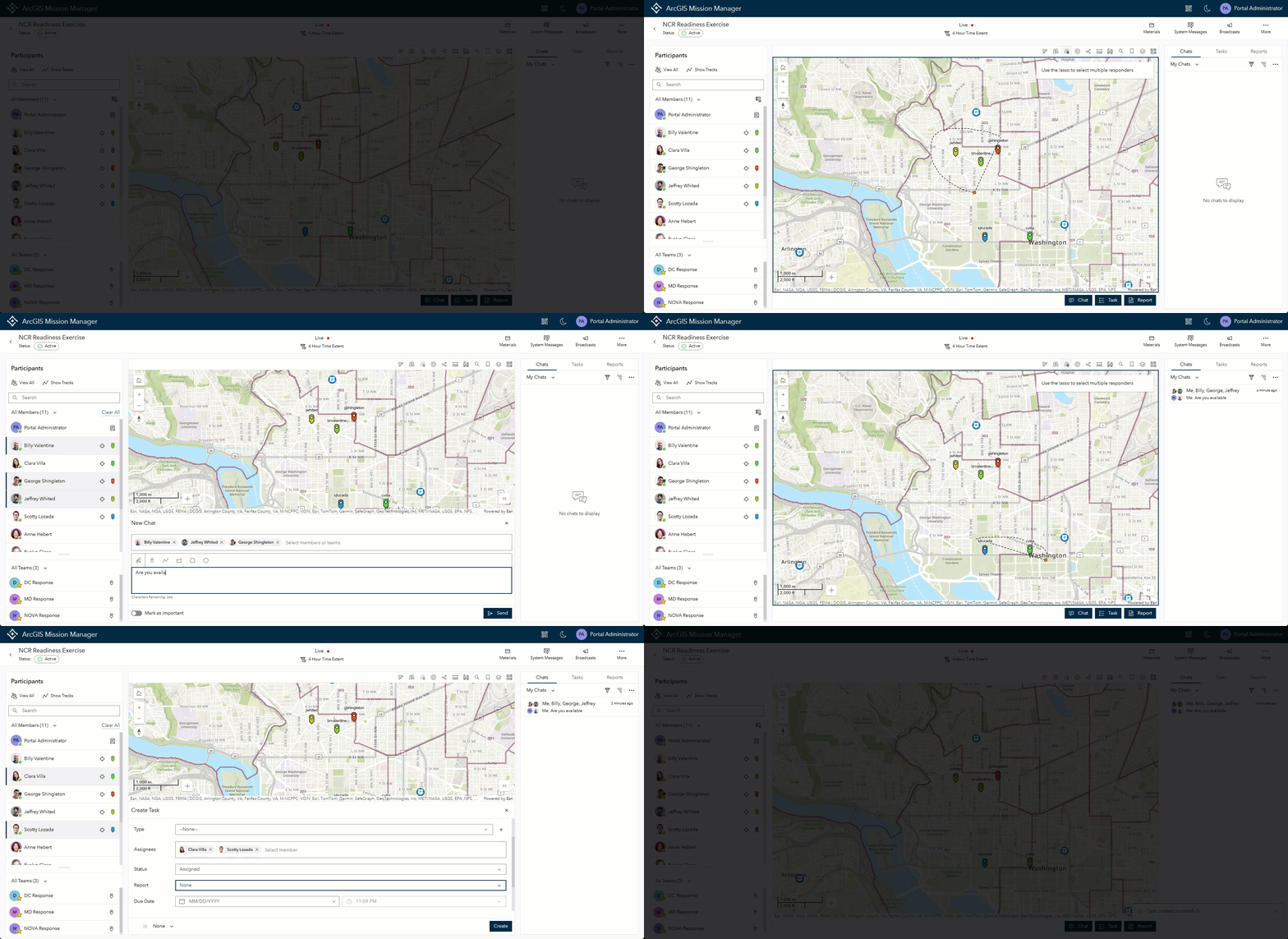
Expanding on the theme of locating mission members for faster action, we added a the lasso tool to the analyst toolbar for fast identification of responders. When there are a group of responders on the map, a Mission Manager can activate this tool, draw a lasso around them in a desired area, and they will highlight on the map as well as in the participants panel. Additionally, a chat or task can be started with the selected responders from this tool.
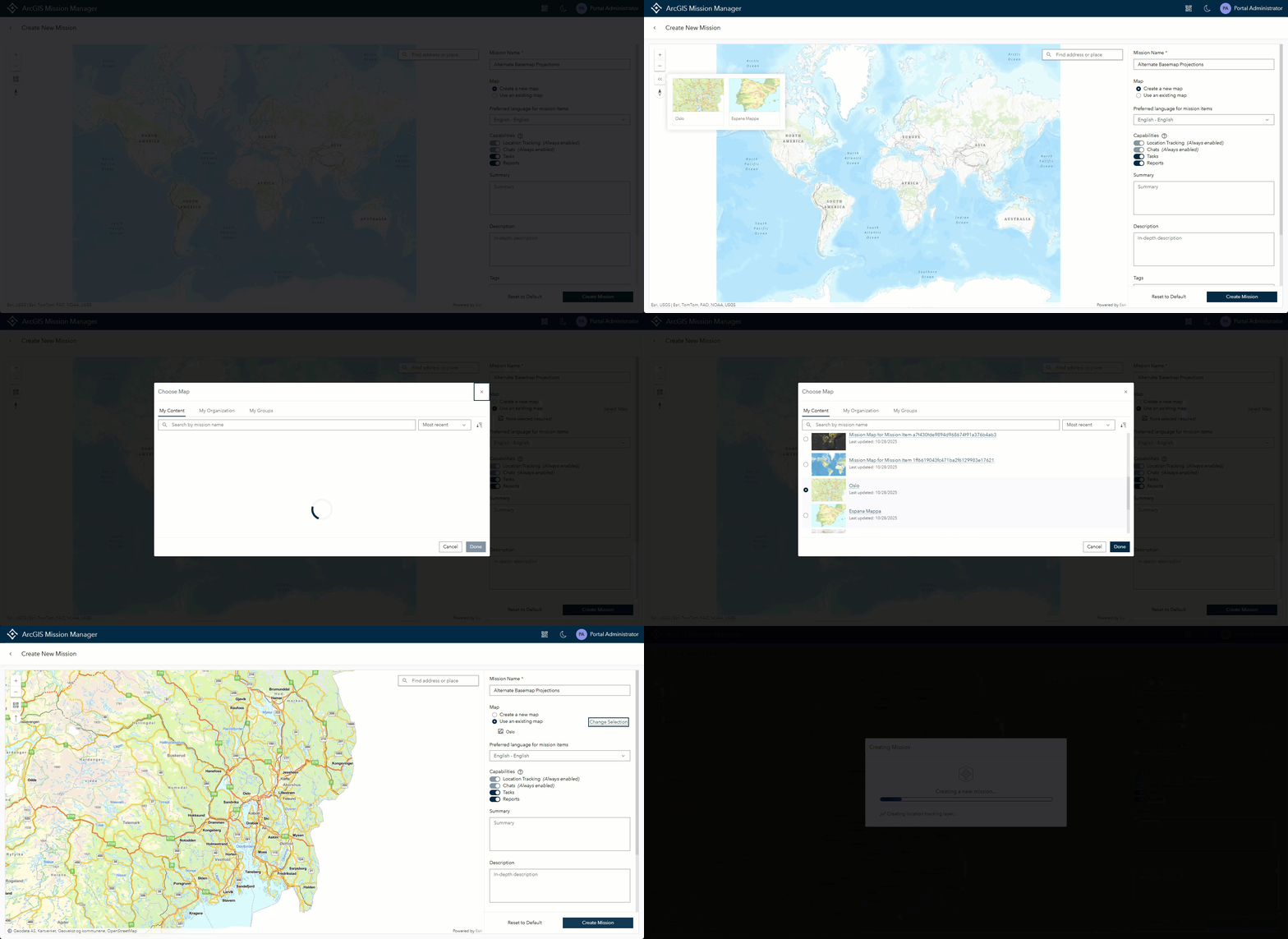
Facilitate a Mission anywhere with Projected Basemap Support
In version 12.0, added support for users to create and operate missions using basemaps in projections other than WGS 84 is enabled. When the portal sets a basemap group with alternately projected basemaps as the default, users access these basemaps to create missions. During operations, the system automatically converts coordinates, ensuring location, task, and report data displays correctly across the platform. This enhancement increases mission availability and precision in any location.
*Note: An 11.4 and 11.5 patch was released to support these activities in October of this year.
Streamlined Pop Up Enhancements
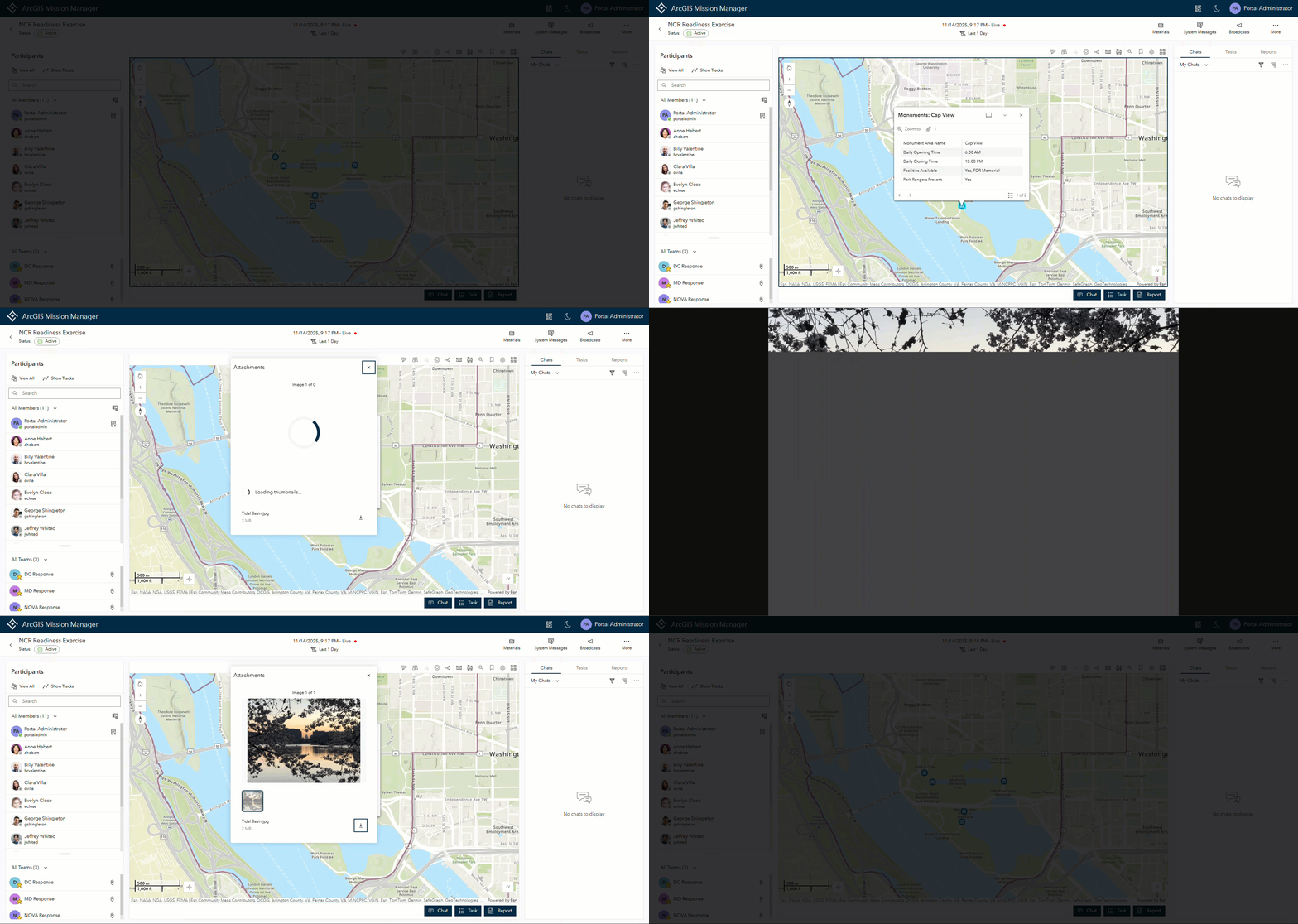
Pop ups are redesigned to mimic the settings users make in the map editor and mission map edit session. Additionally, viewing attachments for points, lines, or polygons are embedded in the pop up and accessible by the attachment icon below the title. The icon also denotes with a number the amount of associated attachments. Selecting this icon previews images and offers a download option. Clicking a picture opens it full screen in a browser window for an enlarged view.
Responders can Edit Attribute Data of Features
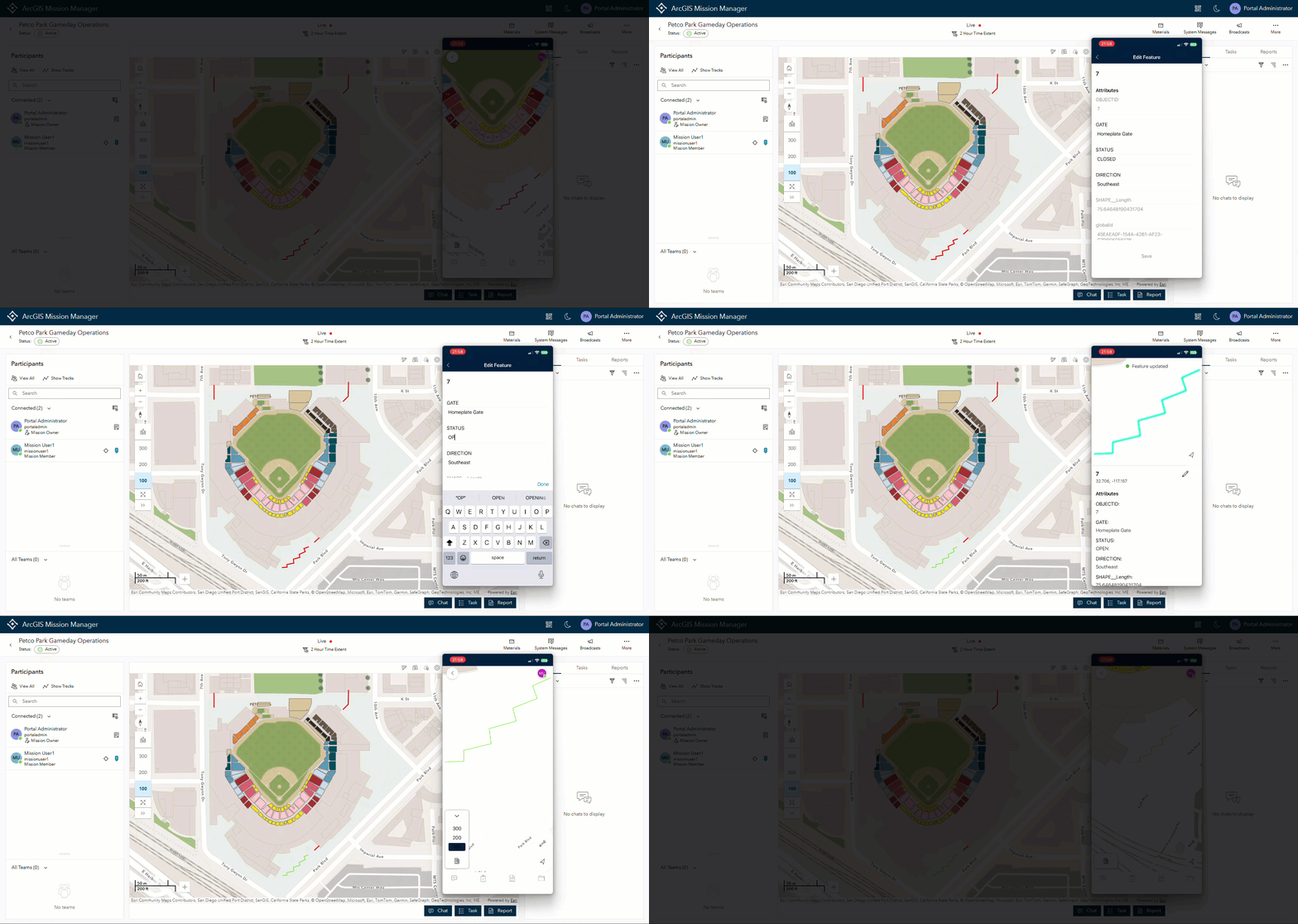
Mission Responders can now edit attribute data on any contextual layer that is set as editable in the mission map. Selecting an icon from that layer will open the attribute table and if editable, a pencil icon appears. Selecting the icon opens the ability to add, delete, or change data that is important to an ever changing mission. The changes are reflected across the platform providing greater workflow flexibility in many operational situations.
ATAK on Responder Increases Situational Awareness
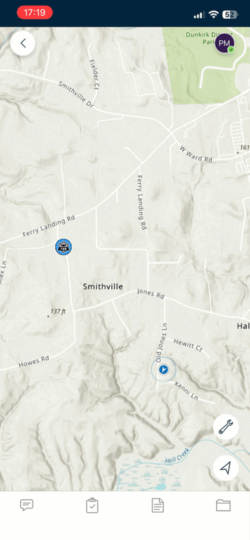
A few releases ago, we enabled TAK Plugin for ArcGIS users to view TAK users on Mission Analyst alongside native Mission Responder users. We have extended this capability to Responder devices, so users now see other responders and TAK users comingled. Like the Mission Analyst view, users cannot chat with TAK users however if a TAK user has a phone number and call sign, users can place a phone call to connect.
Additional Enhancements
Several other noteworthy enhancements are also available and include:
- Allowing responders to edit chat importance creating function parity with Mission Manager
- Additional support and tuning of the IPS feature and functionality
- MDM support for Mission Responder through the key value of “portalURL”
So many of the features and enhancements from above come from the feedback we receive from our users. We strive hard to listen and add the functionality that you need in the product in a timely manner to make Mission a better experience overall. If there are areas for improvement that you would like to see, please feel free to tag us on the Esri Community page or contact use directly.






Article Discussion: