In the first blog post of our series, we introduced 3D object layers as a “System of Record” for geolocated 3D features, covering topics such as publishing, sharing, editing in Scene Viewer and caching best practices. The second blog post shifted focus to ArcGIS Maps SDK for JavaScript, showing how to create the Scene Viewer editing experience in custom web apps and directing readers to our 3D object workflows guide for implementing advanced scenarios.
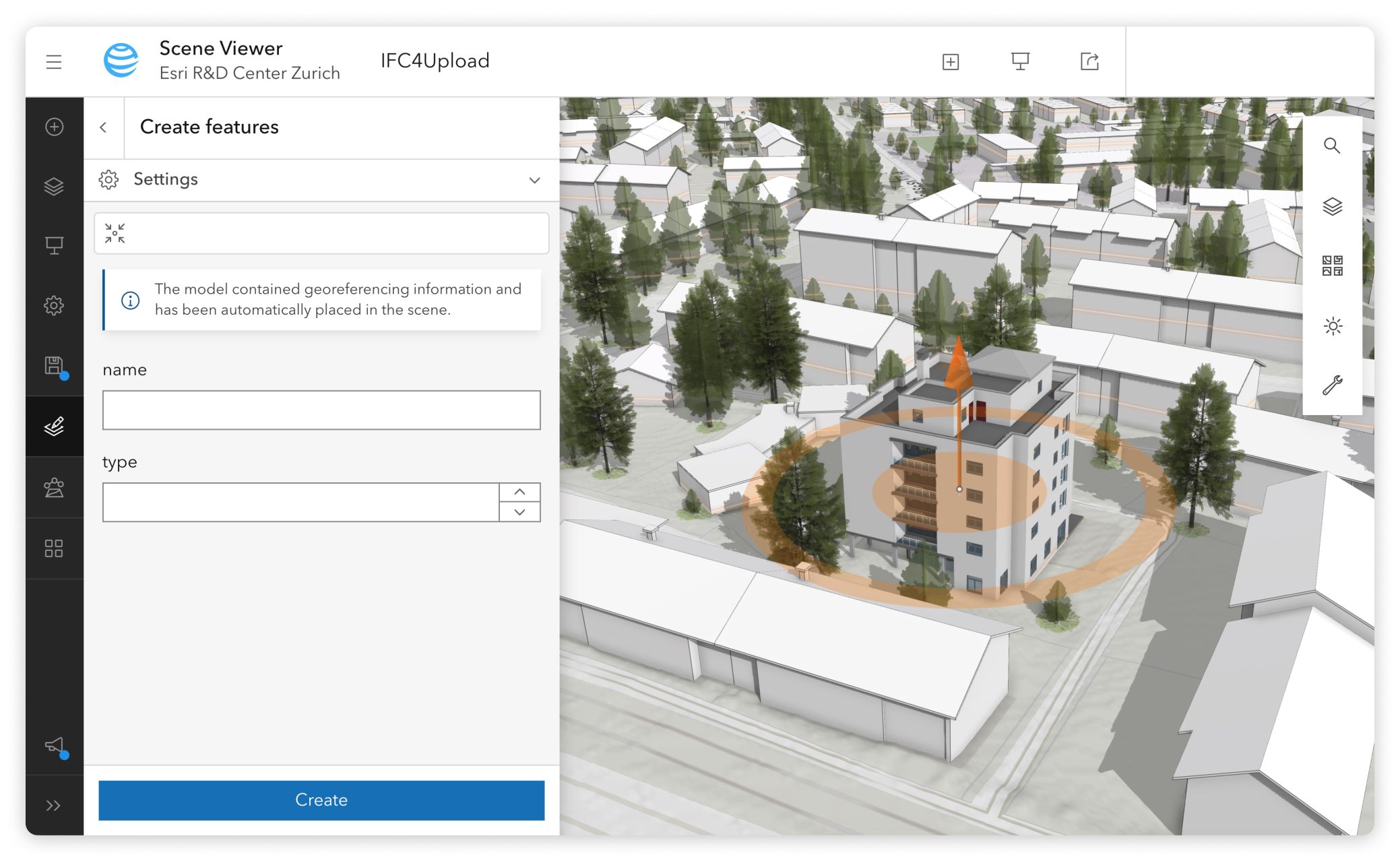
A key part of our 3D object layer capabilities is the ability to upload and place 3D models accurately in the real world. With this update, these workflows are now simpler and more efficient. Since the October 2025 release, both ArcGIS Online and ArcGIS Maps SDK for JavaScript support georeferenced 3D model uploads. Formats like IFC4 can now be placed automatically based on embedded location metadata. When a model contains georeferencing information, Scene Viewer and the JS SDK can position it precisely in the real-world: no manual coordinate entry in the UI or point instance in code required.
New geolocation capabilities
Apps built on the SDK—such as Scene Viewer, or any custom app that uses the Editor component—now automatically read the model’s geolocation information during ingestion and apply the appropriate transformation based on the project’s coordinate system and viewing mode, resulting in the correct placement.
New behavior
- If the model includes sufficient geolocation information, its origin is projected into the spatial reference of the 3D object layer. The model is then placed within a geographic (GCS) or projected (PCS) coordinate system, and its vertices are projected accordingly on the client.
- If geolocation information is missing or incomplete, the model isn’t auto placed. Users can still position it interactively or programmatically.
- Once placed, the model can be saved in the 3D object layer and reused across the organization.
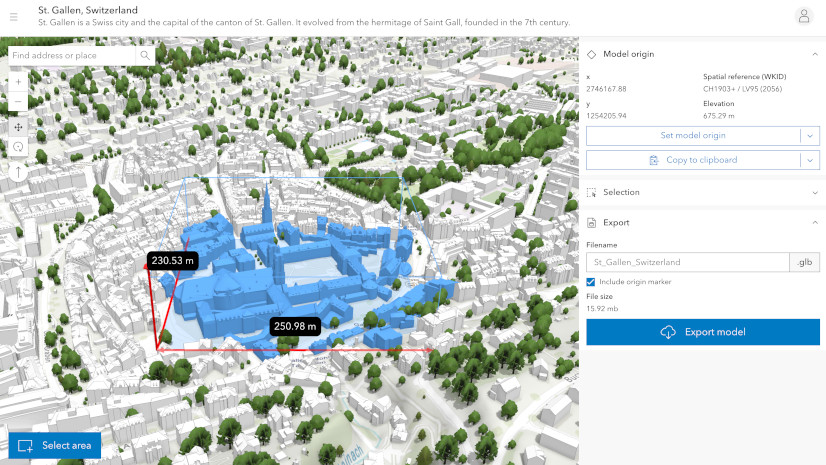
Workflow in Scene Viewer
This Scene Viewer update allows users to perform basically the same workflow without the need to create and deploy a custom application.
See the ArcGIS Online documentation for detailed information on how to edit features in web scenes.
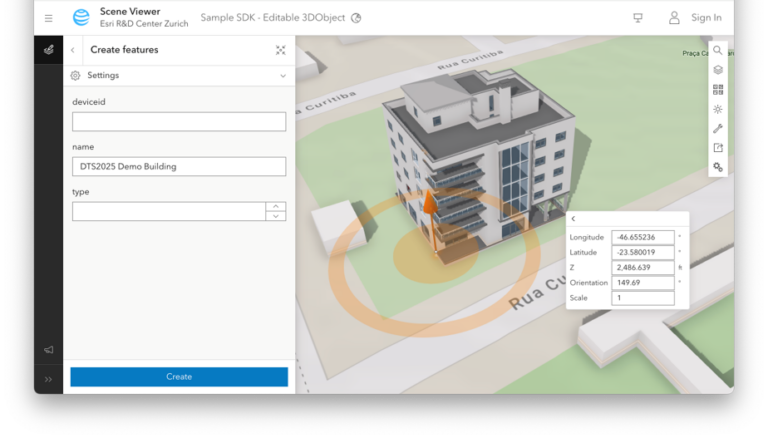
Refining placement
Automatic placement ensures the model is placed in a location that is generally correct and ready for immediate use. But if the placement had to be approximated or you need to refine it to match any arbitrary location, you can achieve this by using the Editor component in Scene Viewer or your custom app.
Workflow in ArcGIS Maps SDK for JavaScript
Automatic placement in the ArcGIS Maps SDK for JavaScript boils down to one step: Use the SceneLayer.convertMesh() method. The 3D object layer reads the model’s georeferencing, computes the origin in the layer’s spatial reference, and returns a mesh that is already aligned for display and editing.
Starting with version 5.0 of the ArcGIS Maps SDK for JavaScript, the result also includes georeferenceInfo, which indicates the detected origin. With that information, you can confirm a clean auto‑placement, warn if reprojection was needed, or fall back to a manual placement workflow.
Auto‑place the model and report what happened
const { mesh, georeferenceInfo } = await sceneLayer.convertMesh([file]);

// Inform the user:
// - georeferenced & same SR → “placed at real‑world location”
// - georeferenced but reprojected → “placed, small precision loss possible”
// - no georeferencing → fall back to interactive placement
if (georeferenceInfo) {
  const modelSR = georeferenceInfo.origin.spatialReference;
  const layerSR = mesh.spatialReference;

  if (!modelSR.equals(layerSR)) {
    showReprojectedNotice(modelSR, layerSR);  // e.g., “WKID 2056 → 4326”
  } else {
    showGeoreferencedNotice();
  }

  // Put the auto‑placed mesh into an editable layer so users can refine it
  const meshGraphic = new Graphic({
    geometry: mesh,
    symbol: { type: "mesh-3d", symbolLayers: [{ type: "fill" }] }
  });
  sketchLayer.add(meshGraphic);
  sketchVM.update(meshGraphic);
  view.goTo(mesh).catch(() => {});
} else {
  startInteractivePlacement(mesh);            // see next snippet
}
Fall back to interactive placement when no metadata is present
// Minimal “place & edit” flow with SketchViewModel
function startInteractivePlacement(mesh) {
  sketchVM.place(mesh, {
    graphicProperties: {
      layer: sketchLayer,
      attributes: { Source: "Upload" }
    }
  });
}
When you must intervene: overrides and sensible fallbacks
// Enforce an authoritative location (replaces embedded georeferencing)
await scenelayer.convertMesh([file], { origin: authoritativepoint });

// Provide a starting location ONLY when the file has no georeferencing
await scenelayer.convertMesh( [file], { defaultOrigin: sitePoint });
Example App: Upload→Place→Refine→Save
Our updated sample, Editing SceneLayer: Upload 3D Models and Apply Edits, demonstrates the complete workflow, leveraging the latest enhancements.
The app shows how to to:
- Upload a 3D model
- Automatically geolocate it using the
SceneLayer.convertMeshmethod, or fall back to interactive placement - Adjust placement and attributes when needed using Sketch
- Save the model to the 3D object layer
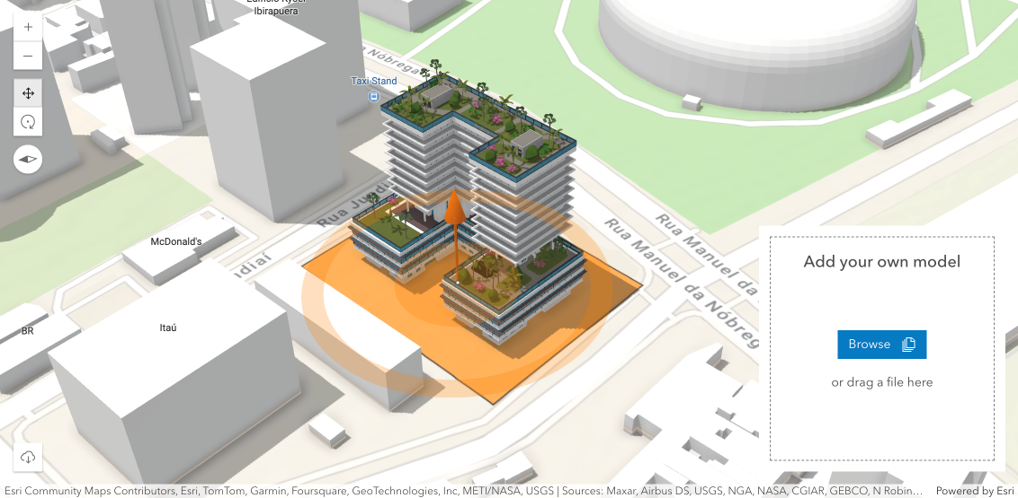
This workflow supports both planning professionals and developers building custom applications. It mirrors how a planning office might manage new development submissions, infrastructure projects, and existing assets.
The Challenge of Positioning 3D Models
Professionals in planning, architecture, engineering, and urban development create 3D models using a wide variety of tools and formats. Some formats, such as IFC4, often embed georeferencing information. Others (GLB, OBJ, FBX, etc.) may rely on external metadata files to capture and store placement information.
Design and modeling software use local Cartesian coordinate systems that need to be transformed into global geography. Most design and modeling software use a local, Cartesian coordinate system, based on the assumption that the Earth is flat in the project area, and distances remain uniform. In GIS workflows, however, such simplifications don’t hold — precision and true geographic context are critical.
That’s why 3D models need to be processed to be positioned within our global and local coordinate systems to appear exactly where they should be in the real world.
Previously, part of this process was left to user: adjusting the model’s position by eye or typing precise coordinates into placement tools. The new feature reduces this overhead, cuts preparation time and provides a more consistent foundation for planning, analysis and visualization.
If you regularly work with BIM data, especially Autodesk Revit, you may find the following blog post useful: From Revit to ArcGIS Urban: A practical guide to bringing IFC models into ArcGIS Urban. It covers how to prepare and geolocate Revit models for seamless placement in ArcGIS workflows.
Different Coordinate systems
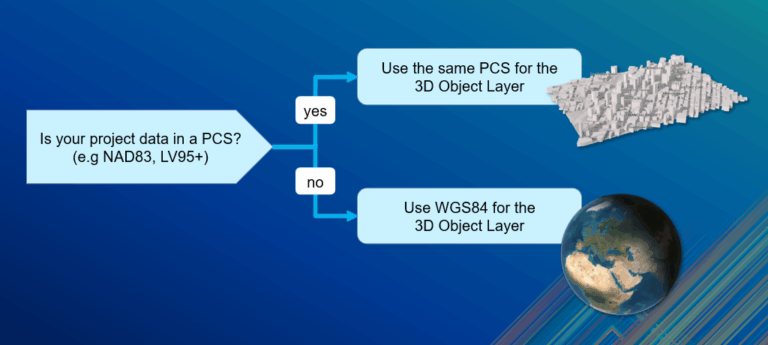
Automatic geolocation offers a strong starting point, and works very well in many cases, especially when the model provides well-defined geolocation information and its coordinate system matches the spatial reference of the 3D object layer in use.
Every 3D model has an origin, typically located at the coordinate [0, 0, 0] of the modeling software used to create it. All vertices are measured relative to that point. Loading and placing a 3D model in a 3D object layer involves geolocating the model’s origin within the layer’s geographic (GCS) or projected coordinate system (PCS) and projecting the vertices accordingly.
When reprojecting is needed, the model is only approximately placed, which may result in some precision loss. These are generally small but inherent to spatial transformations. The model will still be placed in the correct general area, though slight offsets can occur.
Metadata quality is key
If the model provides clear information—coordinate system, origin, units and orientation—the ArcGIS Maps SDK for JavaScript can place it accurately. If parts of the metadata are missing or ambiguous, or transformation between coordinate systems is required, this can cause shifts and inaccuracies.
Common cases
- Units not explicitly defined
- Incomplete orientation information
- Model origin far from the project site
- Mismatch between the origin’s spatial reference and the layer’s spatial reference
When you work in local scenes that use a projected coordinate system matching the spatial reference system of both the 3D object layer and the 3D model, you can generally expect high precision.
Summary
The integration of automatic georeferencing into editing tools significantly simplifies the process of bringing 3D models to their correct real-world location, streamlining your 3D object layer workflows.
Whether you’re a city agency, planning office, engineering team, or developer supporting these workflows: this capability reduces manual steps, improves accuracy, supporting your decision-making, and the growing need for 3D information in planning operations.
We look forward to seeing how you use this feature to streamline your 3D workflows.
Documentation references
- Release Notes → Latest updates on 3D model upload features
- 3D Object Workflows → Loading other supported 3D formats


Commenting is not enabled for this article.